Omega Particle FX V0.4.5
 AAA
AAA

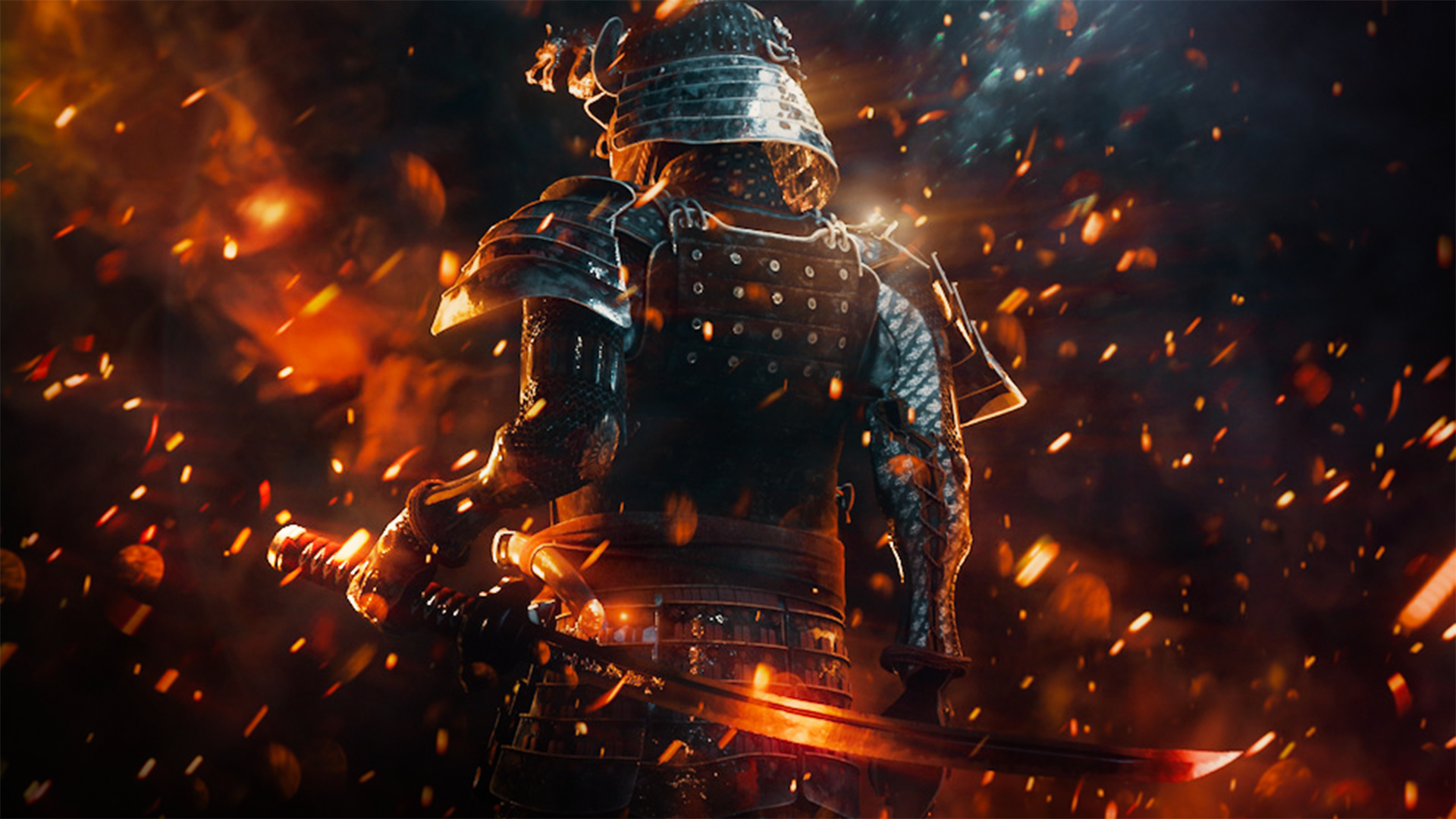

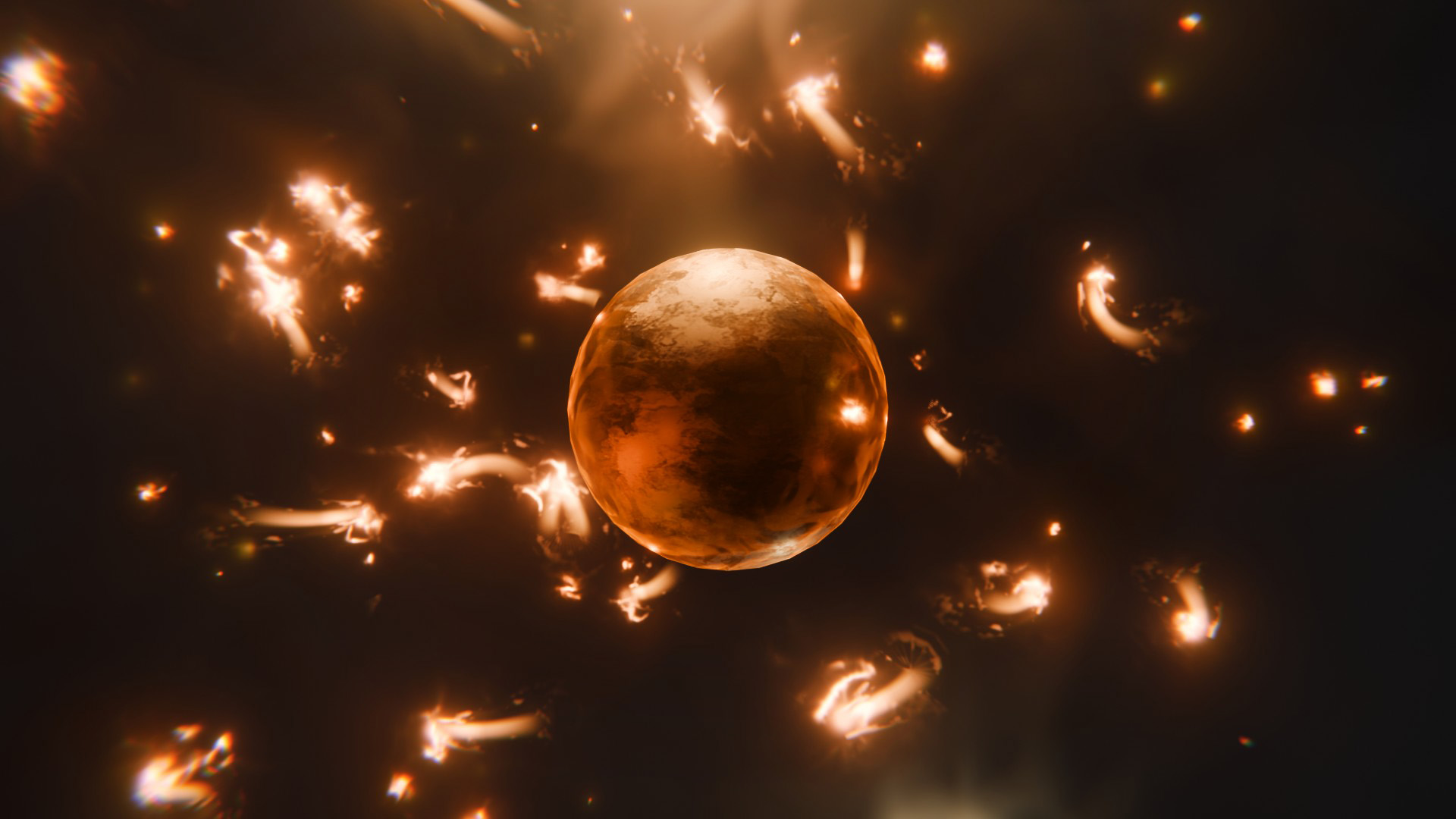
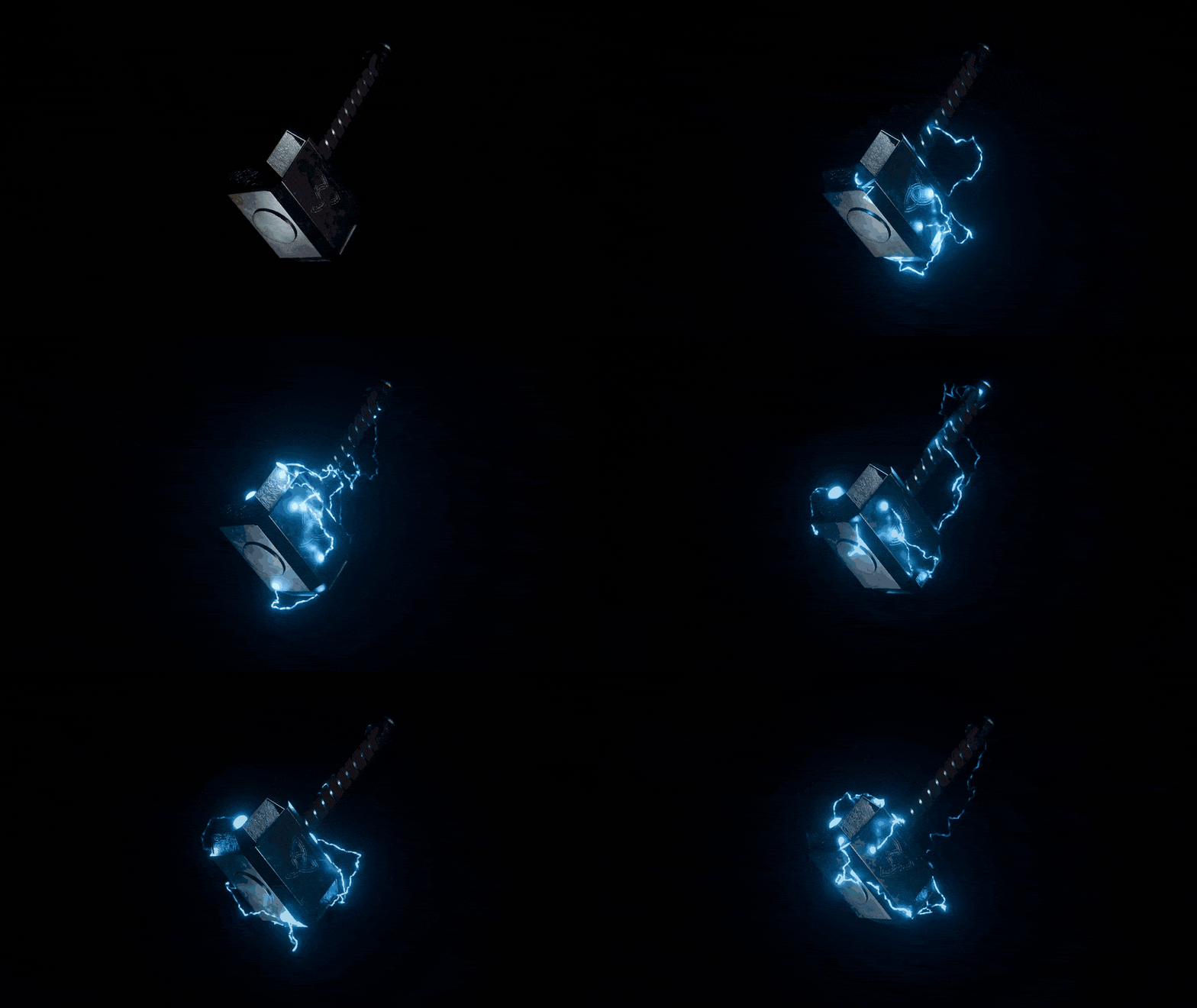
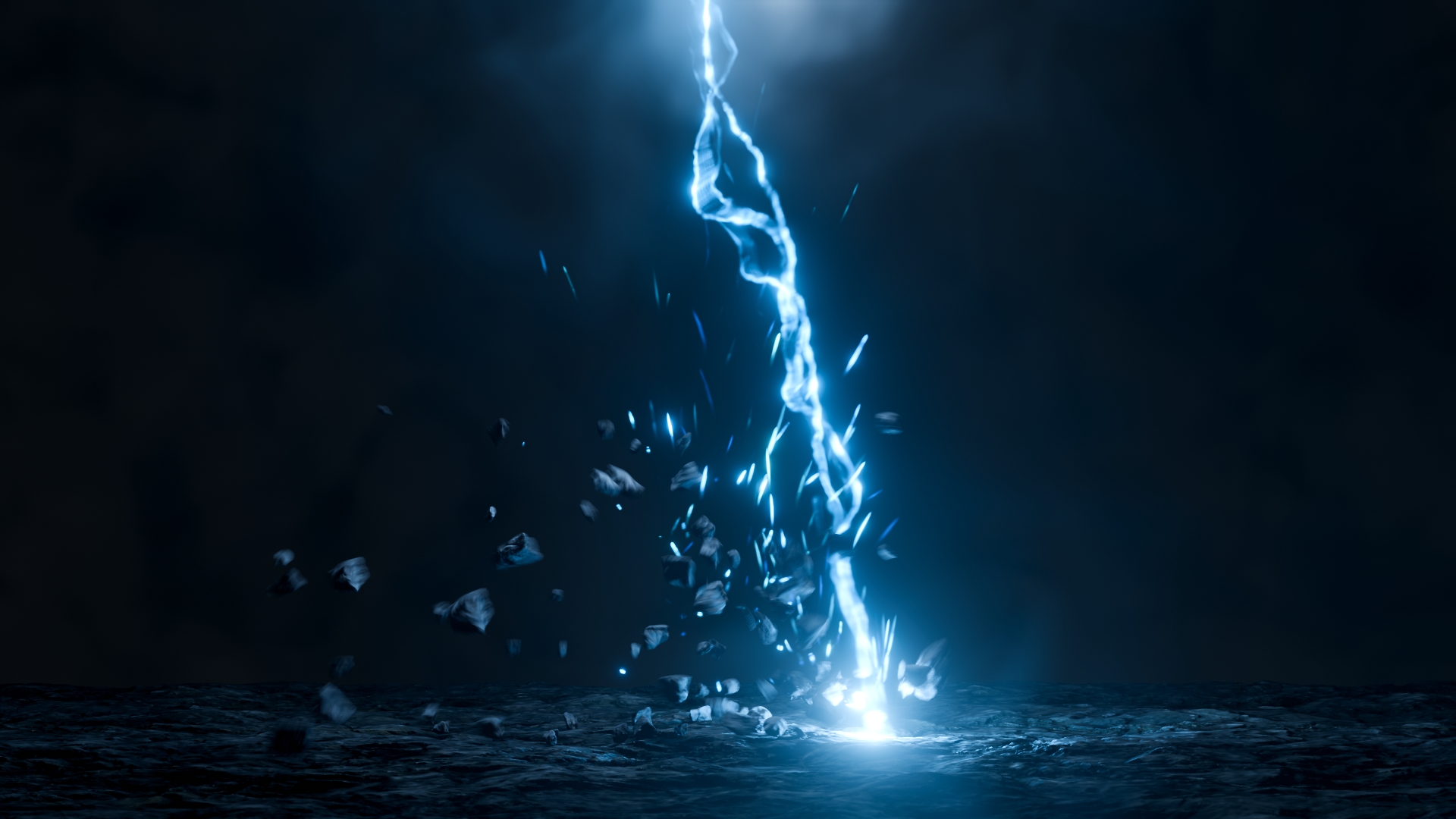
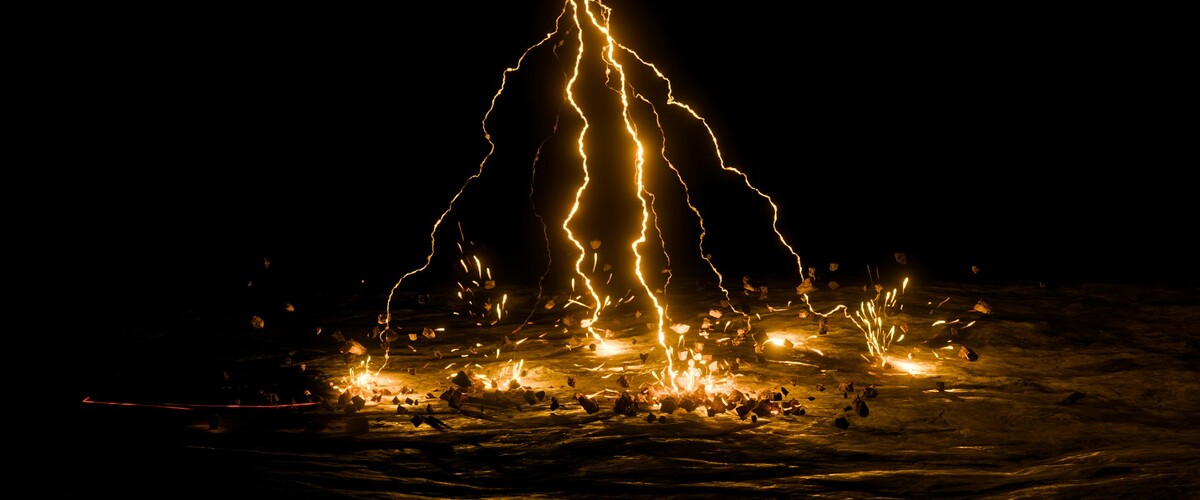
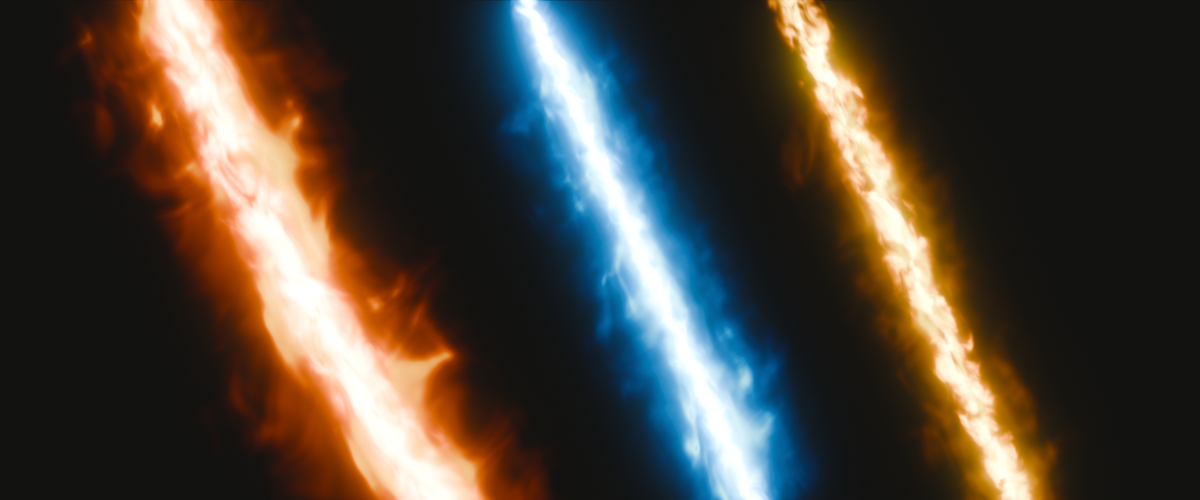

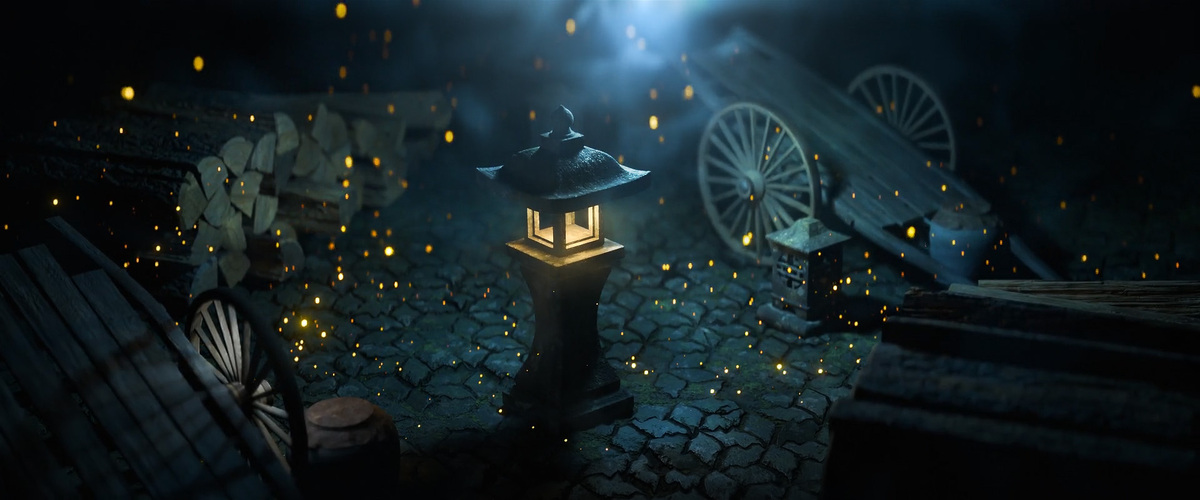
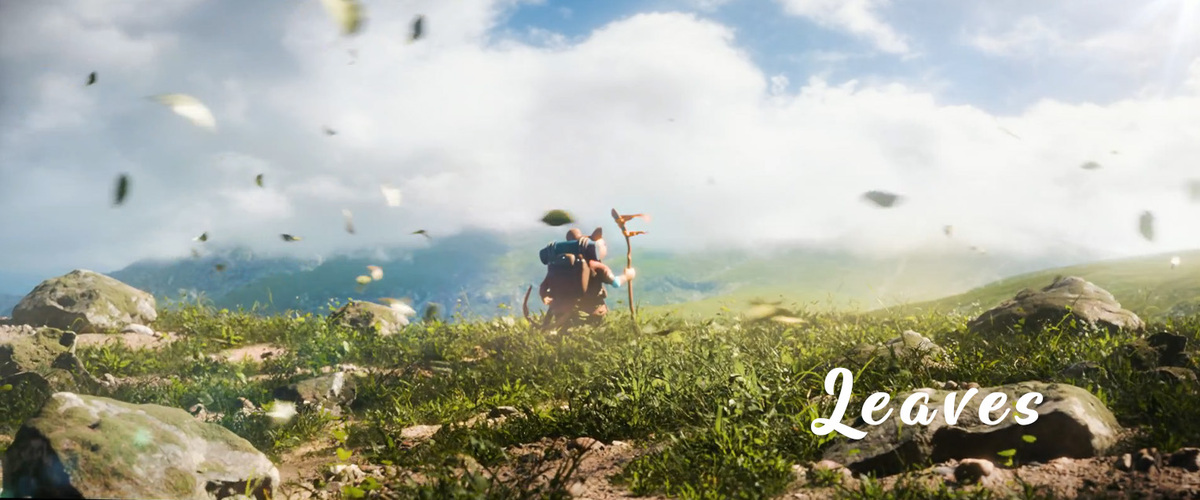
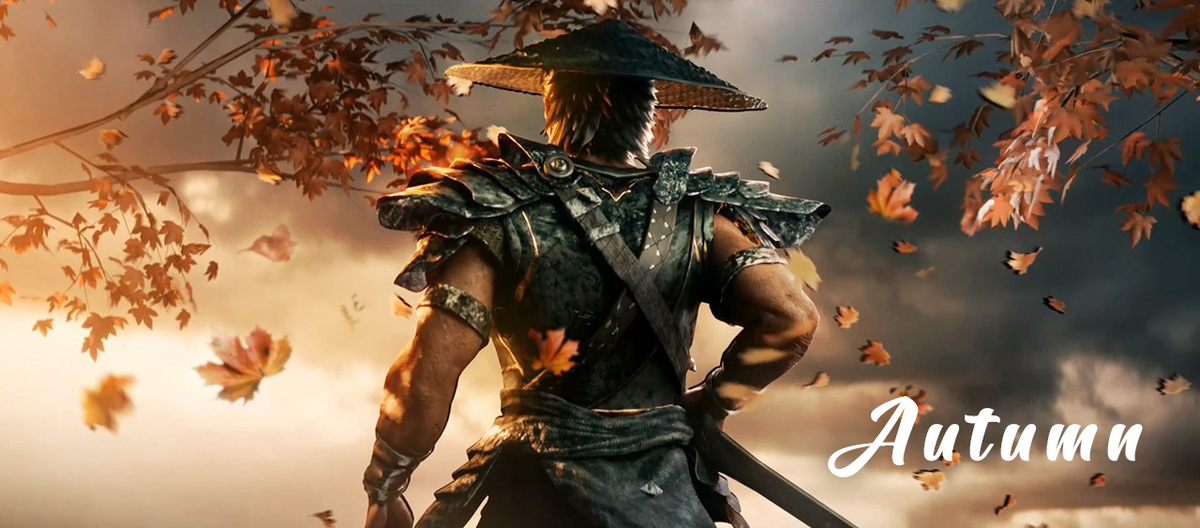
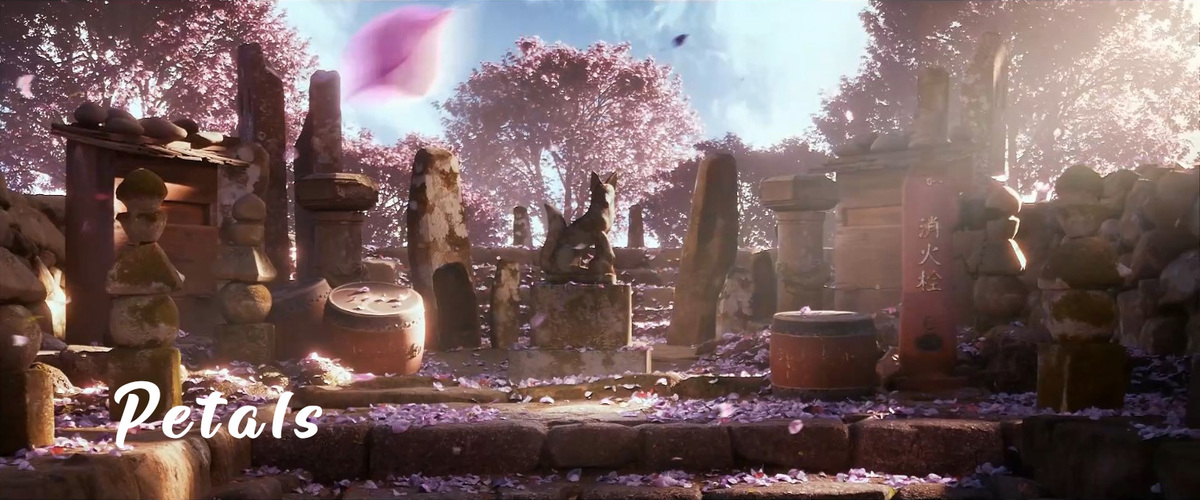
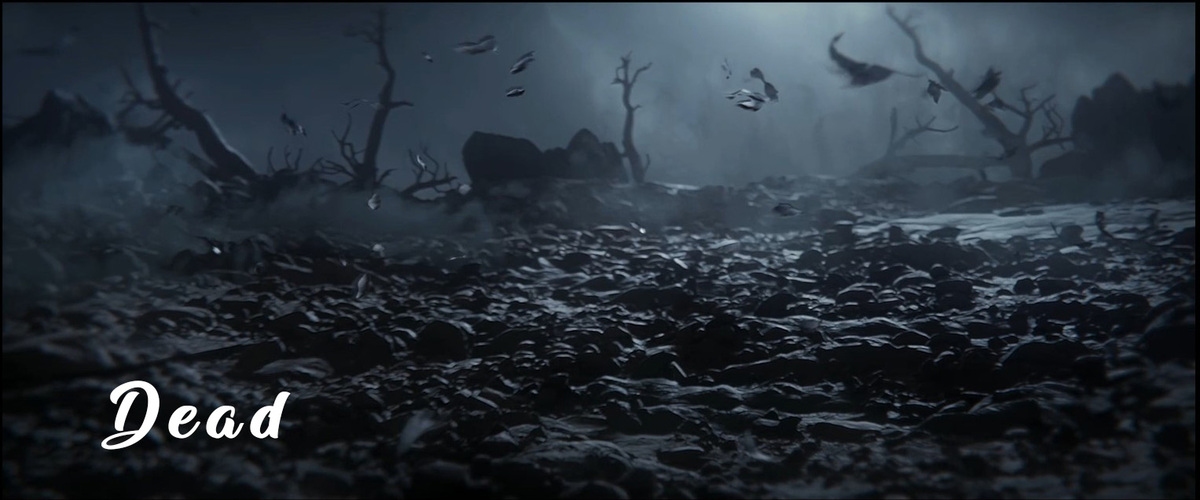


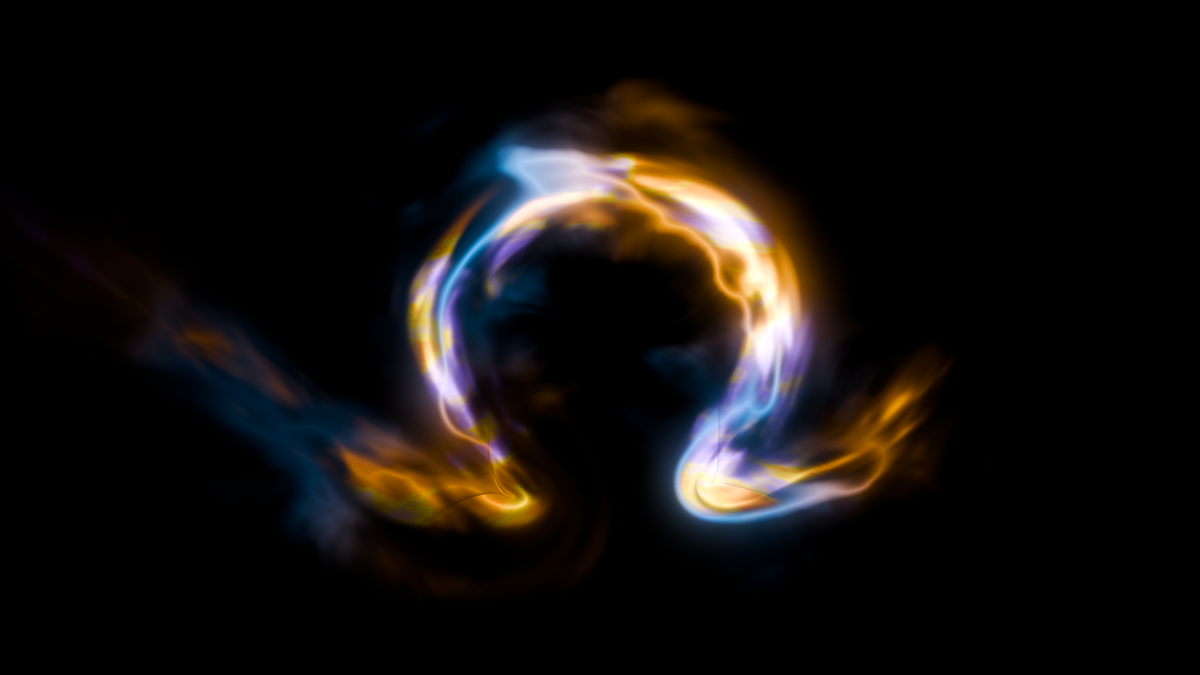

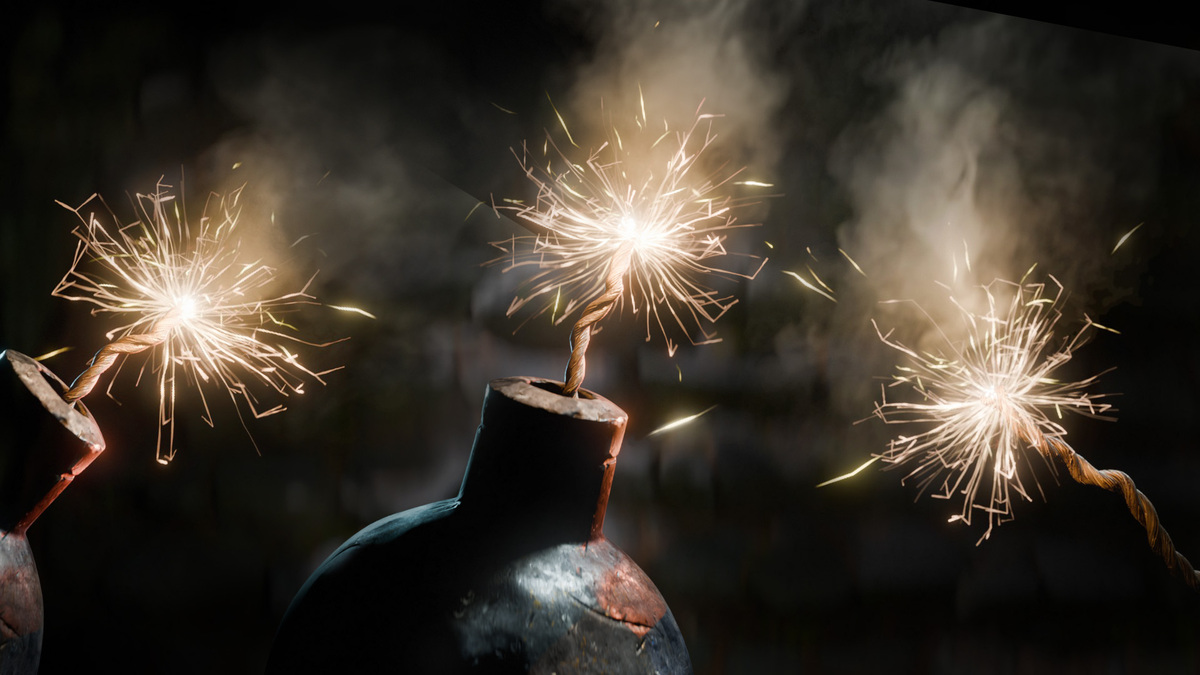
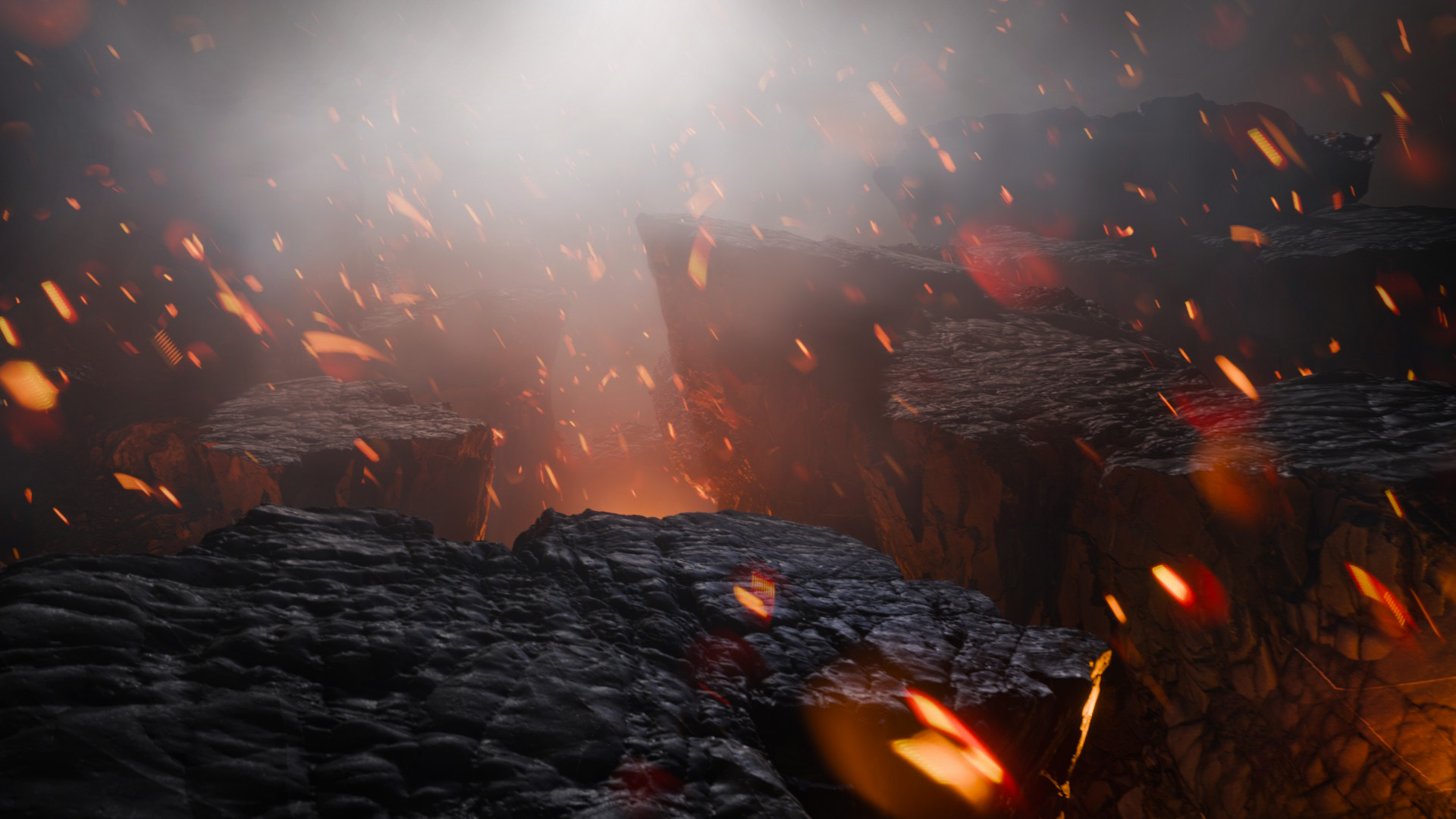
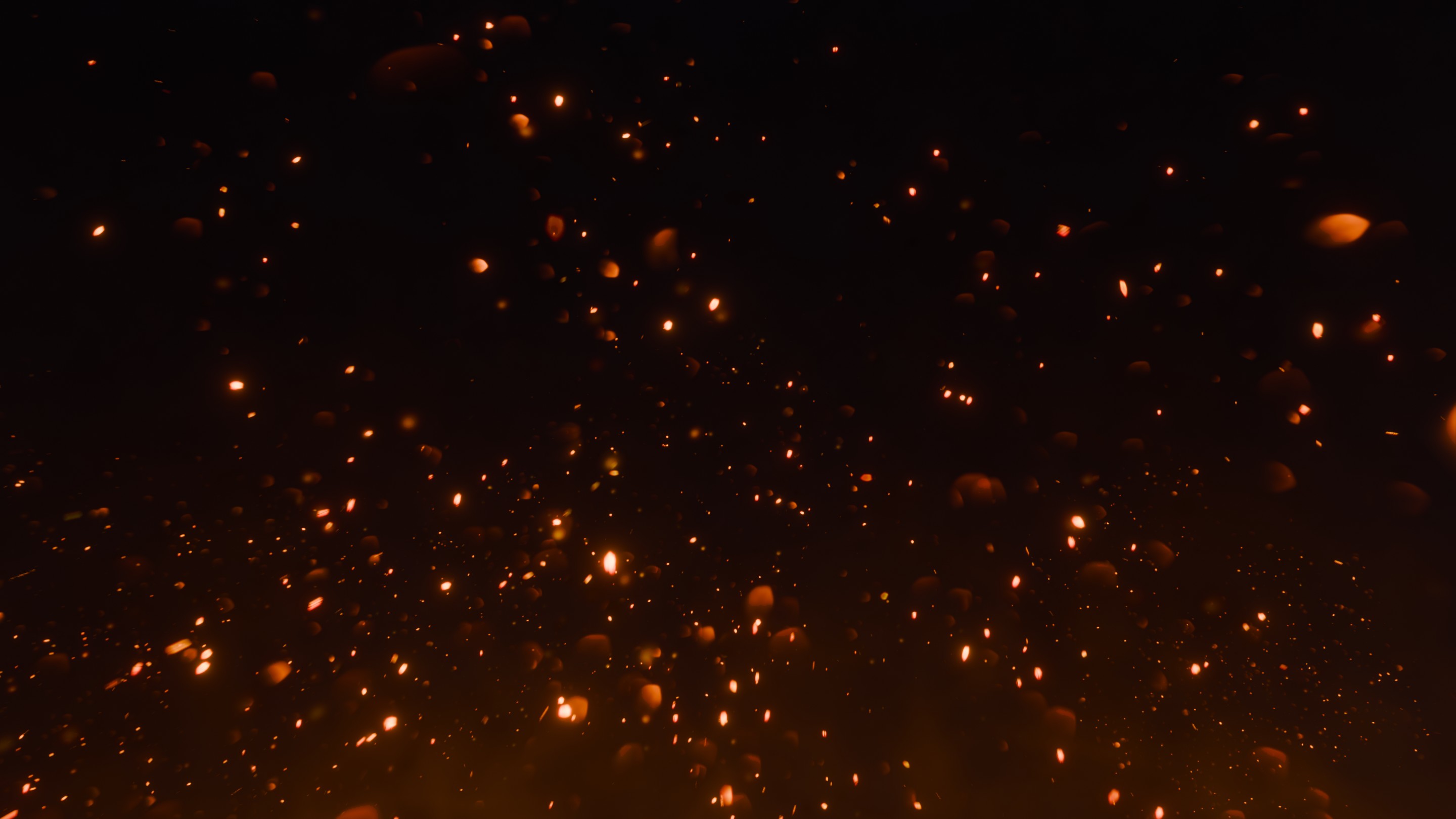
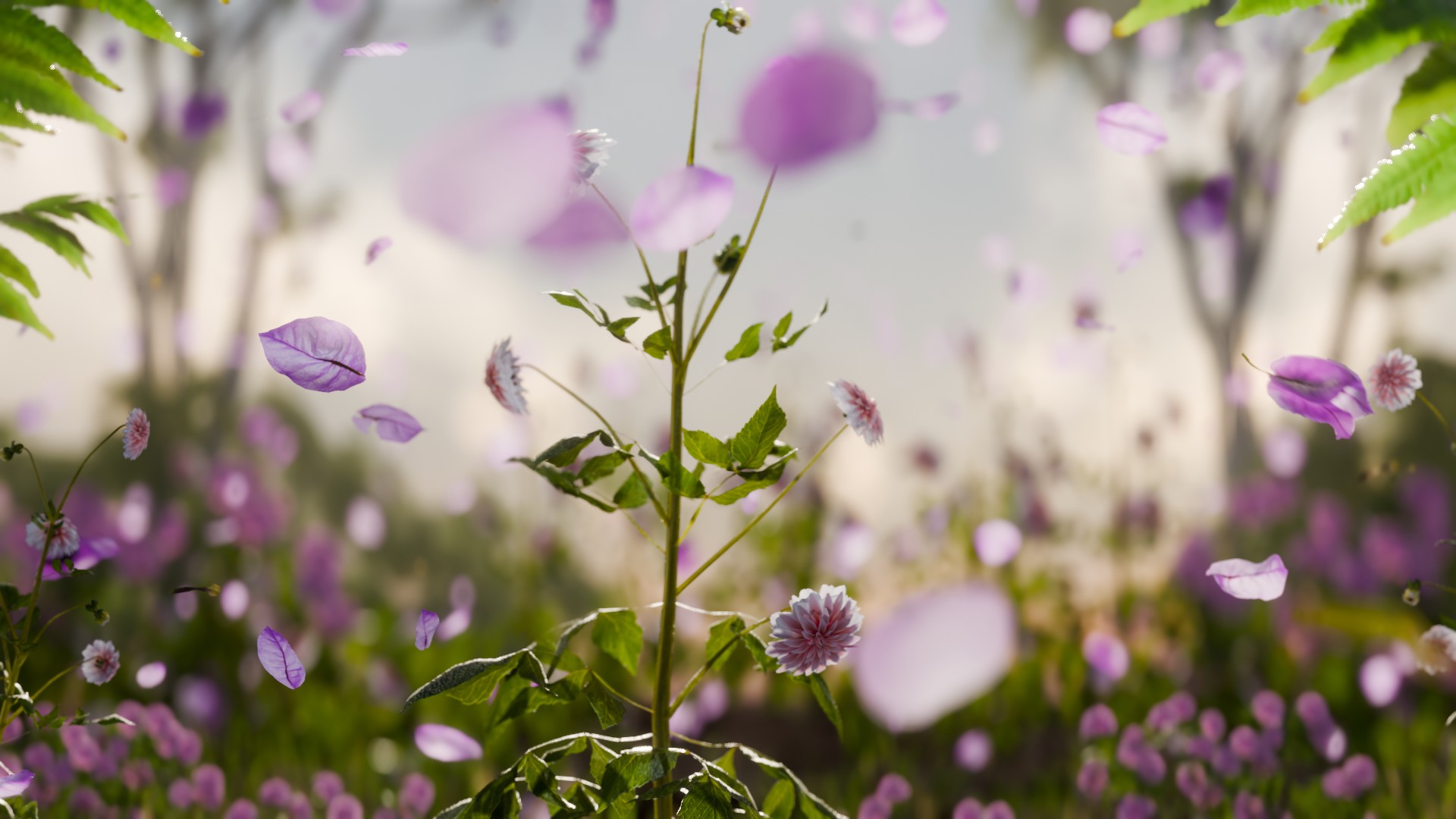

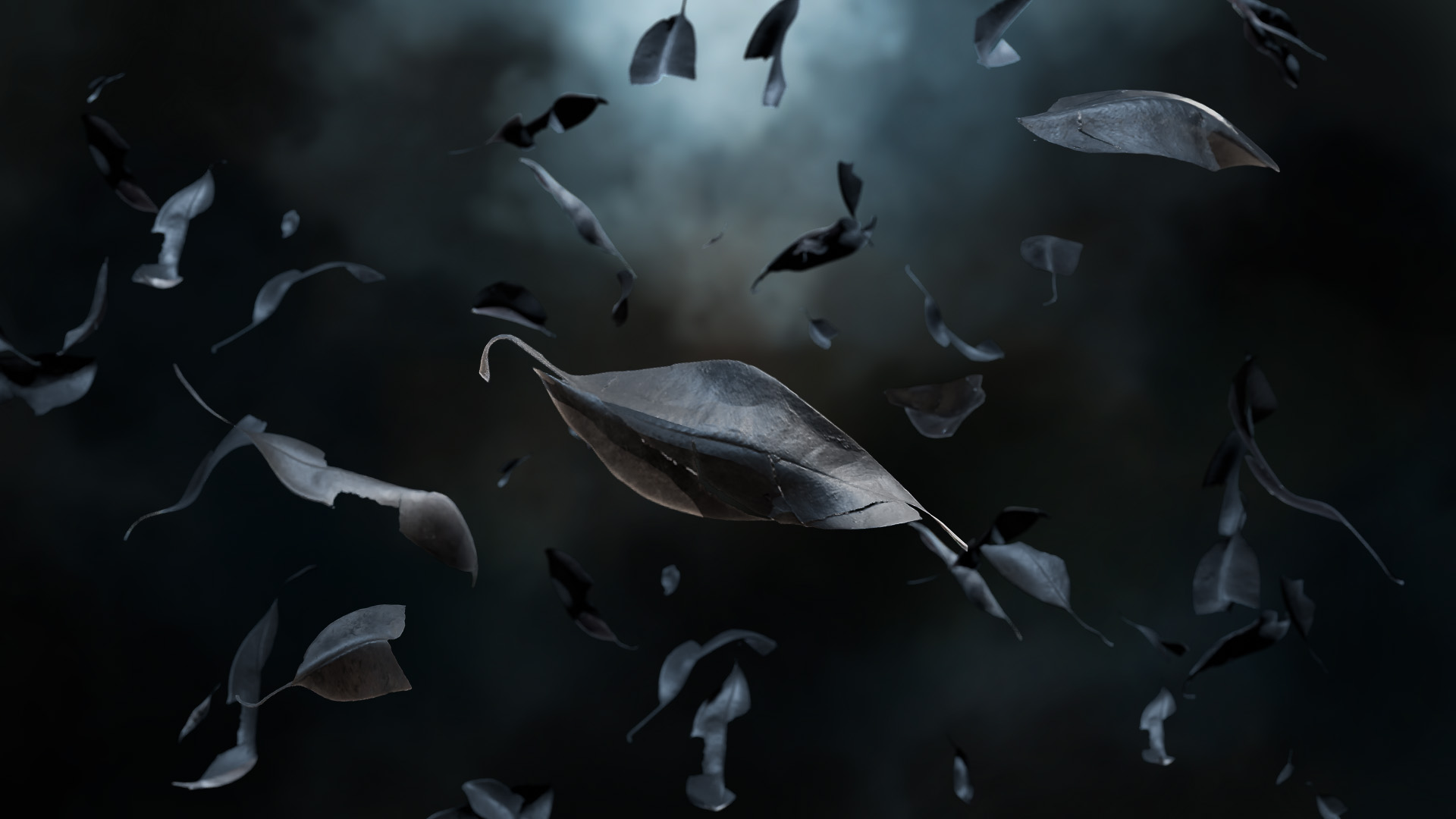
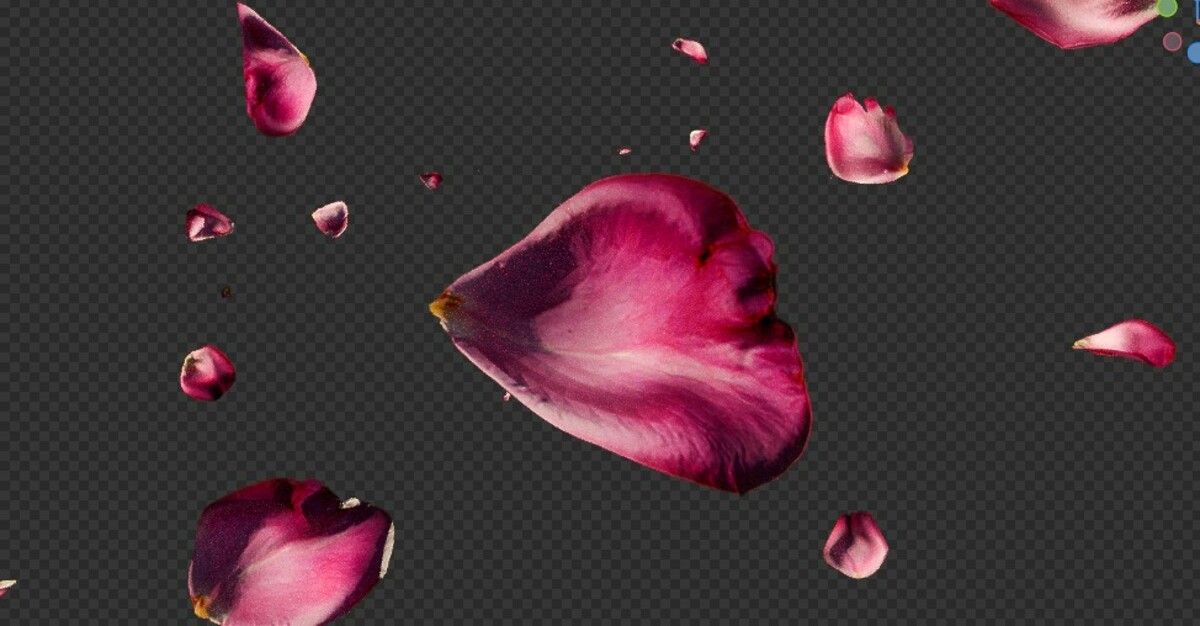


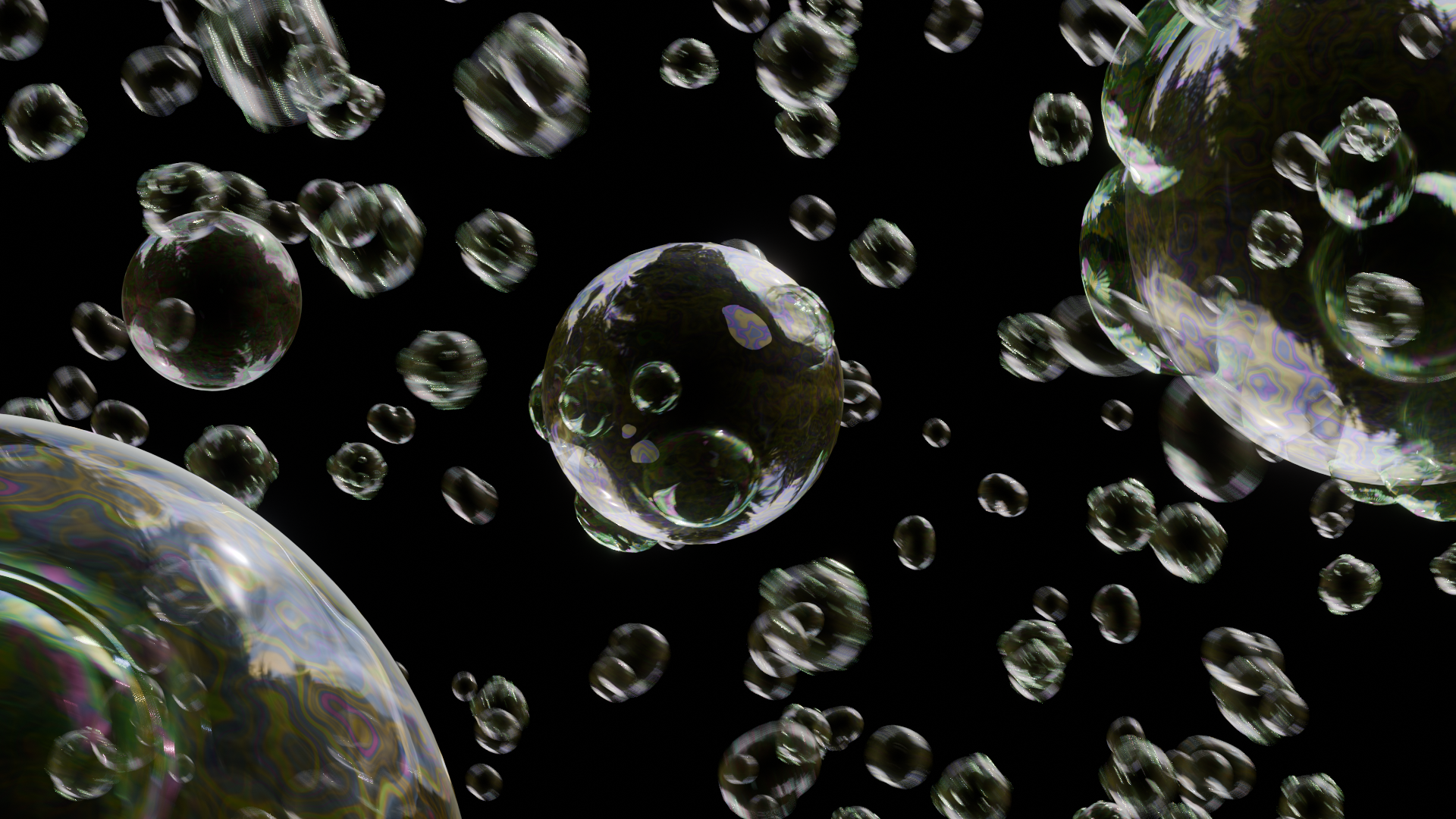


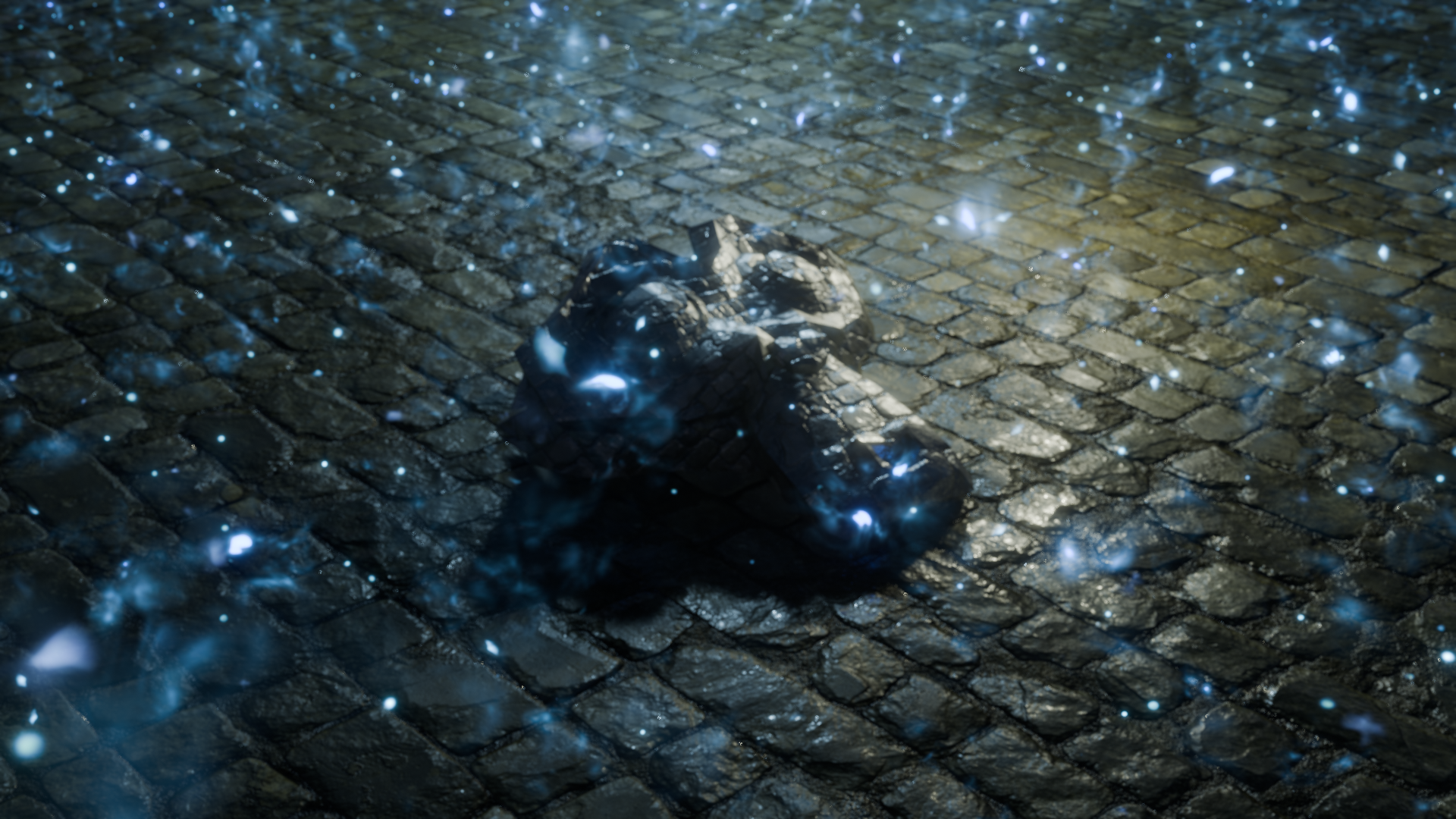
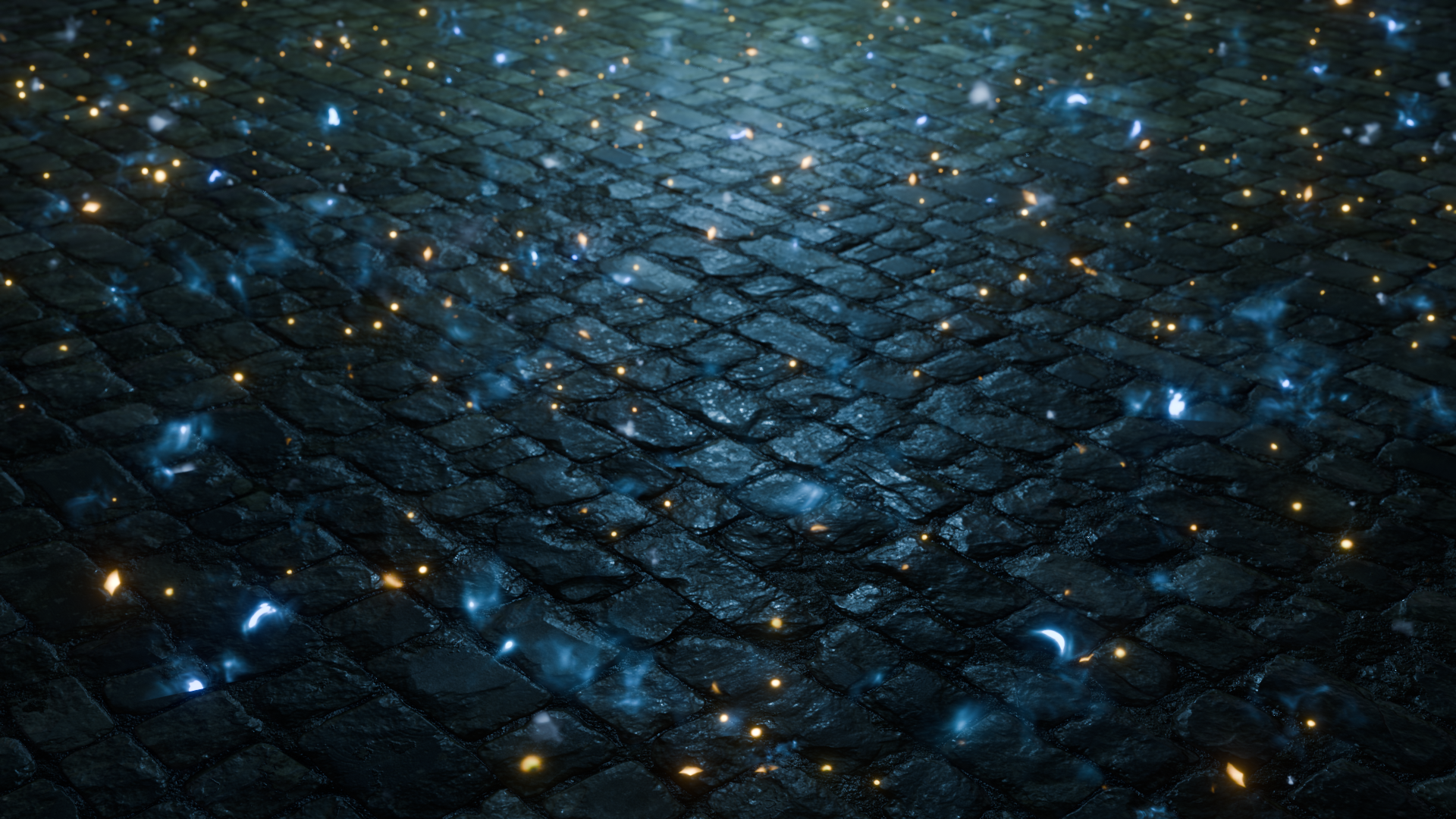


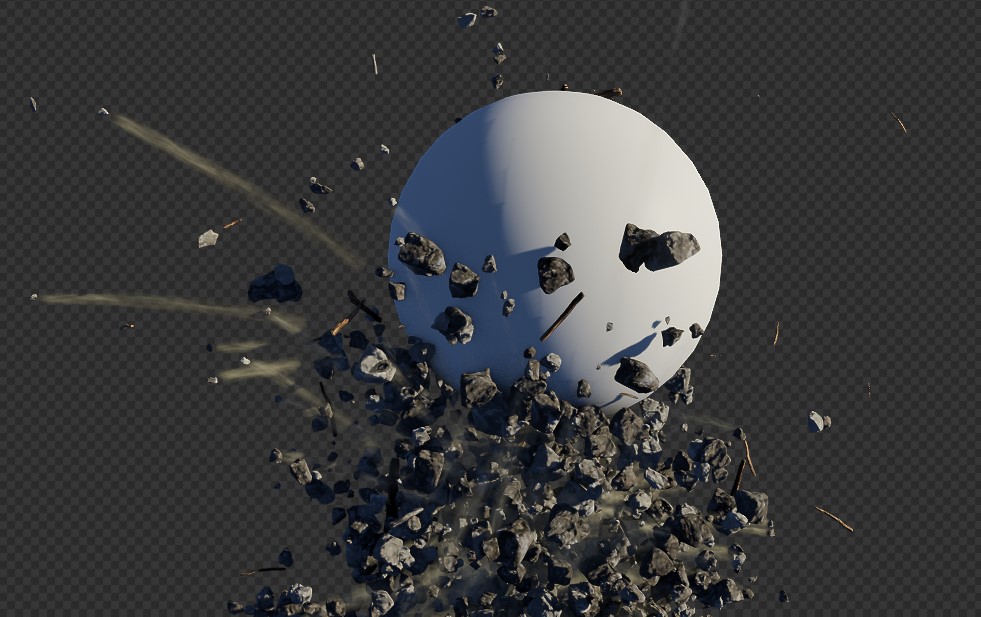

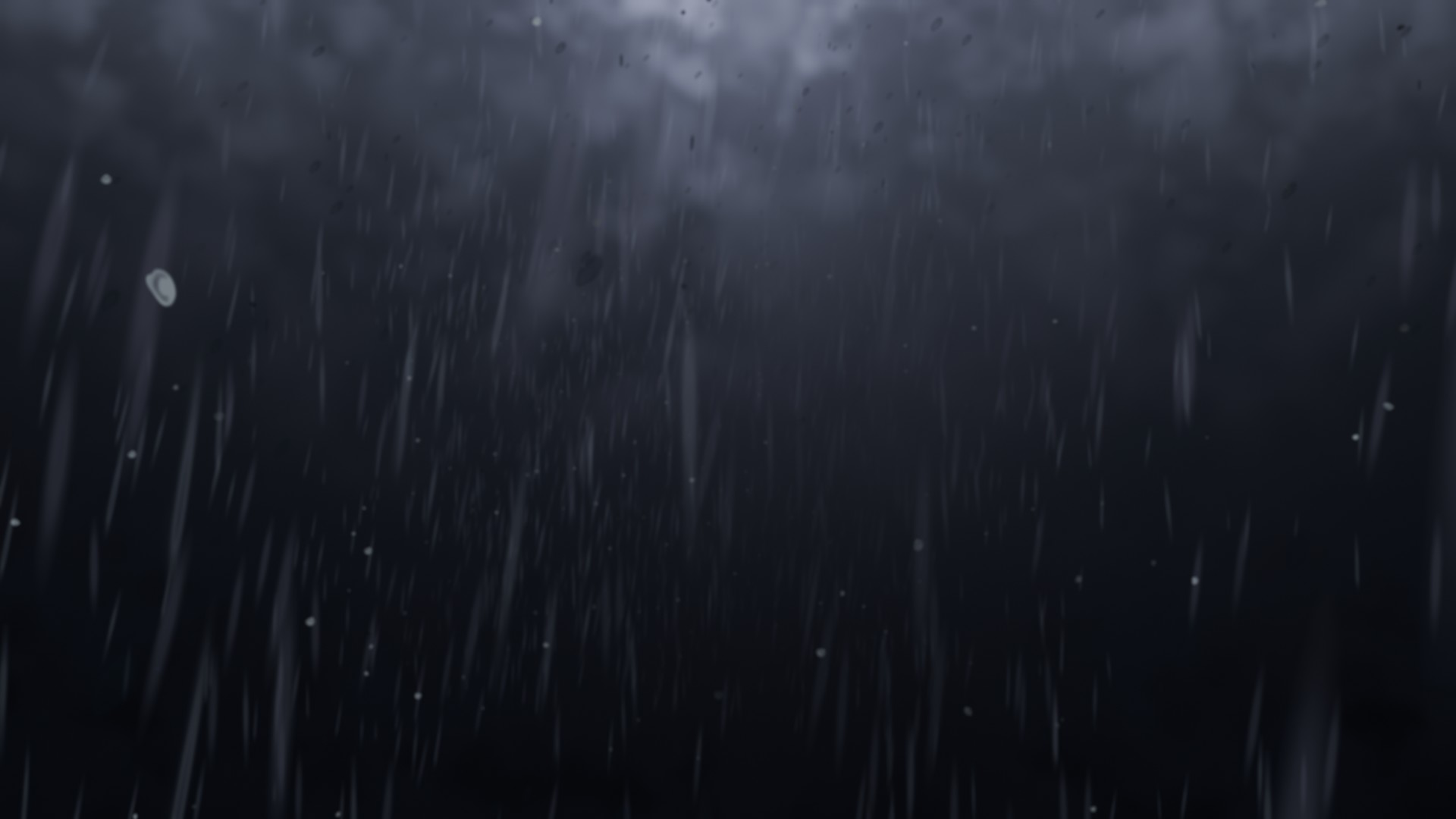


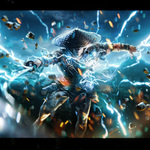
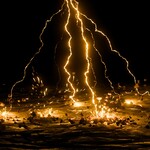




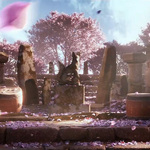
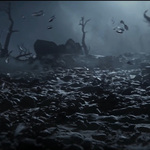


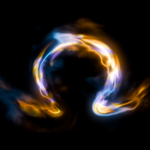


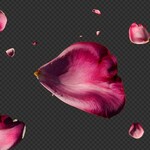
OMEGA PARTICLE FX V-0.4.5
After Purchasing the Assets you will get 6 Blend files
♦ Elemental
♦ Electricity
♦ Sparks
♦ Magic
♦ Destruction
♦ Decoration
and a Support Files.rar which includes the Textures, a full Guide+Bugix .txt and a Catalog file for Organising the Assets.
For Installing the Assets:
you just need to set up an asset library folder in Edit >Preferences >File Paths
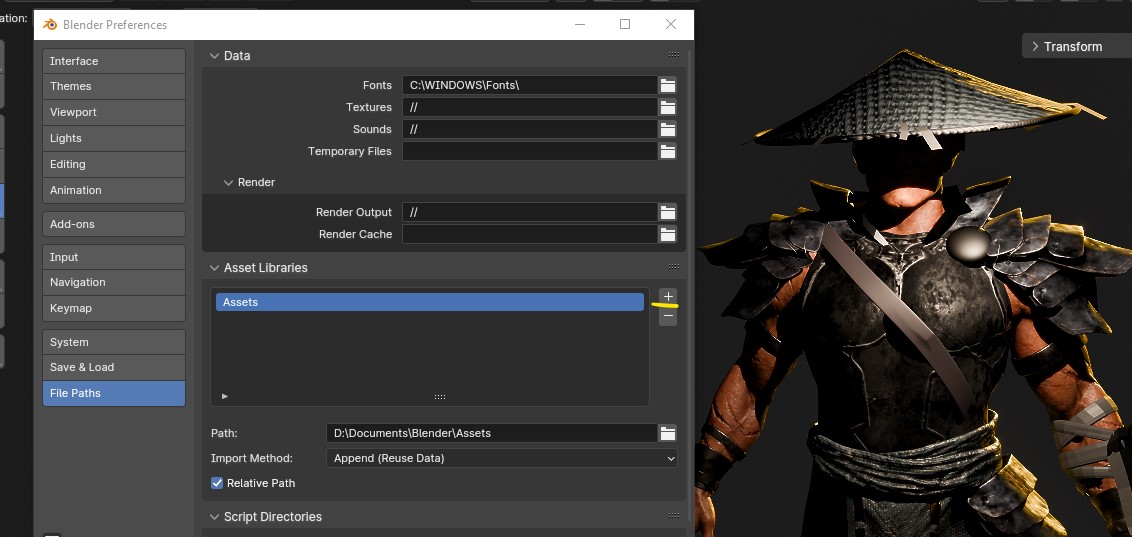
Then in that folder just download all the files there, and you are good to go,
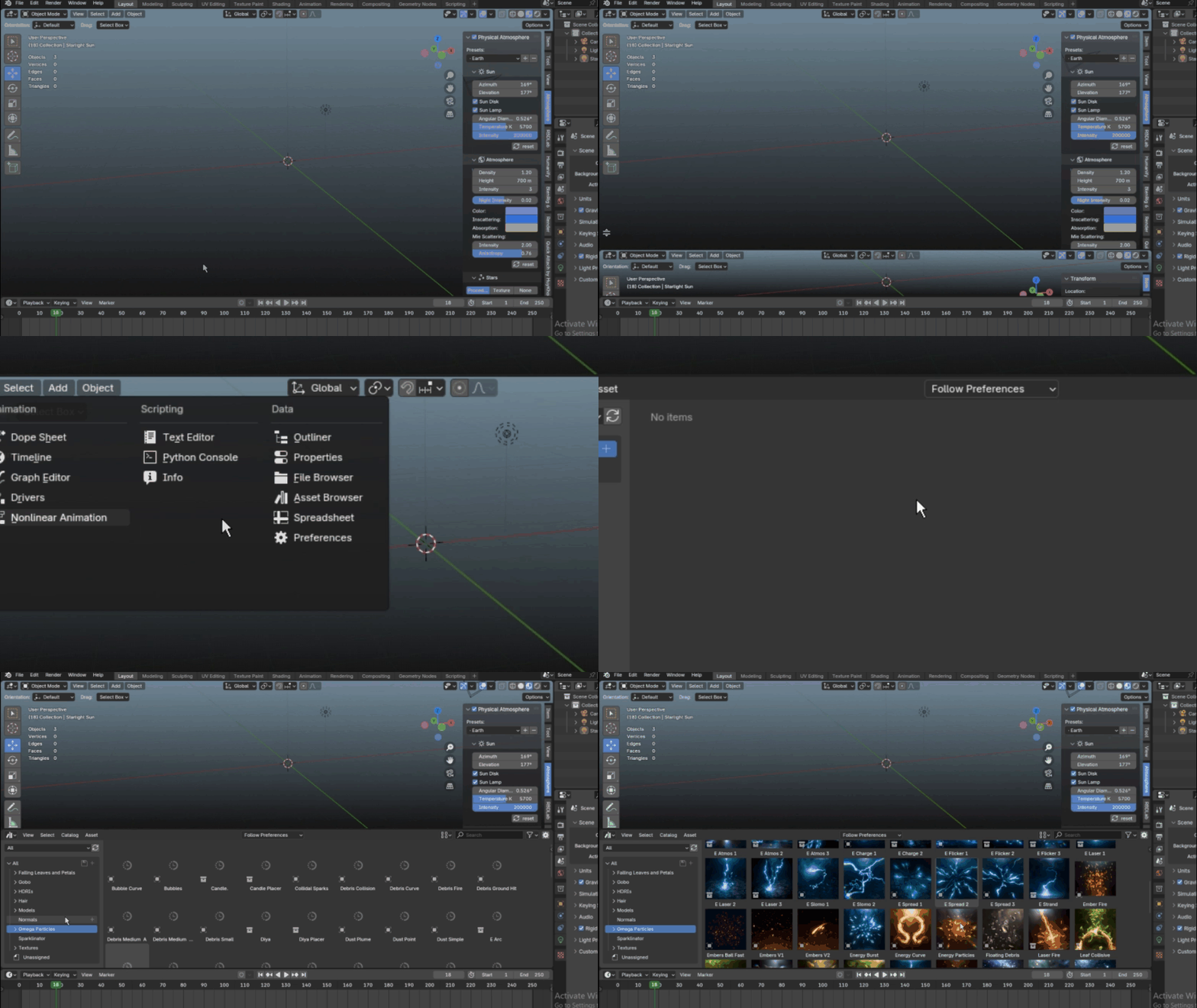
You can use the Assets from the Asset Browser :
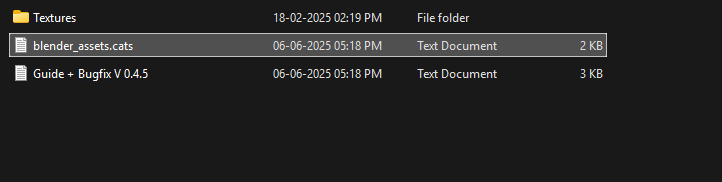
The .cats file in Support Files is for organizing the assets,
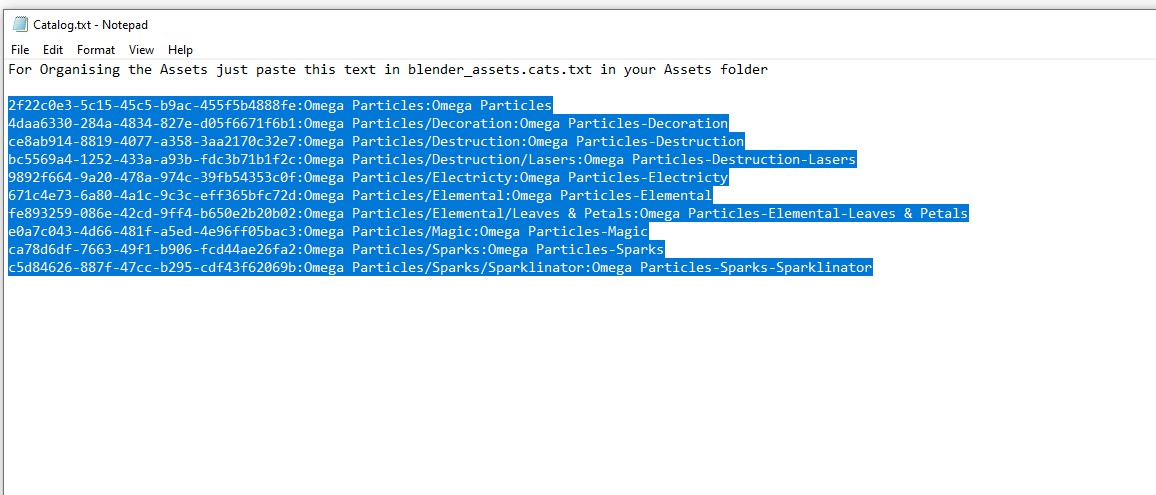
If you already have a blender_assets.cats text file in your asset library folder then just copy the text from the given .cats file :
and paste it in the existing blender_assets.cats text file in your Assets folder :
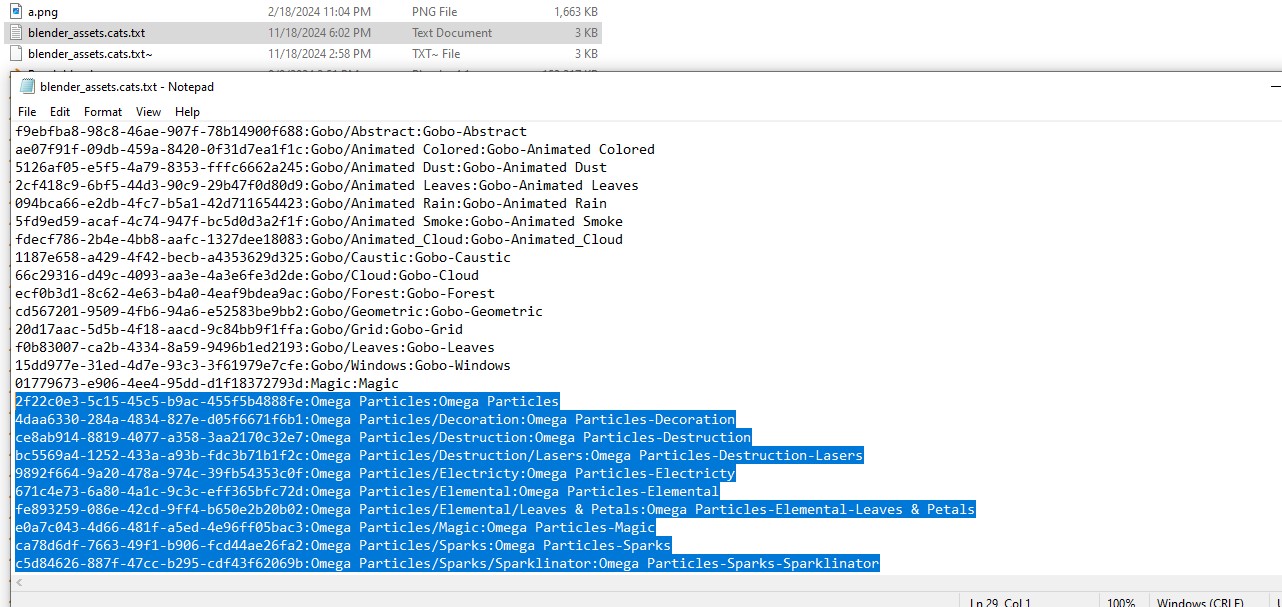
Done.

If you have any doubts please refer to this video for a more detailed explanation
https://youtube.com/shorts/MeR2ei9LhDA?si=eZL-EMUalLhPX9W5
Now for using the Assets -
In the Asset Library there are two types of Assets: 'Collection' & 'Object'

In Preferences -> File Paths just set the Import method to Append and then save preferences :


You can set this in Asset manager as well :

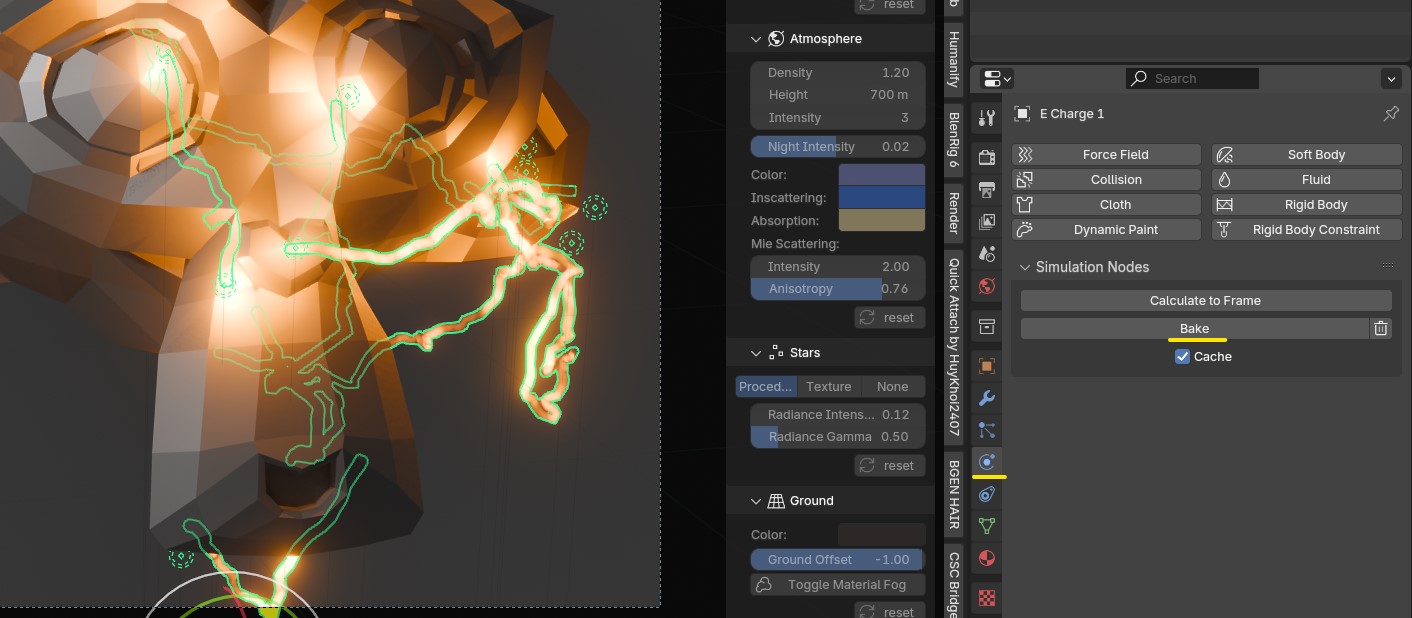
For assets using simulation nodes indicated with a purple line below the timeline :

just make sure to bake the sim before rendering ( after saving the blend file ) in Physics properties otherwise there will some artifacts in render especially with motion blur on.
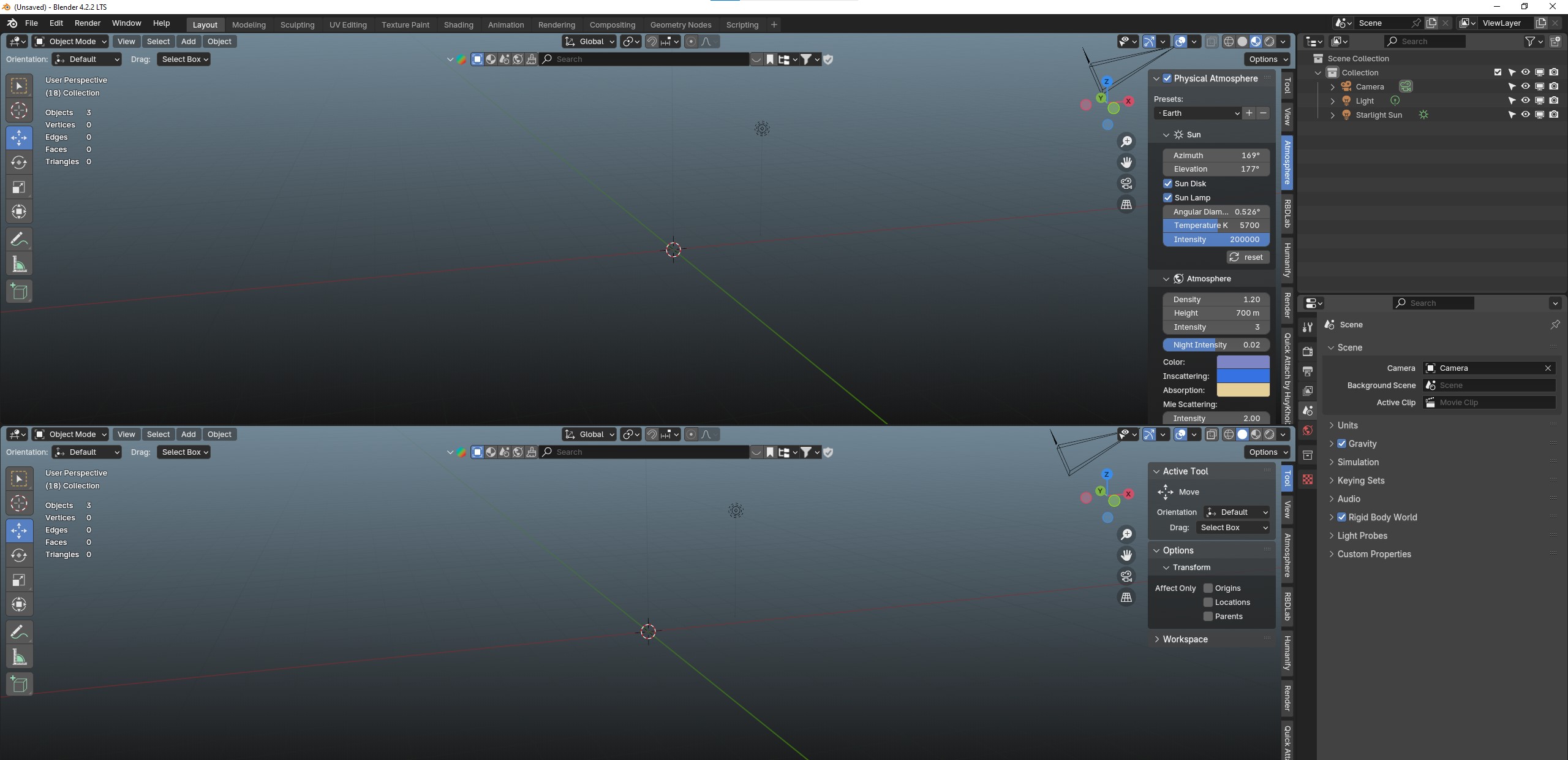
♦ After Setting up the assets, i recommend setting up the blender layout a bit as well for the best results :
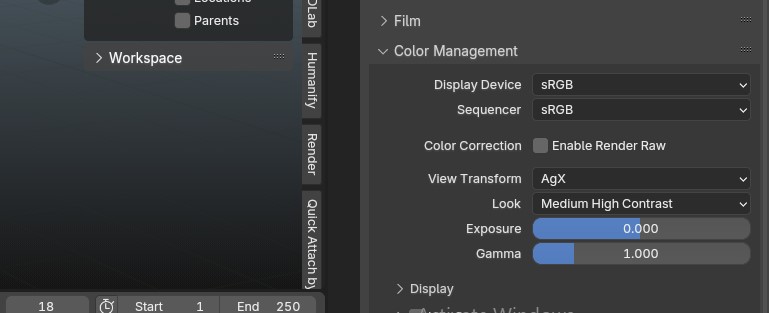
most of the assets were made Agx view transform so i suggest using Agx or ACES view transforms only for these assets,
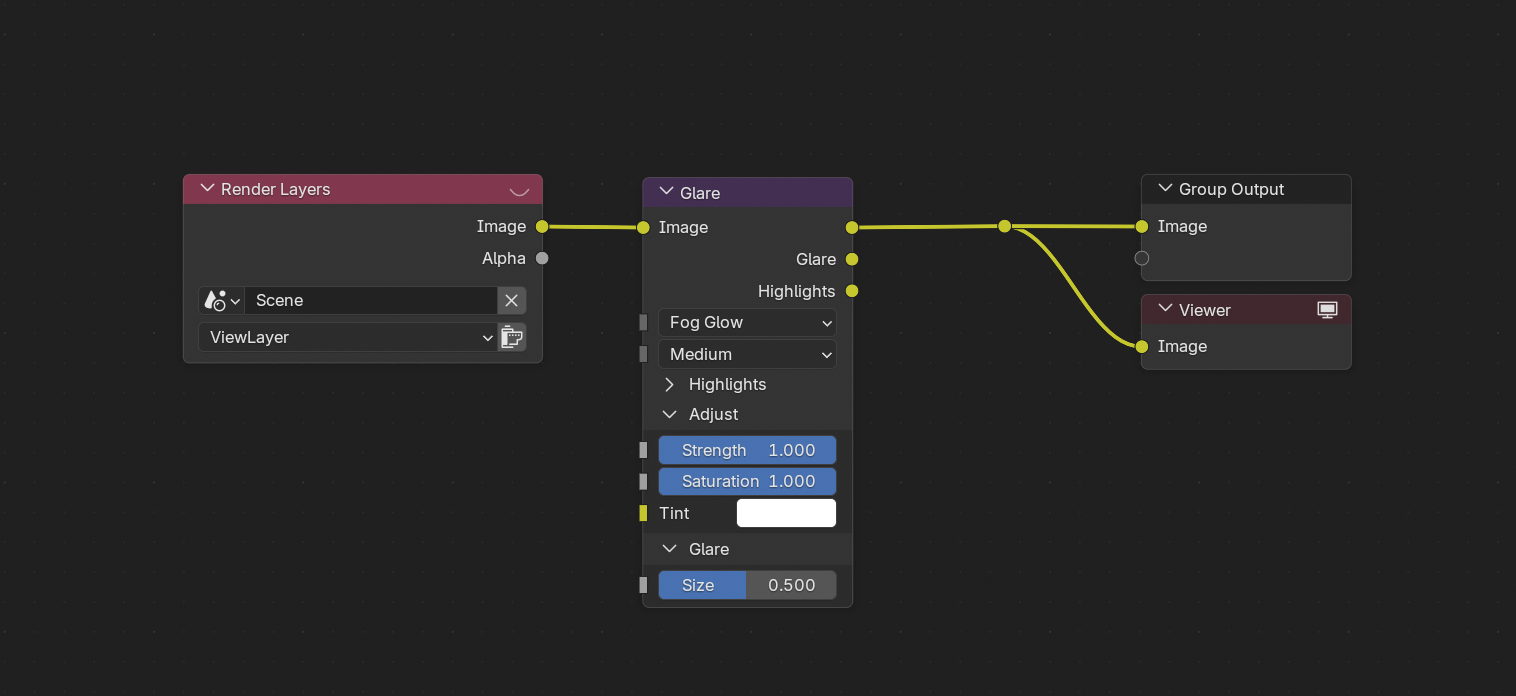
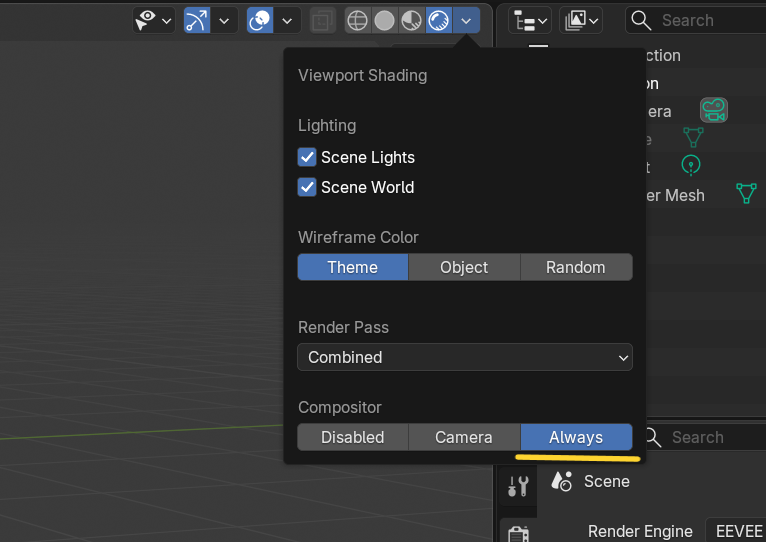
make sure the compositor is set to always for making the glow visible :
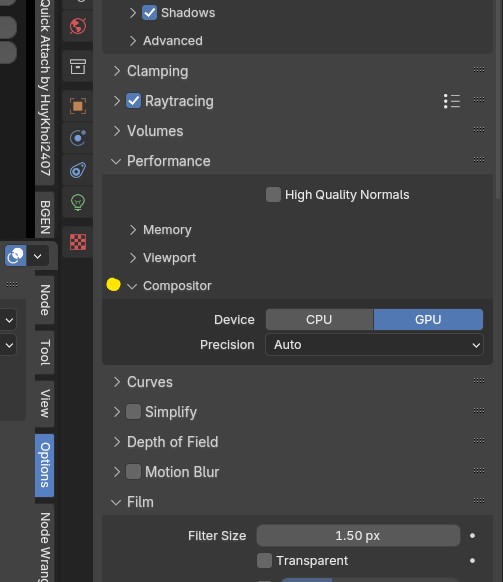
set compositor device to GPU :
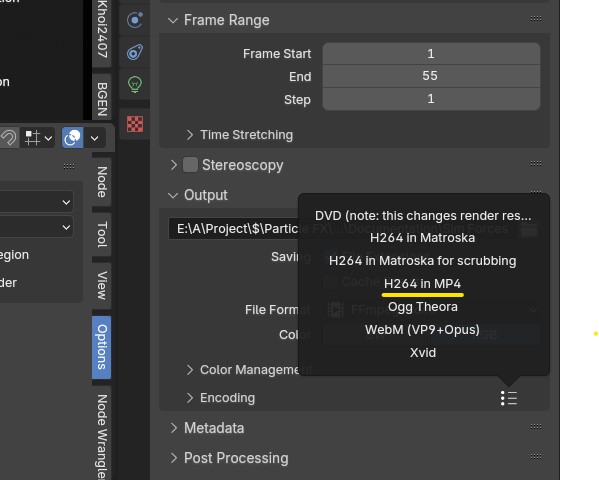
Also a quick tip - in Output Properties -> Output -> Encoding -> three dots you can select H264 in MP4 for directly exporting in .mp4
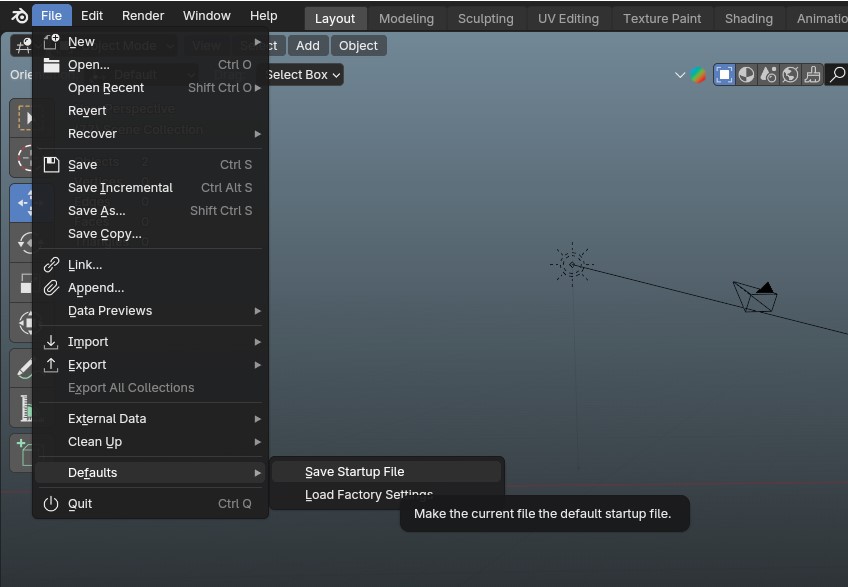
Now you can just save this as startup file here:
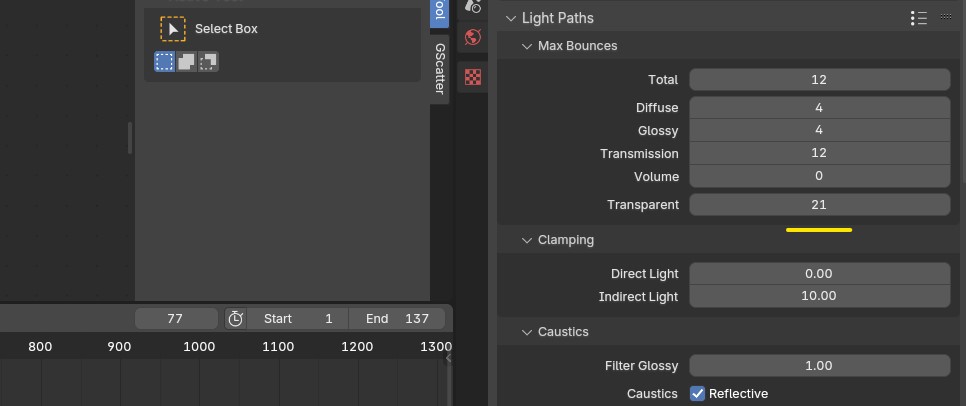
In some assets with multiple overlapping transparent meshes like Mist Cover you will get some black artifacts in some areas in cycles so to fix that
just set the Transparency samples in Render Properties -> Light Paths to 20+
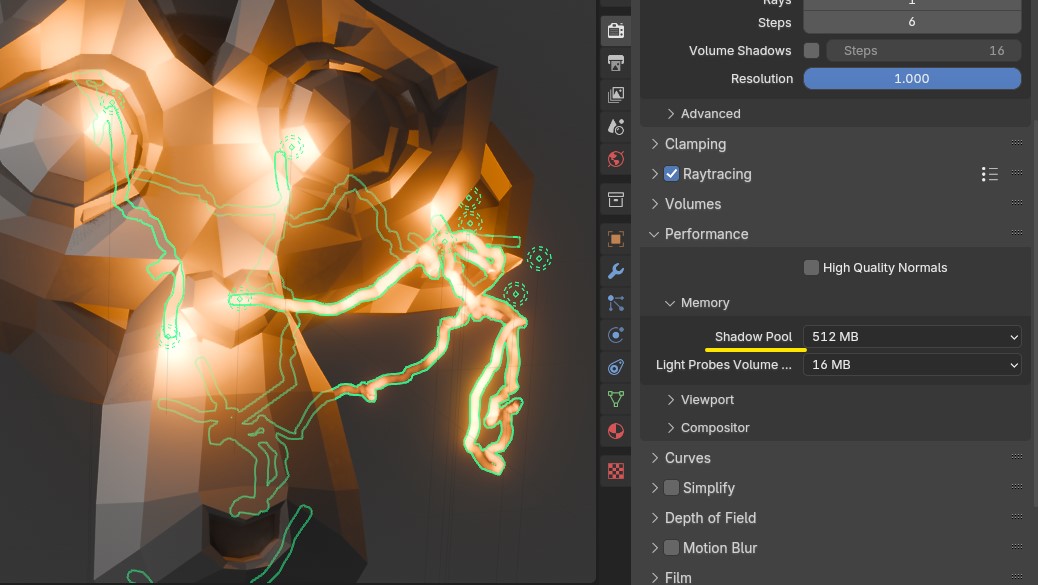
In some assets with a lot of spawning point lights, you might get this error resulting in no shadows in viewport & render in eevee :
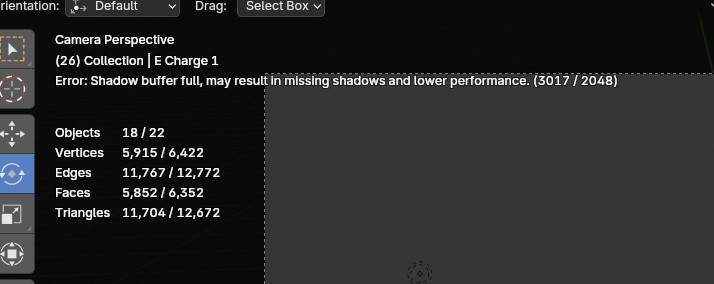
For this we can either increase the shadow pool size to 512mb or 1gb or just switch to cycles instead.
♦ Basic Physics setup for Assets :
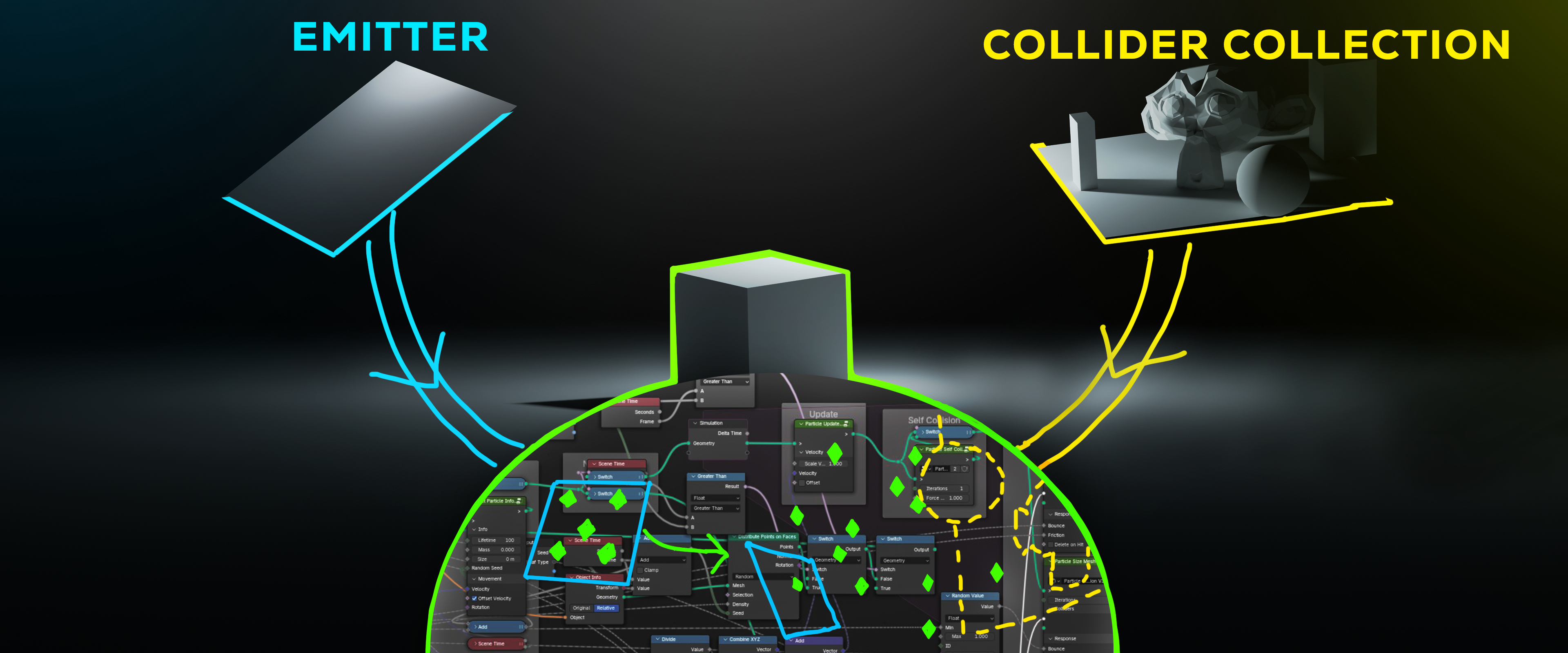
The emitter is outsourced to a separate mesh because forces like gravity needs to be constant instead rotating with the emitter :
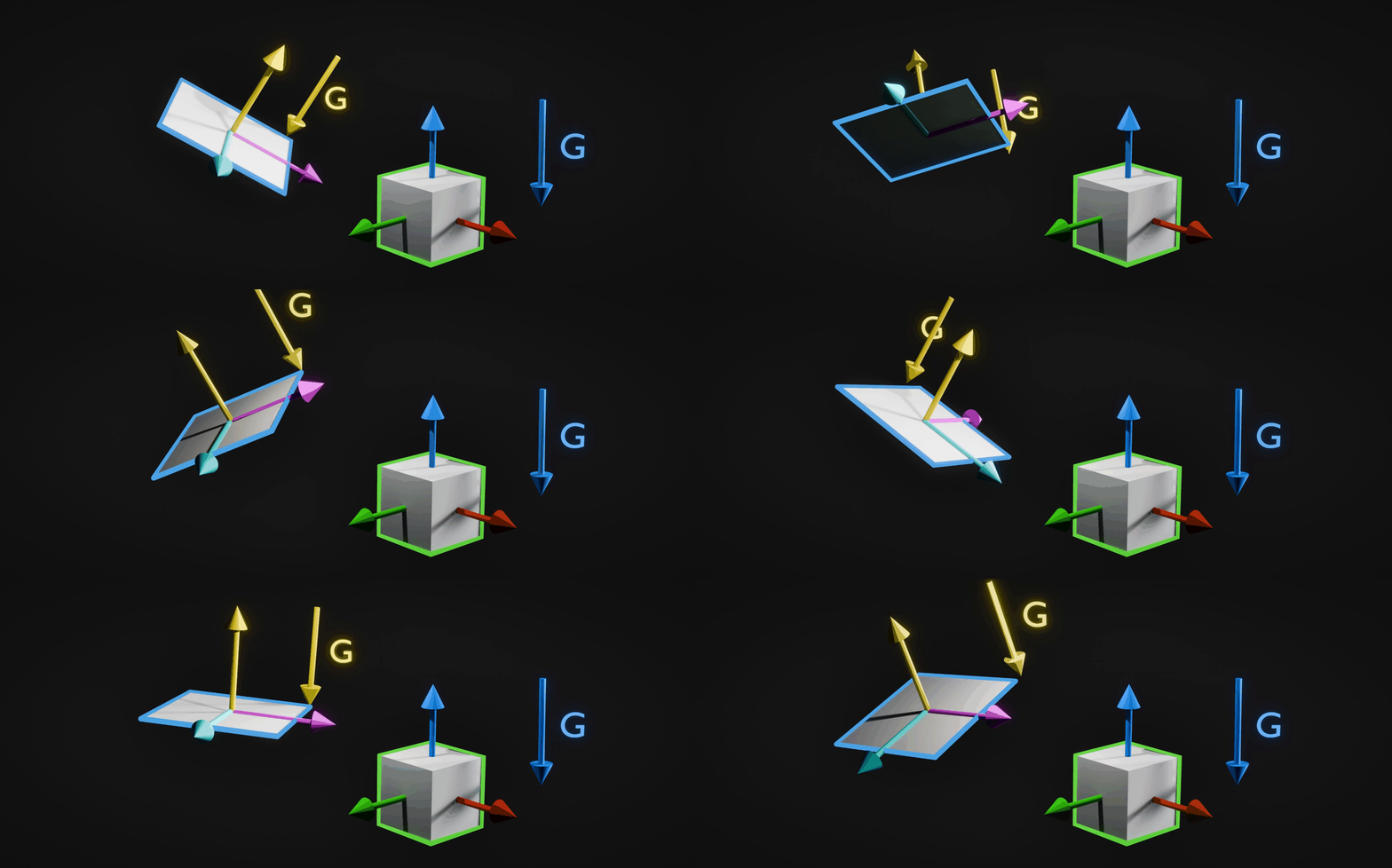
Here Gravity is a value of 0-10 for all the Assets,
The Colliders must have some thickness otherwise the collisions won't work right 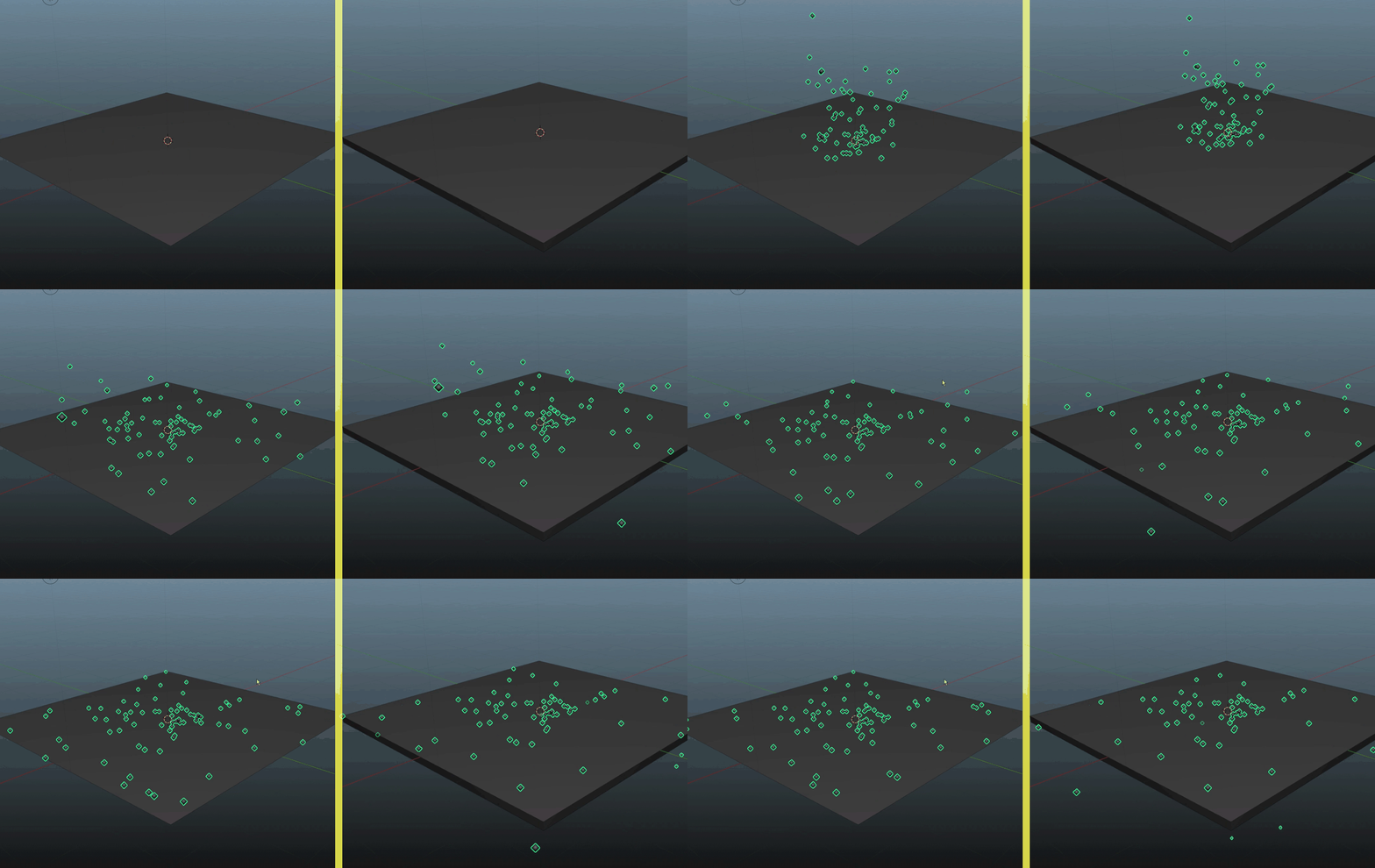
These assets can be quite heavy once populated in the scene
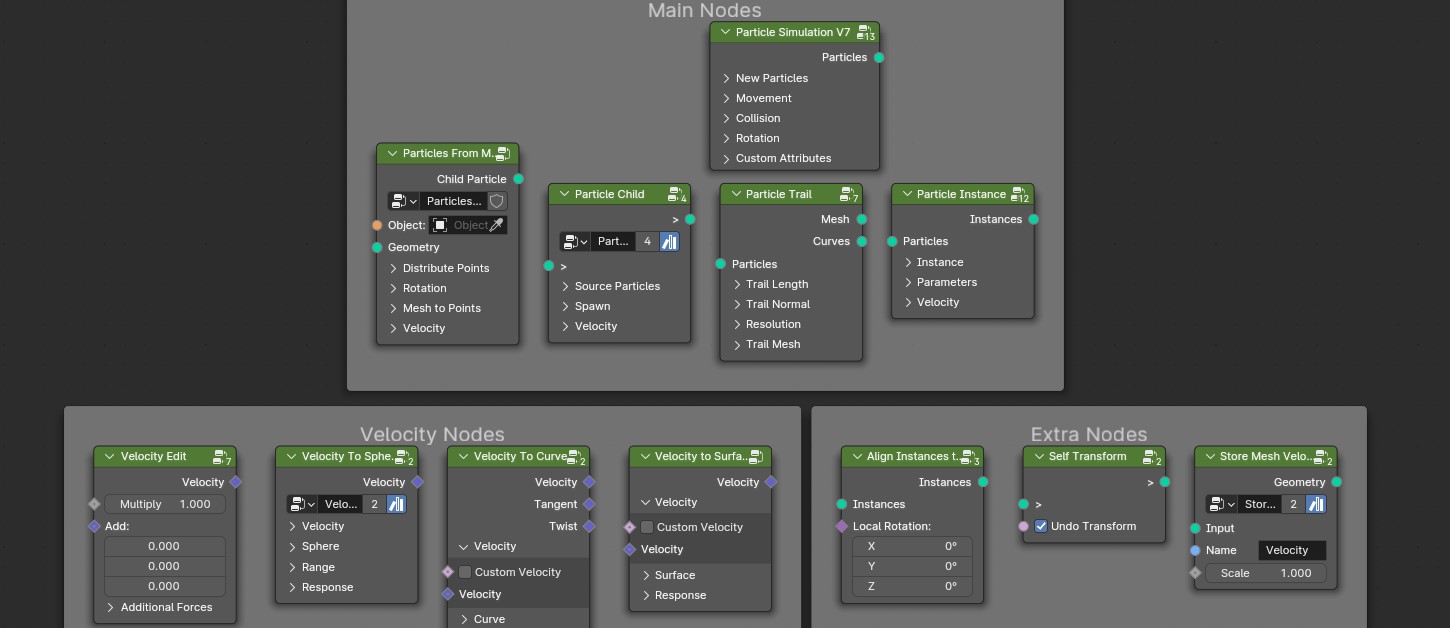
Also a huge shoutout to Cartesian Caramel for providing a free geometry nodes physics system
These nodes were used in most of the collision based assets in this pack so huge thanks to him!
you can check it out here:
https://bbbn19.gumroad.com/l/lhbdh?layout=profile
Hope you all like the Assets,
ENJOY :D!
Have questions about this product?
Login to message
| Sales | 2300+ |
| Downloads | 10+ |
| Rating | 40 ratings |
| Published | almost 3 years ago |
| Blender Version | 4.5 - 5.2 |
| Render Engine Used | Cycles, Eevee |
| License | Royalty Free |

Discover more products like this
effects falling leaves thunder dust autumn debris Lightning particle fx candle Electric snow dust particles Rose omega distruction particles spring VFX FX decoration sparkle flower petals electricity particle element fire procedural embers leaves .leaves falling aaa animated-leaves scify 3D snow particles spark laser rain bubble atmospheric magic leaf