 NovaStrikes



🚀 One-Click Safe Export — Integrated with Smart AutoSave+ Pro (Export • Pack • Protect)
One unified tool to protect your work and ship projects — snapshot autosaves, organized exports, asset packing, logs and studio features.
This add-on combines a rock-solid AutoSave system (Smart AutoSave+ Pro) with a world-class one-click export workflow. Create safe snapshots, pack textures, collect linked libraries, produce readable logs, and export a neatly organized project folder — all without touching your original .blend. Designed for hobbyists through studios.

⚡ What it does
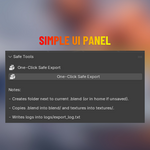
Autosaves intelligently and creates a one-click safe export containing your .blend, textures, linked libraries, logs and thumbnails.
🛡️ Why it matters
Protects your progress, prevents pink/missing textures, speeds handoffs, and creates portable, auditable project packages for clients or studios.
🔹 Core — Basic (Included)
• Snapshot Autosaves
One-click manual snapshot and scheduled autosaves (copy save) that never overwrite your main .blend.
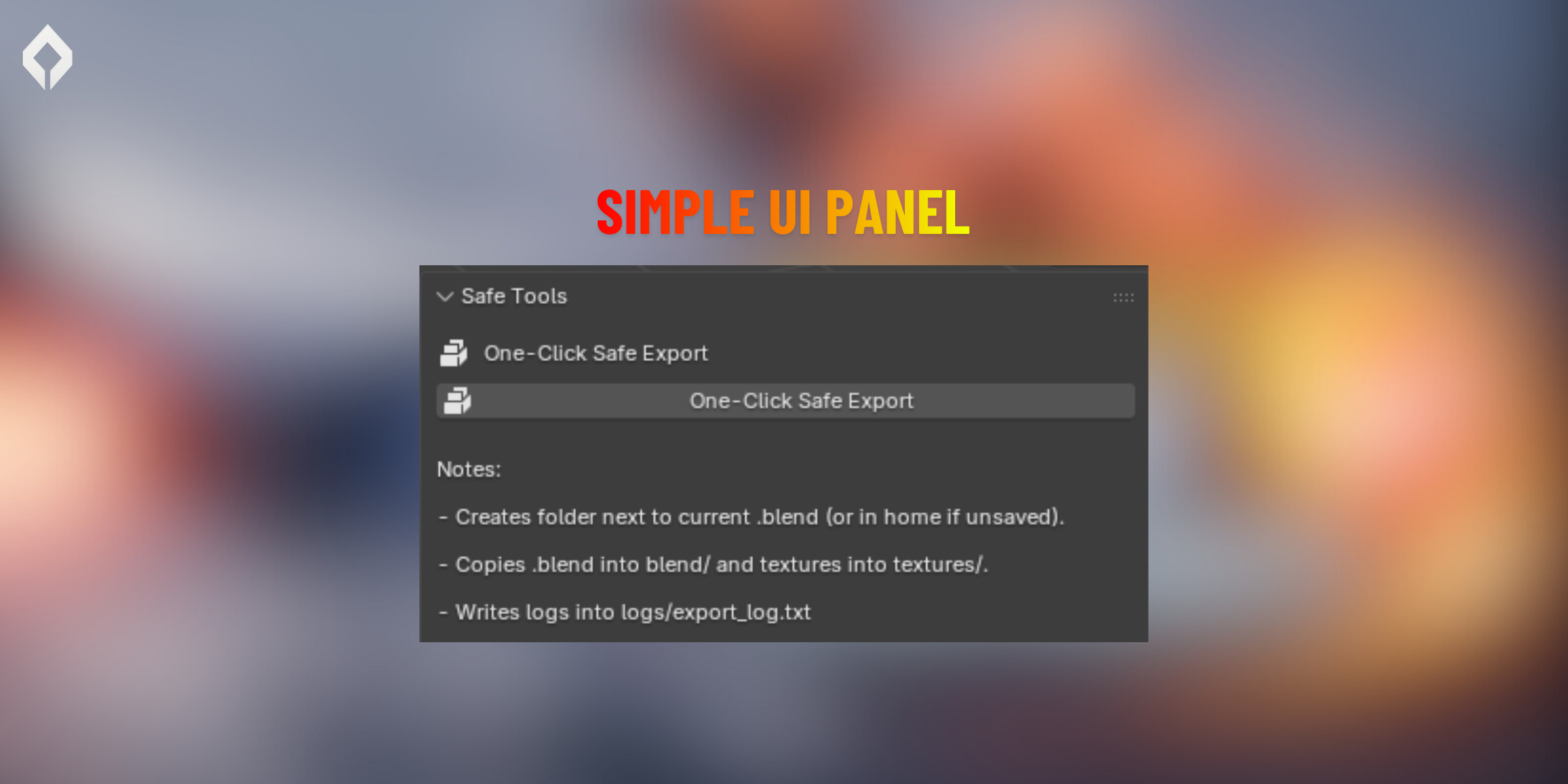
• One-Click Safe Export (Core)
Create a tidy export folder containing a snapshot .blend, textures, and a small export log — perfect for quick handoffs and delivery.
• Organized Output
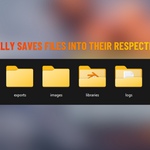
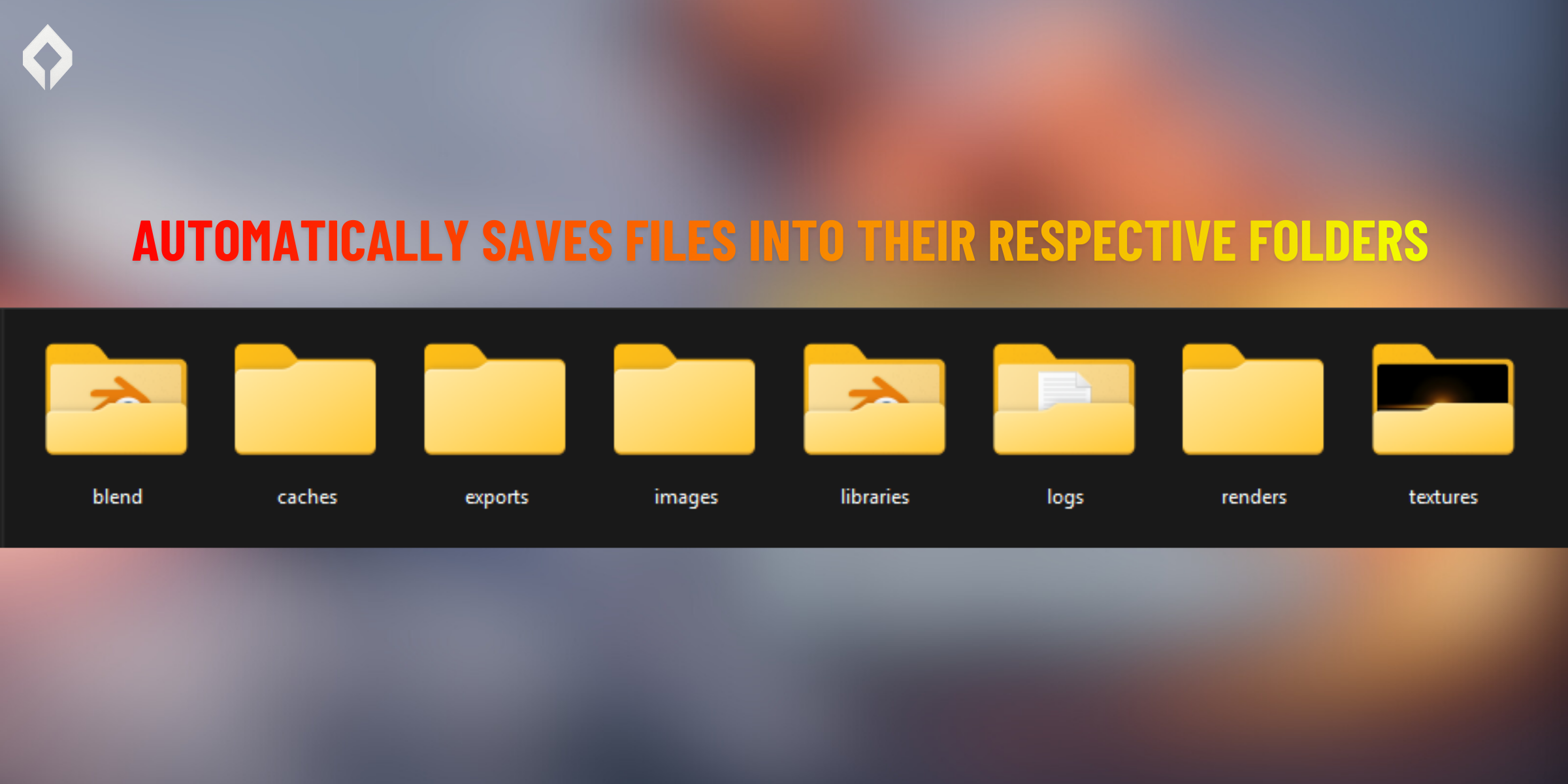
Exports into clean folders so recipients can open the project instantly: blend/, textures/, libraries/, renders/, logs/.
• Export Log
Every export writes a readable log with timestamp, exported files, and any warnings — great for accountability.
• Non-destructive
Nothing is changed in your working file — exports and autosaves are copies stored externally.
• Safe defaults
Conservative defaults help beginners get protection out-of-the-box; advanced options are available in Preferences.
💎 Premium / Workflow (Pro Features)
What's included in Premium:
• All Core export features plus the complete Smart AutoSave+ Pro premium feature set.
🧠 What Is Smart AutoSave+ Pro?
Smart AutoSave+ Pro is the ultimate safety net for Blender artists, designed to give you completepeace of mind while working on complex scenes, animations, and renders.
Whether you’re deep in creative flow or pushing your system to its limits, this add-on ensures yourwork is never lost to crashes, freezes, or simple forgetfulness.
With smart background monitoring, AutoSave+ Pro automatically saves your progress at intervals youdefine — without interrupting your workflow.

⚡ Key Features
- ⏱️ Customizable Auto-Save Intervals
Choose exactly how often your work is saved — from rapid minute-by-minute backups to longerintervals for extended sessions.
- 🧹 Smart Save Filtering
Auto-saves only after your project has been manually saved at least once, keeping folders cleanand avoiding clutter.
- 📁 Dedicated Backup Storage
All backups are stored in a separate AutoSave folder, preventing overwrites and keeping your mainproject file untouched.
- 🛡️ Scene Complexity Detection
Monitors object and mesh counts in real time, activating safeguards when scenes become heavy andcrash-prone.
- 🚀 Unlimited Auto-Saving
Remove normal limits and let AutoSave+ Pro save continuously in the background — perfect forhigh-stakes projects.
- 🎮 Force Auto-Save Anytime
Trigger an instant autosave with a single click whenever you need immediate peace of mind.
🏆 Premium Features of Autosave
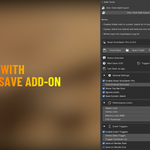
This section describes the premium features available to Studio / Premium Tier license holders. Each feature includes: What it is, Why it’s useful, Example, and How it works (under the hood). These are optional upgrades that can be enabled in the add-on preferences/UI Panel.
-
Compress Backups into a Zip File
What it is. When enabled, every autosave (or periodic batch of autosaves) can be compressed into a .zip archive instead of leaving many separate .blend files in the backup folder.
Why is it useful? Saves disk inodes, reduces overall storage, bundles related backups for easier upload/transfer, and simplifies retention cleanup.
Example. MarsMission_Backup_5_Nova_COVENANT.blend → MarsMission_Backups_2026-01-01.zip containing Backup_3..Backup_5.blend
How it works (under the hood).
- The addon creates a temporary folder, writes the .blend files there, and then compresses them into a zip using Python's
zipfilemodule. - Filename pattern:
{project}_Backups_{batch_num}.zip. - Options in prefs: compress on every save, compress hourly batches, and max files per zip.

- The addon creates a temporary folder, writes the .blend files there, and then compresses them into a zip using Python's
-
Create Logs
What it is. A structured log (plain text / JSON) of autosave events, errors, restores, and user actions for auditing and debugging.
Why is it useful? Helps studios track who made what backup and when, diagnose failures, and provide accountability for file handoffs.
Example log entry.
"last_hash": "e3a3ebec00b40157a86381c076ac3e5397fd737a421abb8a6580bbde9e893dcd","history": [{"ts": 1767251781.0833728,"reason": "Manual Force","file": "[File Path Where it is saved],"size": 5721573,"hash": "fee62679a33235240100a830c92b0e1e88b03c563ff73054a42fdf24e2935e70","tag": ""
How it works (under the hood).- Each important event appends a JSON line to
autosave.login the AutoSave folder. - Prefs: log level (INFO / WARN / ERROR), rotate logs (keep N files / compress old logs), and remote logging (optionally push to a team server).

- Each important event appends a JSON line to
-
Custom Autosave Directory (you choose)
What it is. Let users set any folder path for autosaves.
Example.
G:/StudioBackups/COVENANT/MarsMission/or//fileserver/blender/backups/How it works (under the hood).
- The preference field validates path existence and write permissions on change. If the folder doesn't exist, offer to create it.
-
Event Triggers
What it is. Configure autosave actions to run on specific events (file save, render start/end, frame change, scene switch, export, or custom user events).
Why is it useful? Gives precise control so important milestones are always saved (before render, after big data imports, or on scene switches).
Example triggers. Save on Export — when you export an FBX, the addon automatically makes a backup with a tag like "export" added to the filename.
-
Save on Render Start
What it is. Automatically creates a backup right before rendering begins.
Why is it useful? Renders often trigger heavy memory usage or crash-prone code paths — creating a final pre-render backup preserves the exact state that produced the render.
Example. When you hit Render → Render Animation, the addon writes
MarsMission_Backup_12_Nova_COVENANT_prerender.blendbefore starting.How it works (under the hood). Register to
bpy.app.handlers.render_preand call the force-save operator with thereason='pre_render'flag. Option to include render metadata (frame range, samples) in the log entry. -
Save on Render End
What it is. Creates a backup immediately after a render finishes (success or failure), optionally marking it as postrender and recording render status.
Why is it useful? Captures the project state after any render-time changes (frame cache, compositor tweaks), and gives a restore point if render caused instability.
How it works (under the hood). Hook into
bpy.app.handlers.render_completeor userender_postand create a save. Addrender_successboolean to the log entry. -
Show Recovery Dialog on Load
What it is. When a .blend is opened and it has missing autosave backups or previous crashes, present a friendly recovery dialog listing available backups and quick actions: Open, Compare, Restore, Ignore.
Why it’s useful. Fast triage when a file seems corrupted or you want to quickly jump to a recent working state without hunting the filesystem.
Example UI. A modal lists 3 most recent backups with size, timestamp, user, team, and a short preview (thumbnail) if available.

-
Show Save Notifications
What it is. Visual toasts and status bar messages when autosaves happen (success/warning/error) with an optional small preview or filename link.
Why it’s useful. Confirms the add-on is actively saving and raises immediate awareness if a save failed or storage is low.
Example. A small non-blocking popup: AutoSave complete — MarsMission_Backup_8_Nova_COVENANT.blend. Click the popup to open the AutoSave folder or the Backup panel.
-
Play Notification Sound (Ding Sound)
What it is. Plays a short audible confirmation (a gentle ding) when an autosave completes or when a critical error occurs.
Why it’s useful. Useful for artists who are focused on the viewport or working in fullscreen — immediate audible feedback when a save completes or fails.
Example. On successful save, play single ding. On failure, play a different alert tone (configurable or off).
-
Automatically Opens the Backup File From the Panel
What it is. A one-click operator in the Add-on panel that opens the selected backup in a new Blender instance or in the current session (configurable), for fast inspection or restore.
Why it’s useful. Speeds up the review/restore workflow — inspect a backup instantly without leaving Blender or manually navigating folders.
Example behavior. In the AutoSave panel you see a list of backups. Click Open next to Backup_5 and it spawns another Blender process with that file (or opens in current session if you choose).
-
Team Tag / User Tag (detailed)
What They Are.
User Tag: A short text string that represents you (the person using Blender). Example: "Hamayl", "NovaStrikes", "HS". Optional — used for labeling who created the backup.
Team Tag: A short text string for a team, project, or studio. Example: "COVENANT", "GameTeamX", "3DStudio". Useful for multi-user projects so backups are clearly associated with a team or project name.
How They Work in the Addon.
The tags are appended to autosave filenames. Example filename construction logic:
Why It’s Useful.
- Multi-user clarity: Instantly tells you who created the backup when multiple artists share a file.
- Project organization: Team Tag makes clear which project the backup belongs to.
- Portfolio / delivery: Tags automatically mark ownership when sending files to clients or for handoffs.
- Optional: Leave empty and filenames remain simple.
Example in action
Project Backup # User Tag Team Tag Resulting Filename MarsMission 7 Nova COVENANT MarsMission_Backup_7_Nova_COVENANT.blend MarsMission 8 (empty) COVENANT MarsMission_Backup_8_COVENANT.blend MarsMission 9 Nova (empty) MarsMission_Backup_9_Nova.blend MarsMission 10 (empty) (empty) MarsMission_Backup_10.blend Under the hood / Implementation notes.
- Tags are simple preference strings and are safe — they only change the filename, not file contents.
- Tags are sanitized to remove illegal filename characters and trimmed to a max length (configurable, e.g., 32 chars).
- When rotating/deleting old backups, the tag is treated like any other filename fragment — rotation logic ignores tags and uses the sequential backup number.
📜 License
This software is released under the GNU GPL. Redistribution and modification permitted; attribution appreciated but optional.
📋 Update Log
Full release history — newest first
Feature 01
Save Location Popup
When you hit Export, it no longer fires immediately. Instead, Blender's classic file browser opens first — exactly like Ctrl+S — so you choose exactly where your export lands before anything gets written to disk. No more hunting for files across your hard drive.
Feature 02
Export Selection Panel
Right inside that same pop-up, the left sidebar now shows a checklist of what to export. Export All is on by default — uncheck it and pick exactly what you need:
✓ Blend File (.blend copy)
✓ Textures & Images
✓ Linked Libraries
No more re-exporting everything just to grab one thing. Export only what you actually need, saving time and disk space.
Bonus · also in v1.2
Beautiful Export Report
The old plain-text log is gone. Every export now generates a branded HTML report that opens automatically in your browser — showing exactly what was saved, where it went, how long it took, and any warnings. Clean, readable, and built with the NovaStrikes look.
New · v8.4
Named Checkpoints
Create named save points (e.g. "Before Rigging") that are permanently protected from automatic pruning. Accessible via Ctrl+Shift+C.
New · v8.4
Visual Timeline with Search
Browse your entire backup history in a searchable timeline with thumbnails. Filter by filename, save reason, date, or checkpoint name.
New · v8.4
Undo / Redo Save Handlers
Optionally create an automatic backup before every Undo or Redo operation — one of the most common causes of unrecoverable scene loss in Blender.
New · v8.4
Edit-Based Save Trigger
The scheduler now detects actual edits — including material, UV, and modifier changes — before triggering a save, eliminating redundant backups on idle scenes.
New · v8.4
Backup Health Report & Log Export
View total disk usage, duplicate count, corrupt zip detection, and days of coverage — all in one panel. Export your full save history as a styled HTML report or CSV file.
Fixed · v8.3
Corrected Restore Logic
Restoring a backup now saves it as a new incremental file next to your original project — never placing you inside the autosaves folder by mistake.
Added · v8.3
Open Backup in New Blender Window
Launch any backup directly in a separate Blender process for side-by-side comparison or asset retrieval — without disturbing your current work session.
At a Glance — v8.4 vs Previous
| Feature | Previous | v8.4 (New) |
|---|---|---|
| Named Checkpoints | ✗ | ✓ |
| Visual Timeline with Search | ✗ | ✓ |
| Correct Restore Logic | ✗ | ✓ |
| Undo / Redo Save Handlers | ✗ | ✓ |
| Edit-Based Save Trigger | ✗ | ✓ |
| Backup Health Report | ✗ | ✓ |
| One-Click Safe Export | ✓ | ✓ |
| Scheduled Autosave | ✓ | ✓ |
NovaStrikes
One Click. All Safe. Focus on Creating.