One Click Safe Export Pro – Blender Project Exporter, Asset Packer & Workflow Protector
 NovaStrikes



🚀 One-Click Safe Export — Integrated with Smart AutoSave+ Pro
Export • Pack • Protect — Snapshot autosaves, organized exports, asset packing, logs and studio features in one unified tool.
One-Click Safe Export merges a rock-solid autosave system (Smart AutoSave+ Pro) with a one-click export workflow. Create safe snapshots, pack textures, collect linked libraries, produce readable logs, and export a neatly organized project folder — all without modifying your original .blend. Designed for hobbyists up to studios.

⚡ What it does
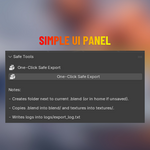
Autosaves intelligently and creates a one-click safe export containing your .blend, textures, linked libraries, logs and thumbnails.
🛡️ Why it matters
Protects progress, avoids missing textures (pink), speeds handoffs, and produces portable, auditable project packages for clients or studios.
✅ Safe & Non-destructive
Exports and autosaves are copies stored externally — your working file remains untouched. Safe defaults for beginners, advanced options in Preferences.
🔹 Core — Basic (Included)
📜 Snapshot Autosaves
Manual one-click snapshots and scheduled autosaves (copy save). The addon never overwrites your main .blend.
🧭 One-Click Safe Export (Core)
Creates a tidy export folder containing a snapshot .blend, textures, and a compact export log — perfect for quick handoffs.
🗂️ Organized Output
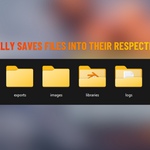
Exports to structured folders: blend/, textures/, libraries/, renders/, logs/.
🧾 Export Log
Every export writes a readable log with timestamp, exported files, and any warnings — great for accountability.
⚙️ Non-destructive & Safe Defaults
Conservative defaults protect beginners; advanced options in Preferences for power users and studios.
💎 Premium / Workflow (Pro Features)
⏱️ Inactivity Autosaves
Automatically snapshot after configurable inactivity (example: 5m).
🖼️ Thumbnail Previews
Auto-generated viewport PNGs stored alongside backups for fast visual recovery.
📦 Texture & Library Collection
Collects external textures (from disk or packed) and copies linked libraries into the export so recipients open a working project.
🗜️ Zip Archives & Batching
Compress backups into .zip files — options for compress-on-save, hourly batches, and max files per zip.
📑 Detailed Logs & Analytics
JSONL logging of events (saves, restores, errors) with metadata (timestamp, hash, size, tag). Configurable log level and rotation.
🔁 Event Triggers
Save on Render Start/End, Save on Export, Frame Change, Scene Switch, or custom triggers so milestones are always captured.
📂 Custom Autosave Directory
Point autosaves to any folder (local or network). The addon validates paths and can create folders if missing.
🔔 Notifications & Sound
Non-blocking popups and optional short ding sounds (trimmed to 2.5s) to confirm saves or alert on failures.
👥 Team & User Tags
Append sanitized user/team tags to filenames for multi-user clarity (e.g., MarsMission_Backup_7_Nova_COVENANT.blend).
🏆 Premium Features — Details
Compress Backups into Zip File
What: Optionally compress backups (single or batch) into a .zip archive instead of many .blend files.
Why: Saves inode use, reduces storage, bundles backups for upload, and simplifies retention.
Under the hood: Temp folder → write .blend → compress with Python zipfile. Pattern: {project}_Backups_{batch_num}.zip.
Create Logs (JSONL & human)
What: Structured logs of autosave events, errors, restores, and user actions.
Example JSON entry:
{ "ts": 1767251781.0833728, "reason": "Manual Force", "file": "C:/Projects/MarsMission/autosaves/MarsMission_Backup_12_Nova_COVENANT.blend", "size": 5721573, "hash": "fee62679a33235240100a830c92b0e1e88b03c563ff73054a42fdf24e2935e70", "tag": "COVENANT"} Under the hood: Each event appends a JSON line to autosave_log.jsonl. Prefs: log level, rotation, optional remote logging.
📦 Export Workflow — What happens on Safe Export
- Create Snapshot — autosave snapshot (copy) to the AutoSave folder; working file untouched.
-
Collect Assets — scans
bpy.data.imagesand linked libraries, copies originals and exports packed images if needed. -
Organize — folders:
blend/,textures/,libraries/,renders/,logs/. - Write Log — human-readable log and JSON analytics if enabled.
- Optional Zip — compress export for upload/archive.
🏷️ Team Tag / User Tag (Filename Convention)
User and Team tags add clarity for multi-user projects. Tags are sanitized and appended to filenames — they do not change file contents.
| Project | Backup # | User Tag | Team Tag | Resulting Filename |
|---|---|---|---|---|
| MarsMission | 7 | Nova | COVENANT | MarsMission_Backup_7_Nova_COVENANT.blend |
| MarsMission | 8 | (empty) | COVENANT | MarsMission_Backup_8_COVENANT.blend |
| MarsMission | 9 | Nova | (empty) | MarsMission_Backup_9_Nova.blend |
| MarsMission | 10 | (empty) | (empty) | MarsMission_Backup_10.blend |
⚡ Key Combined Features — Quick List
- One-click Safe Export: snapshot + collect + package
- Autosave scheduler, triggers, and inactivity backups
- Texture collection (packed + disk), library copying
- Thumbnail generation for fast visual recovery
- Compress backups & batch zip options
- Detailed JSONL logs and per-backup analytics
- Custom autosave directory & user/team tagging
- Non-destructive workflow — your main .blend is untouched
📘 How to Use — Quick Start
- Install & enable the add-on (Preferences → Add-ons → One-Click Safe Export).
- Save your .blend once so autosaves write next to the project (or set a custom autosave directory in Preferences).
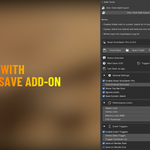
- Open the N-Panel → Smart AutoSave+ Pro tab and press Safe Export (Snapshot + Export) to create your first package.
- Adjust Preferences for inactivity autosaves, thumbnails, zip batching, and event triggers as needed.
❓ FAQ & Troubleshooting
Q: Will this modify my original .blend?
A: No. All autosaves and exports are saved as copies to separate folders. Your working file remains untouched unless you choose to open or overwrite it manually.
Q: How do I include packed textures in the export?
A: Enable Pack Resources in Preferences before running Safe Export. The addon will enforce autopack temporarily for the snapshot and then restore your settings.
Q: Thumbnails not generating?
A: Thumbnails are generated from a VIEW_3D area. Ensure a 3D Viewport is available and not headless. Also enable Thumbnail Previews in Preferences.
Q: How do I restore a backup?
A: Use the Recovery dialog (N-Panel → Recover...) or the Quick Restore operator. Zipped backups are extracted to a temp folder and the first contained .blend is opened.
✅ Built to protect your work and streamline delivery — one click is all it takes.
Have questions about this product?
Login to message
| Dev Fund Contributor | |
| Published | 9 months ago |
| Blender Version | 4.0 - 5.0 |
| Extension Type | N/A |
| Render Engine Used | Cycles, Eevee |
| License | GPL |
Discover more products like this
Blender3DWorkflow Blender Project Organizer one click tool backup asset packer autosave Blender File Management export utility blender pipeline tools