 Flidoh Animations



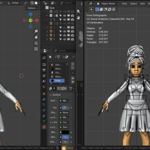
You Shouldn't Leave Blender to Switch Blender Versions.
Every professional Blender artist has multiple versions installed. Blender 4.2 LTS for client work. Blender 4.5 for production or A daily build for testing. Maybe an old 3.6 for that one legacy project that refuses to die.
But lets face it, there are addons and features that only work in the old versions but youre using the lastest version, So are you going to “Save the file. Open a file explorer. Navigate to Program Files. Find the right Blender folder. Open Blender. And worse, your project is not on the list of recent files so you Navigate back to the file. Drag it in. Done ? nope YOU FORGOT TO SAVE.”
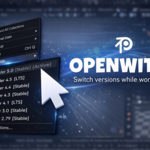
Why not just switch blenders, use the features and come back ? all in one click. That’s what we call OpenWith.
OpenWith ?
One blender, All versions. Transfer your blend file to another version with one click. And once you've used it, you will never go back.
1. It transfers your blend file with one click.
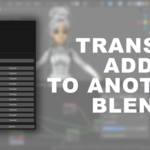
2. It checks which addons are missing in the target version and lets you transfer them in one click.
3. It waits to see if the blender file opens without crashing.
4. It detects if Blender crashed on load and tells you exactly why it cant work.
5. Gradually steping down makes your project compatible across different.
One-Click Version Switching From the File Menu
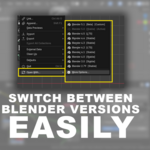
Open With lives exactly where it should - File → Open With. Click it, pick your version, Done.
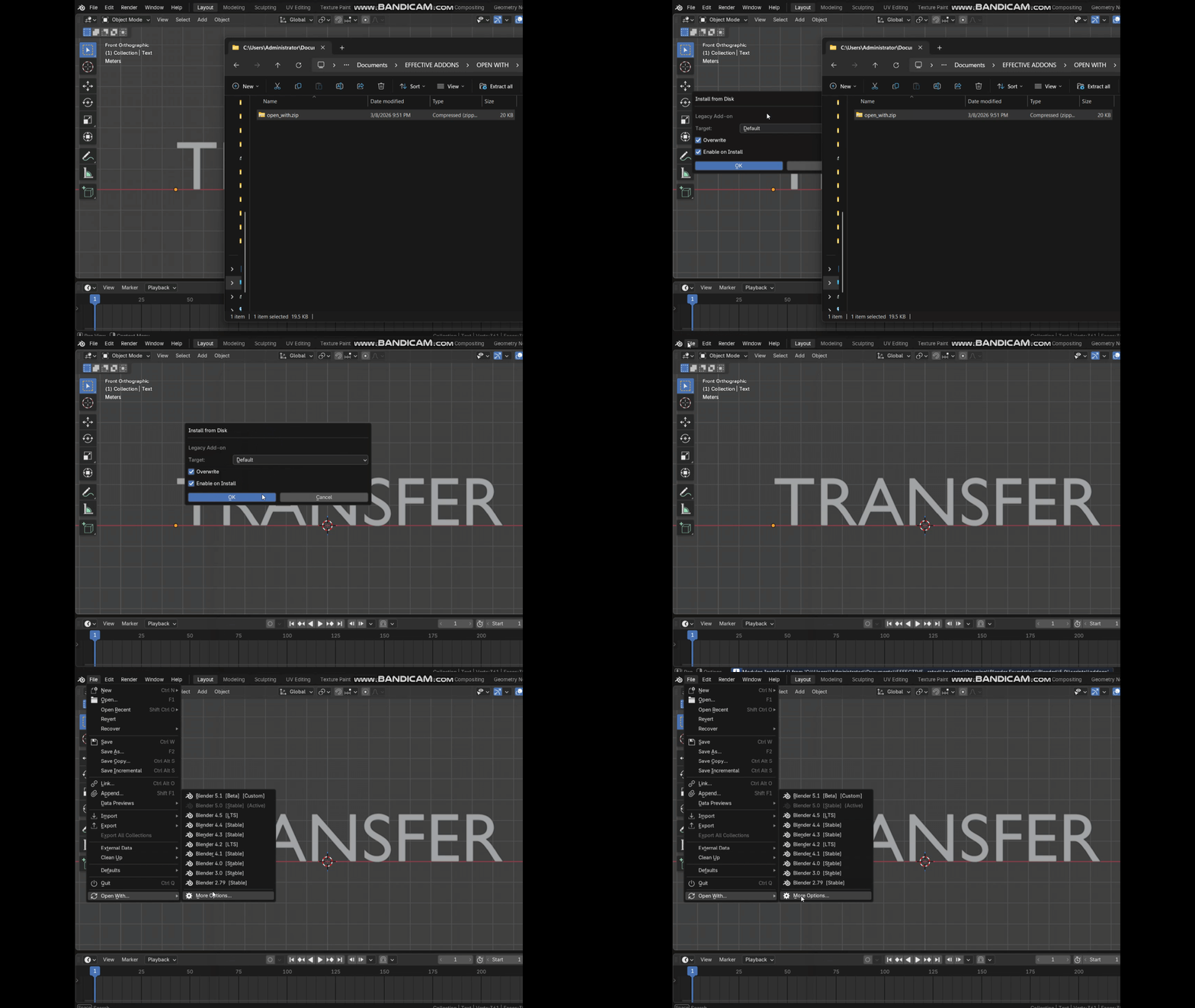
The dropdown auto-detects every Blender installation on your system, and custom blender installations on other drives.
Addon Comparison & One-Click Transfer
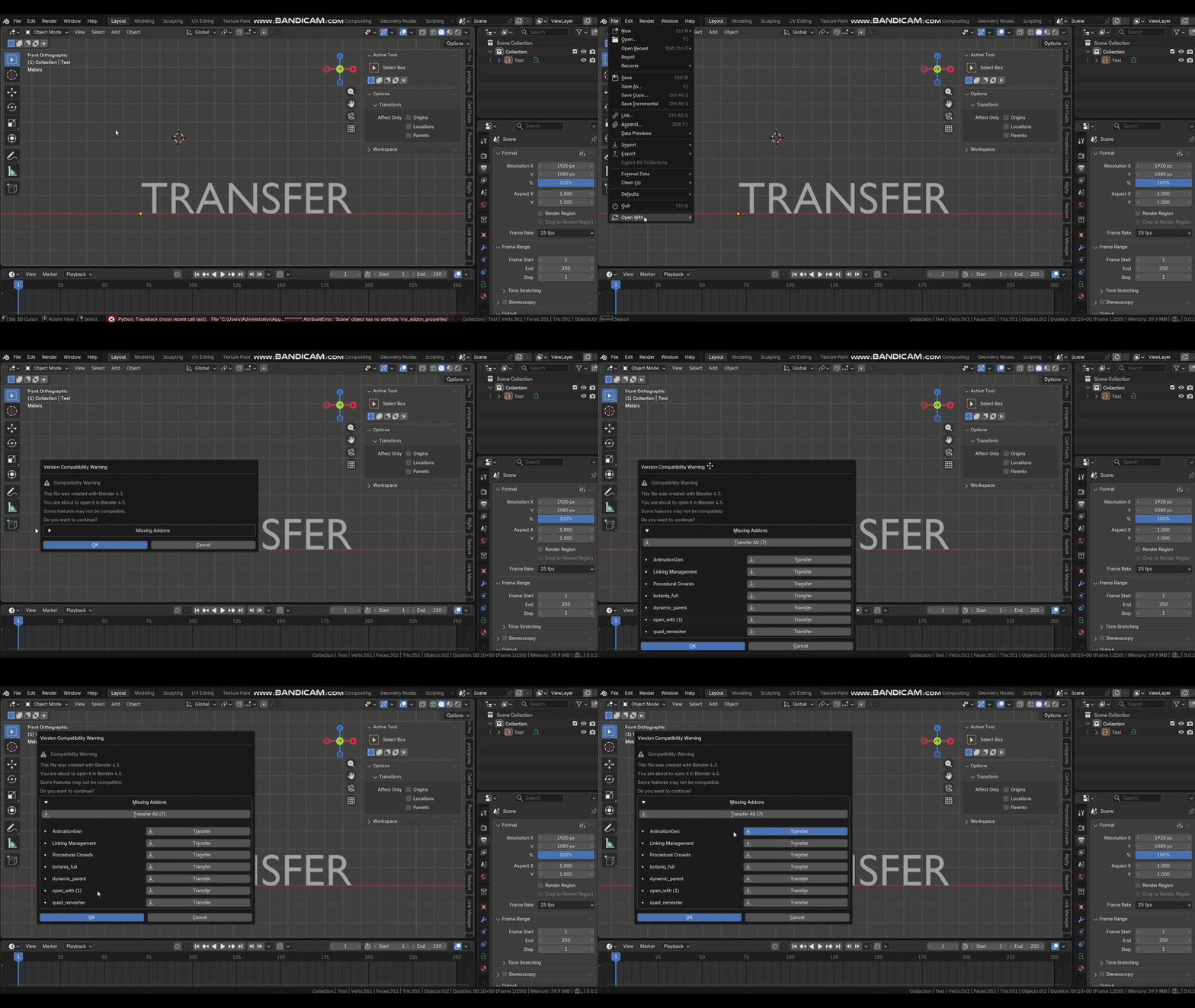
This alone is worth having. Every time you switch to a different Blender version, Open With automatically scans that version's addon folder and compares it against every addon you have enabled. Any addon that's missing in the target appears in the compatibility warning dialog with a Transfer button. This feature could also be your addon transfer pipeline. Right ?
Crash Detection — Find Out Why It Failed, Not Just That It Did
After launching the target Blender, Open With watches the process. If Blender exits before it's had time to fully load the file, that's a crash and OpenWith catches it.
But more importantly, it tells you why. Not just "Blender crashed."
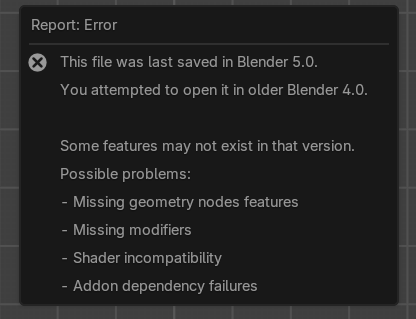
Compatibility fix.
Switching from Blender 5.0 to 3.0 instantly could result into crashes, but with OpenWith, just slowly stepdown the blend file gradually from 5.0 to 3.0 through in between versions without stress. If something potentially go wrong OpenWith will tell you that before you waste time waiting for a version that can't open your file properly.
Built-In Version Manager
Be updated
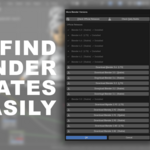
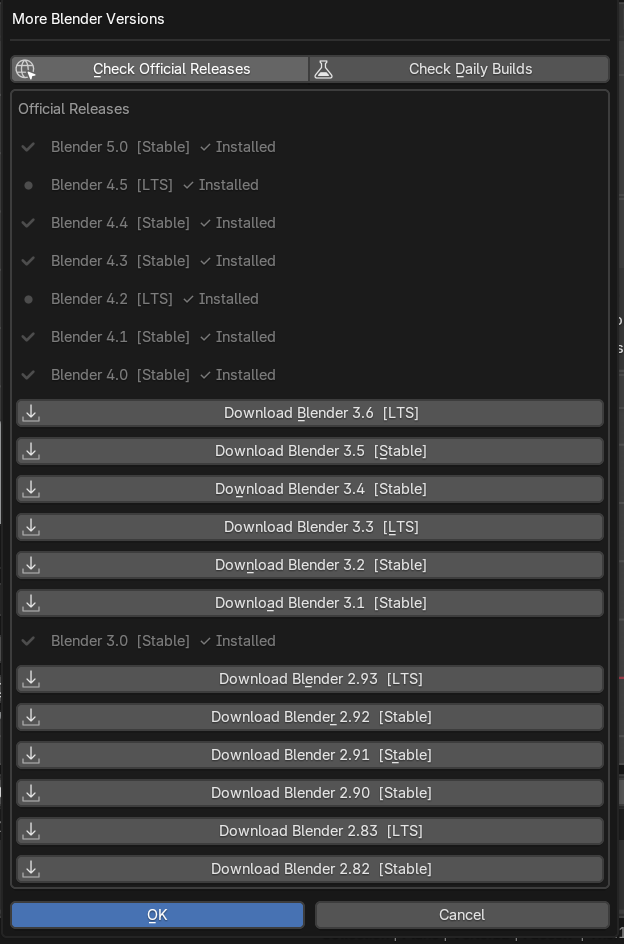
The More Versions panel fetches the complete list of official Blender releases and daily experimental builds directly from blender.org so that you are kept upto date.
Preferences — Full Control Over Every Behaviour
OpenWith doesn't make assumptions about how you work. Every behaviour is configurable.
Setting |
What It Does |
Auto-Save Before Switching |
Saves the current file before any version switch. On by default. |
Create Backup Copy |
|
Backup Folder |
Where backups are saved. Empty = same folder as the file. |
Crash Detection Timeout |
Seconds to watch for a crash after launch. 0 = disabled, both Blenders stay open. |
Custom Blender Installations |
Add any Blender executable or folder. File browser built in. |
Compatibility
Blender versions supported |
3.0 and above — all the way to the latest 5.x releases |
Operating systems |
Windows. |
How to Install
1. Download Open_with.Zip
2. Open Blender and go to Edit → Preferences → Addons
3. Click Install and select the zip file
4. Enable Open With by ticking the checkbox
5. Find it in the menu under File → Open With...
That's it. No configuration required to get started