Open With
 Flidoh Animations



Open With
Blender Addon Documentation
Version 1.2.0 · Author Flidoh · Blender 4.2 + (Extension) / 3.0 + (Legacy)
GPL v3 · https://flidoh.com/open-with/
1. Overview
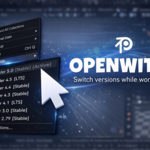
Open With lets you reopen the current .blend file in any other installed version of Blender directly from the File menu. It handles autosave, backup, version mismatch warnings, missing addon alerts, crash detection, and can automatically copy itself into target Blender versions so it's ready to use when you switch.
Key Features
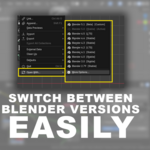
• Quick version switching - File > Open With… submenu lists every detected Blender install.
• Version safety warnings - Alerts when switching to an incompatible version, with a smart downgrade recommendation.
• Crash detection - Monitors the target Blender process; reports errors if it closes too quickly.
• Autosave & backup - Optionally saves and/or creates a timestamped backup before switching.
• Addon comparison - Shows which of your addons are missing in the target Blender and offers one-click transfer.
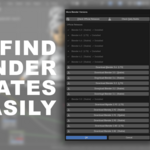
• Version Manager - Browse official and experimental Blender builds; open the download page with one click.
• Version Database - Persistent local database of known Blender versions, used to validate downgrade recommendations.
• Self-install - Copies itself into other Blender versions automatically on first switch, then auto-enables.
• Custom paths - Register Blender installs that live outside the standard discovery locations.
• Launch history - Tracks the last time each Blender version was opened via the addon.
2. Installation
Blender 4.2 and Later (Extension)
1. Download the open_with.zip file.
2. In Blender open Edit > Preferences > Extensions.
3. Click the dropdown arrow (top-right of the Extensions panel) and choose Install from Disk…
4. Select open_with.zip. Blender installs and enables the extension automatically.
ℹ The extension is placed in …/extensions/user_default/open_with/ inside your Blender user-data folder. |
Blender 3.0 – 4.1 (Legacy Addon)
1. Download open_with.zip.
2. Open Edit > Preferences > Add-ons > Install…
3. Select the zip. Enable the addon using the checkbox next to Open With.
Remember to restart Blender
Verification
After installation, open the File menu. You should see an Open With… submenu entry near the bottom, above Quit.
3. Quick Start
1. Save your .blend file (switching requires a saved file).
2. Go to File > Open With…
3. The submenu lists every detected Blender version. The currently running version is marked (Active).
4. Click any version. Open With will autosave (if enabled), then launch the selected Blender and close the current one.
ℹ If the file was created in a different Blender version a compatibility warning appears. You can proceed or cancel. |
4. The File Menu
Open With… Submenu
The submenu is appended to File automatically on startup. Each entry shows:
• Blender X.Y - Version number extracted from the install path or binary.
• [LTS] / [Stable] / [Beta] / … Version tag based on the known release history.
• (Active) - Marks the currently running Blender.
• [Custom] - Marks paths added manually in Preferences.
Hovering any entry shows the full executable path as a tooltip.
Version Discovery
Open With scans the following locations automatically:
Platform |
Locations scanned |
Windows |
C:\Program Files\Blender Foundation\ · %LOCALAPPDATA%\Programs\Blender Foundation\ · Steam common folder |
macOS |
/Applications/ |
Linux |
/usr/bin/ · /usr/local/bin/ · /opt/ · ~/blender/ |
Custom paths registered in Preferences are merged into this list. See Section 6 — Custom Blender Paths.
5. Safety System
Autosave Before Switch
When enabled (default: on), Open With calls File > Save before launching the target Blender. This ensures any unsaved work is preserved.
Backup Copy
A timestamped backup of the .blend is created before switching, named:
myfile__autosave_before_switch.blend
The backup is placed in the same folder as the original unless a custom Backup Folder is specified in Preferences.
Crash Detection
After launching the target Blender, Open With keeps the current Blender running for a configurable number of seconds (the Crash Timeout). If the target process exits before that window elapses, it is considered a crash and an error is reported.
Timeout value |
Behaviour |
0 seconds |
Crash detection disabled. Current Blender closes immediately after launch. |
1–29 s (default 15) |
Standard window. Recommended for most machines. |
30 s (auto) |
Automatically applied when switching more than one minor version down. |
Custom |
Set any value in Preferences > Crash Timeout. |
ℹ When switching to a much older Blender version the timeout is automatically raised to at least 30 seconds, because older versions take longer to load converted files. |
Version Mismatch Warning
When the file's saved version differs from the target Blender, a dialog appears before launching.
Standard Mismatch
Shows: This file was created with Blender X.Y. You are about to open it in Blender A.B. Some features may not be compatible.
You can proceed or cancel.
Large Downgrade Warning
Triggered when you switch down by more than one minor version (e.g. 5.0 → 4.3). The dialog shows:
Switching down by more than one minor version is unstable. We advise using Blender X.Y instead.
The recommended version is the highest real Blender version immediately below the file version, taken from the Version Database. You can still proceed.
Missing Addon Warning
If the current Blender has addons enabled that are not present in the target Blender, a warning lists them. You can optionally transfer them before switching.
6. Custom Blender Paths
Portable installs, custom-built Blenders, or versions installed in non-standard locations will not be found by the automatic scan. Register them manually:
Add path - Click Add Blender Installation in Preferences. A file browser opens; navigate to the Blender executable (or a folder containing it).
Remove path - Click the ✕ button next to an entry.
The menu updates immediately after adding or removing a path - no restart needed.
ℹ Paths are stored in addon preferences and survive Blender restarts. The version number shown next to each path is extracted from the executable path or by running blender --version. |
7. Addon Comparison & Transfer
Before switching you may want to ensure your addons are available in the target Blender. The comparison tool shows exactly what is missing.
Opening the Comparison
Click Version Manager in Preferences, then select a version and click Compare Addons.
Missing Addons List
The list shows every addon currently enabled in your Blender that is not found in the target version's addons folder. Built-in Blender addons (io_, cycles, rigify, etc.) and extension-prefixed addons are excluded.
Transferring Addons
Button |
Action |
Transfer (single) |
Copies one addon's source files into the target Blender's addons folder. |
Transfer All |
Copies every missing addon in the list at once. |
ℹ Transfer copies files only - it does not enable the addon in the target Blender. The first time you open the target Blender via Open With, it auto-enables Open With itself. Other transferred addons must be enabled manually in that Blender's Preferences. |
8. Version Manager
Accessible via Preferences > Support > Version Manager or from the warning dialog.
Official Releases
Click Check Official Releases to fetch the current release list from https://download.blender.org/release/ (requires internet). The list shows each version with its tag and whether it is installed.
Daily Builds
Click Check Daily Builds to fetch the latest experimental builds from https://builder.blender.org/download/daily/.
Downloading
Clicking any Download… button opens the official Blender download page in your browser. The addon does not download or install Blender.
9. Version Database
The Version Database is a persistent list of known Blender versions stored inside addon preferences. It is used to validate downgrade safety recommendations - so the addon never suggests a version like 4.9 that does not actually exist.
Updating the Database
Go to Preferences > Version Database and click Update Version Database (the refresh icon). This fetches the official release list and saves it locally. The panel shows the update timestamp and version count.
ℹ The Version Database doubles as the Check Official Releases fetch. Updating it here populates the Version Manager panel as well. |
Fallback
If the database is empty (e.g. no internet access yet) the addon falls back to a hardcoded list of known versions (2.80 through 5.0). A footnote in the warning dialog indicates when the fallback is in use.
10. Self-Install to Other Versions
Open With can copy itself into other Blender installations so it is ready to use immediately when you switch to them.
Automatic (on first switch)
Every time you switch to a target Blender, Open With checks whether it is installed there. If not, it copies its own folder into the target's addons/extensions directory and writes a small startup script that enables it automatically.
Manual (bulk install)
In Preferences click Choose Versions to Install To…. A dialog lists all detected Blenders. Check the ones you want and click Install.
Install Paths
Blender version |
Install location |
< 4.2 (Legacy addon) |
…/Blender//scripts/addons/open_with/ |
≥ 4.2 (Extension) |
…/Blender//extensions/user_default/open_with/ |
11. Preferences Reference
Location: Edit > Preferences > Add-ons (or Extensions) > Open With
Save & Load
Setting |
Description |
Autosave Before Switch |
Calls File > Save before launching the target Blender. Recommended: on. |
Create Backup |
Creates a .blend backup next to the original (or in the Backup Folder) before switching. |
Backup Folder |
Optional folder for backups. Leave blank to save next to the original file. |
Crash Timeout |
Seconds to wait before closing the current Blender. 0 = disabled. Minimum 30 s is enforced for large downgrades. |
Custom Blender Installations
A list of manually registered Blender executables or folders. Each entry shows the detected version number. Use Add Blender Installation / ✕ to manage entries.
Version Database
Shows the last update timestamp and version count. Use Update Version Database (refresh icon) to fetch the latest official release list from the internet.
Install Open With to Other Versions
Provides Choose Versions to Install To… for bulk self-installation across multiple Blender versions.
12. Compatibility
Context |
Notes |
Blender 4.2 + (Extension) |
Fully supported. Installed via Extensions panel. Uses bl_ext.user_default.open_with module path. |
Blender 3.0 – 4.1 (Legacy) |
Fully supported. Installed via Add-ons panel. |
Windows |
Scans Program Files, AppData, and Steam. Copies to %APPDATA%\Blender Foundation\Blender\\… |
macOS |
Scans /Applications. Copies to ~/Library/Application Support/Blender//… |
Linux |
Scans /usr/bin, /usr/local/bin, /opt, ~/blender. Copies to ~/.config/blender//… |
Network required |
Only for Check Official Releases, Check Daily Builds, and Update Version Database. All other features are offline. |
13. Troubleshooting
Symptom |
Solution |
Open With… missing from File menu |
Restart Blender. Check Blender's Console window for import errors. |
Preferences panel blank |
Known issue fixed in v1.2.0. Reinstall from the latest zip. |
Custom path not showing in menu |
Click away from the path field to confirm the entry, then reopen the menu. The cache refreshes on the next menu open. |
Target Blender crashes immediately |
Increase Crash Timeout in Preferences. Files created in newer Blender versions may be incompatible with much older versions. |
Missing addons warning on every switch |
The warning is informational. Transfer the listed addons or enable them manually in the target Blender. |
Update Version Database fails |
Ensure internet access is allowed. Blender 4.2 + requires Allow Online Access to be enabled in Preferences > System. |
Self-install not working |
Check that Blender's user data folder is writable. System-installed Blenders (e.g. package manager) may have read-only addon directories. |
14. Changelog
v1.2.0
• Multi-file package structure (prefs.py, operators.py, utils.py, __init__.py).
• blender_manifest.toml added - recognised as an Extension by Blender 4.2+.
• Large downgrade detection with real version database (no phantom versions).
• Persistent Version Database stored in addon preferences; updated via Check Official Releases.
• Version Database dropdown in Preferences shows all known versions with install status.
• Auto-timeout of 30 s for large downgrades.
• Self-install now copies the full addon folder (including all submodules).
• Install path corrected for Blender 4.2 + extensions/user_default/.
• __package__ used throughout for correct addon identification in all Blender versions.
• Custom path cache invalidation fixed - menu updates immediately after add/remove.
v1.1.x
• Version Manager with official and experimental build listing.
• Addon comparison and transfer.
• Launch history tracking.
• Crash detection with configurable timeout.
15. License
Open With is free software distributed under the GNU General Public License v3 or later.
You are free to use, modify, and redistribute it under the same terms. See LICENSE in the addon folder or visit https://www.gnu.org/licenses/gpl-3.0.html
Have questions about this product?
Login to message
| Blender Extension Compatible | Yes |
| Published | 7 months ago |
| Blender Version | 3.0 - 5.0 |
| Extension Type | Add-on |
| Render Engine Used | Cycles, Eevee |
| License | GPL |