OpenSet Connect: 100,000+ Free 3D Models Inside Blender
 Andrew Luzhetskyi

Documentation, version 1.0.0
OpenSet Connect user guide
How to find, add and use the models, from the first click to the last setting. Button names match the ones in Blender, and the sections follow the panel from top to bottom.
 |
Models stay online. Only what you import is downloaded. |
All five datasets together are more than 700 GB. OpenSet Connect downloads only the model you import, and keeps downloads within a size limit you set (500 MB by default), so the whole library never sits on your computer.
Importing needs an internet connection, with Blender's Allow Online Access on. Browsing, search and thumbnails work offline. A model over 50 MB shows its size and asks before its first download. No tracking: the add-on only downloads models and never uploads your files.
What is in this guide
|
Quick start Install, open the panel, add a model. |
Install and update Step by step, and how updates work. |
|
Browse Tabs, folders, cards and the info popup. |
Search Find a model by name or category. |
|
Favorites and collections Keep the models you reuse. |
Import and placement Cursor, Surface, Origin, and bigger downloads. |
|
Moving parts Pose hinges and sliders, scale and export. |
Credits and licenses What you may do, and what you must do. |
|
Preferences Downloads folder, size limit, backups. |
Common recipes Five ways to put the tools to work. |
|
Troubleshooting What you see, and what to do. |
Uninstall and your data What stays and what goes. |
Quick start
| 1 | Install the ZIP (see Install and update), then turn on Allow Online Access in Edit > Preferences > System > Network. |
| 2 | Open the panel. In the 3D Viewport, press N and click the OpenSet tab. |
| 3 | Add a model. Pick a dataset tab, open a folder, and click a model's name. It is downloaded and placed at the 3D Cursor, in its own collection. |
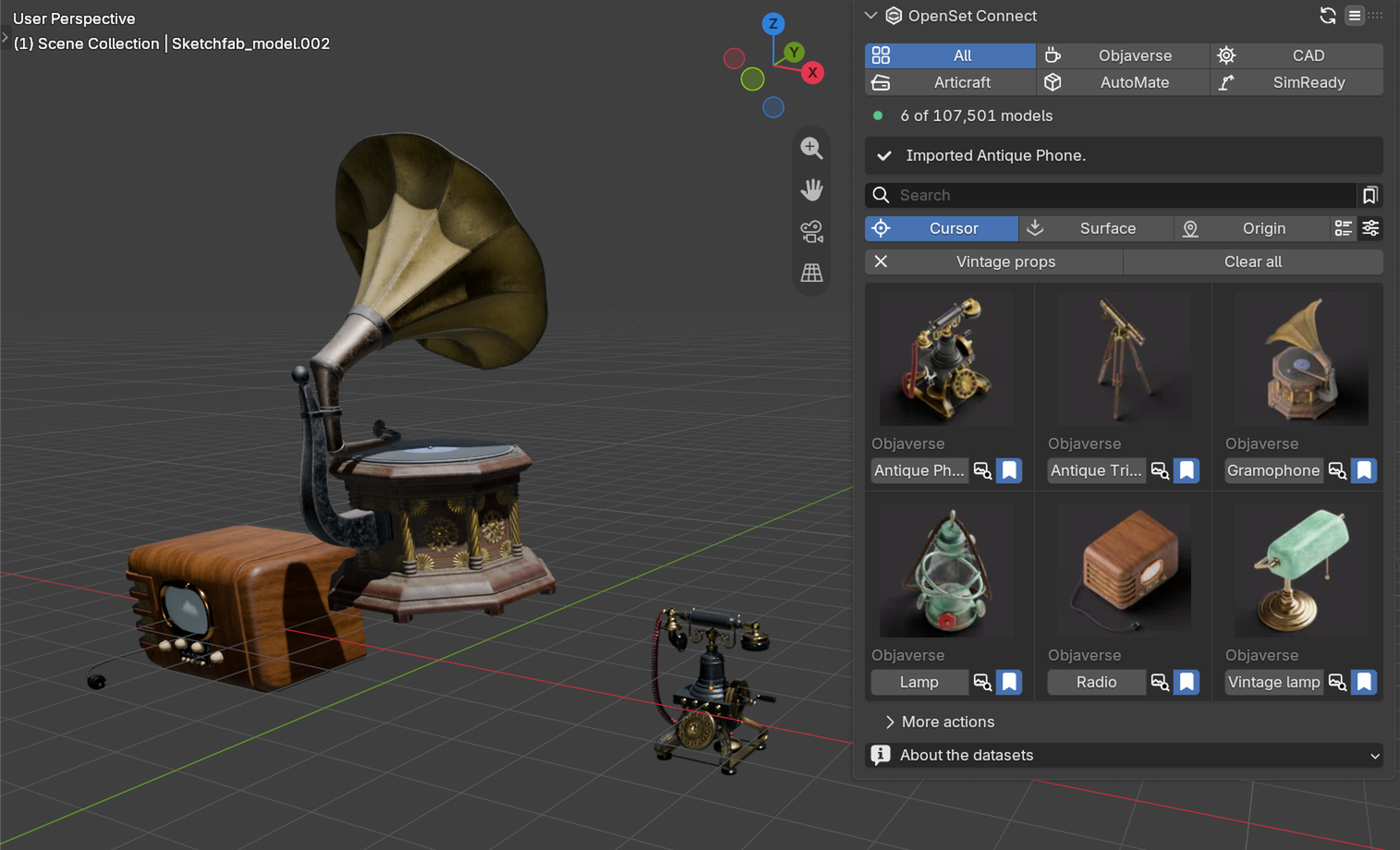
The panel in the sidebar, right after adding a model.
Install and update
OpenSet Connect is a Blender extension for Blender 5.1 or newer. It does not run on Blender 5.0 or 4.x.
| 1 | Download the ZIP from your Superhive orders page. Do not unzip it. |
| 2 | In Blender, open Edit > Preferences > Get Extensions. |
| 3 | Open the menu at the top right and choose Install from Disk. Pick the ZIP. |
| 4 | Open Edit > Preferences > System > Network and turn on Allow Online Access. Browsing works without it; downloading a model needs it. |
Updating
- Installed from the Superhive repository inside Blender: press Update in Get Extensions.
- Installed from a ZIP: install the new ZIP the same way. It replaces the old version. You do not need to uninstall first.
Browse
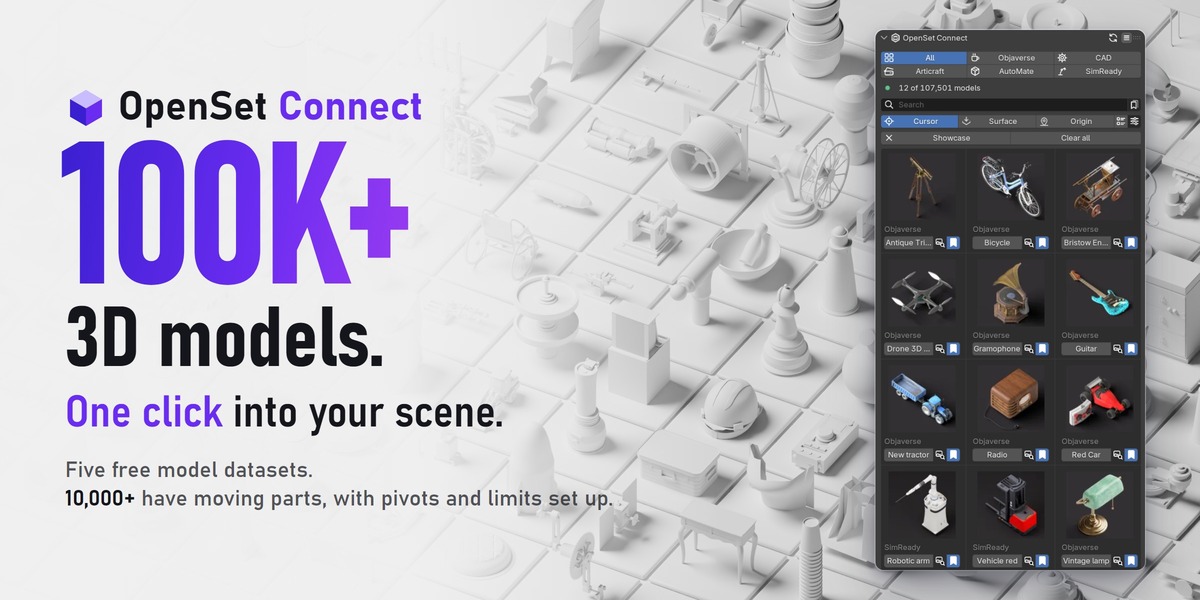
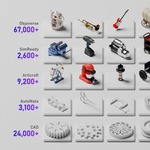
100,000+ models,
sorted by category.
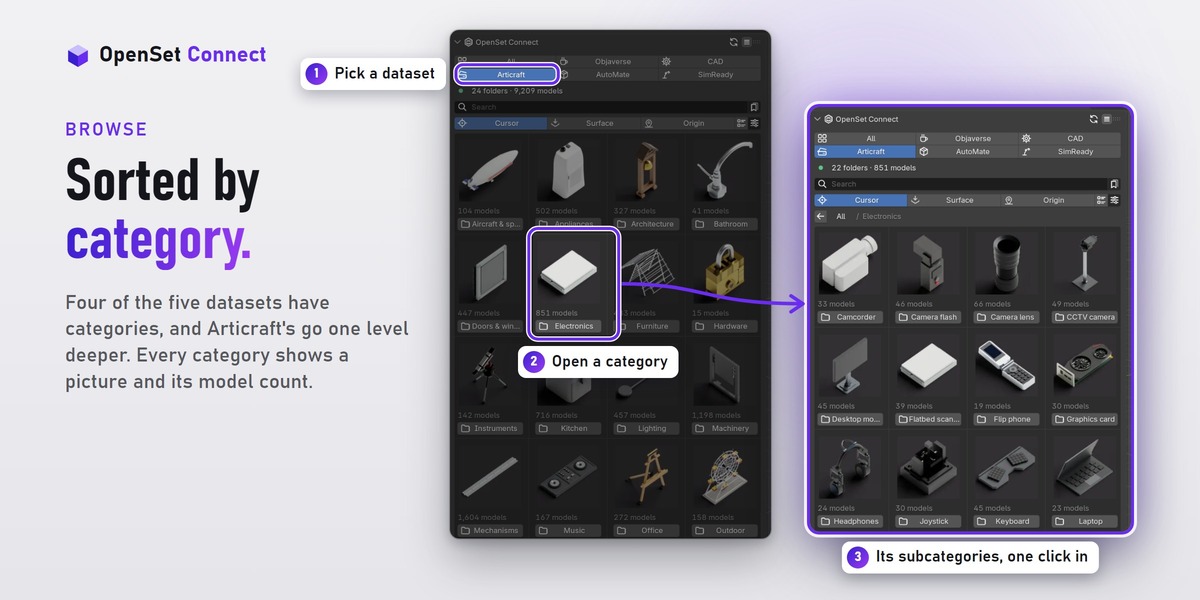
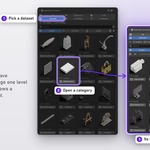
Pick a dataset, open a folder, and see every model as a picture before you add it.

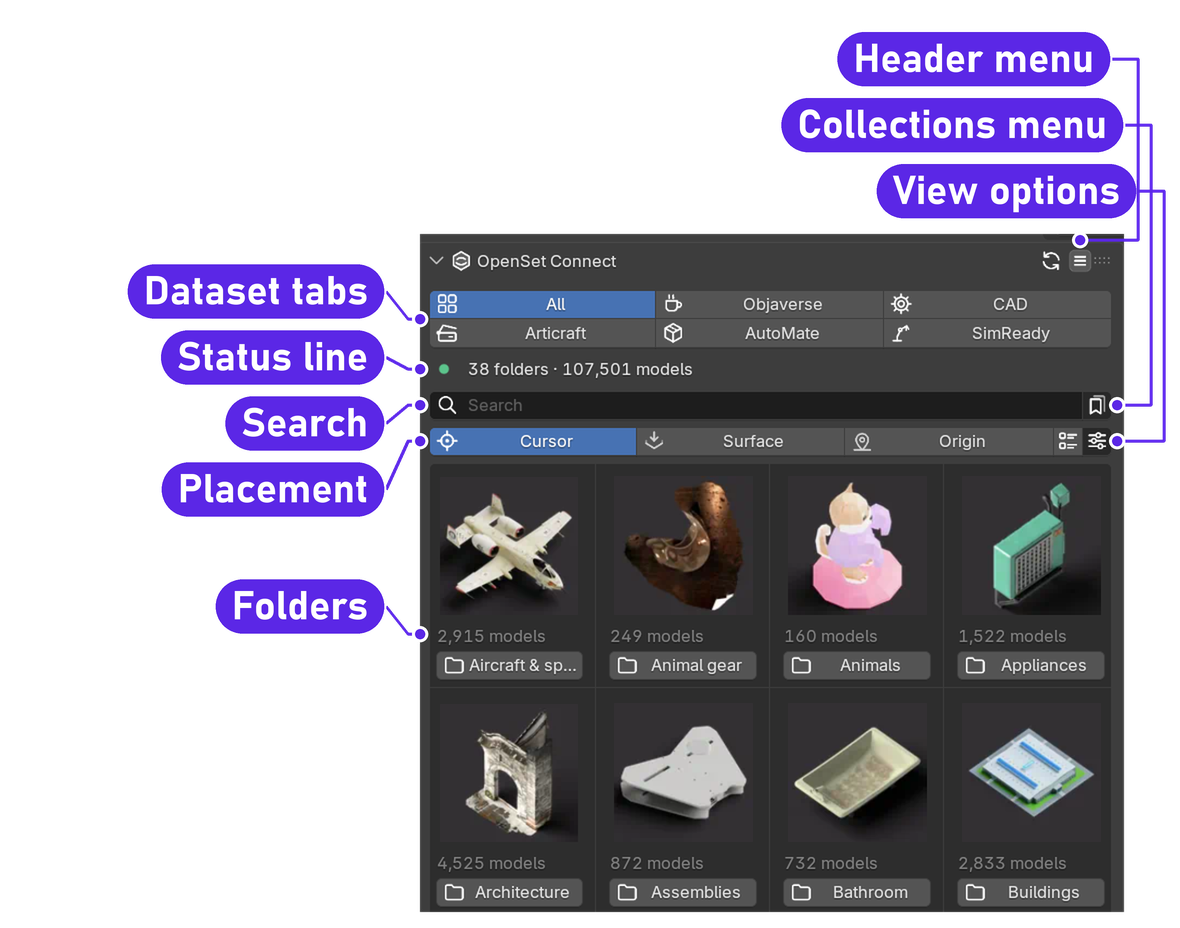
The panel, top to bottom
Dataset tabs TAB
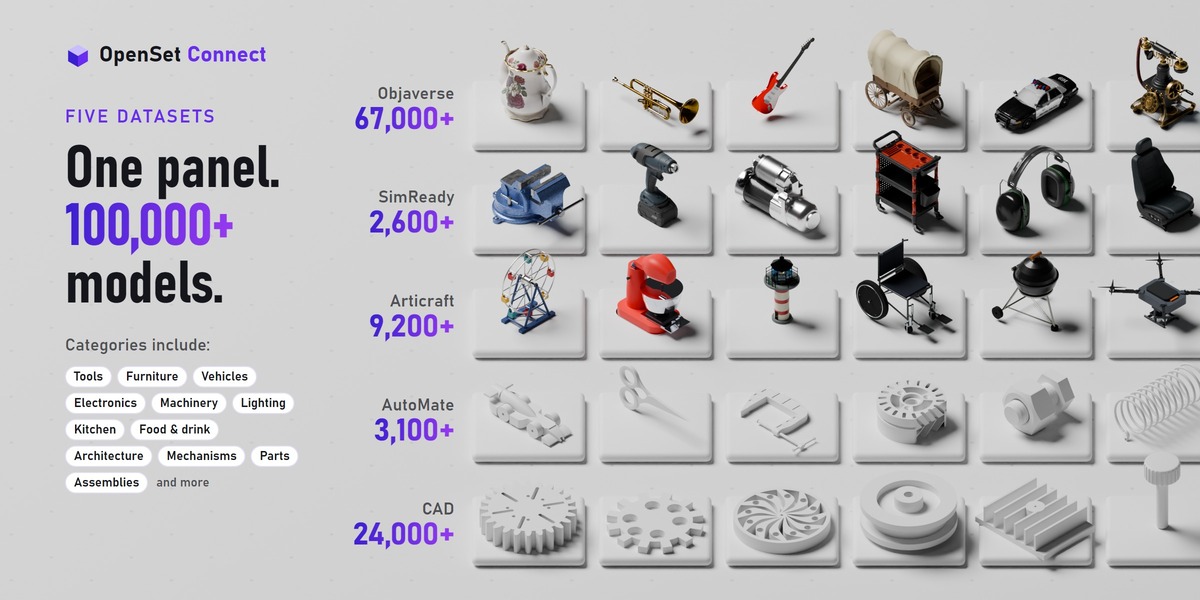
All, Objaverse, CAD, Articraft, AutoMate and SimReady. All shows every model; a dataset tab shows only that dataset.
Default: All
Status line FIELD
Counts what you see: 107,501 models, 120 of 107,501 models when a search or a list narrows it, or 12 folders · 340 models inside folders. During an import a status card shows the download, with an X to cancel, or the error and a Retry button.
Folders and the breadcrumb BUTTON
A folder card shows a picture, the model count and the name. Click it to open it; folders can hold folders. The trail at the top (All / Furniture / Chairs) takes you back up. The CAD tab has no folders and lists models directly.
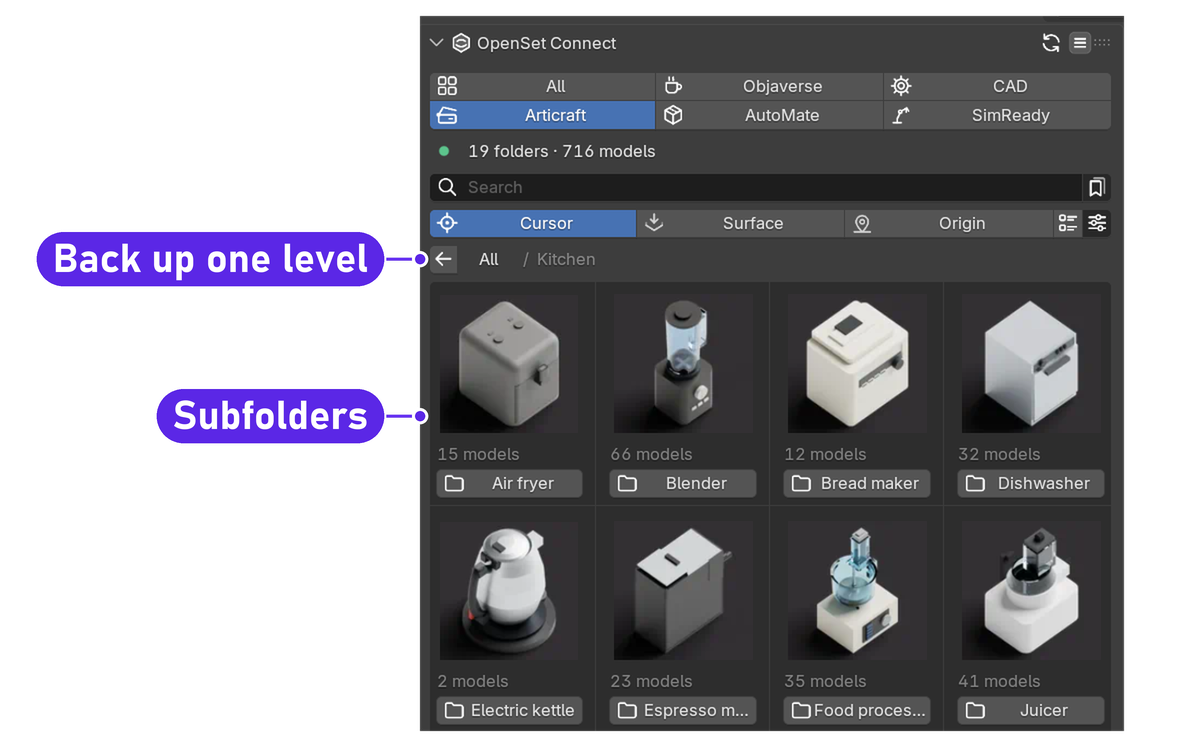
Articraft > Kitchen: each card is a subfolder with its own models.
Model cards BUTTON
Each card has a picture, a caption and one row of buttons: the name (click to add the model), the info button, and the bookmark, which adds the model to Favorites or your collections. The caption shows the dataset on the All tab, and the number of moving parts (4 moving) or Static inside a dataset.
Info popup POPUP
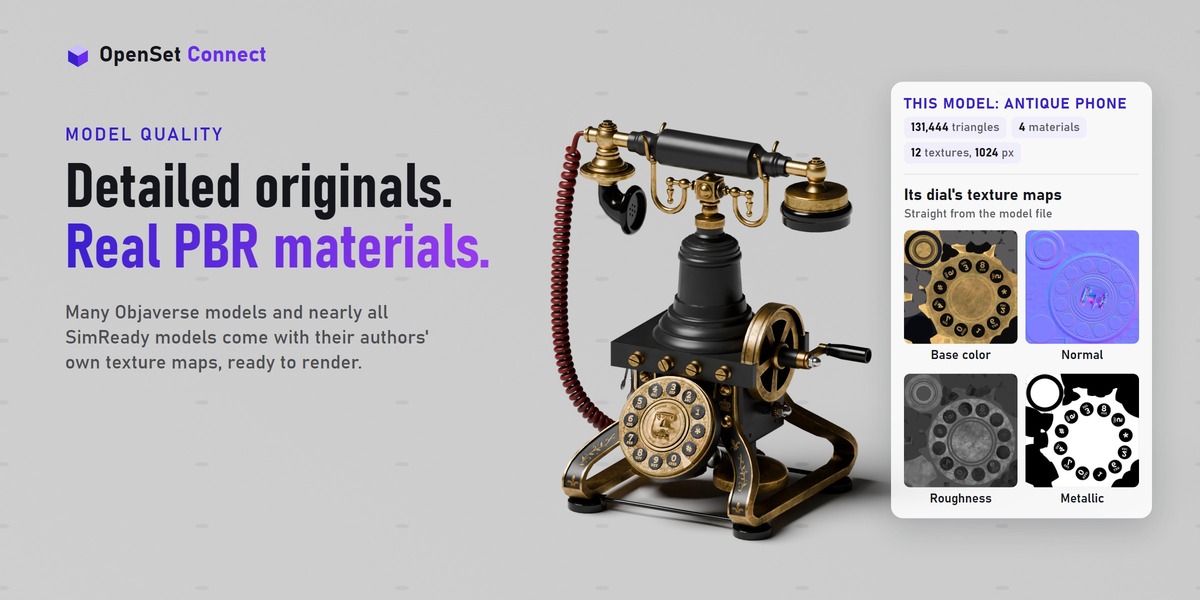
A larger picture with the name, dataset, number of moving parts, folder, source, creator, license, download size, and a warning on personal-use models. Its buttons: Import, Similar (not on AutoMate), Favorite, Add to Collection, Page (the model's source page), License and Credit (copies the credit line).
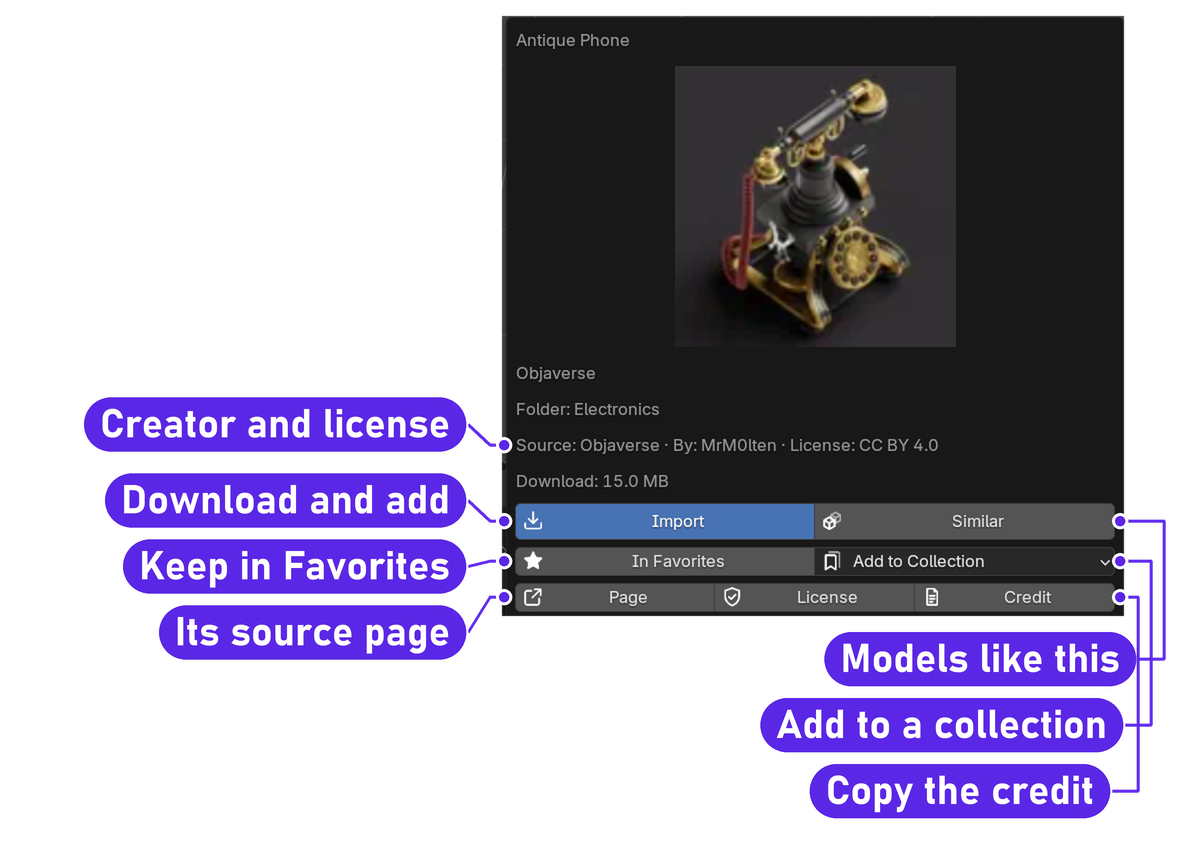
Similar opens the model's folder; on CAD models it shows models with a similar shape.
Grid and List buttons BUTTON
Switch the view (tooltips: Show models as pictures / as rows). List shows a smaller picture with the buttons on one line.
Default: Grid
View options POPUP
The sliders button next to Grid and List: Thumbnail size (Small, Medium, Large, Extra large), Models per page (12, 24, 48, 96) and the Commercial use only switch.
Default: Medium, 24
Header menu MENU
The menu button in the panel header: About the datasets, Credits and licenses, Refresh and Repeat last add.
Search
Search FIELD
Type words from a model's name or category. Every word must match, and the start of a word is enough: lam finds lamps. If nothing matches, the panel offers the closest match.
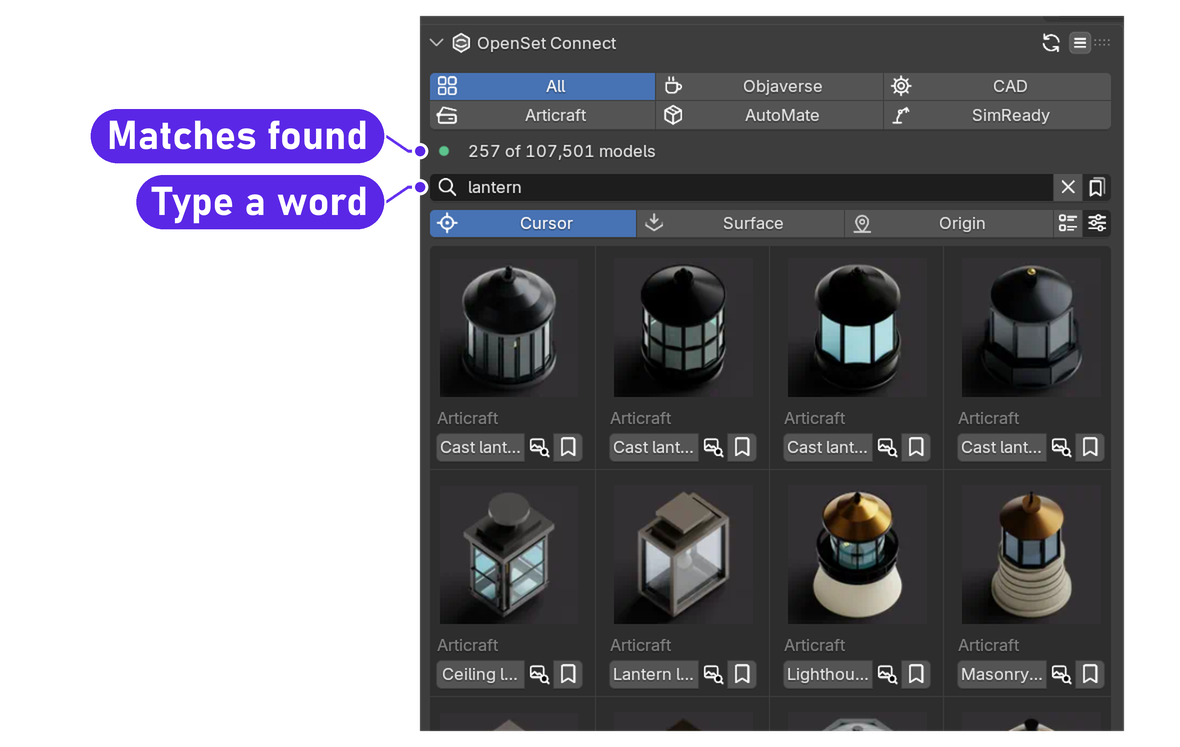
There are no filter or sort menus: the dataset tabs, the folders and search do that job.
Chips under the search BUTTON
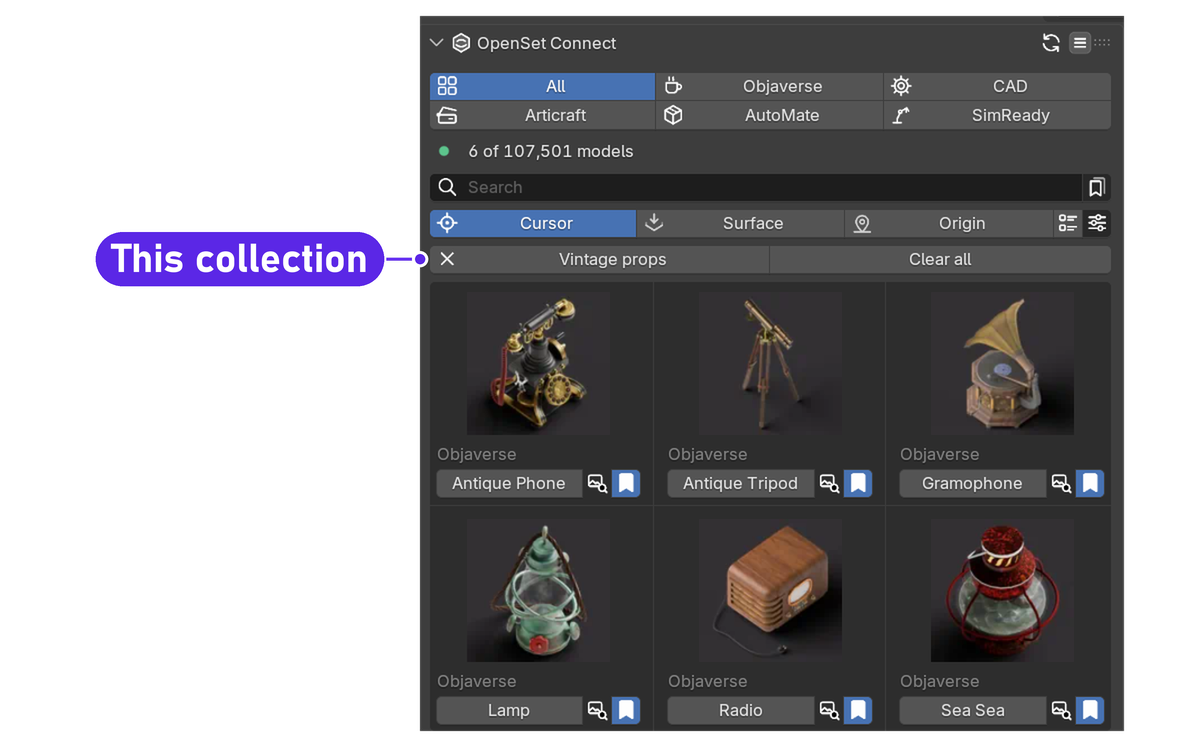
When you show Favorites, Recent, Most used, a collection, or CAD's Similar shapes, a chip with an X appears under the search. Click it to go back, or Clear all.
Favorites and collections
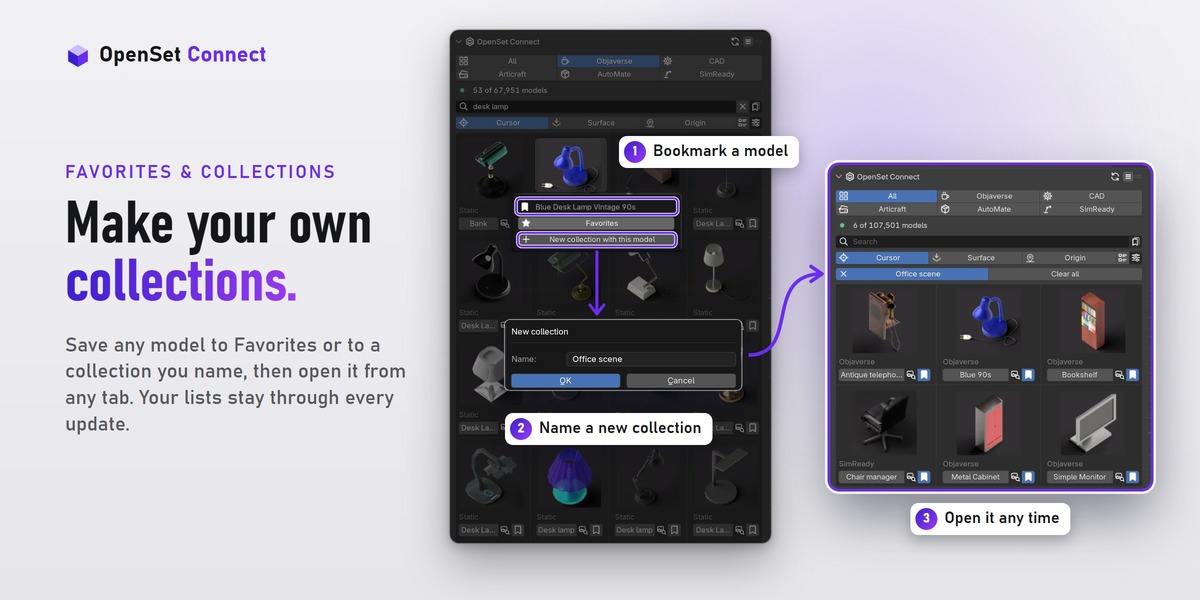
Open the Collections menu (the bookmark button) to see Favorites, Recent, Most used, your own collections and New collection. Pick one to show only those models; click its chip under the controls to go back.
Bookmark on a card POPUP
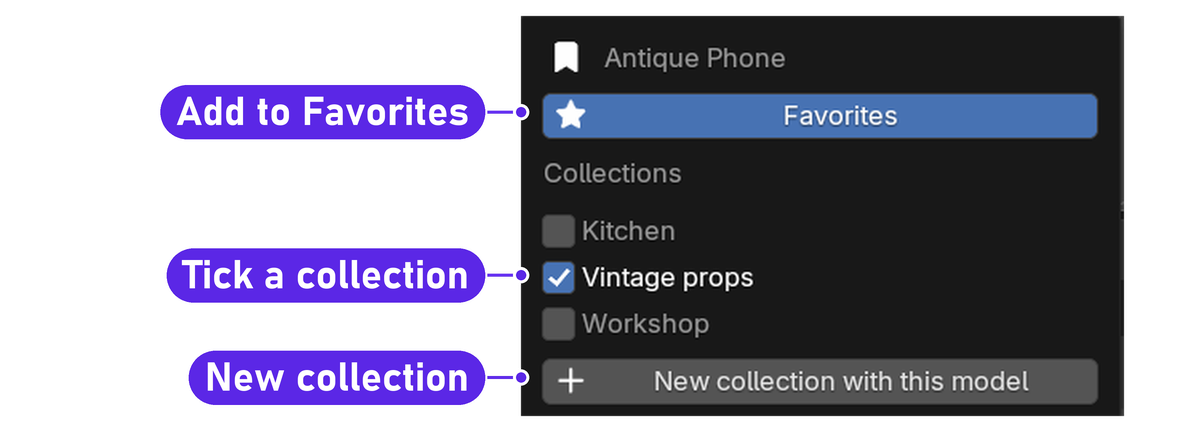
Tick Favorites or any of your collections, or make a New collection with this model. The bookmark shows filled when the model is kept anywhere.
Add to Collection MENU
In the info popup. Adds the model to one of your collections, or to a new one. Click a collection's name again to take the model out.
Add > OpenSet Connect MENU
In the 3D Viewport, Shift A > OpenSet Connect lists up to five recent models, five favorites and five from each collection, so you can add them without opening the sidebar.
Import
One click,
in your scene.
Only the model you pick is downloaded. After that it comes from your cache, with no internet needed.

Import and placement
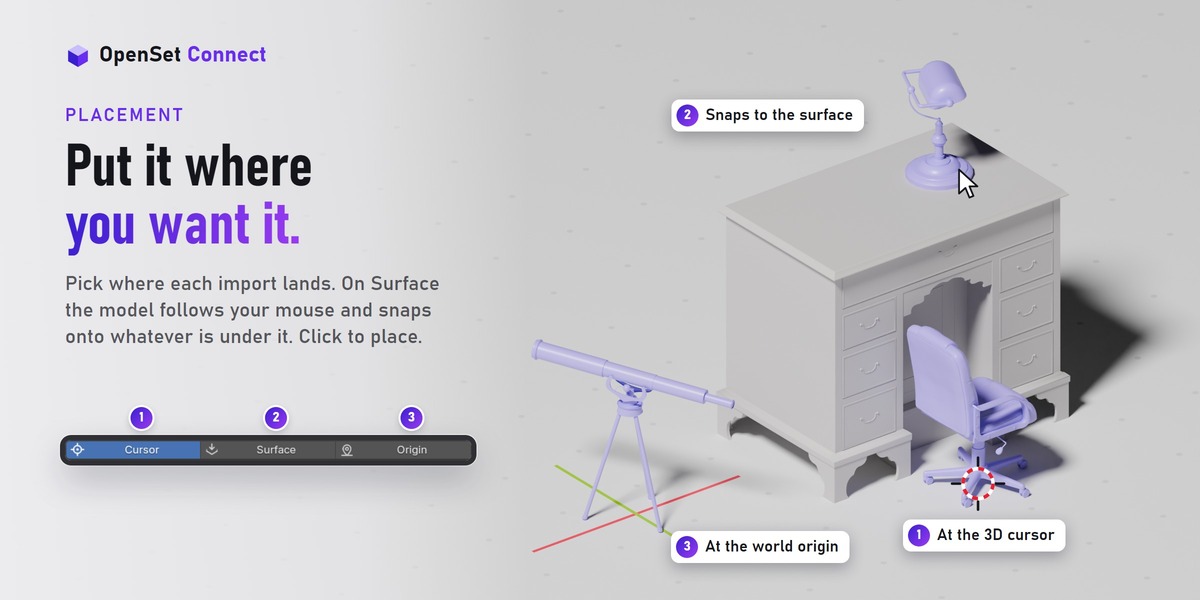
Click a model's name, or Import in its info popup. The model arrives in its own collection named after it, with one root object you can move, rotate and scale. Each import is one undo step.
Placement: Cursor, Surface, Origin SWITCH
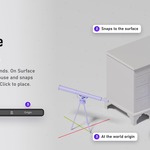
Choose before you import. Cursor places the model at the 3D Cursor. Surface lets the model follow your mouse over the objects in your scene; click to drop it. Origin places it at the world origin.
Default: Cursor
Surface placement keys
| Input | What it does |
|---|---|
| Move the mouse | The model follows the surface under the mouse, resting on its base |
| Left click | Place the model |
| Shift + mouse wheel | Turn the model in 15 degree steps |
| A | Change the up axis (Z, -Z, Y, -Y, X, -X) |
| Esc or right click | Cancel and remove the model |
Repeat last add BUTTON
Under More actions at the bottom: adds the last model again with the current placement.
Add all BUTTON
Under More actions: adds every model the current search or folder show, up to 50. It always asks first and names the total download size. All of them land at the same point, so move them apart afterward.
Big download check POPUP
A model over 50 MB asks first: This model is 80.0 MB. Download it? Models already in your cache never ask, and Repeat last add and Retry do not ask either.
Moving parts
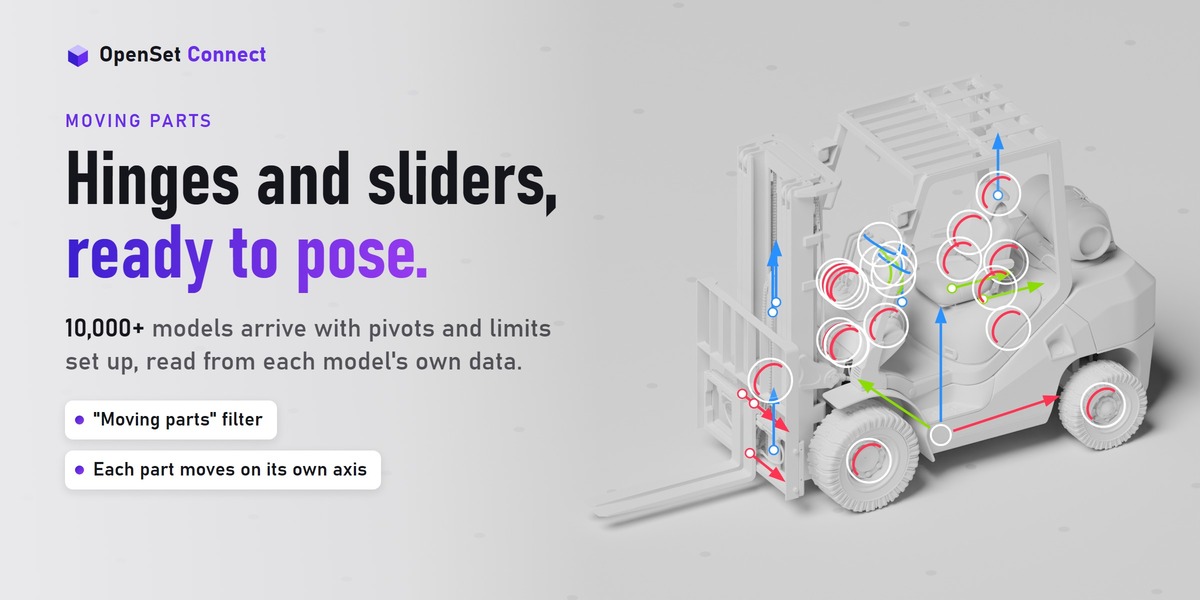
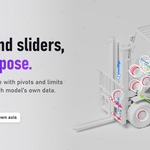
Hinges and sliders,
ready to pose.
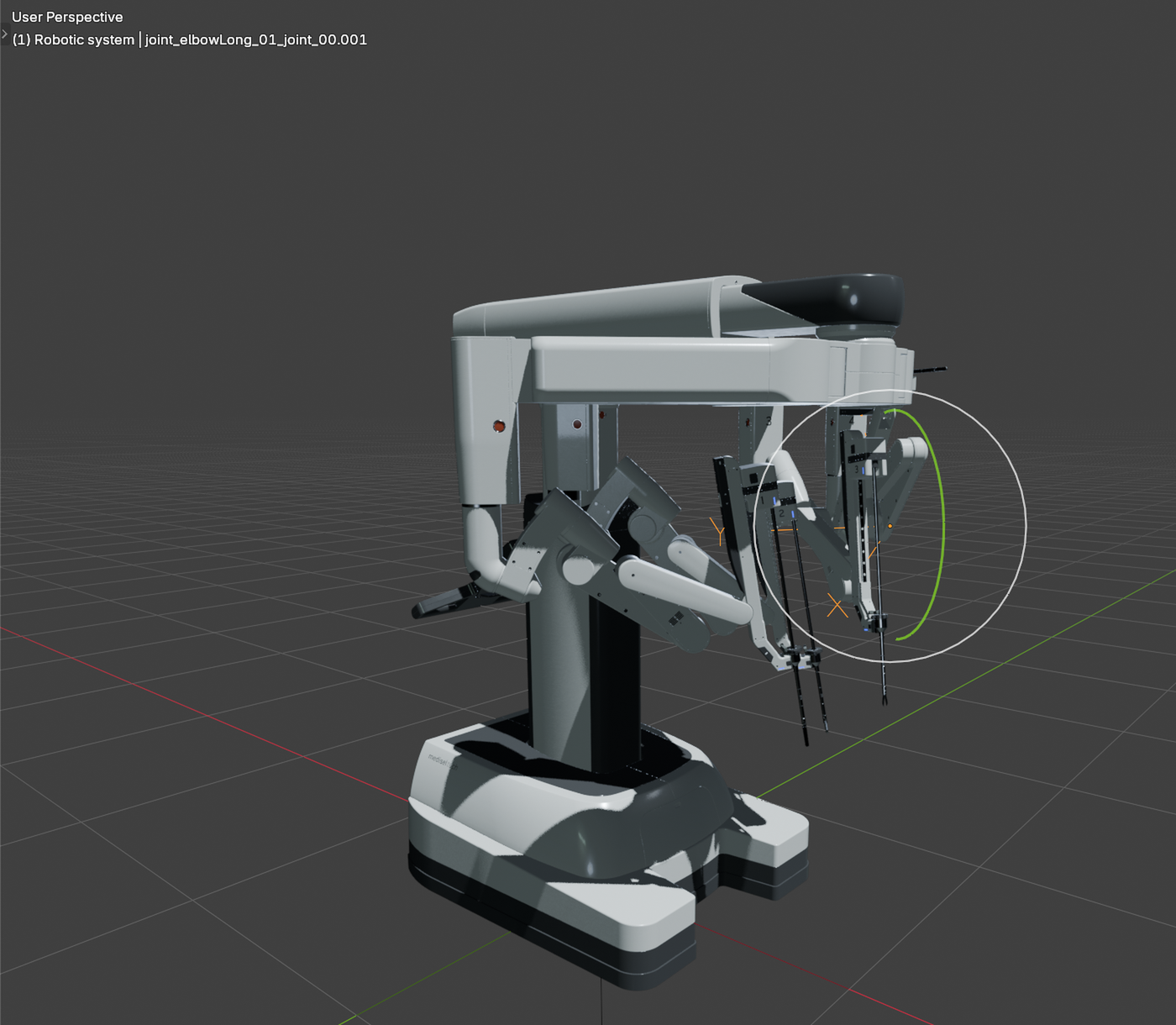
10,000+ models come with moving parts. Each joint is rebuilt as a pivot with limits.

Pose a model
Moving parts are in Articraft (9,100+ models), AutoMate (860+) and SimReady (670+). After the import the message says how many, for example Imported Floor Lamp with 3 moving parts.
| 1 | Select the joint's pivot: an empty (an invisible object that holds a position) named after the joint, drawn as arrows. Click it in the viewport or in the Outliner under the model's collection. |
| 2 | Rotate a hinge or move a slider as usual. Only the joint's own axis is free; the other fields are locked. |
| 3 | The part stops at the joint's limits. |
Good to know
- Hinges and sliders are rebuilt. Other joint types import fixed in place.
- A joint with no limit in the data has no constraint and moves freely. A hinge with one limit stops at 360 degrees on the other side.
- To animate, select the pivot and key its free field with I at two frames. The part still stops at its limit.
- Scale the root, or apply scale on the root only. Applying scale to all objects breaks sliders.
- Duplicate with all the model's objects selected (Shift+D). The copy has working pivots.
- glTF and FBX exports work, but the limits are not exported: the pivots become plain empties.
For technical users
The limits are Limit Rotation and Limit Location constraints on the pivot (Object Constraints tab).
The joint type, axis and limits are also stored on the pivot as custom properties: s3d_joint_type, s3d_axis, s3d_lower, s3d_upper.
Credits
Credits and licenses,
kept for you.
Every model keeps its credit line and license, so giving credit takes one click.

What you may do, and what you must do
The models are free. The add-on is what you bought; each model keeps the license its creator chose.
| License | Models | Paid or client work? | What you must do |
|---|---|---|---|
| CC BY 4.0 | 100,000+ | Yes | Credit the creator |
| CC0 | 610+ | Yes | Nothing. A credit is welcome. |
| CC BY-NC 4.0 | 1,400+ | No, personal work only | Credit the creator |
Giving credit means: when you share or publish work that contains the model, name the creator, the license and the link. The credit line OpenSet Connect gives you names what the dataset records: the creator and link where it has them, the source and the license, and for CAD, Articraft and AutoMate that the model was rebuilt. If you change a model yourself, say so too. Not sure? Include it. This is a plain summary, not legal advice; the license text decides.
Credit BUTTON
In a model's info popup. Copies that model's credit line to the clipboard.
Credits and licenses POPUP
From the header menu or Preferences. Shows how many OpenSet models are in your scene. Copy scene credits copies all their credit lines; Save credits note writes them to a text block.
OpenSet Credits text block FIELD
Written into your .blend file after every import, grouped by dataset and license. Open it in the Text Editor.
Default: On (Preferences)
Commercial use only SWITCH
In View options and Preferences. Hides the personal-use (CC BY-NC) models, about 1,400, from the panel.
Default: Off
For technical users
Every imported model carries its credit as custom properties on the root object and its collection: s3d_attribution is the full credit line.
Some CAD and AutoMate models are based on public Onshape documents. Sandflow's dataset cards say a designer may hold rights the dataset license does not cover, and Sandflow takes removal requests.
Preferences
Open Edit > Preferences > Get Extensions, find OpenSet Connect and expand it. The header shows the version, 107,501 free models from 5 datasets and Catalog ready, with Documentation, Credits and licenses and Report a problem buttons.
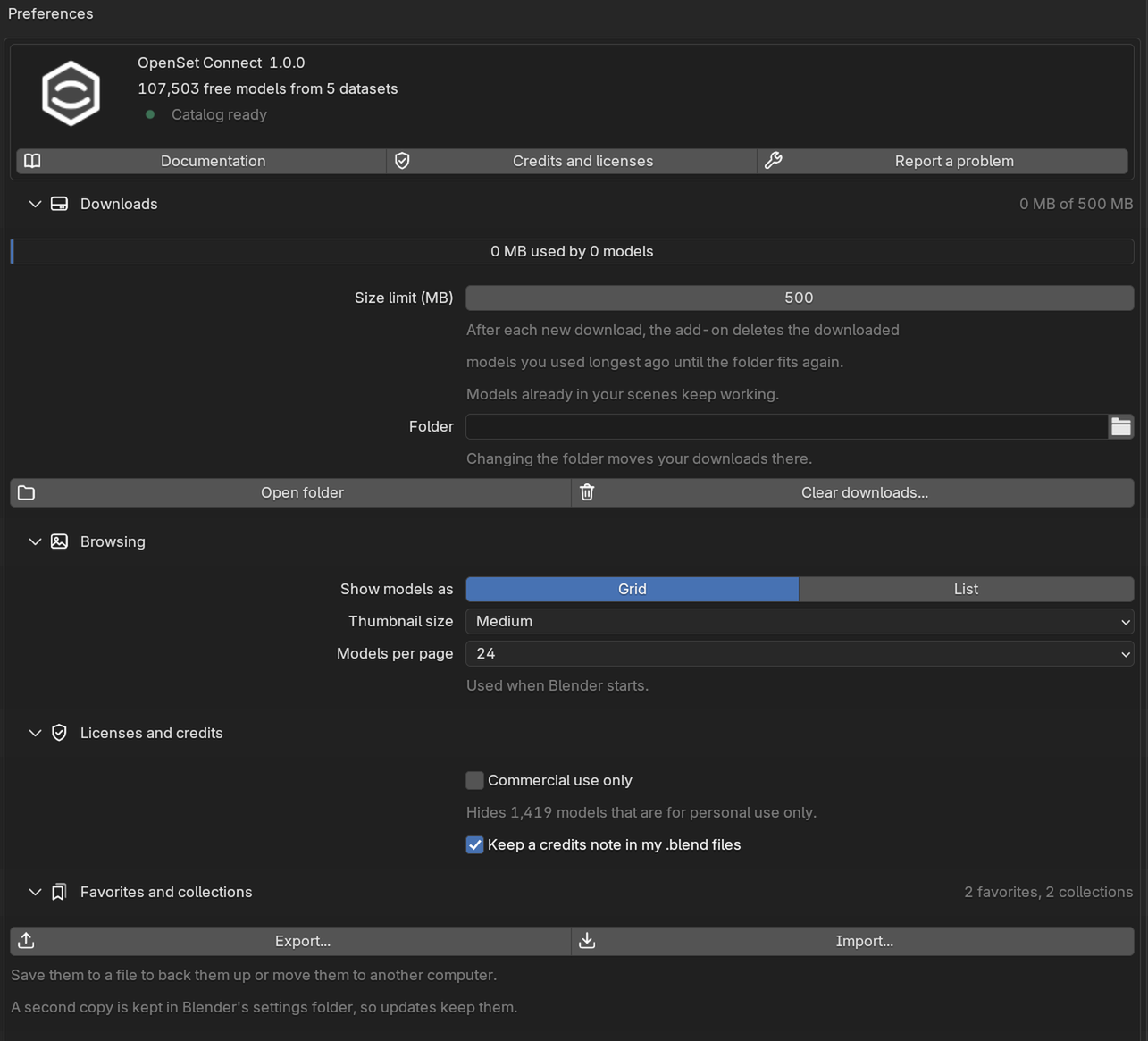
Size limit (MB) FIELD
Disk space for downloaded models. After each new download, the models you used longest ago are removed until the folder fits. Models already in your scenes keep working.
Default: 500 MB
Folder FIELD
Where downloads are kept. Leave it empty for Blender's own add-on folder. Choosing another folder moves your downloads there, with a progress bar.
Default: empty
Open folder / Clear downloads... BUTTON
Show the folder, or delete the downloaded models and previews after asking. They download again when you next add them.
Show models as, Thumbnail size, Models per page FIELD
What the panel starts with each session.
Default: Grid, Medium, 24
Commercial use only SWITCH
The same switch as in View options.
Default: Off
Keep a credits note in my .blend files SWITCH
Refreshes the OpenSet Credits text block after every import.
Default: On
Export... / Import... BUTTON
Save your favorites and collections to a .json file, or add them from one. Import never removes anything and never adds a model twice.
Write a log file SWITCH
In the folded Troubleshooting section. Records downloads, imports and errors in openset_connect.log. Turn it on before you report a problem.
Default: Off
Common recipes
Dress a room in a few minutes
Open Objaverse > Furniture, set placement to Surface, and click models one by one: each follows your mouse onto the floor or a table. Bookmark the ones you like for the next room.
Find more like this one
Open a model's info popup and click Similar. You land in its folder, or on CAD, among parts with a similar shape.
Keep a kit for a project
Make a collection named after the project and add models to it from the info popup. In any file, Shift A > OpenSet Connect lists them.
Only models you can sell
Turn on Commercial use only. Before you deliver, open Credits and licenses and click Copy scene credits.
Animate a drawer or a door
Open Articraft, add a cabinet with a drawer, select the drawer's pivot, and key its free Location field at two frames. The drawer stops at its real limit.
Troubleshooting
Titled by what you see. These are the common messages.
Online access is off. Allow it in Preferences > System > Network, then try again.
Open Edit > Preferences > System > Network, turn on Allow Online Access, and import again.
Could not reach Hugging Face, or the download timed out
Check your internet connection and click Retry. Behind a firewall or proxy, allow Blender to reach huggingface.co. Large models take longer.
Hugging Face is busy (error 429)
Wait a minute and try again.
The model file was not found (404), or the download was refused (401 or 403)
Try again later. If one model keeps failing, message me with its name.
The download is incomplete or damaged
Try again. A damaged or partial file is never used as a model.
Cannot write to the cache folder
The disk may be full. Free some space, click Clear downloads in Preferences, or choose another Folder.
Could not import (model name)
The file downloaded, but Blender could not read it. Try again; if it repeats, message me with the model name.
Imported (name), but its moving parts could not be set up
The model is in your scene with its parts fixed in place. Everything else works.
Blender stops responding for a moment
A big file is being read. The status bar shows Importing (name).... Wait until it ends.
A picture stays blank in the grid
Click the Refresh icon in the panel header. If it stays blank, use Clear downloads in Preferences.
The panel says Loading catalog and does not finish
Click Retry or the Refresh icon. The catalog is inside the add-on, so a lasting error means the install is damaged: install the ZIP again.
A part does not move
Select the joint's pivot (the arrows empty), not the mesh. Only its one free field moves.
A slider stopped working after I applied scale
Undo, then apply scale on the root only. Applying scale to all objects breaks sliders.
The disk is filling up
Lower Size limit in Preferences, or click Clear downloads.
Reporting a problem
| 1 | In Preferences, open the Troubleshooting section and turn on Write a log file. |
| 2 | Do what went wrong once more. |
| 3 | Click Report a problem in the Preferences header. It copies a short report (versions, system, the last lines of the log, with your home folder shown as ~) and opens the product page. |
| 4 | Message me there and paste the report, with the model name and what you clicked. |
Uninstall and your data
| 1 | Optional: click Clear downloads in Preferences to delete the downloaded models. |
| 2 | Open Edit > Preferences > Get Extensions, find OpenSet Connect, open its menu and choose Uninstall. |
- Models already in your scenes stay. They are normal Blender objects.
- Blender removes the add-on's folder with the downloaded models. If you chose your own Folder, it stays on disk.
- Your favorites, collections, Recent and Most used lists come back when you install again (your settings do not), from the backup in Blender's config folder. To move them to another computer, use Export and Import in Preferences.
A note from me
If something here is unclear, or the add-on does something this guide does not describe, please message me on Superhive. I read every message, and a clearer guide helps everyone.
Have questions about this product?
Login to message
| Blender Extension Compatible | Yes |
| Dev Fund Contributor | |
| Published | about 1 hour ago |
| Blender Version | 5.1 - 5.2 |
| Extension Type | Add-on |
| Render Engine Used | Cycles, Eevee |
| License | GPL |

Discover more products like this
cad Articulated props free models import usd asset-browser Joints asset library objaverse furniture 3d models