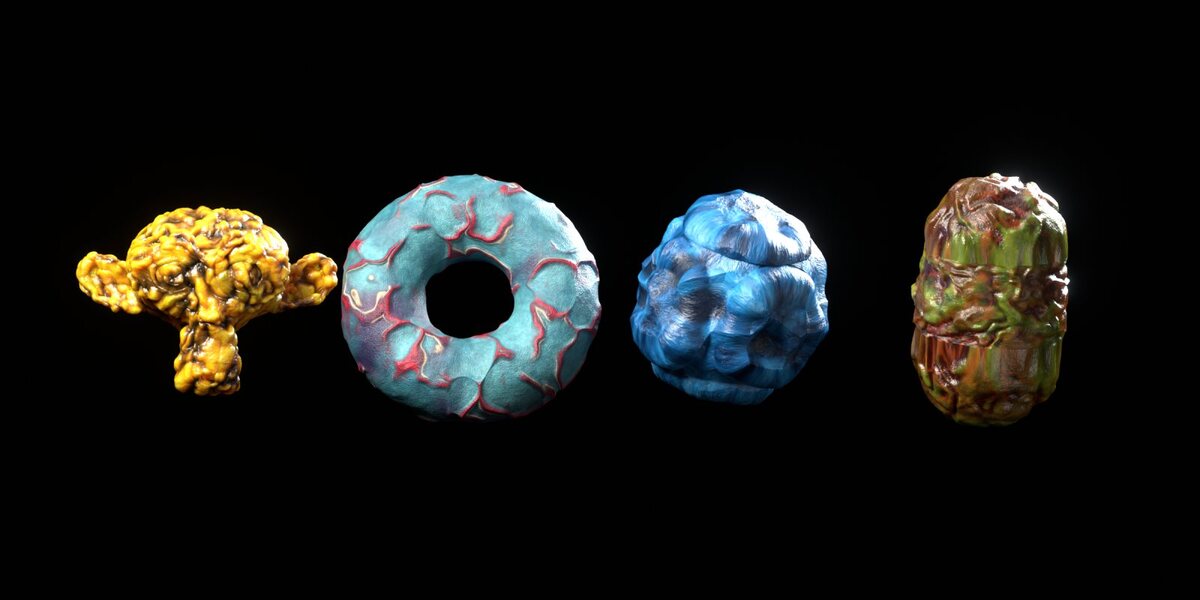
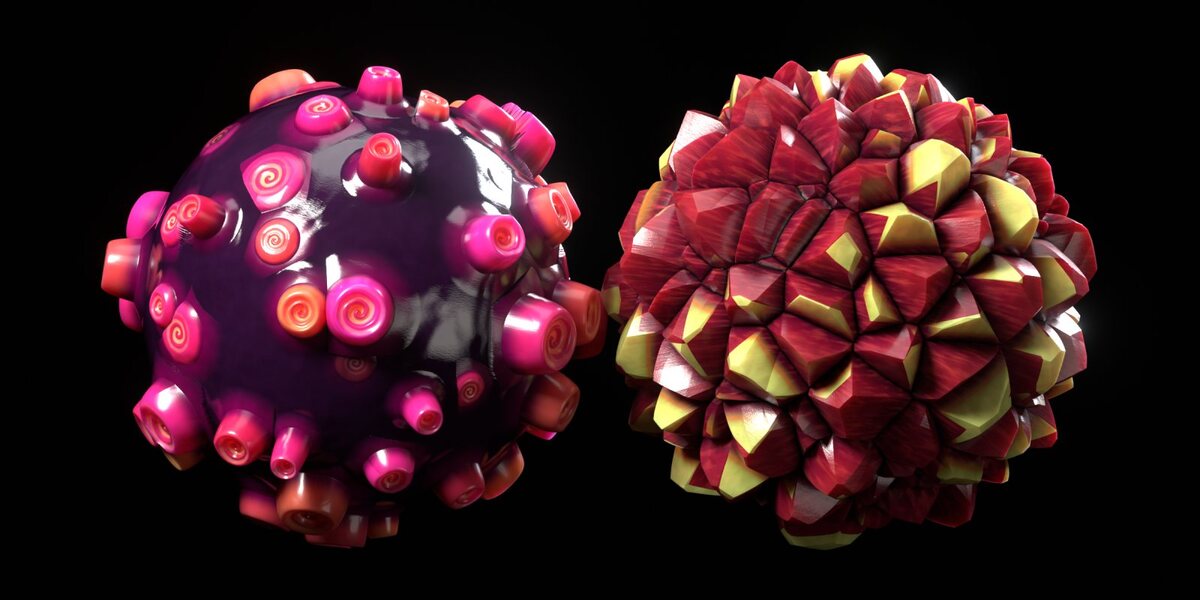
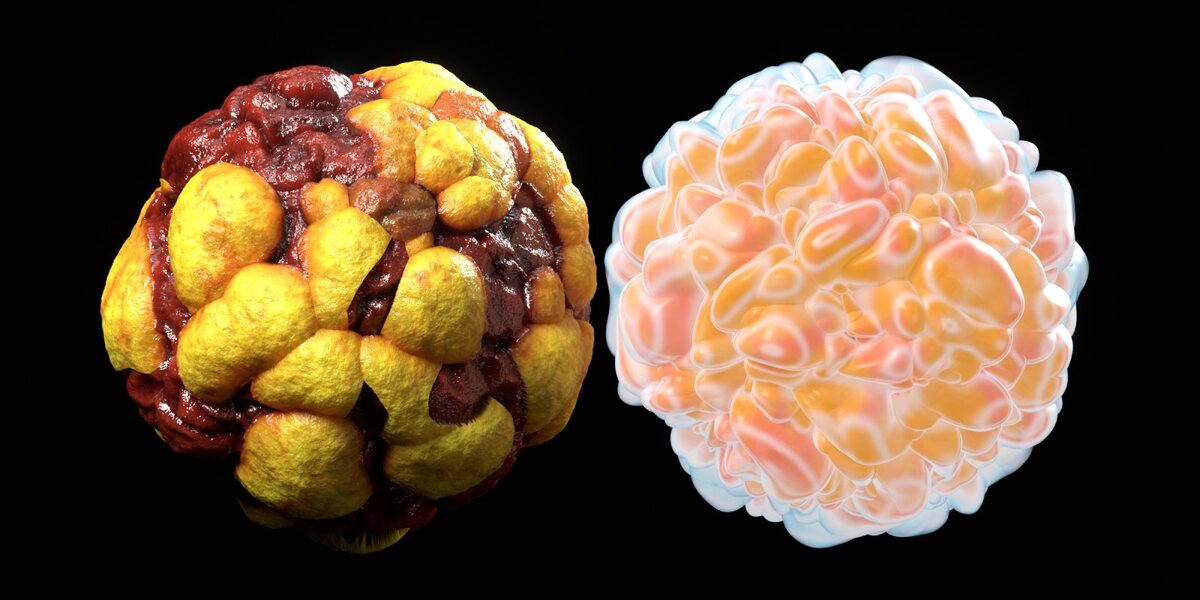
16 Procedural Organic Materials
 Blender Procedural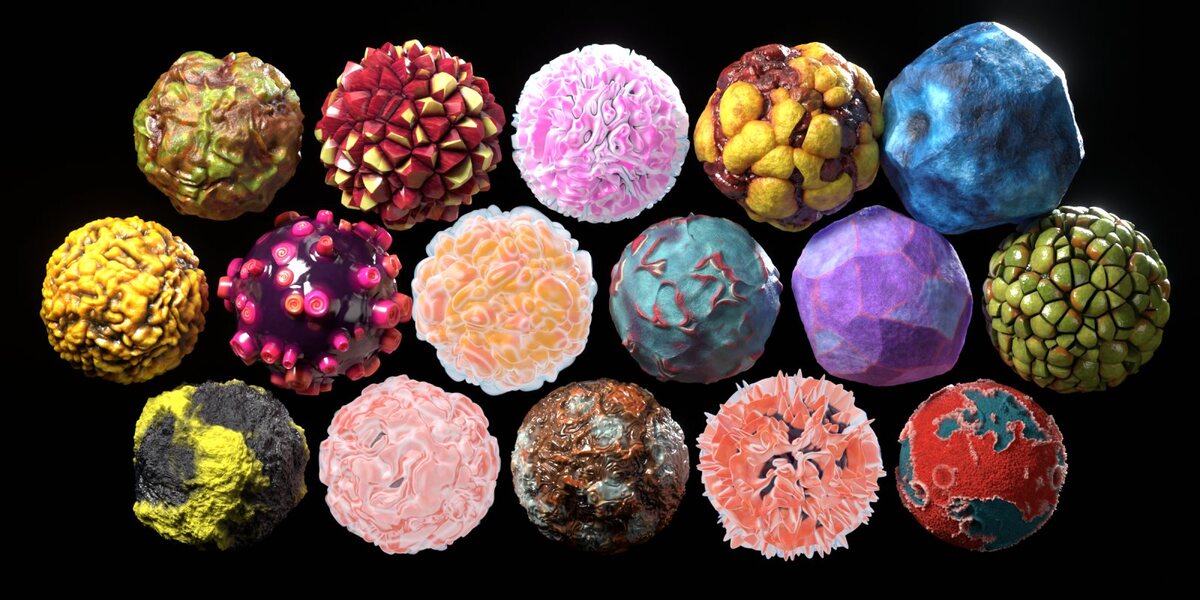
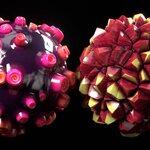
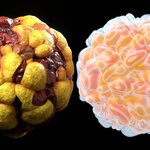
Contents
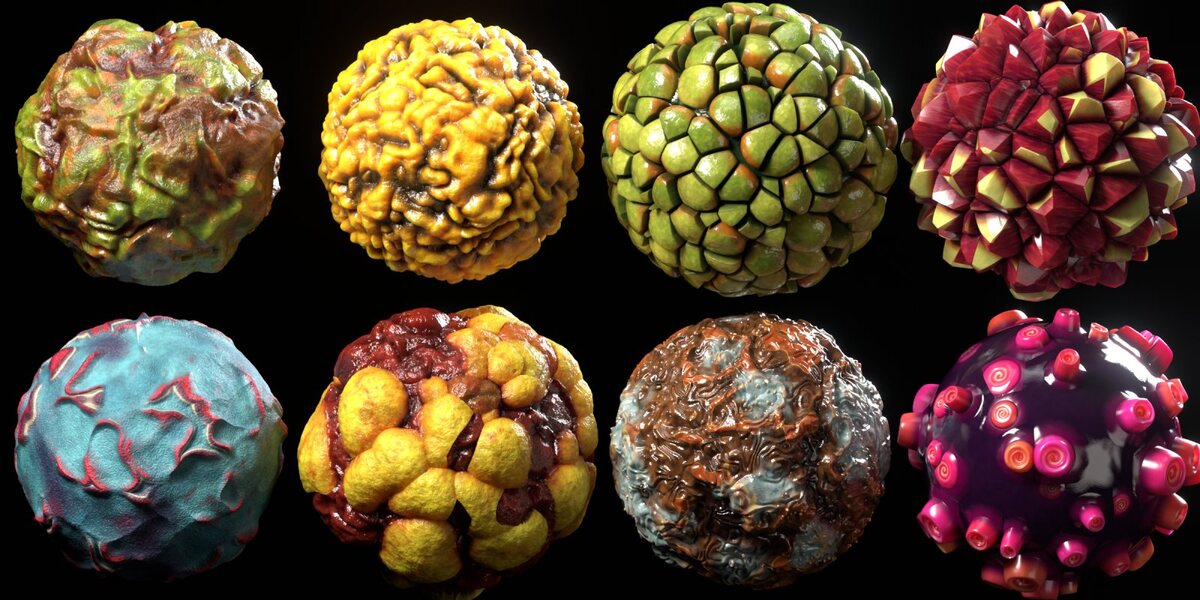
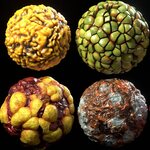
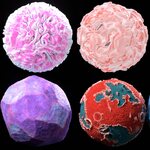
- Organic Spheres Library/Organic_Spheres_Materials.blend: 16 materials and OS Ready Sphere, marked as assets
- Organic Spheres Library/blender_assets.cats.txt: asset catalogs (keep it next to the .blend)
- Organic_Spheres_Demo.blend: the 4 x 4 showcase scene, render-ready in Cycles
- README.txt: installation and usage notes
1. Install the asset library
- Unzip the download and move the Organic Spheres Library folder somewhere permanent.
- Go to Edit > Preferences > File Paths > Asset Libraries, click +, and select that folder. Set Import Method to Append (Reuse Data).
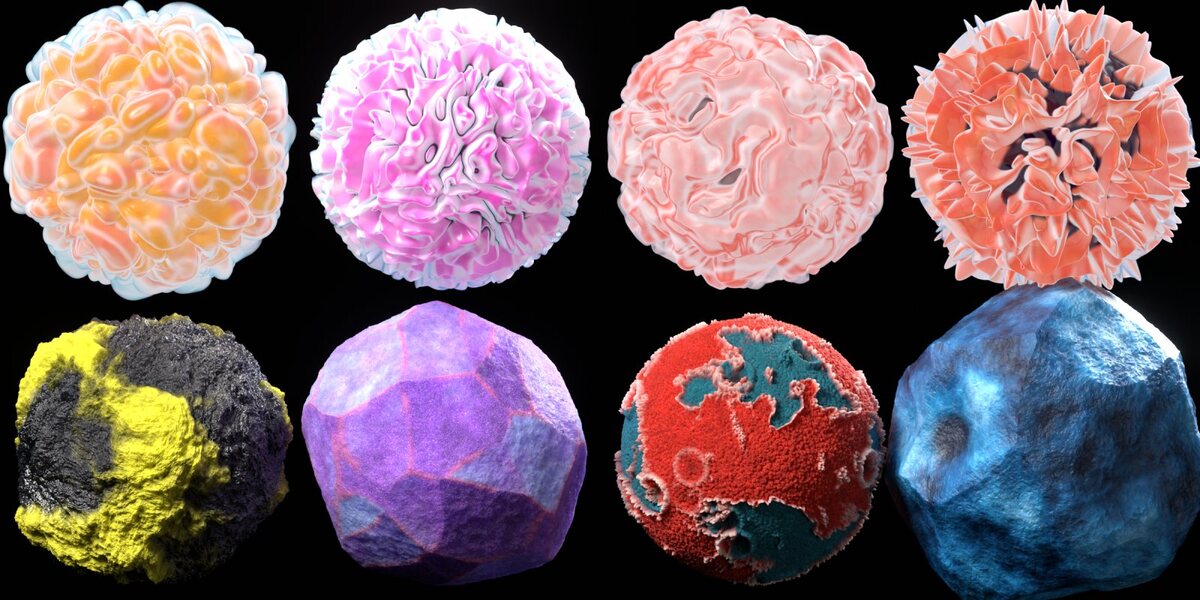
- Open an Asset Browser and choose the library. The materials are under the Organic Spheres catalog: Flesh & Tissue, Glow, Rock & Coral, Scales & Spikes, Skin & Moss and Utilities.
2. Apply a material
Quickest way: Drag OS Ready Sphere from the Utilities catalog into your scene, then drag any material onto it.
On your own mesh:
- Drag the material from the Asset Browser onto the object.
- Add a Subdivision Surface modifier. The relief is real geometry:
- EEVEE: Set Render levels to 4 to 6. More levels give finer detail and use more memory.
- Cycles in Blender 5.x: Enable Adaptive Subdivision in the modifier.
- Cycles in Blender 4.x: Set Render Properties > Feature Set to Experimental, then enable Object Properties > Subdivision > Adaptive Subdivision.
- Optional but recommended: go to Object Data Properties > Shape Keys and tick Add Rest Position. This keeps the colours locked to the displaced relief. Without it the material still works; colours may only drift slightly on strongly displaced areas.
3. Scale
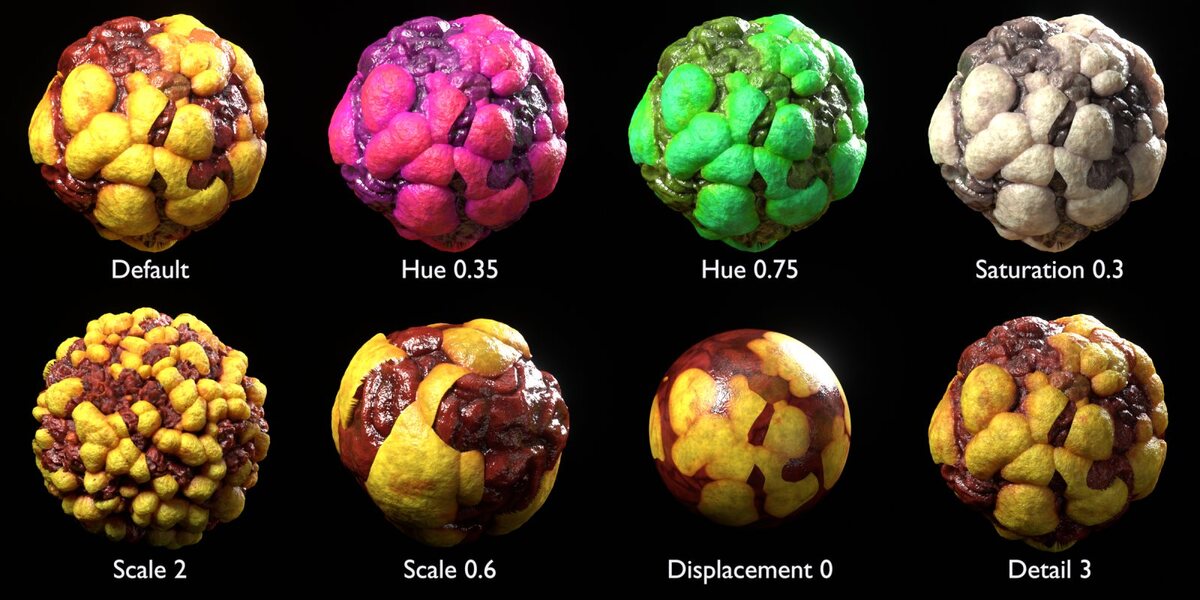
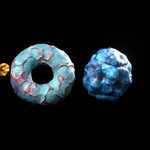
The patterns are sized for a sphere with a radius of 1 m. For other sizes, set the material's Scale input to roughly 1 / radius. For example, a sphere with a 0.1 m radius needs Scale 10. You can also apply the object's scale instead.
4. Controls
You'll find the controls on the "OS ..." group node inside each material. To see or edit the full node network, select the group node and press Tab.
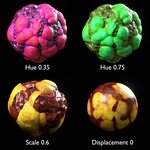
- Scale: pattern size
- Displacement: relief height multiplier; 0 gives a flat surface with bump detail only
- Detail: micro-bump strength (pores, grain, wrinkles)
- Hue: colour shift; 0.5 keeps the original colours
- Saturation / Brightness: colour grading
- Glow: self-illumination (Glow materials only)
5. Render the demo
Open Organic_Spheres_Demo.blend and press F12. It renders in Cycles, on the GPU if one is available. Lower Render Properties > Samples for faster previews.
Tips
- The Glow materials (Peach Jelly, Orchid Fluff, Coral Bloom, Fire Anemone) are self-lit and use transparent fringes, so they look best on a dark background.
- Very low-poly meshes: also add 1 to 2 Subdivision Surface levels in the viewport.
Have questions about this product?
Login to message
| Published | about 12 hours ago |
| Blender Version | 4.5 - 5.2 |
| Render Engine Used | Cycles, Eevee |
| License | Royalty Free |
Discover more products like this
Crystal procedural organic asset library Glow displacement coral alien subsurface creature sci fi flesh