 Shuimeng
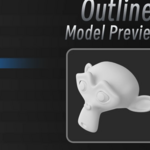
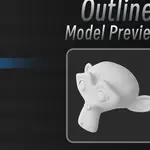
# Outliner Model Preview
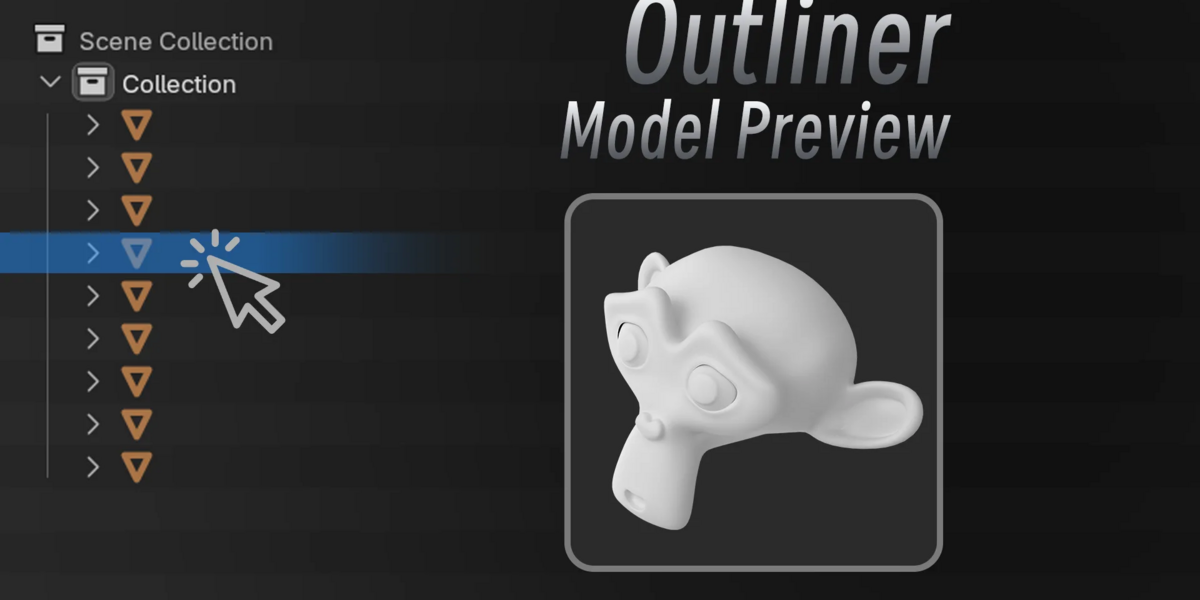
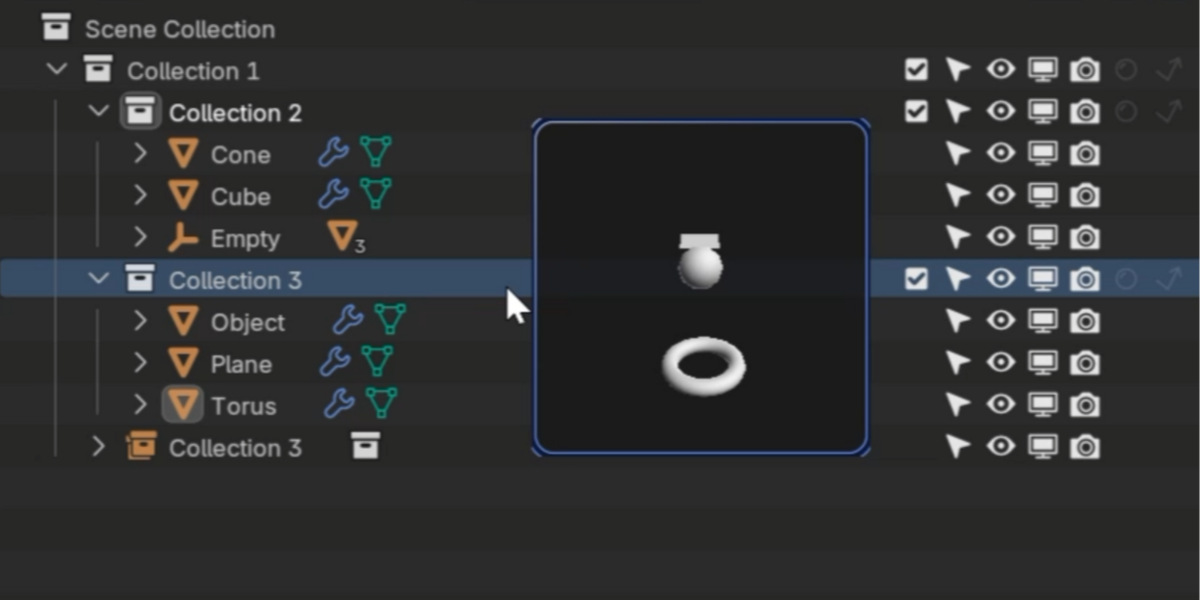
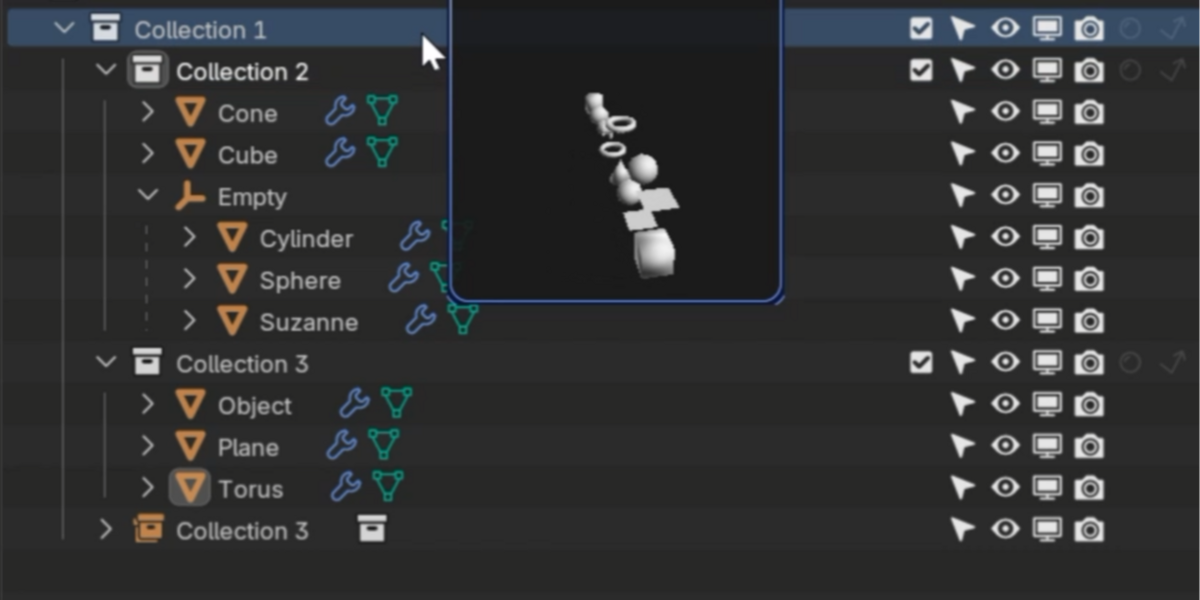
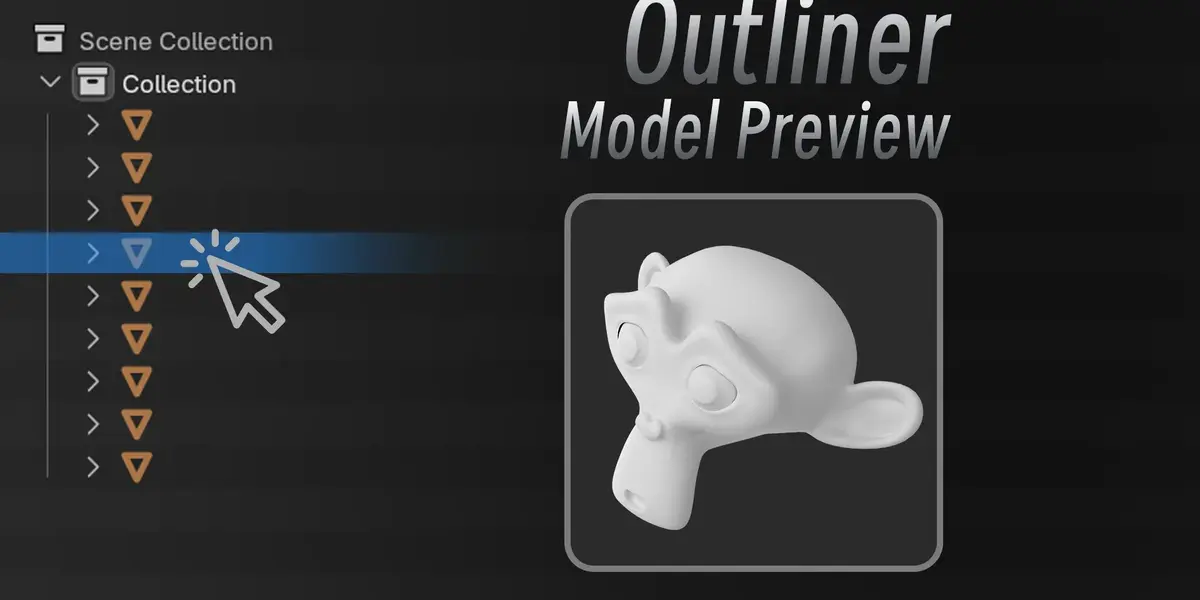
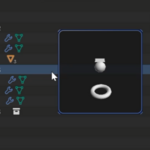
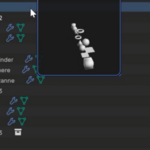
Preview objects and collections beside the mouse cursor in the Outliner.
## Using the preview
1. Enable the extension, then click its preview icon in the Outliner header.
2. Select an object or collection in the Outliner to see its preview.
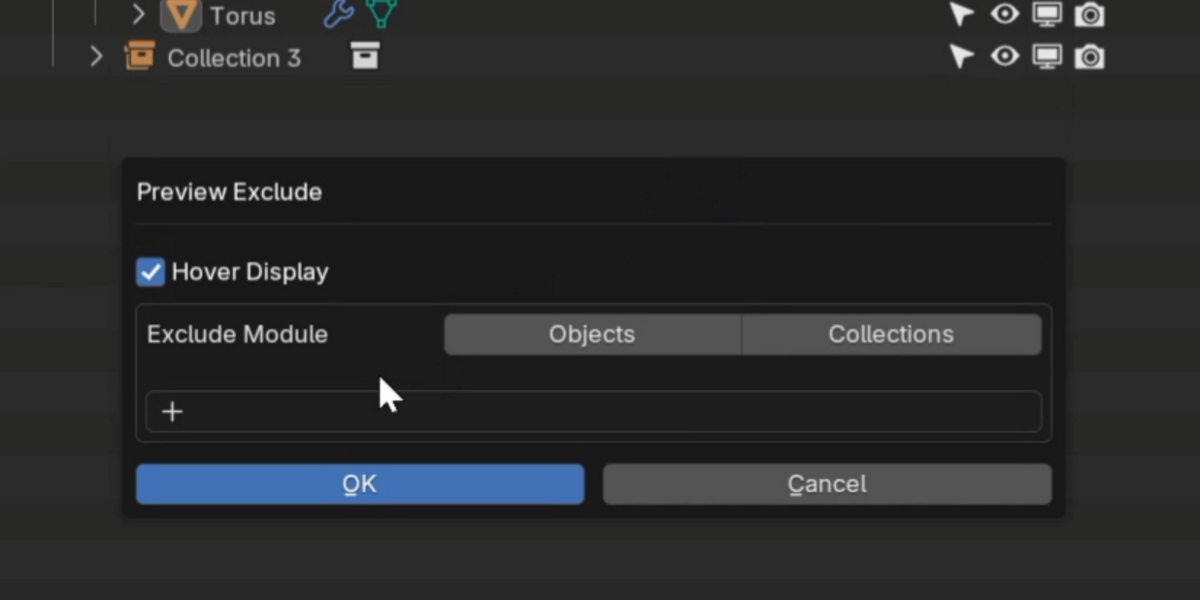
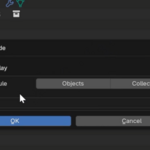
3. Shift-click the preview icon to open the extra options. Enable **Hover
Display** to preview the row under the mouse while holding **Alt**.
4. Change **Hover Hotkey** in the extension preferences to use Ctrl, Shift,
or Space. Release the key to hide a hover preview. Hover targeting uses
Outliner selection operations and may affect selection.
The extension starts with previewing disabled. Click the header icon again
to turn it off.
## Preferences
- **Preview Size**, **Preview Position**, and **Auto Avoid Edge** control
the size and placement of the preview.
- **Rotation Speed** controls automatic rotation; set it to 0 for a still view.
- **Material Shading** uses material colors and supported textures. Turn it
off to use **Model Color**. **Background Opacity** controls the backdrop.
- **Max Faces** switches dense geometry to a sampled point preview. The
default is 500,000 faces; lower it for lighter previews. A value of 0
disables this threshold and can increase memory use and drawing time.
- **Show Face Count** and **Visibility** control the preview information.
- **Camera Preview** enables camera previews and is disabled by default.
- The extra options include keyword exclusions for object and collection names.
## Geometry and performance
Preview geometry is read from Blender's evaluated objects. Instances retain
their evaluated geometry and transforms for drawing. Preview generation does
not add modifiers or node groups, change subdivision levels, or edit mesh
vertices, including on linked objects and library overrides.
Geometry extraction does not create undo steps. Hover targeting may change
selection as described above. Blender can defer automatic saving while a
modal operator is running. The preview operator exits after about three
seconds of inactivity once geometry processing and active interactions have
finished; automatic saving remains subject to Blender's normal scheduling.
Dense meshes use a sampled point preview. Blender must still evaluate the
scene: an expensive modifier or Geometry Nodes setup can delay the first
preview. Preview limits do not interrupt an evaluation already in progress.
## License
Copyright 2026 Shuimeng. Distributed under GPL-3.0-or-later.
The full GNU General Public License version 3 is included in `LICENSE`.
Have questions about this product?
Login to message
| Blender Extension Compatible | Yes |
| Published | about 14 hours ago |
| Blender Version | 4.2 - 5.2 |
| Extension Type | Add-on |
| License | GPL |