 Tesselune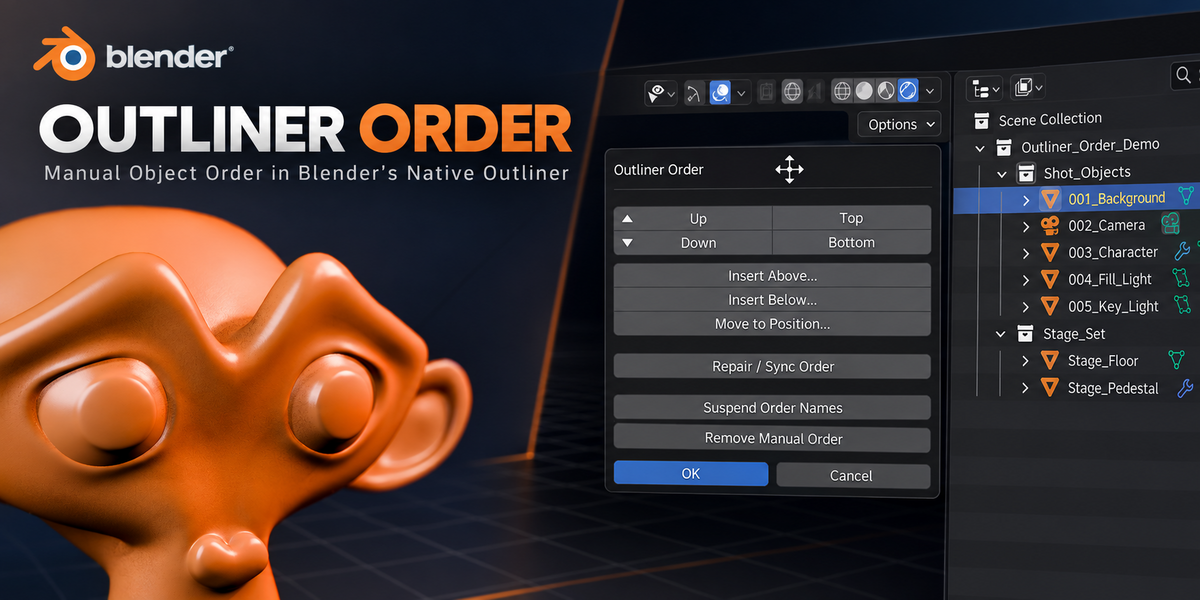
Outliner Order
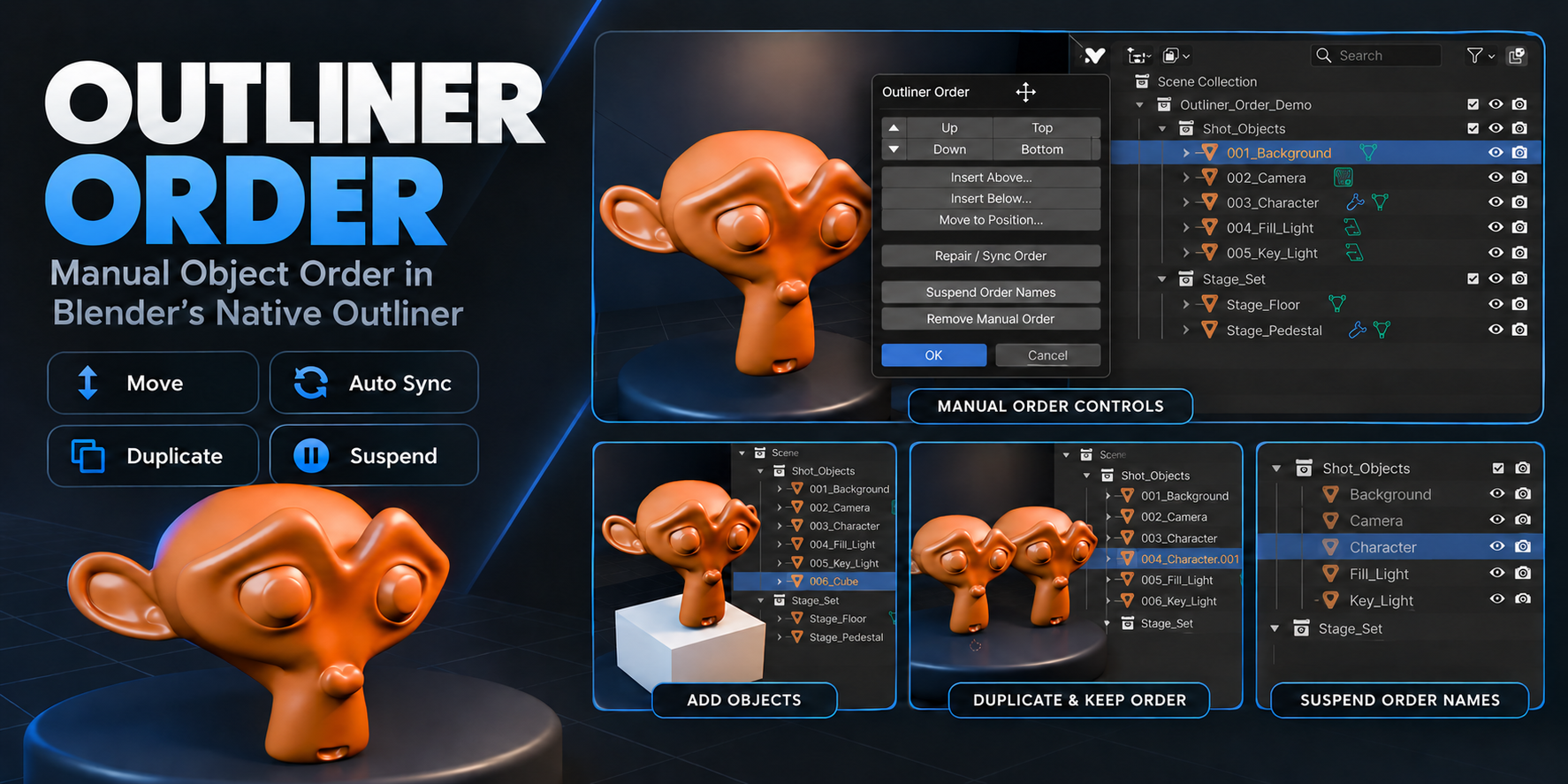
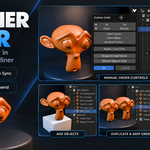
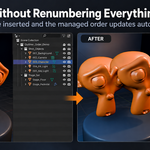
Manually reorder Objects in Blender’s native Outliner — without manually renaming and renumbering everything yourself.
Blender normally displays Objects according to their names. Outliner Order adds a managed manual order on top of that workflow, letting you decide which Object appears first, second, third, and so on.
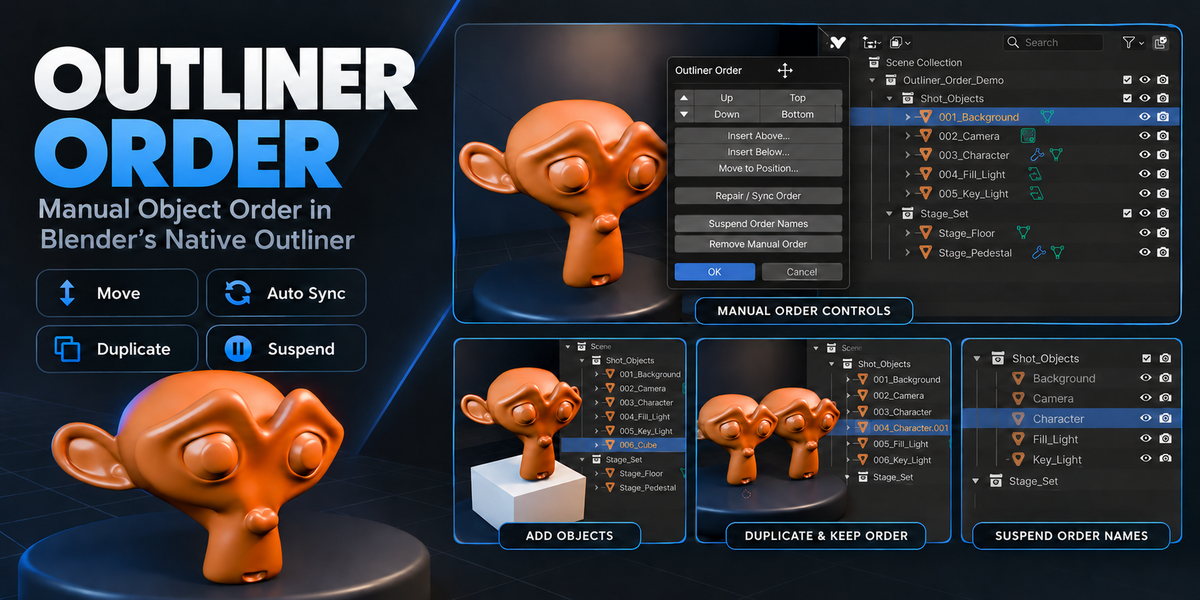
Move single Objects, move multiple Objects together, continue adding and duplicating while the sequence stays synchronized, and temporarily return to clean Object names whenever another workflow requires them.
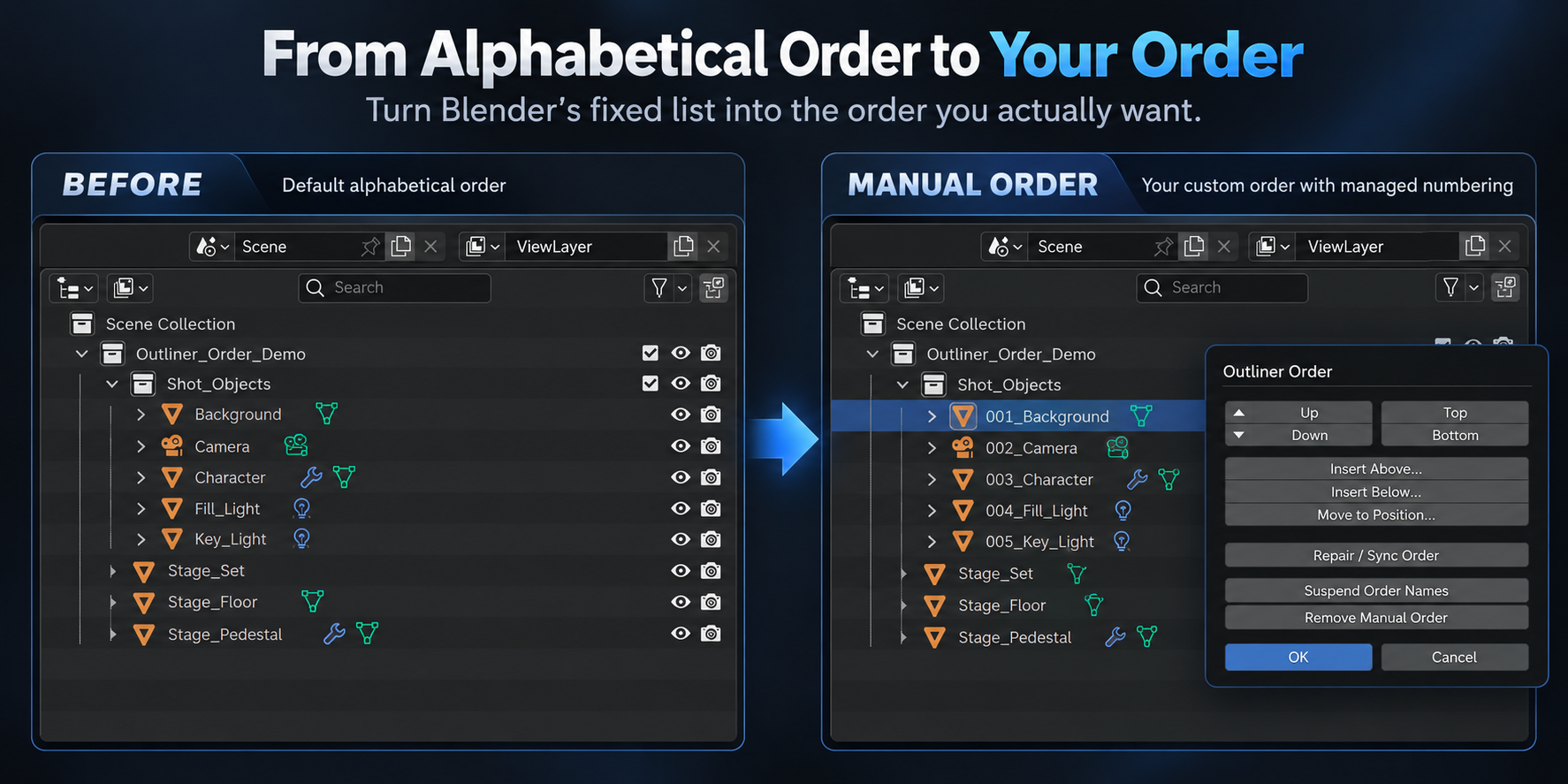
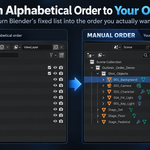
Work in the Order You Want
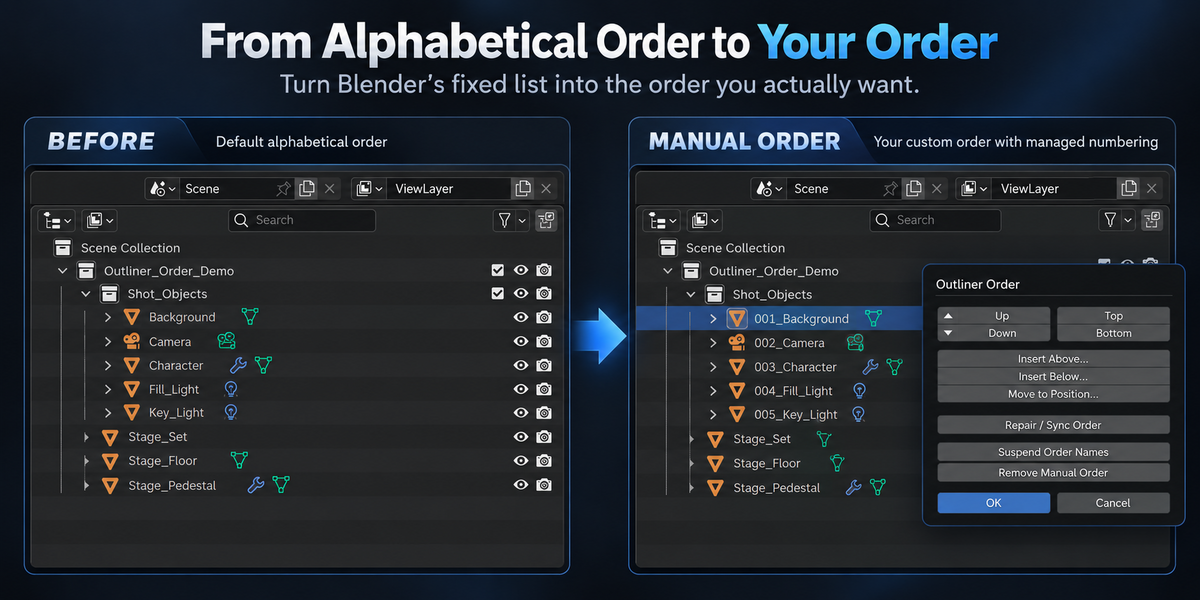
Blender’s Outliner does not provide arbitrary manual ordering for Object siblings.
If alphabetical order does not match the way you work, the usual workaround is to rename Objects manually:
Camera
Character
Key_Light
Fill_Light
Background
Outliner Order manages that ordering layer for you:
001_Camera
002_Character
003_Key_Light
004_Fill_Light
005_Background
You choose the order. Outliner Order handles the numbering.
The Objects stay in their existing Collections and keep their existing Parent relationships.
Reorder Directly from the Outliner
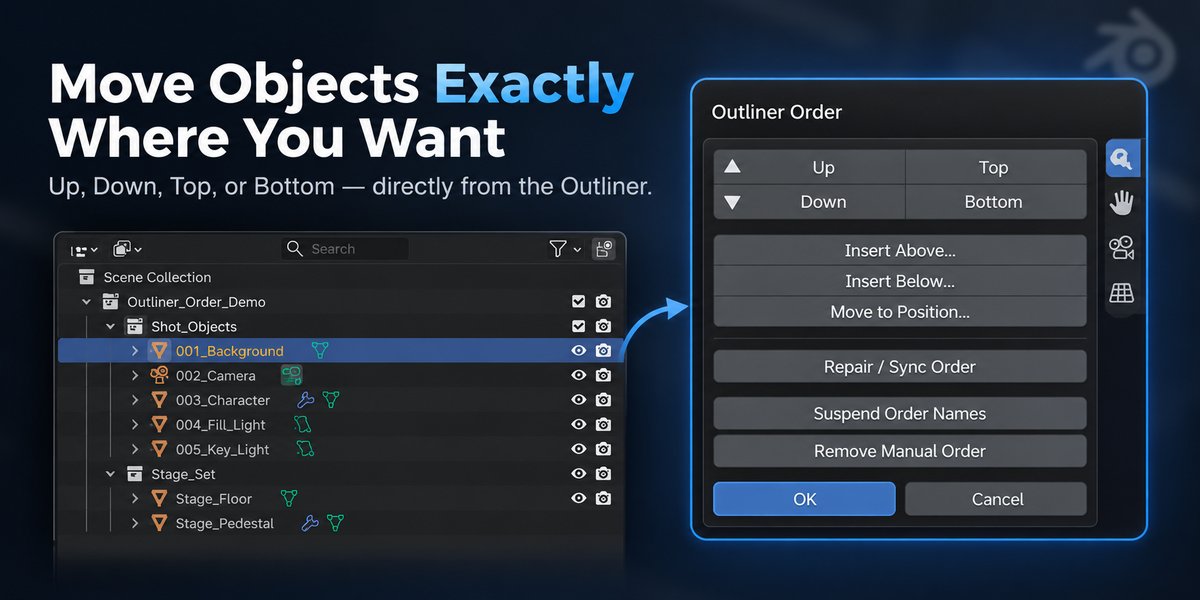
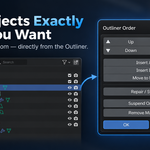
Right-click an Object in the Outliner and open Outliner Order.
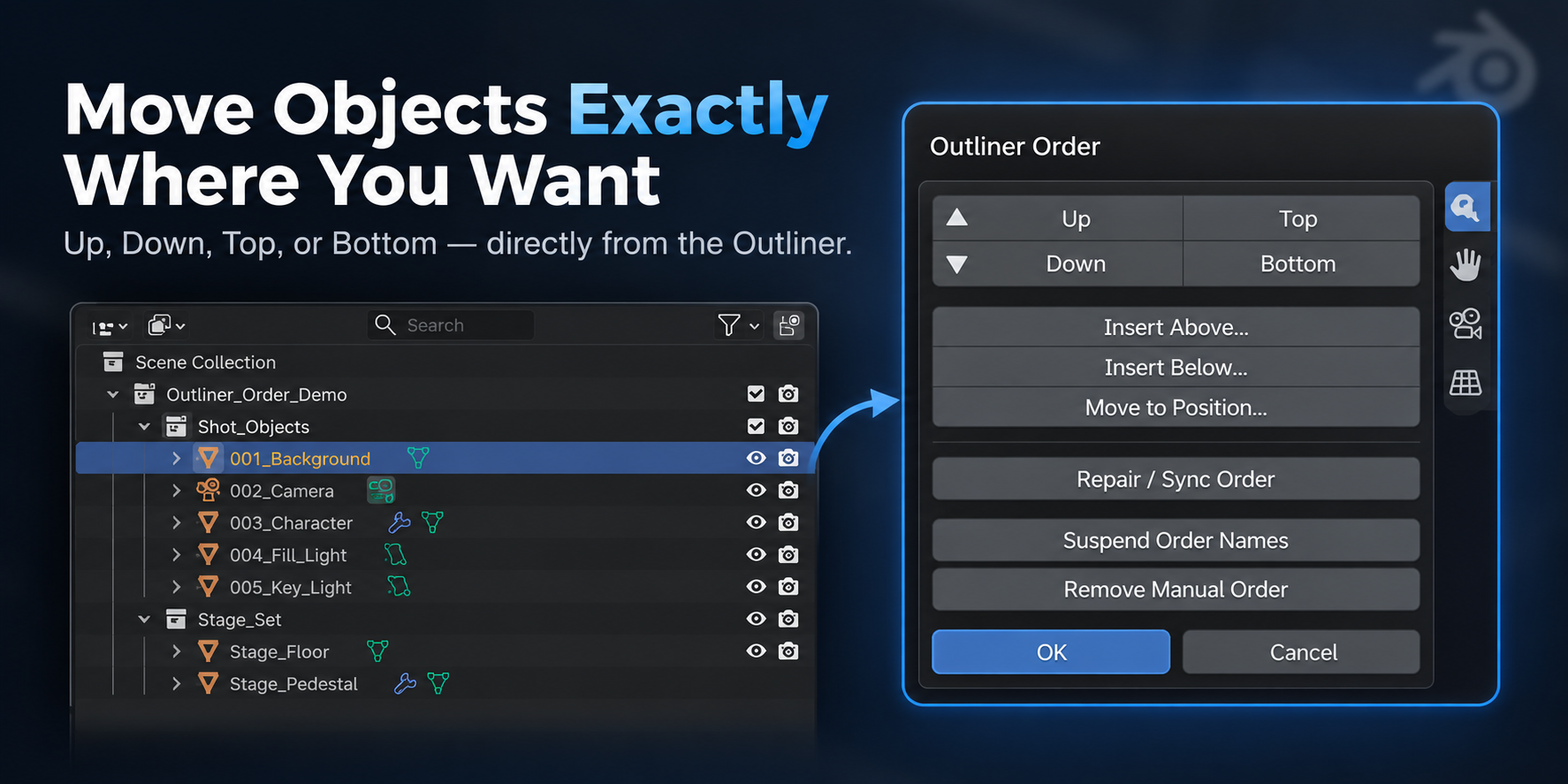
From there you can move the current selection using:
- Up
- Down
- Top
- Bottom
- Insert Above
- Insert Below
- Move to Position
There is no separate scene browser or replacement hierarchy to manage.
The ordering controls stay close to Blender’s native Outliner workflow.
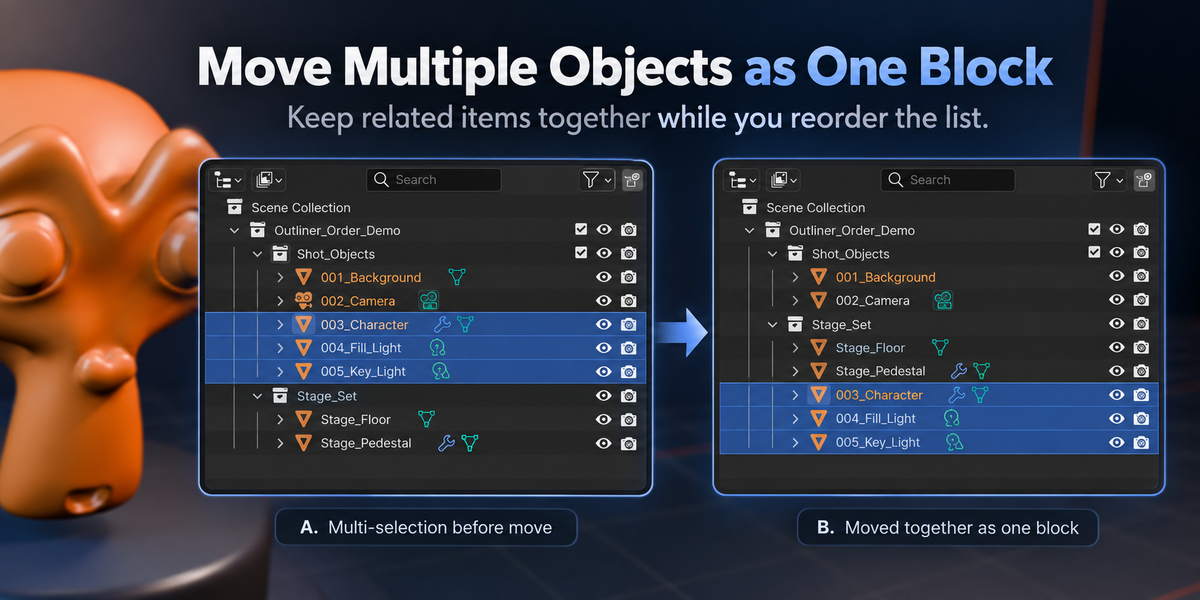
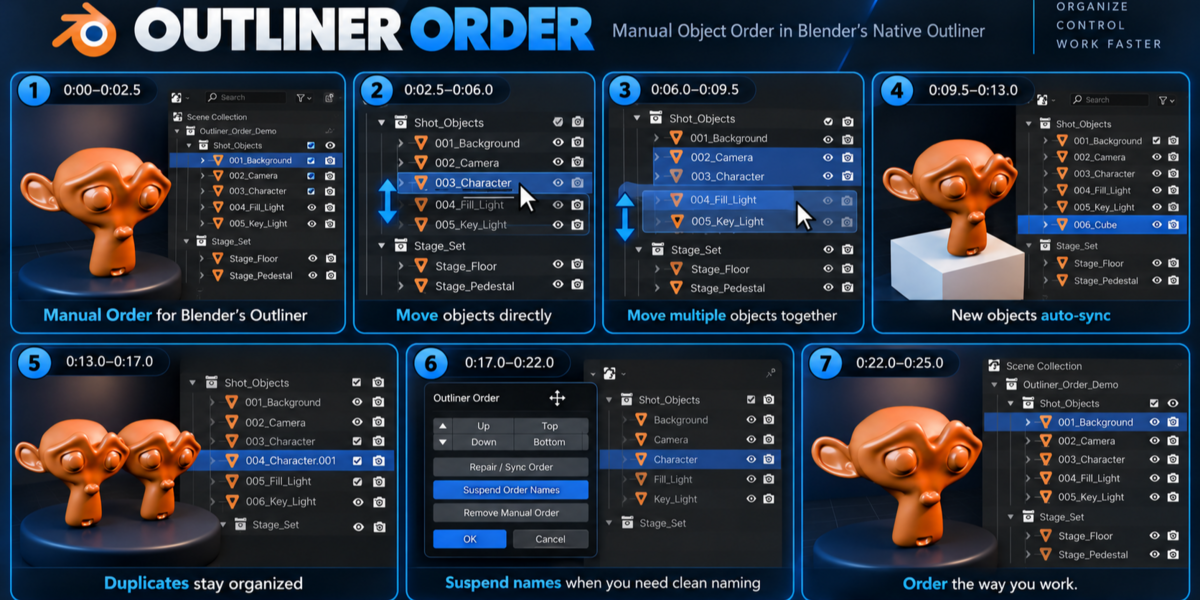
Move Multiple Objects Together
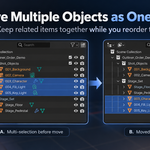
Several selected Objects can be moved as one block.
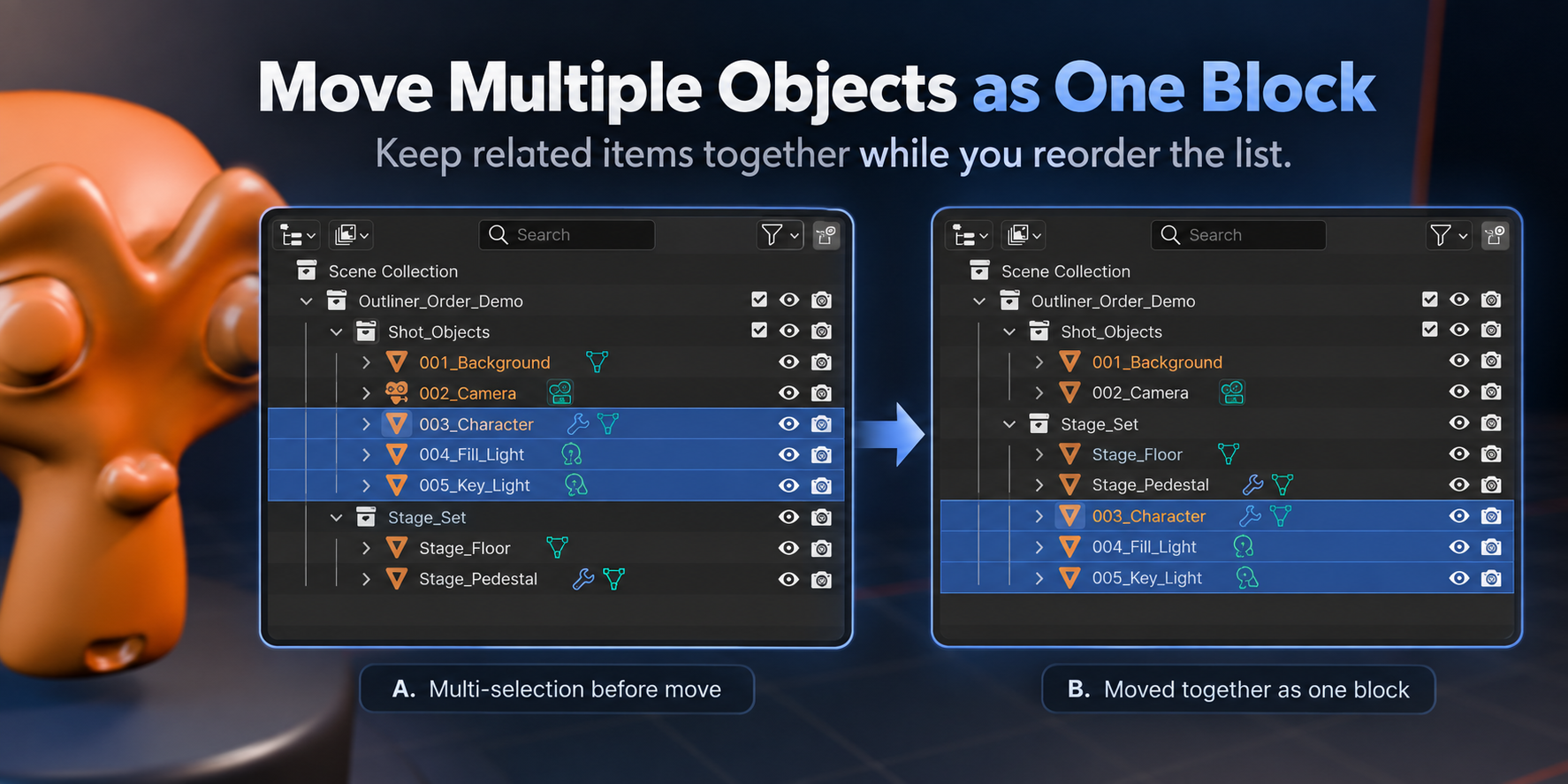
Their internal order is preserved while the whole block changes position.
This is useful when related Objects should stay next to each other in your working order without changing the actual scene hierarchy.
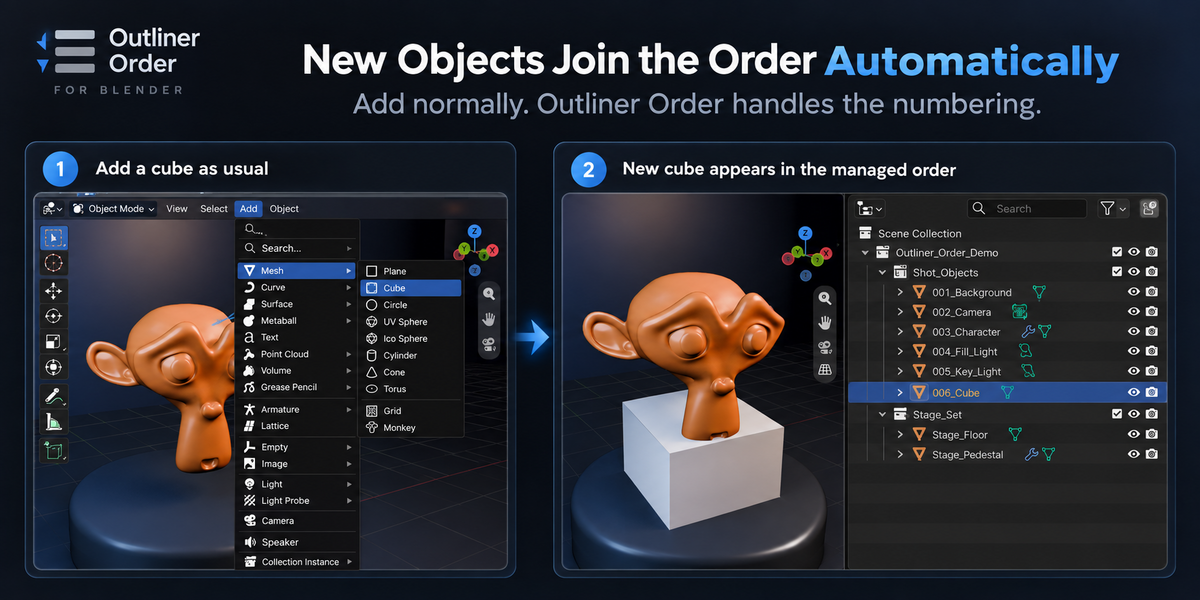
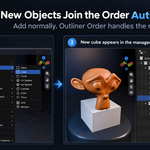
New Objects Join the Order Automatically
Manual ordering does not stop when your scene changes.
Add a new Object normally and Outliner Order automatically brings it into the managed sequence.
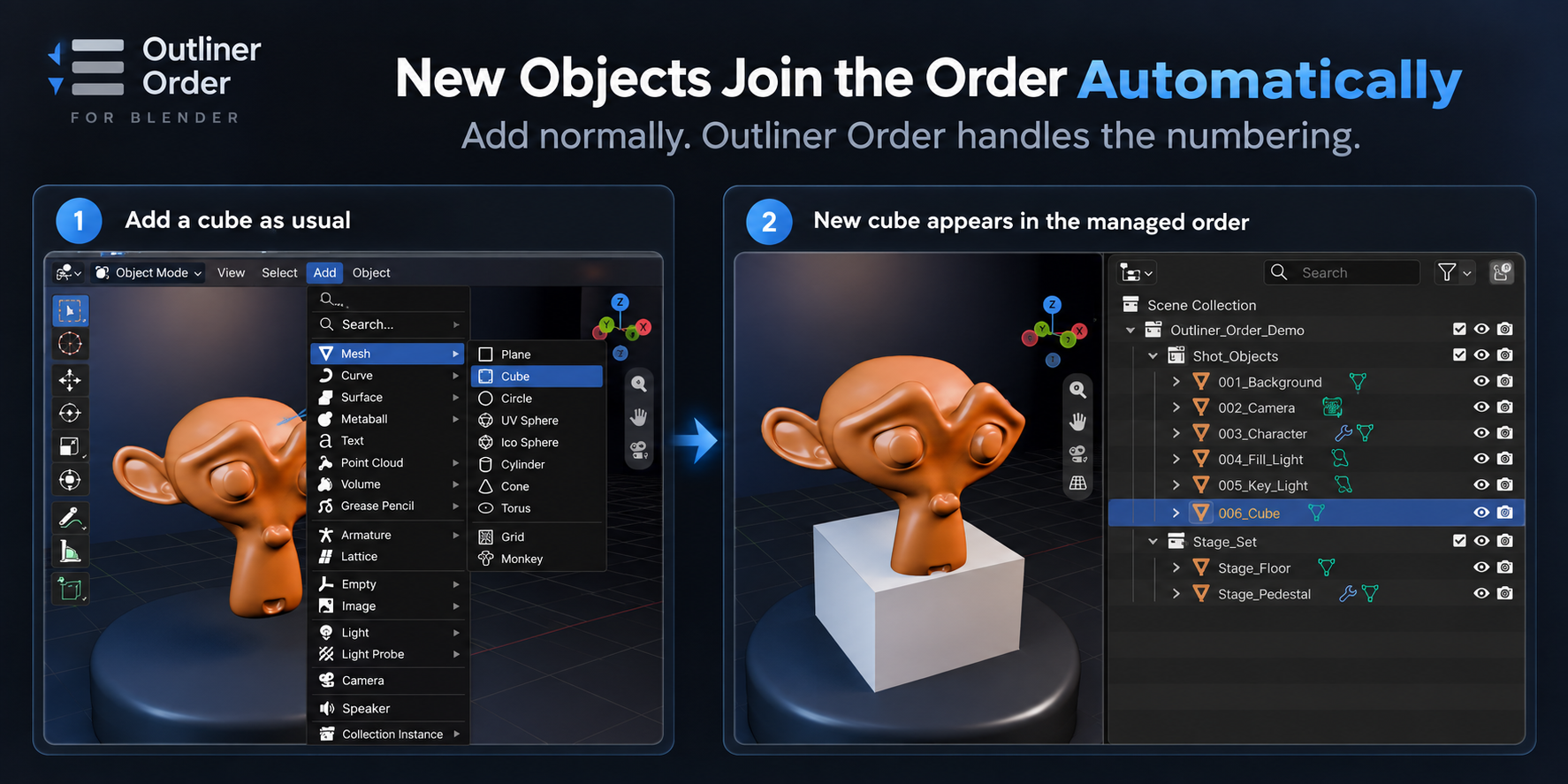
The surrounding numbering is updated as needed, so you do not have to manually rename the rest of the list every time a new Object is created.
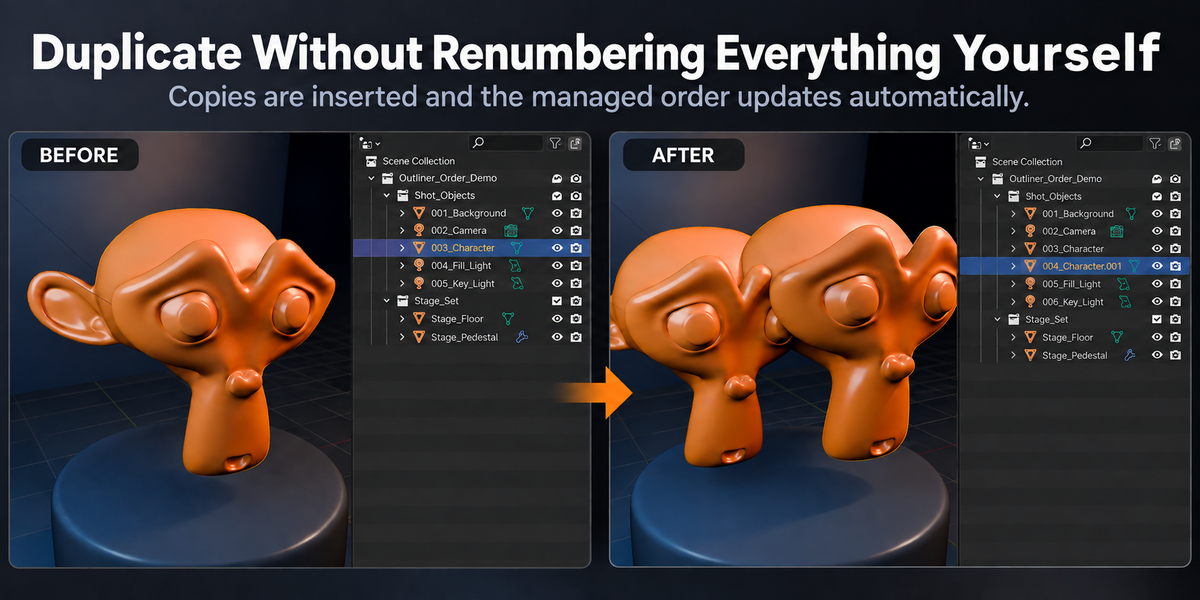
Duplicates Stay Organized
Normal Object duplication is also synchronized with the managed order.
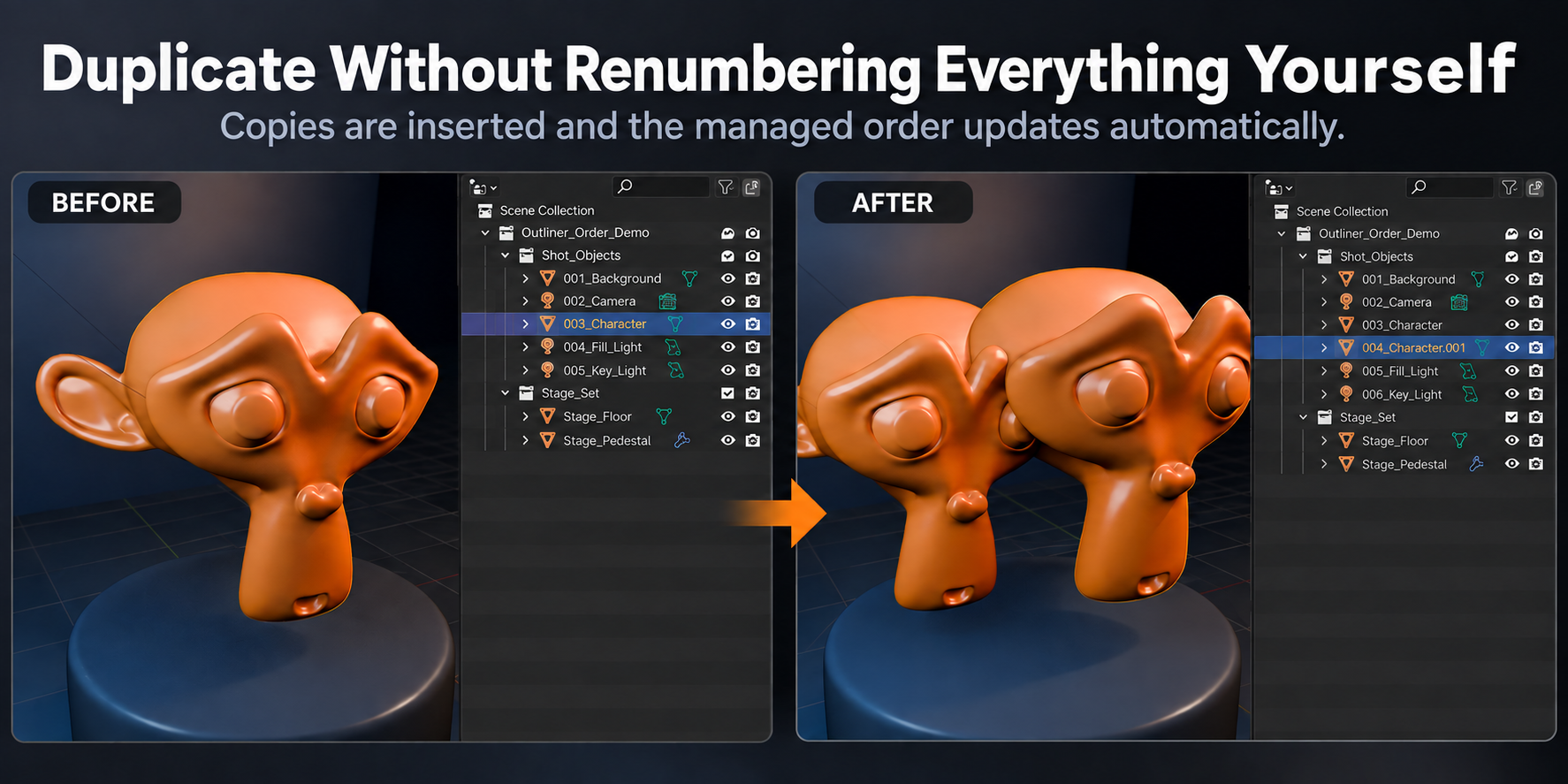
For example:
003_Charactercan become:
003_Character
004_Character.001
005_Fill_Light
006_Key_Light
Blender’s normal semantic suffixes such as .001 are preserved, while Outliner Order manages the ordering prefix separately.
You can continue duplicating Objects without manually repairing the sequence afterward.
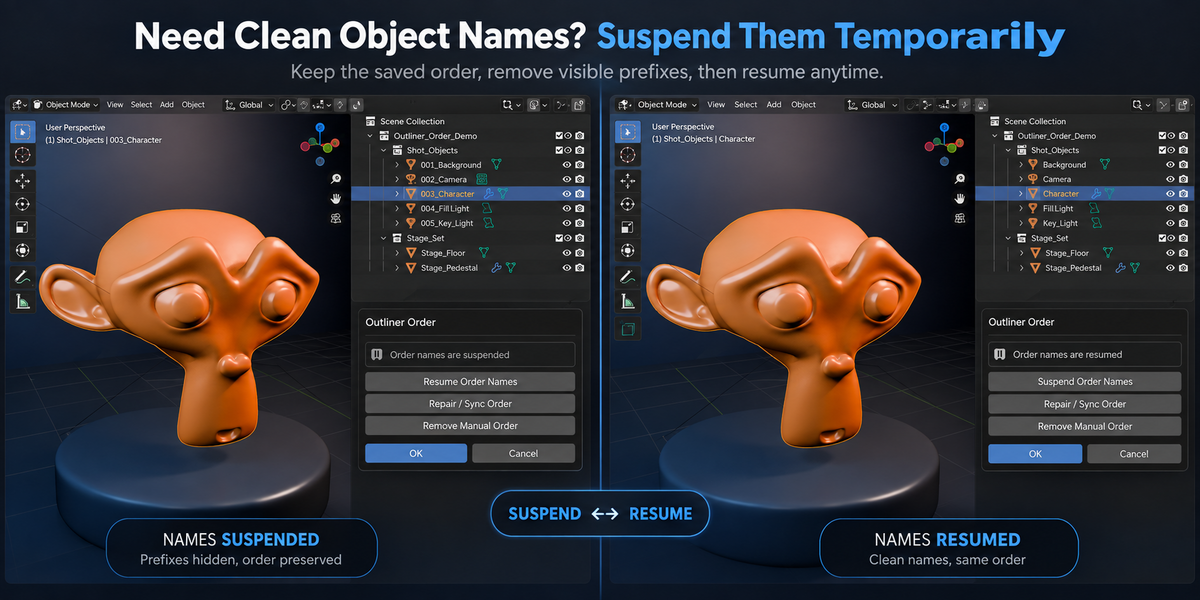
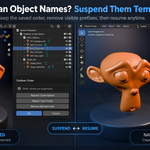
Need Clean Object Names? Suspend Them Temporarily
Outliner Order uses actual Blender Object names to create the requested manual order.
That means a managed Object may appear as:
003_Characterinstead of:
CharacterWhen another exporter, script, pipeline, or external tool depends on clean exact Object names, use Suspend Order Names.
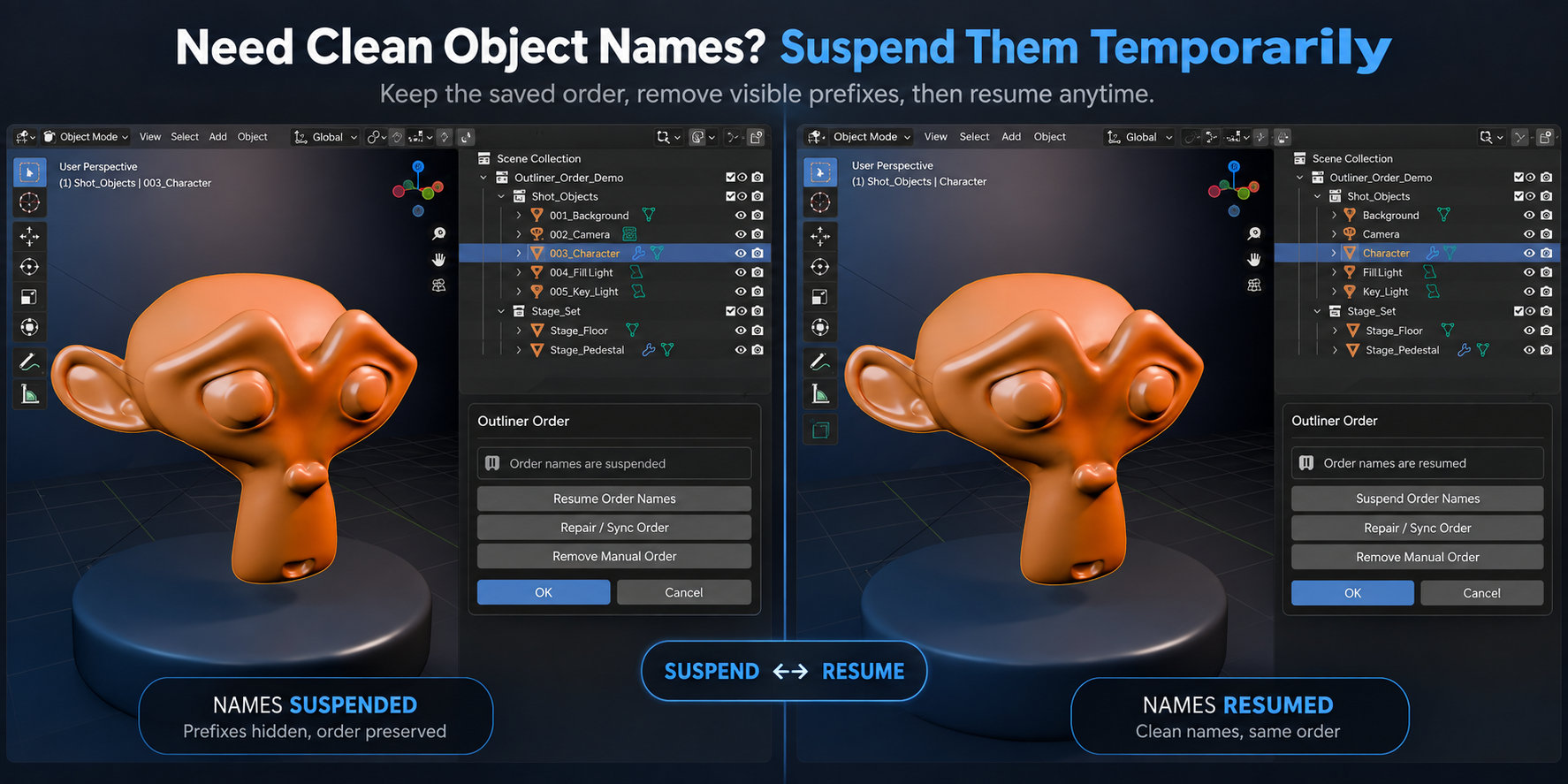
Suspend temporarily removes the visible managed prefixes while keeping the saved manual order.
When you are finished, choose Resume Order Names and the managed sequence is restored.
You do not need to remove the setup just to temporarily work with normal Object names.
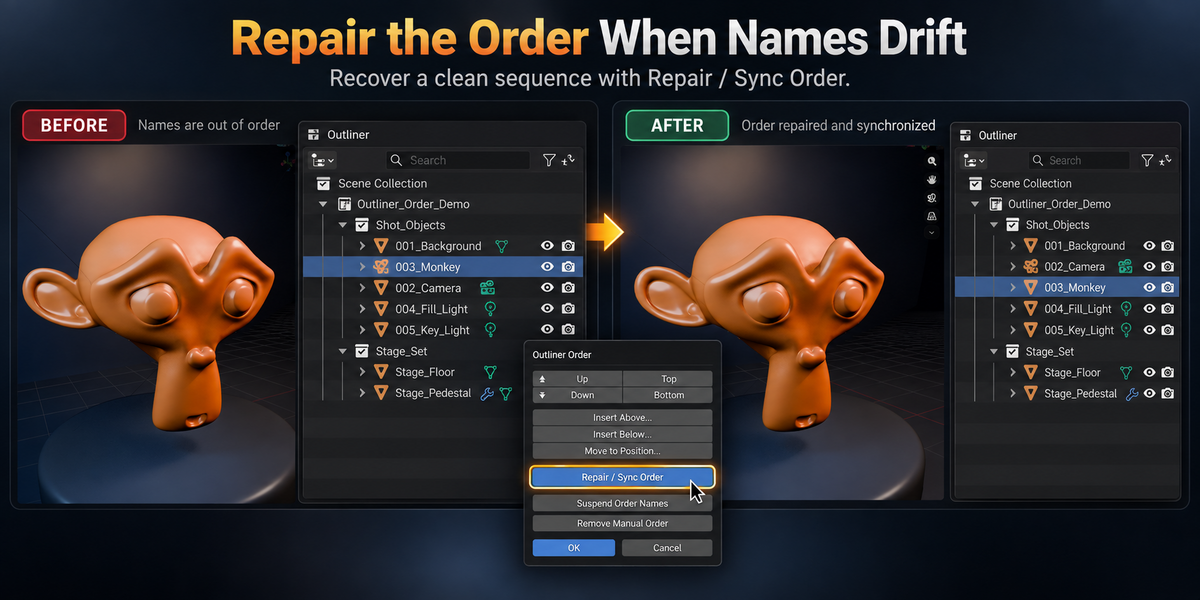
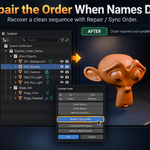
Repair the Order When Names Drift
If managed names are manually edited or the visible numbering becomes inconsistent, use Repair / Sync Order.
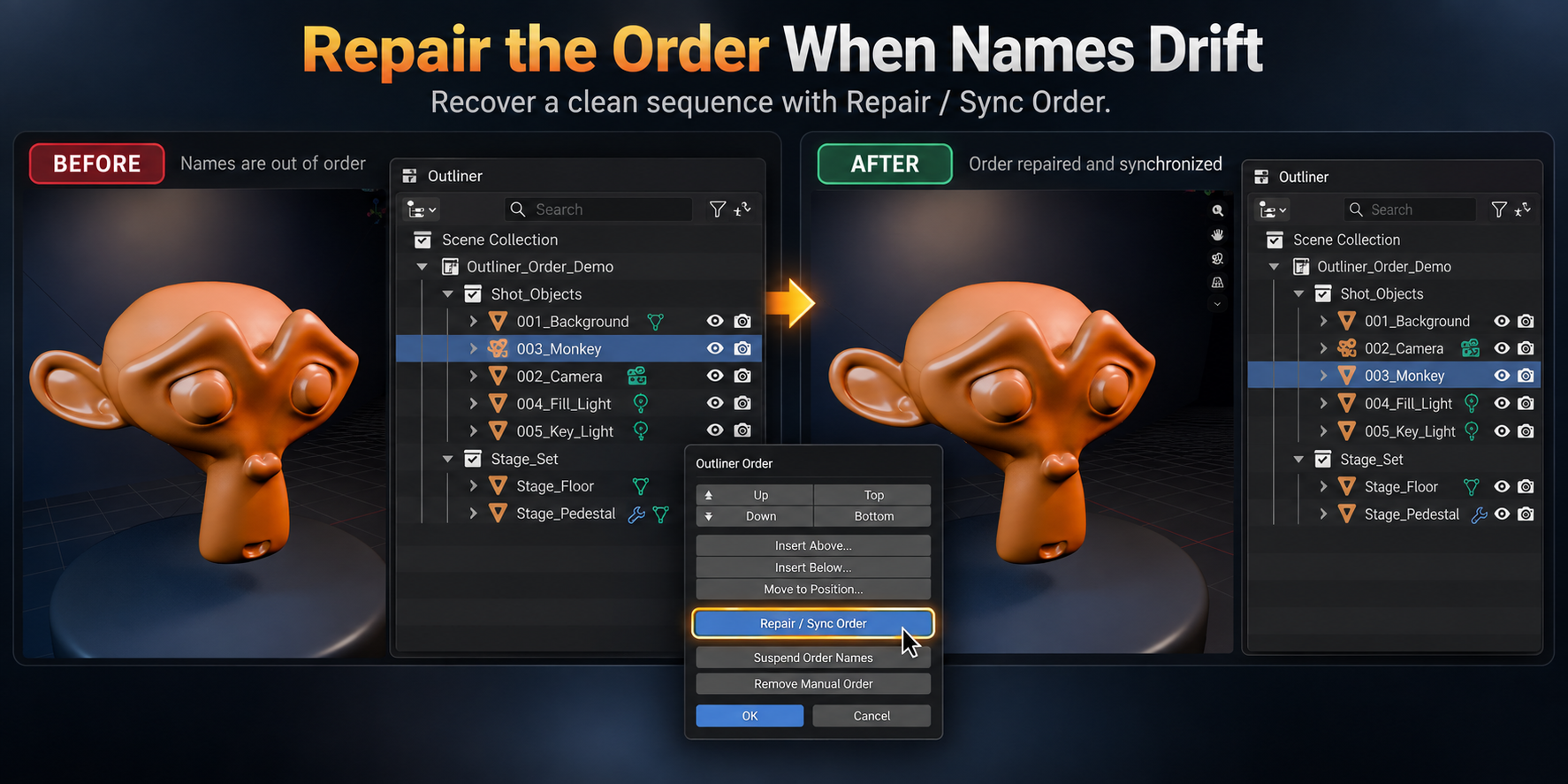
Repair rebuilds a clean managed sequence and preserves the semantic part of Object names where possible.
For example, changing:
003_Characterto:
003_Playercan be adopted as the new semantic name.
Changing the ordering prefix itself does not request a new position. If a managed prefix is edited manually, Repair / Sync Order restores the managed sequence.
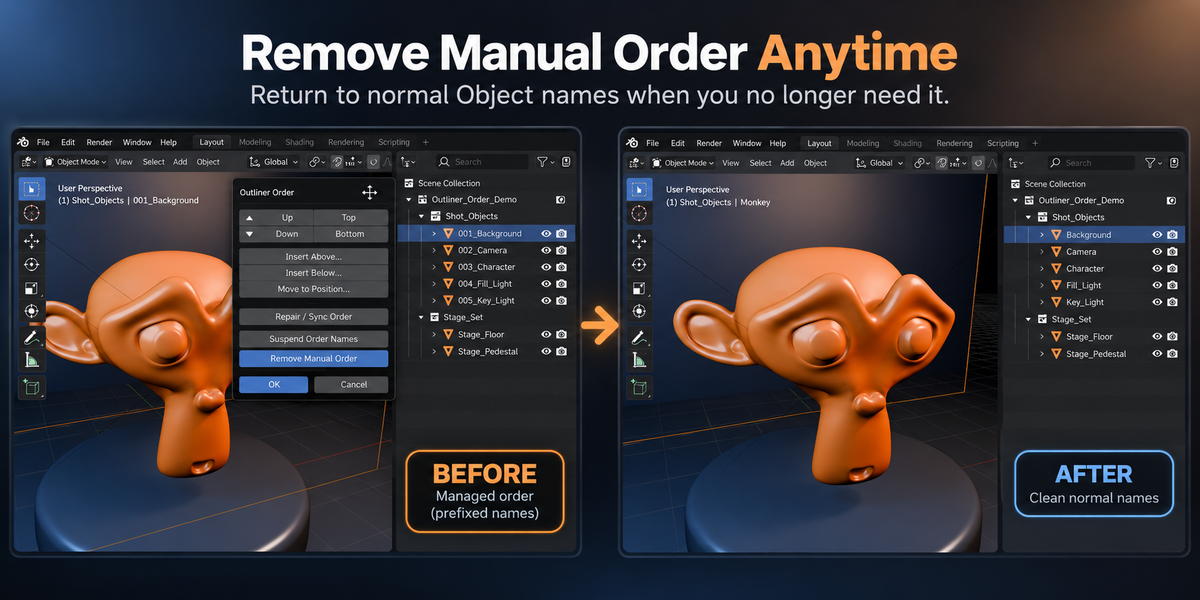
Remove Manual Order Anytime
Manual Order is reversible.
Choose Remove Manual Order when you no longer want Outliner Order to manage that group.
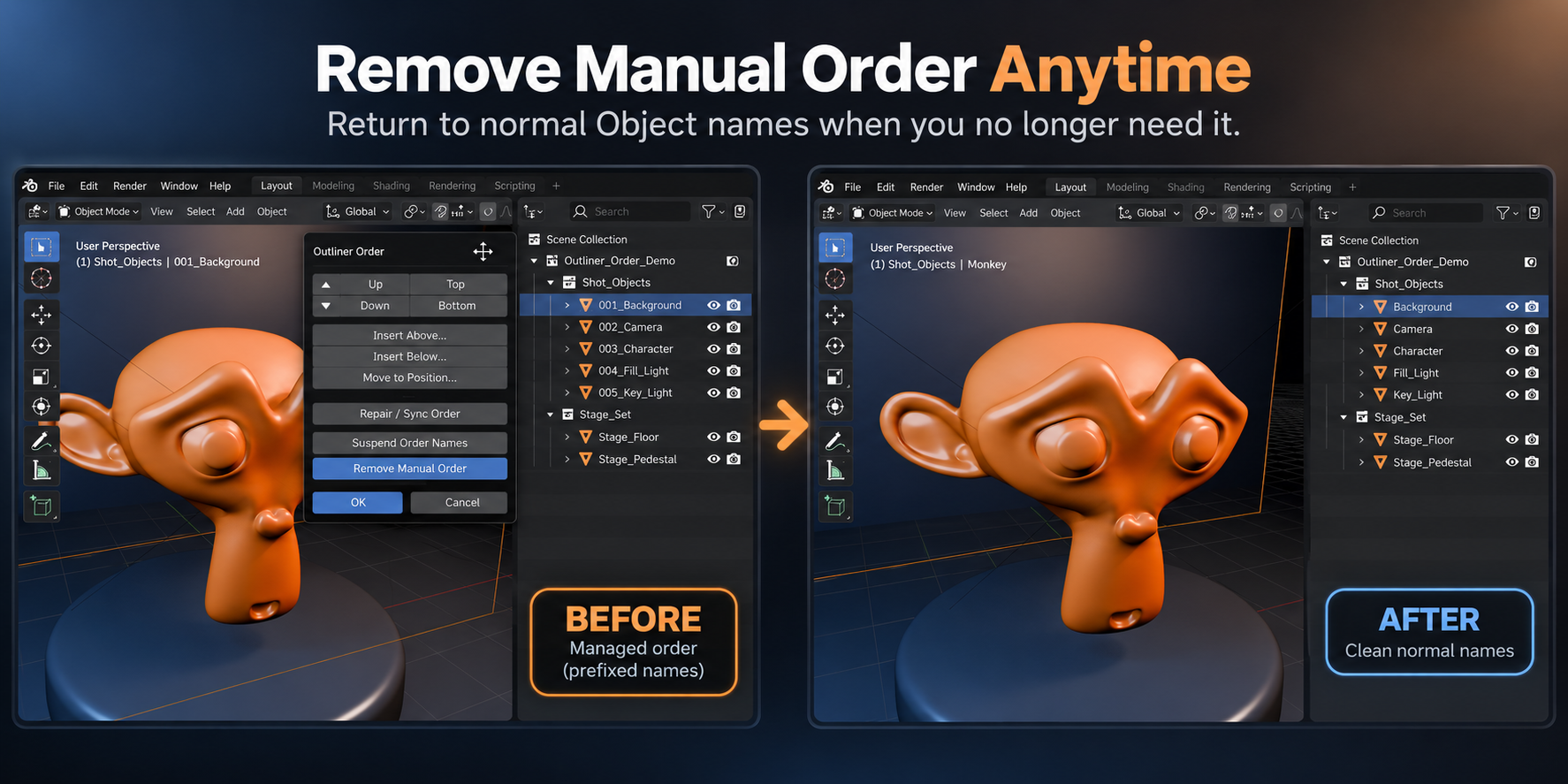
The managed ordering metadata is removed and the Objects return to their semantic names as safely as Blender’s global name-uniqueness rules allow.
There is no need to disable or uninstall the add-on just to return to Blender’s normal naming workflow.
Blender’s Native Scene Structure Stays Intact
Outliner Order is intentionally focused on Object ordering.
It does not replace Blender’s Outliner with a custom scene browser, and it does not create a proprietary hierarchy.
Ordering operations do not intentionally change:
- Collection membership
- Parent relationships
- Object data
- Blender’s normal scene structure
The ordering layer is implemented through managed Object names because Blender does not expose a separate arbitrary sibling display-order value for Objects.
Your .blend remains a normal Blender file.
Undo and Redo Stay in the Workflow
Supported ordering operations use Blender’s normal Undo workflow.
For supported Auto Sync operations such as adding or duplicating an Object, the user action and its automatic order update are designed to undo together.
There is no separate renumbering cleanup step required after a normal Undo.
Save, Close, and Continue Later
Managed order information is stored with the Blender data used by Outliner Order.
Save the .blend, close Blender, reopen the file, and the managed group can be restored so Auto Sync continues working.
You do not need to rebuild the order every session.
See the Workflow
<main_video>
A typical workflow is:
- Right-click an Object in the Outliner.
- Open Outliner Order.
- Enable Manual Order.
- Move single or multiple Objects into the order you want.
- Continue adding and duplicating Objects while Auto Sync maintains the sequence.
- Suspend names when another workflow needs clean Object names.
- Resume or remove Manual Order whenever needed.
The goal is to add one missing layer of organization without replacing the Blender workflow you already know.
Who It Is For
Outliner Order is useful for:
- Artists working in scenes where alphabetical order does not match their workflow
- Modelers who want important Objects grouped visually in a predictable sequence
- Technical artists working with structured scene naming
- Users who continue adding and duplicating Objects after organizing a scene
- Anyone who currently renames Objects mainly to control their position in the Outliner
Compatibility
Outliner Order 1.0.0 has been validated with the release ZIP on:
- Blender 4.5.13 LTS
- Blender 5.0.1
- Blender 5.1.2
- Blender 5.2.1 LTS
The same extension codebase is used across these tested versions.
Future Blender versions are not considered supported until they have been tested.
Important: Actual Object Names Are Changed
Outliner Order creates manual ordering using numeric prefixes in the real Blender Object names.
For example:
Character → 003_CharacterThis is not only a visual label inside the Outliner.
If a script, exporter, driver workflow, external application, or pipeline depends on exact Object names, use:
Suspend Order Names
→ Run that workflow
→ Resume Order Names
before relying on those names externally.
A Few Things to Know
- Manual Order applies to supported Object sibling groups.
- Collections themselves continue to use Blender’s native Collection behavior.
- Arbitrary mixed ordering between Collections and Objects is not provided.
- Blender may append suffixes such as
.001when Object names must remain globally unique. - Objects shared across multiple relevant Collections or Scenes are blocked where one unambiguous manual order cannot be determined safely.
- Linked Objects and unsupported library override cases are blocked rather than modified unsafely.
- Outliner search or filtering can prevent row-relative ordering operations because the visible rows may no longer represent the complete sibling group.
- Manual edits to managed ordering prefixes may require Repair / Sync Order.
- Suspend Order Names temporarily removes managed prefixes while preserving the saved order.
- Remove Manual Order removes the managed ordering setup itself.
These restrictions are intentional where Blender cannot provide a safe or unambiguous result.
Support / Updates
Outliner Order is maintained by Tesselune.
For support, please use the product-message function on Superhive.
For reproducible issues, including the following information helps:
- Outliner Order version
- Blender version
- Operating system
- Steps to reproduce
- Expected result
- Actual result
- Screenshot or short recording when useful
Compatibility issues and reproducible bugs affecting listed supported versions will be reviewed and addressed when appropriate.
Development Note
Outliner Order was developed by Tesselune using AI-assisted tools as part of the development workflow.
Product direction, implementation decisions, review, testing, release validation, support, and ongoing maintenance are handled by Tesselune.
License
Outliner Order is distributed under the GNU GPL v3.0 or later.
Developed and maintained by Tesselune.