 JESUS
JESUS


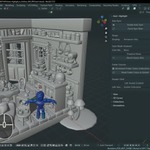
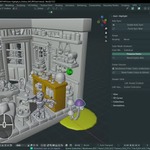
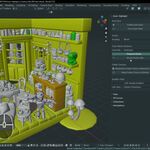
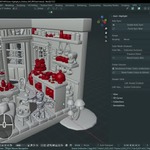
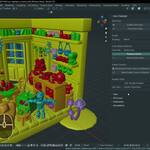
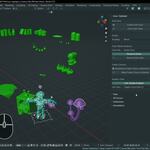
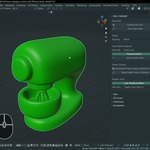
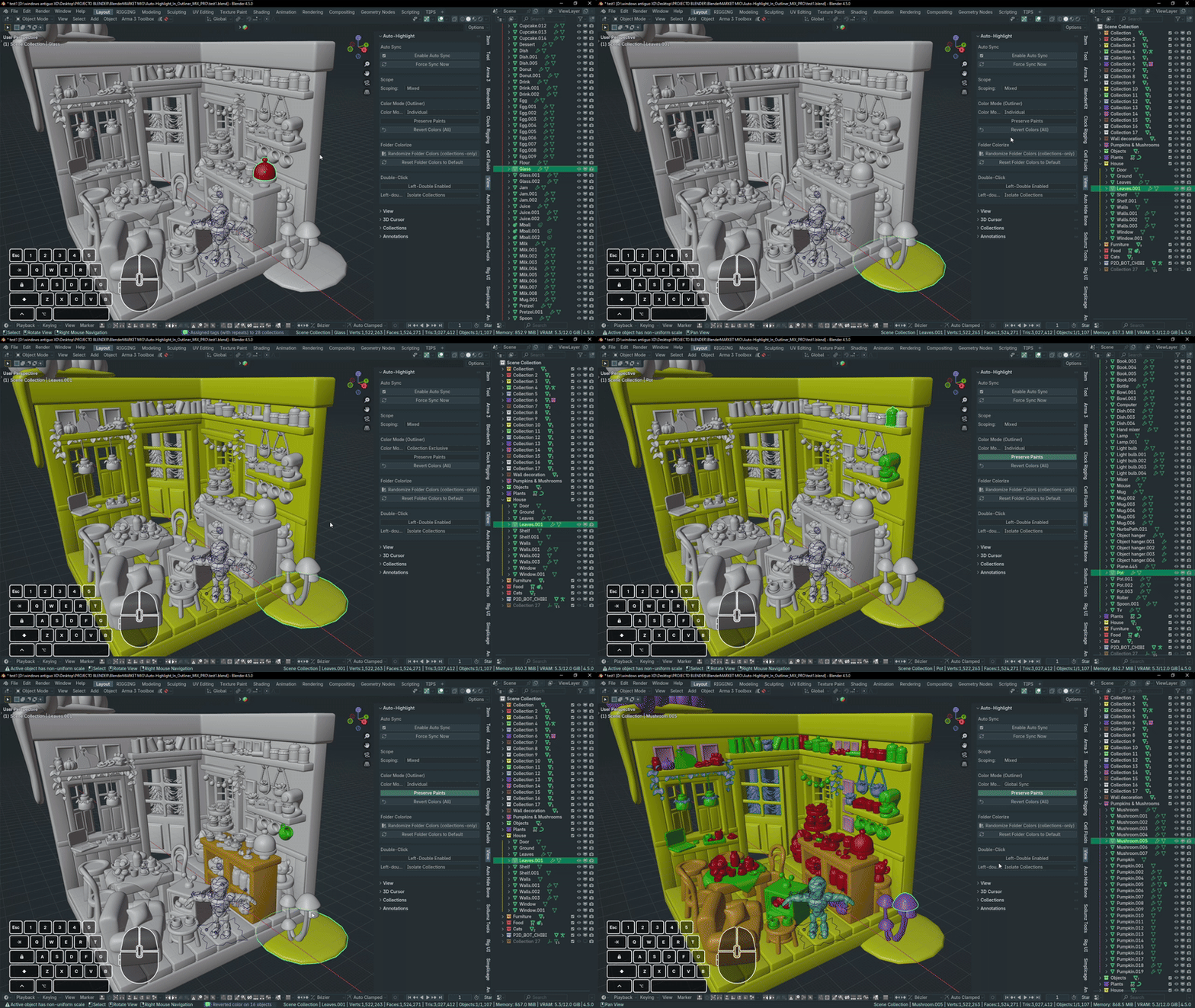
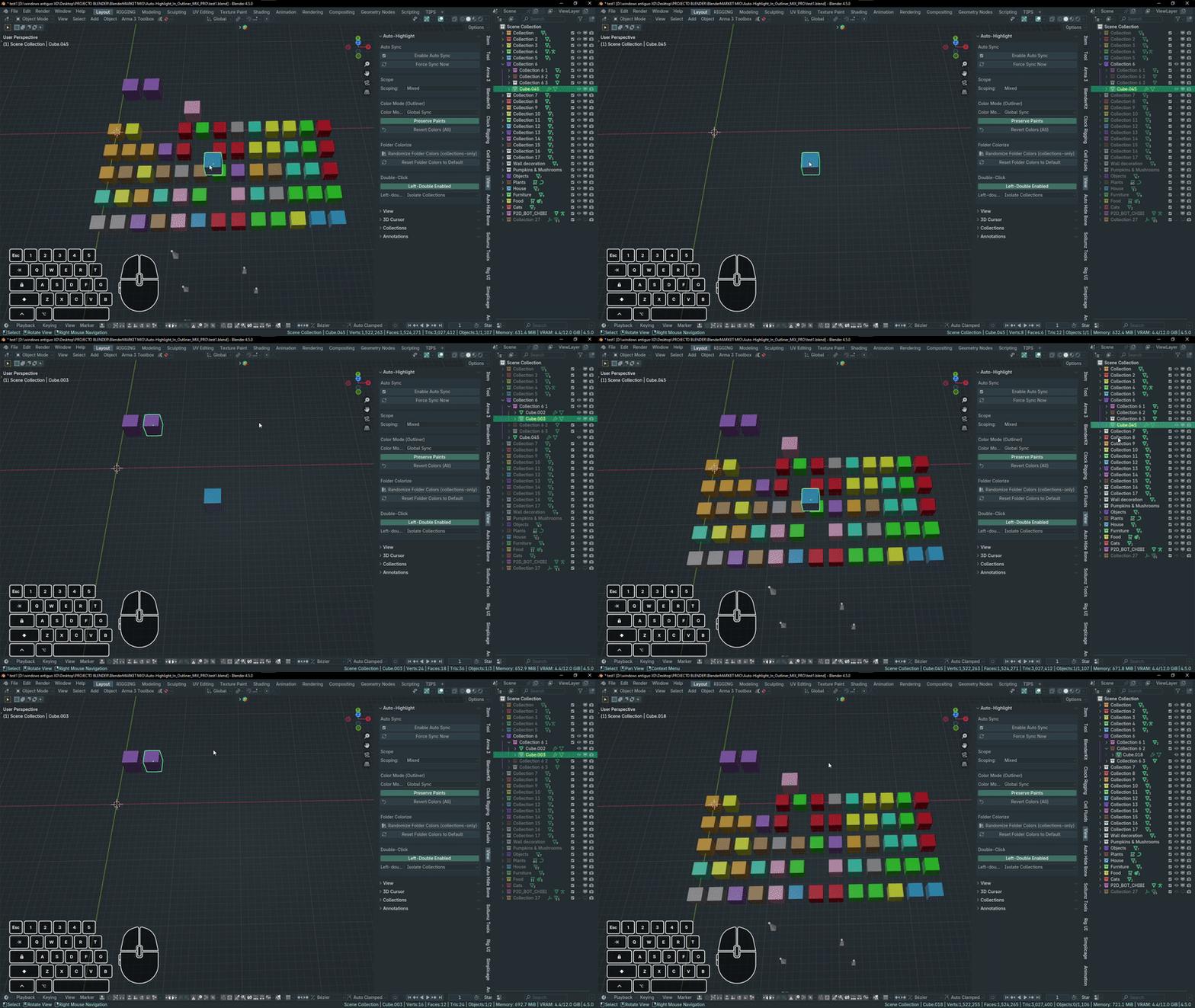
Transform how you handle large scenes with OutlinerFlow Pro. Sync your 3D selection with the Outliner, instantly isolate collections with a double‑click, colorize objects by collection, and use quick tools to clean and present your scene. Built to save minutes (and hours) every session.
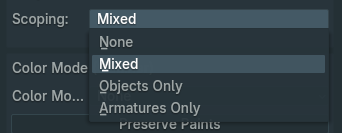
- ✔️ Auto Sync: configurable Outliner ↔ Viewport synchronization (MIXED / OBJECTS_ONLY / ARMATURES_ONLY / NONE).
- ✔️ Double‑click Isolate: hide everything except collections related to the selected object or the object under the cursor.
- ✔️ Color Modes: Individual / Collection Exclusive / Global — paint objects according to their collections.
- ✔️ Folder Colorize: Randomize and Reset colors for collections + Revert Colors (All).
- ✔️ Force Sync: immediately collapse & focus the Outliner (requires Auto Sync enabled).
- ✔️ Precise control: each section has its own switch; Auto Sync is the master control.
Artists & Technical Artists: speed up navigation in large scenes.
Riggers & Animators: present rigs and quickly select relevant hierarchies.
Studios & Freelancers: integrate into pipelines for cleaner reviews and presentations.
It’s not just a highlighter — it’s a micro‑toolkit designed to make the Outliner the center of your workflow. Save time searching, manually isolating, and preparing scenes for presentation; gain instant visual control with a clean, simple interface.
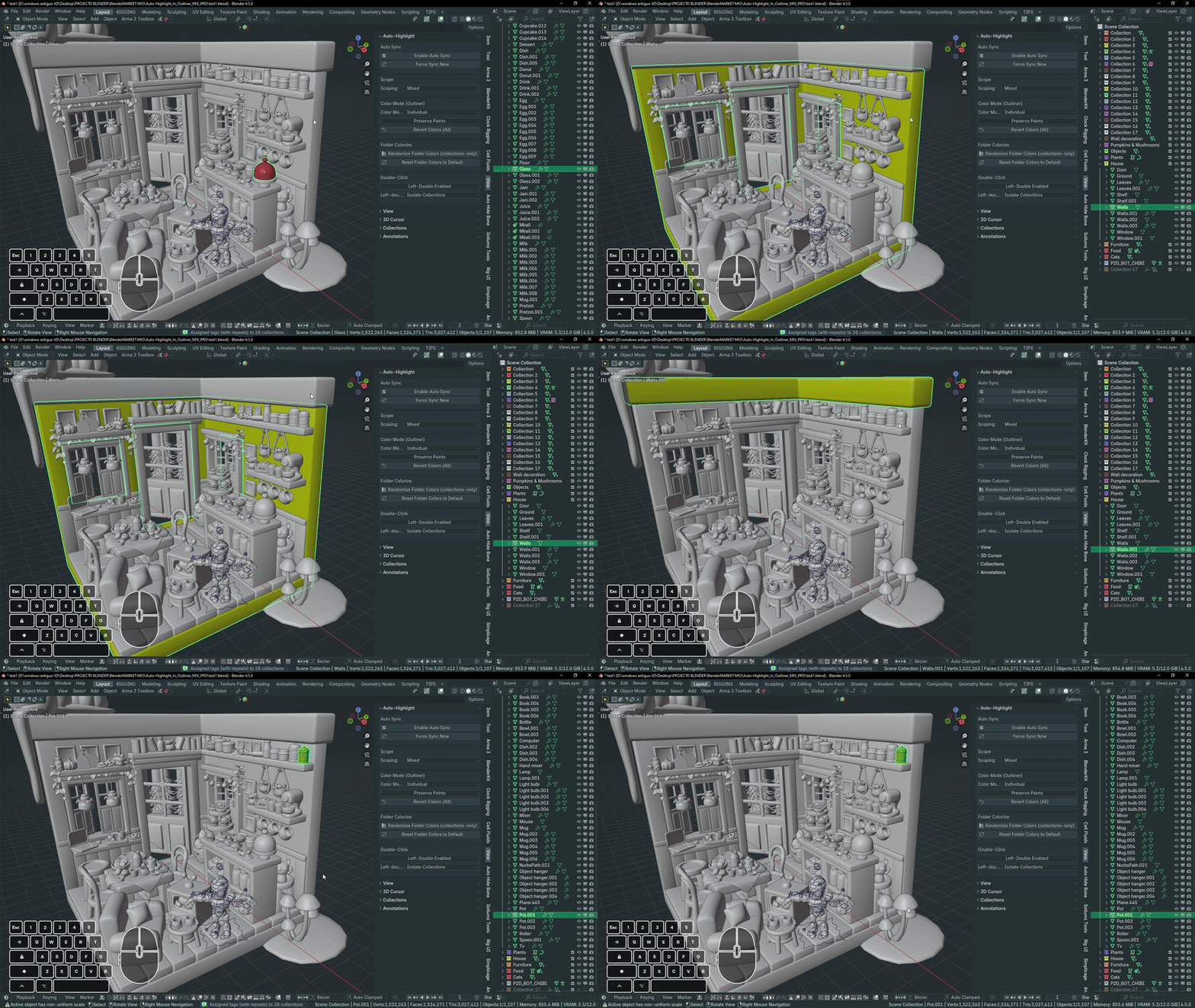
Turn on automatic synchronization between your 3D selection and the Outliner. Control when it triggers using Scope (NONE / MIXED / OBJECTS_ONLY / ARMATURES_ONLY). When Auto Sync is turned off everything resets to defaults (scope = NONE, color mode = NONE, double‑click OFF).
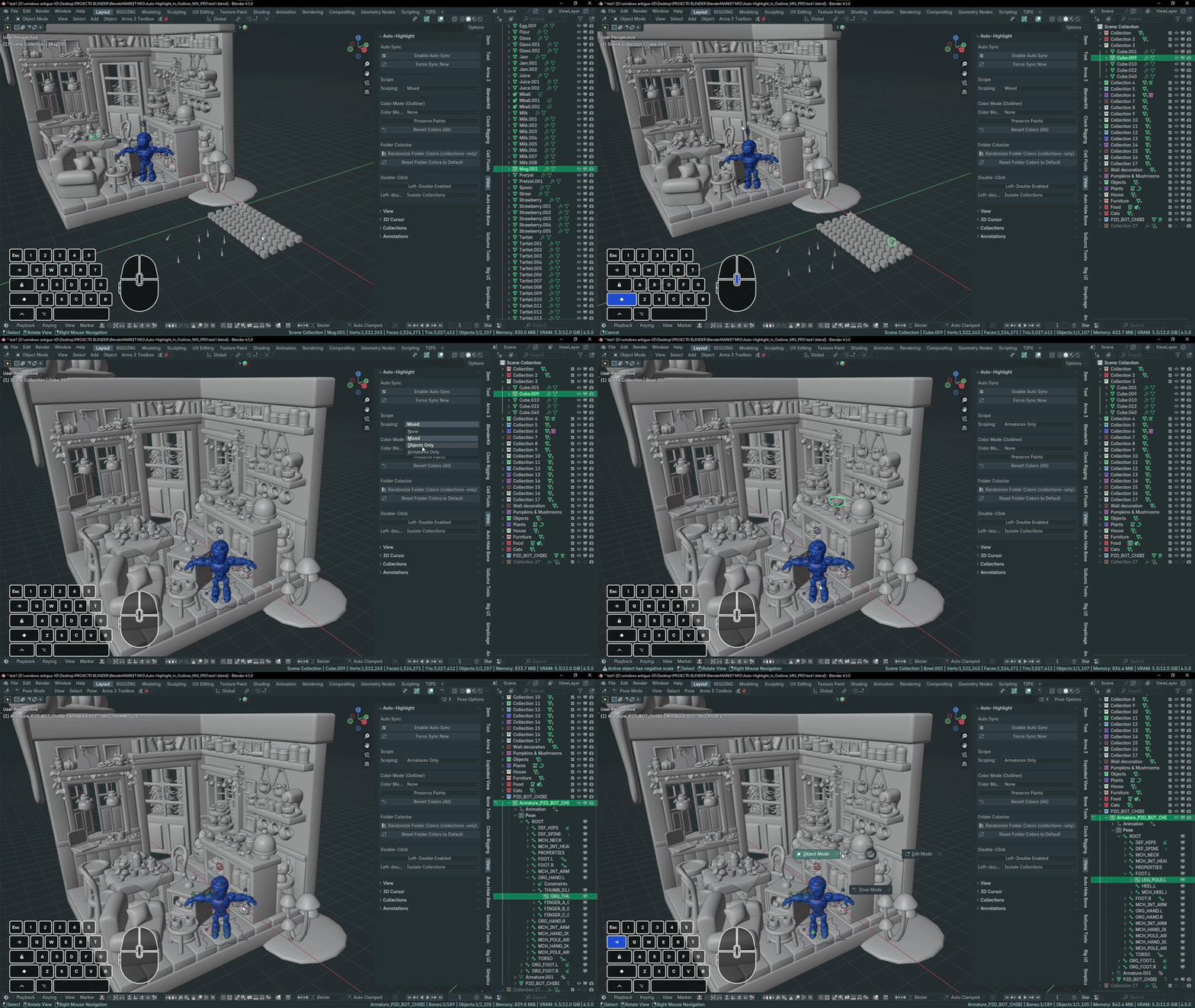
Choose when sync should fire: NONE (off), MIXED (objects + armatures), OBJECTS_ONLY, or ARMATURES_ONLY. IMPORTANT: Scope only works when Auto Sync is enabled; with Auto Sync OFF nothing happens.
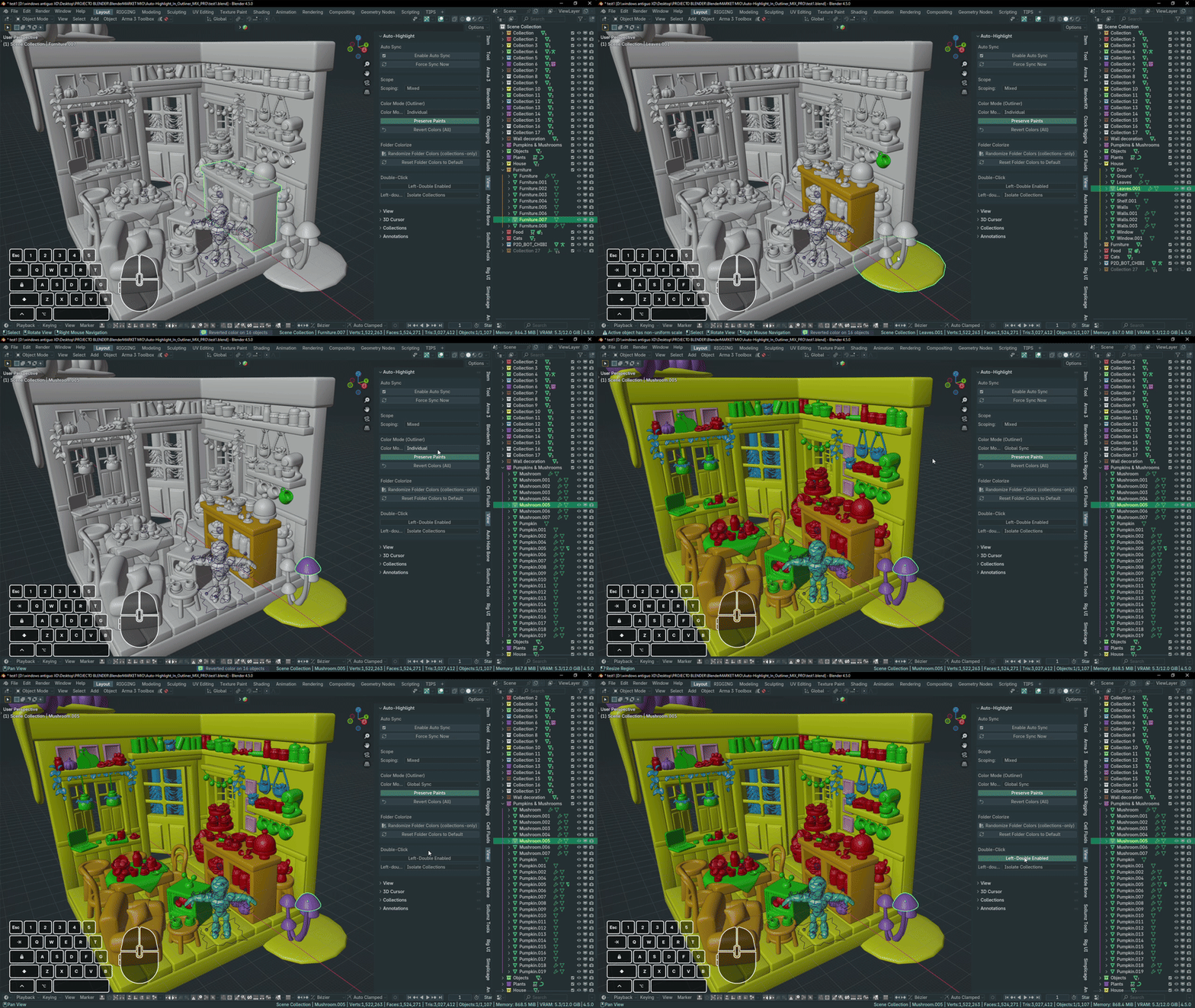
Three modes to color and visualize: INDIVIDUAL (paints only the active object), COLLECTION_EXCLUSIVE (paints the active object's collection) and GLOBAL (applies colors to all collections). Use "Revert Colors (All)" to undo global changes.
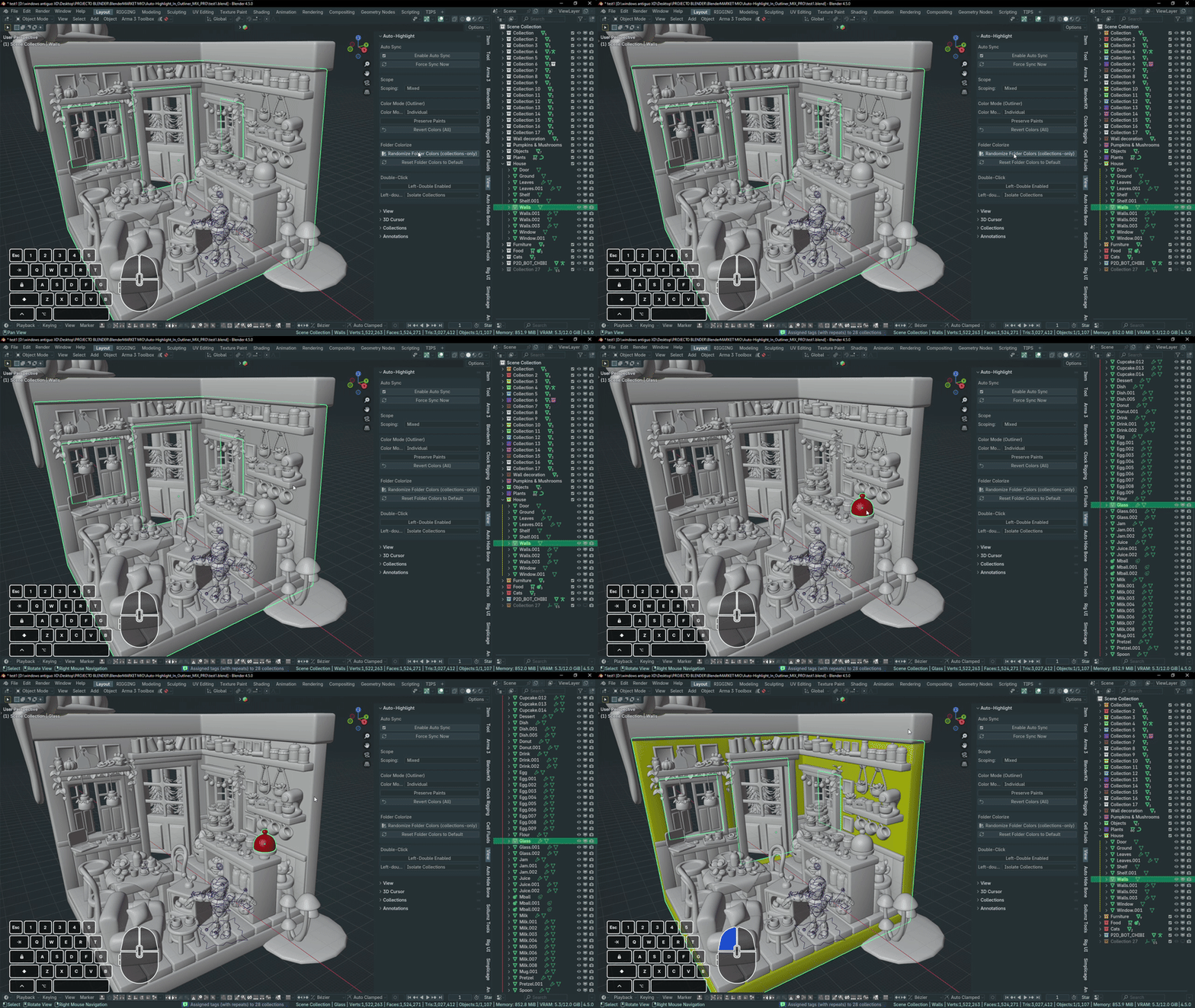
Tag collections with color labels or generate random colors. Use Reset to return to the default gray. Note: the Revert Colors (All) button belongs to the Color Mode section (it reverts global color applications).
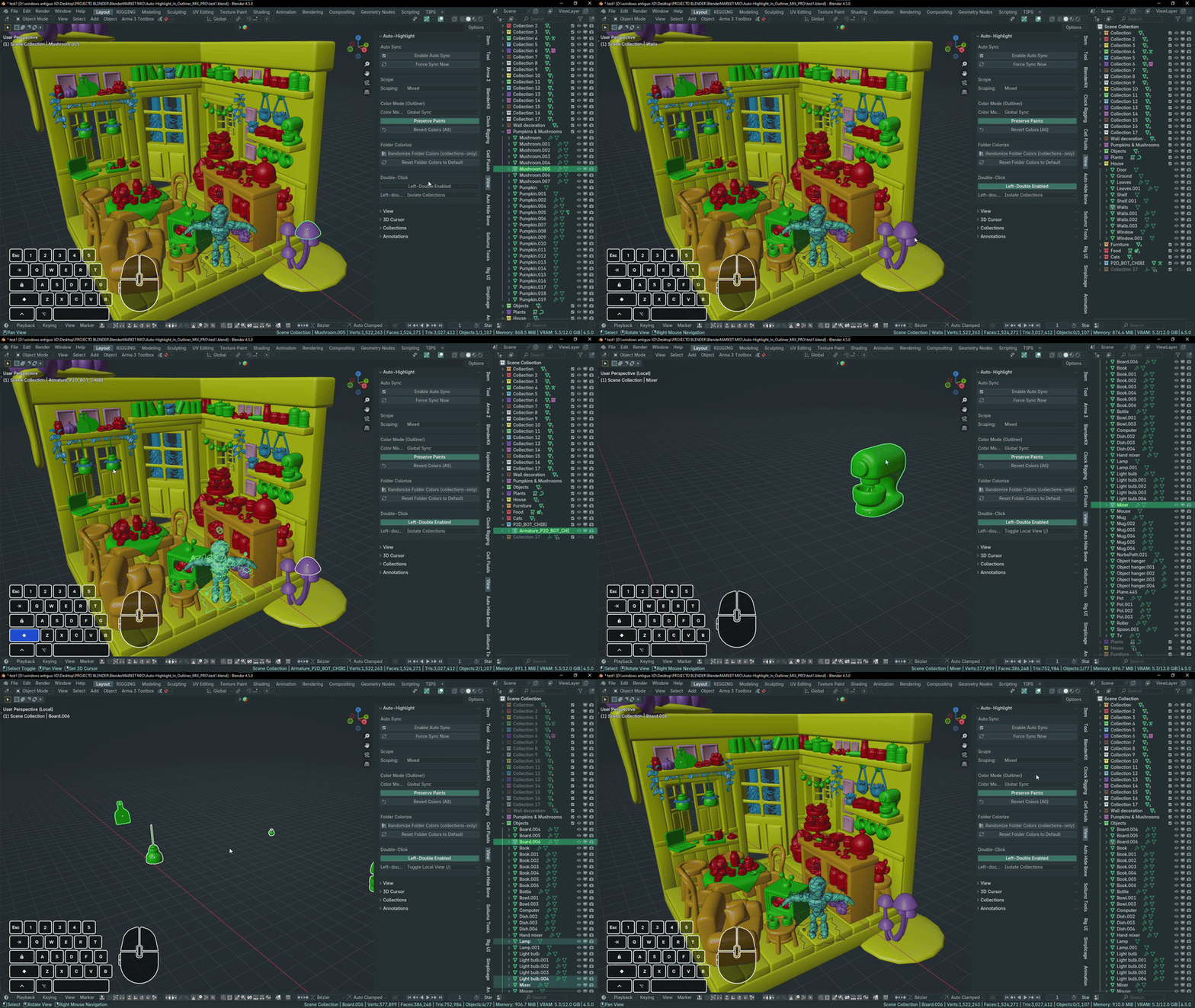
Enable this option and double‑click in the 3D View to isolate collections of the selected object or toggle Local View (depending on the chosen action). Behavior is gated by Auto Sync — if Auto Sync is OFF the function will not run.
- Nested-aware Double‑Click Isolate: isolating now preserves the ancestor chain — parent collections stay visible while unrelated nested subcollections are hidden.
- Improved stability for isolate batching; large operations remain batched to avoid UI freezes.
- GLOBAL color sync remains batched and still triggers immediately when selecting GLOBAL.
- No UI changes — use double‑click as before; test with objects in nested collections to see the new behavior.
-
 NEW
NEW
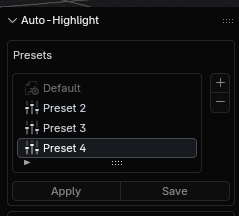
OutlinerFlow Pro — Update v1.0.2Brief summary 14/05/2026What's new- You can now save and apply presets from the Auto‑Highlight panel.
-
Automatic sync when switching workspaces has been improved for more stable behavior.