 MNC Development
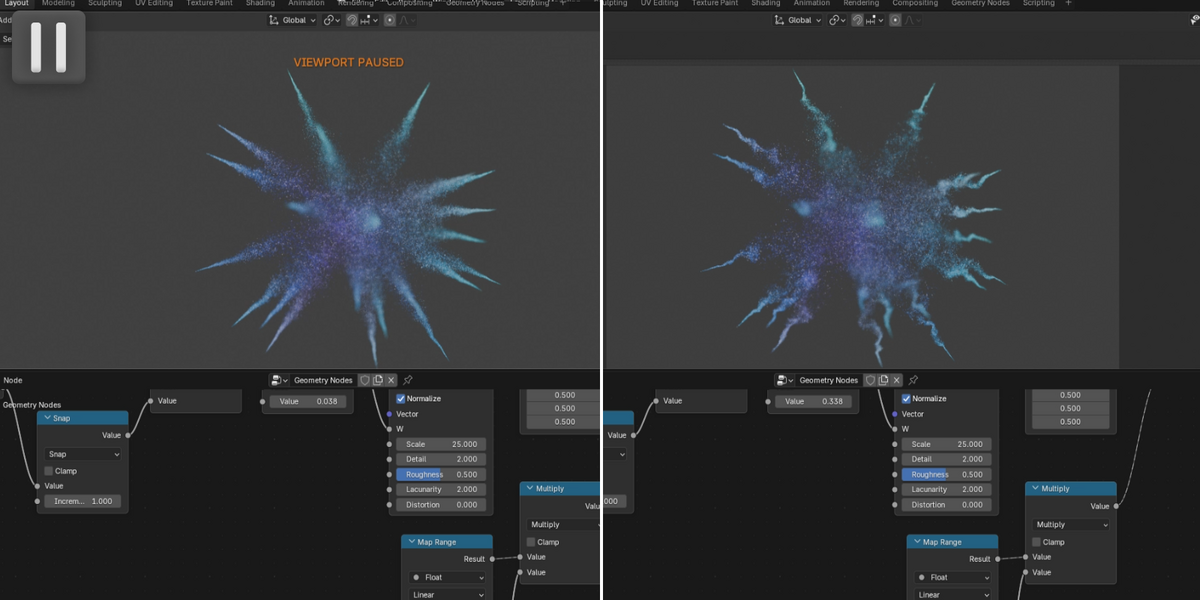



Pause the viewport. Keep working.
Pause the viewport and a heavy node tree stops re-solving on every change you make to it.
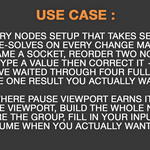
A geometry nodes setup that takes seconds to solve re-solves on every change made to it. Rename a socket, reorder two nodes, type a value then correct it — you have waited through four full solves to reach the one result you actually wanted to see.
This is where Pause Viewport earns its place. Freeze the viewport, build the whole node tree, wire the group, fill in your inputs, then resume when you actually want to look.
Heavy shading works the same way. A dense material tree rebuilds its shader every time you touch it, and a rendered preview starts over with it. With nothing left to draw, rewiring that tree or dialling in a dozen inputs costs nothing until the viewport comes back.
Pause Viewport adds one button to the 3D viewport header, right beside the viewport shading buttons. Click it and the viewport freezes. Click it again and your scene comes back, carrying everything you changed in between.
No panel to open, no operator to hunt for in a menu, no settings to fill in before it works.
Pausing takes your objects out of Blender's dependency graph.
| Geometry Nodes | Modifiers |
| Subdivision | Physics and simulations |
| Shading and materials | Animation and drivers |
While the viewport is paused, the number of objects Blender evaluates in your scene is zero — and it stays there no matter what you change. Push a Subdivision Surface to level 4 during a pause and it is simply not subdivided until the viewport is resumed.
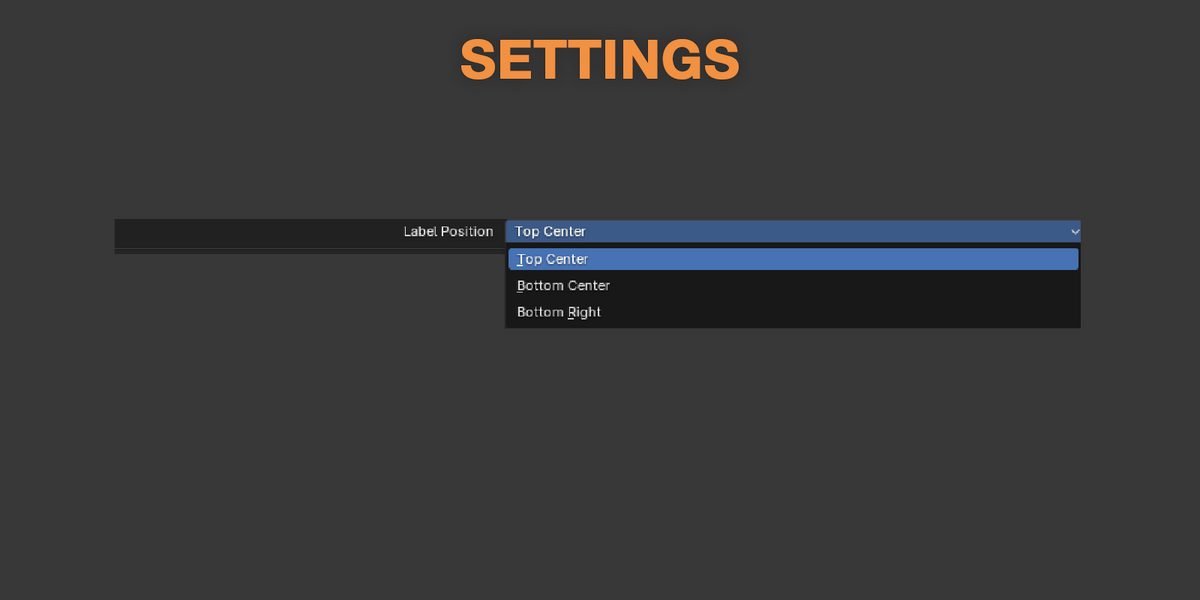
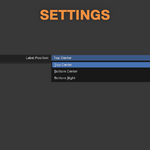
A VIEWPORT PAUSED label sits at the place of your choice, so a frozen frame is never mistaken for a frozen Blender.
| Top Center (default) | Bottom Center |
| Bottom Right |
The position is set once in the add-on preferences and applies immediately. Wherever you put it, the label keeps clear of open headers and sidebars.
Nothing should be computed while you are not looking at it.