Pause Viewport
 MNC Development


Pause Viewport — Documentation
Requires Blender 5.1 or later.
1. In Blender, open Edit > Preferences > Get Extensions.
2. Click the dropdown arrow at the top right of the window and choose Install from Disk…
3. Select pause-viewport-1.0.0.zip. Blender asks for no permission: the add-on reads nothing, writes nothing and never touches the network.
4. The extension installs and enables itself. Go back to the 3D viewport: the pause button is in the header, immediately to the right of the four viewport shading buttons.
To update later, install the newer zip the same way; it replaces the previous version. To remove it, find Pause Viewport in the Add-ons list and uninstall it — if a viewport is paused at that moment, it is resumed first.
Pause Viewport adds one control and nothing else. It sits in the 3D viewport header, at the end of the row, right after the shading buttons.
| Pause icon | The viewport is live. Click to freeze it. |
| Play icon, pressed | The viewport is paused. Click to resume. |
| Greyed out | You are not in Object Mode. The tooltip says so. |
The same action is in the search menu as Toggle Viewport Pause, so you can bind it to a shortcut of your own if you use it often.
| SUSPENDED | |
| Geometry Nodes | Node trees stop solving, however you can edit them. |
| Modifiers | The whole stack. |
| Shading | With nothing left to draw, materials are not evaluated and a rendered preview has nothing to sample. |
| Physics | Simulations and particle systems are not solving. |
| Animation | Keyframes and drivers no longer drive anything on screen. |
| STILL RUNNING | |
| Every other editor | Properties, node editors, Outliner, timeline, spreadsheet — all fully usable. |
| Your edits | Everything you type, move, rewire or delete is recorded as usual. Only the viewport result waits. |
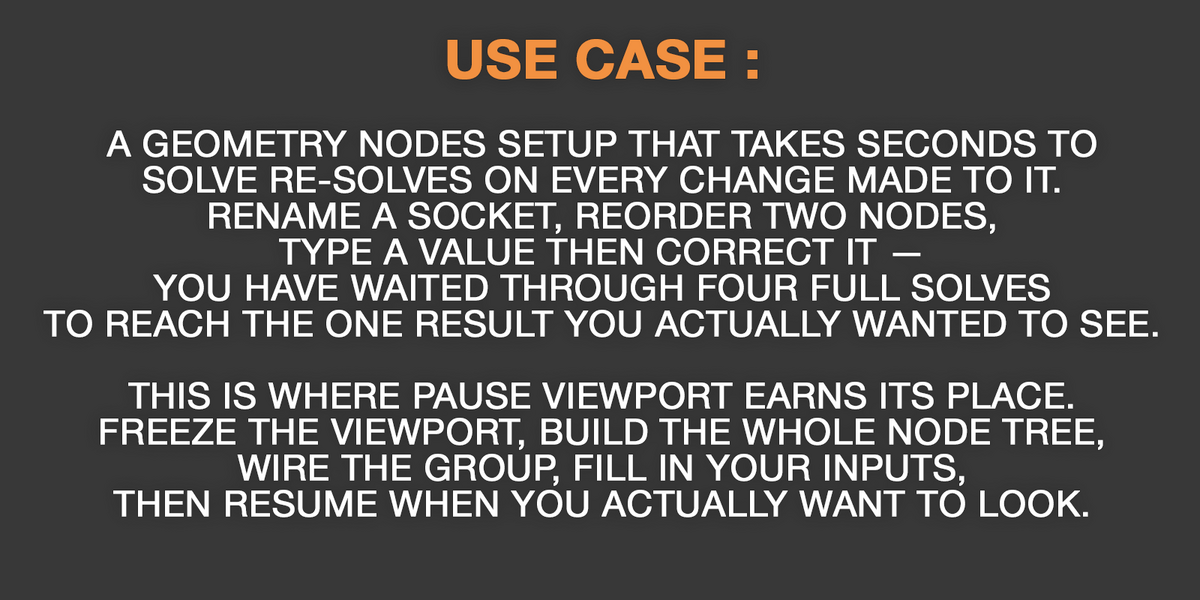
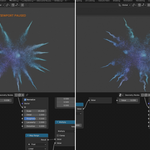
Pause Viewport is made for the passes where a live preview buys you nothing: building a node tree, wiring a group, filling in a long list of inputs, rebuilding a heavy material.
Pause, do the whole pass, resume once. A dozen changes then cost one evaluation instead of twelve.
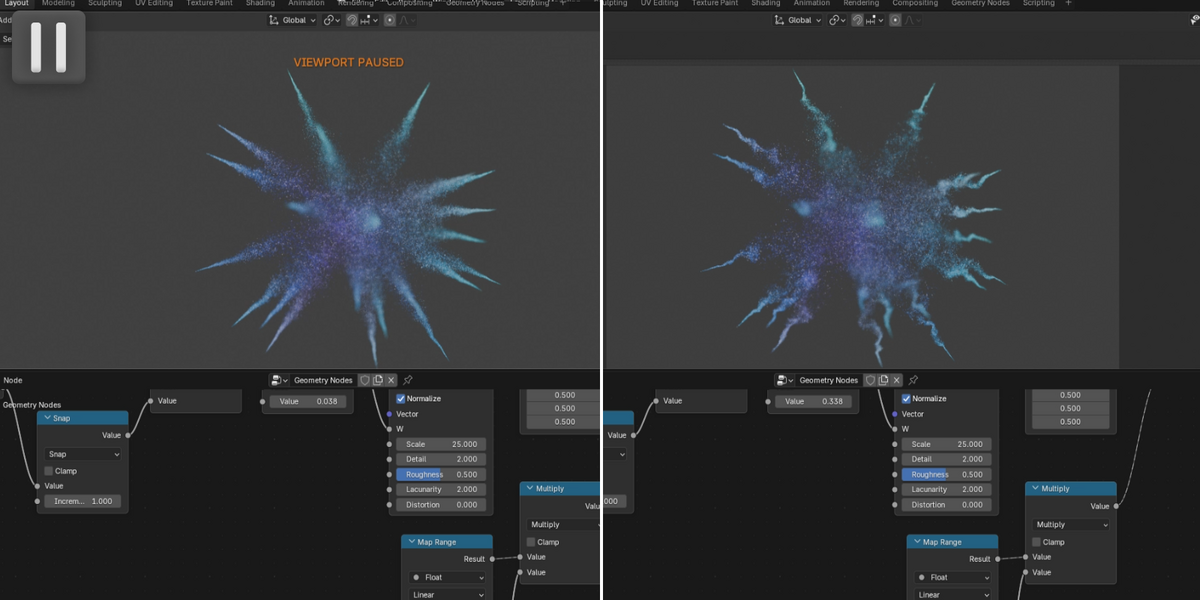
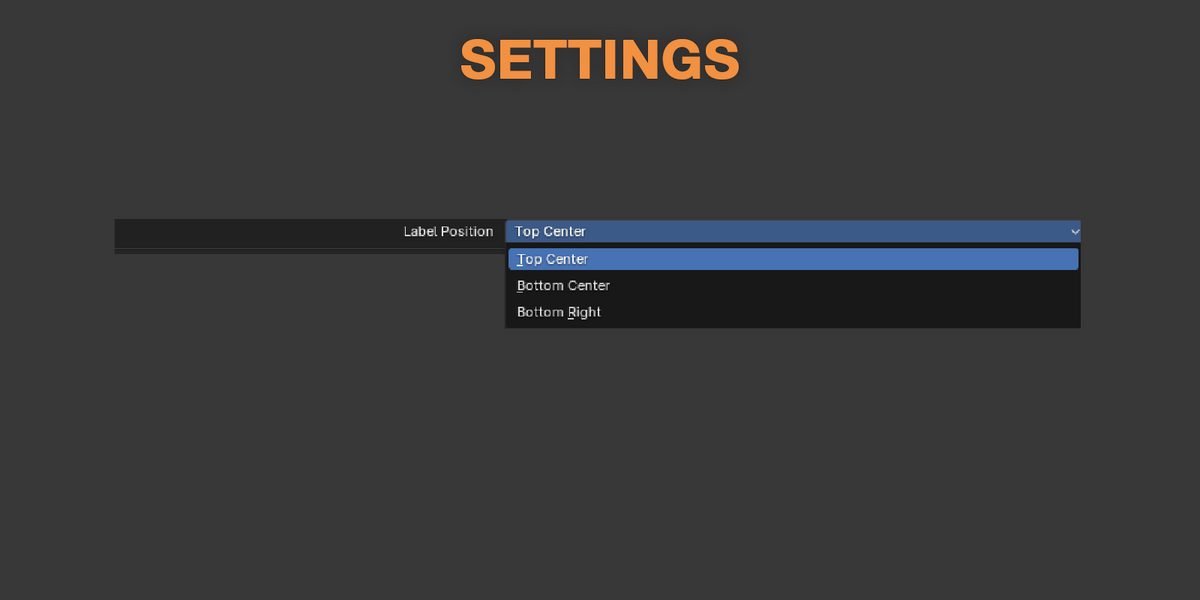
A VIEWPORT PAUSED label is drawn over the frozen view, so a still image is never mistaken for a frozen Blender. Its position is set in Edit > Preferences > Add-ons > Pause Viewport.
| Top Center | Bottom Center |
| Bottom Right |
The change applies immediately, on a paused viewport too. Wherever you put it, the label keeps clear of open headers and sidebars.
| The button is greyed out | Pausing is done from Object Mode. Leave Edit, Sculpt or Paint mode and the button comes back. |
| Orbiting does not move the view | A paused viewport is a still image. Your navigation is recorded and applied the moment you resume. |
| A viewport shows a plain background and the label | That viewport had no image to freeze — it was opened, split or resized after the pause started. Resume and it draws normally again. |
| A second scene is still slow | A pause applies to the scene it was started in. Switch scene and pause that one too. |
Pause Viewport · Requires Blender 5.1 or later
-
$5
1 User - Non-commercial use
-
$15
5 Users - Commercial use
-
$45
10 Users - Commercial use
-
$95
10+ Users - Commercial use
Have questions about this product?
Login to message
| Blender Extension Compatible | Yes |
| Published | 3 days ago |
| Blender Version | 5.1 - 5.2 |
| Extension Type | Add-on |
| License | GPL |
Discover more products like this
viewport pause viewport Workflow pause 3d-user-interface 3DWorkflow 3D Artist Tools 3dviewport realtime addon blender UserFriendly