Procedural Building Generator 2
 Isak Waltin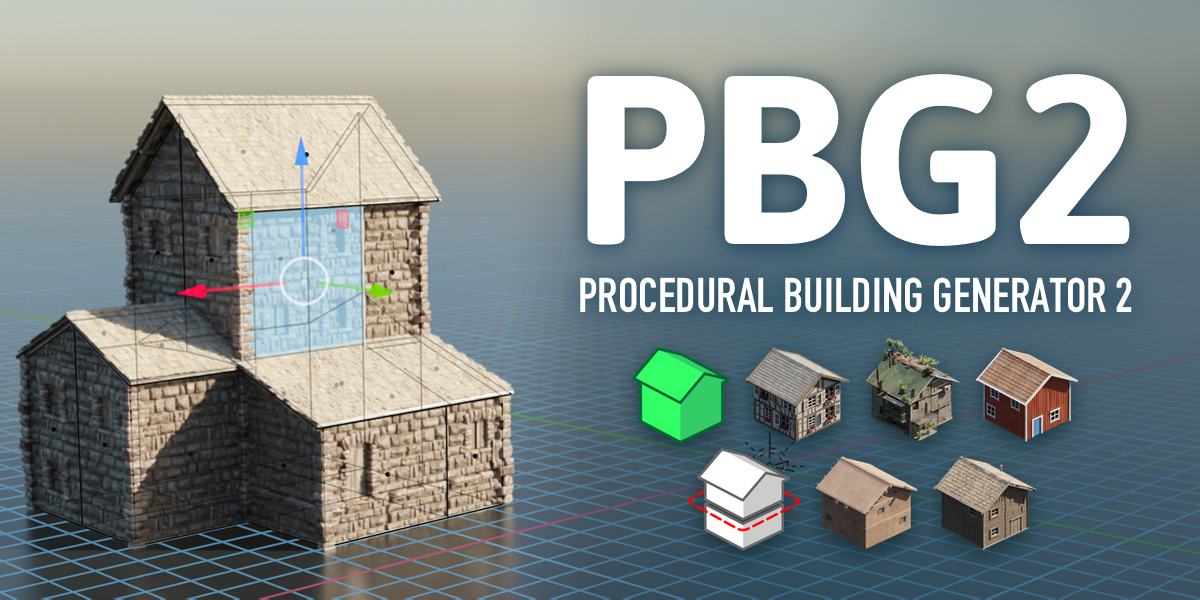
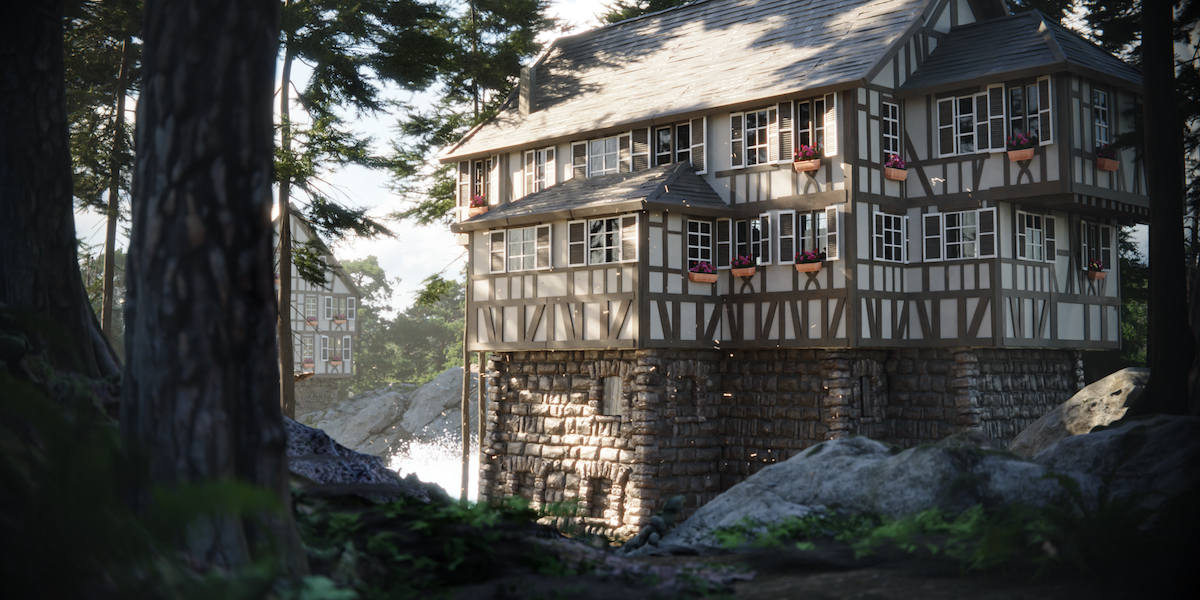
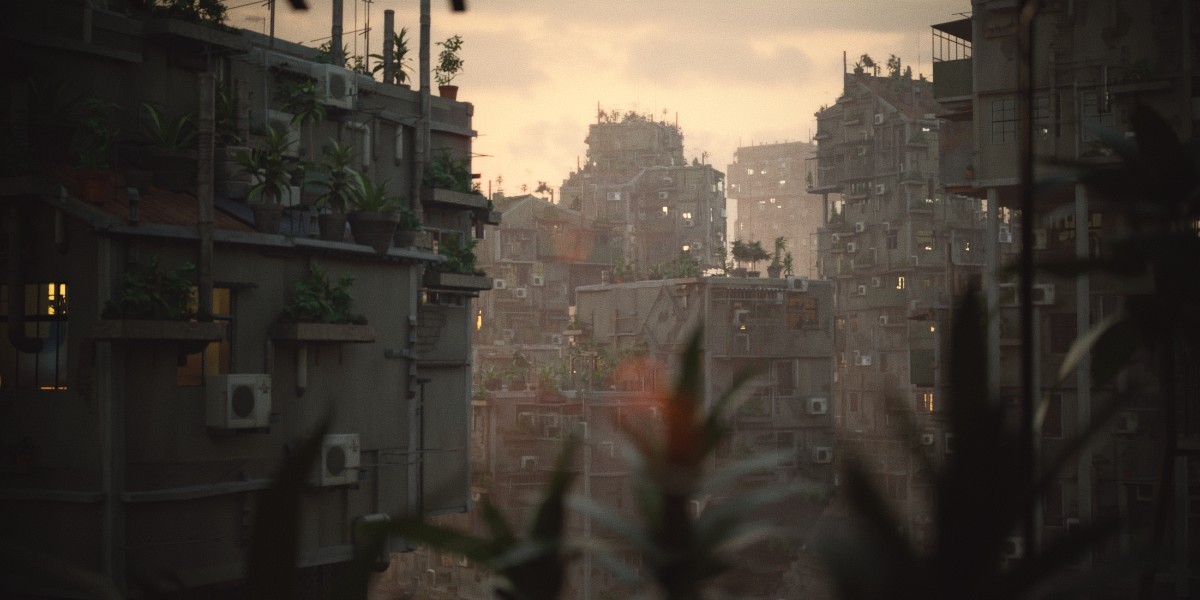
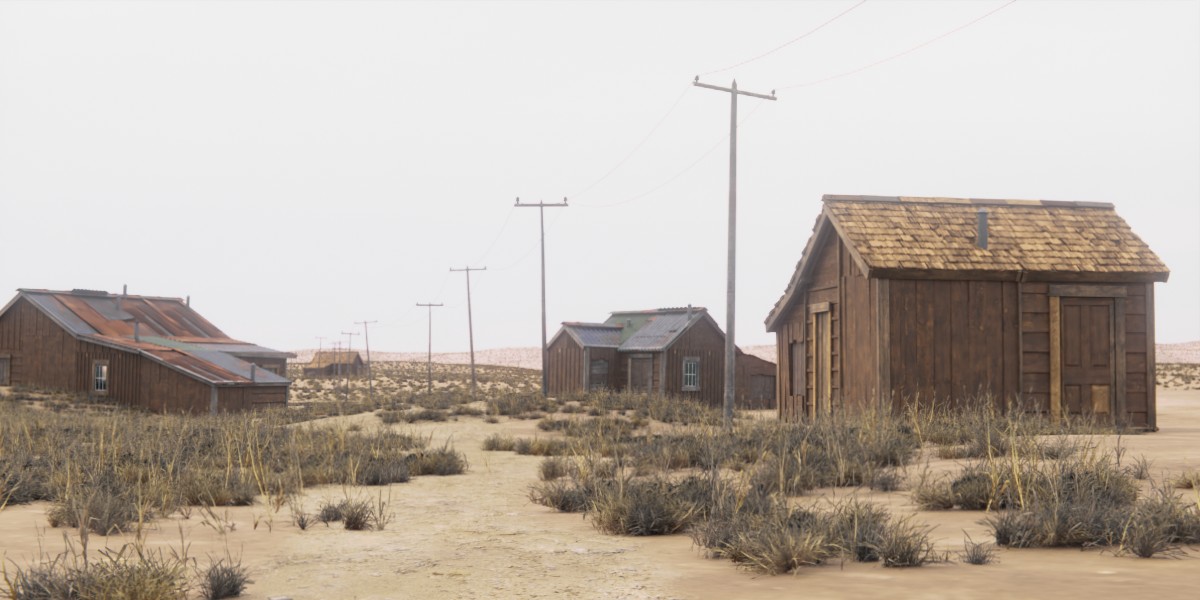
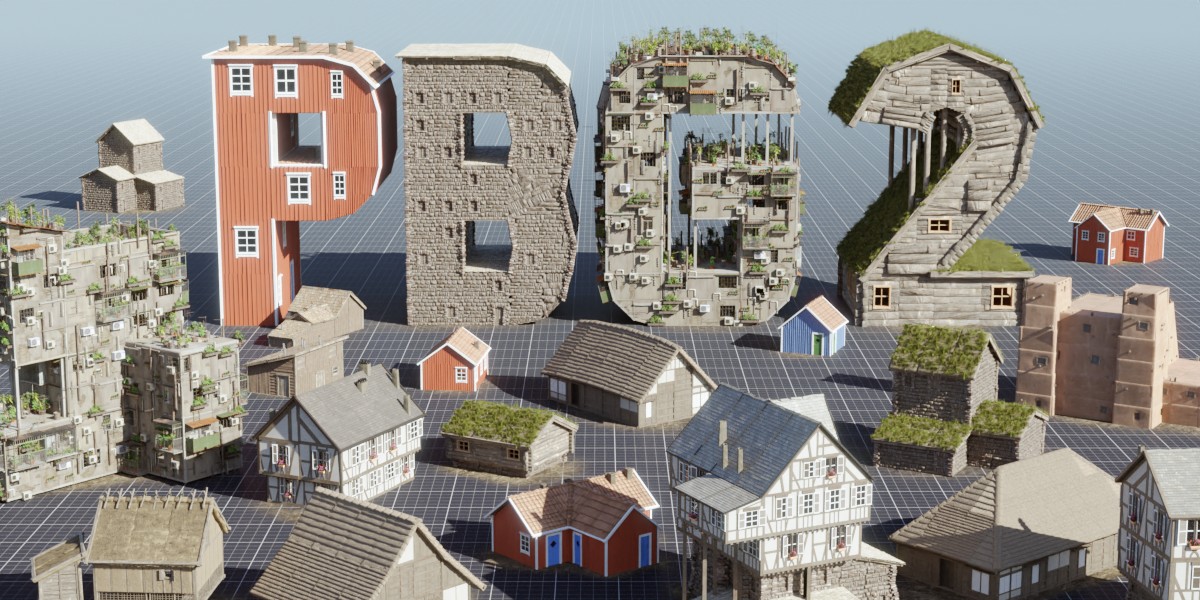
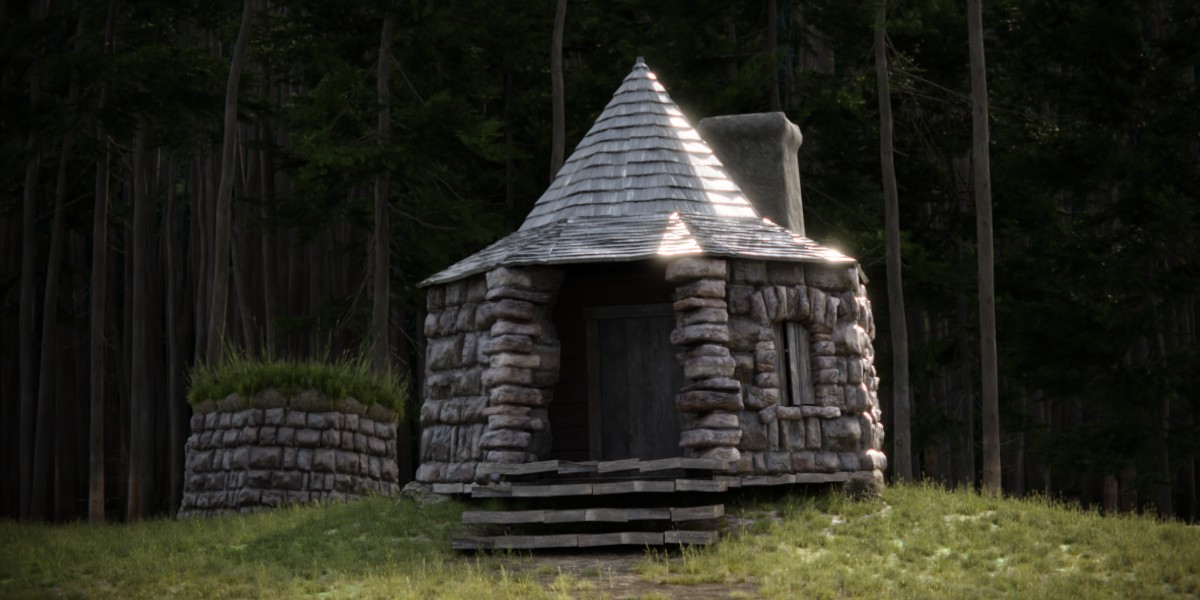
The full documentation for PBG 2 is available at https://docs.google.com/document/d/1fIAmVV5dSMnwPAobCZwd3tdbuMtB7Rh3-zJoVPaR1mU
Getting started
When you download this product, you get a ZIP file. This is not an addon, so it cannot be installed the way an addon would be.
Here’s how to set it up once you’ve downloaded it:
- Extract the zip file and place the folder somewhere convenient
- Open Blender. Go to Edit>Preferences>File Paths>Asset LibrariesClick “+” and navigate to the folder “PBG_2”. Select it.
- Set “Import method” to Link
- Done!
The download contains a blend file with the generator, and subfolders with asset packs.
If you purchase more asset packs later, extract them and place them in the PBG_2 folder!
Setup PBG 2 in a project
Once you’ve completed the initial setup, all you need to do to add the Building Generator to an object is to open the Asset Browser and drag out a PBG node group. There are 3 ways to setup the generator:
- Super quick setup: Drag a Preset onto an object. This will instantly generate a render-ready building from that mesh. Presets have a few settings you can tweak right from the modifier window, like color and seed.
- Quick setup: Drag a generator (Simple Building or Two-Part Building) onto an object. You also need to pick a style; they can be found in the Asset Browser as well. With a generator, all the settings are exposed in the modifier window.
- Custom setup: See Custom setup.
After setting up the generator for an object, you can start modeling your mesh as usual. The generator will adapt in real-time.
The full documentation for PBG 2 is available at https://docs.google.com/document/d/1fIAmVV5dSMnwPAobCZwd3tdbuMtB7Rh3-zJoVPaR1mU
-
$15
All PBG 2 node groups + 5 building styles
-
$20
Node groups + 5 styles + 4 historic building styles
Have questions about this product?
Login to message
| Sales | 2000+ |
| Rating | 13 ratings |
| Dev Fund Contributor | |
| Published | about 3 years ago |
| Blender Version | 4.2 - 5.1 |
| Render Engine Used | Cycles, Eevee |
| License | Royalty Free |
