PBR Prefab Toolkit
 blender-world


PBR Prefab Toolkit 1.0.14
Compatibility: Blender 5.x, tested with Blender 5.2 LTS.
Access: Shader Editor > Shift+A > PBR Prefab Toolkit.
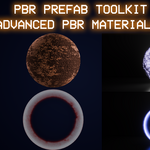
PBR Prefab Toolkit is a collection of reusable shader node groups for building clean PBR materials without recreating the same node chains every time.
Installation
- Download the add-on ZIP.
- In Blender, open Preferences and choose Install from Disk.
- Select the ZIP and enable PBR Prefab Toolkit.
- Open the Shader Editor.
- Press Shift+A and open PBR Prefab Toolkit.
Quick Start
For a standard material, add the PBR node as the final material node. Connect your Base Color, Roughness, Metallic, Normal and AO data, then connect Shader to Material Output > Surface. Add helper groups only when you need them.
For map textures such as Roughness, Metallic, AO, Height and Normal Map, use Non-Color in the Image Texture node.
PBR
PBR
Accepts: Base Color, Base Tint, Tint Factor, Alpha, NoCull, Roughness, Metallic, Normal, IOR, AO, AO Factor, Cavity, Height, Bump Strength, Bump Distance, Midlevel, Displacement Scale, Opacity, Emission, Emission Strength, Specular, Transmission, Coat, Coat Roughness, Subsurface and Subsurface Scale.
Outputs: Shader and Displacement.
Modes & switches: NoCull disables backface culling for the material. The remaining controls are direct material inputs.
Purpose: Final material node. Base Tint is applied over the main color texture. AO and Cavity darken recessed areas. Height drives bump/displacement. Emission adds glow, Coat adds a clear top layer, and Shader connects to Material Output > Surface.
Surface Layers
Surface Layers are designed to be chained. Connect Color, Roughness, Normal and Height from one layer into the matching Base inputs of the next layer.
Detail
Accepts: Base Color, Base Roughness, Base Normal, Base Height; Detail Color, Detail Roughness, Detail Normal, Detail Height, Detail Mask; Tint, Tint Factor, Factor; Color, Roughness, Normal and Height Strength; Micro Amount, Micro Scale, Micro Detail, Micro Roughness, Micro Normal; Mask Contrast.
Outputs: Color, Roughness, Normal, Height and Mask.
Modes & switches: Blend Mode: Mix, Multiply, Overlay, Soft Light, Screen. Factor controls the overall layer strength. Detail Mask limits the affected area. Micro Amount enables built-in micro detail.
Purpose: Adds a secondary detail layer over the base material: detail color, roughness, normal, height and micro surface breakup.
Dirt
Accepts: Base Color, Base Roughness, Base Normal, Base Height; Dirt Color, Dirt Roughness, Dirt Normal, Dirt Height; Mask Source; Tint, Tint Factor, Factor; Roughness, Normal and Height Strength; Mask Contrast, Invert Mask; Bottom Accumulation; Procedural Amount, Noise Scale, Noise Detail and Noise Roughness.
Outputs: Color, Roughness, Normal, Height and Mask.
Modes & switches: Blend Mode: Mix, Multiply, Overlay, Soft Light, Screen. Invert Mask reverses the dirt mask. Bottom Accumulation pushes dirt toward the lower part of the object. Procedural Amount adds built-in breakup.
Purpose: Adds dirt, dust, grime and stains. Use an existing mask or combine it with procedural breakup and lower-surface accumulation.
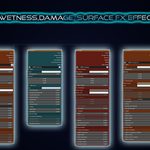
Wetness
Accepts: Base Color, Base Roughness, Base Normal; Wet Mask; Factor, Darkening, Roughness Reduction, Normal Flatten; Tint, Tint Strength; Coat Amount, Coat Roughness; Mask Contrast, Invert Mask; Breakup Amount, Breakup Scale and Breakup Detail.
Outputs: Color, Roughness, Normal, Coat Weight, Coat Roughness and Mask.
Modes & switches: Invert Mask swaps wet and dry areas. Breakup Amount adds procedural variation to the mask.
Purpose: Makes a surface look wet by darkening the color, lowering roughness, flattening small normal detail and adding a clear Coat layer.
Damage
Accepts: Base Color, Base Roughness, Base Normal, Base Height; Under Color, Under Roughness, Under Normal, Under Height; Under Tint, Tint Factor; Damage Mask, Factor, Mask Contrast, Invert Mask; Procedural Amount, Noise Scale, Noise Detail; Edge Width, Edge Darkening, Edge Roughness; Scratch Amount, Scratch Scale and Scratch Length.
Outputs: Color, Roughness, Normal, Height, Mask and Edge Mask.
Modes & switches: Invert Mask swaps damaged and intact areas. Procedural Amount adds irregular breakup. Scratch Amount enables procedural scratches.
Purpose: Reveals an underlying material through a damage mask. Use it for chipped paint, worn coatings, rust under paint, scratches and damaged plastic.
Surface FX
Accepts: Base Color, Base Roughness, Base Normal; Effect Color, Effect Roughness, Effect Normal; Mask Source; Tint, Tint Factor, Factor; Roughness and Normal Strength; Mask Contrast, Invert Mask; Noise Amount, Noise Scale, Noise Detail, Distortion; Macro Amount, Macro Scale, Macro Color Variation and Macro Roughness Variation.
Outputs: Color, Roughness, Normal and Mask.
Modes & switches: Blend Mode: Mix, Multiply, Overlay, Soft Light, Screen. Invert Mask reverses the mask. Noise Amount adds local breakup. Macro Amount adds large-scale variation.
Purpose: General-purpose surface effect for grunge, rust, mold, stains, dust, fading and large-scale material variation.
PBR Channels
These nodes prepare individual PBR channels before they are connected to the final PBR node.
AO
Accepts: Texture; Scale, Detail, Cavity and Noise for procedural AO; Inside, Only Local, Color, Distance and Normal for Blender AO; Factor, Invert, Contrast, Min and Max.
Outputs: AO and Color.
Modes & switches: Texture uses an AO map. Procedural builds cavity-style AO from shader data and noise. Blender AO uses Blender's Ambient Occlusion shader node. Inside and Only Local apply to Blender AO. Invert reverses the result.
Purpose: Creates or processes ambient occlusion. For a standard PBR texture set, use Texture mode.
Cavity
Accepts: Texture, Value, Factor, Invert, Contrast, Min and Max.
Outputs: Cavity.
Modes & switches: Mode: Value or Texture. Invert reverses the map. Factor blends the constant Value with the processed texture.
Purpose: Prepares a small-scale cavity mask for seams, folds, creases and recessed details.
Roughness
Accepts: Texture, Value, Factor, Invert, Contrast, Min and Max.
Outputs: Roughness.
Modes & switches: Mode: Value or Texture. Invert is useful for gloss/smoothness maps. Min and Max remap the output range.
Purpose: Prepares a roughness map or constant roughness value before the final PBR node.
Metallic
Accepts: Texture, Value, Factor, Invert, Contrast, Min and Max.
Outputs: Metallic.
Modes & switches: Mode: Value or Texture. Invert reverses the metalness map. Min and Max remap the output range.
Purpose: Prepares a metallic/metalness channel before the final PBR node.
Normal
Accepts: Normal Texture, Normal Strength, Height, Bump Strength, Bump Distance and Invert.
Outputs: Normal.
Modes & switches: Normal Map uses only the RGB normal map. Bump uses only Height. Normal + Bump combines both. Invert reverses Height.
Purpose: Converts a normal map and/or height map into a final Normal vector for PBR or Surface Layers.
Height
Accepts: Texture, Value, Factor, Invert, Contrast, Min and Max.
Outputs: Height.
Modes & switches: Mode: Value or Texture. Invert reverses the map. Contrast and Min/Max reshape the height range.
Purpose: Prepares a grayscale height/displacement channel for bump, displacement and Surface Layers.
Opacity
Accepts: Texture, Value, Factor, Invert, Contrast, Min, Max, Clip and Threshold.
Outputs: Opacity.
Modes & switches: Mode: Value or Texture. Invert reverses alpha. Clip converts soft transparency into a hard 0/1 mask using Threshold.
Purpose: Prepares opacity/alpha for foliage, grilles, decals, hair cards and transparent materials.
Emission
Accepts: Texture, Color, Factor and Strength.
Outputs: Color and Strength.
Modes & switches: Color uses a constant emission color. Texture blends Color with the emission texture using Factor.
Purpose: Prepares emission color and intensity for PBR > Emission and Emission Strength.
Normal Tools
Tools for reconstructing, converting and combining normal maps.
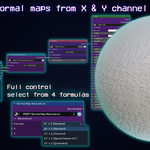
Normal Map Reconstruct
Accepts: Two image channels: X and Y.
Outputs: Normal Map color, ready to connect to the Normal node or Blender's standard Normal Map node.
Modes & switches: XY → Z (Standard): standard Z reconstruction from X/Y. XY → Z (Diamond): decodes a diamond-mapped normal representation. XY → Z (Signed Square 45°): decodes a signed-square representation rotated by 45°. XY → Z (Octahedral): decodes octahedral normal encoding.
Purpose: Reconstructs the missing third normal-map channel mathematically when the source texture stores only X and Y.
Normal Map Convert
Accepts: Normal Map, Source Convention, Target Convention, Flip X, Flip Y, Reconstruct Z and Strength.
Outputs: Normal Map.
Modes & switches: Source/Target Convention: OpenGL (+Y) or DirectX (-Y). Flip X and Flip Y reverse individual channels. Reconstruct Z recalculates the blue channel from X/Y.
Purpose: Converts tangent-space normal maps between OpenGL and DirectX conventions, fixes flipped X/Y channels and can rebuild Z.
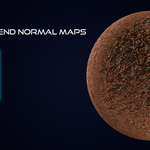
Normal Blend
Accepts: Normal Map A, Normal Map B, Normal Map C, Strength B and Strength C.
Outputs: Normal Map and a ready-to-use Normal vector.
Modes & switches: Method: Reoriented (RNM), Whiteout, UDN, Partial Derivative. Strength B/C controls the second and third normal map.
Purpose: Blends up to three tangent-space normal maps. Use it for Base Normal + Detail Normal + Micro Normal.
Bent Normal
Accepts: Normal, Bent Normal, AO, Roughness, Strength and Specular Strength.
Outputs: Normal, Diffuse Occlusion and Specular Occlusion.
Modes & switches: Strength blends the regular normal and bent normal. Specular Strength controls how roughness affects specular occlusion.
Purpose: Uses a baked bent-normal map for more directional occlusion and shading.
Rounded Edge
Accepts: Normal, Radius and Strength.
Outputs: Normal.
Modes & switches: Strength enables or reduces the effect. Radius controls the virtual bevel radius.
Purpose: Simulates a small bevel on sharp edges through shading normals without adding geometry. Useful for hard-surface materials in Cycles.
Masks & Blending
Tools for building, combining and reshaping material masks.
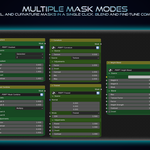
Mask Combine
Accepts: Mask A, Mask B, Invert A, Invert B, Factor, Contrast, Min and Max.
Outputs: Mask.
Modes & switches: Multiply, Add, Subtract, Minimum, Maximum, Screen. Invert A/B reverses each input mask independently.
Purpose: Combines two masks. Example: Dirt Mask × Gradient or Damage Mask + Curvature.
Gradient
Accepts: Vector, Start, End, Invert, Contrast and Factor.
Outputs: Mask.
Modes & switches: Source: Custom, Position, Generated, Object. Axis: X, Y, Z. Invert reverses the gradient direction.
Purpose: Creates a linear mask along a selected axis. Useful for dirt from the bottom, dust/snow from the top and height-based masking.
Fresnel
Accepts: IOR, Blend, Normal, Power, Invert, Contrast and Factor.
Outputs: Mask.
Modes & switches: Mode: Fresnel or Facing. Fresnel uses IOR. Facing uses Blend. Invert reverses the mask.
Purpose: Creates a camera-angle mask for rim effects, edge tint, wet highlights and silhouette-based effects.
Curvature
Accepts: Texture, Distance, Normal, Factor, Invert, Contrast, Min and Max.
Outputs: Mask.
Modes & switches: Source: Texture, Pointiness, AO Cavity. Type in Pointiness mode: Convex, Concave, Both. Invert reverses the result.
Purpose: Creates curvature/cavity masks for edge wear, dirt in recesses, worn highlights and automatic damage masks.
Height Blend
Accepts: Texture, Mask, Height A, Height B, Texture Factor, Factor, Height Strength, Bias, Contrast and Invert.
Outputs: Mask.
Modes & switches: Texture Factor moves the base mask between the Mask input and Texture input. Invert reverses the result.
Purpose: Adjusts a blend mask using the height of two materials, allowing one layer to settle into recesses or rise naturally over another.
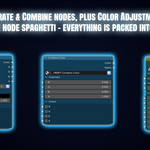
Color & Packing
Tools for RGB/RGBA channels, packed PBR textures and color correction.
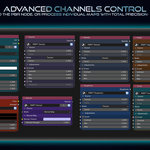
Separate Color
Accepts: Color and Alpha.
Outputs: Color, R, G, B and A.
Modes & switches: Invert R, Invert G, Invert B and Invert A independently reverse each channel.
Purpose: Splits a packed texture into individual channels. Use it for ORM/RMA/MRA, mask maps and other RGBA textures containing multiple data channels.
Combine Color
Accepts: R, G, B and A.
Outputs: Color and Alpha.
Modes & switches: Invert R, Invert G, Invert B and Invert A reverse channels before packing.
Purpose: Combines separate scalar channels back into RGB/RGBA. Useful for building packed textures and export maps.
Packed PBR Convert
Accepts: Packed Map, Source Layout, Source Surface, Target Layout and Target Surface.
Outputs: Packed Map.
Modes & switches: Layouts: ORM, RMA, MRA. Surface convention: Roughness or Smoothness / Gloss for both source and target.
Purpose: Reorders AO, Roughness/Smoothness and Metallic between common packed-map layouts and converts roughness ↔ smoothness when needed.
Color Adjust
Accepts: Color, Tint, Tint Factor, Factor, Hue, Saturation, Value, Brightness, Contrast and Gamma.
Outputs: Color.
Modes & switches: Factor controls the overall correction strength. Tint Factor controls how strongly Tint is applied.
Purpose: Fast material-side color correction without editing the source image.
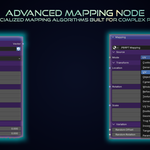
Mapping
Coordinate controls and tools for reducing visible texture repetition.
Mapping
Accepts: Vector, Location, Rotation, Scale, Random Offset and Random Rotation.
Outputs: Vector.
Modes & switches: Coordinate source: Custom, Generated, UV, Object, Camera, Window, Reflection, Texture Normal, Generated Instancer, UV Instancer, Position, Geometry Normal, True Normal, Incoming, Tangent, Parametric.
Purpose: One shared coordinate node for the material. Connect it to multiple Image Texture nodes to control scale, rotation and offset from one place.
Parallax
Accepts: Texture (height), Vector, Scale, Midlevel, Direction, Normal, Tangent and Min View Z.
Outputs: Vector.
Modes & switches: Scale controls depth, Midlevel sets the neutral height, Min View Z limits excessive offset at grazing camera angles.
Purpose: Offsets texture coordinates using a height map and view direction to create the illusion of depth without true displacement.
Anti Tiling
Accepts: Vector, Strength, Scale, Detail, Rotation and Seed.
Outputs: Vector.
Modes & switches: Strength enables and increases the breakup. Seed changes the variation. Rotation adds coordinate rotation.
Purpose: Breaks up obvious repetition in tileable textures on large walls, floors, terrain, concrete, fabric and similar surfaces.
Special
Special-purpose nodes that sit outside the basic PBR channel workflow.
Two Sided
Accepts: Front-side Color, Alpha and Normal; Back Color, Back Alpha and Back Normal; Factor and Flip Back Normal.
Outputs: Color, Alpha, Normal and Backface mask.
Modes & switches: Flip Back Normal reverses the normal on the back side. Factor controls how strongly the dedicated back-side values are used.
Purpose: Provides different shading values for the front and back of the same surface. Useful for foliage, fabric, paper, hair cards and thin geometry.
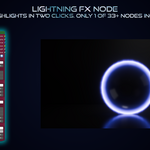
Lighting FX
Accepts: Color, Alpha, Normal; Rim Color, Rim Factor, Rim Power, Rim Width; Fill Color, Direction, Fill Strength, Wrap; Top Color, Bottom Color, Top Bottom and Facing Darken.
Outputs: Color, Alpha, Normal, Emission, Emission Strength and Rim Mask.
Modes & switches: Rim Factor enables rim lighting. Fill Strength controls fake directional fill. Top Bottom controls top/bottom tinting. Facing Darken darkens the silhouette.
Purpose: Adds stylized pseudo-lighting directly inside the material: rim emission, fake fill light, top/bottom tint and silhouette darkening.
Quick Workflows
Standard PBR Material
Base Color Texture → PBR Base Color
Roughness Texture → Roughness → PBR Roughness
Metallic Texture → Metallic → PBR Metallic
Normal Texture → Normal → PBR Normal
AO Texture → AO → PBR AO
Surface Layer Stack
Base textures → Detail → Dirt → Damage → Surface FX → Wetness → PBR
Packed ORM Texture
Image Texture → Separate Color
R → AO
G → Roughness
B → Metallic
DirectX Normal Map in Blender
Normal Map → Normal Map Convert
Source Convention = DirectX (-Y)
Target Convention = OpenGL (+Y)
Then connect the converted map to Normal.
Blend Multiple Normal Maps
Base Normal Map + Detail Normal Map → Normal Blend (RNM) → Normal → PBR Normal
Cutout / Alpha Material
Opacity Texture → Opacity → PBR Opacity. Enable Clip and adjust Threshold when you need a hard cutout instead of soft transparency.
Support
When requesting support, include your Blender version, Toolkit version, a short description of the issue and a screenshot of the relevant node setup. Use the support/contact option on the product page.
 Included
Includes 12 months of
- Support from blender-world
- Product updates
Extend this product’s Support Period +12 months: 50% of product price
Have questions before purchasing?
Login to message
| Blender Extension Compatible | Yes |
| Published | 3 months ago |
| Blender Version | 5.2 |
| Extension Type | Add-on |
| Render Engine Used | Cycles, Eevee |
| License | GPL |