 Animation Store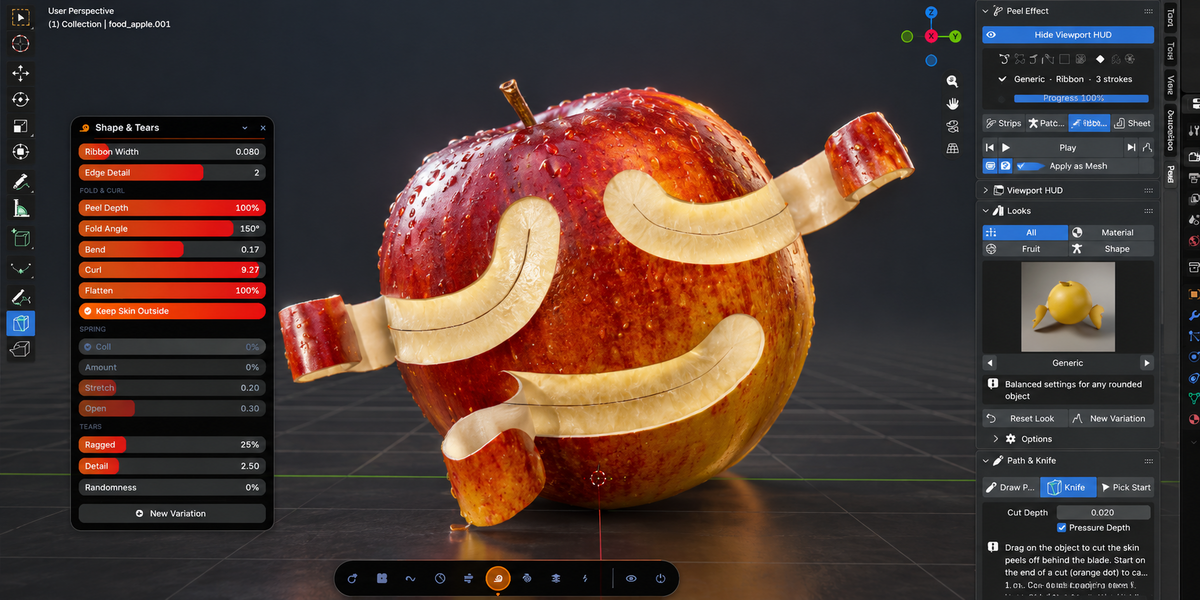
Peel Effect Add-on
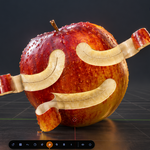
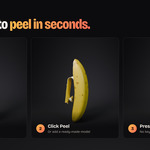
Peel Effect turns any mesh into a peeling, cracking, burning, shattering, or dissolving animation in one click, then gives you full control over it.
Paint the exact path the peel follows, cut the skin away live with the Peel Knife, or pull a whole skin off inside out like a snake shedding.
Everything runs inside one non-destructive Geometry Nodes modifier. Every setting stays live and editable, even after you animate
23 looks · 4 tear modes · 21 ready-made models . Brand new Geometry Node · floating Viewport HUD
Key features
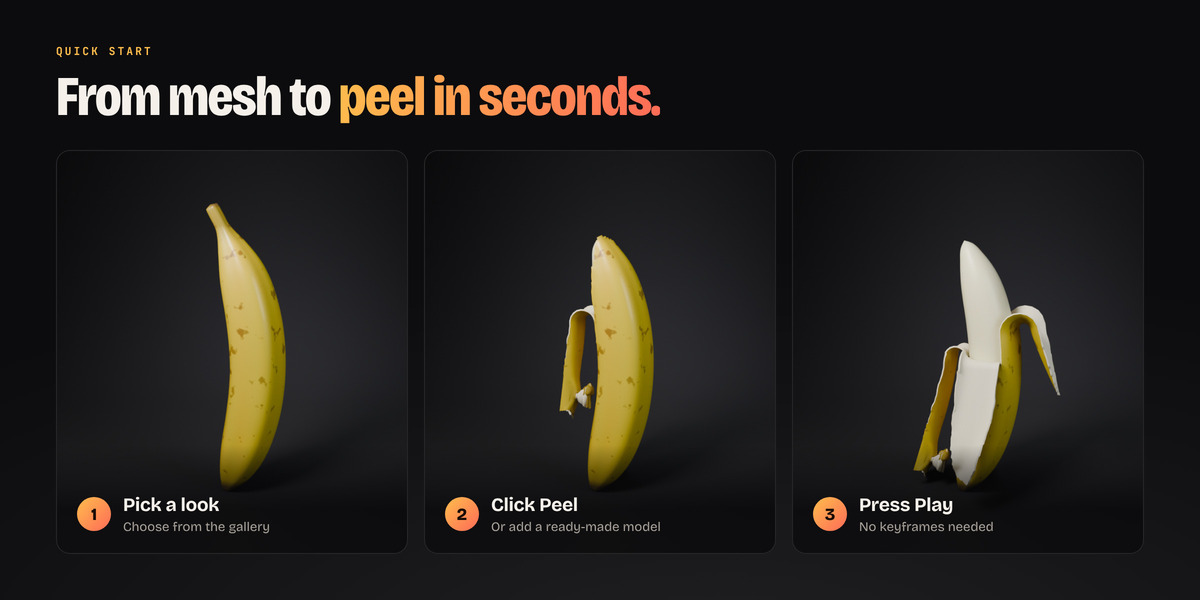
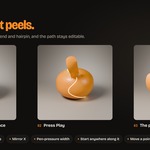
- One click to a finished shot. Select a mesh, pick a look, press Peel, press Play. No keyframes needed.
- You control the tear. Draw paths on the surface, cut with a knife, choose the start point, and steer spread, curl, thickness and speed.
- Live from start to finish. The path is an ordinary curve and every setting is a modifier input. Move a point on the path and the peel follows.
- Works on real-world meshes. Imported models, low-poly boxes, broken meshes, rigged characters and flat planes are all handled for you.
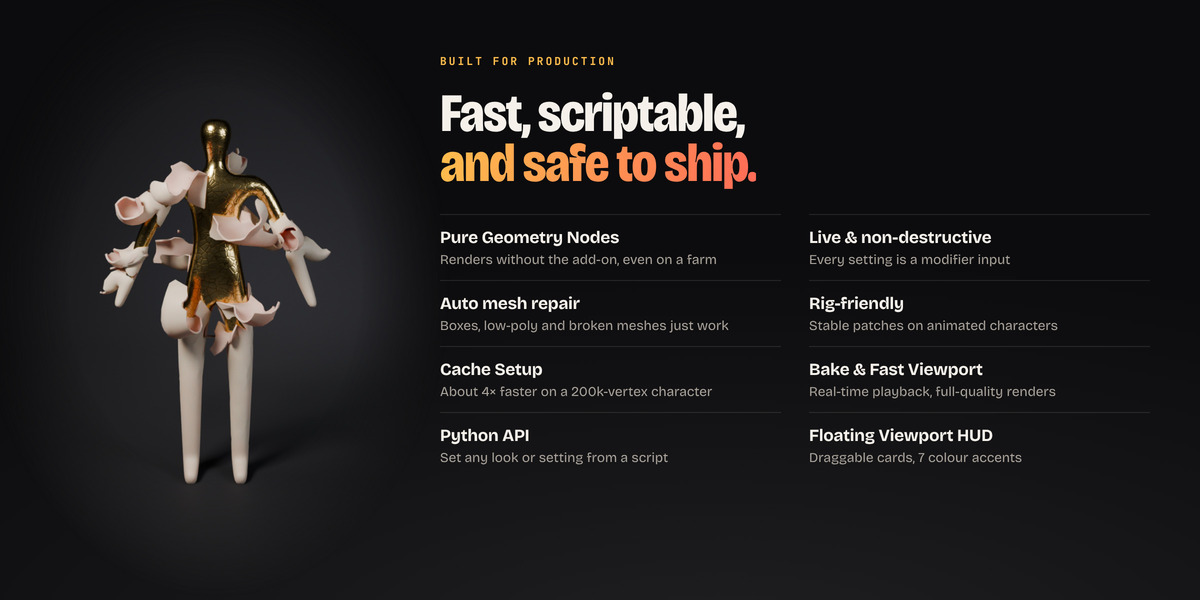
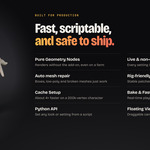
- Safe for production. It is pure Geometry Nodes with no baked-in dependency; it is fast on heavy characters, and it ships with full GPL source.
- Use it inside Geometry Nodes as a normal node with anything
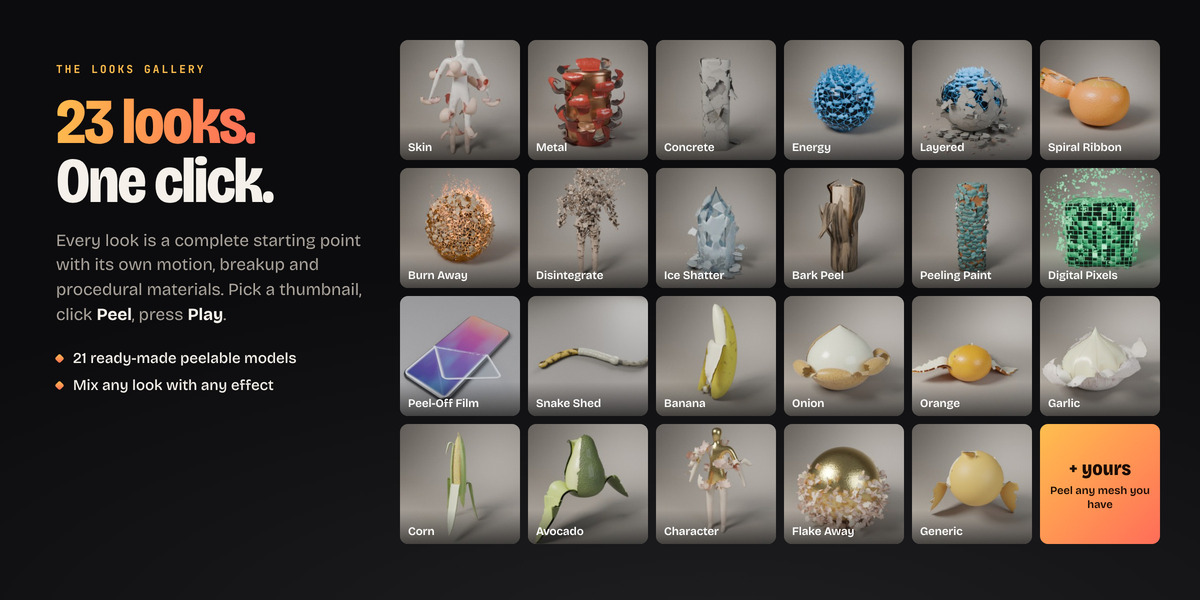
23 looks, ready to go
Each look is a complete starting point with its own motion, breakup, and procedural materials. Mix them freely: metal with debris, energy that peels as a ribbon, concrete along a path.
| Look | What happens |
|---|---|
| Skin | A thin, flexible layer peels away in long curling strips, and the body's shape stays underneath. |
| Metal | Stiff sheets crease, dent and roll up into tight scrolls, revealing copper under red paint. |
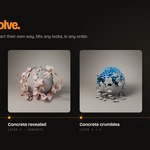
| Concrete | The surface cracks into a network, and chunks break off, fall and land on the floor in a spray of debris. |
| Energy | Glowing flakes peel off, burn away from their edges and turn into drifting particles over a glowing core. |
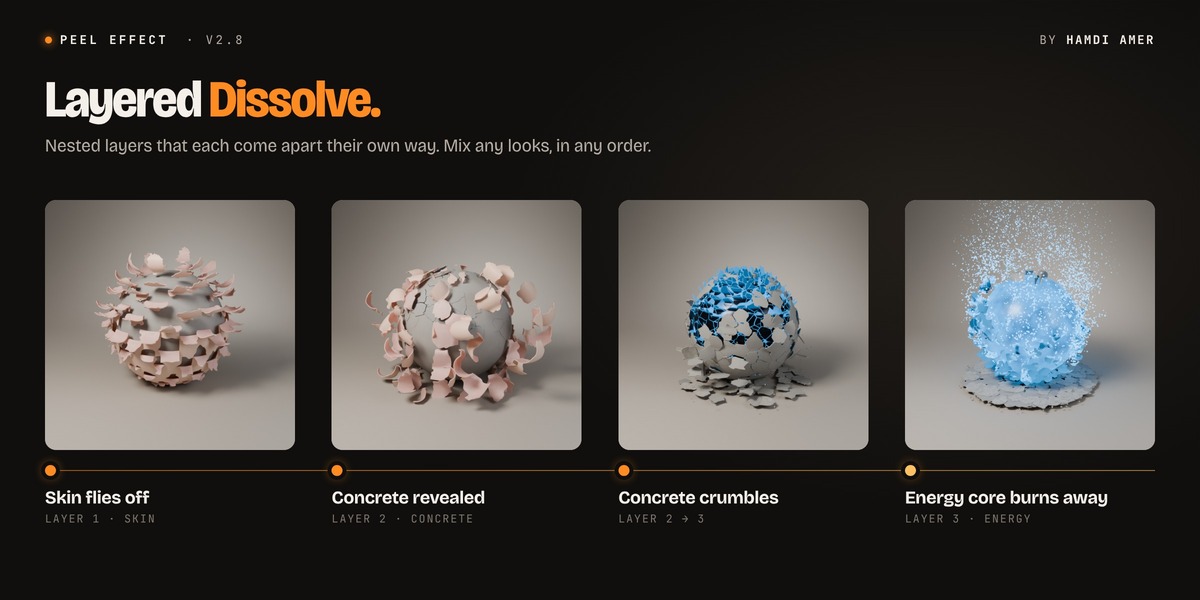
| Layered Dissolve | Nested layers each come apart their own way: skin flies off, concrete crumbles, an energy core burns away. |
| Spiral Ribbon | One continuous ribbon peels round and round, like an orange peeled in one piece. |
| Burn Away | The surface scorches, cracks with glowing embers and curls up into rising ash, leaving a charcoal core. |
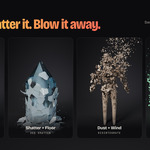
| Disintegrate | The whole object crumbles into fine dust that blows away on the wind, top to bottom. |
| Ice Shatter | A frosted crust cracks into sharp shards that pile up on the floor with ice chips, revealing clear ice. |
| Bark Peel | Rough bark cracks into long slabs that pry loose and drop, revealing pale wood. |
| Peeling Paint | Old paint curls up in flakes, showing white primer and rusty steel underneath. |
| Digital Pixels | The surface breaks into square pixels that blink out into glowing voxels over a wireframe core. |
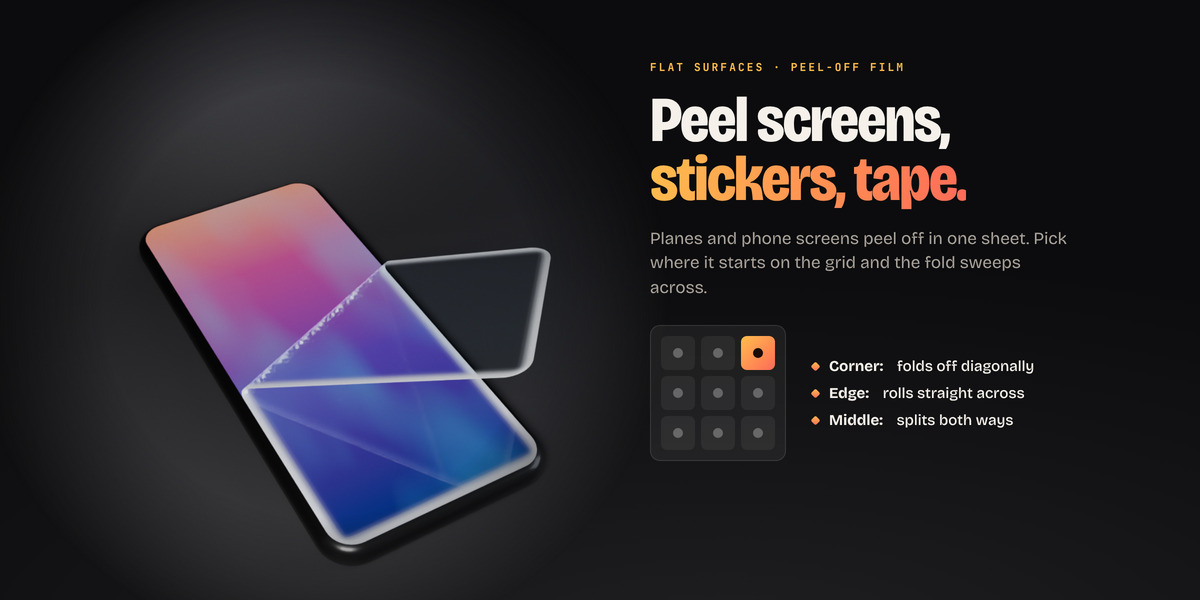
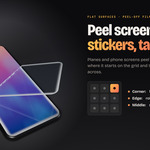
| Peel-Off Film | A clear film comes off a flat surface in one sheet, like a screen protector, a sticker or tape. |
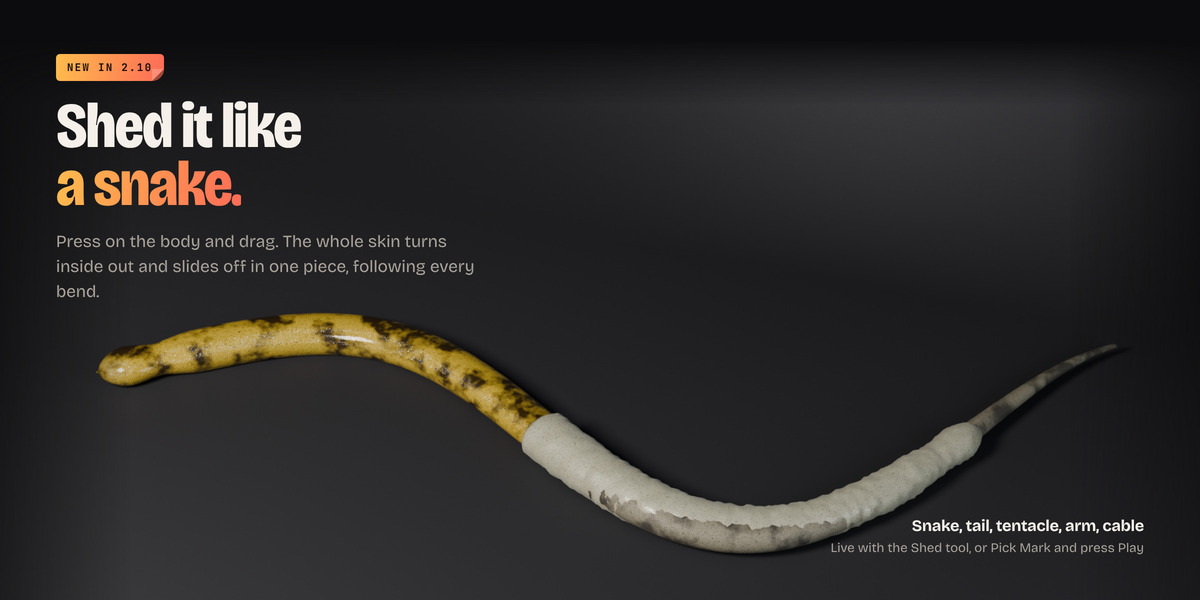
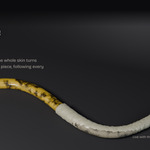
| Snake Shed | The whole skin turns inside out and slides off in one piece, with fresh, glossy scales underneath. |
| Fruit & shapes | Banana, Onion, Orange, Garlic, Corn, Avocado, Character, Flake Away and Generic. |
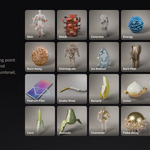
With nothing selected, the Peel button adds a ready-made model for the chosen look: a mannequin, a metal drum, a concrete pillar, an energy orb, a tree log, a phone, a snake, fruit and more. You'll also find all 21 models under Add > Mesh > Peelable Objects.
Three ways to direct the peel
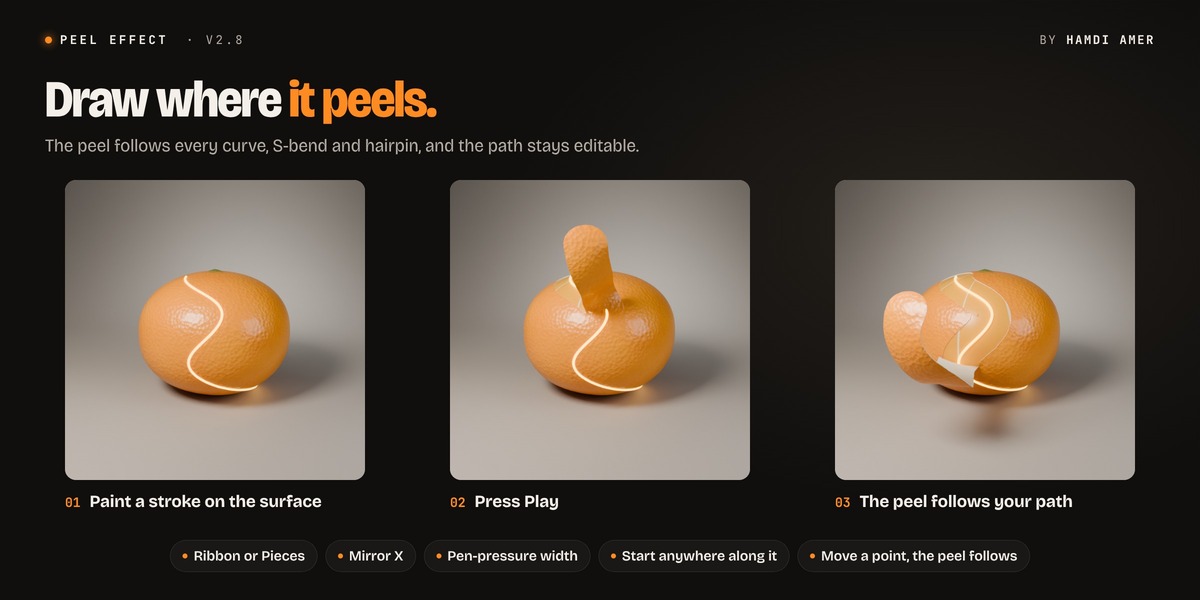
Draw where it peels
Paint the peel path straight onto the object with the Draw Peel Path tool. Strokes snap to the surface and are smoothed as you draw, so a shaky hand won't make the peel tear. Orbit between strokes, continue a stroke around the back, mirror across X, and use pen pressure to control width and cut depth.
- Ribbon: one continuous strip folds back and rolls up like tape, an orange peel or the lid of a can. S-bends and hairpins peel without stretching.
- Pieces: the look's patches peel in a wave that follows your path and fans out from it.
- Steer: set where it starts along the stroke, plus width, spread, curl, thickness and duration. All of them except duration can be keyframed.
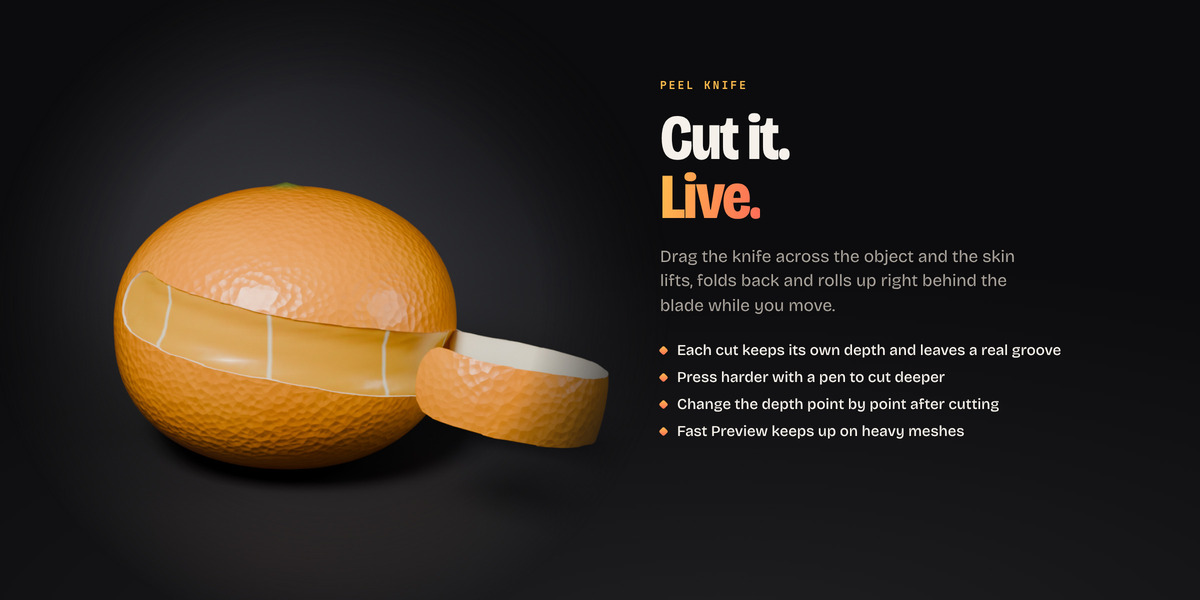
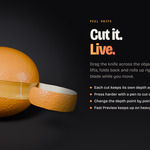
Cut it with the Peel Knife
Drag the knife across the object and the skin peels off right behind the blade, live, as you move. Each cut has its own depth, set in the tool or by pen pressure, and the depth can change along the cut. It leaves a real groove with sloped walls. A Fast Preview keeps up with the blade on heavy meshes.
Shed it like a snake (new in 2.10)
Press on the body with the Shed tool and drag. A cut opens, and the whole skin rolls back inside out and slides off the far end, following the body's centre line around every bend. You can also place a mark and press Play. It works on snakes, tails, tentacles, arms, sausages and cables.
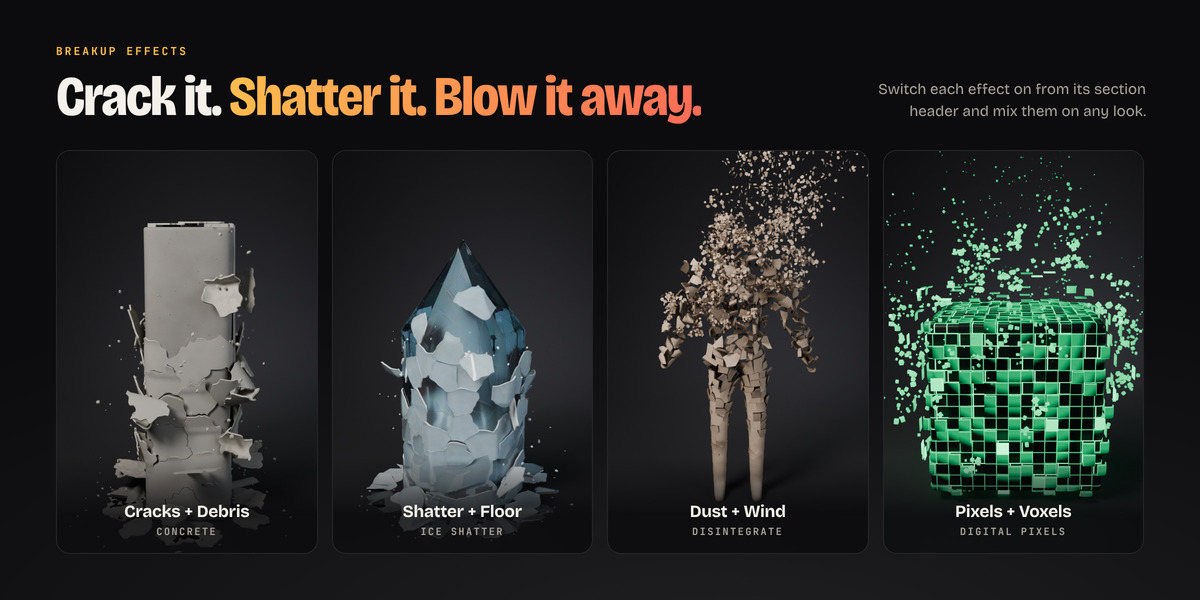
Breakup effects you can mix
Turn each effect on from its section header and set its strength right there.
- Cracks: patches crack open along natural broken edges before they break away.
- Debris: small chunks fly on a ballistic arc, land and stop tumbling.
- Crumple: dents and creases grow in from the hinge as a piece lifts.
- Dissolve: pieces burn away from noise-shaped, glowing edges.
- Particles: dissolving pieces turn into Sparks, Cubes or Flakes, with Wind blowing them away.
- Fly Away & Land on Floor: pieces detach, tumble and settle on the floor (or on any object you choose), with an adjustable Land Below distance.
- Bounce & Flutter bring peeled strips to life.
Layered Dissolve
Split any peeled object into nested layers, and give each layer its own look, settings and timing. Skin flies off to reveal concrete, which crumbles to reveal an energy core. The layers are revealed one after another, and a path drawn on the outer layer is shared by the whole stack.
Flat surfaces & Peel-Off Film
Planes, phone screens, stickers, labels and sheets of paper peel just like everything else. Click a corner, an edge or the middle on the 3 × 3 Start At grid. From a corner the whole surface folds off diagonally in one sheet, from an edge it rolls straight across, and from the middle it splits both ways. The Peel-Off Film look adds a clear, glossy film, and your object's own material shows through it.
Made for your own models
- Imported meshes: a banana lying on its side, a curved or tilted model, or an unapplied scale. The peel finds the long axis and the right end, then follows the centre line.
- Characters and complex shapes: Patches mode peels arms, legs and branches. Rigged characters keep a stable patch layout from the rest pose while they move, and your character's own textures stay on the skin.
- Boxes, low-poly and broken meshes: flipped normals, holes and duplicate vertices are fixed automatically, and low-poly shapes are rebuilt inside the modifier. Your original mesh is always kept.
Floating Viewport HUD
Click Peel HUD in the viewport header and the controls float over your scene as draggable cards: Peel, Looks, Path & Knife, Timing, Motion, Shape & Tears, Breakup, Skin & Floor and Speed. You can tweak the peel while you watch it, without opening the sidebar. Choose from 7 colour accents (Citrus, Aurora, Crimson, Emerald, Gold, Sakura, Mono), plus size and opacity. Shift-drag a slider for fine control, use the wheel to nudge a value, and right-click to reset it.
Fast on heavy scenes
- Cache Setup stores the patch layout on the mesh. It's about 4× faster playback on a 200k-vertex character and switches on by itself for big meshes.
- Fast Viewport thins out the viewport only; renders always keep everything.
- Bake Animation gives real-time playback, with size checks before baking. Renders always use full quality.
- The features you turn off cost nothing.
Note :
The first peel takes about 5 seconds to build its setup,
but loads instantly for all remaining peels
--------------------------------------------------------------------
You will find the full explanation on the documentation and FAQ page.
--------------------------------------------------------------------
Quick Demos
- You can use it inside Geometry Nodes as a normal node with anything
