Pegaso Springify (Automatic Bone Movement Without Physical Simulation)
 Pegaso Top 3D








Pegaso Springify - Dynamic Spring Bones for Blender
Bring your characters and objects to life with dynamic, physics-based secondary motion!
Pegaso Springify is a Blender addon that allows you to easily add spring physics to bones, creating natural-looking jiggle, bounce, and follow-through effects for elements like hair, clothing, tails, antennas, or any other dangly bits. It supports both interactive viewport simulation for quick iteration and baking to keyframes for final animations.
Current Version: 1.0.0
Blender Versions Supported: 3.0 to 4.4
Features:
Easy Bone Selection: Quickly enable spring physics on selected bones in Pose Mode.
Intuitive Controls: Adjust Bouncy, Speed, Gravity, and Spring Influence.
Rotation-Based Springs: Simulates springiness based on bone rotation.
Collision System:
Mesh Colliders: Designate any mesh object in your scene as a collider.
Bone Colliders: Use other bones within the same armature as colliders.
Adjustable Collider Distance and Force.
Axis Locking: Lock specific rotation axes during collisions to prevent unwanted penetration or behavior.
Interactive Mode: See your spring bones react in real-time as you move parent bones or the armature.
Animation Baking: Bake the spring simulation into keyframes for final rendering or export.
Data Management: Refresh spring data or clean up all addon-specific data from your scene.
Debug Info: Optional lists to see active spring bones and colliders.
Installation
Download the Pegaso_Springify.zip file.
Open Blender, go to Edit > Preferences > Add-ons.
Click Install... and navigate to the downloaded .zip file. Select it and click Install Add-on.
Find "Pegaso Springify" in the addons list and enable it by checking the box.
Accessing the Addon
Pegaso Springify is located in the 3D Viewport's N-Panel (press N to toggle visibility) under the "Pegaso Springify" tab.
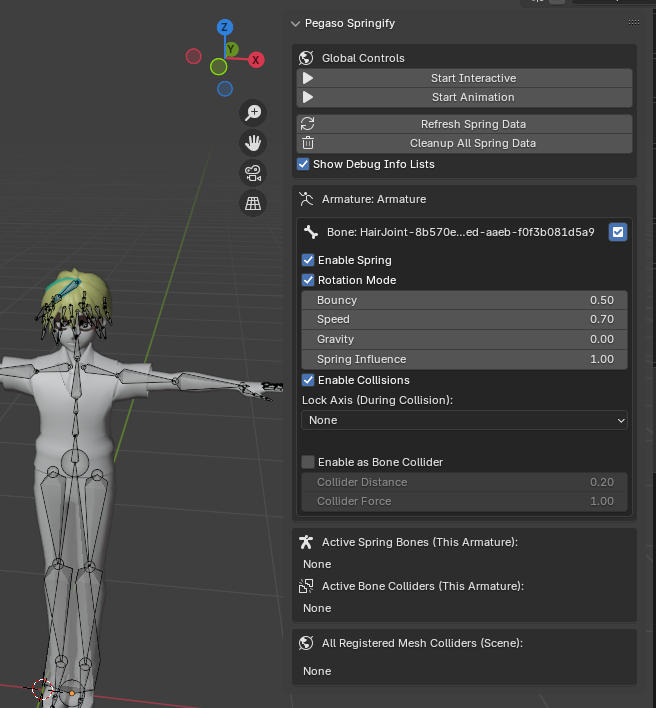
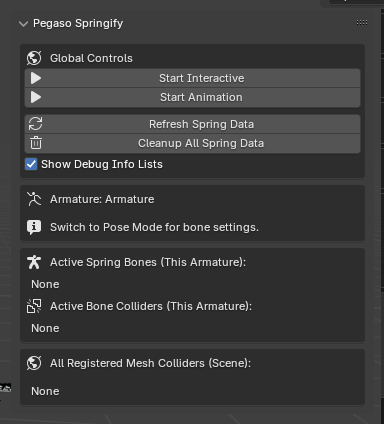
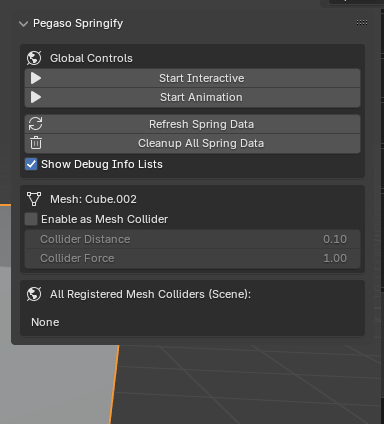
User Interface Overview
The addon panel is context-sensitive and changes based on your selection and mode.
1. Global Controls (Always Visible)
Start Interactive: Begins a real-time simulation in the viewport. Move parent bones or the armature to see the spring bones react. Click again (will show "Stop Interactive") to stop.
Start Animation: Bakes the spring simulation to keyframes on the active spring bones for the scene's frame range. Use this for final renders or exporting.
Refresh Spring Data: Recalculates internal spring data. Use this if you've made structural changes to the armature (e.g., added/removed bones) or if things seem out of sync.
Cleanup All Spring Data: Removes all spring settings, collider settings, and any temporary data created by the addon from the entire scene. Useful for starting fresh or before uninstalling.
Show Debug Info Lists: Toggles the visibility of the "Active Spring Bones," "Active Bone Colliders," and "All Registered Mesh Colliders" lists at the bottom of the panel.
2. Armature & Bone Settings (Context: Armature Selected)
If in Object Mode (or Edit Mode):
Armature: [Name of selected Armature]
A message: "Switch to Pose Mode for bone settings." will appear.
You will only see the Global Controls and Debug Info Lists.
If in Pose Mode & a Bone is Selected:
Armature: [Name of selected Armature]
Bone: [Name of selected Pose Bone]
Enable Spring: (Checkbox) Activates spring physics for the currently selected bone.
Enable Rotation Mode: (Checkbox, enabled by default when Spring is enabled) The spring simulation will affect the bone's rotation.
Bouncy: (0.0 - 1.0+) Controls how much the bone "bounces back" after being moved. Higher values mean more oscillation. (Default: 0.50)
Speed: (0.0 - 1.0+) Determines how quickly the bone tries to return to its rest pose or follow its parent. (Default: 0.70)
Gravity: (0.0 - ...) Applies a downward force. A value of 0 means no gravity. (Default: 0.00)
Spring Influence: (0.0 - 1.0) Overall strength/influence of the spring effect. 0 means no spring, 1 means full spring. (Default: 1.00)
Enable Collisions: (Checkbox) Allows this spring bone to interact with registered Mesh Colliders and Bone Colliders.
Lock Axis (During Collision): (Dropdown: None, X, Y, Z, XY, XZ, YZ) Prevents rotation on the selected local axis/axes when a collision is actively occurring. Useful for preventing unnatural twists or penetrations. For example, for a ponytail, you might lock the Y-axis (twist) during collision with the back.
Enable as Bone Collider: (Checkbox, usually for non-spring bones) Designates the currently selected bone to act as a collider for other spring bones within the same armature.
Collider Distance: (0.0 - ...) The distance the spring bone will try to maintain from this bone collider's surface (approximated as a capsule/sphere).
-
$8.50
pegaso springify pro supports bake and support customize specific collider for bone and full control collider and bone
Have questions about this product?
Login to message
| Sales | 40+ |
| Dev Fund Contributor | |
| Published | over 1 year ago |
| Blender Version | 3.0 - 4.4 |
| Extension Type | N/A |
| Render Engine Used | Blender-Internal, Blender-Game-Engine, Cycles, Eevee |
| License | GPL |
Discover more products like this
dynamic bones animal rigs bird animation cloth-physics spring bones Interactive animation non-simulation physics hair dynamics collider bones real-time physics