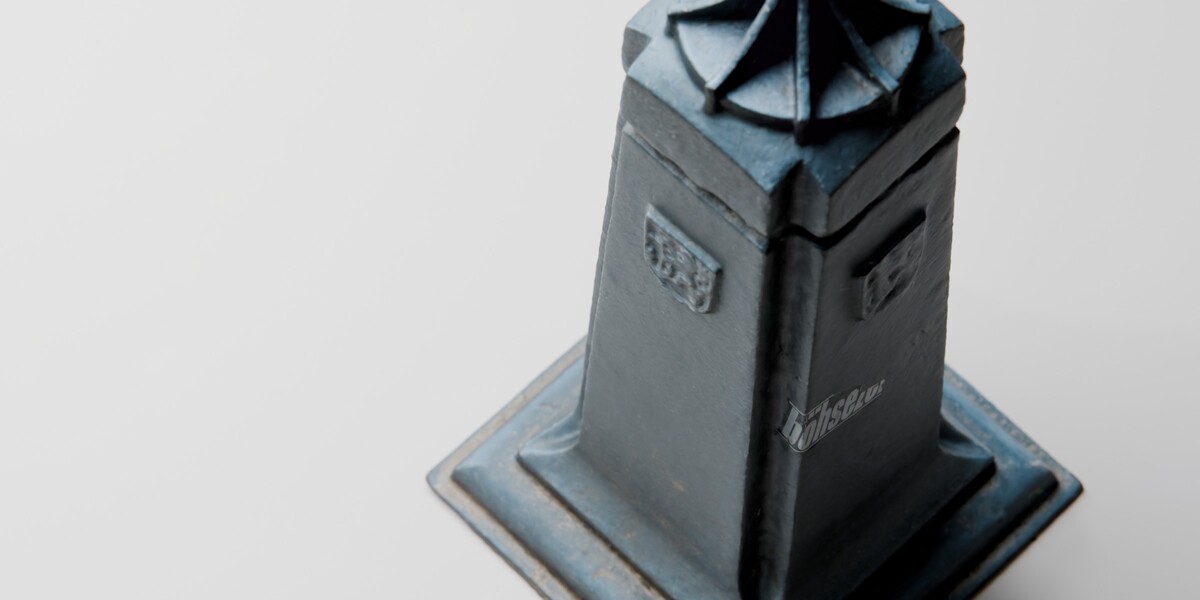
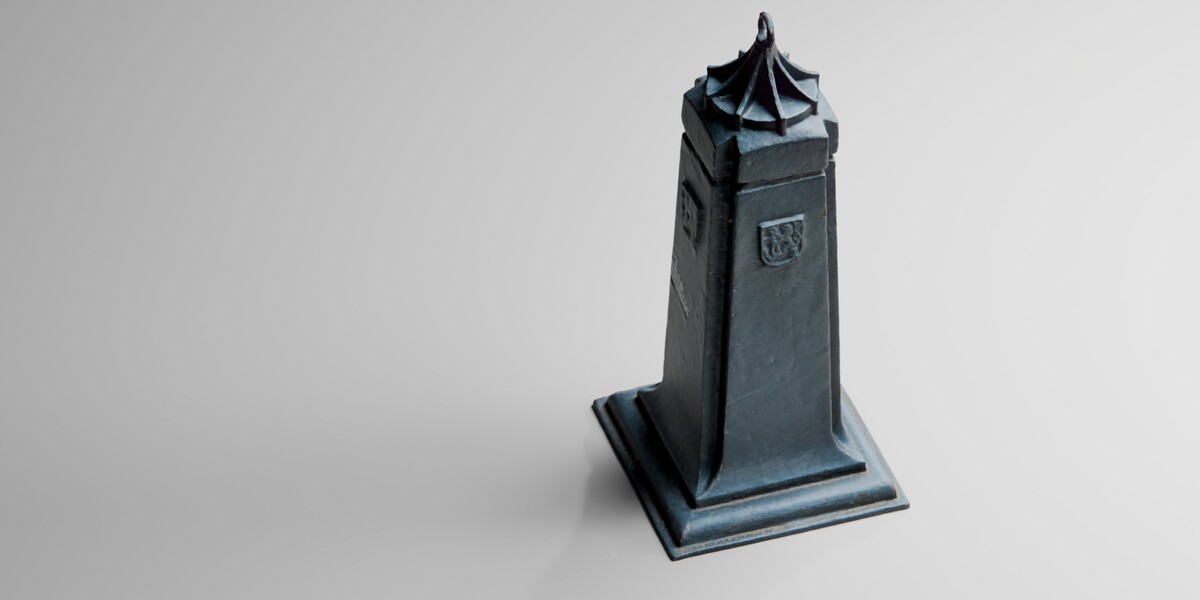
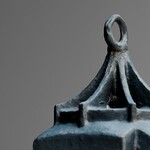
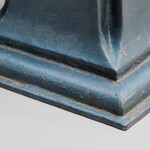
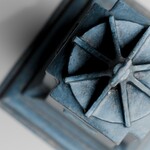
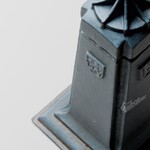
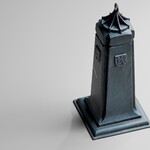
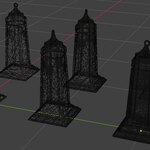
Photogrammetry Street Bollard – 2 Variants & 3 LODs
 Media Brennt GmbH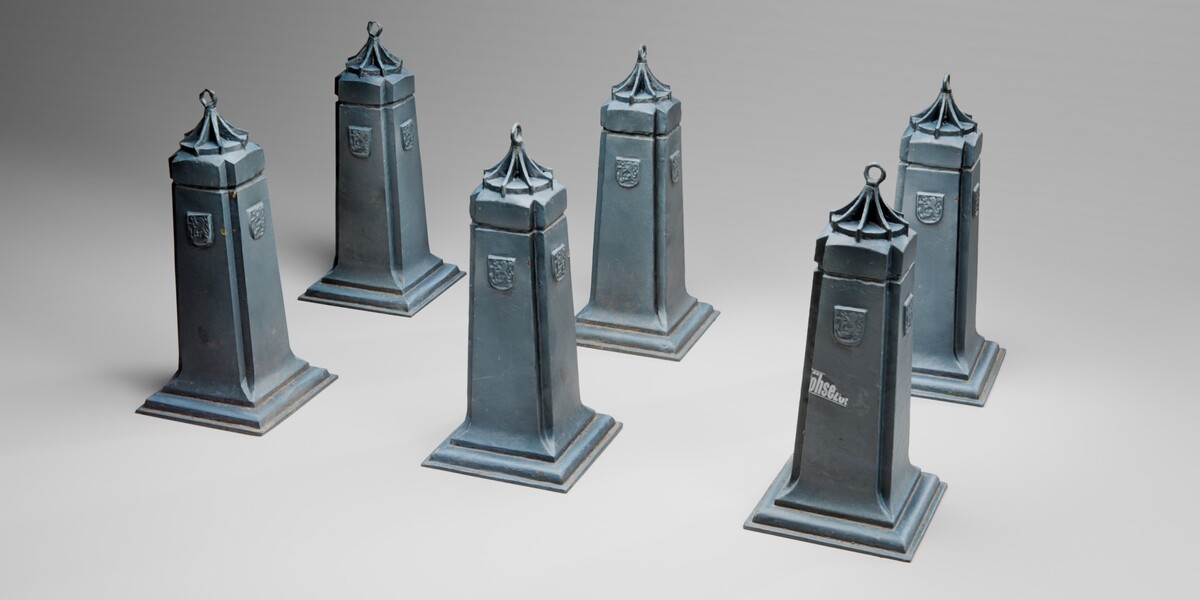
Documentation
Photogrammetry Street Bollard – User Guide
This guide explains the Blender file structure, the two surface variants, the High, Mid and Low mesh versions, the packed PBR materials, the original raw scan and the recommended workflow for architectural and urban environment scenes.
Quick Start
- Open MB_KOEPOLLER-1K-10K.blend.
- Hide the RAW.001 collection unless you need the original source scan.
- Choose either KOEPOLLER O1 CLEANUP.001 or KOEPOLLER O2 CLEANUP.001.
- Enable only the required High, Mid or Low mesh.
- Keep the scene in Cycles for the tested material result.
- Duplicate or append the selected object into your urban scene.
1. File Overview
| Main File | MB_KOEPOLLER-1K-10K.blend |
| Blender Version | 5.2.0 LTS |
| Render Engine | Cycles |
| Unit System | Metric |
| Surface Variants | 2 cleaned photo-derived variants |
| Mesh Resolutions | High, Mid and Low for each variant |
| Raw Scan | Included in a separate collection |
| Texture Resolution | 4K cleanup textures and packed raw-scan textures |
2. Collection Structure
| CINEMATICS | Contains the preview cameras, lights and background plane. This collection is not required when appending the asset into another project. |
| KOEPOLLER O1 CLEANUP.001 | Contains the three cleaned mesh resolutions for Surface Variant 01. |
| KOEPOLLER O2 CLEANUP.001 | Contains the three cleaned mesh resolutions for Surface Variant 02. |
| RAW.001 | Contains the original high-resolution photogrammetry mesh and its packed source material. |
3. Surface Variant 01
Surface Variant 01 is stored in:
KOEPOLLER O1 CLEANUP
The collection contains:
- MB_KOEPOLLER-CLEANUP_10K — High version
- MB_KOEPOLLER-CLEANUP_5K — Mid version
- MB_KOEPOLLER-CLEANUP_1K — Low version
All three objects use:
MB_KOEPOLLER-CLEANUP_Mat-4k
4. Surface Variant 02
Surface Variant 02 is stored in:
KOEPOLLER O2 CLEANUP
The collection contains:
- MB_KOEPOLLER-02-CLEANUP_10K — High version
- MB_KOEPOLLER-02-CLEANUP_5K — Mid version
- MB_KOEPOLLER-O2-CLEANUP_1K — Low version
All three objects use:
MB_KOEPOLLER-CLEANUP_Mat02-4k
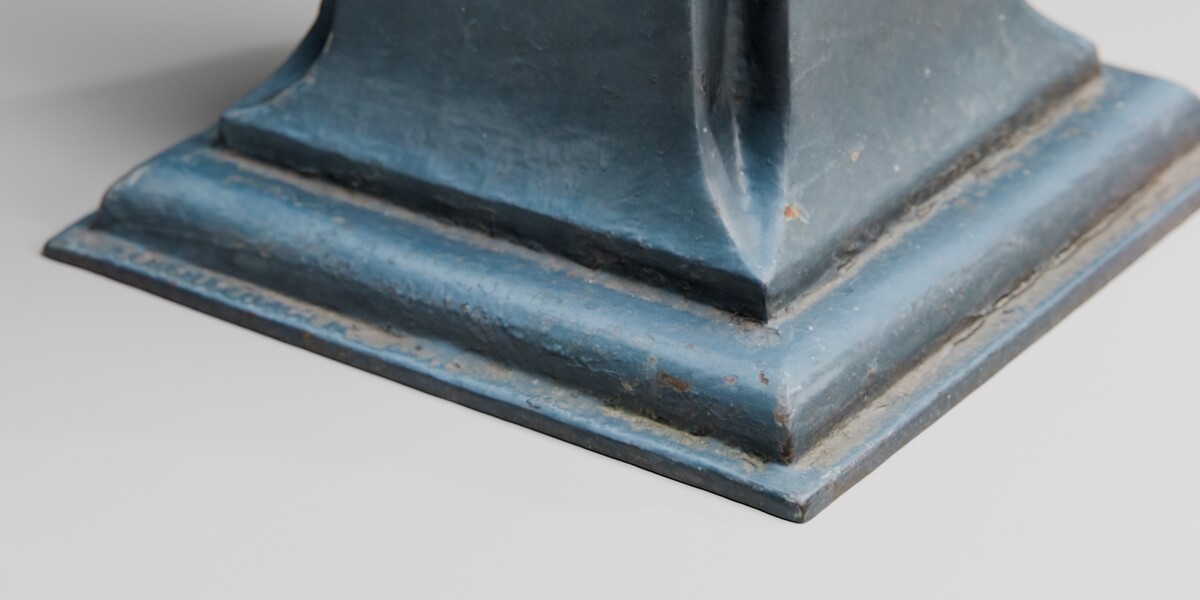
Variant 02 uses its own Diffuse map while sharing the common Normal, Metalness, Specular, Roughness, Anisotropic, Sheen, Clearcoat and Clearcoat Roughness maps.
5. Choosing the Correct Mesh Resolution
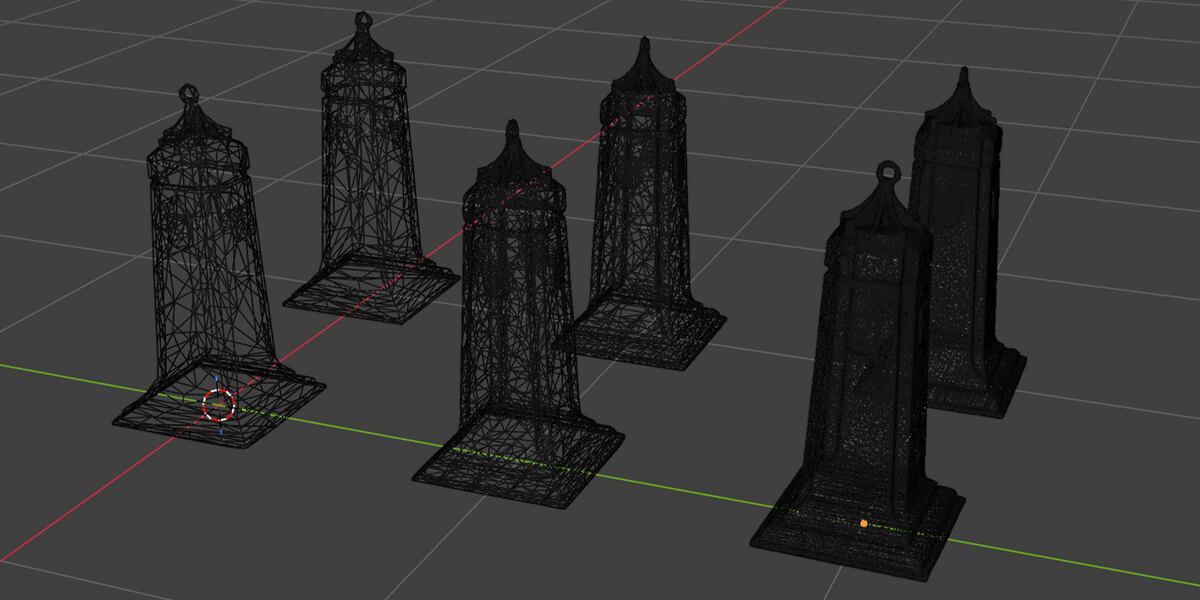
| Version | Vertices | Triangles | Recommended Use |
|---|---|---|---|
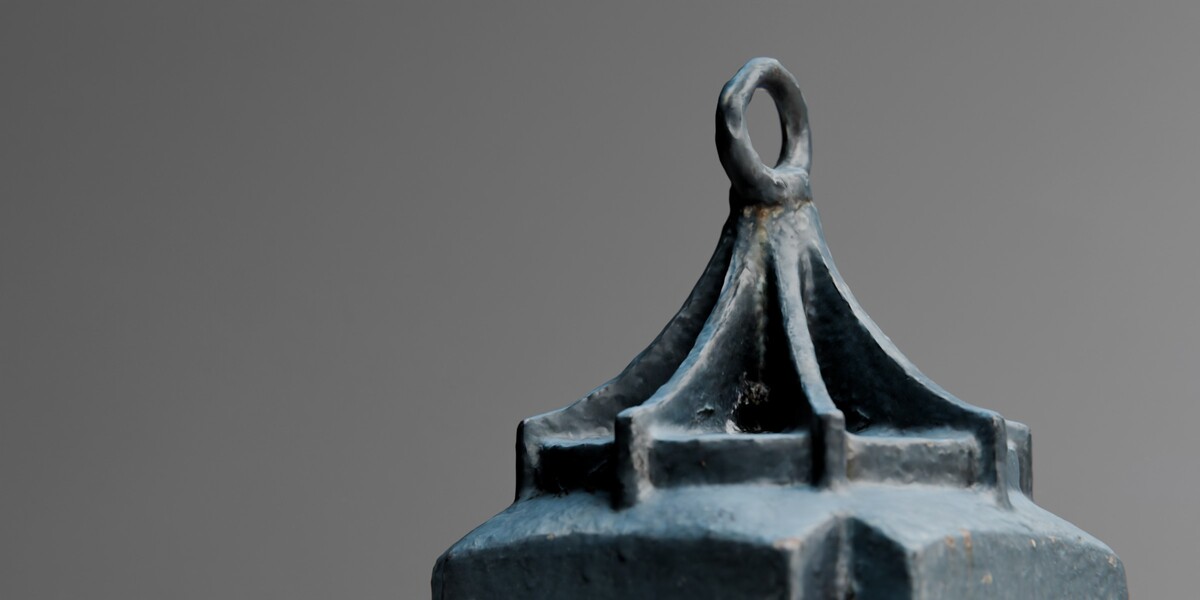
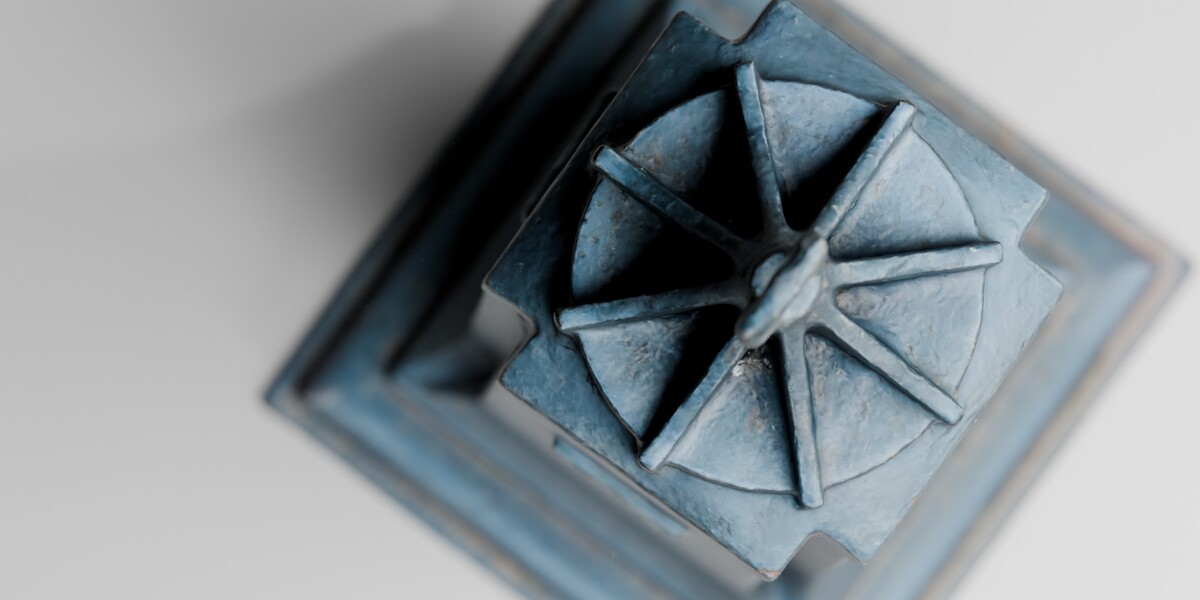
| High / 10K | 10,000 | 20,000 | Close-ups, hero assets, visible crest and ornamental detail. |
| Mid / 5K | 2,446 | 4,892 | General archviz, cinematic environments and normal street placement. |
| Low / 1K | 1,353 | 2,706 base triangles | Background objects, larger streets and repeated placement. |
Low-Version Modifier Note
The Low objects include a Bevel modifier. The listed triangle count describes the base mesh, while the evaluated render geometry can be higher depending on the modifier settings.
6. Manual LOD Workflow
The pack does not use automatic distance-based LOD switching. Choose the required mesh manually.
- Open the selected cleanup collection.
- Enable the required High, Mid or Low object.
- Disable the other two resolutions in both viewport and render visibility.
- Duplicate or link the selected object throughout the scene.
- Use different resolutions in different parts of the environment where necessary.
Example:
- High objects near the camera.
- Mid objects on the opposite side of the street.
- Low objects in distant background areas.
7. Material System
Surface Variant 01 Material
MB_KOEPOLLER-CLEANUP_Mat-4k (2k and 1k available)
Surface Variant 02 Material
MB_KOEPOLLER-CLEANUP_Mat02-4k (2k and 1k available)
Both materials are conventional UV-mapped PBR materials based on the Principled BSDF shader.
Included Texture Channels
- Diffuse
- Normal
- Metalness
- Specular
- Roughness
- Anisotropic
- Sheen
- Clearcoat
- Clearcoat Roughness
8. Texture Color Spaces
| Diffuse | sRGB |
| Normal | Non-Color, connected through a Normal Map node |
| Metalness | Non-Color |
| Specular | Non-Color |
| Roughness | Non-Color |
| Additional Data Maps | Non-Color |
9. Using the Original Raw Scan
The original photogrammetry mesh is stored in:
RAW / MB_KOEPOLLER-RAW
| Vertices | 138,639 |
| Faces | 275,639 |
| Triangles | 277,277 |
The raw scan is primarily included for:
- Reference and comparison
- Custom retopology
- Custom texture baking
- Photogrammetry studies
- Advanced close-up workflows
Keep the RAW collection disabled during normal environment work to avoid unnecessary viewport and render overhead.
10. Appending the Asset to Another Blender File
- Open your target Blender project.
- Choose File > Append.
- Select MB_KOEPOLLER-1K-10K.blend.
- Open the Collection folder.
- Append either KOEPOLLER O1 CLEANUP.001 or KOEPOLLER O2 CLEANUP
- Delete or disable the mesh resolutions that are not required.
Append RAW.001 only when the source scan is specifically required.
11. Duplicating the Bollard
Independent Copy
- Select the chosen High, Mid or Low mesh.
- Press Shift + D.
- Move or rotate the duplicated object.
Linked Copy
- Select the chosen object.
- Press Alt + D.
- Move the linked duplicate.
Linked duplicates share mesh data and are recommended when placing many identical bollards throughout a larger environment.
12. Exporting to Another Application
The cleanup meshes use standard UVs and image-based PBR materials, making them suitable as a starting point for export.
- Select the required cleanup mesh.
- Apply the Bevel modifier only when the target application requires evaluated geometry.
- Export using the preferred format.
- Rebuild the material connections in the target application where necessary.
- Use the supplied PBR maps with the correct color-space settings.
Export Note
The product is delivered as a Blender-native asset. Automatic material conversion, collision meshes and engine-specific LOD setup are not included.
13. Performance Tips
- Keep the RAW collection disabled unless it is actively required.
- Use the Mid mesh as the default choice for most scenes.
- Use the High mesh only where ornamental detail is visible.
- Use the Low mesh for distant and repeated street placement.
- Use linked duplicates for repeated bollards.
- Hide the CINEMATICS collection after appending the asset.
- Use Solid View while laying out larger street scenes.
- Reduce the viewport texture limit when using many 4K assets.
- Disable unseen bollards per camera where possible.
14. Troubleshooting
| The scene is slow | Disable RAW.001, use the Mid or Low mesh and hide the CINEMATICS collection. |
| Two mesh resolutions are visible at once | Disable the unused meshes in both viewport and render visibility. Only one resolution should normally be active per placed bollard. |
| Textures appear pink | Use File > External Data > Find Missing Files. The supplied textures are packed, but newly saved or replaced textures must be packed separately. |
| The Normal map looks incorrect | Set the Normal image to Non-Color and connect it through a Normal Map node. |
| The material looks too glossy | Confirm that Roughness, Metalness and other technical maps use Non-Color data. |
| The Low mesh becomes heavier after export | The Low mesh includes a Bevel modifier. Applying it increases the evaluated geometry. Reduce or disable the modifier before export when necessary. |
| The raw scan is difficult to edit | The raw mesh is included as source data and is not intended to replace the cleaned production meshes for normal scene work. |
| The file does not open correctly | Use Blender 5.2 LTS or a newer compatible version. |
15. Support
If you need help selecting a resolution, appending the asset, using the PBR materials, working with the raw scan or preparing the model for export, please contact us through Superhive.
When requesting support, include your Blender version, the selected object name and a screenshot of the issue.
 Included
Includes 12 months of
- Support from Media Brennt GmbH
- Product updates
Extend this product’s Support Period +12 months: 50% of product price
Have questions before purchasing?
Login to message
| Published | 3 months ago |
| Blender Version | 5.0 - 5.2 |
| Render Engine Used | Cycles |
| Misc Data | Uvs-Unwrapped, Manifold-Mesh, Low-High-Resolution, Normal-Mapped, Textured |
| License | Royalty Free |
Discover more products like this
city street dusseldorf exterior environment art bollard urban environment koenigsallee street prop ArchViz european street low poly