Physics Grab & Drop: Interactive Physics Placement
 Brighter's Studio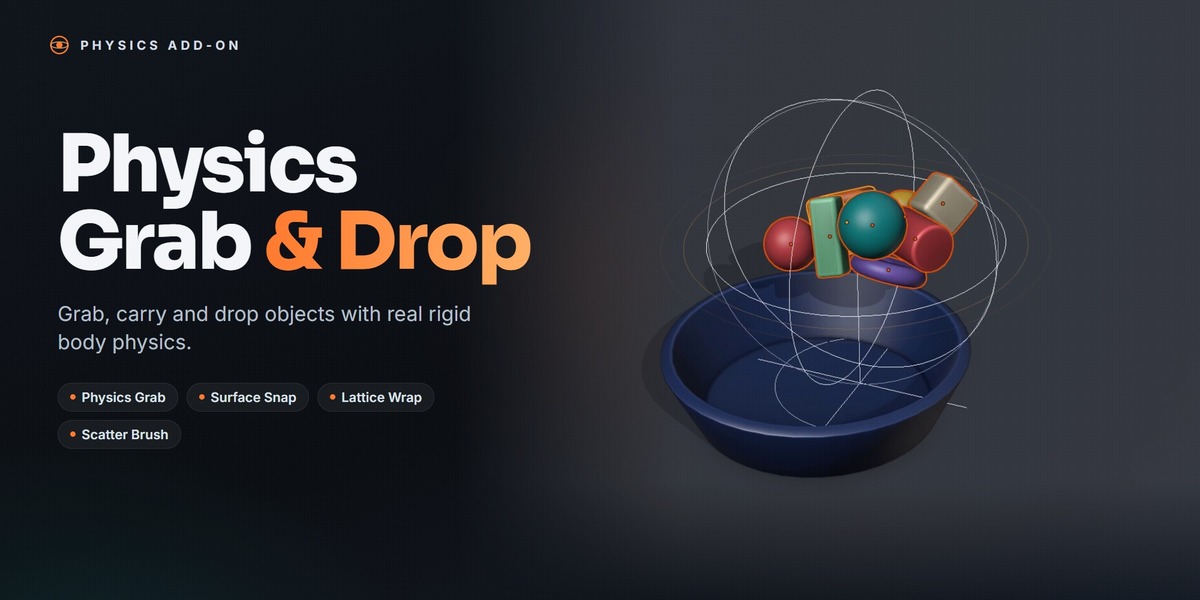

Documentation & User Guide
Package Contents
physics_grab.zip: the Blender extension (do not unzip)
Quick Start
1. Install the Add-on
Requires Blender 4.2 or newer.
- Open Blender and go to Edit → Preferences → Get Extensions.
- Click the drop-down arrow at the top right and choose Install from Disk.
- Select the downloaded .zip. It installs and enables itself.
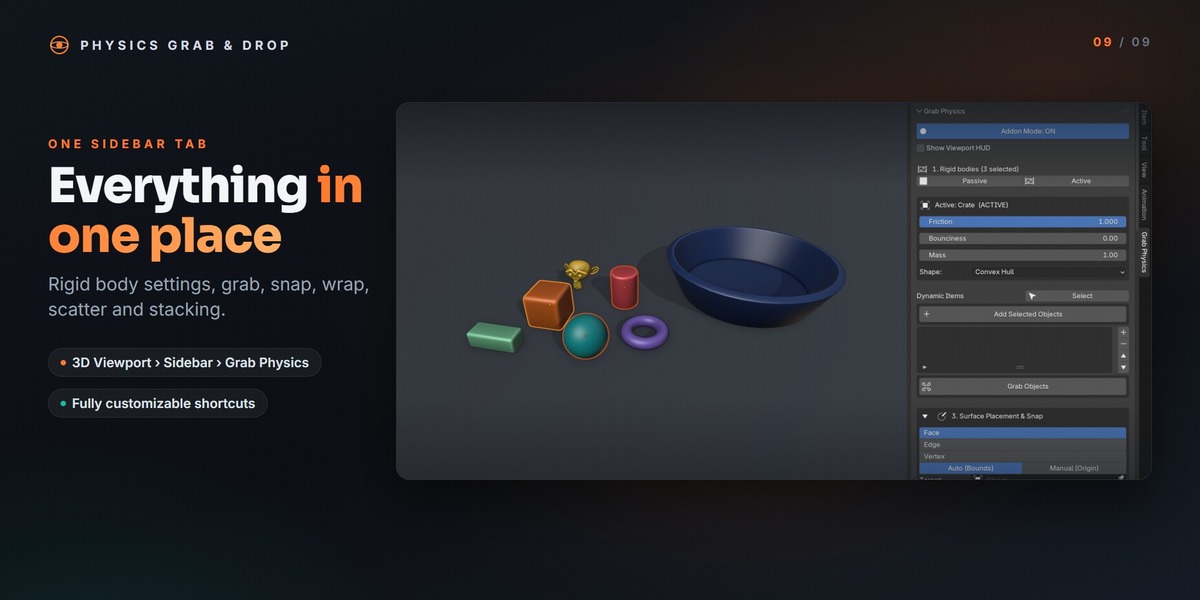
The panel can be found under: 3D View → Sidebar (N) → Grab Physics
2. Set Up Rigid Bodies
- Select your floor and other static props and click Passive (Ctrl + Alt + P).
- Select the objects you want to place and click Active (Ctrl + Alt + A).
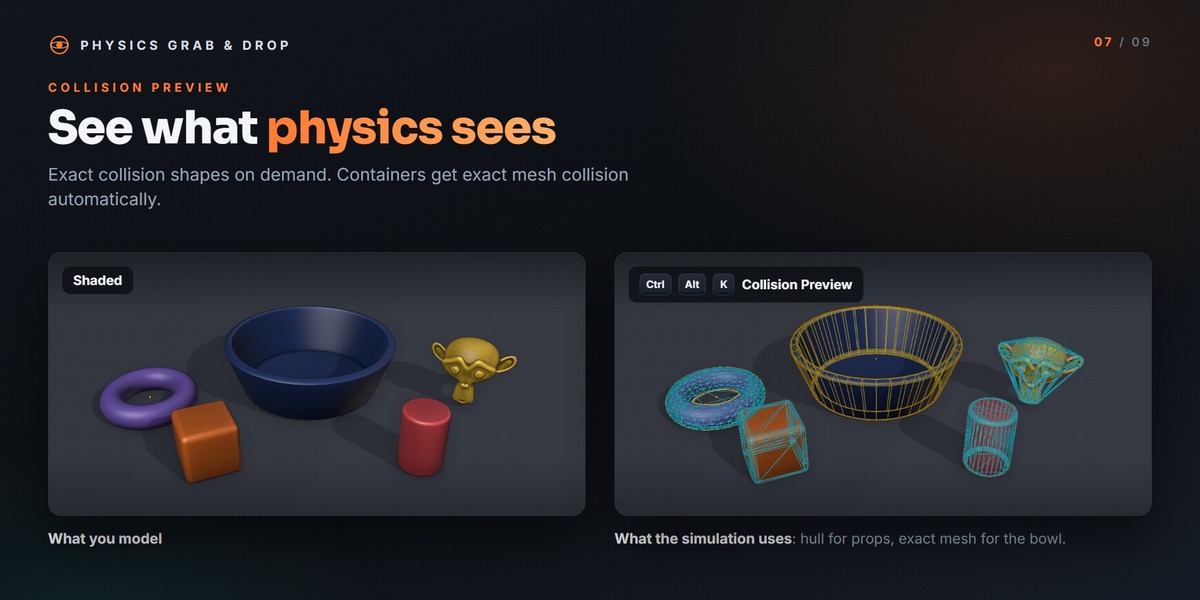
Hollow passive objects such as bowls and containers automatically get exact Mesh collision.
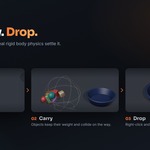
3. Grab and Drop
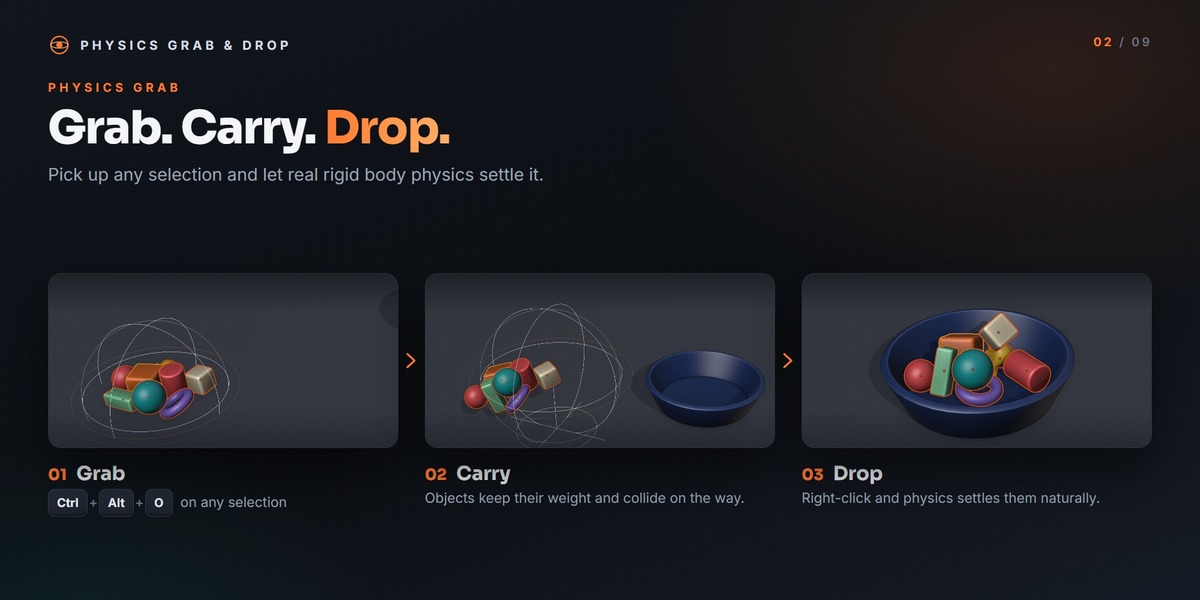
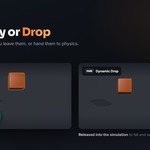
- Hover over an active object and press Ctrl + Alt + O, or click Grab Objects.
- Move the mouse to carry the objects.
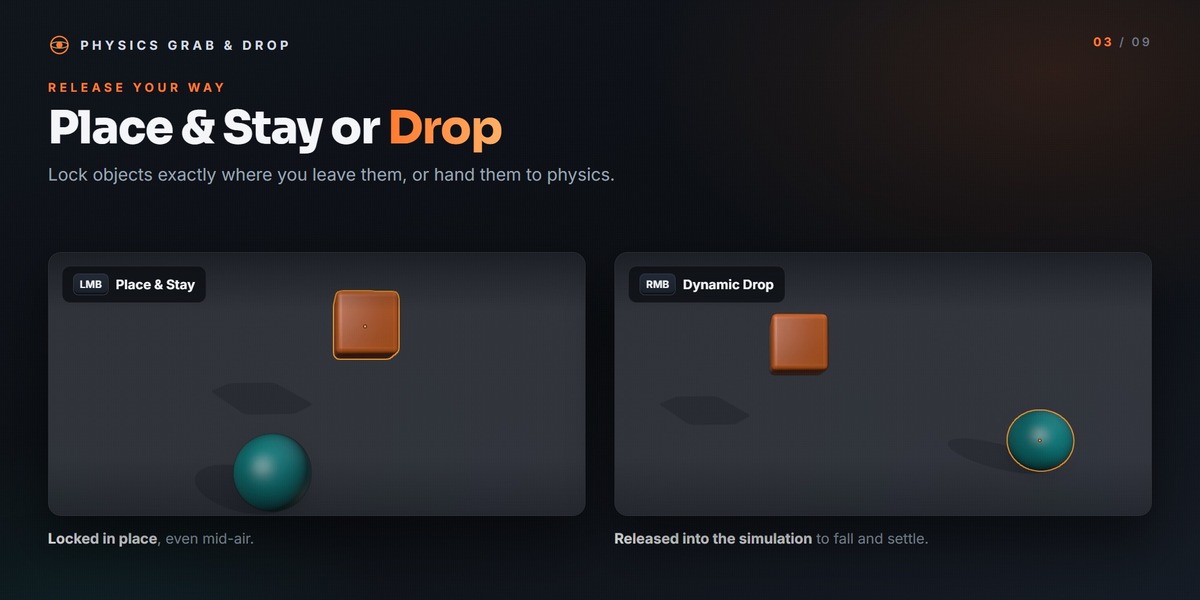
- Left-click to lock them in place, or right-click to drop them into the simulation.
- Press Esc to cancel and restore their original positions.
4. Keep the Result
Click Apply Base Positions to make the simulated layout the new starting layout, or Freeze All to lock every body where it is.
In-Grab Controls
| Input | Action |
|---|---|
| Left-click / Enter | Place & Stay |
| Right-click | Dynamic Drop |
| Esc | Cancel |
| Z | Lock height |
| ' | Pivot: object centre or exact click point |
| U | Drop Mode (gravity on while holding) |
| M | Magnet Assist |
| [ / ] or Ctrl + Wheel | Grab strength |
| Alt + Wheel | Grab sphere size |
| Alt + Shift + Wheel | Scale grabbed objects |
Shortcuts
All shortcuts work over the 3D Viewport and can be rebound or reset in the Shortcuts sub-panel. Turn Addon Mode off to disable them.
| Shortcut | Action |
|---|---|
| Ctrl + Alt + O | Grab |
| Ctrl + Alt + A / P | Make selection Active / Passive |
| F5 / F6 / F7 | Play / Stop / Reset simulation |
| Ctrl + Alt + S | Scatter Brush |
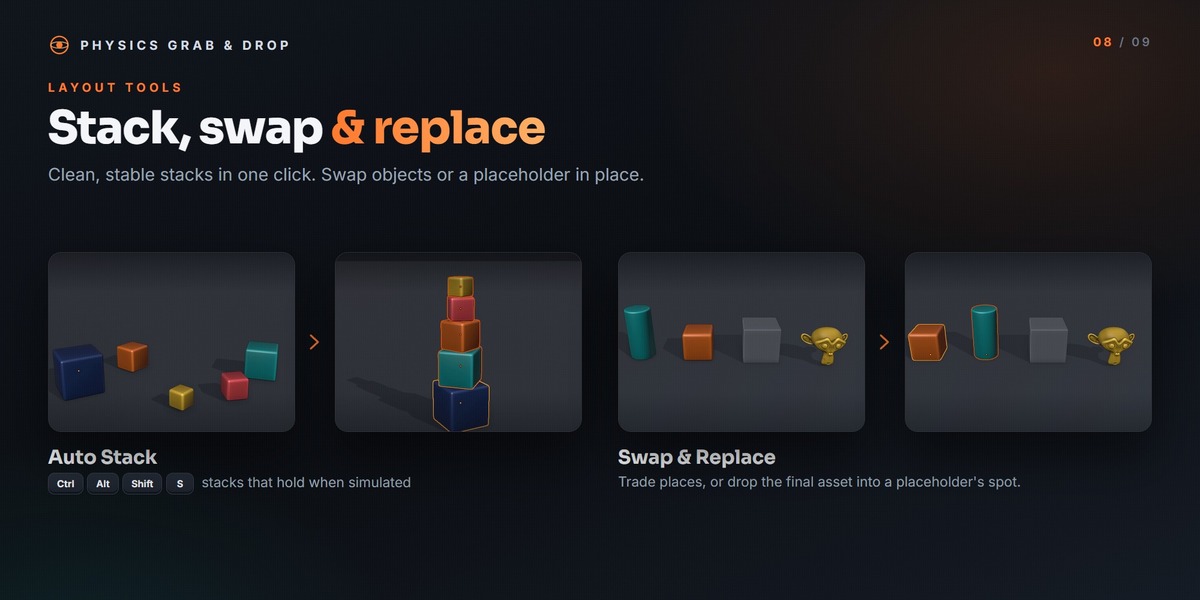
| Ctrl + Alt + Shift + S | Auto Stack |
| Ctrl + Alt + K | Collision Preview |
Tools
Snap & Place on Surface
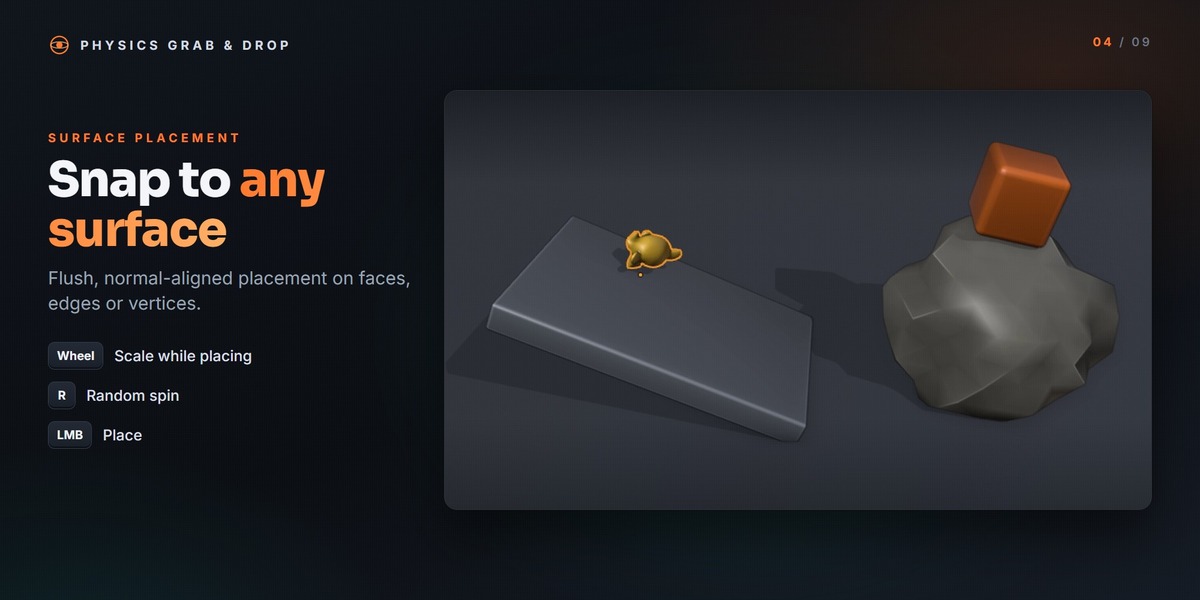
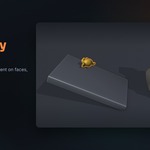
Choose Face, Edge or Vertex and a pivot mode: Auto (Bounds) or Manual (Origin). Optionally set a Target, then click Snap & Place on Surface. Move over a surface, scroll to scale, press R for a random spin, and left-click to place.
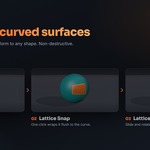
Lattice Surface Wrap
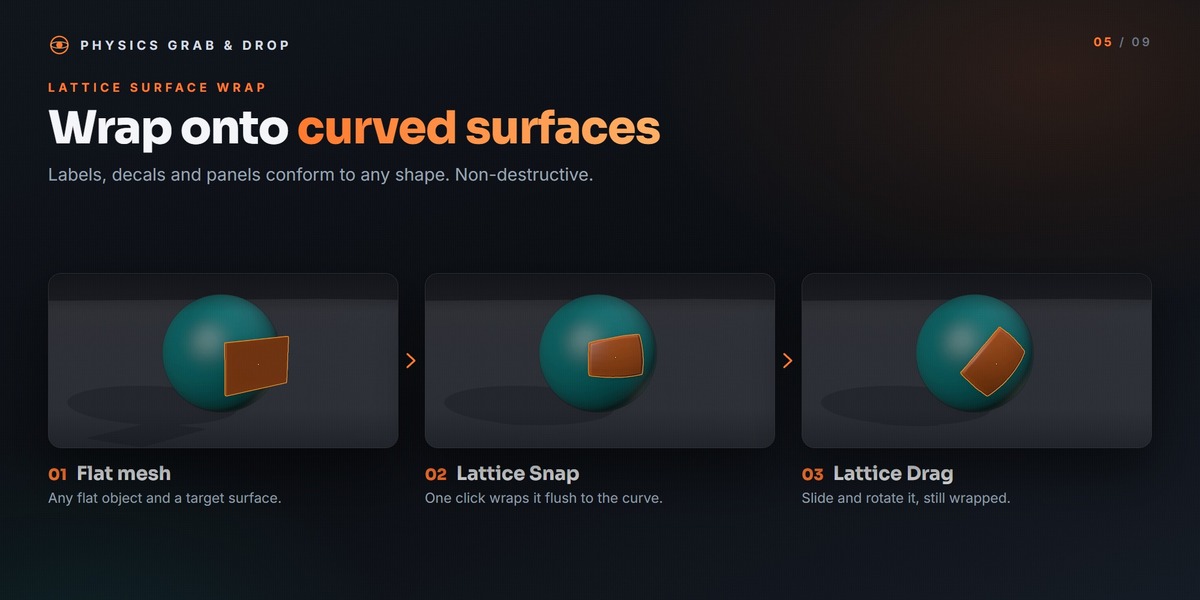
Set a Wrap Target and choose Contact Face or Complete Object. Click Generate Wrap Lattice, then Lattice Snap. Use Lattice Drag to slide the object across the target. Scroll to rotate it and Shift + Wheel to change the offset. Remove Wrap restores the original shape.
Scatter Brush
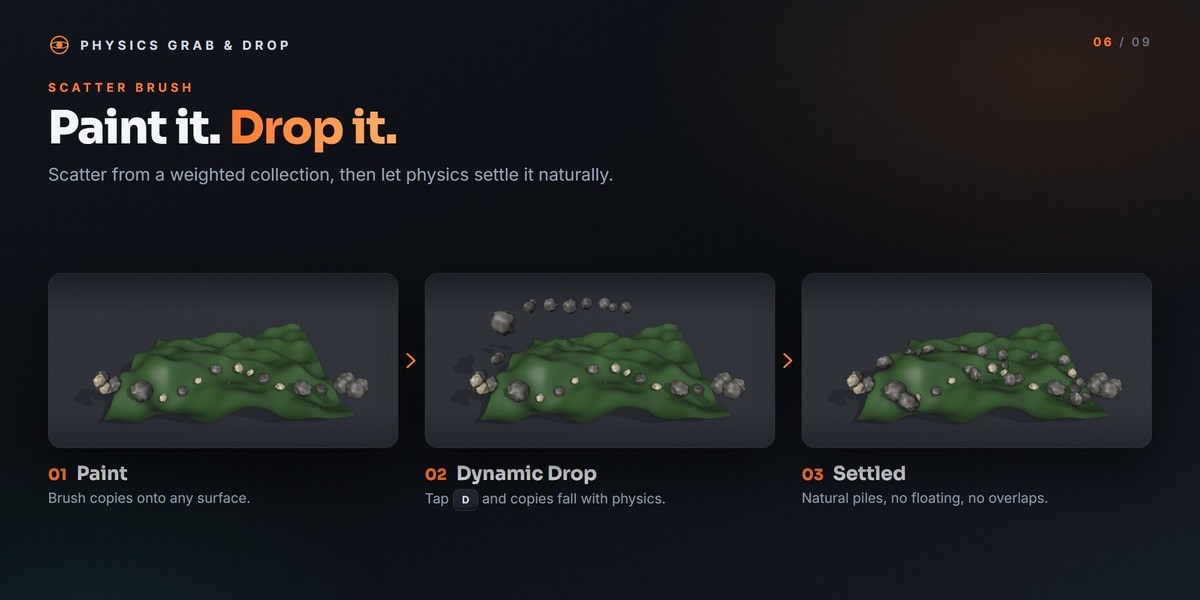
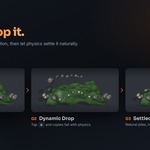
Choose the active object or a Scatter Collection, which supports per-object weights. Pick Vertex, Edge or Face, set the scale range, and drag to paint. Press D to toggle Dynamic Drop, Ctrl + Z to undo the last copy, and right-click or Esc to stop.
Auto Stack, Swap & Replace
Auto Stack arranges the selection along Z, X or Y with an adjustable gap. Swap Objects exchanges two objects' positions. Replace puts the selected object in the target's place and removes the target.
Compatibility
Blender 4.2 and newer. Tested on Blender 5.0 and 5.2 LTS. Uses Blender's built-in rigid body physics.
Changelog
2.5.0
First release on Superhive.
Have questions about this product?
Login to message
| Blender Extension Compatible | Yes |
| Published | about 6 hours ago |
| Blender Version | 4.2 - 5.2 |
| Extension Type | Add-on |
| Render Engine Used | Cycles, Eevee |
| License | GPL |
Discover more products like this
set dressing physics scatter drop grab placement surface-snap layout object placement lattice stacking rigid body