Pickup Tool
 Mohd Khurram


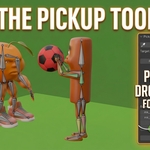
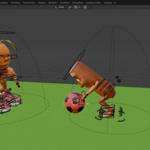
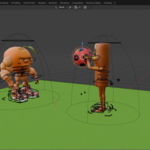
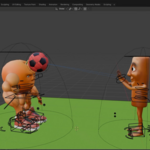
Pickup Tool is a Blender addon that simplifies the process of picking up, carrying, dropping, and baking object interactions. It is designed for animators, game developers, and content creators who need a quick way to create object-handling animations without manually setting up complex constraints or workflows.
The addon provides a simple interface with tools for selecting a target object, picking it up, dropping it, and baking the final animation into keyframes.
Installation
- Open Blender.
- Go to Edit → Preferences → Add-ons.
- Click Install...
- Select the Pickup Tool ZIP file.
- Enable the addon.
- Open the 3D Viewport and find the Pickup Tool panel in the Sidebar (N Key).
Interface
Set Target
Select the object you want to interact with and click Set Target.
The selected object will be displayed as the current target.
Pick Up
Attaches the target object and begins the pickup interaction.
Drop
Releases the target object from the pickup state.
Bake Start
Defines the first frame used for baking.
Bake End
Defines the last frame used for baking.
Bake
Converts the pickup and drop animation into keyframes.
Basic Workflow
Picking Up an Object
- Select the object that will be picked up.
- Click Set Target.
- Click Pick Up.
- Move through the timeline or animate your character/object as desired.
Dropping an Object
- Position the timeline where the drop should occur.
- Click Drop.
- Continue animating if needed.
Baking the Animation
- Set the desired Bake Start frame.
- Set the desired Bake End frame.
- Click Bake.
- The pickup animation will be converted into keyframes for editing or export.
Use Cases
- Character pickup animations
- Carrying props and items
- Gameplay interaction animations
- Collectible item animations
- Tool and weapon handling
- Cinematic object interactions
- Exporting animations to game engines
Tips
- Make sure the correct object is selected before clicking Set Target.
- Use baking before exporting animations to game engines.
- Adjust the bake frame range to include the entire interaction.
- Save your Blender file before baking large animations.
Have questions about this product?
Login to message
| Blender Extension Compatible | Yes |
| Published | 3 months ago |
| Blender Version | 3.6 - 5.1 |
| Extension Type | Add-on |
| Render Engine Used | Cycles, Eevee |
| License | GPL |