Pivot: Fix Local Space & Standardize Assets
 Elbo Studio




1. Installation
- Download the
.zipfile from your Orders page. Do not unzip it. - Open Blender. Go to Edit > Preferences > Add-ons.
- Click Install... (top right) and select the
Pivot_[EDITION].zipfile. - Enable the checkbox next to "Pivot: Viewport Asset Organizer".
- The Pivot panel will appear in the 3D Viewport Sidebar (Press
Nto open) under the "Pivot" tab.
Note: unlike most addons, when updating or reinstalling Pivot for any reason, you must first uninstall the addon and then restart Blender before reinstalling for the installation to work properly.
2. Key Concepts & Terminology
To use Pivot effectively, it helps to understand these core terms:
- Object: A single mesh item in Blender.
- Asset: A logical item that may consist of multiple objects. Pivot Pro operates on Assets.
- Standardization: The process of fixing an object's origin and aligning its local axes to its geometry, then rotating to face a consistent forward direction (-Y axis).
- Surface Context: The classification of an asset (Ground, Wall, or Ceiling) used to determine its orientation and origin placement.
- Source Collection: The specific collection you tell Pivot Pro to analyze. This defines the scope and grouping logic for the engine.
Standard & Pro Features
The following core features are available in both the Standard and Pro versions of Pivot.
3. Core Standardization Engine
These operators and settings form the foundation of Pivot's workflow and apply to all standardization operations.
Global Standardization Settings
-
Surface Context:
- Auto: The engine analyzes geometry to guess if the object is Ground, Wall, or Ceiling.
- Ground/Wall/Ceiling (Override): Manually force a specific context. This is essential for ambiguous objects.
-
Origin Method:
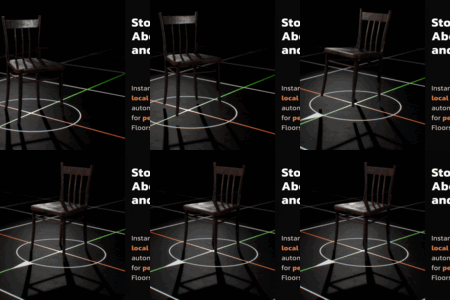
- Base: Sets the origin to the contact point based on the Surface Context (e.g., Bottom for Ground, Back for Wall).
- Volume (Fast): Sets the origin to the center of mass used internally by Pivot.
Per-Object Operators
- Standardize Object Origin: Instantly applies the chosen Origin Method to all selected objects.
- Standardize Object Rotation: Instantly aligns the local axes of all selected objects first to their geometry, then rotates them to face world forward (-Y).
Pro-Only Features
Upgrade to Pivot Pro to unlock the full pipeline engine for batch processing and intelligent library management.
4. Pro Workflow
The Pro workflow is designed to standardize and organize entire collections of assets at once.
Step 1: Define Your Scope (The Source Collection)
First, tell Pivot where to look. Select a collection in the Pivot UI Source Collection field. This tells the grouping logic which part of your scene to analyze.
- Zero Setup Default: If you leave this field blank, Pivot defaults to using your active Scene Collection, allowing you to run it immediately on simple scenes.
Step 2: Understand Intelligent Grouping
Next, understand how Pivot defines an "Asset" within your Source Collection. It applies this logic in order:
- By Sub-Collection (Highest Priority): Any collection that is a direct child of your Source Collection is treated as one single Asset. All objects inside, no matter how they are parented, will be grouped together.
- By Parent Hierarchy: For any remaining objects, Pivot looks for parent-child relationships. Any hierarchy with its root object directly inside the Source Collection is treated as one Asset.
- By Loose Object: Finally, any remaining individual objects are treated as their own Assets.
Step 3: Run Standardization (The Action)
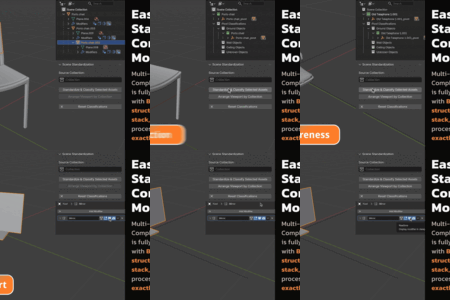
Select any part of the assets you want to process and click "Standardize & Classify Selected Assets". Pivot uses the intelligent grouping logic from Step 2 to find each full asset and standardizes them non-destructively:
- Smart Selection: You only need to select one part of a complex model; Pivot finds the rest automatically.
- Automatic Asset Collections: For any new asset, Pivot creates a dedicated collection within your Source Collection to contain it (or reuses the grouping collection). This is essential for organization and Sync Tracking.
- Mesh Data is Safe: This operator does NOT change your underlying mesh data (vertices, UVs). It only translates and rotates the objects within a parent container.
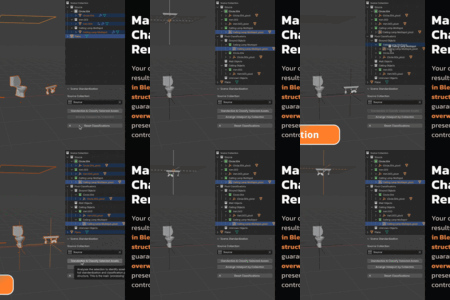
- Non-Destructive Containers: Pivot creates or reuses a parent Empty for each Asset. This preserves your internal hierarchy and allows for persistent rotation corrections.
- Persistent Rotations: Standardization is applied relative to the parent Empty. You can manually rotate the Empty to make a correction, and Pivot will respect that choice on future runs.
Step 4: Visualize Your Library
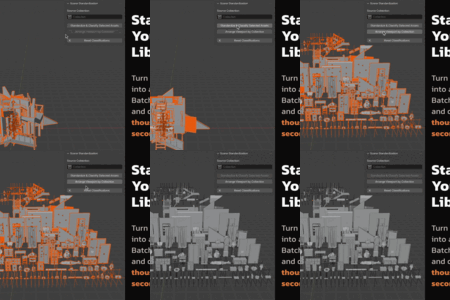
Click "Arrange Viewport by Collection" to organize all tracked assets within your Source Collection into a clean grid for easy visual inspection. This operator also automatically re-standardizes any "out of sync" assets.
5. Sync Tracking & Visual Feedback
Pivot uses a Smart State Engine to track which assets are standardized and currently cached in the engine's memory. The color of each Asset Collection icon in the Outliner tells you its status:
- 🟢 Green (In Sync): The asset is standardized and cached.
- 🟡 Yellow (Out of Sync): You have manually moved or edited this asset. It needs to be re-standardized.
- ⚪ White (Untracked): The asset has not been processed by Pivot yet.
6. Smart Classification & Persistence
Pivot uses the Pivot Classifications collection hierarchy as a persistent memory cache to remember your choices for Surface Context.
- The Memory (Auto Mode): When using "Auto" context, Pivot first checks if an asset is already sorted into a category (Ground/Wall/Ceiling). If so, it respects that classification, ignoring its internal geometry analysis.
- The "Unknown" Category: If the engine's analysis is inconclusive, it will place the asset in the Unknown collection. This is a signal to you that the asset requires a manual override for best results.
- The Teacher (Manual Override): When you manually set a Surface Context, Pivot forces your choice and permanently corrects the classification, moving the asset to the correct collection for all future "Auto" runs.
-
Self-Healing: Pivot is designed to be unbreakable. If you delete or rename the
Pivot Classificationscollections, the engine will safely recreate them on the next run. You can reset the cache by clicking the "Reset Classifications" button.
7. Cache & Performance Notes
For v1.0, Pivot's internal geometry cache (used for the Smart State Sync) is volatile. This means it is cleared when you restart Blender.
- What this means for you: The very first time you run Pivot in a new Blender session, it will take slightly longer to analyze all the geometry. Subsequent runs in the same session will be near-instantaneous for any "In Sync" (Green) assets.
- What is saved: Your manual classification choices and rotation corrections are stored in the blend-file's Outliner and are always persistent, even after a restart.
8. Troubleshooting
-
"Permission Denied" on Mac/Linux: If the engine fails to run, ensure the binary in the add-on folder has executable permissions (
chmod +x). This is handled automatically by the installer, but can be blocked by some OS security settings.
-
$5
Instantly repair axes and snap origins for selected objects using intelligent context-aware logic. Perfect for modelers needing a fast, frequent fix for individual assets.
-
$30
Unlock the native C++ multithreading to classify, standardize, and organize entire libraries in seconds. Includes an upgraded version of Standard, Intelligent Asset Grouping, Semantic Sorting, and the Visual Grid Layout.
Have questions about this product?
Login to message
| Blender Extension Compatible | Yes |
| Sales | 30+ |
| Dev Fund Contributor | |
| Published | 10 months ago |
| Blender Version | 4.2 - 5.1 |
| Extension Type | Add-on |
| Render Engine Used | Blender-Internal, Cycles, Eevee |
| License | GPL |
Discover more products like this
organizer tools pipeline asset management modeling batch hard surface automation utility Workflow productivity kitbashing