 NineLine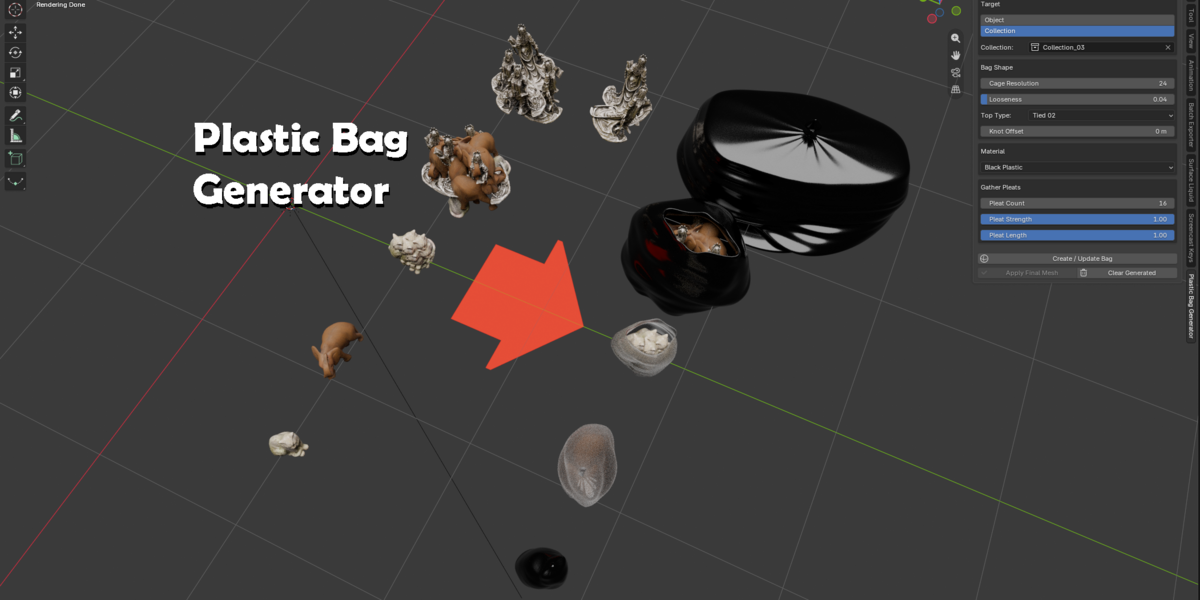
Installation
- Go to Edit > Preferences.
- Open Get Extensions.
- Click the menu button and choose Install from Disk.
- Select the Plastic Bag Generator ZIP file.
- Open 3D View > Sidebar > Plastic Bag Generator.
Basic Workflow
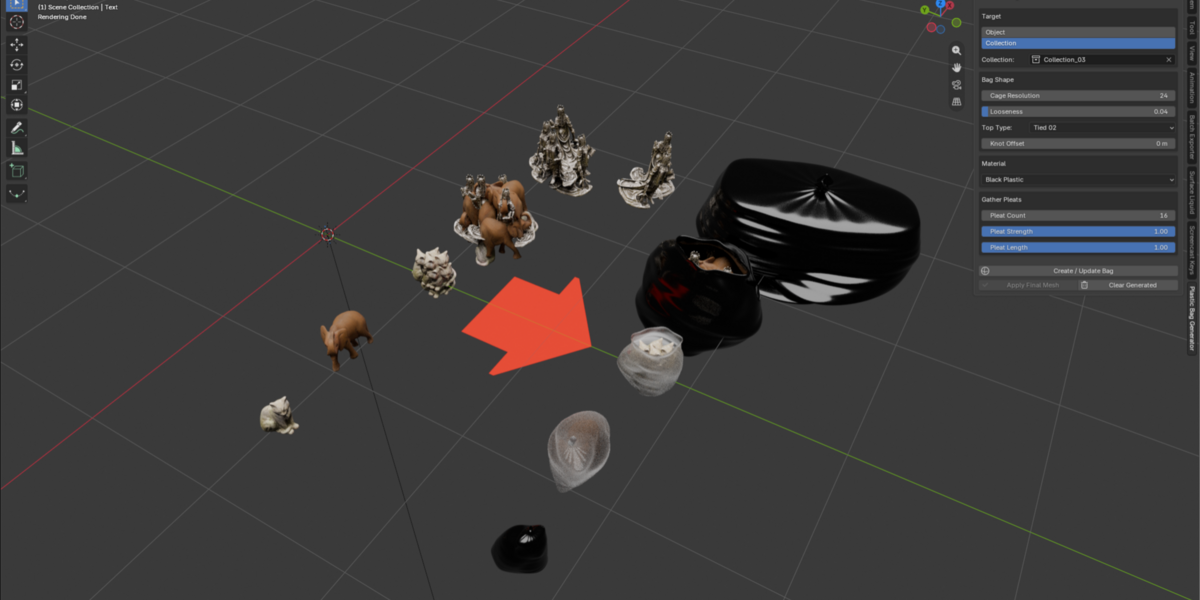
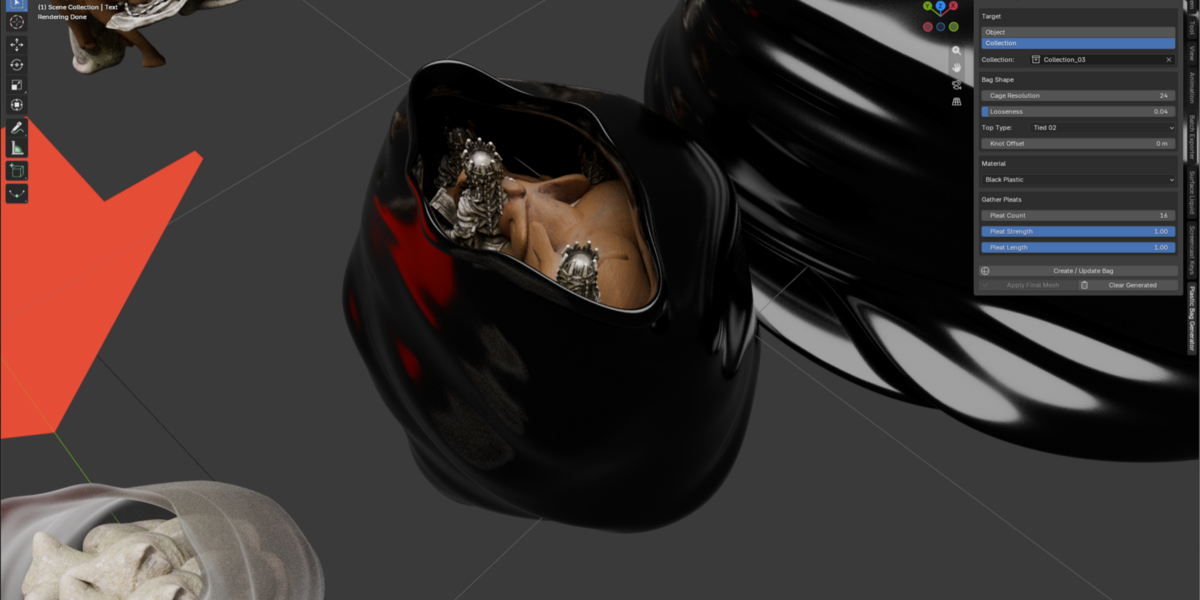
- Select a Target Object or Target Collection.
- Adjust Cage Resolution and Looseness.
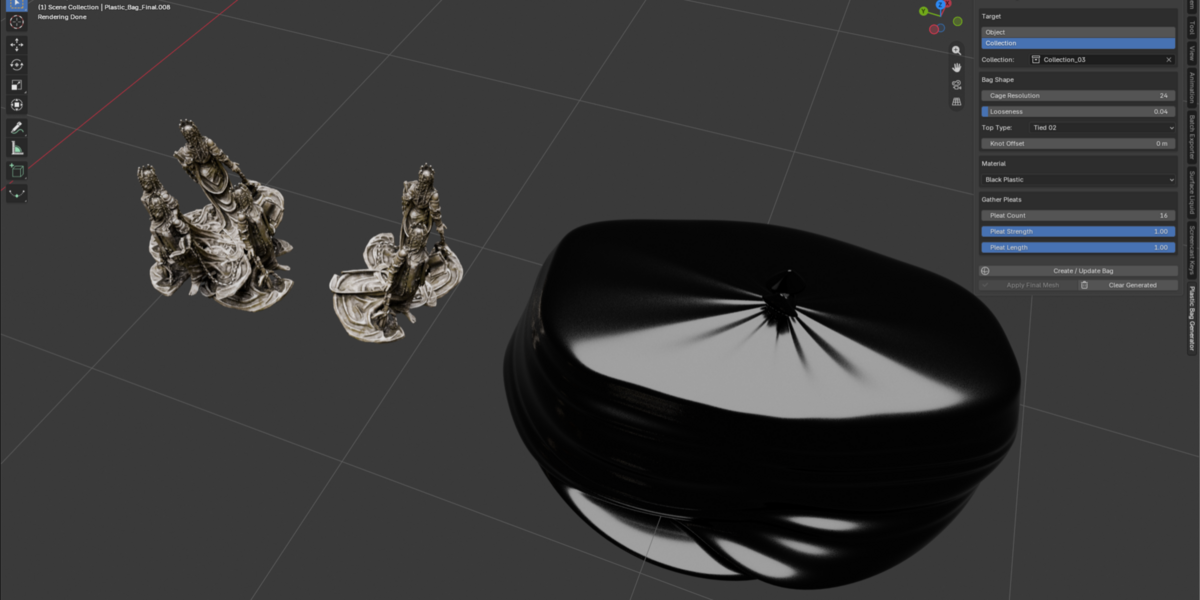
- Choose a Top Type.
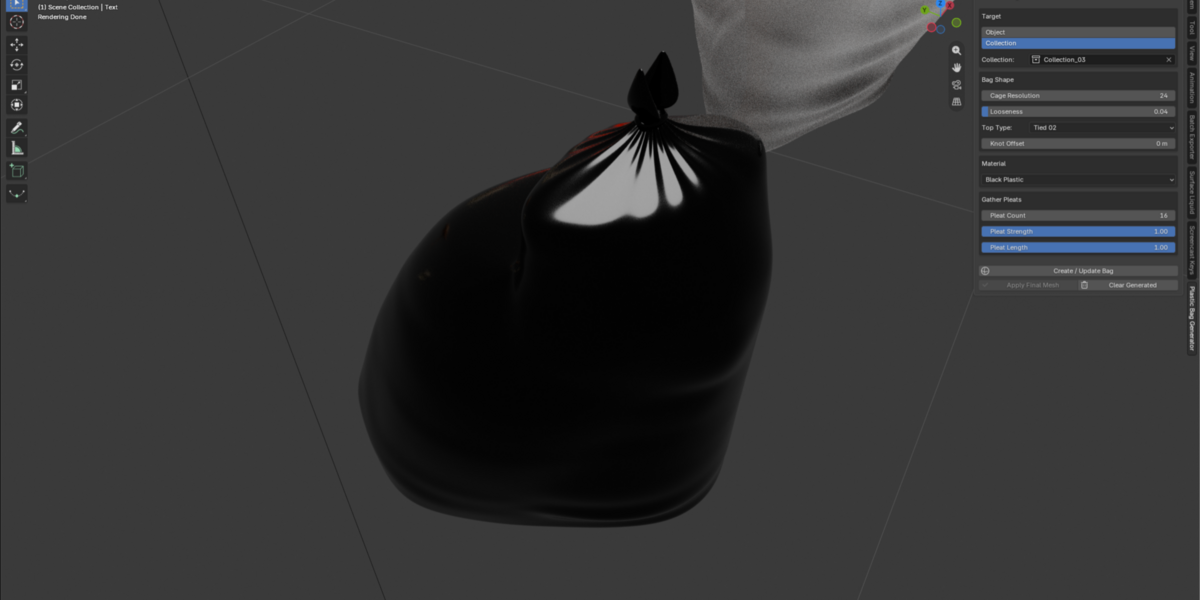
- For tied styles, adjust Knot Offset and the pleat settings as needed.
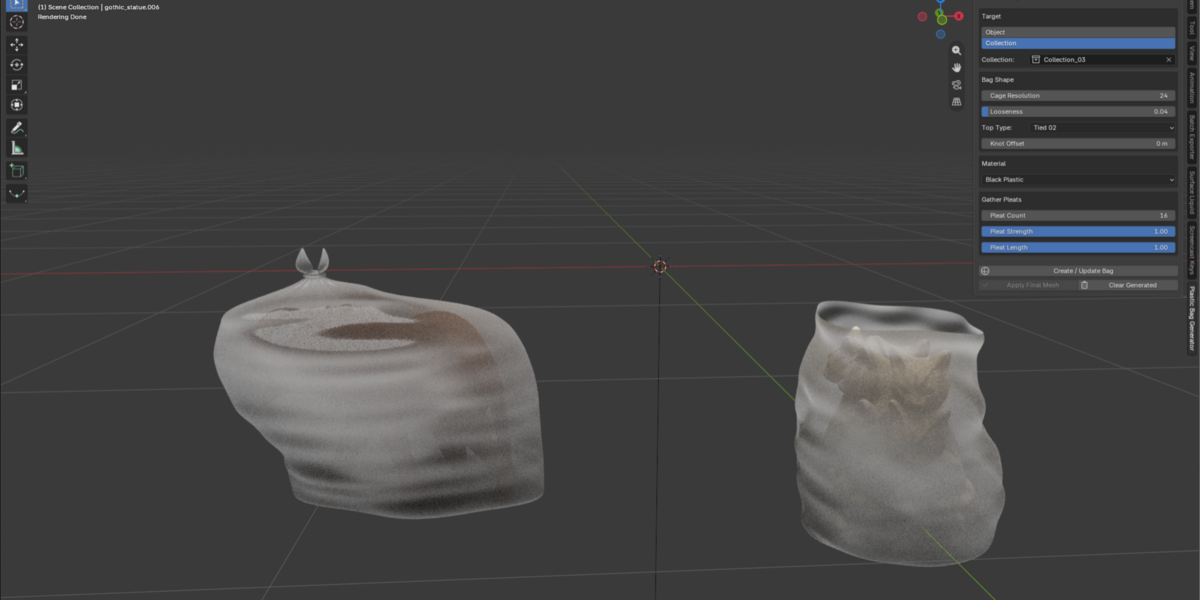
- Select a material.
- Click Create / Update Bag.
- When finished, click Apply Final Mesh.
Main Controls
Cage Resolution
Controls how closely the generated bag follows the target shape. Higher values create more vertical detail.
Looseness
Controls the additional space between the target and the generated bag.
Top Type
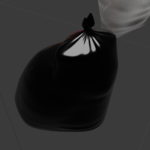
- Tied 01
- Tied 02
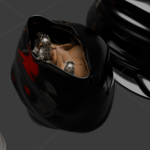
- Open 01
- Open 02
Gather Pleats
For tied styles, use Pleat Count, Pleat Strength, and Pleat Length to control the wrinkles around the gathered area.
Material
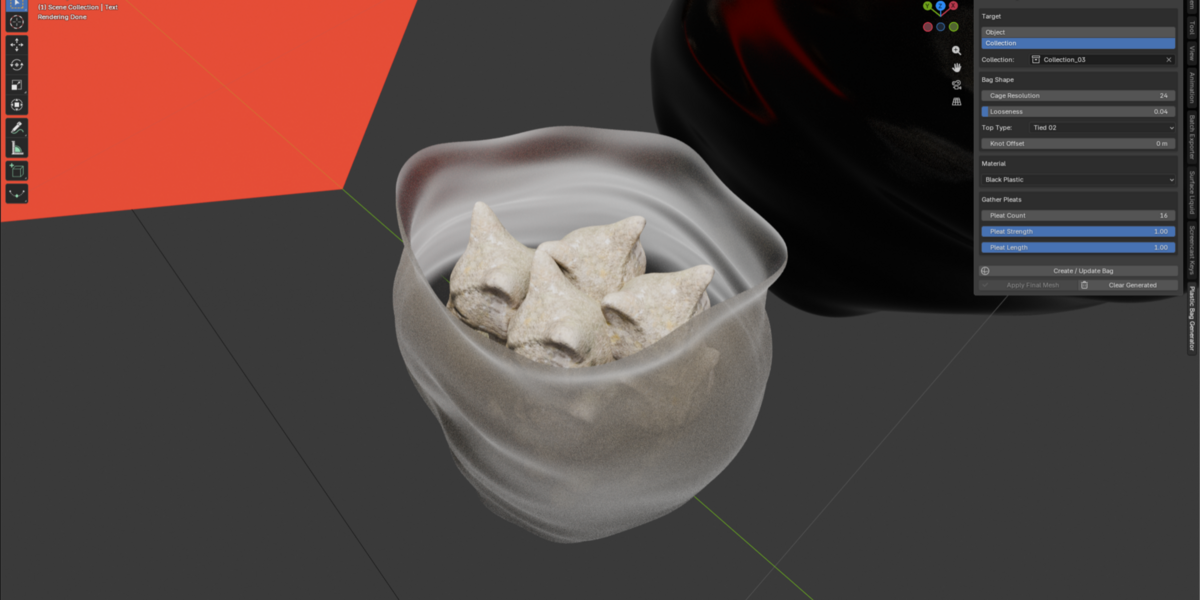
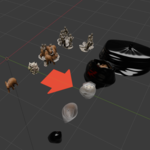
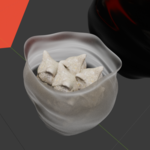
Choose between the included Black Plastic and Translucent Plastic materials.
Apply Final Mesh
Apply Final Mesh converts the generated result into a regular editable mesh.
For smoother results, adding a Subdivision Surface Modifier after applying the final mesh is recommended.
UVs are not automatically unwrapped.
If UV mapping is required, unwrap the final mesh manually.
Important Note
Plastic Bag Generator is an art-directed modeling tool, not a cloth or physics simulation.
Results may vary depending on the shape and complexity of the target object.
Have questions about this product?
Login to message
| Blender Extension Compatible | Yes |
| Published | about 2 months ago |
| Blender Version | 5.2 |
| Extension Type | Add-on |
| Render Engine Used | Cycles |
| License | GPL |
Discover more products like this
prop-modeling 3d modeling trash bag Trash Bag Generator garbage bag Environment Props plastic-bag environment art blender-extension Plastic Bag Generator Bag Generator