 Oculis Studio



Blender add-on
Poly Finder
Find what's slowing your scene down — in seconds.
New update · v2.3.12Actively maintained
Stop guessing. Stop hunting through the outliner. Poly Finder ranks the real polygon hogs, isolates them on click, and paints a viewport heatmap so optimization is obvious.
What's new
Fresh updates — still shipping
What's New
Poly Finder keeps getting better. Version 2.3.12 focuses on a cleaner session workflow, faster isolate tools, and a more reliable heatmap — so you spend less time fighting the UI and more time fixing heavy meshes.
New
Enable / Disable master switch
Off by default — no timers, scanning, or heatmap cost until you turn it on. Disable clears the list and heatmap when you're done.
New
Isolate on Click
Click a list item, Top N, or Over Budget and jump into local view (like Numpad /). Exit with Show All Objects.
Improved
Solid Object Color heatmap (default)
Full-opacity viewport colors for everyday use. Optional GPU Overlay (Experimental) still available in preferences.
New
Hover Inspect + optional HUD / labels
Live hover stats under the object list. Labels, budget badge, and HUD stay off until you need them — turn on only what helps.
Requires Blender 4.2+ · Install as a Blender extension zip
The problem
Nothing looks heavy — but the viewport crawls
You import a model. The scene slows down. Renders take longer. Nothing looks heavy.
The issue usually isn't the whole scene — it's a few hidden objects with ridiculous polygon counts. Tiny screws. Vents. Decorative parts nobody will see up close. You waste time hunting the outliner instead of fixing the real culprits.
The fix
See it → select it → isolate it → fix it
Not guesses. Not scene averages. A ranked list of the real polygon hogs — plus isolate-on-click and visual feedback directly in the viewport. Optimization stops being trial and error.
Built for
Where it helps
|
Imported marketplace assets Find the hidden high-poly parts that tank the viewport after an import. |
Game & real-time Enforce budgets and spot offenders before they hit your engine. |
|
Animation & simulation prep Thin scenes before heavy modifiers, cloth, or playblasts. |
Laggy viewports Stop guessing — get a ranked answer in seconds. |
Workflow
Enable → rank → isolate → fix
Poly Finder stays off until you need it. Turn it on, read the list, jump into the offenders, then disable when you're done so Blender stays light.
1 |
Enable the session Master switch is off by default. Enable turns on the list and heatmap — no background cost until then. |
2 |
Read the ranked list Meshes sorted by Faces, Tris, Verts, or Edges — with percentage impact and hover inspect stats. |
3 |
Isolate the offenders Click a list item, Top N, or Over Budget to enter local view. Show All Objects exits instantly. |
4 |
Fix and disable Decimate, strip subdivision, or edit the mesh — then Disable to clear list, heatmap, and isolate cost. |
Features
What it does
|
New Session Enable / Disable Starts disabled. Enable turns on heatmap. Disable clears list, heatmap, and isolate. |
Ranked object list Sort by Faces, Tris, Verts, or Edges. Click / Ctrl / Shift to select. Hover Inspect for live stats. |

Ranked list with percentage impact and hover stats under the panel.
|
New Isolate on Click List select, Top N, and Over Budget use local view — same idea as Numpad /. |
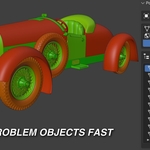
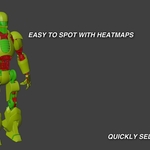
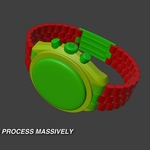
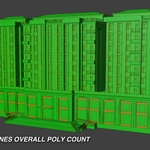
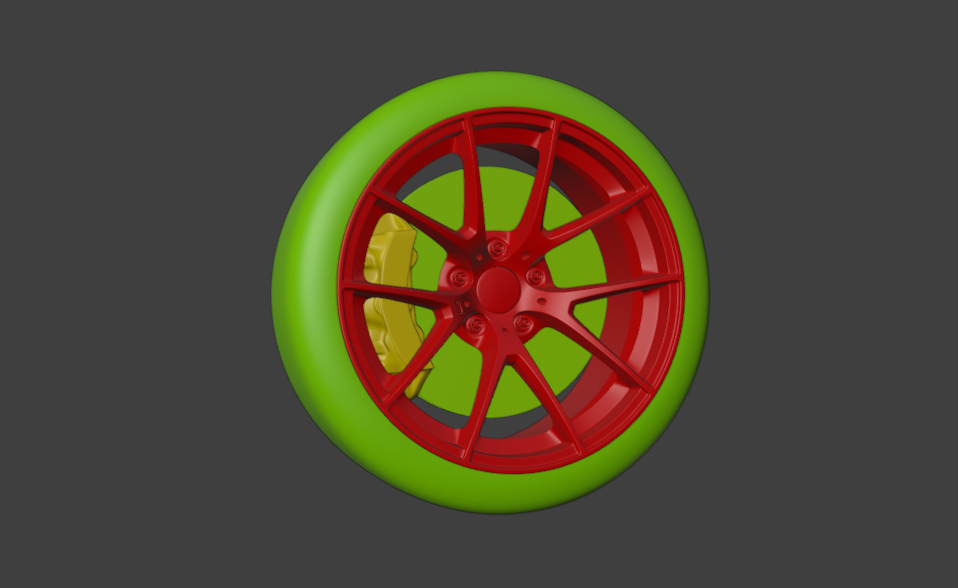
Updated Viewport heatmap Green = light · Yellow/Orange = medium · Red = killers. Solid Object Color by default; optional GPU Overlay. |

Default: Solid Object Color. Optional GPU Overlay + labels / HUD when you need them.
|
Geometry metrics Faces, Triangles (post-modifier), Vertices, Edges. Toggle Include Modifiers for real Subsurf cost. |
Polygon budget Set a per-object limit, select everything over budget, or grab Top 3 / 5 / 10 heaviest. |
|
Batch tools Strip Subdivision Surface in bulk, add Decimate with a custom ratio, apply all at once. |
Flexible scope Entire scene, visible only, selected, or a specific collection. |
Focus analysis on one collection to isolate heavy assets fast.
Included
What you get
— Ranked mesh list with percentage impact
— Isolate-on-click local view workflow
— Viewport heatmap (Solid Color + optional GPU Overlay)
— Budget, Top N, and batch decimate / strip Subsurf tools
— Scene / visible / selected / collection scope
FAQ
Before you buy
Does Poly Finder slow Blender down?
Not while disabled — that's the default. Enable only when optimizing; Disable clears list, heatmap, and isolate when you're done.
What Blender versions are supported?
Blender 4.2+. Install as a Blender extension zip.
Does the heatmap change my materials?
No. The default Solid Object Color mode uses viewport display colors. Optional GPU Overlay is non-destructive. Disable restores a clean state.
Can I analyze just part of the scene?
Yes — entire scene, visible only, selected objects, or a specific collection.
Do modifiers count?
Toggle Include Modifiers to see real post-stack cost (e.g. Subdivision Surface). Triangle metric is what actually renders.
What if something breaks?
Email [email protected] with steps to reproduce or a scene file.
Specs
v2.3.12 — actively updated
Regular releases for Blender 4.2+. Buy once, keep getting improvements.
— Version 2.3.12
— Blender 4.2+
— Blender extension zip install
