Poly Finder — Find The Problem Objects Fast
 Oculis Studio



Poly Finder – Documentation
Poly Finder is a Blender addon for identifying and optimizing high-polygon objects in your scene. It helps you quickly find which meshes are causing performance issues and gives you tools to fix them.
Location:
3D Viewport → N-Panel → Poly Finder Tab
1. Overview
Poly Finder analyzes mesh objects and shows how much geometry each object contributes to your scene. Instead of seeing only a total poly count, you see exactly where the polygons are.
Use it when:
-
A scene suddenly becomes slow
-
You import downloaded models
-
You need to meet performance budgets
-
You want to clean up heavy assets
2. Interface Breakdown
Object List Panel
The core of Poly Finder.
Displays:
-
All mesh objects in scope
-
Sorted from highest → lowest poly count
-
Percentage weight relative to total scene geometry
Selection Controls
-
Click → Select object
-
Ctrl + Click → Multi-select
-
Shift + Click → Range select
Metric Selector
Choose how geometry is measured:
-
Faces – Standard face count
-
Triangles – Final triangle count (important for real-time)
-
Vertices – Vertex density analysis
-
Edges – Edge complexity
Include Modifiers Toggle
ON → Counts include Subdivision, Boolean, etc.
OFF → Shows base mesh only.
Use this to understand the true cost of modifiers before applying them.
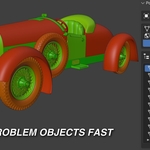
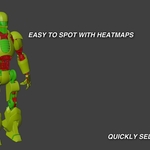
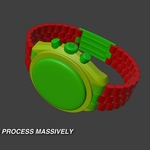
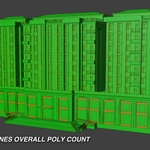
Heatmap Visualization
Applies color coding in the viewport based on relative polygon weight.
| Color | Meaning |
|---|---|
| Green | Lightweight |
| Yellow/Orange | Medium density |
| Red | Heavy objects |
This makes problem meshes visually obvious.
Polygon Budget System
Set a per-object polygon limit.
Functions:
-
Highlights objects exceeding the budget
-
Displays count of over-budget meshes
-
Select Over Budget button for instant selection
Ideal for game or VR projects.
Batch Tools
Once heavy objects are identified, optimize them fast.
Remove Subdivision
Removes Subdivision Surface modifiers from selected objects.
Add Decimate
Adds Decimate modifiers with a custom ratio.
Apply All Decimates
Applies all Decimate modifiers in one click.
Scope Selector
Choose what Poly Finder analyzes:
-
Entire Scene
-
Visible Objects
-
Selected Objects
-
Specific Collection
Useful for large or layered scenes.
3. Typical Workflow
-
Import a model
-
Open Poly Finder
-
Check the top of the list for heavy objects
-
Use heatmap to visually confirm
-
Select heavy meshes
-
Remove SubD or add Decimate
-
Re-check poly counts
Repeat until performance is acceptable.
4. Best Practices
-
Use Triangles mode when optimizing for games
-
Check Include Modifiers before rendering
-
Use budgets early in production to prevent issues
-
Decimate gradually to avoid visual degradation
5. Performance Notes
-
Analysis updates when scene or selection changes
-
Heatmap is viewport-only and does not affect renders
-
Large scenes may take a moment to scan
6. Troubleshooting
Heatmap not visible
-
Ensure viewport shading supports overlays
-
Check that objects are meshes
Poly counts look wrong
-
Toggle Include Modifiers to compare
Batch tools not affecting objects
-
Make sure objects are selected
-
Check for locked modifiers
7. Compatibility
-
Works with mesh objects
-
Supports scenes with modifiers
-
Designed for Blender 4.x+
8. Summary
Poly Finder turns scene optimization into a visual, data-driven process. Instead of guessing what’s heavy, you see it instantly and fix it in seconds.
 Included
Includes 12 months of
- Support from Oculis Studio
- Product updates
Extend this product’s Support Period +12 months: 50% of product price
Have questions before purchasing?
Login to message
| Published | 8 months ago |
| Blender Version | 4.2 - 5.0 |
| Extension Type | N/A |
| Render Engine Used | Cycles, Eevee |
| License | GPL |