PolyBlend - Easy Animation Blender
 Poly Playground


Installation Instructions
1. Download the PolyBlend add-on (the .py file).
2. In Blender, navigate to Edit > Preferences > Add-ons.
3. Click on Install…, select the downloaded file, and enable the add-on.
4. The PolyBlend panel will appear in the 3D View under the PolyBlend tab.
How to Use PolyBlend
1. Add an Armature:
• Select the armature in Object Mode that already has an animation action.
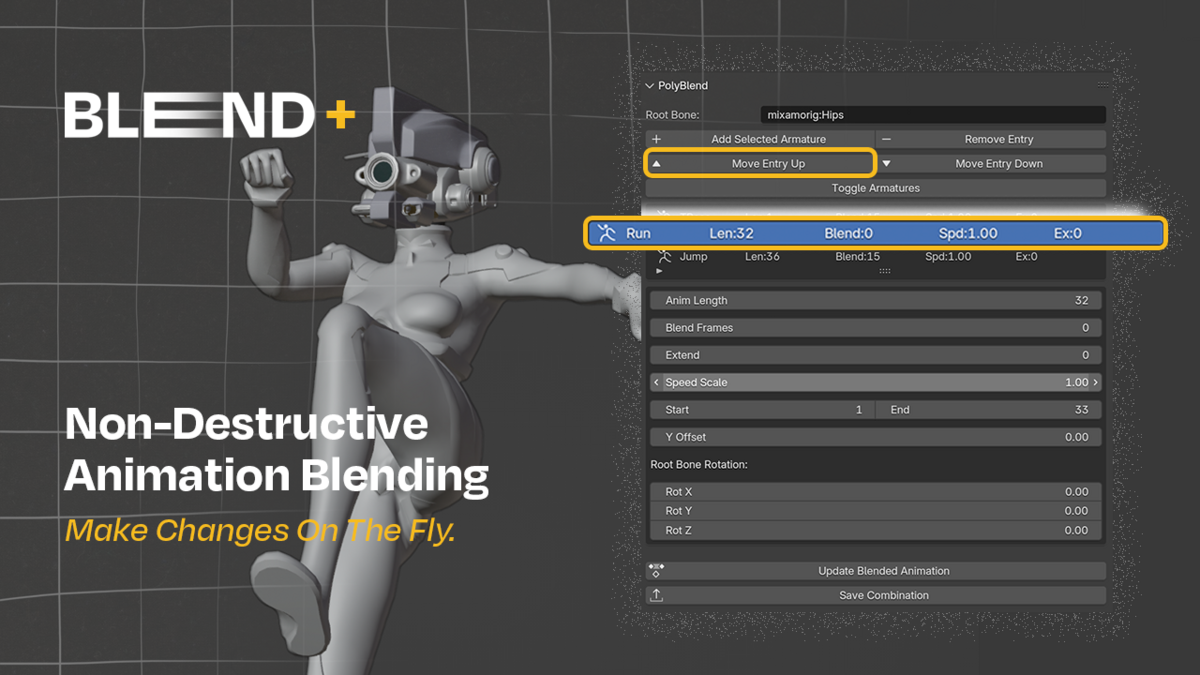
• In the PolyBlend panel, click the Add Selected Armature button.
• The armature is added to your entries list along with its animation.
2. Adjust Animation Parameters:
• In the entries list, select your armature entry.
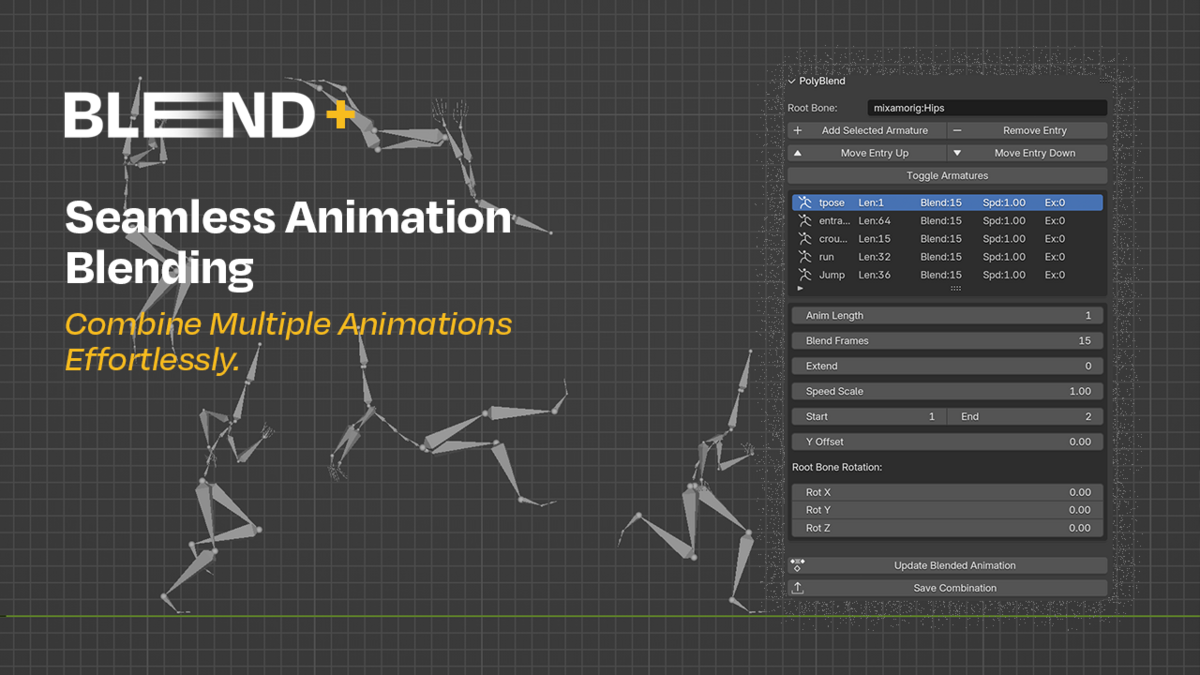
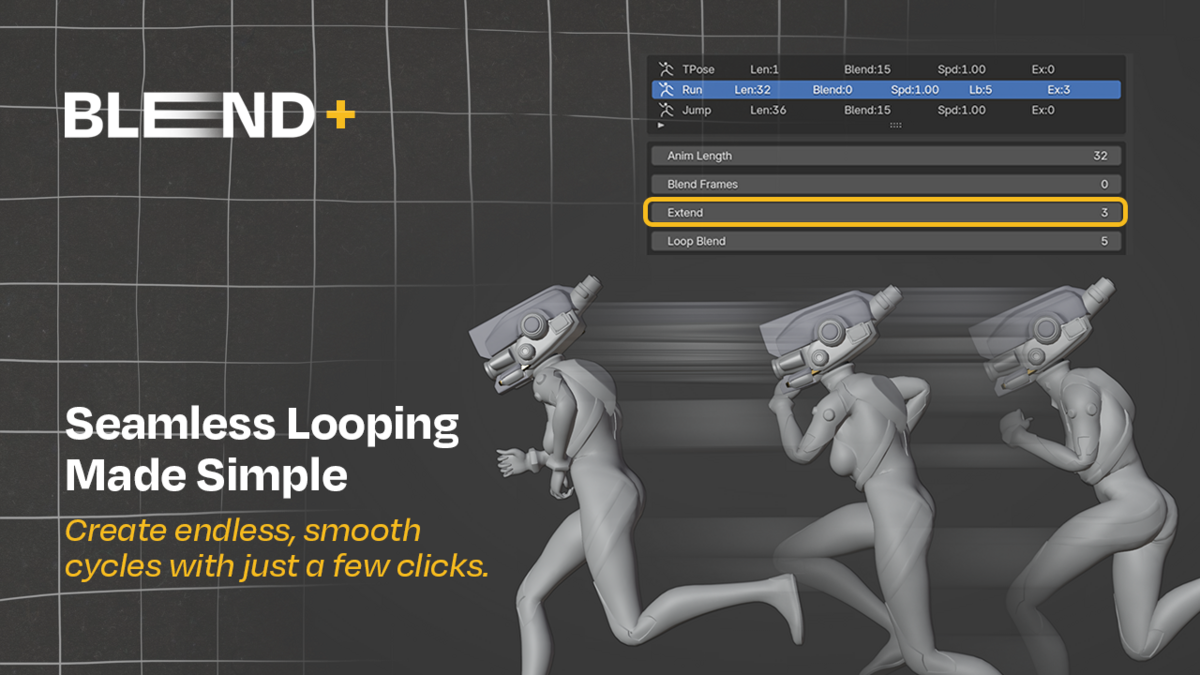
• Set the Anim Length (duration), Blend Frames (transition frames), and optionally, Loop Blend and Extend if you wish to loop the animation.
• Adjust the Speed Scale to speed up or slow down the animation playback.
• Use the Y Offset slider to move the root bone vertically.
• Adjust the Root Bone Rotations (Rot X, Rot Y, Rot Z) to fine-tune the character’s pose.
• All changes update automatically, ensuring your preview always reflects the latest settings.
3. Blend the Animation:
• Once your settings are in place, click Update Blended Animation.
• PolyBlend will create a new action called “Blended_Animation” that combines the selected animations using your specified parameters.
• The blended animation is automatically applied to the first armature in the list.
4. Export the Blended Animation:
• Click the Save Combination button to export the final animation as an FBX file.
• A file browser will appear—choose your save location and filename.
• PolyBlend will export the armature (and any attached meshes) with the blended animation baked in.
-
$15
Blend animations seamlessly with only a few clicks
Have questions about this product?
Login to message