PolyNotes
 Wilfrid's Plugins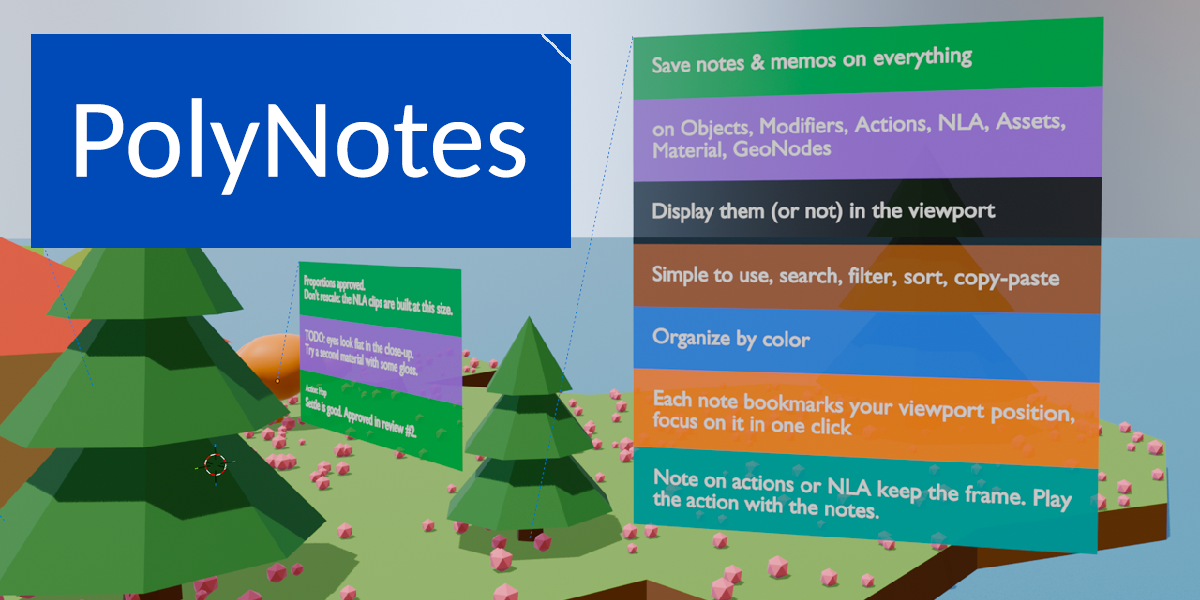
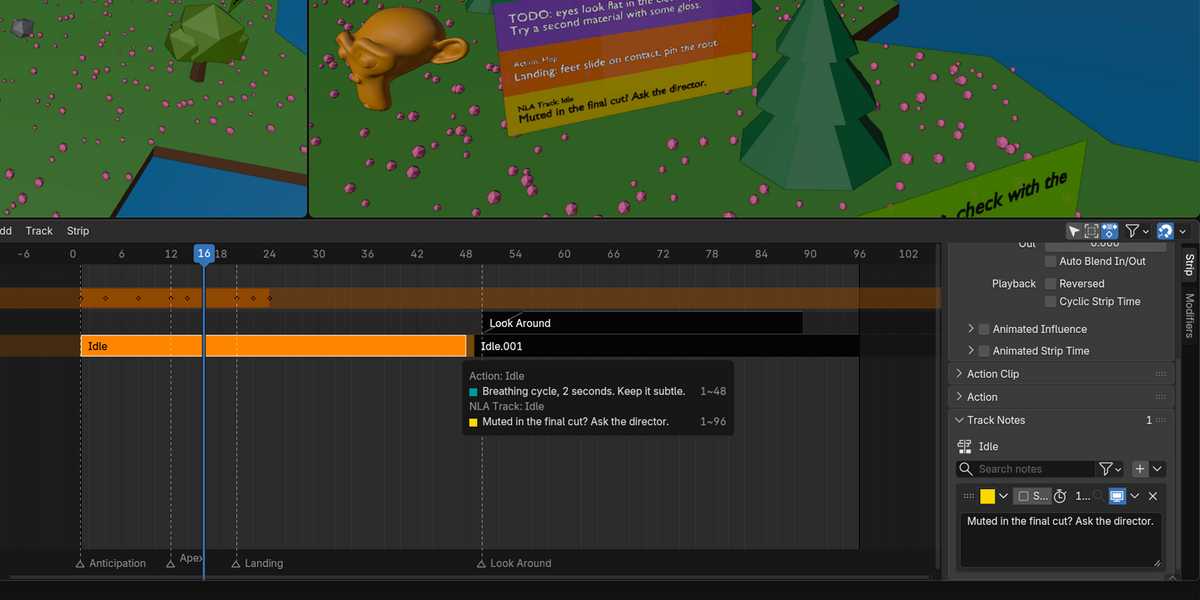
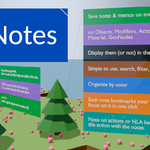
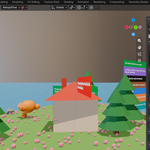
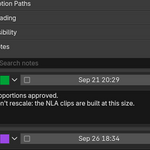
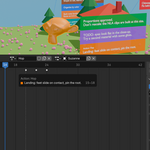
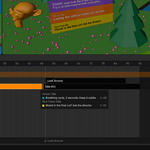
Any number of notes on each of these, each where you'd look for it:
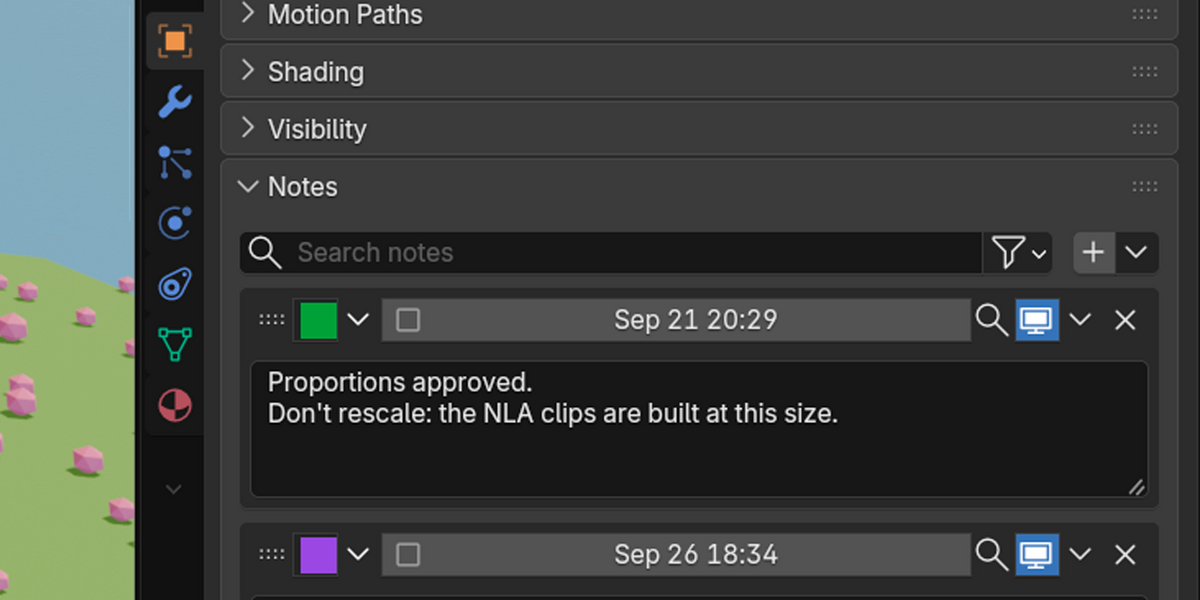
Objects : object tab > Notes
Modifiers : each modifier's Notes section
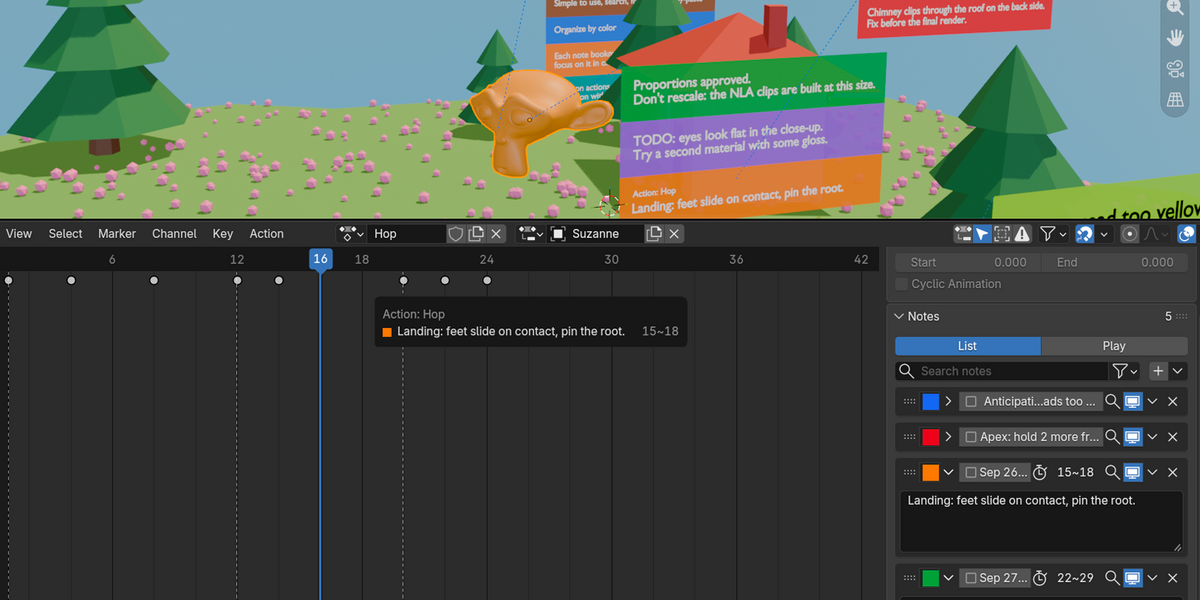
Dope Sheet / Action Editor : sidebar (N) > Action tab > Notes
NLA tracks : Sidebar (N) > Strip tab > Track Notes
Geometry Nodes and materials : Add > Layout > Note: a note node, colored after its tag
Assets : Asset Browser > Sidebar > b
All of them at once within the Sidebar (N) > Notes tab
Each note has a text, one of 12 color tags, a date, an optional frame, and bookmark the viewport position when created.
One tab for every note in the file
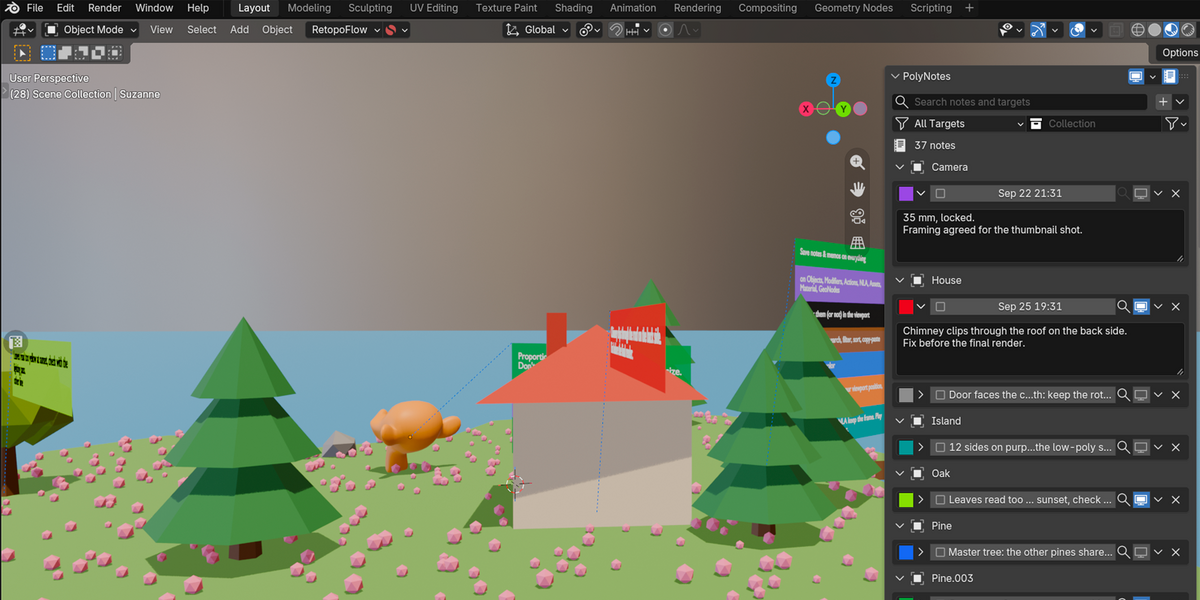
The 3D viewport's Notes tab lists and edits every note, grouped by what it's attached to:
- Search as you type. Words can come in any order, and case and accents don't matter. cube > rig looks for notes containing "rig" on targets named "cube".
- Filter by kind of target, by collection or by color tag.
- Fold targets to one line each.
- It also lists the leftover notes of deleted modifiers and tracks, so you can delete them.
Focus: back to where you wrote it
Every note saves the 3D view it was written in. Its focus button glides the view back there. It also:
- moves the playhead to the note's frames, and zooms the timeline and other time editors to fit them;
- selects the object and opens the right Properties tab, modifier, node or asset;
- switches to a workspace showing the right editor, if the current one doesn't have it.
Notes on the timeline
- New notes on an action or an NLA track span the selected markers, else the selected keys, else the current frame.
- Click a note's frame chip to adjust its range: set the current frame, extend to it, take the selected markers or keys.
- Play mode (Action notes): step through the notes in frame order with [<] 3/12 [>]. The playhead follows. Handy for review notes.
Tooltips in the NLA and Dope Sheet
Rest the mouse over an NLA strip, a track, the Dope Sheet or the Timeline. A tooltip lists the notes whose frames are under the mouse.
Strips are handled properly: offsets, scale, repeats and reverse are taken into account. You can set the delay, or turn tooltips off.
Notes in the 3D viewport
Toggle a note's screen icon and it floats next to its object, on a panel in its color tag. The panel follows the object and stacks all that object's notes. Notes on a modifier, action or NLA track show there too, under a small line naming their target. Action and NLA track notes show only while the playhead is inside their frames.
- Orientation: facing an axis (global or local), or turned to the view.
- The panel moves up, forward or back to get out of nearby objects (their bounding boxes), so a floor or a neighbor doesn't cut it.
- Text size: automatic (scaled to your scene) or fixed. Line length, opacity and In Front are adjustable too.
- The panels are regular objects in a Viewport Notes collection.
- They can't be selected and don't render. One switch in the Notes tab hides them all.
Everyday list tools
- Search and color filter on every list.
- Shift / Ctrl + click to select several notes, then delete or copy them.
- Drag a note by its grip to reorder the list, or sort by date or alphabetically.
- Copy / Paste notes between lists, files or other apps (as plain text).
- Asset notes are saved into the asset. Files using the asset show its notes, read-only.
Installation
1. Download the zip (don't unzip it).
2. Blender > Edit > Preferences > Add-ons > the ▾ menu > **Install from Disk...**, then pick the zip.
3. Enable PolyNotes. The preferences hold the tooltip delay and the focus travel time.
4. Recommanded : restart your Blender
Good to know
- Your notes live in the .blend file, on the data they're about. No external files, no network access, no data collection. If the add-on is disabled, the notes stay in the file and come back when it's enabled again. Note nodes then show as undefined nodes and don't change your node trees' results.
- Viewport notes are real objects saved in the file. They stay if the add-on is disabled. Turn the display off first to remove them.
- Modifier notes right after installing: the Notes sections show up once you reopen the file or add or remove a modifier (a Blender panel limitation).
- Action notes use the action's own frames. If a strip shifts the action in the NLA, the note's range doesn't move with it (except in tooltips).
- NLA tooltips is versions dependant (5.2 today). Update of this addon will be published at each LTS version
- Sheet and Timeline tooltips work everywhere.
- Tested on Windows. macOS and Linux should work.
- Copied notes keep all their fields (color, frames, view) within the same Blender session. Across sessions or files, they paste as plain text.
- To read the fold state of NLA rows, PolyNotes writes a small temporary .blend to the system temp folder once per session, then deletes it.
Have questions about this product?
Login to message
| Blender Extension Compatible | Yes |
| Published | 6 days ago |
| Blender Version | 5.2 |
| Extension Type | Add-on |
| Render Engine Used | Cycles |
| License | GPL |
