LarkLab · Blender 5.0+
Post Alchemy FX documentation
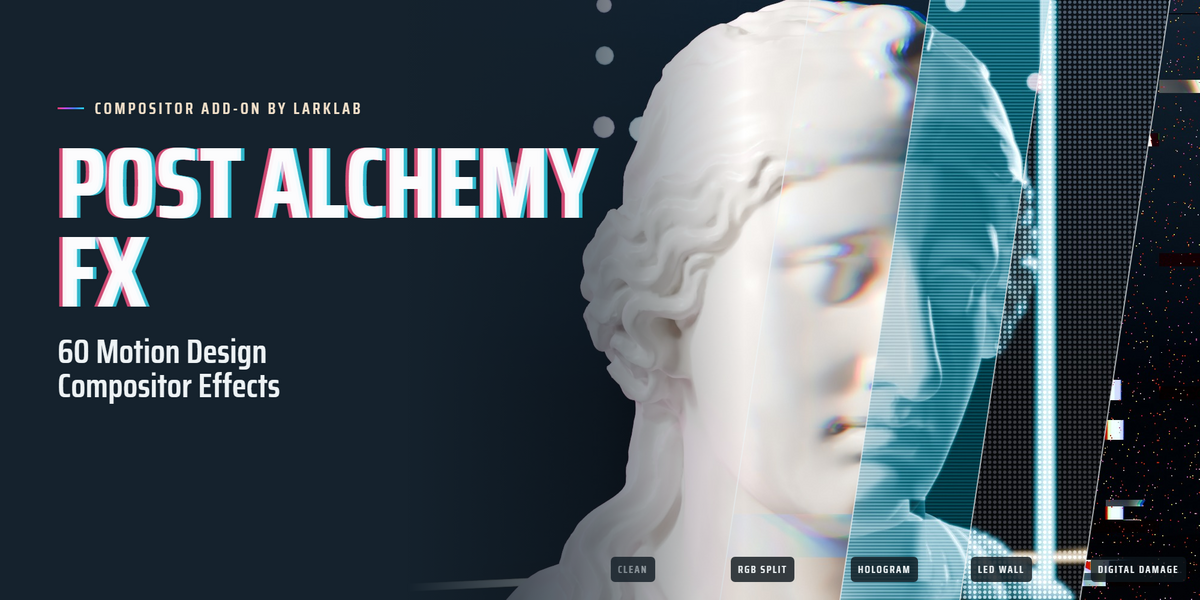
Everything you need to add, stack, animate and render the 60 motion design compositor effects. Each effect is a regular Blender node group, so everything here also works by hand in the node editor.
01Install
- Download
post_alchemy-2.0.0.zip from your Superhive library. Do not unzip it.
- In Blender, open Edit › Preferences › Get Extensions.
- Click the ⌄ menu at the top right and choose Install from Disk…, then pick the zip.
- Make sure Post Alchemy FX is enabled in the list.
You can also drag the zip straight into the Blender window.
UpdatingInstall the new zip the same way. Blender replaces the old version. Your saved presets and favorites are kept in your Blender config folder.
02Quick start
- Open the Compositing workspace, or any Node Editor set to the Compositor.
- Press N and open the Post Alchemy tab in the sidebar.
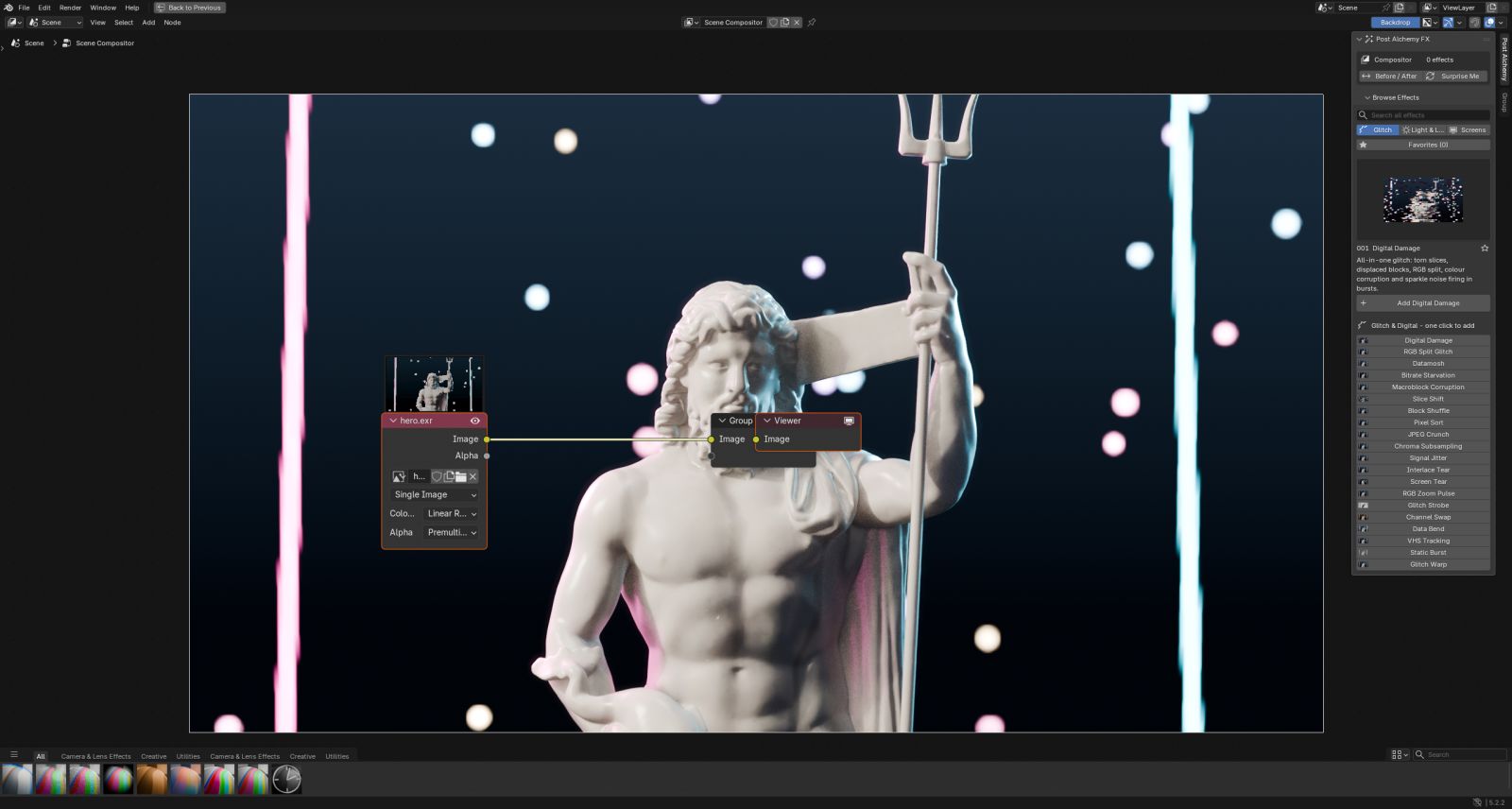
- Pick a family (Glitch, Light & Lens, Screens) and click an effect. It is wired in between your image and the output.
- Change its values under Effect Settings. Add more effects to build a stack.
- Press Before / After to compare, then render with F12 or render the animation.
03The panel
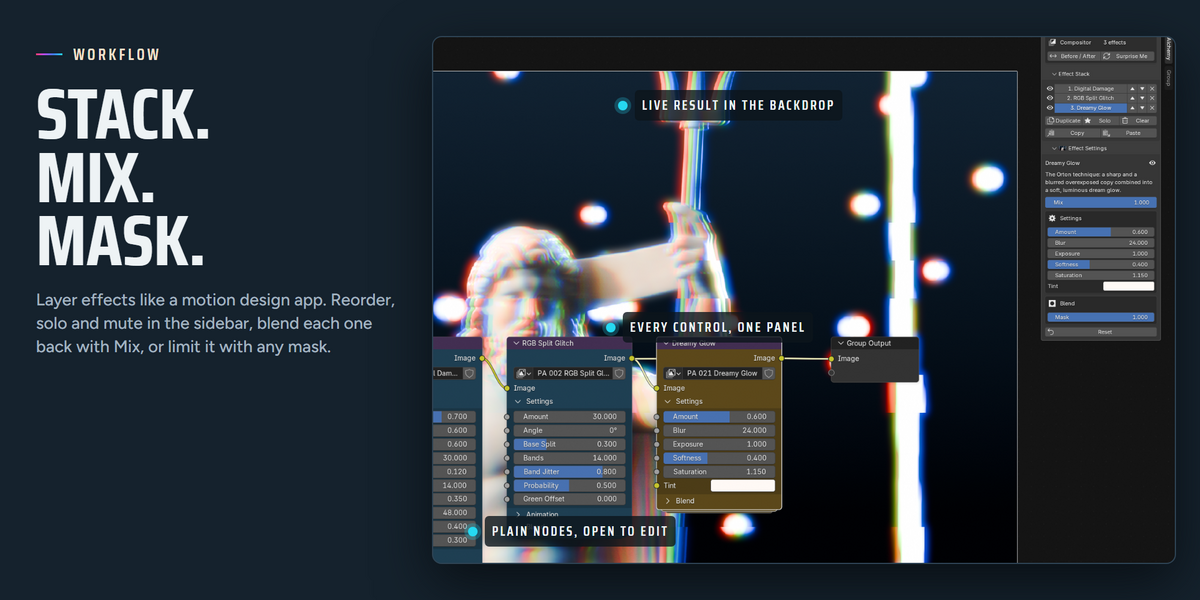
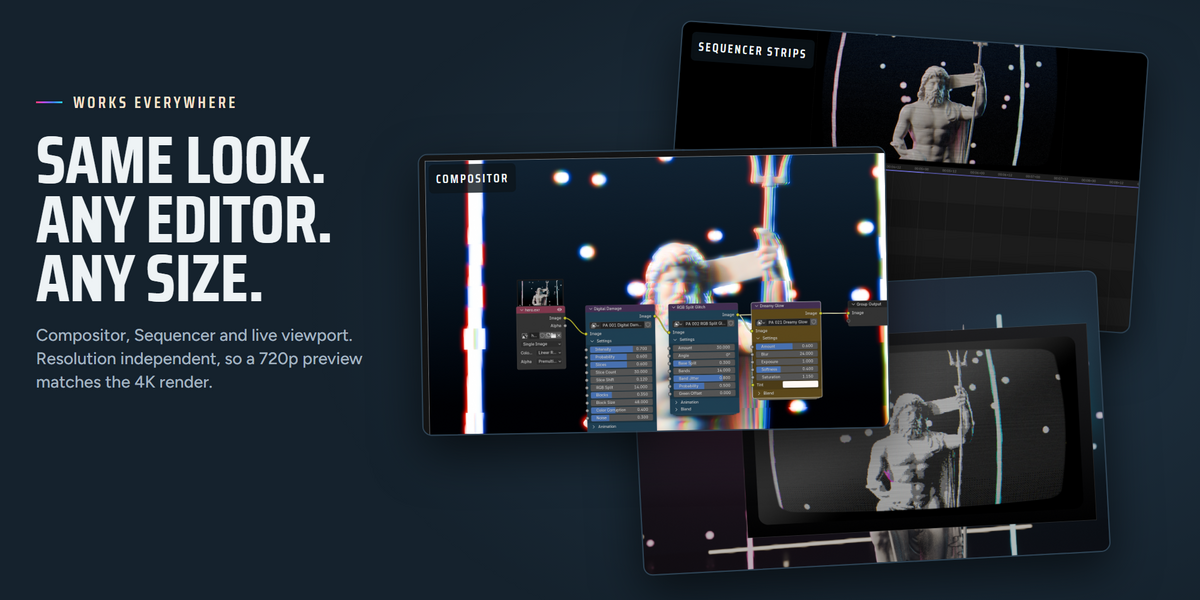
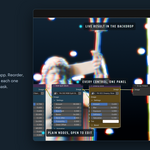
The Post Alchemy tab appears in the sidebar of the Compositor, the Video Sequencer and the 3D Viewport. It has four parts:
| Part |
What it does |
| Header |
Shows the target (Compositor or the active strip) and the effect count. Holds Before / After and Surprise Me. |
| Browse Effects |
Search, family tabs, Favorites, a large preview of the highlighted effect with its description, and the effect list. Click to add. |
| Effect Stack |
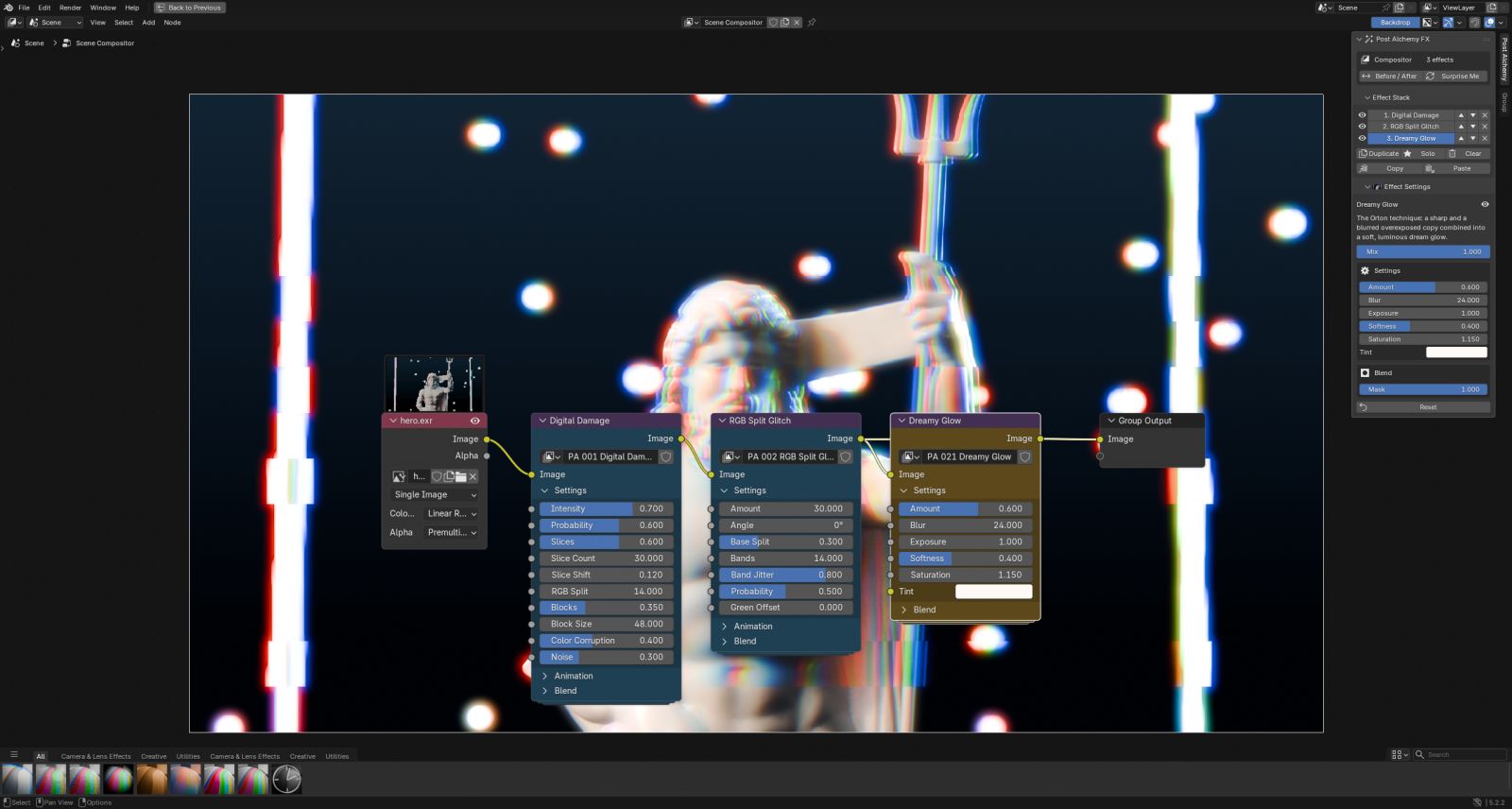
Every Post Alchemy effect in the current target, top to bottom in processing order. |
| Effect Settings |
The values of the selected effect, grouped into Settings, Animation and Blend. |
| Combo Presets |
The 16 built-in presets and the presets you saved. |
Star an effect with the ★ button to add it to the Favorites tab. Surprise Me builds a random stack from a curated pool of effects that work well together.
04Effect stack
Effects run top to bottom: the first effect receives your clean image, and each one after it receives the result of the one above. Order matters. A glow placed after a CRT effect lights the scanlines; placed before, the scanlines cut through the glow.
| Button |
Action |
| ▲ ▼ |
Move the effect up or down in the chain. |
| Eye |
Mute the effect without removing it. |
| Solo |
Show only this effect. Click again to restore the others. |
| Duplicate |
Copy the effect with its values, placed right after it. |
| Randomize |
New seed and slightly varied values for a fresh take on the same look. |
| Reset |
Return all values to their defaults. |
| ✕ / Clear |
Remove one effect, or the whole stack. Clear asks first, and both can be undone with CtrlZ. |
| Copy / Paste |
Copy the stack as text, paste it into another scene, another .blend or onto strips. |
05Settings, Mix & Mask
Every effect has its own Settings panel. Hover a value in Blender to see its tooltip; the full list is in the effect reference.
Mix
Every effect ends in a Mix value from 0 to 1. Use it to dial an effect back without touching its look.
Mask
Every effect group has a Mask input. Connect any black and white image (a Cryptomatte, an ID mask, a drawn mask or a gradient) and the effect only shows where the mask is white. Without a mask the effect covers the whole frame.
Editing by hand
The groups are named PA 001 Digital Damage and so on. Open one with Tab to see how it works. If you break one, use Rebuild Effect Groups in the panel menu to restore the originals.
06Animation
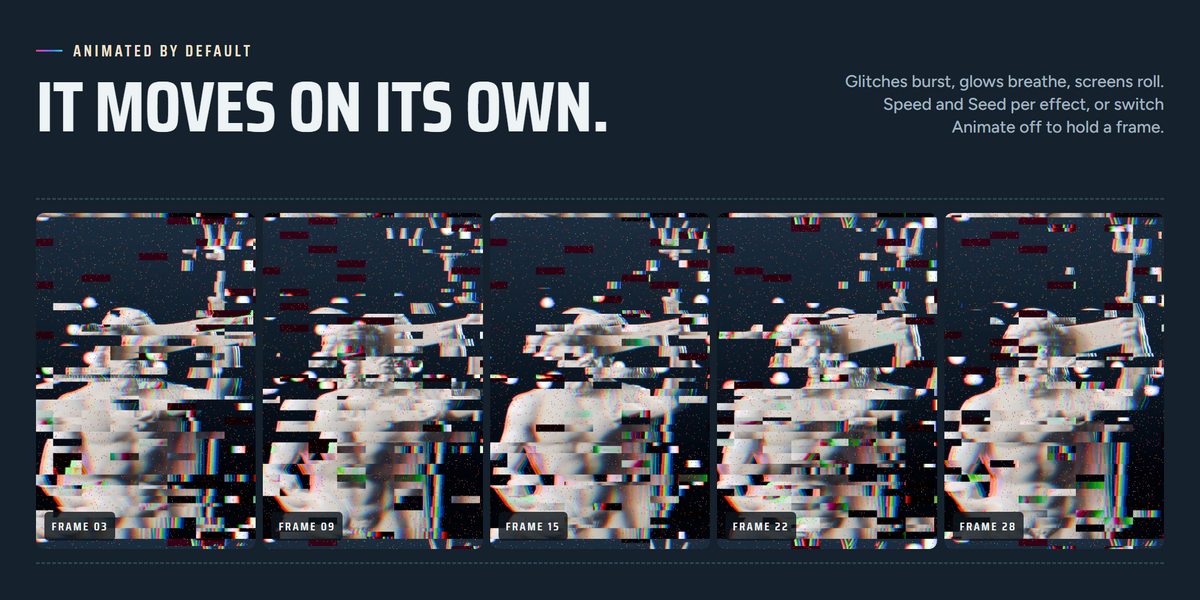
Effects are animated by default: glitches fire in bursts, glows breathe, screens roll and flicker. Animation is driven by scene time, so it follows your frame rate and plays the same on every render.
| Control |
Meaning |
| Animate |
On by default. Turn it off to freeze the effect on one state, for stills or a steady look. |
| Speed |
Multiplies how fast the effect moves. 0.5 is half speed, 2 is double. |
| Seed |
Changes the random pattern. Give two copies of the same effect different seeds so they never fire together. |
| Rate / Burst Rate |
How many times per second random parts re-roll (on glitch effects). |
| Evolution |
Slow drift of the underlying noise, for effects such as light leaks and haze. |
Any value can be keyframed like a normal Blender property: hover it and press I. Keyframe Mix from 0 to 1 for a quick transition, or Intensity for a hit on the beat.
07Presets
A preset is a saved stack with its values. Applying one replaces the current stack. The 16 built-in looks are: Digital Meltdown, Broadcast Breakdown, Low Bitrate Stream, Cyber Glitch, Music Video Hit, Dream Glow, Anamorphic Night, Neon Sign, Prism Dream, Retro Monitor, Arcade Cabinet, Stadium Screen, Security Feed, Hologram Call, Night Ops, Thermal Drone.
Your own presets
Build a stack, then press Save Preset and give it a name. Saved presets appear under the built-in ones in every project. Delete them with the ✕ next to their name.
08Sequencer strips
Post Alchemy works on any strip in the Video Sequencer, such as movie clips, image sequences or scene strips. Select a strip, open the sidebar with N and use the Post Alchemy tab exactly as in the compositor. The effects are stored in a Compositor modifier on the strip.
To give several strips the same look, build it on one strip, press Copy, select the other strips and press Paste to Selected.
TipThe sequencer preview uses the sequencer scene set in your workspace. If you see the wrong image, check the scene selector at the top of the Sequencer.
09Live viewport
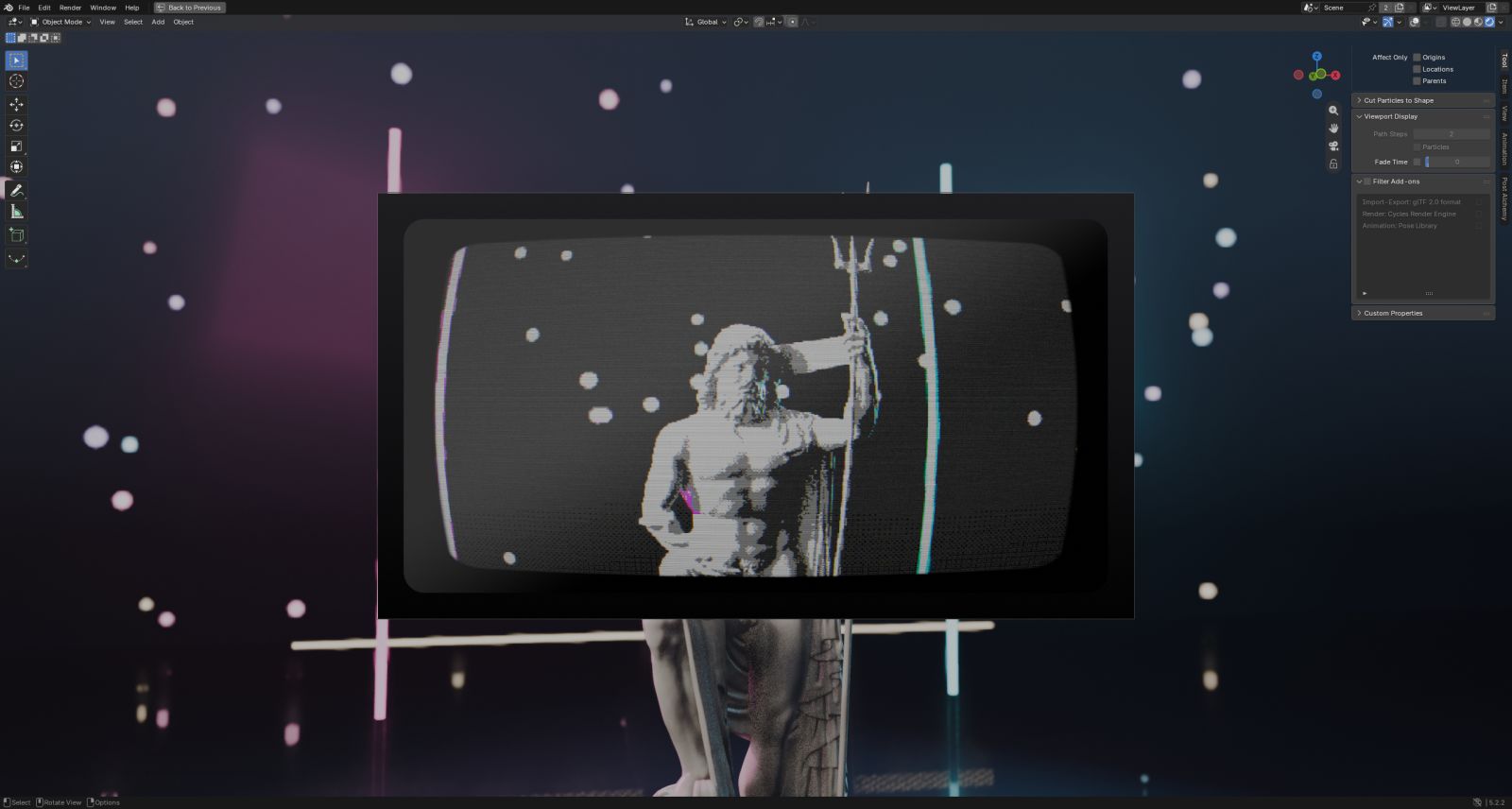
In the 3D Viewport, press Viewport Preview in the Post Alchemy tab. It switches the view to Rendered shading and turns on viewport compositing, so you see the finished look while you move the camera, animate or light. Turn it off to get full viewport speed back.
10Resolution & HDR
Resolution independent
All sizes (blur radius, block size, scanline spacing, pixel size) are measured against a 1080p frame and scale with your render. A look you build at 50% resolution matches the final 4K render. Sizes in the settings are in 1080p pixels.
HDR safe
Effects expect a scene-linear image, which is what Blender renders. Highlights brighter than 1.0 are handled without fireflies, negative colors or clipping. For best results keep AgX or Filmic as the view transform and grade after the stack.
Speed
Set Render Properties › Performance › Compositor › Device to GPU for the fastest previews and renders. All effects are plain nodes and also run on the CPU and on render farms without the add-on installed.
11Shortcuts
| Keys |
Where |
Action |
|
CtrlAltE
|
Compositor, Sequencer, 3D Viewport |
Pie menu: favorites, presets, Surprise Me, Before / After, add effect |
|
ShiftA
|
Compositor |
Add › Post Alchemy FX › any effect, for manual wiring |
| N |
Any editor |
Show or hide the sidebar with the Post Alchemy tab |
12Effect reference
All 60 effects with every control and its default. Open an effect to see its settings.
 |
|
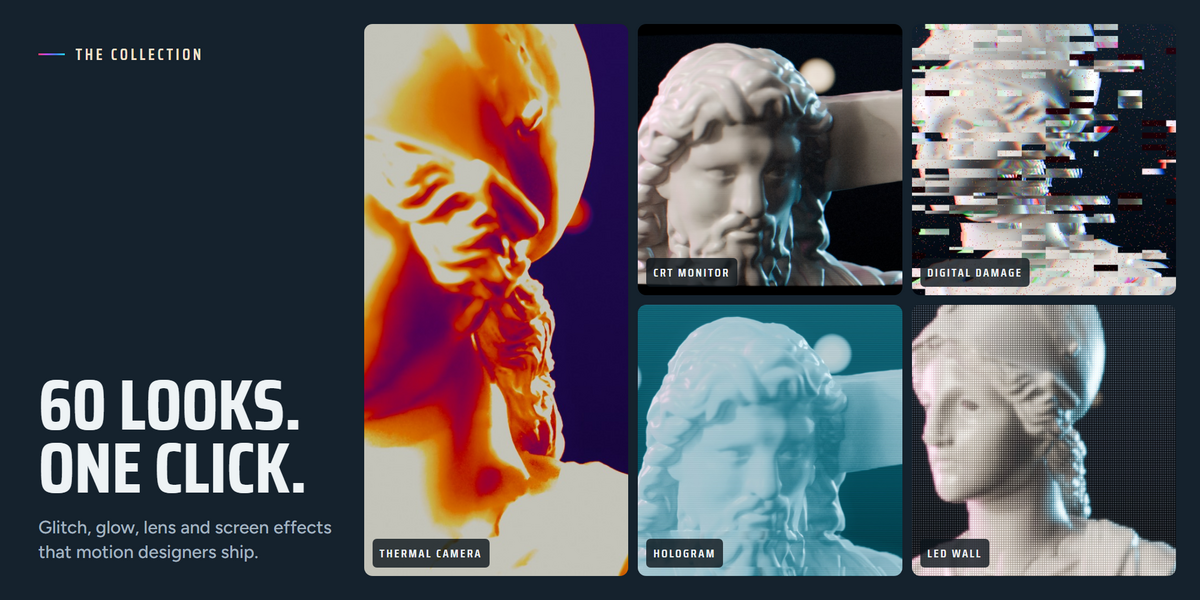
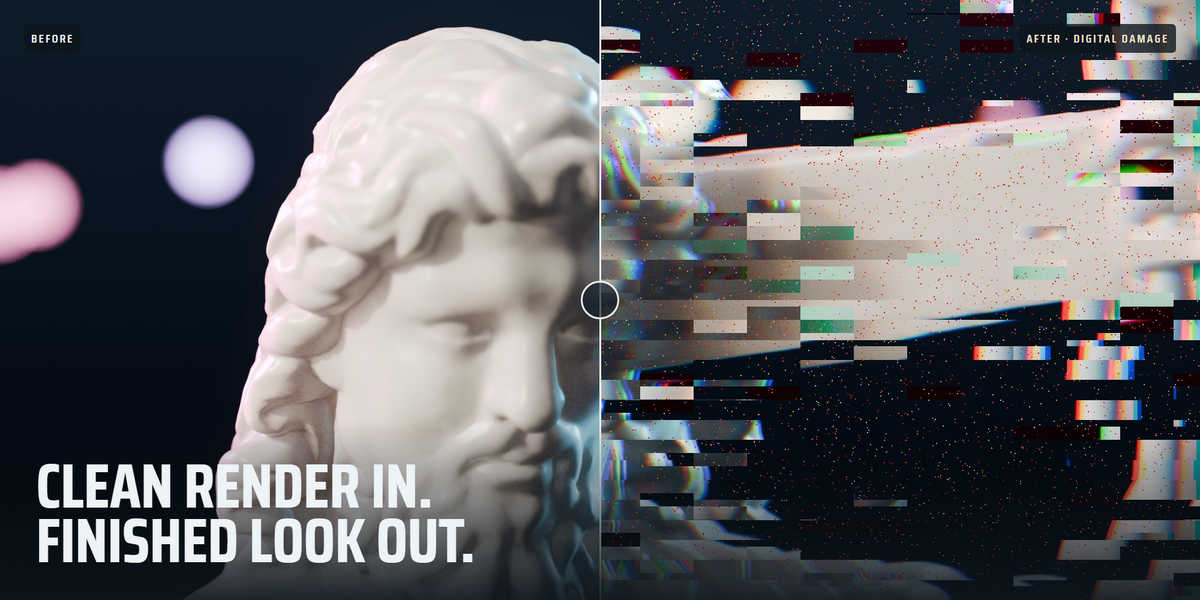
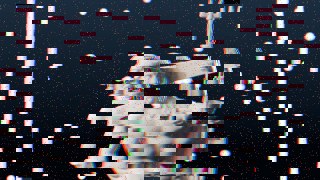
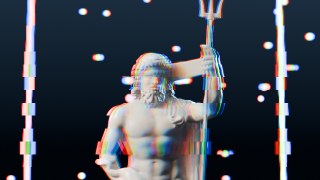
01 · Digital DamageAll-in-one glitch: torn slices, displaced blocks, RGB split, colour corruption and sparkle noise firing in bursts.
|
|
Glitch & Digital |
| Control |
Default |
Range |
What it does |
| Intensity |
0.7 |
0 – 1 |
Master strength of every glitch layer |
| Probability |
0.6 |
0 – 1 |
Chance that a burst is active (1 = always glitching) |
| Burst Rate |
6 |
0 – 30 |
How many times per second the damage re-rolls |
| Slices |
0.6 |
0 – 1 |
Amount of horizontal slices that tear sideways |
| Slice Count |
30 |
2 – 200 |
|
| Slice Shift |
0.12 |
0 – 1 |
How far slices tear (fraction of width) |
| RGB Split |
14 |
0 – 120 |
Red / blue separation in pixels |
| Blocks |
0.35 |
0 – 1 |
Amount of displaced rectangular blocks |
| Block Size |
48 |
4 – 400 |
|
| Color Corruption |
0.4 |
0 – 1 |
Blocks with rolled channels and boosted colour |
| Noise |
0.3 |
0 – 1 |
Sparkle pixels during bursts |
| Animate |
On |
|
Let the effect move on its own. Turn off to freeze it for stills or keyframing |
| Speed |
1 |
0 – 10 |
Animation speed multiplier |
| Seed |
0 |
0 – 9999 |
Change for a different random pattern |
| Mix |
1 |
0 – 1 |
Blend between the input and the effect |
 |
|
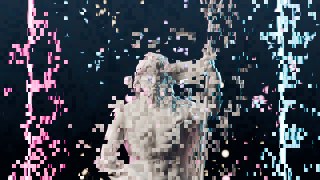
02 · RGB Split GlitchRed and blue channels tear apart along any angle, in jittering horizontal bands that fire in bursts.
|
|
Glitch & Digital |
| Control |
Default |
Range |
What it does |
| Amount |
30 |
0 – 200 |
Maximum channel offset in pixels |
| Angle |
0 |
-3.1416 – 3.1416 |
Split direction |
| Base Split |
0.3 |
0 – 1 |
Constant split that stays on between bursts |
| Bands |
14 |
1 – 200 |
|
| Band Jitter |
0.8 |
0 – 1 |
|
| Probability |
0.5 |
0 – 1 |
|
| Burst Rate |
6 |
0 – 30 |
See Animation |
| Green Offset |
0 |
-1 – 1 |
Move green too (0 = centred) |
| Animate |
On |
|
Let the effect move on its own. Turn off to freeze it for stills or keyframing |
| Speed |
1 |
0 – 10 |
Animation speed multiplier |
| Seed |
0 |
0 – 9999 |
Change for a different random pattern |
| Mix |
1 |
0 – 1 |
Blend between the input and the effect |
 |
|
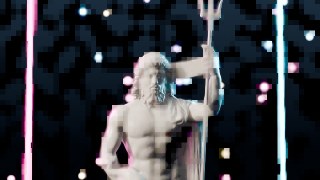
03 · DatamoshMissing I-frame look: blocks keep moving along a coherent motion field and smear old pixels across the frame.
|
|
Glitch & Digital |
| Control |
Default |
Range |
What it does |
| Amount |
0.5 |
0 – 1 |
Fraction of blocks that mosh |
| Block Size |
24 |
4 – 200 |
|
| Smear |
0.12 |
0 – 0.6 |
Smear length (fraction of frame) |
| Flow Scale |
0.15 |
0.01 – 1 |
Lower = larger regions move together |
| Hue Drift |
0.3 |
0 – 1 |
Colour drift typical of broken P-frames |
| Rate |
2 |
0 – 30 |
How often the moshed blocks change |
| Animate |
On |
|
Let the effect move on its own. Turn off to freeze it for stills or keyframing |
| Speed |
1 |
0 – 10 |
Animation speed multiplier |
| Seed |
0 |
0 – 9999 |
Change for a different random pattern |
| Mix |
1 |
0 – 1 |
Blend between the input and the effect |
 |
|
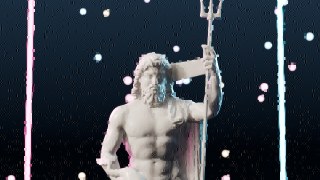
04 · Bitrate StarvationThe encoder runs out of bits: patches of the frame melt into soft, banded, blocky smears that crawl over time.
|
|
Glitch & Digital |
| Control |
Default |
Range |
What it does |
| Amount |
0.7 |
0 – 1 |
|
| Block Size |
32 |
8 – 200 |
|
| Banding |
10 |
2 – 64 |
Colour levels left in starved areas |
| Patch Scale |
0.25 |
0.02 – 2 |
Size of the starved regions |
| Softness |
0.6 |
0 – 2 |
|
| Animate |
On |
|
Let the effect move on its own. Turn off to freeze it for stills or keyframing |
| Speed |
1 |
0 – 10 |
Animation speed multiplier |
| Seed |
0 |
0 – 9999 |
Change for a different random pattern |
| Mix |
1 |
0 – 1 |
Blend between the input and the effect |
 |
|
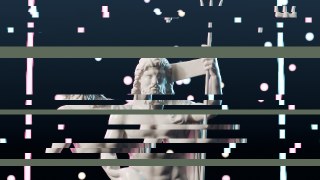
05 · Macroblock CorruptionLost packets: random blocks collapse to flat colour with visible DCT patterning, flickering frame to frame.
|
|
Glitch & Digital |
| Control |
Default |
Range |
What it does |
| Amount |
0.3 |
0 – 1 |
Fraction of blocks affected |
| Block Size |
16 |
4 – 128 |
|
| Detail Loss |
0.9 |
0 – 1 |
|
| DCT Pattern |
0.6 |
0 – 2 |
Strength of the 8x8 cosine patterning |
| Rate |
6 |
0 – 30 |
How often damaged blocks change |
| Animate |
On |
|
Let the effect move on its own. Turn off to freeze it for stills or keyframing |
| Speed |
1 |
0 – 10 |
Animation speed multiplier |
| Seed |
0 |
0 – 9999 |
Change for a different random pattern |
| Mix |
1 |
0 – 1 |
Blend between the input and the effect |
 |
|
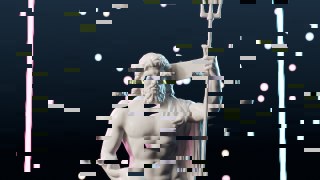
06 · Slice ShiftHorizontal slices of uneven height jump sideways, with optional decoder fill colour in the broken slices.
|
|
Glitch & Digital |
| Control |
Default |
Range |
What it does |
| Amount |
0.4 |
0 – 1 |
Fraction of slices that shift |
| Slices |
24 |
2 – 200 |
|
| Shift |
0.25 |
0 – 1 |
|
| Height Variation |
0.6 |
0 – 1 |
Uneven slice heights |
| Fill |
0.1 |
0 – 1 |
Chance a broken slice shows fill colour |
| Fill Color |
Color |
|
|
| Rate |
8 |
0 – 30 |
See Animation |
| Animate |
On |
|
Let the effect move on its own. Turn off to freeze it for stills or keyframing |
| Speed |
1 |
0 – 10 |
Animation speed multiplier |
| Seed |
0 |
0 – 9999 |
Change for a different random pattern |
| Mix |
1 |
0 – 1 |
Blend between the input and the effect |
 |
|
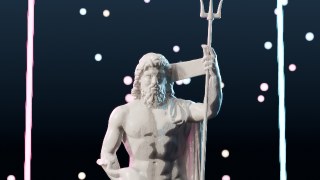
07 · Block ShuffleRectangular chunks of the frame are copied from the wrong place; some flip channels or invert.
|
|
Glitch & Digital |
| Control |
Default |
Range |
What it does |
| Amount |
0.2 |
0 – 1 |
|
| Block Size |
48 |
4 – 400 |
|
| Aspect |
4 |
0.25 – 16 |
Block width / height |
| Shift |
0.12 |
0 – 1 |
|
| Invert Chance |
0.05 |
0 – 1 |
|
| Channel Shift |
0.2 |
0 – 1 |
|
| Rate |
5 |
0 – 30 |
See Animation |
| Animate |
On |
|
Let the effect move on its own. Turn off to freeze it for stills or keyframing |
| Speed |
1 |
0 – 10 |
Animation speed multiplier |
| Seed |
0 |
0 – 9999 |
Change for a different random pattern |
| Mix |
1 |
0 – 1 |
Blend between the input and the effect |
 |
|
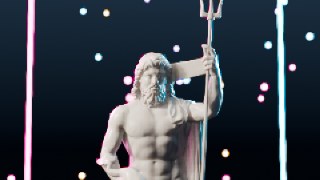
08 · Pixel SortPixel-sorting glitch art: pixels inside a brightness range stream into long sorted streaks along any angle.
|
|
Glitch & Digital |
| Control |
Default |
Range |
What it does |
| Threshold Low |
0.25 |
0 – 1 |
|
| Threshold High |
0.95 |
0 – 5 |
|
| Length |
0.18 |
0 – 1 |
|
| Randomness |
0.5 |
0 – 1 |
Per-column variation of streak length |
| Angle |
1.571 |
-3.1416 – 3.1416 |
Sort direction (90 = downward) |
| Softness |
0.05 |
0 – 0.5 |
|
| Mix |
1 |
0 – 1 |
Blend between the input and the effect |
 |
|
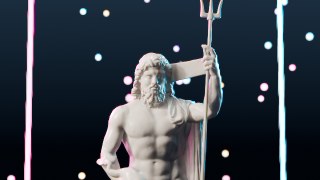
09 · JPEG CrunchHeavy JPEG compression: blocky 8x8 grid, smeared colour, mosquito noise around edges and visible block seams.
|
|
Glitch & Digital |
| Control |
Default |
Range |
What it does |
| Quality |
25 |
0 – 100 |
Lower = harder compression |
| Block Size |
8 |
4 – 64 |
|
| Chroma Loss |
0.7 |
0 – 1 |
Colour resolution loss (4:2:0) |
| Mosquito Noise |
0.6 |
0 – 2 |
Ringing near hard edges |
| Seams |
0.4 |
0 – 1 |
Visible block borders |
| Mix |
1 |
0 – 1 |
Blend between the input and the effect |
 |
|
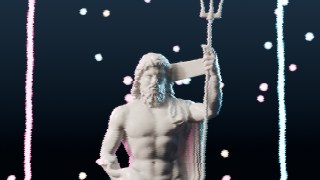
10 · Chroma SubsamplingCodec colour-resolution reduction: sharp brightness, blocky low-res colour bleeding past every edge.
|
|
Glitch & Digital |
| Control |
Default |
Range |
What it does |
| Factor |
8 |
1 – 64 |
Colour block size in pixels (2 = true 4:2:0) |
| Bleed |
0.3 |
0 – 2 |
Soft colour smear on top of the blocks |
| Amount |
1 |
0 – 1 |
|
| Mix |
1 |
0 – 1 |
Blend between the input and the effect |
 |
|
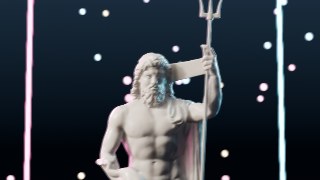
11 · Signal JitterUnstable video signal: scanlines jitter sideways, the picture wobbles and occasionally jumps vertical hold.
|
|
Glitch & Digital |
| Control |
Default |
Range |
What it does |
| Amount |
0.4 |
0 – 2 |
|
| Lines |
480 |
32 – 2160 |
|
| Wave |
0.25 |
0 – 2 |
Slow sideways wobble |
| Hold Jumps |
0.25 |
0 – 1 |
Chance of a vertical hold jump |
| Animate |
On |
|
Let the effect move on its own. Turn off to freeze it for stills or keyframing |
| Speed |
1 |
0 – 10 |
Animation speed multiplier |
| Seed |
0 |
0 – 9999 |
Change for a different random pattern |
| Mix |
1 |
0 – 1 |
Blend between the input and the effect |
 |
|
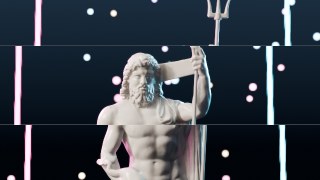
12 · Interlace TearInterlaced fields out of step: alternate lines offset into a comb, as on fast motion in broadcast video.
|
|
Glitch & Digital |
| Control |
Default |
Range |
What it does |
| Shift |
6 |
0 – 80 |
Field offset in pixels |
| Vertical |
0 |
-10 – 10 |
Vertical field offset in pixels |
| Line Size |
1 |
1 – 8 |
|
| Field Darken |
0.1 |
0 – 1 |
|
| Jitter |
0.5 |
0 – 1 |
|
| Animate |
On |
|
Let the effect move on its own. Turn off to freeze it for stills or keyframing |
| Speed |
1 |
0 – 10 |
Animation speed multiplier |
| Seed |
0 |
0 – 9999 |
Change for a different random pattern |
| Mix |
1 |
0 – 1 |
Blend between the input and the effect |
 |
|
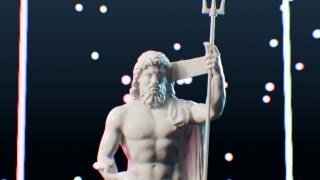
13 · Screen TearNo V-Sync: the frame splits along tear lines with each part out of step, plus a faint seam.
|
|
Glitch & Digital |
| Control |
Default |
Range |
What it does |
| Shift |
0.06 |
0 – 0.5 |
|
| Tears |
2 |
1 – 3 |
|
| Tear Rate |
4 |
0 – 30 |
|
| Seam |
0.3 |
0 – 2 |
Brightness of the tear line |
| Animate |
On |
|
Let the effect move on its own. Turn off to freeze it for stills or keyframing |
| Speed |
1 |
0 – 10 |
Animation speed multiplier |
| Seed |
0 |
0 – 9999 |
Change for a different random pattern |
| Mix |
1 |
0 – 1 |
Blend between the input and the effect |
 |
|
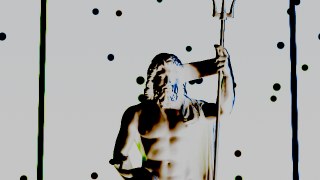
14 · RGB Zoom PulseBeat-synced punch-in: the frame zooms on every beat with red and blue fanning out, then settles.
|
|
Glitch & Digital |
| Control |
Default |
Range |
What it does |
| Amount |
0.08 |
0 – 1 |
Zoom on the beat |
| BPM |
120 |
1 – 300 |
|
| Decay |
4 |
0.1 – 30 |
How fast each hit settles |
| RGB Split |
0.5 |
0 – 3 |
|
| Blur |
0.4 |
0 – 2 |
Radial smear on the hit |
| Offset |
0 |
0 – 1 |
Beat phase |
| Animate |
On |
|
Let the effect move on its own. Turn off to freeze it for stills or keyframing |
| Mix |
1 |
0 – 1 |
Blend between the input and the effect |
 |
|
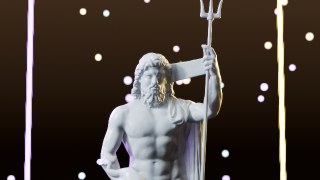
15 · Glitch StrobeRandom single-frame hits: inverted, channel-flipped, posterised or offset frames flashing on the beat of chaos.
|
|
Glitch & Digital |
| Control |
Default |
Range |
What it does |
| Probability |
0.2 |
0 – 1 |
Chance a frame is hit |
| Rate |
12 |
1 – 30 |
Decisions per second |
| Invert |
0.5 |
0 – 1 |
|
| Channel Flip |
0.5 |
0 – 1 |
|
| Posterize |
0.3 |
0 – 1 |
|
| Offset |
0.04 |
0 – 0.5 |
|
| Animate |
On |
|
Let the effect move on its own. Turn off to freeze it for stills or keyframing |
| Speed |
1 |
0 – 10 |
Animation speed multiplier |
| Seed |
0 |
0 – 9999 |
Change for a different random pattern |
| Mix |
1 |
0 – 1 |
Blend between the input and the effect |
 |
|
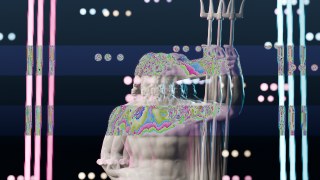
16 · Channel SwapSwaps the RGB channel order, fixed or jumping randomly between permutations.
|
|
Glitch & Digital |
| Control |
Default |
Range |
What it does |
| Mode |
0 |
0 – 5 |
0 GBR, 1 BRG, 2 RBG, 3 GRB, 4 BGR, 5 RGB |
| Auto Rate |
2 |
0 – 30 |
Random swaps per second (0 = use Mode) |
| Animate |
On |
|
Let the effect move on its own. Turn off to freeze it for stills or keyframing |
| Seed |
0 |
0 – 9999 |
Change for a different random pattern |
| Mix |
1 |
0 – 1 |
Blend between the input and the effect |
 |
|
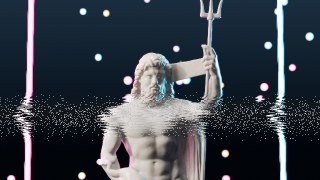
17 · Data BendImage data edited like audio: echoed copies, channel offsets and overflowing colour wraps in random bands.
|
|
Glitch & Digital |
| Control |
Default |
Range |
What it does |
| Echo |
0.5 |
0 – 1 |
|
| Offset |
0.03 |
0 – 0.3 |
|
| Wrap |
0.2 |
0 – 1 |
Fraction of bands with overflowing colour |
| Bands |
6 |
1 – 60 |
|
| Rate |
2 |
0 – 30 |
See Animation |
| Animate |
On |
|
Let the effect move on its own. Turn off to freeze it for stills or keyframing |
| Speed |
1 |
0 – 10 |
Animation speed multiplier |
| Seed |
0 |
0 – 9999 |
Change for a different random pattern |
| Mix |
1 |
0 – 1 |
Blend between the input and the effect |
 |
|
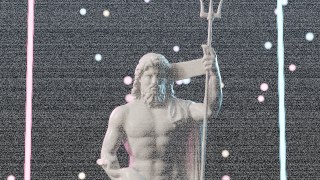
18 · VHS TrackingMistracked tape: a noisy band rolls through the frame, tearing lines sideways, with soft tape colour bleed.
|
|
Glitch & Digital |
| Control |
Default |
Range |
What it does |
| Amount |
0.6 |
0 – 2 |
|
| Band Height |
0.15 |
0.01 – 1 |
|
| Band Speed |
0.3 |
-3 – 3 |
|
| Noise |
0.5 |
0 – 1 |
|
| Color Bleed |
0.5 |
0 – 2 |
Tape chroma smear |
| Animate |
On |
|
Let the effect move on its own. Turn off to freeze it for stills or keyframing |
| Speed |
1 |
0 – 10 |
Animation speed multiplier |
| Seed |
0 |
0 – 9999 |
Change for a different random pattern |
| Mix |
1 |
0 – 1 |
Blend between the input and the effect |
 |
|
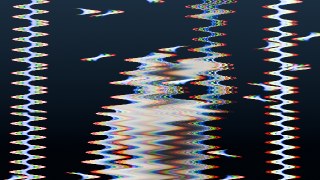
19 · Static BurstAnalog static: a light constant snow plus heavy bursts that wash out the picture, like a dying signal.
|
|
Glitch & Digital |
| Control |
Default |
Range |
What it does |
| Snow |
0.1 |
0 – 1 |
Constant background static |
| Burst |
0.8 |
0 – 1 |
Strength of the bursts |
| Burst Rate |
1.5 |
0 – 10 |
See Animation |
| Grain Size |
1.5 |
1 – 8 |
|
| Desaturate |
0.85 |
0 – 1 |
Colour loss during bursts |
| Animate |
On |
|
Let the effect move on its own. Turn off to freeze it for stills or keyframing |
| Speed |
1 |
0 – 10 |
Animation speed multiplier |
| Seed |
0 |
0 – 9999 |
Change for a different random pattern |
| Mix |
1 |
0 – 1 |
Blend between the input and the effect |
 |
|
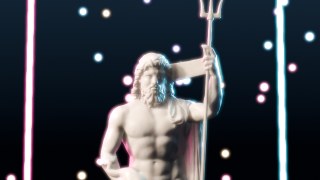
20 · Glitch WarpBands of the frame ripple into sine waves in short bursts, with chromatic fringes on the bend.
|
|
Glitch & Digital |
| Control |
Default |
Range |
What it does |
| Amount |
0.03 |
0 – 0.3 |
|
| Frequency |
18 |
1 – 200 |
|
| Bands |
8 |
1 – 100 |
|
| Probability |
0.5 |
0 – 1 |
|
| Burst Rate |
4 |
0 – 30 |
See Animation |
| Chroma |
0.6 |
0 – 2 |
Red / blue separation on the wave |
| Animate |
On |
|
Let the effect move on its own. Turn off to freeze it for stills or keyframing |
| Speed |
1 |
0 – 10 |
Animation speed multiplier |
| Seed |
0 |
0 – 9999 |
Change for a different random pattern |
| Mix |
1 |
0 – 1 |
Blend between the input and the effect |
 |
|
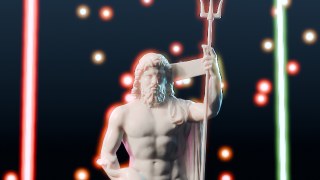
21 · Dreamy GlowThe Orton technique: a sharp and a blurred overexposed copy combined into a soft, luminous dream glow.
|
|
Glow, Light & Lens |
| Control |
Default |
Range |
What it does |
| Amount |
0.6 |
0 – 1 |
|
| Blur |
24 |
1 – 300 |
|
| Exposure |
1 |
-2 – 4 |
How bright the glow layer is pushed |
| Softness |
0.4 |
0 – 1 |
Extra blurred bloom on top |
| Saturation |
1.15 |
0 – 3 |
|
| Tint |
Color |
|
|
| Mix |
1 |
0 – 1 |
Blend between the input and the effect |
 |
|
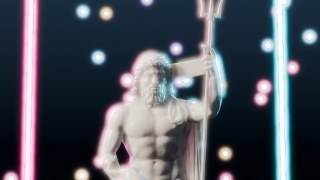
22 · HalationFilm halation: light bounces in the film base and leaves a warm red-orange ring around bright highlights.
|
|
Glow, Light & Lens |
| Control |
Default |
Range |
What it does |
| Amount |
0.7 |
0 – 3 |
|
| Threshold |
1.2 |
0 – 20 |
Scene-linear brightness that halates |
| Radius |
45 |
1 – 300 |
|
| Core Protect |
0.5 |
0 – 1 |
Keep the halo off the highlight itself |
| Tint |
Color |
|
|
| Mix |
1 |
0 – 1 |
Blend between the input and the effect |
 |
|
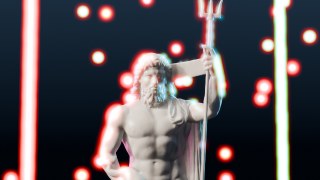
23 · Black Mist DiffusionDiffusion-filter look: highlights bloom into a soft haze and harsh digital contrast melts into a filmic finish.
|
|
Glow, Light & Lens |
| Control |
Default |
Range |
What it does |
| Strength |
0.5 |
0 – 2 |
|
| Spread |
40 |
2 – 300 |
|
| Threshold |
1 |
0 – 10 |
|
| Lift Shadows |
0 |
0 – 1 |
0 = black mist, 1 = white mist |
| Tint |
Color |
|
|
| Mix |
1 |
0 – 1 |
Blend between the input and the effect |
 |
|
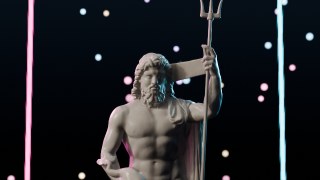
24 · Chromatic GlowSpectral bloom: highlights glow with red, green and blue spreading at different radii for an iridescent halo.
|
|
Glow, Light & Lens |
| Control |
Default |
Range |
What it does |
| Threshold |
2 |
0 – 20 |
|
| Size |
30 |
1 – 300 |
|
| Spread |
0.6 |
0 – 2 |
How far the colours separate |
| Intensity |
1 |
0 – 5 |
|
| Saturation |
1.3 |
0 – 3 |
|
| Mix |
1 |
0 – 1 |
Blend between the input and the effect |
 |
|
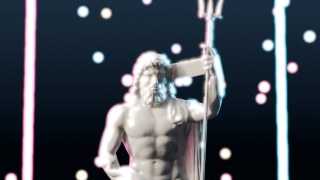
25 · Neon Edge GlowEdges traced in glowing neon tubes over a dimmed frame, with an optional second colour and hue cycling.
|
|
Glow, Light & Lens |
| Control |
Default |
Range |
What it does |
| Edge Strength |
6 |
0 – 50 |
|
| Glow Size |
10 |
0 – 120 |
|
| Color |
Color |
|
|
| Color B |
Color |
|
Second neon colour across the frame |
| Gradient |
0.5 |
0 – 1 |
Blend from Color to Color B across the frame |
| Background |
0.3 |
0 – 1 |
|
| Hue Cycle |
0 |
0 – 5 |
Hue rotations per second |
| Animate |
On |
|
Let the effect move on its own. Turn off to freeze it for stills or keyframing |
| Speed |
1 |
0 – 10 |
Animation speed multiplier |
| Seed |
0 |
0 – 9999 |
Change for a different random pattern |
| Mix |
1 |
0 – 1 |
Blend between the input and the effect |
 |
|
26 · Glow PulseHighlights glow and breathe in a steady rhythm, for neon signs, energy cores and title hits.
|
|
Glow, Light & Lens |
| Control |
Default |
Range |
What it does |
| Threshold |
1.6 |
0 – 20 |
|
| Size |
25 |
1 – 300 |
|
| Intensity |
1 |
0 – 5 |
|
| Rate |
1 |
0 – 20 |
Pulses per second |
| Depth |
0.7 |
0 – 1 |
|
| Tint |
Color |
|
|
| Animate |
On |
|
Let the effect move on its own. Turn off to freeze it for stills or keyframing |
| Mix |
1 |
0 – 1 |
Blend between the input and the effect |
 |
|
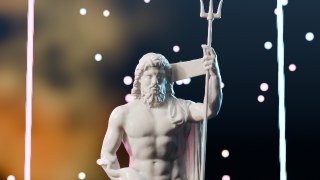
27 · Light LeaksWarm light spilling into the lens: soft drifting flares of colour from the frame edges.
|
|
Glow, Light & Lens |
| Control |
Default |
Range |
What it does |
| Amount |
0.7 |
0 – 2 |
|
| Color A |
Color |
|
|
| Color B |
Color |
|
|
| Scale |
1.5 |
0.2 – 10 |
|
| Side |
0 |
0 – 1 |
0 = left edge, 1 = right edge |
| Spread |
0.6 |
0.1 – 1 |
How far the leak reaches into the frame |
| Animate |
On |
|
Let the effect move on its own. Turn off to freeze it for stills or keyframing |
| Speed |
0.6 |
0 – 10 |
Animation speed multiplier |
| Seed |
0 |
0 – 9999 |
Change for a different random pattern |
| Mix |
1 |
0 – 1 |
Blend between the input and the effect |
 |
|
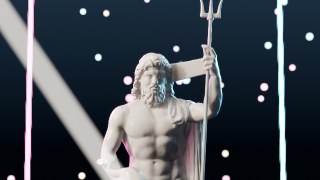
28 · Light SweepA glossy shine band sweeps across the frame, the classic logo and title light pass.
|
|
Glow, Light & Lens |
| Control |
Default |
Range |
What it does |
| Angle |
0.6 |
-3.1416 – 3.1416 |
|
| Width |
0.08 |
0.005 – 1 |
|
| Softness |
0.6 |
0 – 1 |
|
| Intensity |
1.5 |
0 – 10 |
|
| Interval |
2 |
0.2 – 20 |
Seconds between sweeps |
| Color |
Color |
|
|
| Highlights Only |
0.3 |
0 – 1 |
|
| Animate |
On |
|
Let the effect move on its own. Turn off to freeze it for stills or keyframing |
| Speed |
1 |
0 – 10 |
Animation speed multiplier |
| Seed |
0 |
0 – 9999 |
Change for a different random pattern |
| Mix |
1 |
0 – 1 |
Blend between the input and the effect |
 |
|
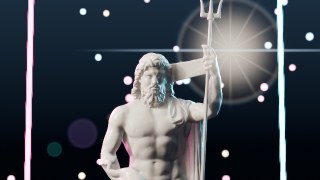
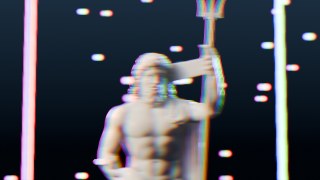
29 · Lens Flare BuilderFull procedural flare: glow, starburst rays, anamorphic streak, halo ring and chromatic ghosts mirrored through the centre.
|
|
Glow, Light & Lens |
| Control |
Default |
Range |
What it does |
| Position X |
0.72 |
-0.5 – 1.5 |
|
| Position Y |
0.72 |
-0.5 – 1.5 |
|
| Intensity |
1.5 |
0 – 5 |
|
| Glow |
1.3 |
0 – 3 |
|
| Starburst |
0.5 |
0 – 3 |
Thin rays around the source |
| Rays |
12 |
2 – 64 |
|
| Streak |
0.6 |
0 – 3 |
Horizontal anamorphic streak |
| Streak Length |
0.9 |
0.1 – 3 |
|
| Halo |
0.4 |
0 – 3 |
|
| Ghosts |
0.7 |
0 – 3 |
|
| Ghost Spread |
1 |
0.2 – 3 |
|
| Chromatic |
0.5 |
0 – 1 |
Rainbow fringe on ghosts and halo |
| Tint |
Color |
|
|
| Mix |
1 |
0 – 1 |
Blend between the input and the effect |
 |
|
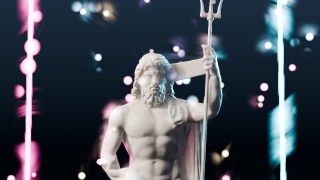
30 · Prism DispersionLight split through a prism: the frame fans out into a rainbow of offset copies, linear or radial.
|
|
Glow, Light & Lens |
| Control |
Default |
Range |
What it does |
| Amount |
0.012 |
0 – 0.1 |
|
| Angle |
0 |
-3.1416 – 3.1416 |
|
| Radial |
Off |
|
Disperse outward from the centre |
| Intensity |
1 |
0 – 1 |
|
| Mix |
1 |
0 – 1 |
Blend between the input and the effect |
 |
|
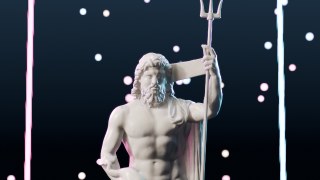
31 · Lens DirtDust, specks and greasy smudges on the front glass that light up only where bright light hits them.
|
|
Glow, Light & Lens |
| Control |
Default |
Range |
What it does |
| Amount |
1 |
0 – 5 |
|
| Threshold |
1.5 |
0 – 20 |
|
| Spread |
80 |
5 – 400 |
|
| Dirt Scale |
6 |
1 – 40 |
|
| Smudges |
0.6 |
0 – 1 |
|
| Seed |
0 |
0 – 9999 |
Change for a different dirt pattern |
| Mix |
1 |
0 – 1 |
Blend between the input and the effect |
 |
|
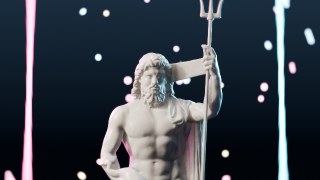
32 · Purple FringingLongitudinal chromatic aberration: violet fringes where dark edges meet bright light.
|
|
Glow, Light & Lens |
| Control |
Default |
Range |
What it does |
| Amount |
0.8 |
0 – 4 |
|
| Threshold |
1.4 |
0 – 20 |
|
| Radius |
5 |
0.5 – 40 |
|
| Color |
Color |
|
|
| Mix |
1 |
0 – 1 |
Blend between the input and the effect |
 |
|
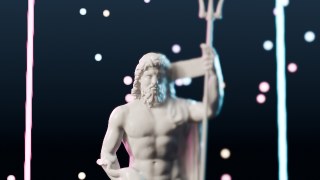
33 · Petzval SwirlVintage portrait-lens character: the background swirls around a sharp centre.
|
|
Glow, Light & Lens |
| Control |
Default |
Range |
What it does |
| Amount |
0.6 |
0 – 2 |
|
| Sharp Center |
0.35 |
0 – 1 |
|
| Edge Blur |
3 |
0 – 30 |
|
| Mix |
1 |
0 – 1 |
Blend between the input and the effect |
 |
|
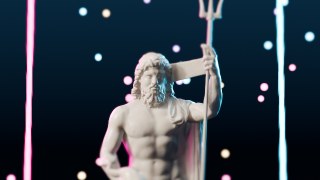
34 · Split DiopterHalf-lens close-up filter: one side sharp, the other defocused, split by a soft line at any angle.
|
|
Glow, Light & Lens |
| Control |
Default |
Range |
What it does |
| Position |
0.5 |
0 – 1 |
|
| Angle |
0 |
-3.1416 – 3.1416 |
|
| Blur |
18 |
0 – 200 |
|
| Softness |
0.04 |
0.001 – 0.5 |
|
| Flip |
Off |
|
|
| Mix |
1 |
0 – 1 |
Blend between the input and the effect |
 |
|
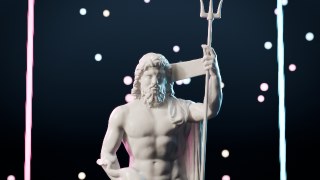
35 · Tilt-ShiftMiniature look: a band in focus, graduated blur outside it and boosted colour.
|
|
Glow, Light & Lens |
| Control |
Default |
Range |
What it does |
| Focus Position |
0.45 |
0 – 1 |
|
| Focus Width |
0.1 |
0 – 1 |
|
| Falloff |
0.25 |
0.01 – 1 |
|
| Blur |
14 |
0 – 100 |
|
| Angle |
0 |
-3.1416 – 3.1416 |
|
| Saturation |
1.25 |
0 – 3 |
|
| Mix |
1 |
0 – 1 |
Blend between the input and the effect |
 |
|
36 · Pro VignettePrecise vignette: size, feather, roundness, movable centre, colour and highlight protection.
|
|
Glow, Light & Lens |
| Control |
Default |
Range |
What it does |
| Amount |
0.55 |
0 – 1 |
|
| Size |
0.6 |
0 – 2 |
|
| Feather |
0.6 |
0.01 – 2 |
|
| Roundness |
0.6 |
0 – 1 |
0 = follows the frame, 1 = perfect circle |
| Center X |
0.5 |
0 – 1 |
|
| Center Y |
0.5 |
0 – 1 |
|
| Color |
Color |
|
|
| Highlight Protect |
0 |
0 – 1 |
|
| Mix |
1 |
0 – 1 |
Blend between the input and the effect |
 |
|
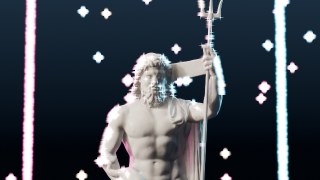
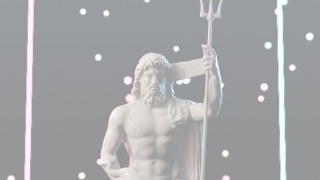
37 · Highlight SparkleTwinkling star glints on small bright highlights, with four or eight points.
|
|
Glow, Light & Lens |
| Control |
Default |
Range |
What it does |
| Threshold |
2.5 |
0 – 50 |
|
| Length |
22 |
2 – 200 |
|
| Intensity |
1 |
0 – 10 |
|
| Twinkle |
0.7 |
0 – 1 |
|
| Diagonals |
Off |
|
Eight-point stars |
| Animate |
On |
|
Let the effect move on its own. Turn off to freeze it for stills or keyframing |
| Speed |
1 |
0 – 10 |
Animation speed multiplier |
| Seed |
0 |
0 – 9999 |
Change for a different random pattern |
| Mix |
1 |
0 – 1 |
Blend between the input and the effect |
 |
|
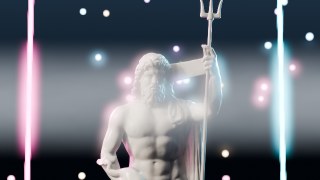
38 · Flash FramePhotographic white or coloured flash hit at a chosen frame, with optional looping.
|
|
Glow, Light & Lens |
| Control |
Default |
Range |
What it does |
| Start Frame |
1 |
-10000 – 100000 |
|
| Duration |
8 |
1 – 500 |
Fade-out length in frames |
| Peak |
1 |
0 – 3 |
|
| Color |
Color |
|
|
| Loop Every |
0 |
0 – 10000 |
Repeat every N frames (0 = once) |
| Mix |
1 |
0 – 1 |
Blend between the input and the effect |
 |
|
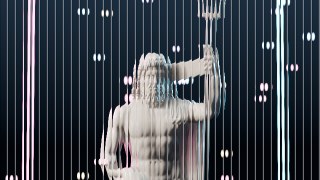
39 · Volumetric HazeAtmospheric haze that thickens toward the horizon and glows where light passes through it.
|
|
Glow, Light & Lens |
| Control |
Default |
Range |
What it does |
| Density |
0.5 |
0 – 1 |
|
| Horizon |
0.45 |
0 – 1 |
|
| Falloff |
0.35 |
0.01 – 1 |
|
| Color |
Color |
|
|
| Glow Through |
0.5 |
0 – 3 |
Bright light scattering inside the haze |
| Noise |
0.25 |
0 – 1 |
|
| Animate |
On |
|
Let the effect move on its own. Turn off to freeze it for stills or keyframing |
| Speed |
0.5 |
0 – 10 |
Animation speed multiplier |
| Seed |
0 |
0 – 9999 |
Change for a different random pattern |
| Mix |
1 |
0 – 1 |
Blend between the input and the effect |
 |
|
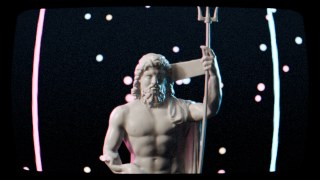
40 · Reeded GlassFluted glass: the image refracts through ribs at any angle, with a highlight on each rib.
|
|
Glow, Light & Lens |
| Control |
Default |
Range |
What it does |
| Ribs |
40 |
2 – 400 |
|
| Refraction |
0.6 |
-3 – 3 |
|
| Angle |
0 |
-3.1416 – 3.1416 |
|
| Highlight |
0.25 |
0 – 2 |
|
| Shadow |
0.25 |
0 – 1 |
|
| Blur |
1.5 |
0 – 30 |
|
| Mix |
1 |
0 – 1 |
Blend between the input and the effect |
 |
|
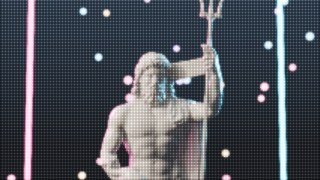
41 · CRT MonitorComplete picture-tube look: curved glass, scanlines, phosphor mask, glow, misconvergence, flicker and rounded corners.
|
|
Screens & Displays |
| Control |
Default |
Range |
What it does |
| Curvature |
0.25 |
0 – 1 |
|
| Corner Radius |
0.06 |
0 – 0.5 |
|
| Scanlines |
0.5 |
0 – 1 |
|
| Lines |
270 |
50 – 1200 |
|
| Mask Type |
0 |
0 – 2 |
0 aperture grille, 1 shadow mask, 2 none |
| Mask Strength |
0.5 |
0 – 1 |
|
| Mask Pitch |
3 |
2 – 16 |
|
| Phosphor Glow |
0.4 |
0 – 3 |
|
| Convergence |
1.5 |
0 – 20 |
Red / blue misregistration in pixels |
| Brightness |
1.35 |
0.5 – 4 |
|
| Vignette |
0.35 |
0 – 1 |
|
| Flicker |
0.04 |
0 – 0.5 |
|
| Noise |
0.03 |
0 – 0.5 |
|
| Animate |
On |
|
Let the effect move on its own. Turn off to freeze it for stills or keyframing |
| Speed |
1 |
0 – 10 |
Animation speed multiplier |
| Seed |
0 |
0 – 9999 |
Change for a different random pattern |
| Mix |
1 |
0 – 1 |
Blend between the input and the effect |
 |
|
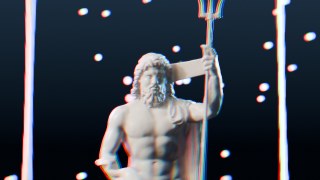
42 · LED WallStadium and stage LED screen: the image rebuilt from glowing diodes, with dim unlit LEDs and bloom.
|
|
Screens & Displays |
| Control |
Default |
Range |
What it does |
| Pitch |
9 |
3 – 64 |
LED spacing in pixels |
| Dot Size |
0.75 |
0.1 – 1 |
|
| Round |
On |
|
|
| Gain |
1.8 |
0.5 – 5 |
|
| Glow |
0.5 |
0 – 3 |
|
| Unlit LEDs |
0.06 |
0 – 0.5 |
Visibility of dark diodes |
| Mix |
1 |
0 – 1 |
Blend between the input and the effect |
 |
|
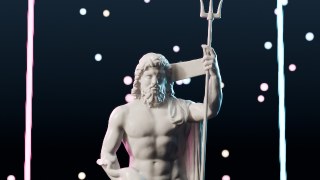
43 · Convergence ErrorMisaligned electron guns: red and blue images drift apart, worst toward the corners of the screen.
|
|
Screens & Displays |
| Control |
Default |
Range |
What it does |
| Amount |
4 |
0 – 40 |
Misregistration in pixels |
| Corner Boost |
2 |
0 – 10 |
|
| Vertical |
0.4 |
0 – 1 |
|
| Drift |
0 |
0 – 1 |
Slow wandering over time |
| Animate |
On |
|
Let the effect move on its own. Turn off to freeze it for stills or keyframing |
| Speed |
0.5 |
0 – 10 |
Animation speed multiplier |
| Seed |
0 |
0 – 9999 |
Change for a different random pattern |
| Mix |
1 |
0 – 1 |
Blend between the input and the effect |
 |
|
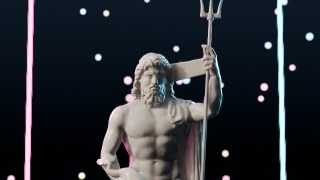
44 · ScanlinesRaster lines with beam bloom: bright areas fatten the lines just like a real tube.
|
|
Screens & Displays |
| Control |
Default |
Range |
What it does |
| Lines |
270 |
50 – 1200 |
|
| Amount |
0.55 |
0 – 1 |
|
| Beam Bloom |
0.5 |
0 – 1 |
|
| Brightness |
0.3 |
0 – 1 |
|
| Roll |
0 |
-2 – 2 |
Lines crawl vertically |
| Animate |
On |
|
Let the effect move on its own. Turn off to freeze it for stills or keyframing |
| Mix |
1 |
0 – 1 |
Blend between the input and the effect |
 |
|
45 · Aperture GrilleVertical RGB phosphor stripes of a premium tube, visible up close.
|
|
Screens & Displays |
| Control |
Default |
Range |
What it does |
| Pitch |
3 |
2 – 16 |
|
| Amount |
0.65 |
0 – 1 |
|
| Brightness |
1.5 |
0.5 – 4 |
|
| Mix |
1 |
0 – 1 |
Blend between the input and the effect |
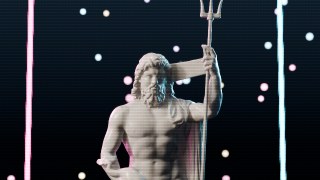 |
|
46 · Shadow MaskStaggered RGB phosphor dots of a classic consumer CRT.
|
|
Screens & Displays |
| Control |
Default |
Range |
What it does |
| Pitch |
4 |
2 – 16 |
|
| Amount |
0.65 |
0 – 1 |
|
| Brightness |
1.8 |
0.5 – 4 |
|
| Mix |
1 |
0 – 1 |
Blend between the input and the effect |
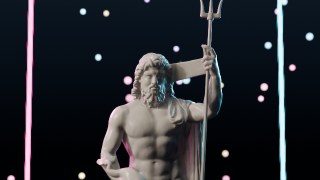 |
|
47 · Screen-DoorThe dark grid between display pixels, as seen on VR headsets, projectors and zoomed-in panels.
|
|
Screens & Displays |
| Control |
Default |
Range |
What it does |
| Pitch |
4 |
2 – 32 |
|
| Line Width |
0.22 |
0 – 0.9 |
|
| Amount |
0.7 |
0 – 1 |
|
| Mix |
1 |
0 – 1 |
Blend between the input and the effect |
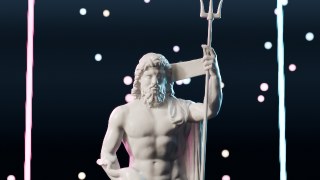 |
|
48 · Rolling Flicker BarFilming a screen: a soft band rolls through the frame from the refresh-rate mismatch.
|
|
Screens & Displays |
| Control |
Default |
Range |
What it does |
| Amount |
0.45 |
0 – 1 |
|
| Width |
0.25 |
0.01 – 1 |
|
| Bright Bar |
Off |
|
Bright instead of dark band |
| Animate |
On |
|
Let the effect move on its own. Turn off to freeze it for stills or keyframing |
| Speed |
0.4 |
0 – 10 |
Animation speed multiplier |
| Seed |
0 |
0 – 9999 |
Change for a different random pattern |
| Mix |
1 |
0 – 1 |
Blend between the input and the effect |
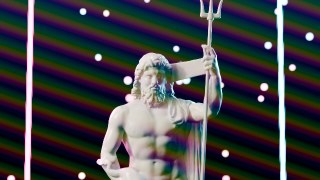 |
|
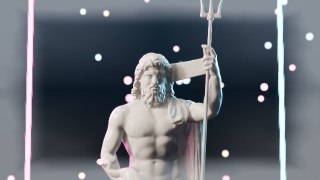
49 · Screen MoiréCamera-on-screen interference: rainbow ripple patterns that crawl over the picture.
|
|
Screens & Displays |
| Control |
Default |
Range |
What it does |
| Amount |
0.6 |
0 – 2 |
|
| Frequency |
120 |
10 – 600 |
|
| Angle |
0.05 |
-1 – 1 |
|
| Color |
0.7 |
0 – 1 |
Rainbow vs mono ripples |
| Drift |
0.2 |
0 – 2 |
Ripple crawl speed |
| Animate |
On |
|
Let the effect move on its own. Turn off to freeze it for stills or keyframing |
| Speed |
1 |
0 – 10 |
Animation speed multiplier |
| Seed |
0 |
0 – 9999 |
Change for a different random pattern |
| Mix |
1 |
0 – 1 |
Blend between the input and the effect |
 |
|
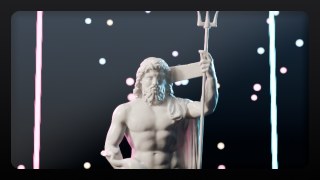
50 · Backlight BleedLCD clouding and panel glow: light leaks in from the screen edges, most visible in dark scenes.
|
|
Screens & Displays |
| Control |
Default |
Range |
What it does |
| Amount |
0.35 |
0 – 2 |
|
| Spread |
0.3 |
0.01 – 1 |
|
| Tint |
Color |
|
|
| Seed |
0 |
0 – 9999 |
Change for a different clouding pattern |
| Mix |
1 |
0 – 1 |
Blend between the input and the effect |
 |
|
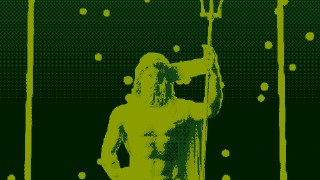
51 · Monitor BezelFrames the image inside a monitor: rounded screen, bezel, inner shadow and a glass reflection.
|
|
Screens & Displays |
| Control |
Default |
Range |
What it does |
| Border |
0.06 |
0 – 0.3 |
|
| Radius |
0.05 |
0 – 0.3 |
|
| Bezel Color |
Color |
|
|
| Inner Shadow |
0.5 |
0 – 1 |
|
| Reflection |
0.12 |
0 – 1 |
|
| Mix |
1 |
0 – 1 |
Blend between the input and the effect |
 |
|
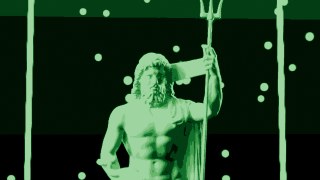
52 · Retro PixelRetro game screens: chunky pixels snapped to a 4-colour, CGA, EGA or free palette with ordered dithering and outlines.
|
|
Screens & Displays |
| Control |
Default |
Range |
What it does |
| Palette |
0 |
0 – 3 |
0 four-colour (Colors 1-4), 1 CGA, 2 EGA 16, 3 free levels |
| Pixel Size |
4 |
1 – 64 |
|
| Dither |
0.5 |
0 – 1 |
|
| Contrast |
1 |
0.2 – 3 |
|
| Levels |
5 |
2 – 32 |
Colour levels per channel in free mode |
| Outline |
0 |
0 – 1 |
Dark outlines on cell edges |
| Grid |
0.1 |
0 – 1 |
Thin LCD pixel grid |
| Color 1 |
Color |
|
|
| Color 2 |
Color |
|
|
| Color 3 |
Color |
|
|
| Color 4 |
Color |
|
|
| Mix |
1 |
0 – 1 |
Blend between the input and the effect |
 |
|
53 · Phosphor TerminalMonochrome terminal screen in any phosphor colour: quantised tones, scanlines and glow.
|
|
Screens & Displays |
| Control |
Default |
Range |
What it does |
| Color |
Color |
|
Green P1 by default; try amber (1, 0.45, 0.02) |
| Brightness |
1.3 |
0 – 4 |
|
| Levels |
8 |
2 – 32 |
|
| Pixel Size |
2 |
1 – 16 |
|
| Scanlines |
0.4 |
0 – 1 |
|
| Glow |
0.5 |
0 – 2 |
|
| Mix |
1 |
0 – 1 |
Blend between the input and the effect |
 |
|
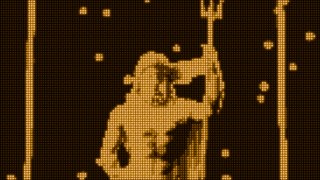
54 · Dot-Matrix SignSingle-colour LED sign: big round dots, stepped brightness, dim unlit dots and glow.
|
|
Screens & Displays |
| Control |
Default |
Range |
What it does |
| Pitch |
14 |
4 – 80 |
|
| Color |
Color |
|
|
| Levels |
4 |
2 – 16 |
|
| Dot Size |
0.8 |
0.2 – 1 |
|
| Unlit Dots |
0.06 |
0 – 0.5 |
|
| Glow |
0.7 |
0 – 3 |
|
| Contrast |
1.4 |
0.2 – 4 |
|
| Mix |
1 |
0 – 1 |
Blend between the input and the effect |
 |
|
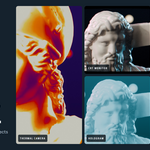
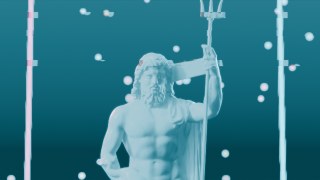
55 · HologramSci-fi hologram projection: tinted translucent image, moving scanlines, flicker and glitch tears.
|
|
Screens & Displays |
| Control |
Default |
Range |
What it does |
| Color |
Color |
|
|
| Flicker |
0.3 |
0 – 1 |
|
| Lines |
180 |
20 – 1000 |
|
| Glitch |
0.3 |
0 – 1 |
|
| Transparency |
0.4 |
0 – 1 |
|
| Edge Glow |
0.6 |
0 – 3 |
|
| Animate |
On |
|
Let the effect move on its own. Turn off to freeze it for stills or keyframing |
| Speed |
1 |
0 – 10 |
Animation speed multiplier |
| Seed |
0 |
0 – 9999 |
Change for a different random pattern |
| Mix |
1 |
0 – 1 |
Blend between the input and the effect |
 |
|
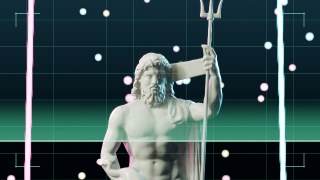
56 · HUD ScanHeads-up display overlay: tinted feed, grid, corner brackets and a sweeping scan line with trail.
|
|
Screens & Displays |
| Control |
Default |
Range |
What it does |
| Color |
Color |
|
|
| Trail |
0.25 |
0 – 1 |
|
| Grid |
0.2 |
0 – 1 |
|
| Grid Size |
12 |
2 – 60 |
|
| Brackets |
0.8 |
0 – 1 |
|
| Tint |
0.3 |
0 – 1 |
|
| Animate |
On |
|
Let the effect move on its own. Turn off to freeze it for stills or keyframing |
| Speed |
0.4 |
0 – 10 |
Animation speed multiplier |
| Seed |
0 |
0 – 9999 |
Change for a different random pattern |
| Mix |
1 |
0 – 1 |
Blend between the input and the effect |
 |
|
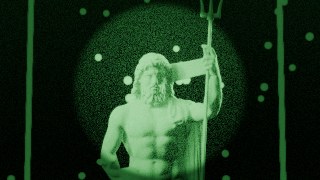
57 · Night VisionImage-intensifier goggles: amplified green image, heavy noise, blooming highlights and tube mask.
|
|
Screens & Displays |
| Control |
Default |
Range |
What it does |
| Gain |
3 |
0.5 – 20 |
|
| Noise |
0.35 |
0 – 1 |
|
| Tube Mask |
0.8 |
0 – 1 |
|
| Bloom |
0.5 |
0 – 2 |
|
| Color |
Color |
|
|
| Animate |
On |
|
Let the effect move on its own. Turn off to freeze it for stills or keyframing |
| Speed |
1 |
0 – 10 |
Animation speed multiplier |
| Seed |
0 |
0 – 9999 |
Change for a different random pattern |
| Mix |
1 |
0 – 1 |
Blend between the input and the effect |
 |
|
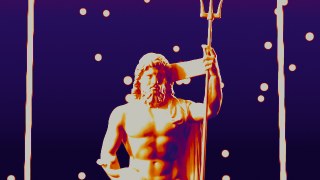
58 · Thermal CameraThermal imaging false colour: ironbow, white-hot or rainbow palettes mapped from brightness.
|
|
Screens & Displays |
| Control |
Default |
Range |
What it does |
| Palette |
0 |
0 – 2 |
0 ironbow, 1 white hot, 2 rainbow |
| Contrast |
1 |
0.2 – 4 |
|
| Blur |
2 |
0 – 20 |
|
| Invert |
Off |
|
|
| Noise |
0.1 |
0 – 1 |
|
| Animate |
On |
|
Let the effect move on its own. Turn off to freeze it for stills or keyframing |
| Speed |
1 |
0 – 10 |
Animation speed multiplier |
| Seed |
0 |
0 – 9999 |
Change for a different random pattern |
| Mix |
1 |
0 – 1 |
Blend between the input and the effect |
 |
|
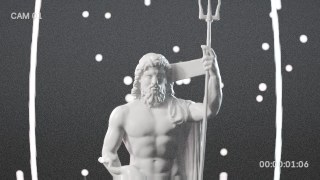
59 · CCTV FeedSecurity camera feed: low-res washed image, wide-angle bend, noise, editable camera label and running clock.
|
|
Screens & Displays |
| Control |
Default |
Range |
What it does |
| Label |
CAM 01 |
|
|
| Noise |
0.25 |
0 – 1 |
|
| Resolution |
3 |
1 – 16 |
Pixel size of the low-res sensor |
| Desaturate |
0.7 |
0 – 1 |
|
| Barrel |
0.15 |
0 – 1 |
|
| Text Size |
0.045 |
0.01 – 0.2 |
|
| Show Clock |
On |
|
|
| Animate |
On |
|
Let the effect move on its own. Turn off to freeze it for stills or keyframing |
| Speed |
1 |
0 – 10 |
Animation speed multiplier |
| Seed |
0 |
0 – 9999 |
Change for a different random pattern |
| Mix |
1 |
0 – 1 |
Blend between the input and the effect |
 |
|
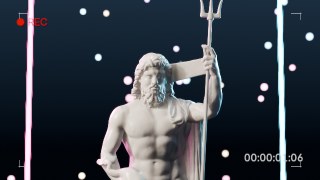
60 · REC ViewfinderCamcorder viewfinder burn-in: blinking REC label, corner marks and running timecode, all editable.
|
|
Screens & Displays |
| Control |
Default |
Range |
What it does |
| Label |
● REC |
|
|
| Size |
0.055 |
0.01 – 0.3 |
|
| Text Color |
Color |
|
|
| Label Color |
Color |
|
|
| Blink Rate |
1 |
0 – 10 |
Blinks per second (0 = always on) |
| Timecode |
On |
|
|
| Corner Marks |
0.8 |
0 – 1 |
|
| Animate |
On |
|
Let the effect move on its own. Turn off to freeze it for stills or keyframing |
| Mix |
1 |
0 – 1 |
Blend between the input and the effect |
13Troubleshooting
The image is black or unchanged
Make sure the compositor is turned on (Compositing workspace, Use Nodes) and that the stack is connected to the Group Output or Composite node. Press Before / After twice to rewire the stack.
An effect looks too strong or too weak
Very bright renders push glow effects harder. Raise the effect's Threshold, lower Mix, or lower exposure before the stack.
The look changes between preview and final render
Check that both use the same frame and that Animate is on or off as you expect. Resolution changes do not change the look.
Rendering is slow
Switch the compositor device to GPU, mute effects you are not using, and avoid stacking several large blurs (Dreamy Glow, Black Mist, Halation) at full strength.
I edited a group and broke it
Use Rebuild Effect Groups from the panel menu. Your stack keeps its values.
14Changelog
2.0.0
Rebuilt from scratch for motion design: 60 effects in three families, 16 new presets, animated by default with the Animate switch, resolution independence, HDR-safe glows, favorites, Surprise Me, copy and paste stacks, paste to selected strips, and the Ctrl Alt E pie menu.
Post Alchemy FX 2.0 · by LarkLabQuestions? Message LarkLab on Superhive.
 LarkLab