Print Fix
 Sonneblom Digitaal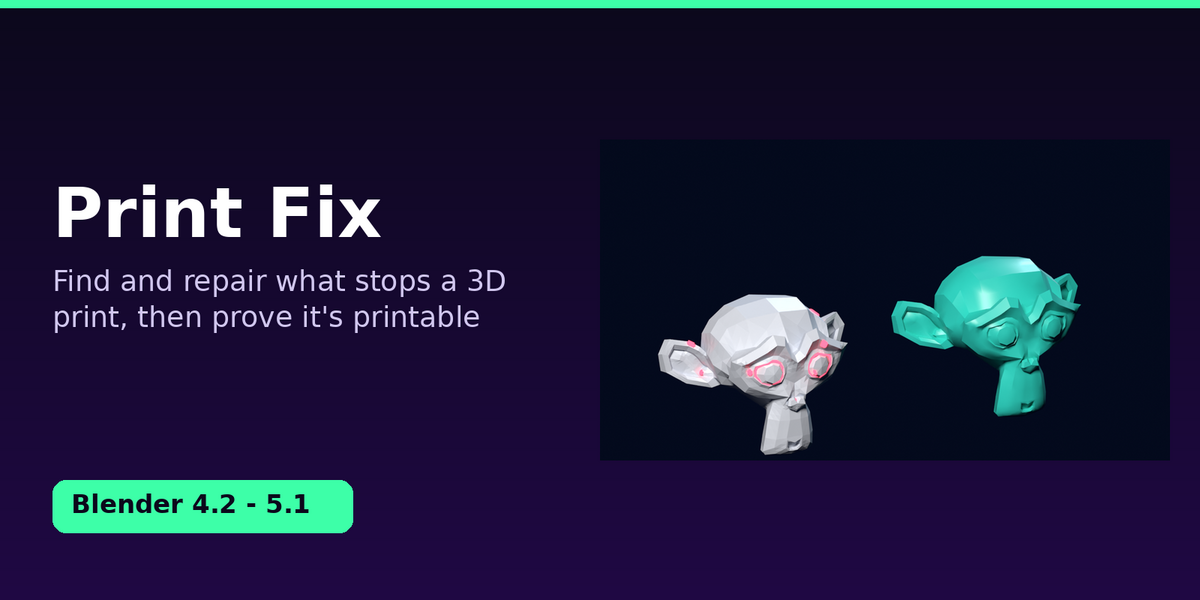


Version 1.0.0 · Blender 4.2 LTS and newer · Guide
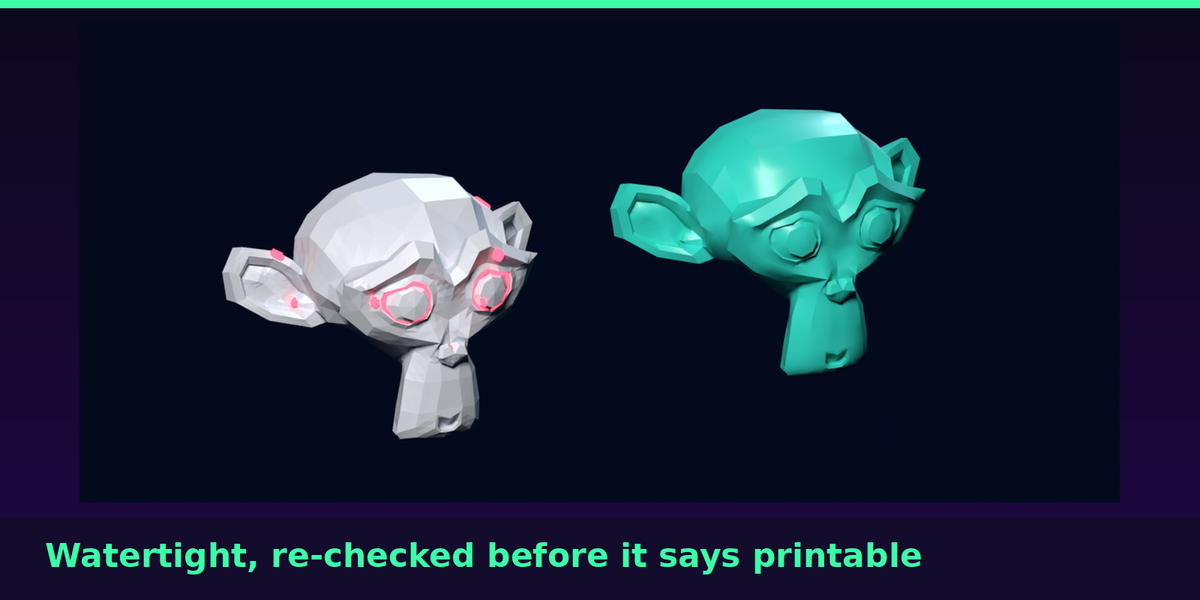
Print Fix finds what would stop a model printing, repairs a copy of it, and then checks the copy again. It only says "printable" when the result really passes every check. Your original is hidden, never changed.
1. Install
- Unzip the Superhive download (
print-fix-v1.0.0.zip). Inside are the add-on, this guide and the sample model. - Do not unzip
printfix-1.0.0.zip. Blender installs it as a zip. - In Blender: Edit → Preferences → Get Extensions, open the small drop-down arrow at the top right, choose Install from Disk… and pick
printfix-1.0.0.zip. - Make sure the add-on is enabled (tick box).
- In the 3D viewport press N and open the Print Fix tab.
It has no dependencies: it only uses what ships with Blender.
2. Try it in two minutes
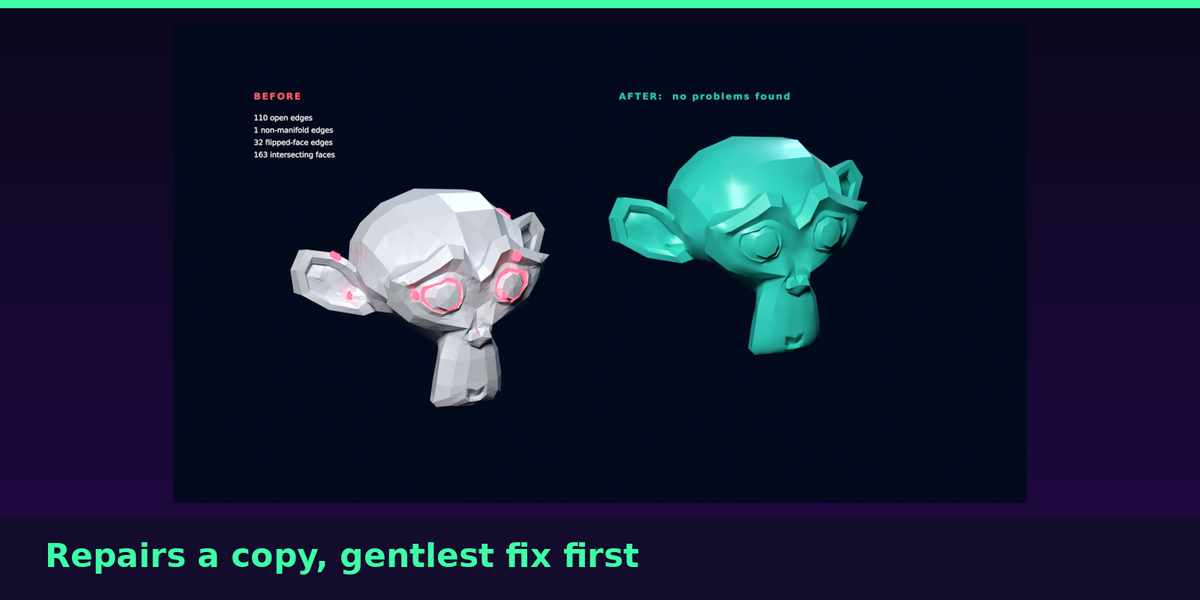
The download includes sample_models/damaged_suzanne_300mm.stl, a 300 mm Suzanne that is damaged the way real models are: holes, flipped faces, a stray face, and eyes that cut through the head.
- File → Import → STL and choose the sample.
- With it selected, open the Print Fix tab and set 1 Blender unit = to 1 mm. Do this for every STL you import: STL files have no units and are almost always in millimetres, but Blender's default scene counts one unit as one metre.
- Click Check Model. On the sample it reports:
110 open edges, 1 non-manifold edges, 32 flipped-face edges, 163 intersecting faces. - Click Make Printable. A copy called
damaged_suzanne_300mm_printableappears, the original is hidden, and the panel shows Before and After with the steps taken. On the sample: no problems found, using: recalculate normals, remove 1 dangling fin face, fill holes (10 new faces), merge intersecting shells with an exact boolean union. It takes about a second. - Not happy? Discard Fixed Copy deletes the copy and shows the original again.
3. What each problem means
| Reported as | What it is | Stops a print? |
|---|---|---|
| open edges | Holes: edges that belong to only one face. | Yes |
| non-manifold edges | Three or more faces meet at one edge (for example a stray fin). | Yes |
| flipped-face edges | Neighbouring faces point opposite ways, so inside and outside disagree. | Yes |
| inside-out shells | A whole solid whose faces all point inward. | Yes |
| solids inside solids | A solid buried fully inside another one, doubling its volume. | Yes |
| intersecting faces | Surfaces that pass through each other (for example Suzanne's eyes). | Yes |
| no volume | A flat sheet, or a surface that encloses nothing. | Yes |
| loose vertices / loose edges | Stray points and lines not attached to any face. | No, but they are removed |
| duplicate vertices | Points at the same place that are not joined. | No, but they are welded |
| zero-area faces | Faces with no surface. | No |
A hollow model with an inner cavity is not a problem, and Print Fix leaves the cavity alone.
4. What Make Printable does, in order
It works on a copy, from gentlest to most drastic, and stops at the first step that gives a printable mesh:
- Remove loose vertices and edges.
- Weld duplicate vertices (default: closer than 0.01 mm).
- Make all faces point the same way, and turn any inside-out solid right way out.
- Remove dangling fin faces.
- Fill holes.
- Remove a solid that sits completely inside another (its volume is already covered).
- Merge intersecting shells with Blender's exact boolean union.
- Last resort, if you allow it: rebuild the surface from a voxel grid. The result is always closed, but detail smaller than the voxel size is lost, and the change in volume is measured and reported. If the volume would change by more than 3% it is refused.
Every result is checked again with the same tests before it is called printable. If it cannot be made printable, you get a message saying what is still wrong, and nothing is created. If a model was already printable and tidying it would have broken it (for example two solids that only touch along an edge), it is left exactly as it was.
5. Settings
| Setting | Default | What it does |
|---|---|---|
| 1 Blender unit = | Auto | Auto follows Scene → Units (in Blender's default scene, 1 unit = 1 metre). For STL imports choose 1 mm. |
| Weld distance | 0.01 mm | Points closer than this count as the same point. |
| Report walls thinner than | 1 mm | Check Model counts faces whose wall is thinner than this and reports the thinnest wall. It only reports; it never changes the model. 0 turns it off. |
| Allow rebuild as last resort | On | Permits step 8 above. Turn it off if you would rather get an error than lose any detail. |
| Rebuild voxel size | 0 (automatic) | Chooses the voxel size from the model's size when 0. |
Select Problem Edges (in Edit Mode) selects the open and non-manifold edges so you can fix them by hand instead.
6. Works with Bed Fit Splitter
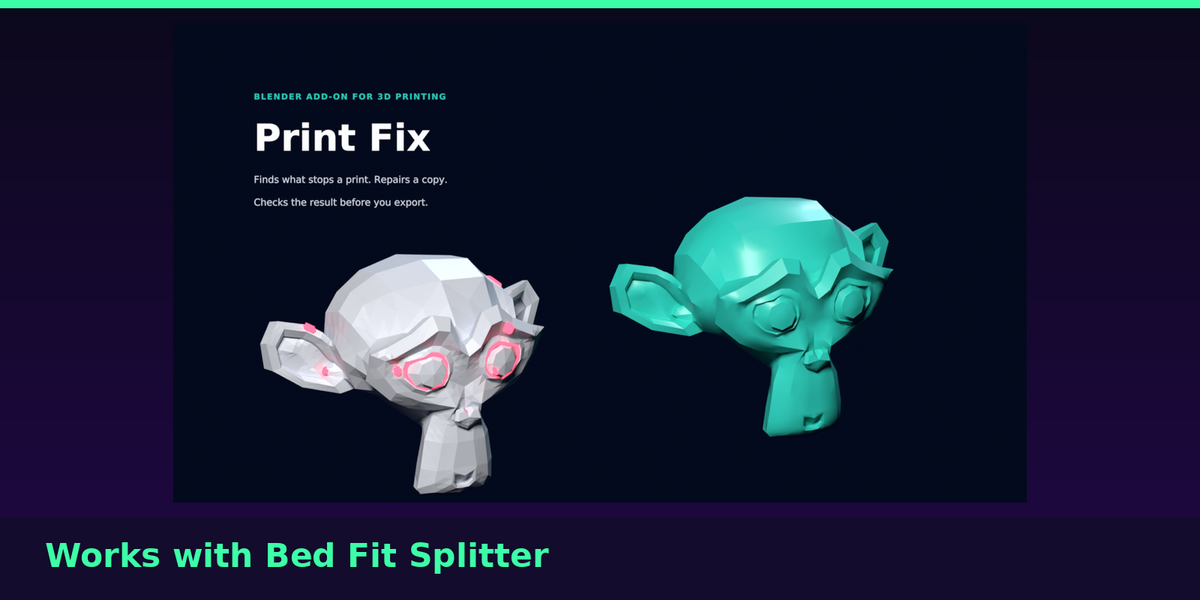
Bed Fit Splitter (a separate add-on that cuts big models to fit your printer bed) refuses models that are not watertight. Run Print Fix first, select the ..._printable copy, then run Bed Fit Splitter. On the included sample, Bed Fit Splitter refuses the raw model (111 open or non-manifold edges) and, after Print Fix, splits it into 2 parts with 3 dowels and no warnings on a 220 x 220 x 250 mm bed. Print Fix works on its own too.
7. Requirements and limits (please read)
- Holes are filled with flat triangles. That is right for small holes. For a large or strongly curved missing area, model the missing surface yourself (Select Problem Edges helps you find it); Print Fix will make the result watertight, not beautiful.
- It cannot invent a solid from a sheet. A flat surface with no thickness is refused with advice (add a Solidify modifier first).
- Rebuild loses fine detail (below the voxel size). It is the last step and can be switched off.
- Thin walls are reported, not fixed. Print Fix tells you where walls are below your limit; thickening them changes the design, which is your call.
- Overlapping shells are merged into one solid. If you meant them to stay separate parts, split the model before running it.
- The result is a baked copy in world space (modifiers applied, object scale applied). The original keeps its own transform.
- It does not check overhangs, supports or print orientation; your slicer does that.
- Tested on Blender 4.2.9 LTS and 5.1.2 on Linux. It is plain Python on Blender's own libraries, so Windows and macOS should behave the same, but they have not been tested here.
8. Troubleshooting
| Message | What to do |
|---|---|
| This mesh has no volume… | It is a flat sheet. Give it thickness (Solidify modifier), then run again. |
| Could not make this mesh printable automatically (still: …) | Turn on Allow rebuild if it is off, or use Select Problem Edges and repair those areas by hand. Nothing is created in this case, so you lose no work. |
| Left unchanged: the mesh is already printable… | Nothing was wrong that could be fixed safely; the copy is identical to the original. |
| Model measures hundreds of metres | Set 1 Blender unit = to 1 mm (see step 2). The message includes this hint when a model looks that large. |
| The rebuild changed my model too much | Rebuilds are refused above 3% volume change. Set a smaller Rebuild voxel size, or turn the rebuild off and fix by hand. |
9. Support and licence
Message us through Superhive or open an issue at https://github.com/RoseCompanion/print-fix/issues. If it does not work for your model, tell us what happened and send the model if you can.
Print Fix is released under the GNU General Public License v3 or later, like other Blender add-ons that use Blender's Python API. See LICENSE.txt. You may use it commercially.
Have questions about this product?
Login to message
| Published | 5 days ago |
| Blender Version | 4.2 - 5.1 |
| Extension Type | N/A |
| Render Engine Used | Cycles |
| License | GPL |