Print Pack Batch - STL & 3MF Folder Check, Fix and Export
 Sonneblom Digitaal
Install
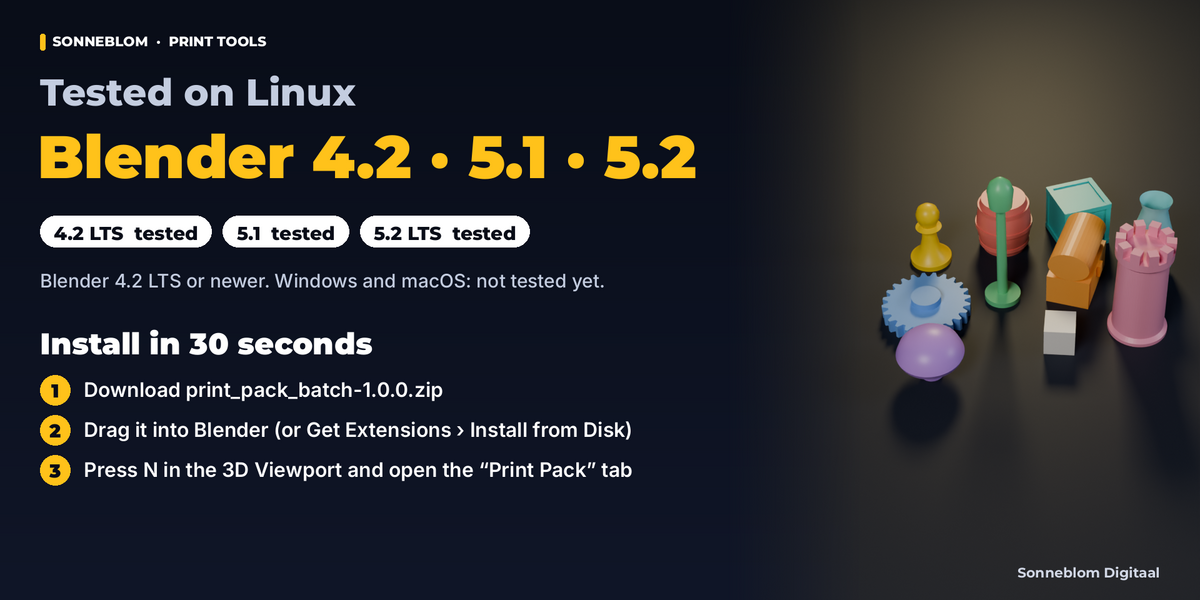
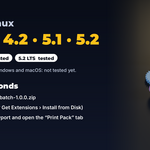
Blender 4.2 or newer (recommended): extension zip. Download print_pack_batch-1.0.0.zip. In Blender open Edit > Preferences > Get Extensions, click the arrow menu at the top right and choose Install from Disk…, pick the zip (or drag the zip into the Blender window). The add-on is enabled straight away.
Legacy add-on zip: print_pack_batch-1.0.0-legacy.zip installs via Edit > Preferences > Add-ons, arrow menu > Install from Disk…, then tick Print Pack Batch. Use one of the two, not both.
The panel is in the 3D Viewport sidebar: press N and open the Print Pack tab.
Uninstall
Extension: Edit > Preferences > Get Extensions, find Print Pack Batch, arrow menu > Uninstall. Legacy: Edit > Preferences > Add-ons, find it, arrow menu > Uninstall. Disabling or removing it unregisters everything (panels, operators, settings, handlers); a running batch is stopped first and its report written. Presets: the legacy add-on keeps them in config/print_pack_batch/presets until you delete them. For the extension they live in Blender's extension user folder, which Blender may delete on uninstall. Copy the .json files first if you want to keep them (the folder is shown in the add-on preferences). Exports and reports are your files and are never touched.
Quick start
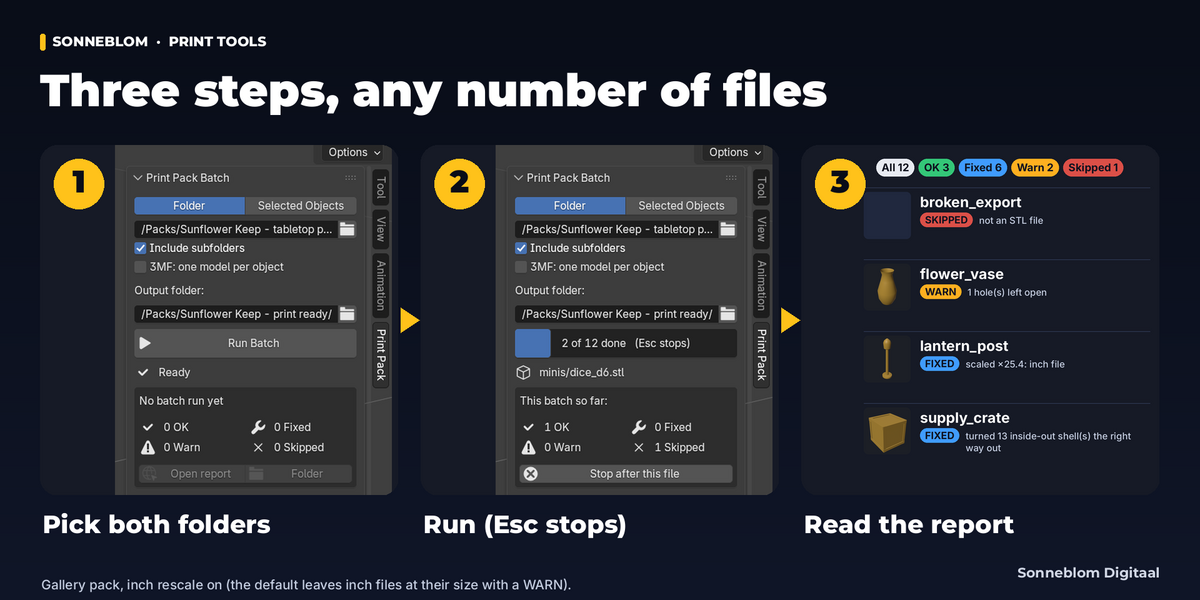
- Print Pack tab > Folder > pick the folder with your STL / OBJ / PLY / 3MF files. Tick Include subfolders if the pack has folders.
- Output folder: pick an empty or new output folder (it is created if it does not exist).
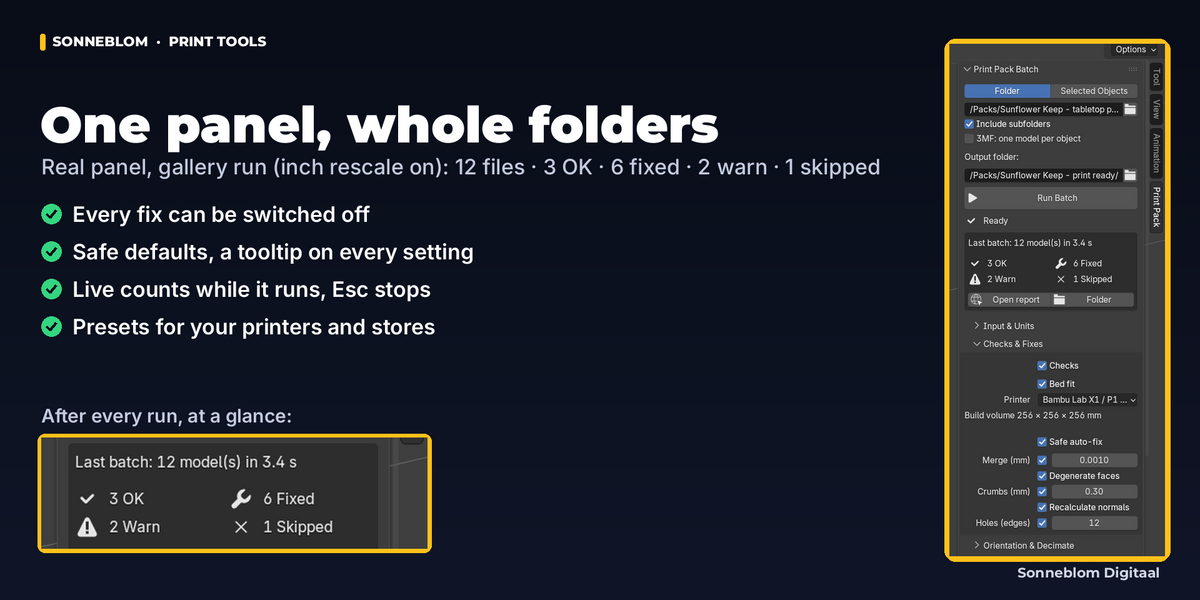
- Checks & Fixes: choose your printer (bed fit). The defaults are safe for most packs; see Limits for the two exceptions (a small opening meant to stay open, and the size guess for sub-millimeter parts).
- Press Run Batch. The status bar shows the file or object being processed; Esc stops after the current one.
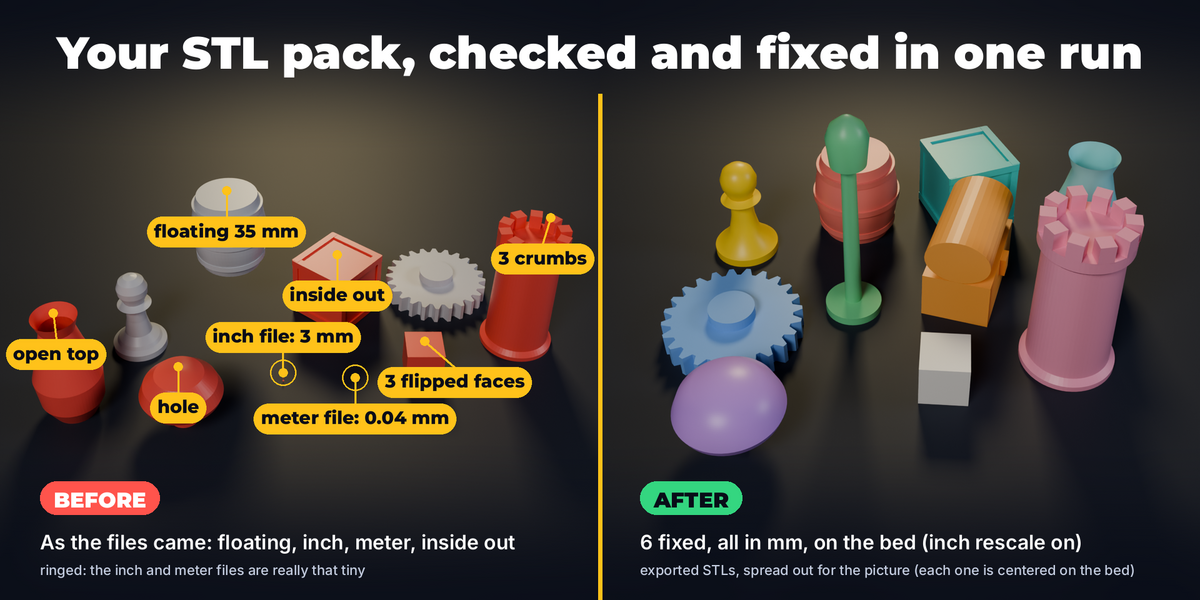
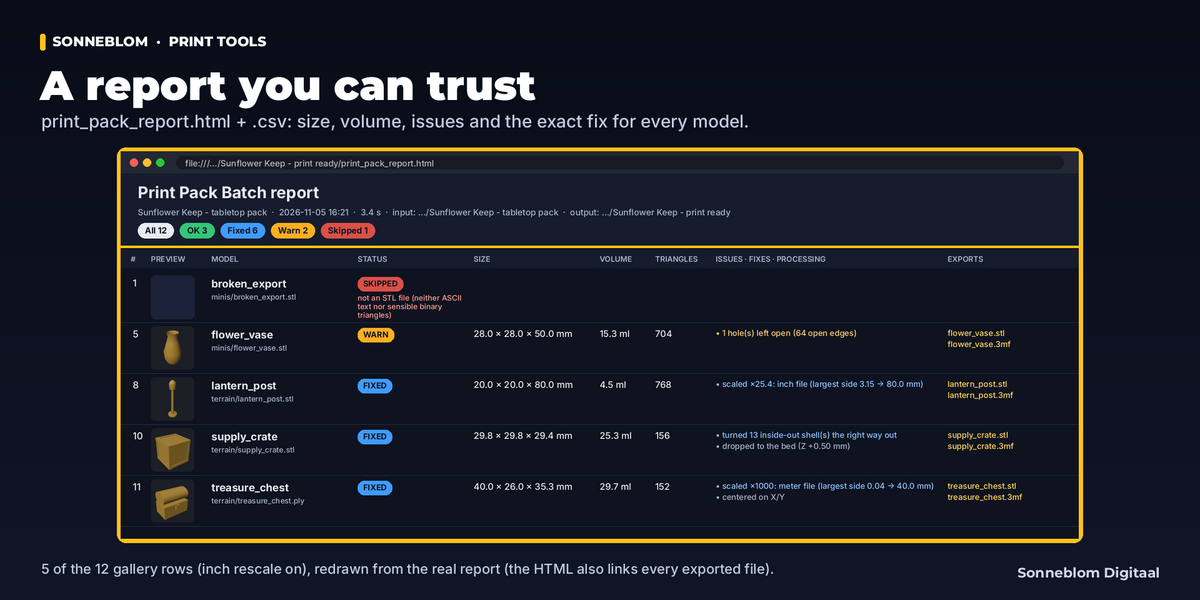
- Press Open report. Every model has a status: OK nothing was needed, FIXED something was repaired or rescaled (listed), WARN look at it (the issue is listed), SKIPPED not exported (the reason is listed).
What gets written
- Per model, next to each other:
name.stl(binary),name.3mf(with the preview as a thumbnail of at most 256 px; none when Previews are off),name.obj(if on),name.png(preview). With Mirror subfolders the input's subfolders are recreated. - In the output folder:
-
Reports:
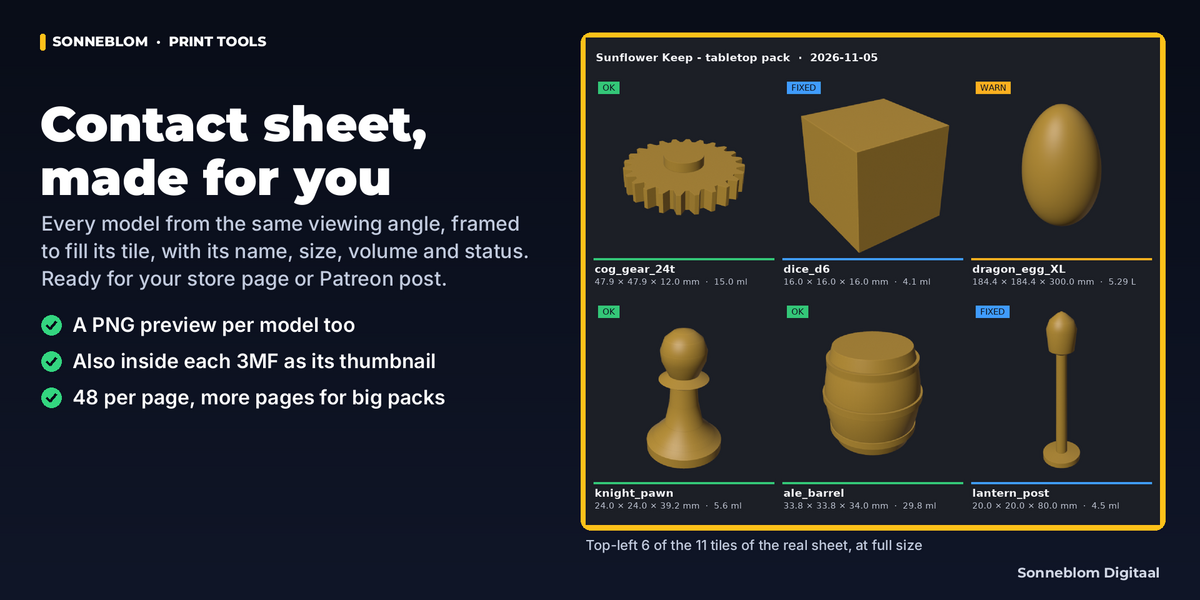
print_pack_report.html,print_pack_report.csv(UTF-8, opens in Excel) andprint_pack_contact_sheet.png(48 models per page, rounded up to full rows:_2.png,_3.pngfor more). Each report and sheet this run writes replaces the earlier one, and sheet pages left over from a bigger earlier run are removed; a report or sheet that is switched off is left from the earlier run (delete it if it would confuse). -
Reserved names: a model called
print_pack_reportorprint_pack_contact_sheet(orprint_pack_contact_sheet_2, …) in the output folder is exported as…_model. -
Journal: a hidden
.print_pack_journal.csvrecords every model right after it is exported. It lists your file names and statuses: leave it out when you zip the folder for customers. To forget earlier runs, delete both the journal and print_pack_report.csv. Run one batch per output folder at a time: two Blenders writing into the same folder can lose each other's journal rows. - Re-runs: if Blender is closed or crashes during a long batch, run it again with If the file exists = Skip model and it continues where it stopped. The report keeps the earlier rows of the models that were not processed again (marked "from an earlier run") and their previews stay on the contact sheet. Esc in such a run works the same: once the current file or object is done, the earlier rows of the files not reached (also SKIPPED ones) are added in short steps, so the window stays responsive (the panel shows Stopping: writing the report). The live counts include the unchanged models. If the batch is stopped by File > Open or by disabling the add-on, those rows are added without reading their previews again: the HTML links the PNGs and their contact-sheet tiles stay empty until the next run. Stopping a batch before its first file leaves the earlier report alone.
-
Reports:
- Files are written to a temporary
….ppb-partfile first and renamed when complete, so a full disk never leaves half files.
Settings
Every setting has a tooltip in Blender. Defaults as shipped:
| Setting | Default | What it does |
|---|---|---|
| Main panel | ||
| Source | Folder | What to process. |
| Input folder | (empty) | Folder with the model files. It is only read, never written to. |
| Include subfolders | off | Also process files in subfolders of the input folder. |
| 3MF: one model per object | off | Export every object of a 3MF file as its own model instead of merging the whole plate into one model. |
| Output folder | (empty) | Where exports, previews and reports go. Created if missing. Must not be the input folder. |
| Input & Units (sub-panel) | ||
| Include | *.stl;*.obj;*.ply;*.3mf | File name patterns to process, separated by ; or , (e.g. *.stl;base_*.obj). They match file names only, not folders. Not case-sensitive. |
| Skip hidden files | on | Skip files and folders starting with a dot and __MACOSX folders (macOS '._name.stl' junk in zip packs). |
| Unit fix | Detect + rescale | What to do with files that are probably not in millimeters (STL, OBJ and PLY have no unit; 3MF files have one and are never guessed). |
| Meter if largest side below | 1 | A file whose largest side is below this many mm is treated as a meter file (×1000). Range 0.0001 to 100. |
| Inch if largest side below | 5 | A file whose largest side is below this many mm (but above the meter limit) is treated as a probable inch file. Range 0.01 to 1,000. |
| Rescale inch files | off | In Detect + rescale: also multiply probable inch files by 25.4. Off by default because small real parts (pins, tokens) look like inch files. |
| File unit | Inch (×25.4) | Unit the files are in (Force scale). |
| Factor | 1 | Multiply every coordinate by this (Force scale, Custom). Range 0.000001 to 1,000,000. |
| 1 Blender unit = | Automatic | Size of one Blender unit for Selected Objects. Files are always read in millimeters (3MF: the file's unit). |
| Checks & Fixes (sub-panel) | ||
| Checks | on | Report open edges/holes, non-manifold edges, inconsistent or inside-out normals, zero-area faces (when not cleaned) and bed fit. |
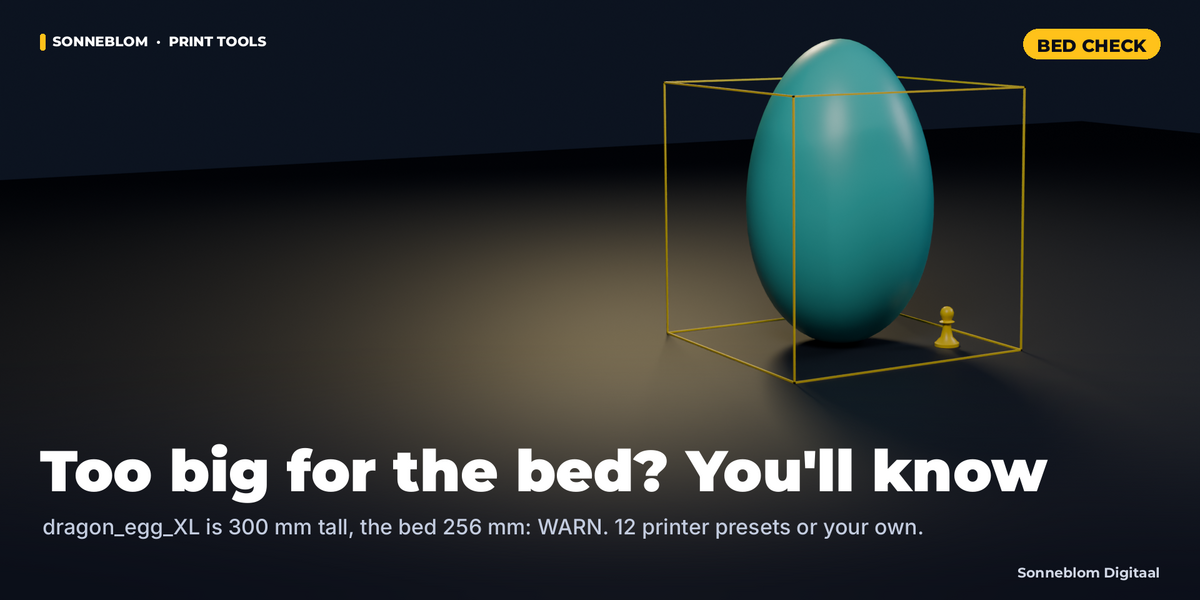
| Bed fit | on | Warn when a model does not fit the printer's build volume. |
| Printer | Bambu Lab X1 / P1 / A1 (256 × 256 × 256 mm) | Printer build volume for the bed-fit check. |
| X | 256 | Build volume X (mm). Range 1 to 10,000. |
| Y | 256 | Build volume Y (mm). Range 1 to 10,000. |
| Z | 256 | Build volume Z (height, mm). Range 1 to 10,000. |
| Safe auto-fix | on | Run the fixes below. Every fix only touches what is broken; sources are never changed. |
| Merge by distance panel row: Merge (mm), checkbox |
on | Weld vertices that fall in the same grid cell of this size (roughly: vertices closer than this distance; closes hairline cracks). |
| Distance panel row: Merge (mm), value |
0.001 | Merge distance in mm. Range 0 to 1. |
| Degenerate faces | on | Remove duplicate faces and collapse zero-area faces that have a tiny edge (long thin slivers are kept: removing them would open the mesh). |
| Remove crumbs panel row: Crumbs (mm), checkbox |
on | Delete loose parts smaller than the size and smaller than 2% of the model (sculpt specks). The largest part always stays; skipped when the file is probably not in mm. |
| Smaller than panel row: Crumbs (mm), value |
0.3 | Loose parts whose bounding box diagonal is below this (mm) are deleted. Range 0 to 100. |
| Recalculate normals | on | Make face directions consistent and point them outwards; turns inside-out parts the right way out. |
| Fill holes panel row: Holes (edges), checkbox |
on | Close holes whose border has at most the given number of edges. Bigger openings and the outline of a flat sheet are left open; a small opening meant to be open (a 12-sided pipe end) is closed too. |
| Up to edges panel row: Holes (edges), value |
12 | Largest hole border (edges) that is filled. Range 3 to 1,000. |
| Orientation & Decimate (sub-panel) | ||
| Lay flat | off | Rotate so the largest flat outer face lies on the bed. |
| Drop to bed | on | Move so the lowest point is at Z = 0. |
| Center on X/Y | on | Move the bounding box center to X = 0, Y = 0. |
| Decimate | Off | Reduce heavy models (Blender's Decimate collapse). Only models above the limit are touched. |
| Max triangles | 200,000 | Models with more triangles are decimated to this number. Range 100 to 50,000,000. |
| Max MB | 25 | Largest binary STL size in MB (1 MB = 1,000,000 bytes, about 20,000 triangles). Range 0.01 to 4,000. |
| Export (sub-panel) | ||
| STL | on | Binary STL in millimeters. |
| 3MF | on | 3MF (core spec, unit millimeter) with the preview as thumbnail. |
| OBJ | off | Wavefront OBJ in millimeters. |
| Name | {name} | Output file name. Tokens: {name} model name, {index} number, {date} today, {size} e.g. 52x40x31mm, {folder} subfolder, {source} source file name. Illegal characters become _. |
| If the file exists | Overwrite | What to do when an output file is already there (from an earlier run). |
| Mirror subfolders | on | Recreate the input's subfolders in the output folder. |
| Previews & Report (sub-panel) | ||
| Preview images | on | Render a PNG per model (Workbench) next to its exports. Uses Blender's renderer on a temporary scene of its own: your render of your scene stays in the Render Result; other add-ons' render handlers run once per model. |
| Size | 512 | Preview width and height in pixels. Range 64 to 2,048. |
| Background | #1c1f26 | Preview and contact sheet background color. |
| Model color | #ffc752 | Color of the model in the previews. |
| Contact sheet | on | One PNG with every preview, its name, size and status (48 per page, rounded up to full rows; more pages for big packs). |
| Columns | 6 | Previews per row on the contact sheet. Range 1 to 12. |
| CSV | on | print_pack_report.csv (opens in Excel / Sheets; UTF-8). |
| HTML | on | print_pack_report.html: one page with thumbnails, sizes, issues and fixes. Self-contained up to 500 models; above that the thumbnails link to the preview PNGs next to it. |
| Add-on preferences (Edit > Preferences > Add-ons > Print Pack Batch) | ||
| Default output folder | (empty) | Used when the scene's Output folder is empty (handy for print farms). Must be an absolute folder: it is used for every .blend. |
| Open the report when a batch finishes | off | Open print_pack_report.html in your browser after a batch run from the panel (never in background mode). |
Printer presets:
- Bambu Lab X1 / P1 / A1 (256 × 256 × 256 mm)
- Bambu Lab A1 mini (180 × 180 × 180 mm)
- Bambu Lab H2D, single nozzle (325 × 320 × 325 mm)
- Prusa MK4 / MK4S (250 × 210 × 220 mm)
- Prusa MINI (180 × 180 × 180 mm)
- Prusa XL (360 × 360 × 360 mm)
- Creality Ender-3 V2 / V3 (220 × 220 × 250 mm)
- Creality K1 / K1C (220 × 220 × 250 mm)
- Voron 2.4 350 (350 × 350 × 340 mm)
- Elegoo Saturn 4 Ultra, resin (218 × 123 × 220 mm)
- Elegoo Mars 5 Ultra, resin (153 × 77 × 165 mm)
- Anycubic Photon Mono M5s, resin (218 × 123 × 200 mm)
- Custom (your own size)
Name pattern tokens:
-
{name}the model name: the file name without extension; for split 3MF filesfile_object; for objects the object name. -
{index}the number of the source file in this batch (001, 002…). Adding a file earlier in the sort order renumbers the later ones, so do not combine {index} with Skip model re-runs. -
{date}today, e.g. 2026-11-05. Not with Skip model re-runs or a resume after a crash: on another day every name changes, so the whole pack is exported again. -
{size}e.g.52x40x31mm(one decimal below 10 mm:2.0x0.5x12mm). With Skip model re-runs, a changed unit or decimate setting changes the names, so those models are exported again. -
{folder}the subfolder (slashes become _).{source}the source file name without extension (Selected Objects: the full object name, ".001" included).
How the pipeline works (per file)
- Read (STL, OBJ, PLY, 3MF). Coincident corners are joined, collapsed triangles are dropped.
- Units: 3MF files are converted from their own unit. STL/OBJ/PLY: meter files (largest side below the meter limit) are multiplied by 1000; probable inch files by 25.4 if Rescale inch files is on, otherwise they get WARN; Force scale multiplies every STL/OBJ/PLY file (3MF files keep their own unit).
- Fixes, in this order: merge by distance (vertices in the same grid cell of that size), duplicate faces, degenerate faces, crumbs, consistent normals, fill holes, inside-out shells. Degenerate faces with a tiny edge are collapsed; long thin slivers are kept because removing them would change the shape. Crumbs must be smaller than the size and than 2% of the model, and are kept when the file is probably not in mm. Holes are closed with a centroid fan (not the outline of a flat sheet). Inside-out shells are turned outwards; an inner shell of a hollow model stays a cavity.
- Orientation: lay flat (optional), drop to bed, center.
- Decimate (optional), then the final checks and bed fit.
- Preview, export, report line.
Selected Objects
Source = Selected Objects processes each selected mesh, curve, surface, metaball or text object as drawn: modifiers applied, in world space (location, rotation and scale, also negative scale). Everything it instances is included: a collection instance (this is how linked assets usually arrive), Geometry Nodes, particle and vertex/face instances. Linked library objects and collections work (they are only read). Cameras, lights and empties without instances are listed as SKIPPED. The objects themselves are not changed. Objects are looked up again for every step, so deleting or undoing during a batch gives a clear "deleted" row instead of a crash.
Size of a Blender unit (1 Blender unit =, default Automatic): the untouched default scene (Metric, Unit Scale 1.0, Length in meters) counts 1 unit as 1 mm, exactly like Blender's own STL export and import. So a model imported from an STL comes out at its original size. A scene with a changed Unit Scale follows it (0.001 = 1 mm per unit, 0.01 = 10 mm). So does a scale-1.0 scene that shows lengths in mm, cm, µm or km (you model in real meters), and an Imperial scene. The panel shows the factor in use under the selection count, for example "1 Blender unit = 1 mm (like STL export)" or "1 Blender unit = 1 mm (Scene units)". Choose 1 mm / 1 cm / 1 m / 1 inch to override. A model smaller than the meter limit gets WARN ("very small: check 1 Blender unit =").
Workflows
- Release a Patreon / store pack: Include subfolders on, Mirror subfolders on, STL + 3MF, previews on. Upload the exports and use the PNGs and the contact sheet on your store page.
- Check a customer folder (print farm): export formats off = a check-only run that writes just the report and previews. Click the Warn button in the HTML report to show only those rows.
-
Only new files: If the file exists = Skip model. Re-running on a growing folder exports only the new models (split 3MFs, {size} names and Selected Objects are processed again to learn their names, but existing files are kept); the report keeps the earlier rows. Skip model never replaces an existing file. A model whose export files all exist is skipped and its earlier row stays in the report. If some of its files are missing (a format turned on later, Blender stopped while writing), only the missing files are written. If a file with the model's name exists that Print Pack did not make (your own render, say), the model is skipped. An edited source file is not exported again: use Overwrite for that. Names belong to the source file that made them. When the files named
rookwere made by an earlier run for another source (rook.stl replaced by rook.3mf, a file moved to another subfolder with Mirror subfolders off, a source left out by Include), the new model is exported asrook_2. That is the next free name; its row says so and the old files are kept. Do not use {index}, {date} or {size} in the name pattern for this (see the tokens above). - Heavy scans / sculpts: Decimate = Max STL size 25 MB keeps uploads under store limits.
-
Print farm command line (no window; the add-on must be installed and enabled in Blender's preferences, or add
--addons print_pack_batchfor the legacy zip /--addons bl_ext.user_default.print_pack_batchfor the extension before--python-expr, because Blender handles its arguments in order):
blender -b --python-exit-code 1 --python-expr "import bpy; bpy.ops.print_pack.run(input_dir='/farm/in', output_dir='/farm/out', preset='farm')"
input_dir,output_dir,preset(a preset name or a path to a preset .json),source(FOLDER or SELECTED) andpreviews('ON' or 'OFF') are optional. The summary is printed; the exit code is 1 when the batch could not start or stopped with an error (check the report and the output folder for what was written) and 0 when it ran to the end. Per-model results are in the CSV. The Help sub-panel has a Copy Command Line button. On Windows write paths with forward slashes (input_dir='C:/Packs/in') or as raw strings (input_dir=r'C:\Packs\in'): a plain backslash path is broken by Python's escapes. Previews use Blender's renderer, which needs a working OpenGL driver; a server without a GPU or display usually has none (--gpu-backendonly chooses the API, it does not provide a GPU). Turn previews off there withpreviews='OFF'(or in a preset):
blender -b --addons print_pack_batch --python-exit-code 1 --python-expr "import bpy; bpy.ops.print_pack.run(input_dir='/farm/in', output_dir='/farm/out', previews='OFF')"
If the first preview fails anyway, previews are turned off for the rest of the batch with one note.
Presets
Presets sub-panel: Save stores every setting except the folders as a JSON file, Load applies one (an undo step in Blender's Edit > Undo History), the bin deletes one, Reset Settings puts the defaults back. The presets folder is shown in the add-on preferences (extension: Blender's extension user folder; legacy: the config folder). Settings are stored per scene (in the .blend). To start every new file with your own settings, set them and use Blender's File > Defaults > Save Startup File; for a file you already have, or a scene added with Scene > New, use Load. The add-on never writes settings into a file by itself.
Tips
- Drop a zip-extracted pack straight in: macOS
._name.stlfiles and__MACOSXfolders are skipped (Skip hidden files). - The report's filter buttons (All / OK / Fixed / Warn / Skipped) show only those rows and work offline; the file names link to the exports.
- A model that is FIXED lists exactly what was done (e.g. "filled 1 hole(s) of up to 12 edges"). Turn a fix off if you do not want it.
- Use {index}_{name} to keep the order of a pack in the slicer (not together with Skip model re-runs: a new file renumbers the later ones; the same goes for {date} and {size}). The report's # column is the same source number.
Troubleshooting
Messages in Blender (most mean the batch did not start and nothing was written):
| Message | What to do |
|---|---|
| The Default output folder in the add-on preferences ('//…') is relative to a .blend file: set an absolute folder there | The preference is used for every .blend, so it must be an absolute folder: pick it again in Edit > Preferences > Add-ons > Print Pack Batch. |
| Cannot use the presets folder / Cannot create the presets folder / Cannot save the preset / Cannot delete the preset (…) | Blender's user folder for extensions is not writable (permissions, full disk). Fix the folder or free space; the batch itself does not need presets. |
| Choose an input folder (or switch Source to Selected Objects) | Pick a folder in the main panel. |
| Input folder not found: … / Input is not a folder: … | The path is wrong or the drive is not mounted. Pick the folder again with the folder button. |
| The input folder '//…' is relative to the .blend file, but this .blend is not saved yet (same for the output folder) | A folder starting with // is relative to the .blend (Blender's file browser writes it when Relative Path is on). Save the .blend first, or pick the folder again with Relative Path off. The panel shows where a // folder really points; after Save As it points next to the new .blend. |
| The input folder is empty: … | The folder has no files at all. |
| No supported files matching '…' in … (it has subfolders: turn on Include subfolders) | No STL/OBJ/PLY/3MF file matches the Include pattern. Check the pattern or tick Include subfolders. |
| Cannot read the input folder … | No permission to list the folder. |
| Choose an output folder (main panel, under Source), or set a default output folder in the add-on preferences | Pick an output folder, or set a default output folder in the add-on preferences. |
| The output folder is the input folder: choose another folder … | Exports are never written next to the sources. Use a different (or new) folder. |
| The output path is a file, not a folder | The output path points to a file. Choose a folder. |
| Cannot create the output folder … / The output folder is not writable: … | No permission or a read-only drive. Choose a folder you can write to. Nothing is written in this case. |
| Unknown token {…} in the name pattern / unmatched { or } | Use only {name} {index} {date} {size} {folder} {source}. |
| Nothing to do: turn on an export format, previews or a report | Everything is switched off. Turn on at least one format, previews or a report. |
| Select at least one object (or switch Source to Folder) | Source is Selected Objects but nothing is selected. |
| The selection has no mesh, curve, text or instancing objects (selected: camera, empty) | Only cameras, lights or empties are selected. Select geometry or a collection instance. |
| The output folder is inside the input folder and already holds N model file(s) that are not from an earlier batch | With Include subfolders on, those files would be inside the pack. Choose an empty or new output folder. |
| source must be FOLDER or SELECTED | Command line only: the source= argument has a typo. |
| Batch failed: <error> | An unexpected error while the batch was set up or run (a bug, or the system refused something we did not expect). What was done so far is in the journal; send us the console line that starts with 'Print Pack Batch:'. |
| A batch is already running | Wait for it or press Esc / Stop. |
| Stopped while the input folder was scanned: nothing was written | Esc was pressed while a big input folder was being scanned. Nothing was created or written; run it again when you are ready. |
| Batch stopped: … (report written for what was done) | An unexpected error. The report covers the finished files. Please send us the line that starts with 'Print Pack Batch:' from the system console. |
| Preset not found / The preset file is not valid JSON / Not a Print Pack Batch preset / Type a preset name | Check the preset name; a hand-edited preset file has a typo. |
| Preset loaded, N value(s) ignored: … | The preset has a value this version does not know (it is ignored, everything else is loaded). |
| Nothing to open yet: run a batch first / Not found (moved or deleted?) | Open report needs a finished batch; the report was moved or deleted. |
Reasons in the report (the batch carries on):
| Reason | Meaning |
|---|---|
| cannot write name.stl: … (one per format) | Every export of this model failed (disk full, no permission, a locked file): nothing was written for it. |
| not enough memory for this model / not enough memory to read this file | The model is too big for the free RAM (about 1.5 GB per million triangles). Close other programs, or decimate it in another tool first. |
| file is larger than 4 GB / 3MF model data is N GB after unzipping (limit 1 GB): split it in your slicer or export it as binary STL | Files this big are refused instead of running out of memory. |
| unsupported file type … / could not read the file (…) | Only STL, OBJ, PLY and 3MF are read; the second message means the system refused to read the file (permissions, a disconnected drive). |
| ASCII STL without any 'vertex' lines / ASCII STL without any facets / binary STL without any complete triangle | The STL has a valid start but no usable triangles: export it again. |
| OBJ has no vertices / OBJ has vertex lines that are not numbers | The OBJ is empty or damaged: export it again. |
| not a PLY file (no 'ply' header) / PLY header has no end_header / unsupported PLY format … / PLY has no vertices / PLY vertex element has no x, y, z / PLY file is truncated in element '…' | The PLY is damaged or in a variant this reader does not support (ASCII and binary little/big endian are supported): export it again as binary PLY or STL. |
| 3MF has no 3D model part (3D/3dmodel.model) / 3MF model XML is broken (…) | The 3MF package is incomplete or damaged: save it again from the slicer. |
| 3MF unit '…' is not a 3MF unit / 3MF object '…' has vertices or triangles that are missing or not numbers / 3MF transform must have 12 numbers / 3MF transform is not numbers | The 3MF breaks the 3MF specification: save it again from the slicer or CAD program. |
| 3MF components nest too deep (loop?) / 3MF build references a missing object id N | The 3MF's object structure is broken (an object that contains itself, or a build item without its object). |
| nothing left after the fixes | After joining and removing degenerate faces and crumbs no triangle was left: the file holds only slivers or dust. |
| cannot create folder … | A mirrored subfolder could not be created in the output folder (permissions, a file with that name, an illegal name). |
| file is empty (0 bytes) / file is too small to be an STL | The file has no content (a failed download or copy). |
| not an STL file (neither ASCII text nor sensible binary triangles) | The file has an .stl name but other content (often a renamed zip or HTML error page). |
| truncated file: header says N triangles, only M complete ones present | WARN, not skipped: the file was cut off. The complete triangles are used; download the file again. |
| OBJ has no faces (only points or lines) / PLY has no faces (point cloud) | Point clouds and line drawings cannot be printed. |
| not a valid 3MF (zip) file / damaged or unsupported 3MF zip / 3MF has no mesh objects with triangles / 3MF part … is missing | The 3MF is damaged, encrypted, uses an unusual zip compression, or is empty. Re-export it from the slicer or CAD program. |
| no triangles with area | Every triangle is collapsed (all corners on one point). |
| a file with this name is in the output folder and was not made by Print Pack (overwrite policy: skip): … | Skip model never touches files it did not make (also your own PNG renders): rename yours or choose another output folder. |
| already exported (overwrite policy: skip) | The export exists from an earlier run and If the file exists = Skip model. Use Overwrite to replace it. |
| an output file would overwrite a source file | Safety stop: the export name would land on one of your source files. |
| no free output name for … after 100000 tries | Safety stop: 100,000 numbered names (name_2, name_3, …) are already taken in that output folder. Choose an empty output folder or a different Name pattern. |
| not geometry (camera) / the object has no faces / the object was deleted (or undone) while the batch ran | Selected Objects: cameras, lights, empties and objects without faces are skipped; an object removed during the batch is listed. |
| output path too long for Windows (… of 259 characters): choose a shorter output folder or Name pattern | Windows only: the folder path plus the file name is too long. Choose a shorter output folder or Name pattern. |
| internal error (…) | Should not happen: please send us the console line. |
Issues and notes in the report (the model is still exported):
| Text | Meaning |
|---|---|
| stopped by an error after writing name.stl: … | WARN: an error (for example not enough memory) stopped this model after some of its files were written; those files are listed. A Skip-model re-run writes the missing files; use Overwrite to make the model again from scratch. |
| N hole(s) left open (N open edges) | WARN: open edges remain (holes longer than Holes (edges), complex openings, an open sheet). Close them in your modeling program or raise Holes (edges). |
| N non-manifold edge(s) shared by more than 2 faces | WARN: three or more faces share an edge (touching parts, internal faces). Most slicers cope; check the sliced preview. |
| normals inconsistent (N edges) / N inside-out shell(s) | WARN when fixes are off (or the mesh is non-orientable): faces point in different directions. Turn on Recalculate normals. |
| does not fit the bed X × Y × Z mm | WARN: the model is bigger than the printer chosen in Checks & Fixes > Printer (also when turned 90°). Scale it, split it, or pick your printer. |
| export failed: … | WARN: one format could not be written (disk full, a locked file); the other formats were written. |
| 3MF has no build items; used every object | WARN: the 3MF says nothing about what to print, so every object in it is used. Check the model. |
| triangle(s) with invalid vertex numbers ignored / triangle(s) with invalid coordinates (NaN/inf) ignored / some vertex numbers could not be read / N face line(s) could not be read / incomplete last facet ignored | Damaged lines in the file were left out; the rest of the model is used. Check the model in the report and the preview. |
| header triangle count is 0, read N / header says N triangles but the file holds M | A binary STL with a wrong triangle count in its header (common with some exporters): the triangles in the file are used. |
| kept name.png (not made by Print Pack): no preview written | Skip model: your own PNG with the model's name is kept; the model's files are written, without a preview. |
| Skip model: kept the existing name.stl, wrote only the missing file(s) | A Skip-model re-run found some of this model's files (made by Print Pack earlier) and wrote only the missing ones, for example after a crash or when a format was turned on. |
| N symlinked subfolder(s) were not followed: link the files themselves or choose the real folder | Batch note: subfolders that are symbolic links are not scanned (a link loop could never end). |
| N model file(s) in the output folder are not from the earlier batch: they are kept, exports with the same name are skipped | Batch note: files you added to an output folder inside the input folder are protected. |
| journal not written (…): after a crash, a re-run cannot resume from it | Batch note (WARNING): .print_pack_journal.csv could not be written; the batch itself is fine. |
| no preview (previews were turned off for this batch after an error) | Information: see 'previews turned off after the first error'. |
| canceled after N of M file(s) / contact sheet not written (…) | Batch notes: you pressed Esc or Stop; the sheet PNG could not be written (see 'contact sheet page N not written'). |
| … turn on Rescale inch files or use Force scale / … set Unit fix to Detect + rescale and turn on Rescale inch files, or use Force scale | The end of the 'looks like inches' message: the first with Detect + rescale, the second with Detect, warn only. |
| looks like meters (largest side … mm; ×1000 = … mm) / looks like inches (largest side … mm; ×25.4 = … mm): … | WARN: the file is probably not in mm and was not rescaled. With Detect + rescale: turn on Rescale inch files, or use Force scale. With Detect, warn only: switch to Detect + rescale (or Force scale). Merge and degenerate-face distances were divided by the guessed factor, so no detail was welded away. |
| very small (… mm): check '1 Blender unit =' in Input & Units | Selected Objects: the object is tiny in mm. Check the unit setting (or the scene's unit scale). |
| crumbs kept: the size is probably not millimeters | Remove crumbs was skipped for a file in the wrong unit, so no real part is deleted. Rescale it and run again. |
| N internal cavity shell(s) kept (hollow model…) | Information: an inner shell of a hollowed model; its faces point inwards on purpose. |
| left out slicer-only part(s): … (negative volumes are not cut out: check the model) | A slicer project 3MF had modifier / negative / support parts. They are not geometry. A negative volume gives WARN because its cut is not applied. |
| decimate stopped at N triangles, above the target | WARN: Blender's Decimate could not reach the budget (very thin or non-manifold parts). Raise the budget or check the model. |
| N zero-area face(s): turn on Safe auto-fix > Degenerate faces | WARN when fixes are off: faces without area. Slicers usually ignore them; the fix removes them. |
| preview not rendered / preview not saved (…) | WARN on that model: the preview failed (for example no GPU). The exports are fine. |
| preview not rendered (skipped: Blender was rendering something else) | A note only, the status is not changed: you rendered (F12) while the batch ran. Run the batch again for the missing previews, or render afterwards. |
| previews turned off after the first error (…); on a server without a GPU start Blender with a working --gpu-backend or turn Previews off | Batch note: previews were not retried for every model. See the command line notes about GPUs. |
| report not written: print_pack_report.csv (…) | The CSV (or HTML) could not be replaced, usually because it is open in Excel. Close it and run again; the other report is still written. |
| contact sheet page N not written (…) | The sheet PNG could not be written (locked or disk full). The models and reports are fine. |
| N subfolder(s) could not be read and were skipped | No permission for a subfolder. Fix the permissions or copy the pack. |
| stopped before the first file (or object): earlier reports were left as they were | Esc was pressed before anything was processed. |
| N file(s) not listed in an earlier report or journal were replaced (If the file exists = Overwrite), e.g. … | Batch note: files with a model's name that no earlier batch made (your own renders or edits) were overwritten, as the Overwrite policy says. Use Skip model to keep them. |
| journal not compacted (…): it keeps growing until it can be rewritten | Batch note: the hidden journal could not be rewritten (a locked file). It works, it is only bigger. |
Fixes in the report (status FIXED):
| Text | Meaning |
|---|---|
| merged N vertices closer than D mm / removed N duplicate face(s) / dissolved N degenerate (zero-area) face(s) | FIXED: Merge by distance and Degenerate faces. |
| removed N loose crumb(s) smaller than D mm (N triangles) | FIXED: Remove crumbs (small loose parts, relative to the model). |
| made normals consistent (flipped N face(s); N edges disagreed) / turned N inside-out shell(s) the right way out | FIXED: Recalculate normals (hollow-model cavities keep their inward faces). |
| filled N hole(s) of up to N edges | FIXED: Holes (edges). |
| scaled ×1000: meter file (largest side … → … mm) / scaled ×25.4: inch file (largest side … → … mm) / scaled ×k (forced … → mm) | FIXED: Unit fix. |
Processing notes (information only, the status is not changed):
| Text | Meaning |
|---|---|
| 3MF unit: … / N objects merged into one model | 3MF information: the file's unit (converted to mm) and how many build items were combined (turn on 3MF: one model per object to keep them apart). |
| the output folder is inside the input folder; it is not scanned | Batch note with Include subfolders: your exports are never read back as sources. |
| removed N collapsed triangle(s) with two corners on the same point | Always done when a file is read: such triangles have no area. |
| includes N instance(s) from collections, Geometry Nodes or particles / collection instance linked from … (read only) / linked from … (read only, not changed) | Selected Objects: what was exported with the object; linked data is only read. |
| Force scale not applied: 3MF files carry their own unit | 3MF files say their unit, so Force scale is only used for STL, OBJ and PLY. |
| merge and degenerate-face distances divided by N (the guessed unit), so no detail is welded away | A file that is probably in meters or inches was not rescaled: the repairs used its real size. |
| lay flat: no flat outer face found, orientation kept / laid flat on its largest flat face (rotated N°) | Lay flat result. |
| dropped to the bed (Z +N mm) / centered on X/Y / fits the bed when turned 90° | Placement and bed check results. |
| N zero-area sliver face(s) kept (three points on a line: removing them would open the mesh; slicers ignore them) | Information: slivers that keep the mesh closed. |
| decimated N → M triangles | Decimate result (see Orientation & Decimate). |
| named rook_2: the files named rook were made by an earlier run for rook.stl | The name belongs to another source (also one that is no longer in the pack): this model takes the next free name and those files are kept. See Workflows, Only new files. |
Every problem also prints one line starting with Print Pack Batch: in the system console (Window > Toggle System Console on Windows). Send us that line if something looks wrong.
Limits
- No boolean union of overlapping shells, no self-intersection or wall-thickness repair (that is what our Print Fix add-on does per object). Shells are counted and reported.
- Holes are filled with a centroid fan (a point in the middle of the hole, triangles to its border); good for small holes, bigger openings are left for you.
- Volume is the sum of the shells (cavities subtract): parts that overlap (kitbashed models) are counted twice, so the volume is an upper bound there. Open models have an approximate volume.
- Merge by distance snaps to a grid of that size: two points closer than the distance but on both sides of a grid line stay apart (the hole check then reports the crack).
- Two defaults change a model on purpose. An opening with no more edges than Holes (edges) (12, for example a 12-sided pipe end) is closed: lower the limit or turn the fix off for such packs. A real part smaller than 1 mm (a resin gem, a pin) looks like a meter file and is scaled ×1000: set Unit fix to Detect, warn only or use Force scale.
- Inch detection is a size guess; cm files need Force scale.
- Geometry only: colors, materials, textures and 3MF print settings are not exported. A multi-plate slicer project becomes one model (or one per object with 3MF split).
- Selected Objects are exported as the viewport shows them: modifiers use their viewport settings (for example Subdivision Levels Viewport, not Render). The scene's instances (scatters, particles, collection instances) are read once, when the first object is processed: finish editing them before you start the batch.
- Memory: each model is processed in memory. Our 1M-triangle test peaks at 1.1-1.5 GB for the whole Blender process, so plan about 1.5 GB of free RAM per million triangles for binary STL, binary PLY and 3MF. Text files (ASCII STL, OBJ, ASCII PLY) need up to about twice that. If the system runs out, the operating system may close Blender. Files larger than 4 GB are skipped.
- During a batch the window responds between files; one very heavy file keeps it busy until it is done. Blender's autosave waits until the batch has finished.
- Previews run other add-ons' render handlers; a preview is skipped (with a note) while Blender renders something else.
- Tested on Linux only (automated tests and a GUI check); Windows and macOS are not tested yet.
- A big input folder is scanned in short steps before the first file: the panel counts the files found and Esc (or the Stop the scan button) works during the scan too.
- Hollow-model (cavity) detection has a work limit: when thousands of shells lie inside each other's bounding boxes (e.g. a chainmail sheet inside an inside-out base) it is skipped, and every inward-facing shell is treated as inside out. It usually takes well under a second per model, at most a few seconds for a model with thousands of nested shells.
- The CSV stores the export and preview paths relative to the output folder and the HTML header shows folder names only, so a shared report does not show your user name or folders. Nothing about a batch is stored in the .blend.
FAQ
See the FAQ tab on this page.
Changelog
1.0.0 (2026-11-05): first release.
License
GPL-3.0-or-later. © 2026 Sonneblom Digitaal. Contact-sheet glyphs are rendered from the DejaVu Sans font (Bitstream Vera license).
Have questions about this product?
Login to message
| Blender Extension Compatible | Yes |
| Published | about 2 hours ago |
| Blender Version | 4.2 - 5.2 |
| Extension Type | Add-on |
| License | GPL |
Discover more products like this
Import-Export print farm Workflow batch-export 3MF 3d printing mesh repair STL