 Mrs Eliza
❓ Frequently Asked Questions
Q: Which Blender versions are supported?
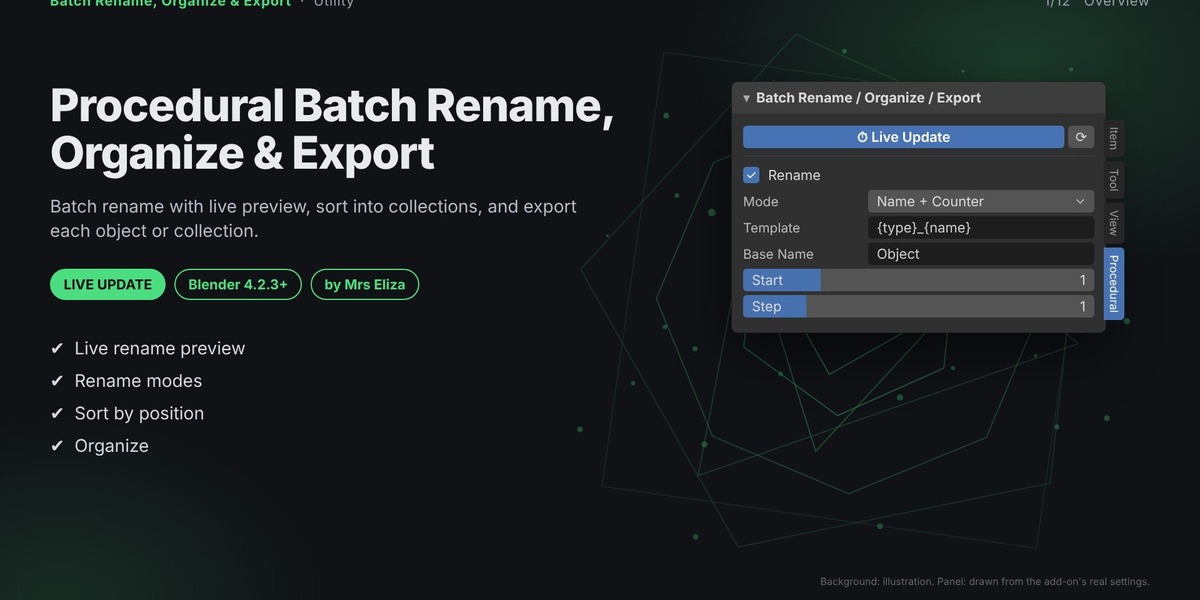
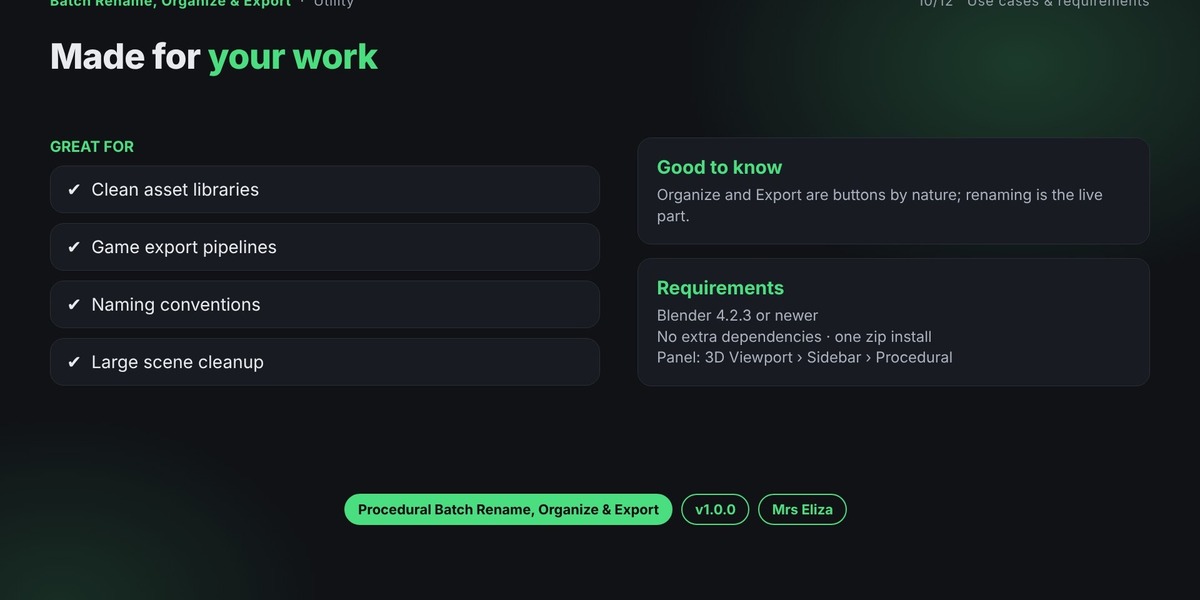
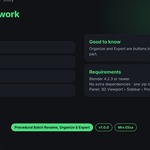
A: The addon supports Blender 4.2.3 or newer.
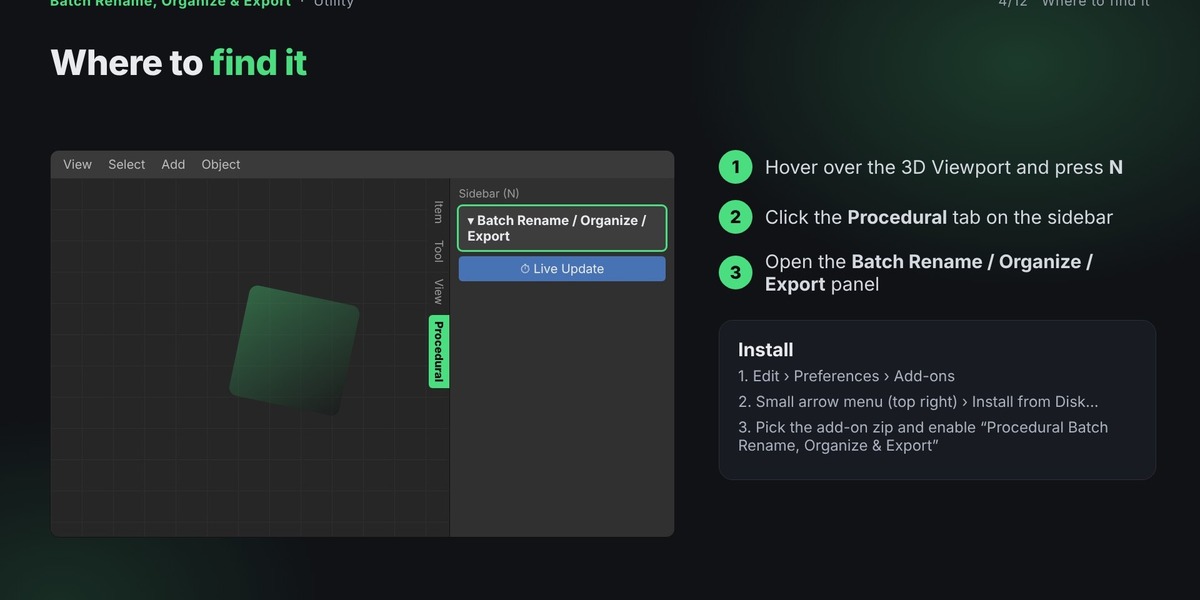
Q: How do I open the addon?
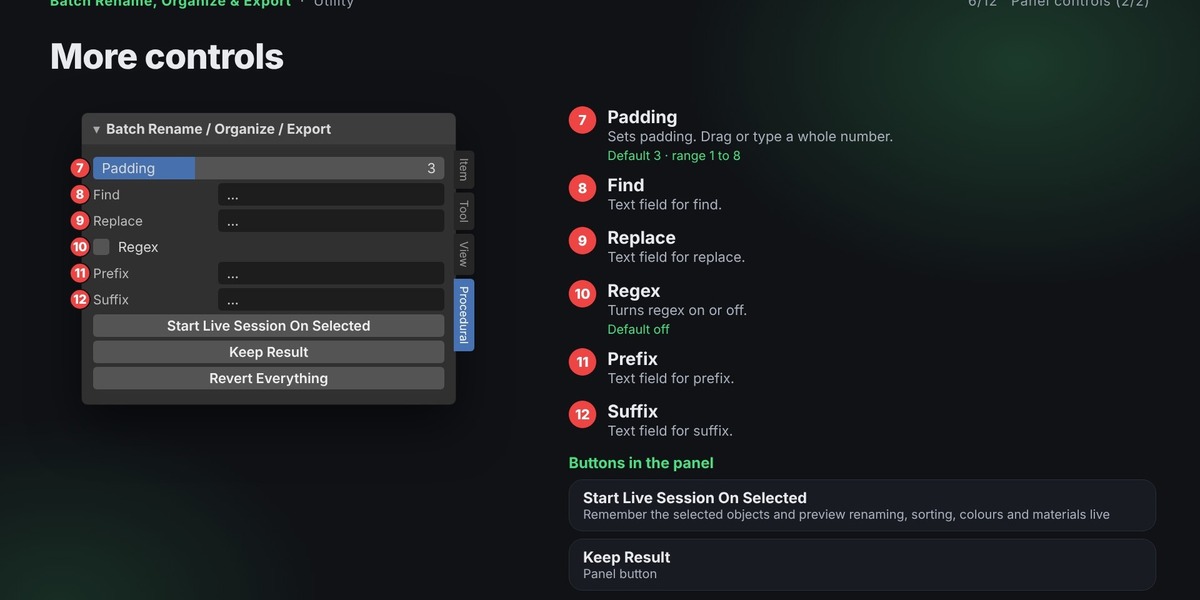
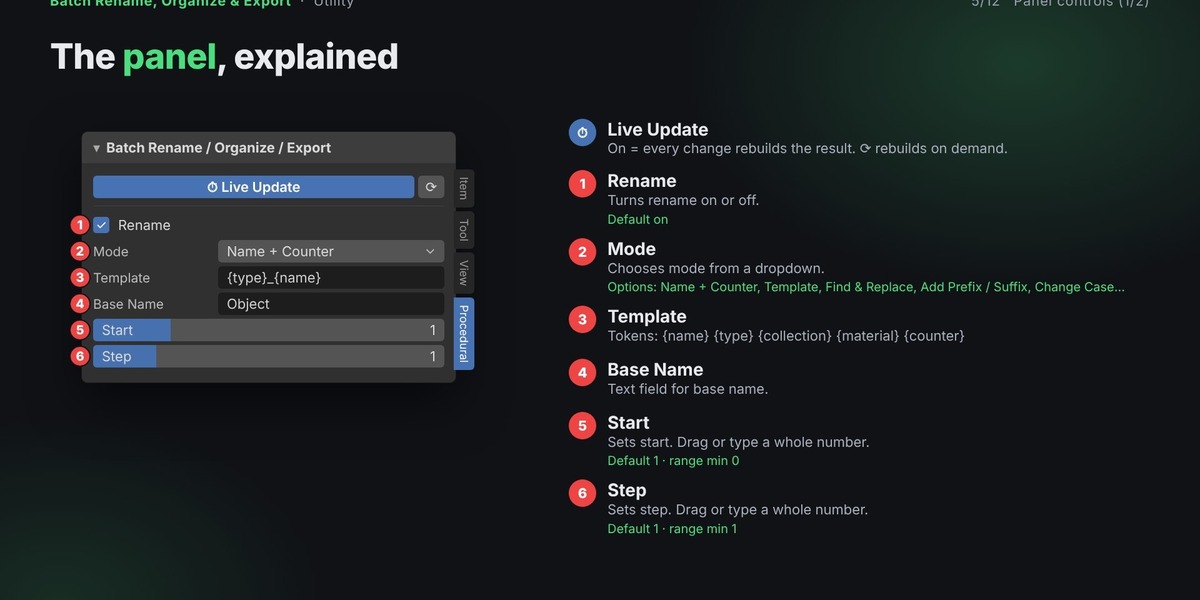
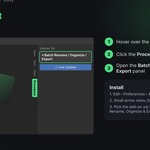
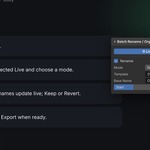
A: Hover over the 3D Viewport, press N, open the Procedural tab, and expand the Batch Rename / Organize / Export panel.
Q: Why aren't my object names changing?
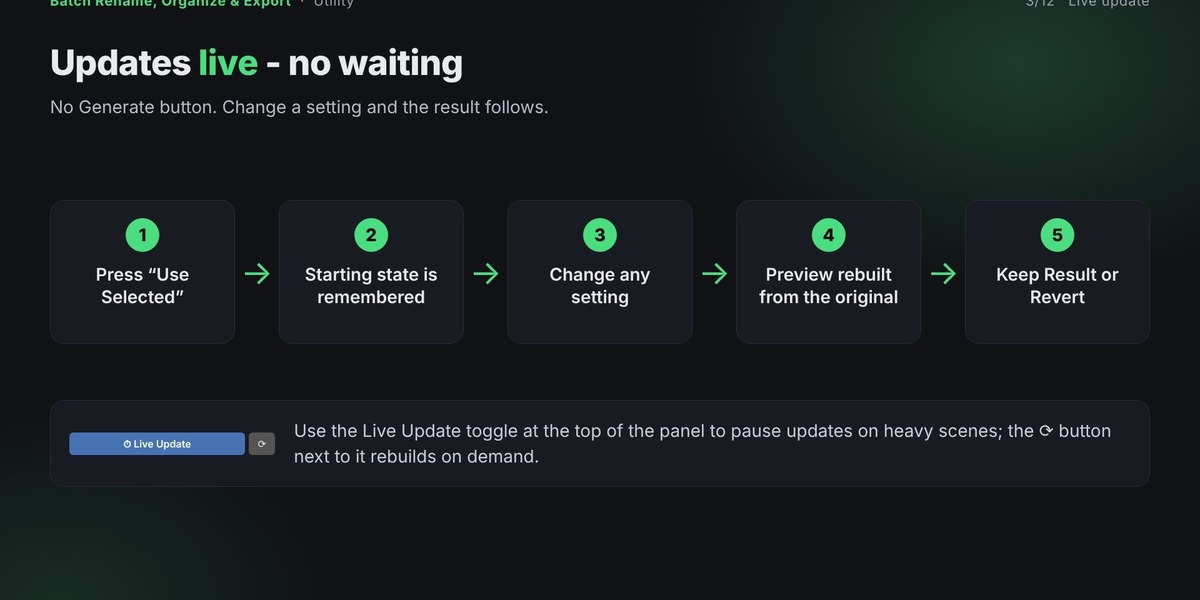
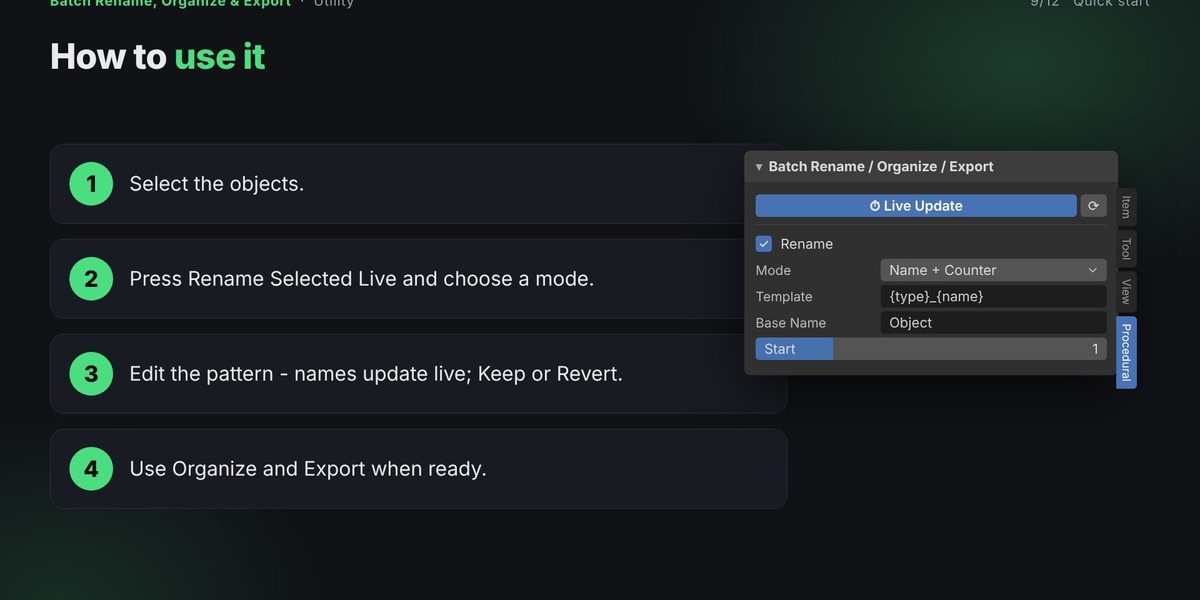
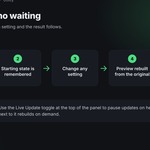
A: Click Rename Selected Live first to start the rename preview session. Your names will update as you change the settings.
Q: Can I rename multiple objects with sequential numbers?
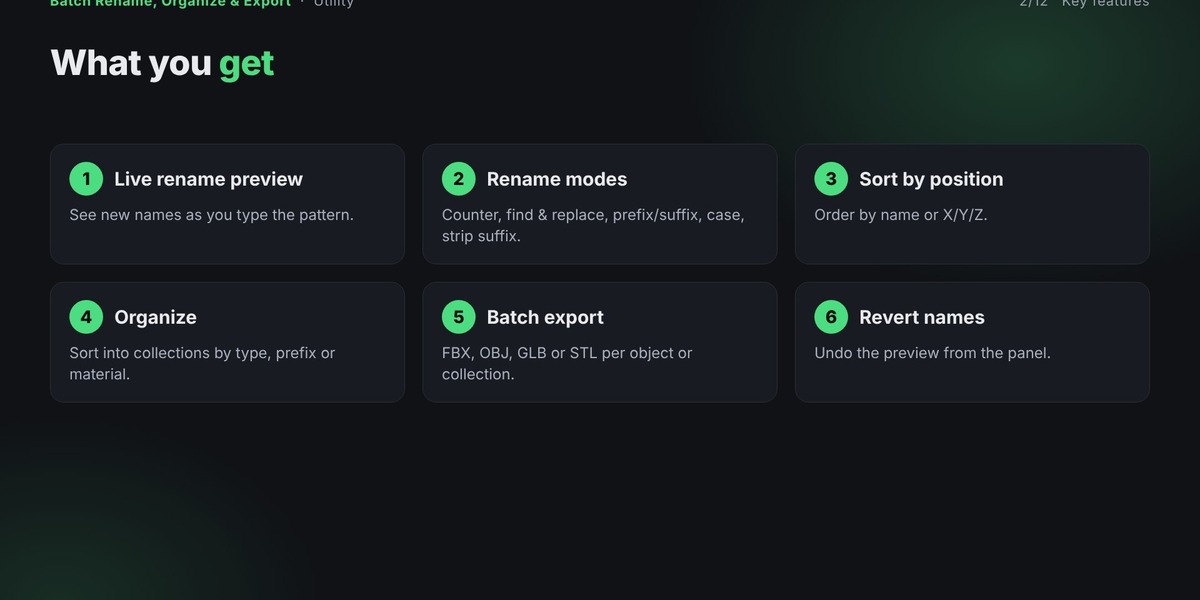
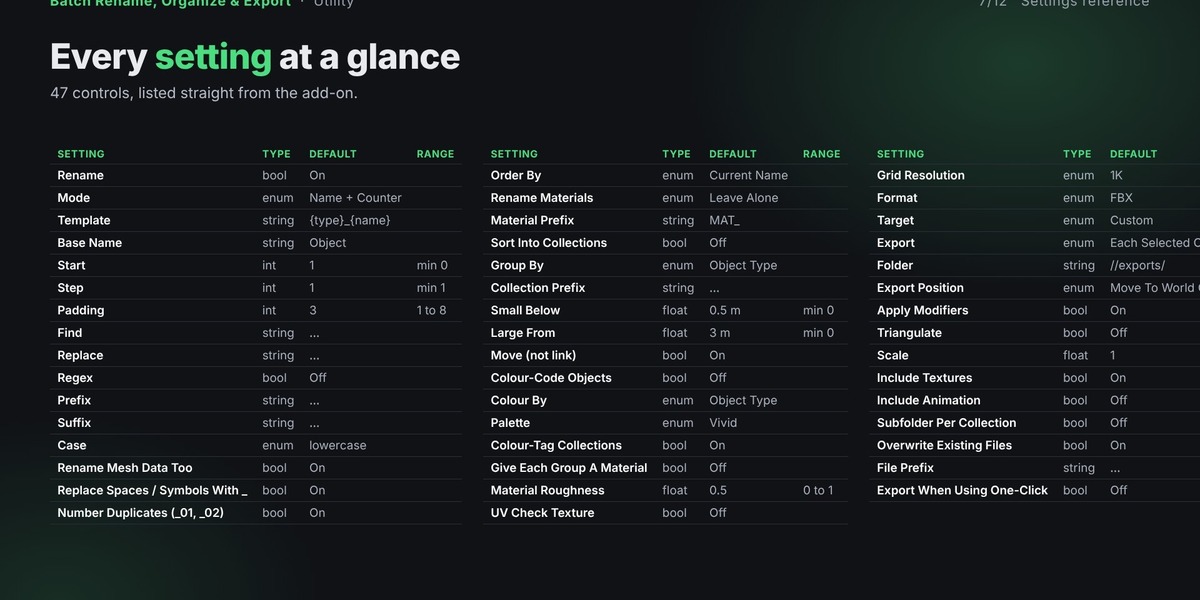
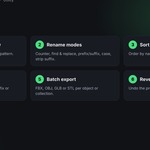
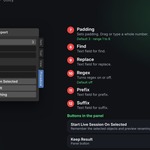
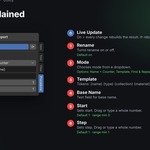
A: Yes! Choose Name + Counter and customize the base name, starting number, numbering step, and padding.
Q: Can I use custom naming patterns?
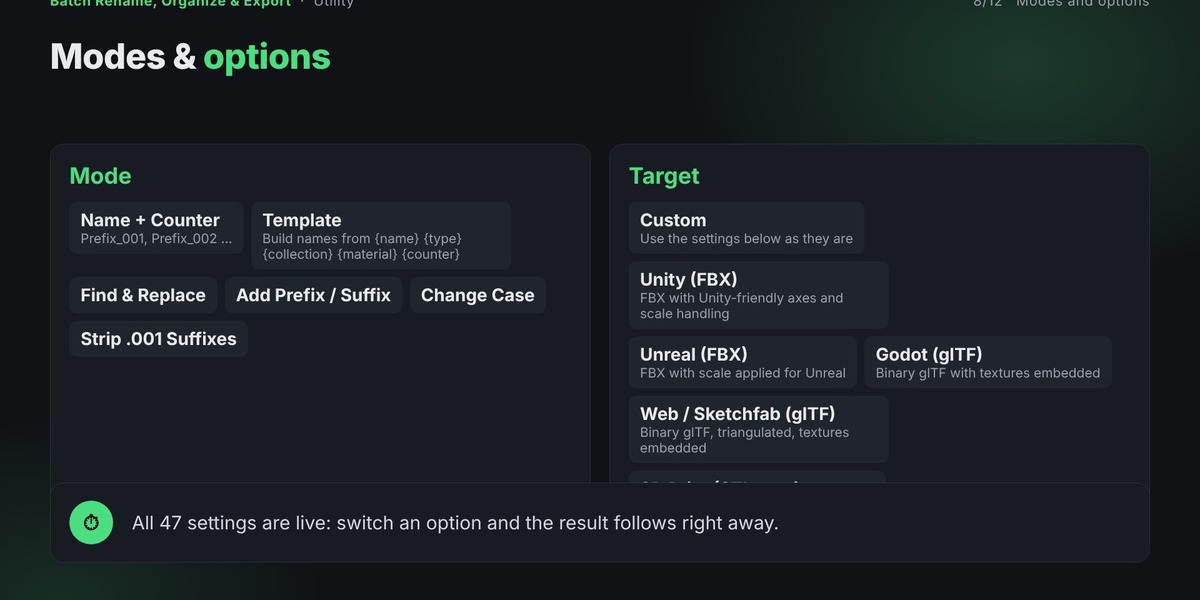
A: Yes! Select Template mode and use {name}, {type}, {collection}, {material}, and {counter} to build custom naming patterns.
Q: Does the addon support regular expressions?
A: Yes! Find & Replace includes an optional Regex checkbox for advanced search and replacement operations.
Q: Can I restore the original object names?
A: Yes! Use Revert Names during the rename preview session to restore the original names.
Q: How can I organize objects automatically?
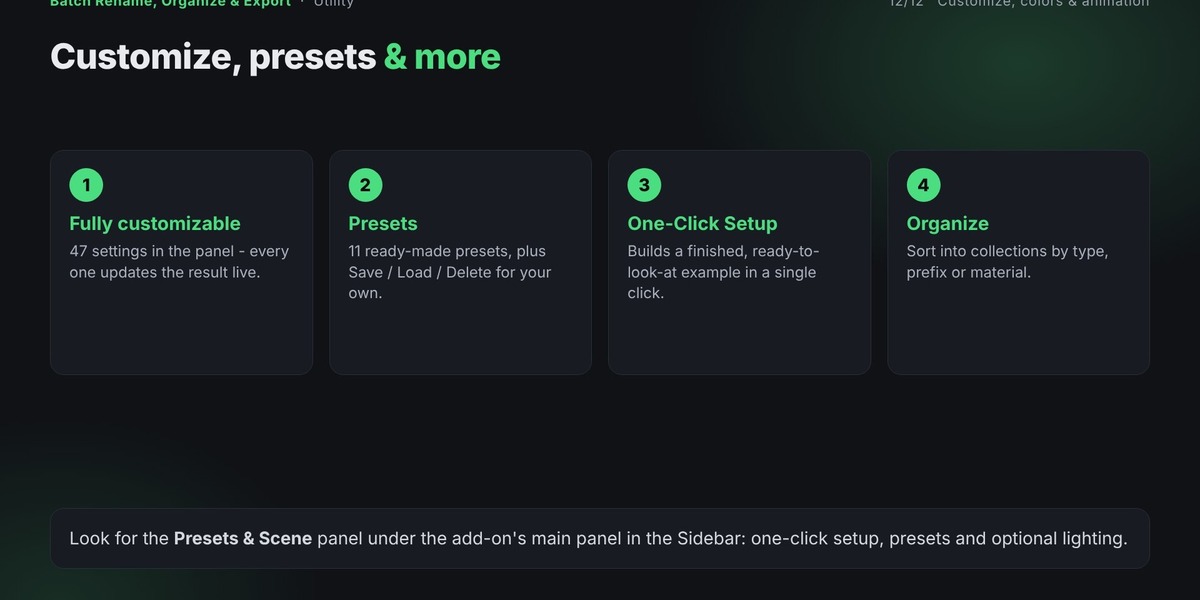
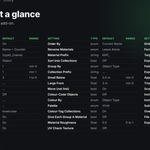
A: Choose a grouping method such as Object Type, Name Prefix, First Material, or Size, then click Sort Into Collections.
Q: Can I organize objects by size?
A: Yes! Choose Size (Small / Medium / Large) and customize the Small Below and Large From thresholds.
Q: Which export formats are supported?
A: The addon supports FBX, OBJ, GLB, and STL formats.
Q: Can I export assets for Unity, Unreal Engine, and Godot?
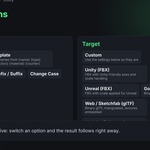
A: Yes! Select the corresponding export target to use its configured format, axis, scale, and texture settings.
Q: Can I export each object separately?
A: Yes! Choose Each Selected Object in the Export mode to create an individual file for every selected object.
Q: Can I export entire collections?
A: Yes! Choose Each Collection to export collections separately.
Q: Why did my export fail?
A: Make sure the destination folder is writable and the matching Blender exporter add-on is enabled.
Q: Why are my exported files empty?
A: Check that the objects are selected and visible before running Batch Export.
Q: Can I include textures with exported models?
A: Yes! Enable Include Textures to copy or embed textures with the exported model, depending on the selected format and export workflow.
Q: Can I merge duplicate materials?
A: Yes! Use Merge Duplicate Materials / Images to replace numbered duplicate datablocks with their shared original datablock.
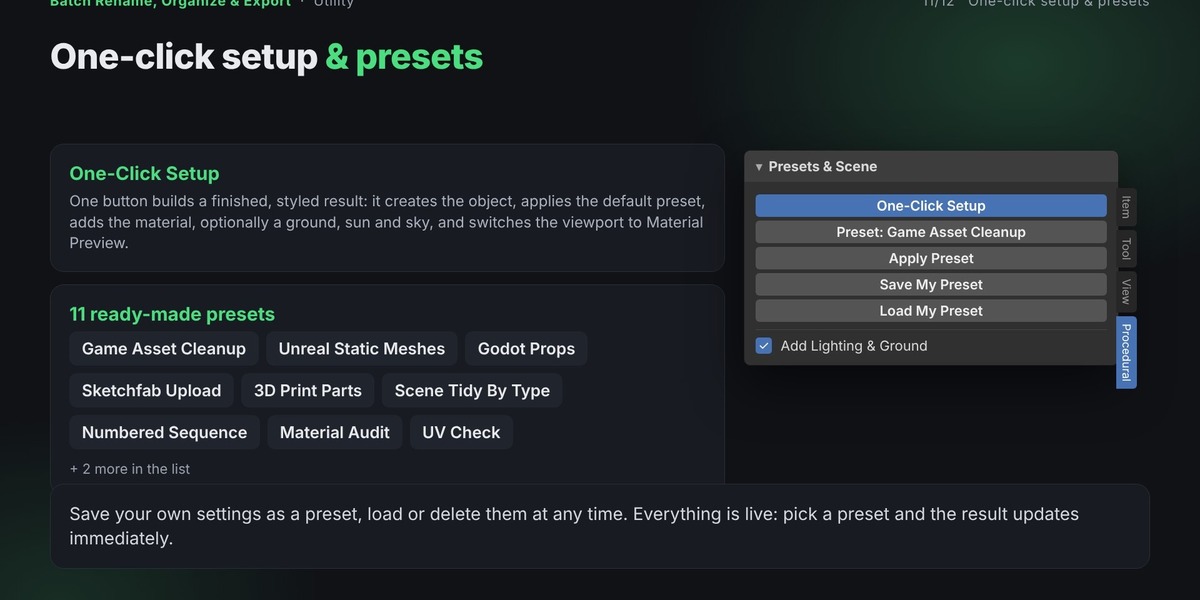
Q: Can I save my own presets?
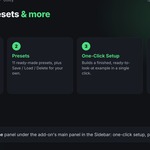
A: Yes! Use Save My Preset, Load My Preset, and Delete My Preset to manage your custom configurations.
Have questions about this product?
Login to message
| Published | almost 3 years ago |
| Blender Version | 4.0 - 5.0 |
| Extension Type | Add-on |
| Render Engine Used | Cycles |
| Misc Data | Low-High-Resolution, Textured |
| License | GPL |
Discover more products like this
FBX Export batch-export OBJ export asset management STL export game asset export batch-rename scene cleanup Object Organizer glb export blender addon productivity tools