 Mrs Eliza
Create 26+ Professional Graphic & Packaging Designs with 57 Materials and 10 Animation Presets
Overview
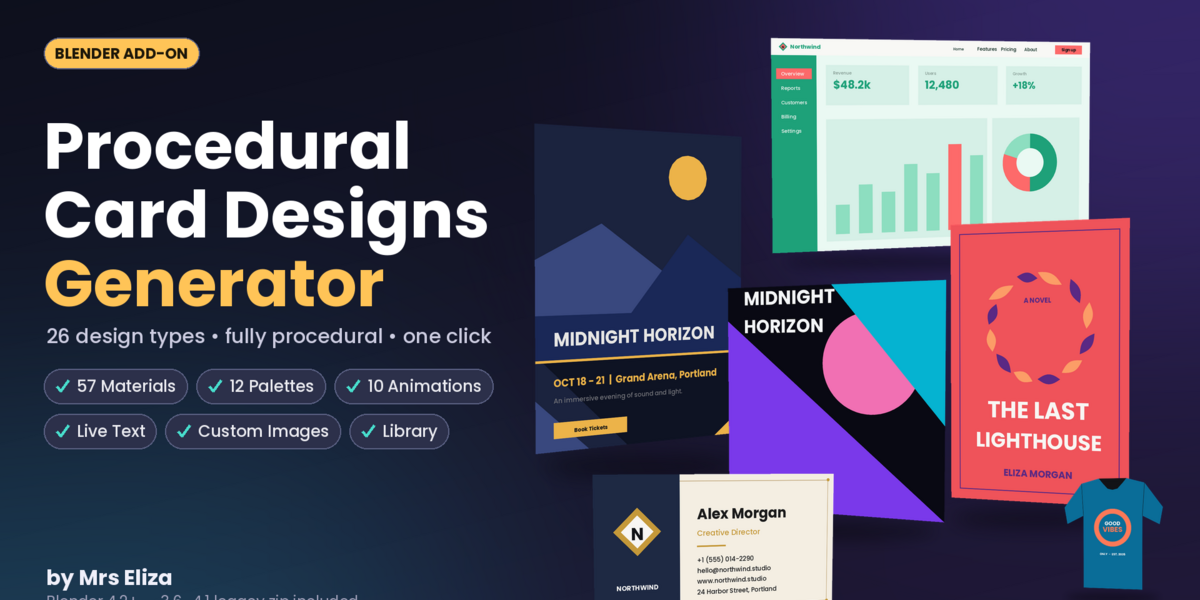
Procedural Card Designs Generator is a powerful Blender add-on for creating professional graphic designs, print layouts, digital presentations, and packaging mockups as fully procedural 3D models.
Create everything from business cards, flyers, posters, brochures, book covers, magazines, and invitations to packaging designs, social media graphics, UI/UX layouts, banners, and brand identity presentations.
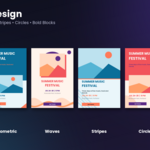
With 26 design types across 8 categories, 57 procedural materials, 74 size presets, 12 color palettes, and 10 built-in animation presets, you can create customizable graphic presentations directly inside Blender.
Every layout, material, and animation is generated procedurally. No external design templates or image textures are required. You can add your own text, logos, photographs, and graphics to personalize every design.
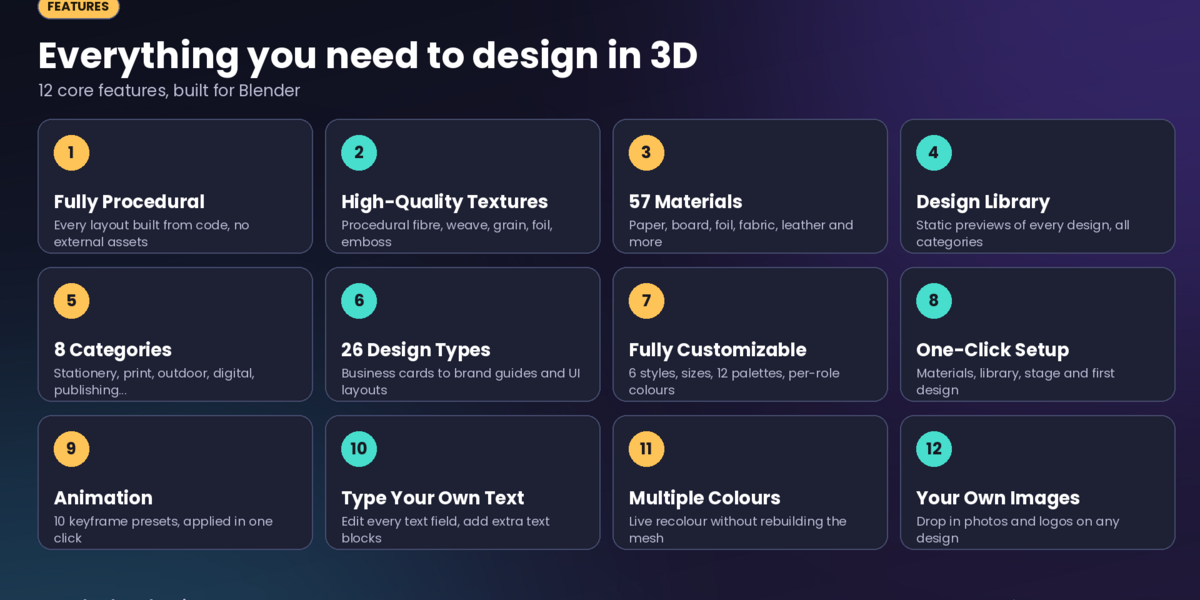
Key Features
26 Design Types: Create professional print, digital, stationery, publishing, packaging, and branding designs.
8 Design Categories: Browse an organized library of different graphic design types.
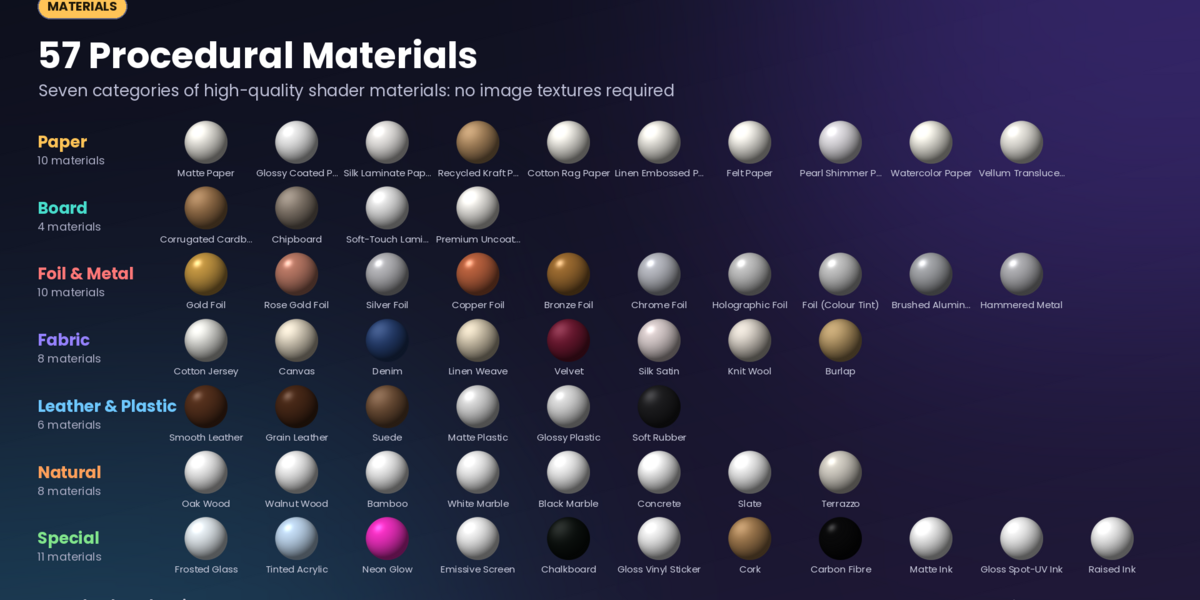
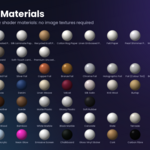
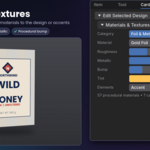
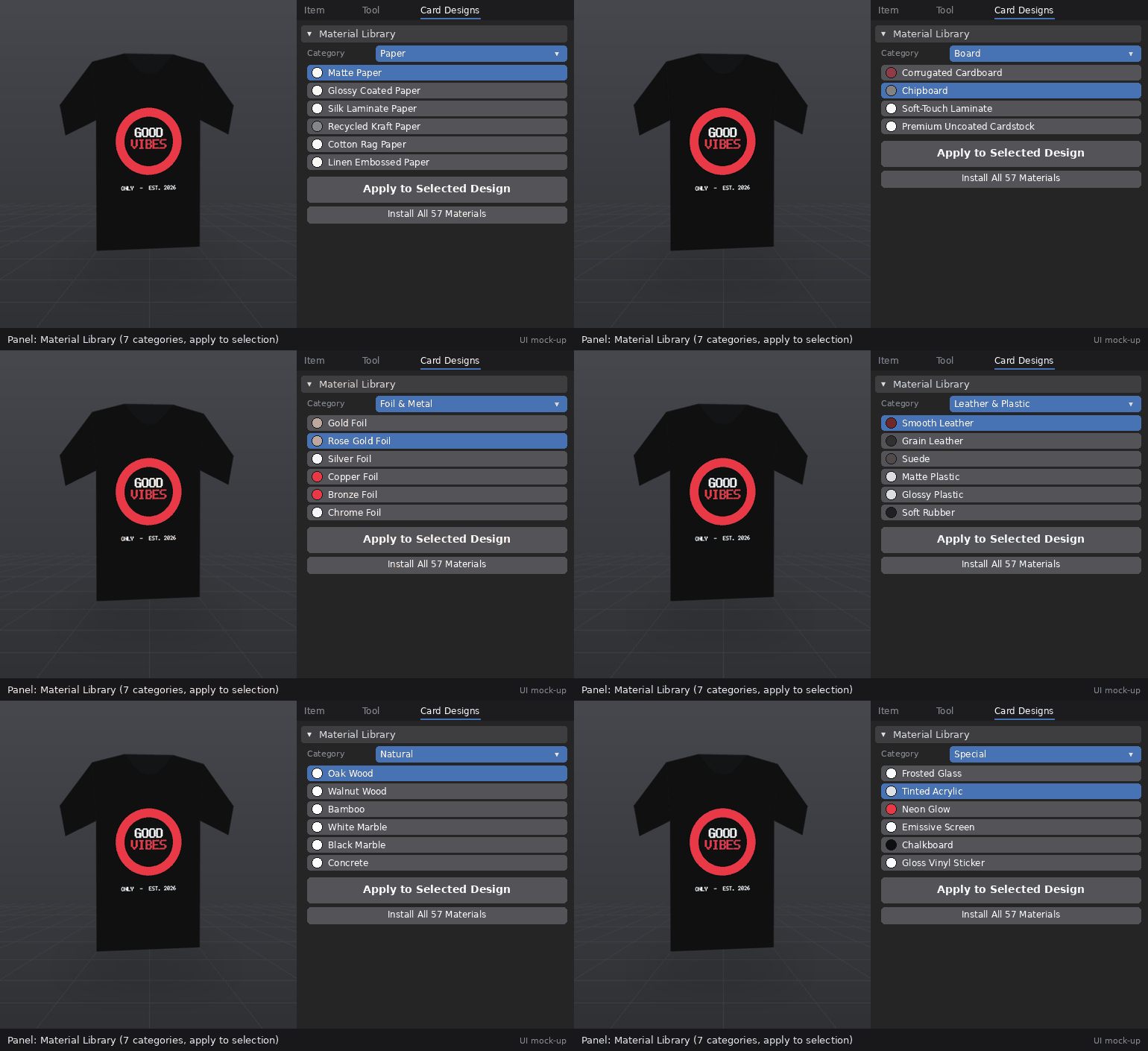
57 Procedural Materials: Explore paper, board, foil, metal, fabric, leather, plastic, natural, and special materials.
74 Size Presets: Choose from predefined sizes for different design requirements.
12 Color Palettes: Quickly apply coordinated color combinations.
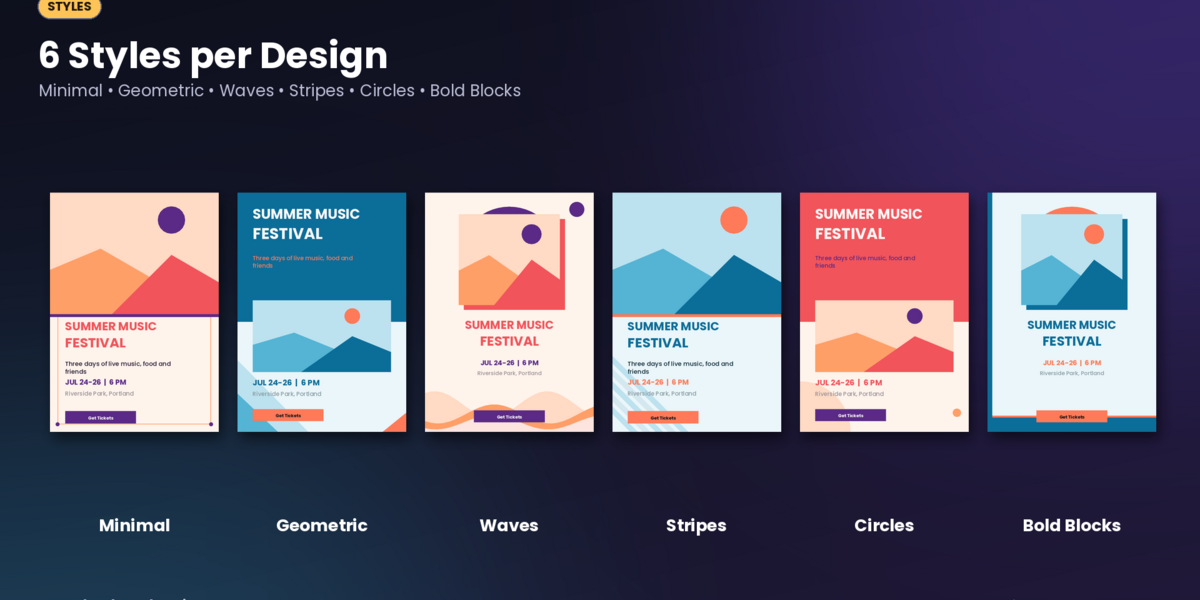
6 Design Styles: Explore different visual styles for each design.
Fully Procedural Layouts: Generate customizable designs as real 3D models.
Custom Text System: Edit existing text and add additional text blocks.
Custom Image Support: Import your own JPG and PNG photographs, logos, and graphics.
10 Animation Presets: Create professional product and graphic presentation animations.
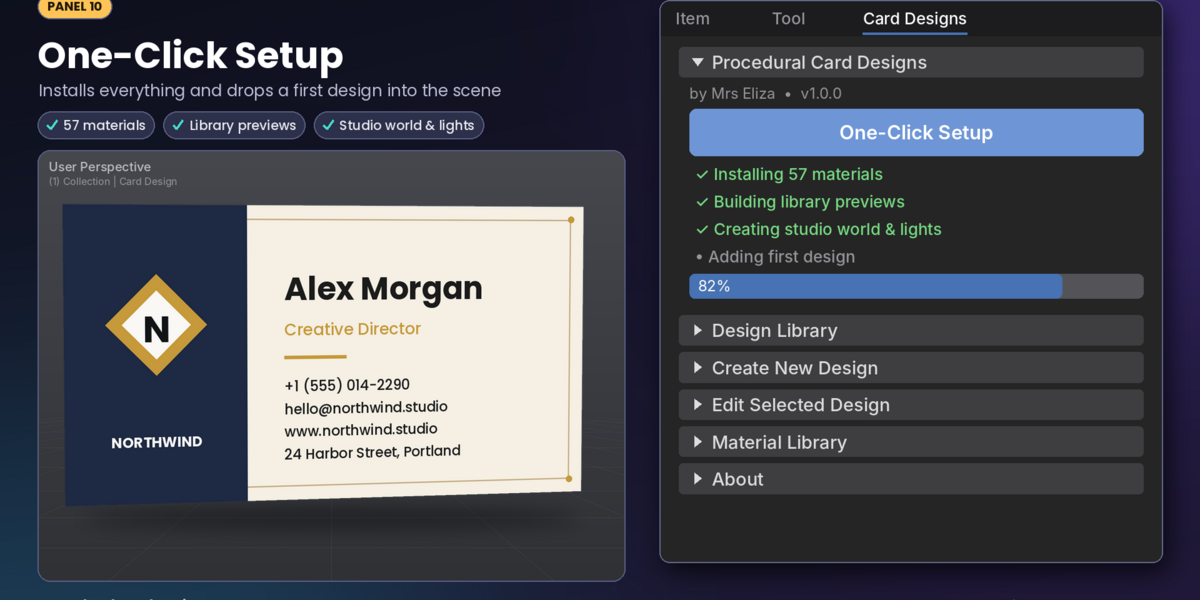
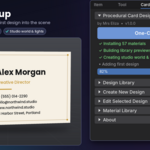
One-Click Studio Setup: Automatically install materials, build the design library, and prepare a presentation stage.
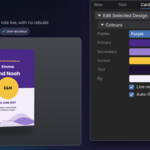
Live Recoloring: Change individual color roles without rebuilding the mesh.
Professional Studio Controls: Customize backdrops, camera framing, and lighting.
Design Preset Library
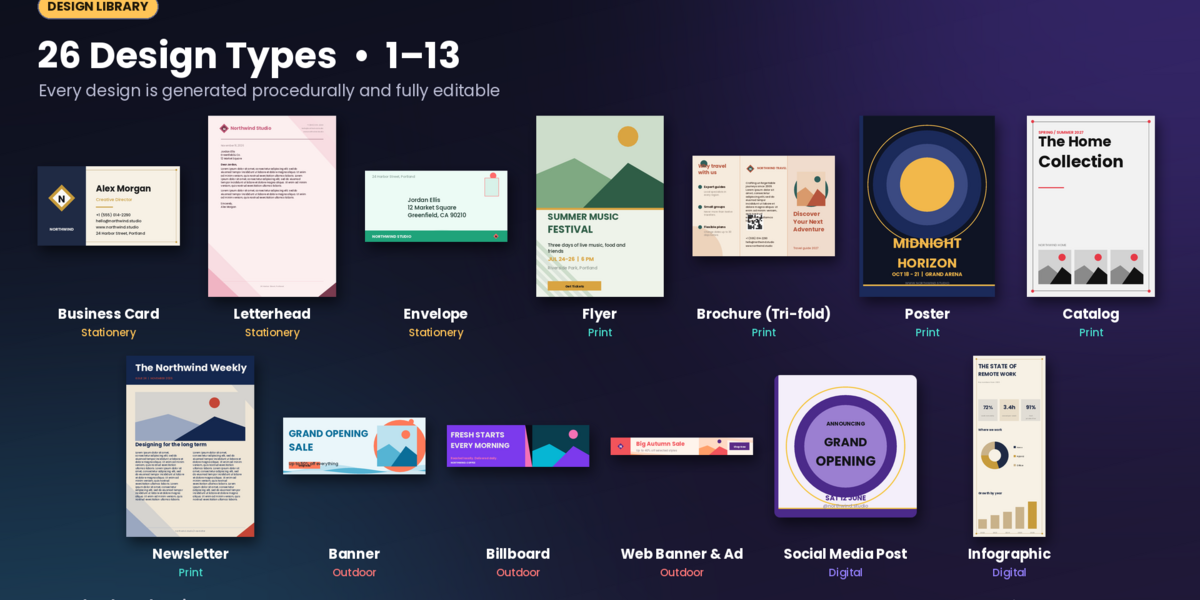
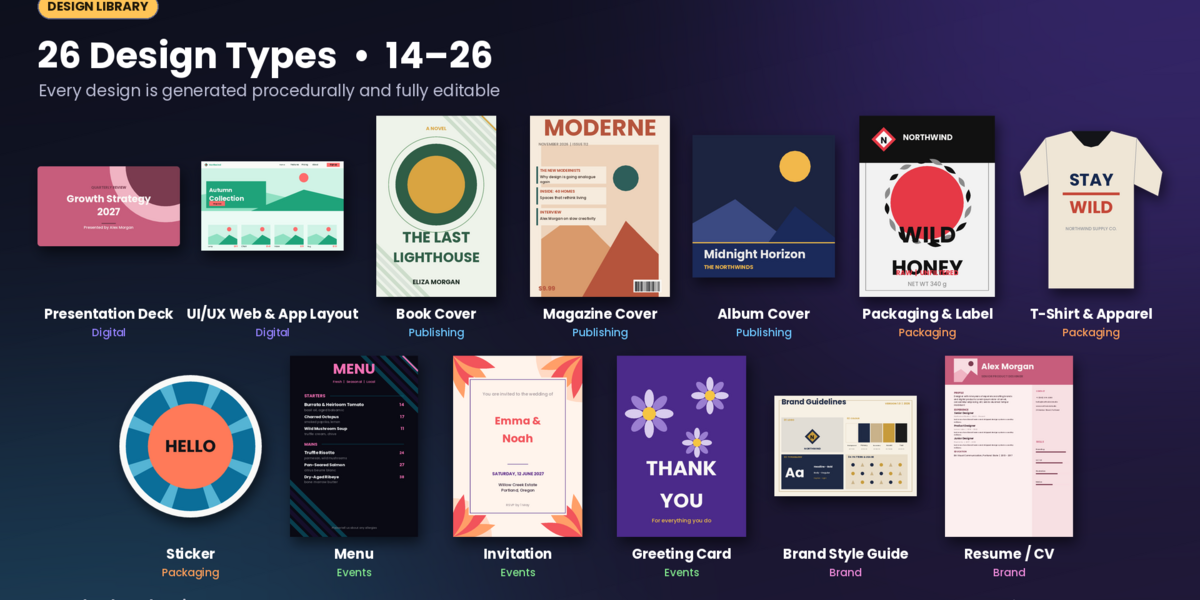
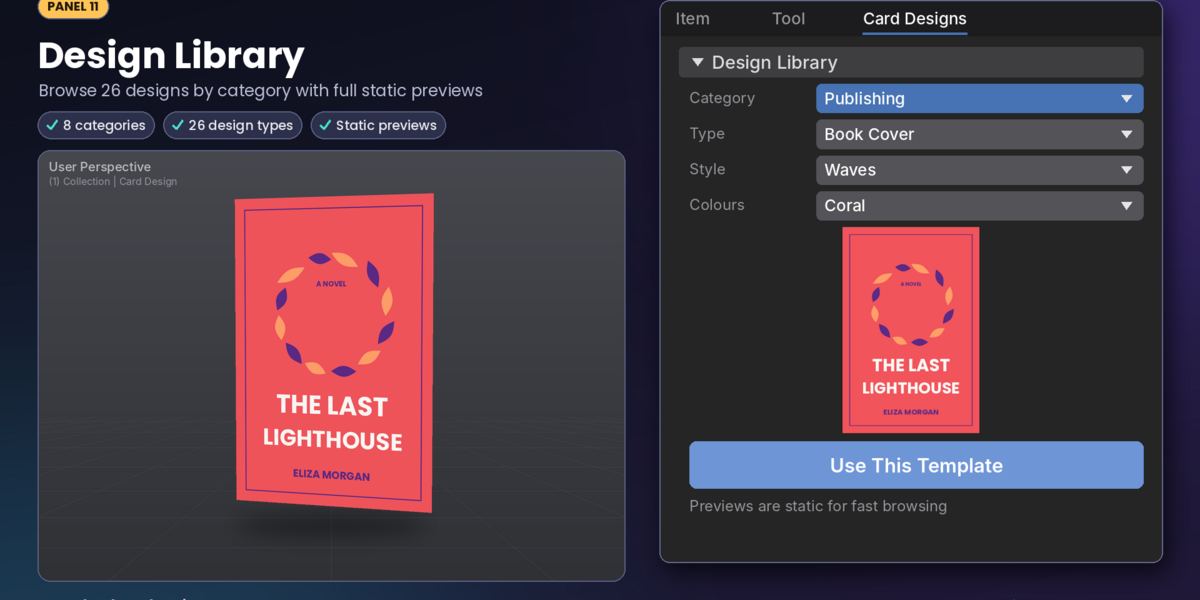
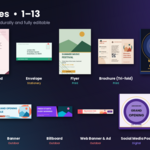
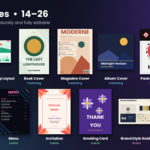
Explore 26 ready-made design types organized into 8 categories.
Stationery – 3 Designs
Business Card
Letterhead
Envelope
Print – 5 Designs
Flyer
Brochure (Tri-fold)
Poster
Catalog
Newsletter
Outdoor – 3 Designs
Banner
Billboard
Web Banner & Ad
Digital – 4 Designs
Social Media Post
Infographic
Presentation Deck
UI/UX Web & App Layout
Publishing – 3 Designs
Book Cover
Magazine Cover
Album Cover
Packaging – 3 Designs
Packaging & Label
T-Shirt & Apparel
Sticker
Events – 3 Designs
Menu
Invitation
Greeting Card
Brand – 2 Designs
Brand Style Guide
Resume / CV
Every design provides a customizable starting point with different styles, color combinations, and size options.
Procedural 3D Design System
Unlike traditional flat graphic templates, this add-on generates real 3D models for different design types.
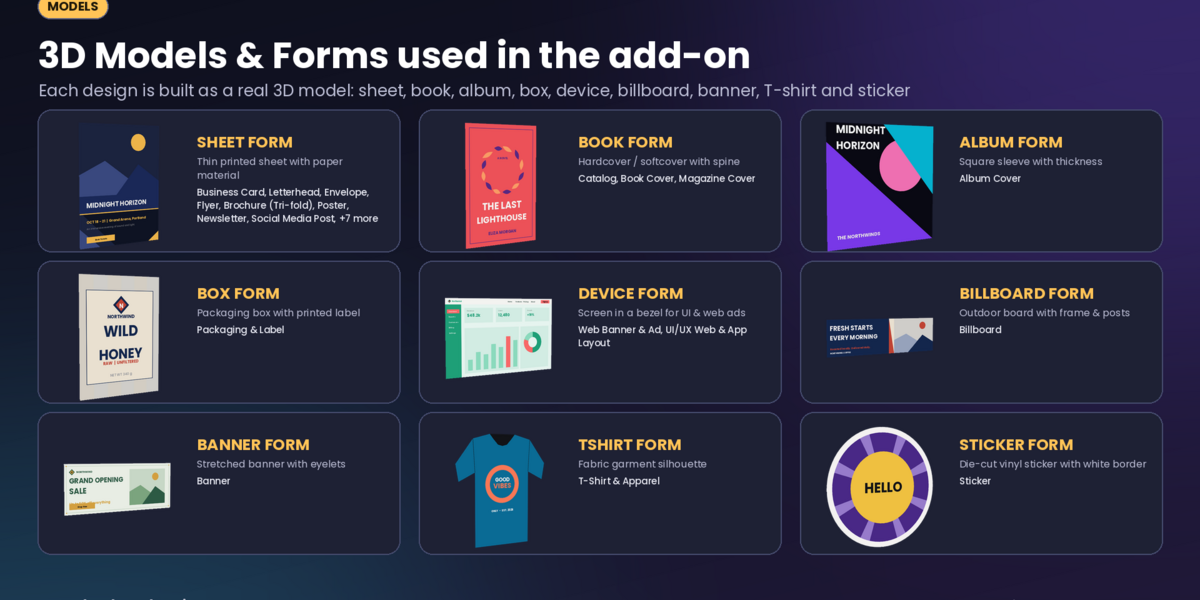
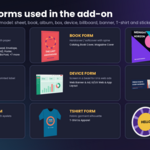
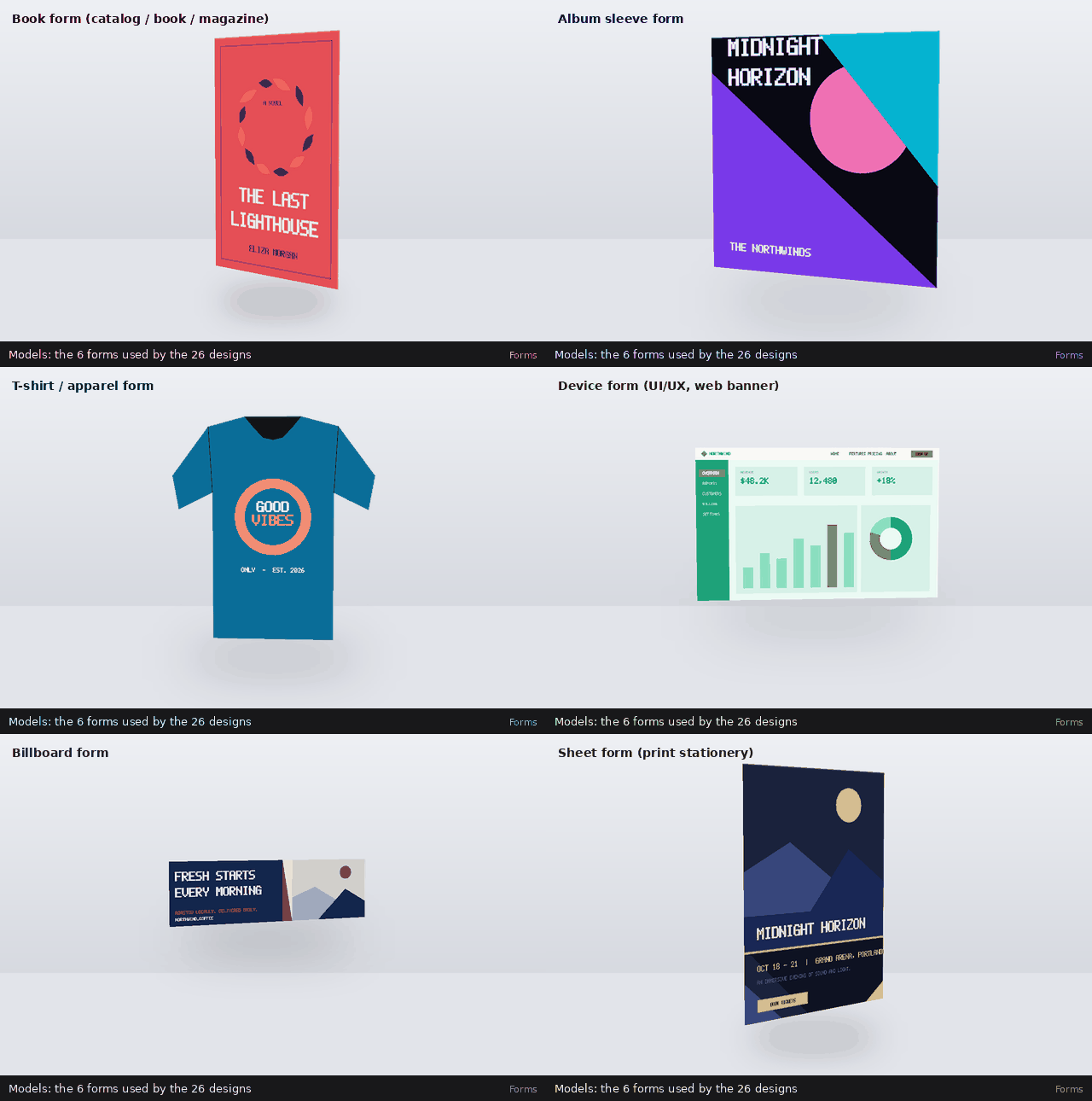
Every design is built using one of nine 3D forms.
Sheet: Thin printed surfaces for business cards, flyers, posters, stationery, social media designs, and event materials.
Book: Three-dimensional book structures with covers and spines for catalogs, book covers, and magazines.
Album: Square album sleeves with thickness for professional album cover presentations.
Box: Packaging structures with customizable printed labels.
Device: Screen-based models with bezels for UI/UX layouts and web design presentations.
Billboard: Outdoor advertising boards with frames.
Banner: Stretched banner structures for outdoor advertising and promotional designs.
T-Shirt: Fabric garment silhouettes for apparel graphics and branding.
Sticker: Die-cut sticker models with white borders for realistic sticker presentations.
These 3D forms help your designs look like physical products rather than simple flat images.
Procedural Material Library
Explore 57 procedural materials organized into 7 categories.
All materials are created using Blender shader nodes, providing customizable surface details without external image textures.
Material categories include:
Paper: Different paper surfaces and textures.
Board: Cardboard and board material variations.
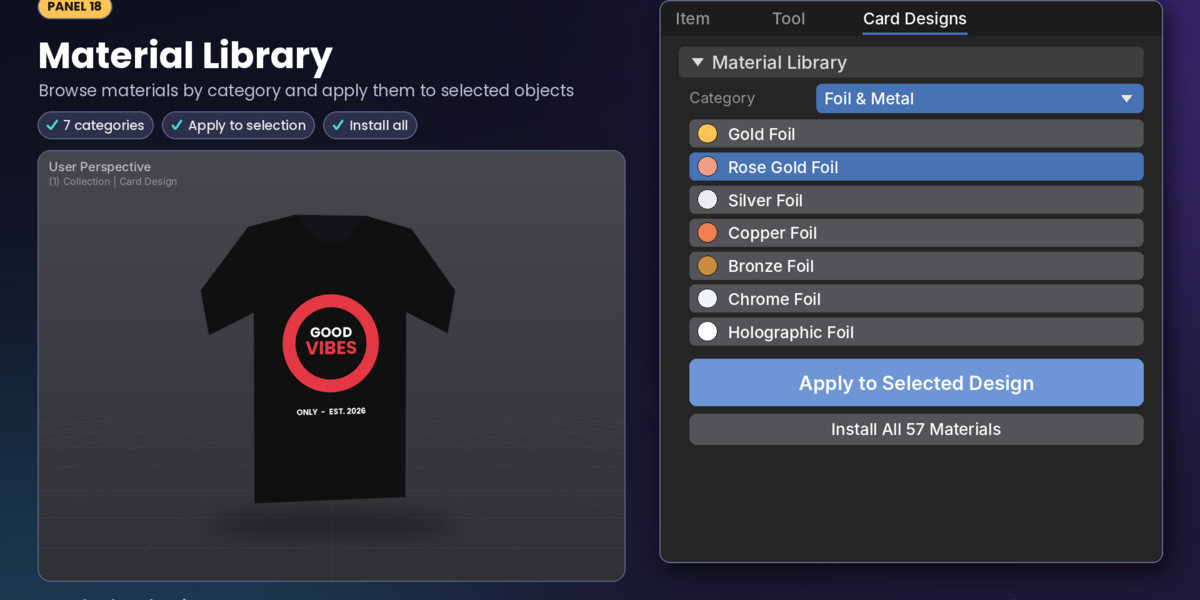
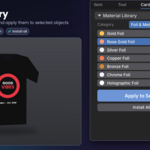
Foil & Metal: Metallic finishes and reflective foil effects.
Fabric: Fabric-inspired surface textures and weaves.
Leather & Plastic: Leather and plastic surface appearances.
Natural: Natural material variations and organic surfaces.
Special: Additional decorative and stylized materials.
Procedural Surface Details
Create realistic material appearances with:
Paper fiber
Fabric weave
Surface grain
Metallic foil
Emboss effects
Bump details
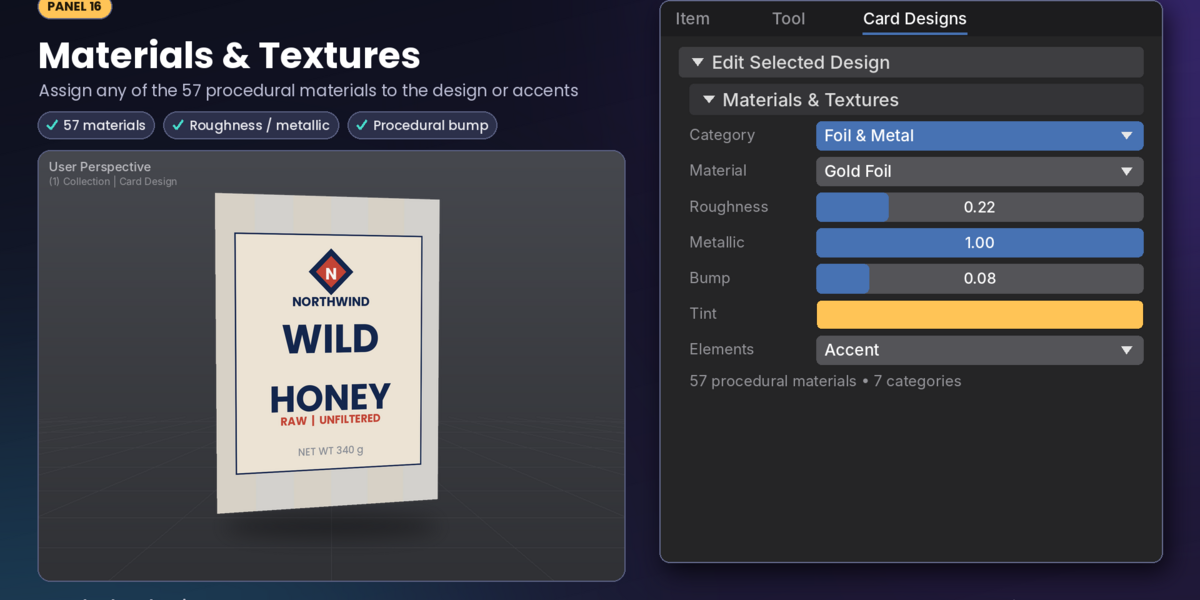
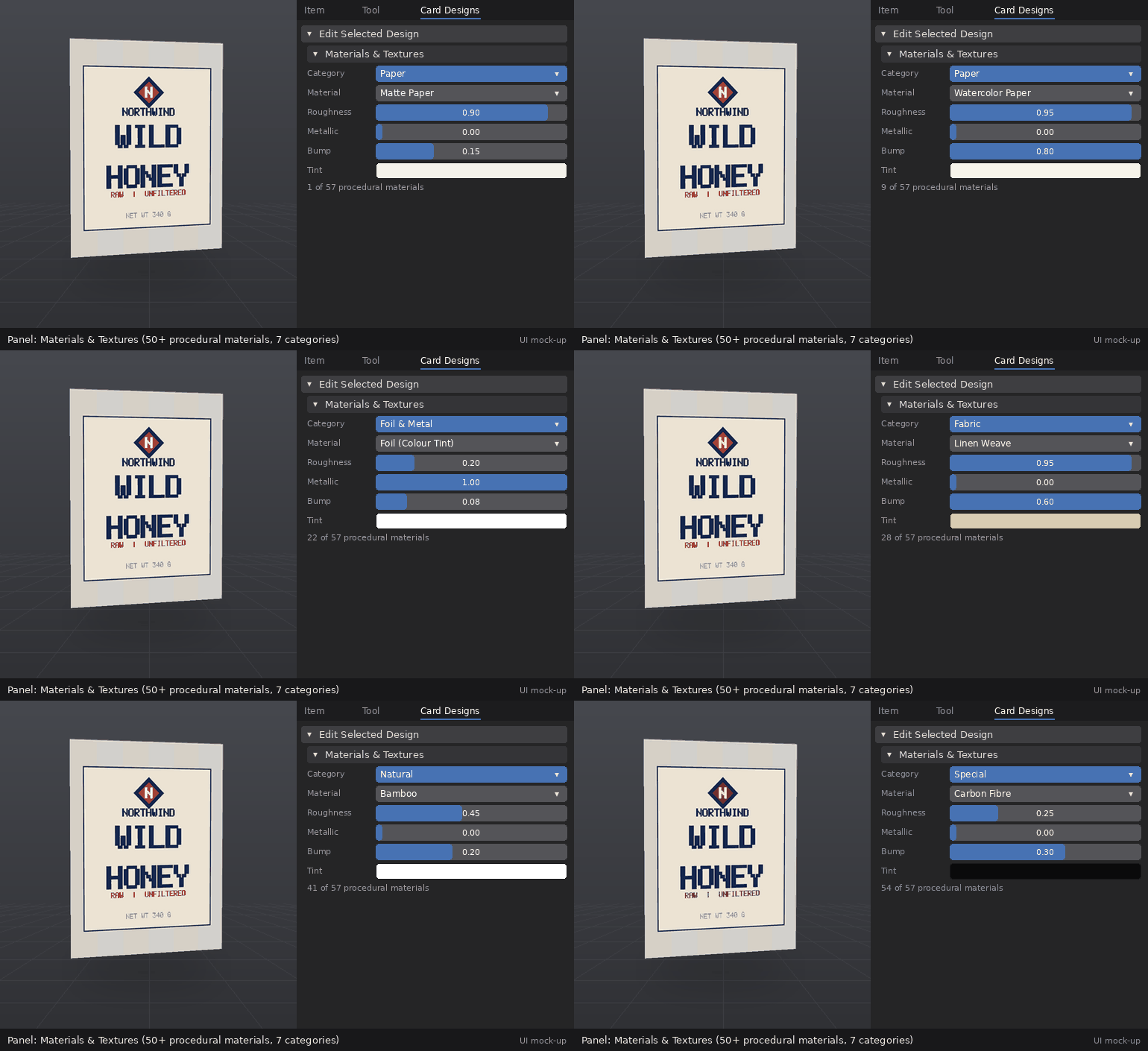
Assign materials to your designs and accent elements, then customize roughness, metallic values, bump strength, and tint.
Foil and metallic materials also include shine effects that can be animated for attractive presentations.
Custom Text & Typography System
Personalize your designs with your own text and typography.
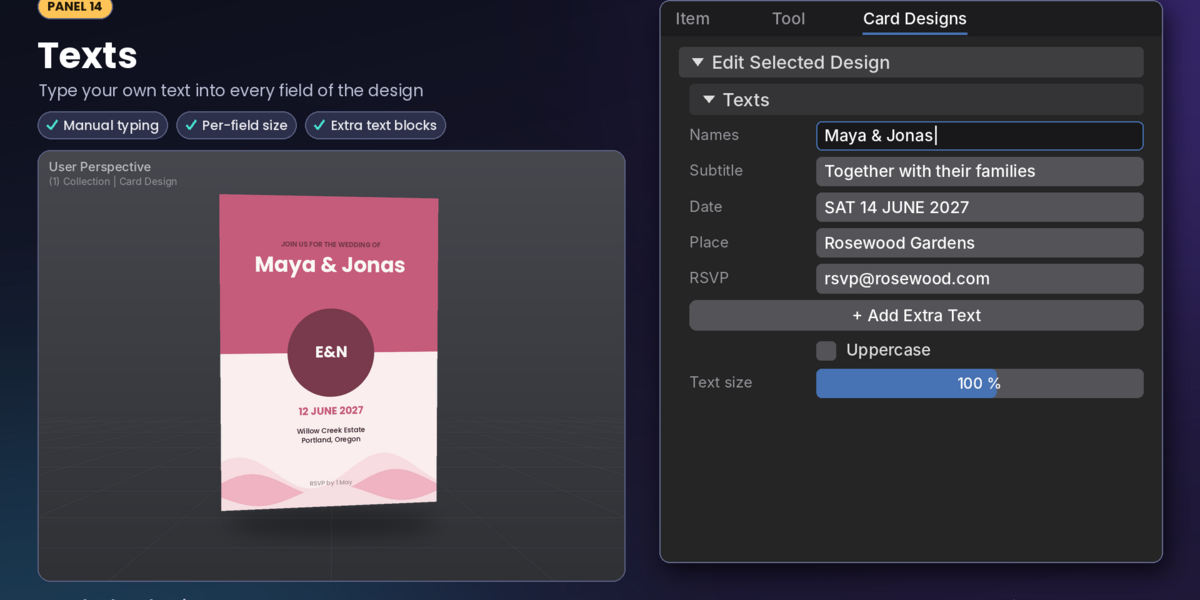
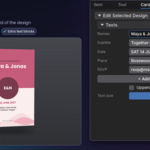
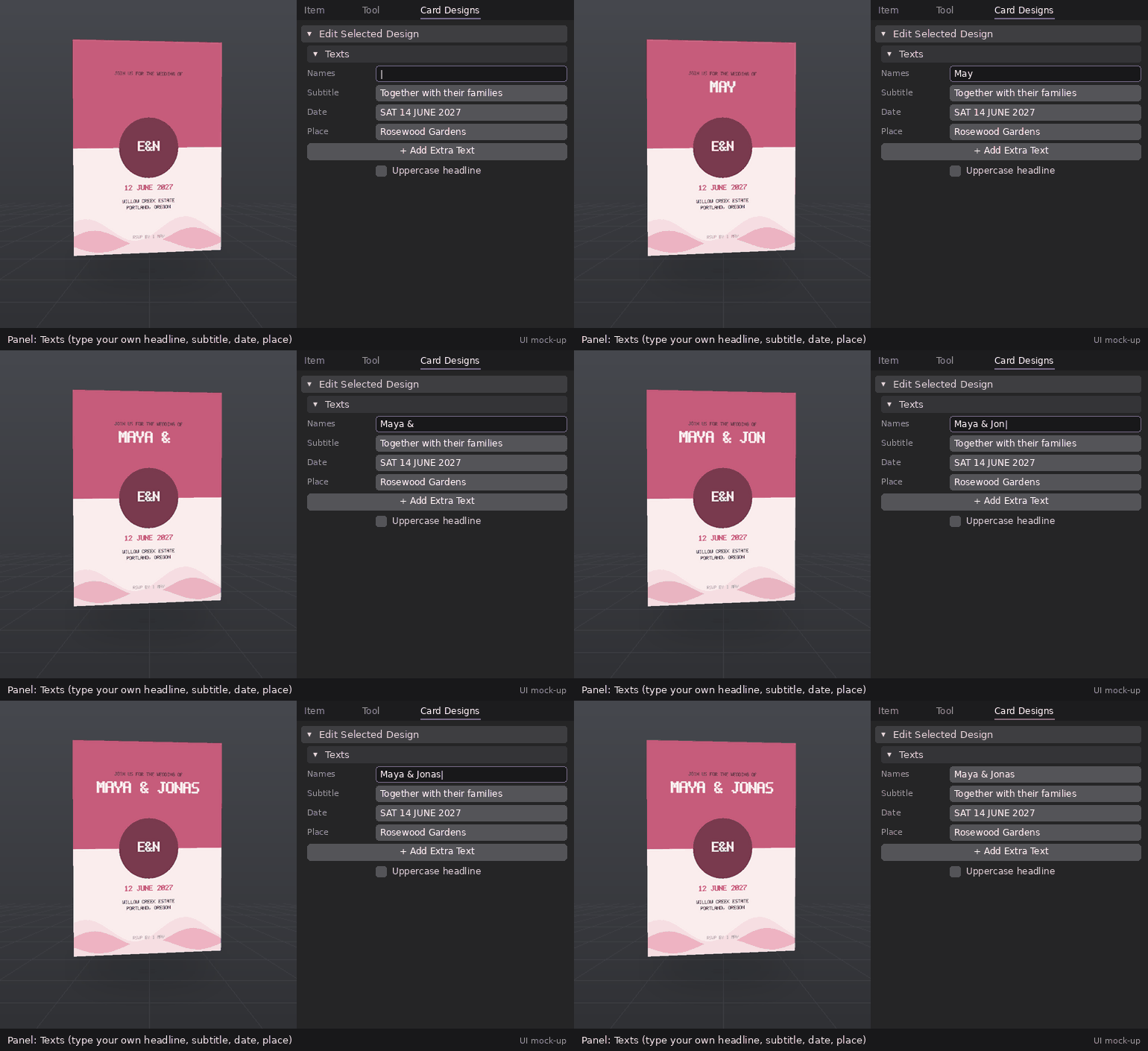
The Texts panel allows you to edit the text fields available in each design and add extra text blocks.
Text Customization
Edit existing text content.
Add additional text blocks.
Customize typography and text appearance.
Adjust text placement through the available design fields.
Automatically rebuild designs after text changes.
Whether you are creating business cards, posters, invitations, brochures, or packaging, you can replace template text with your own content.
Custom Images & Graphic Layers
Add your own photographs, logos, and graphics to personalize your designs.
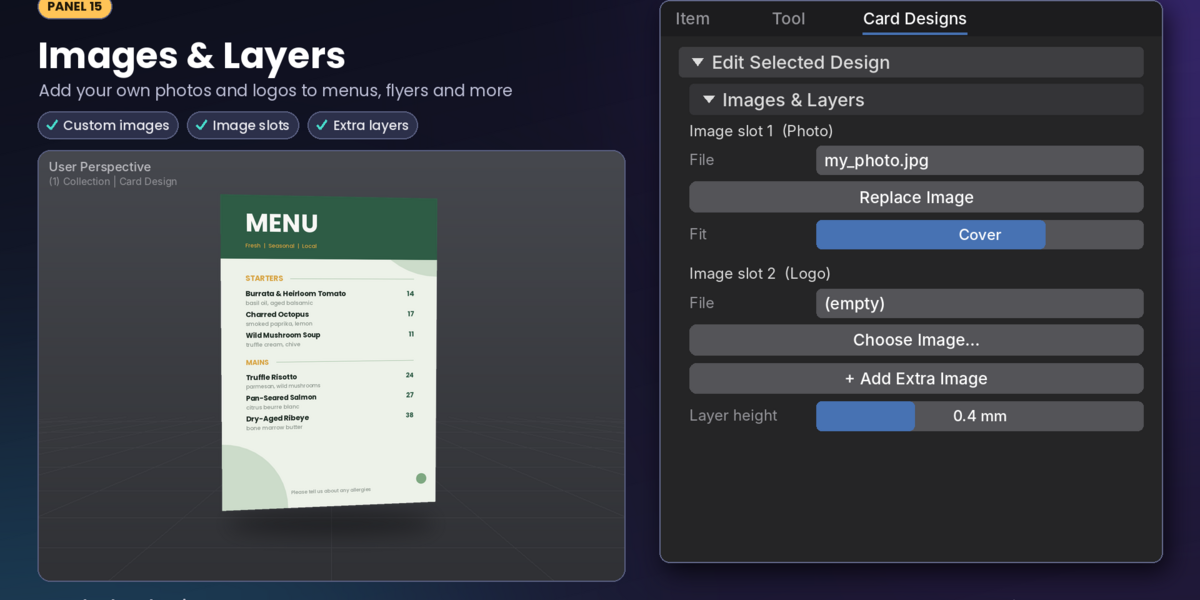
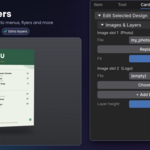
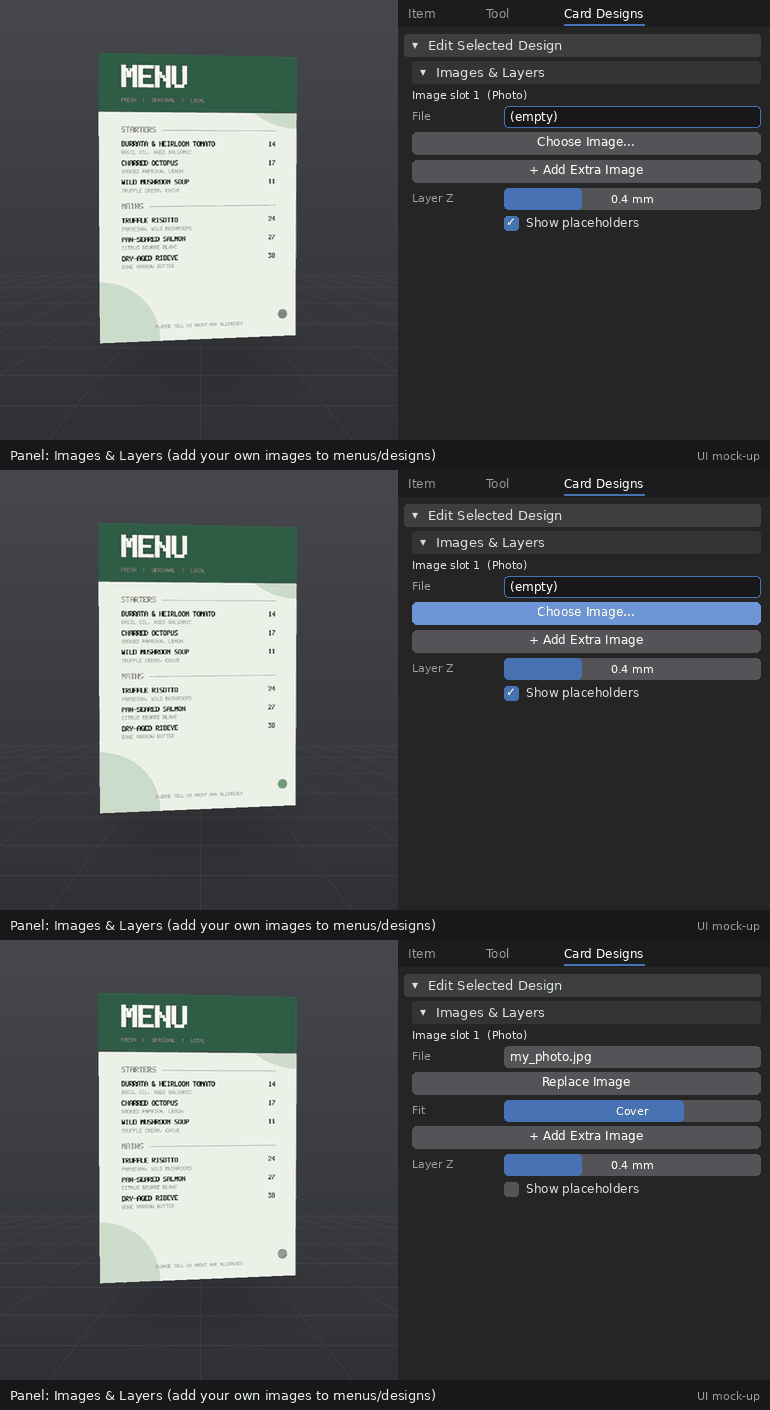
The Images & Layers panel supports JPG and PNG images.
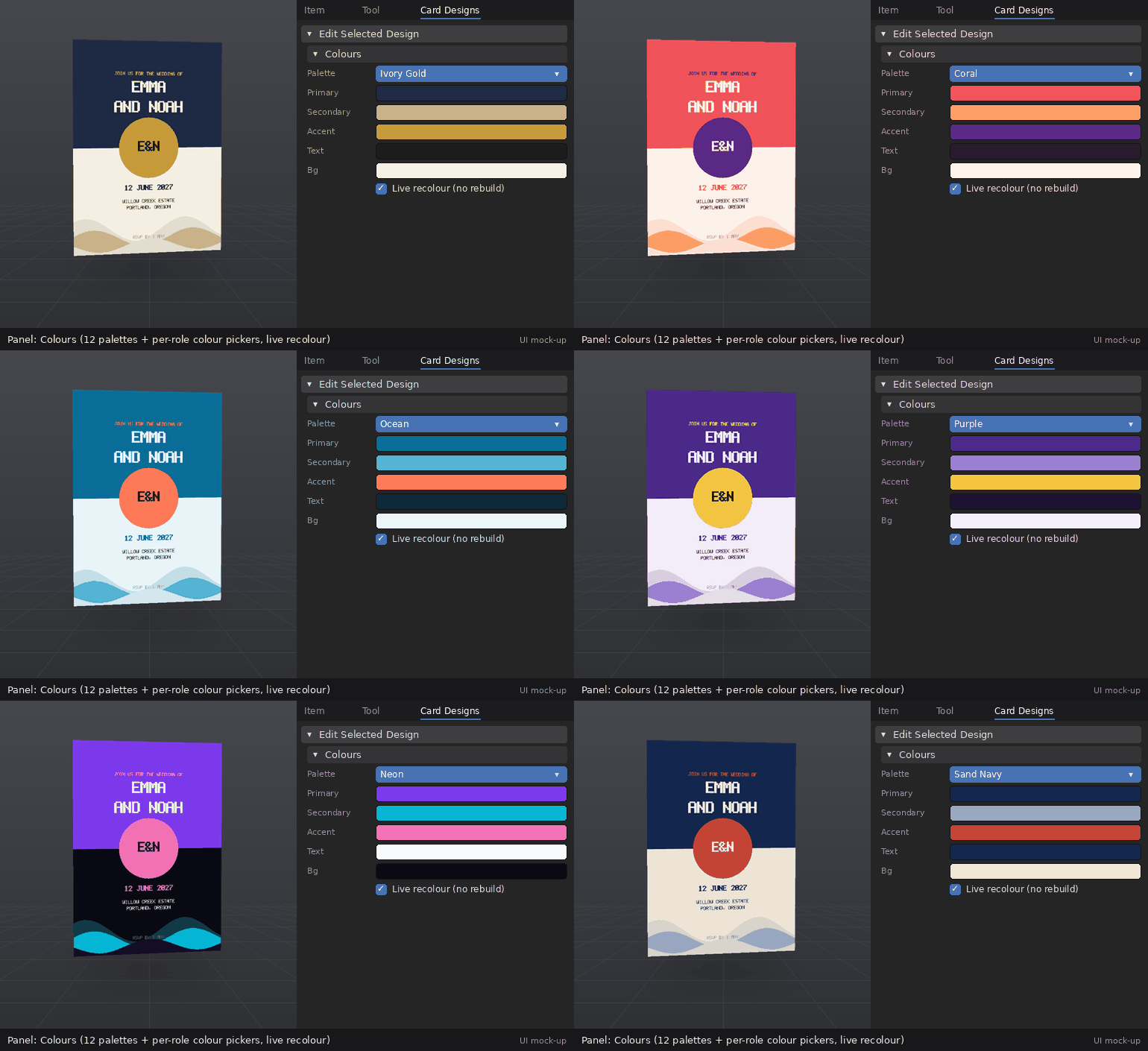
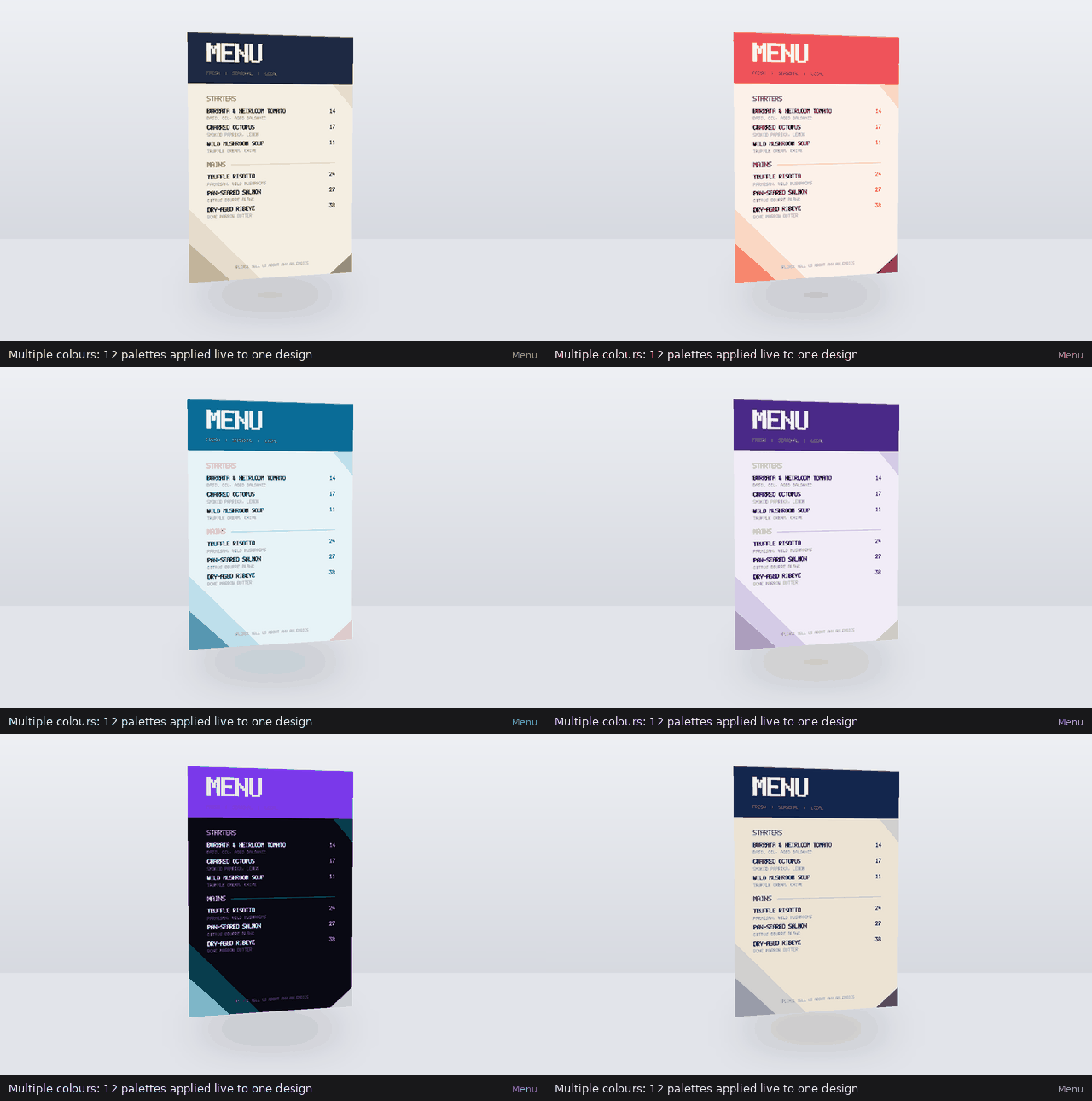
Image Features
Import custom JPG and PNG files.
Assign images to available image slots.
Add extra image layers.
Customize designs using your own photographs and graphics.
Replace placeholder images with your own artwork.
Create personalized layouts for menus, flyers, book covers, packaging, promotional materials, and other graphic designs.
Color & Style Customization
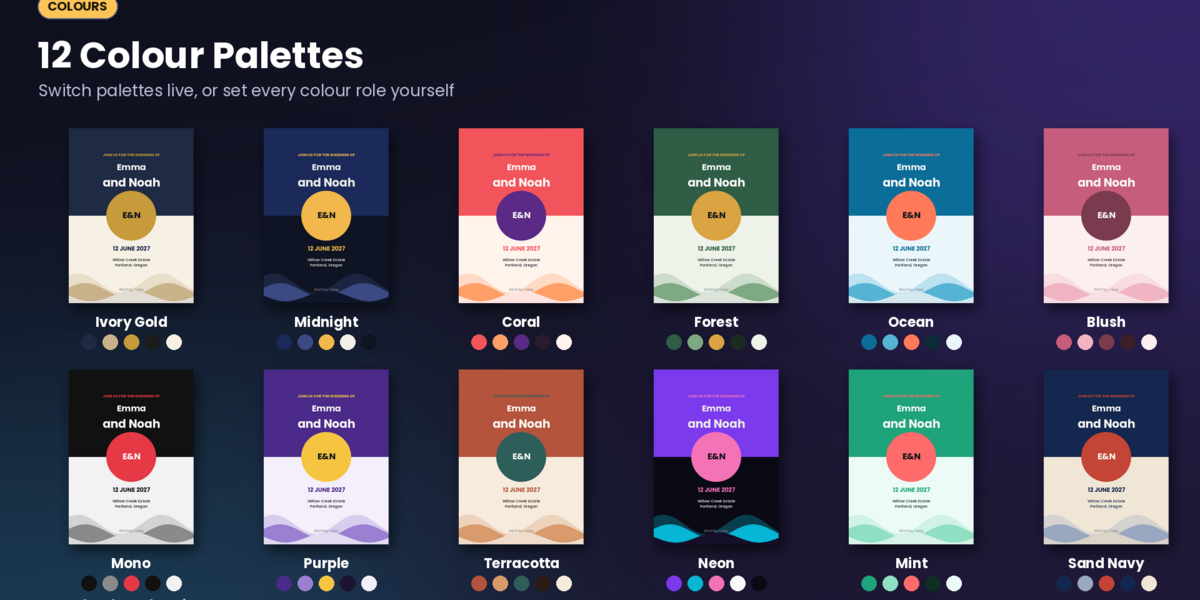
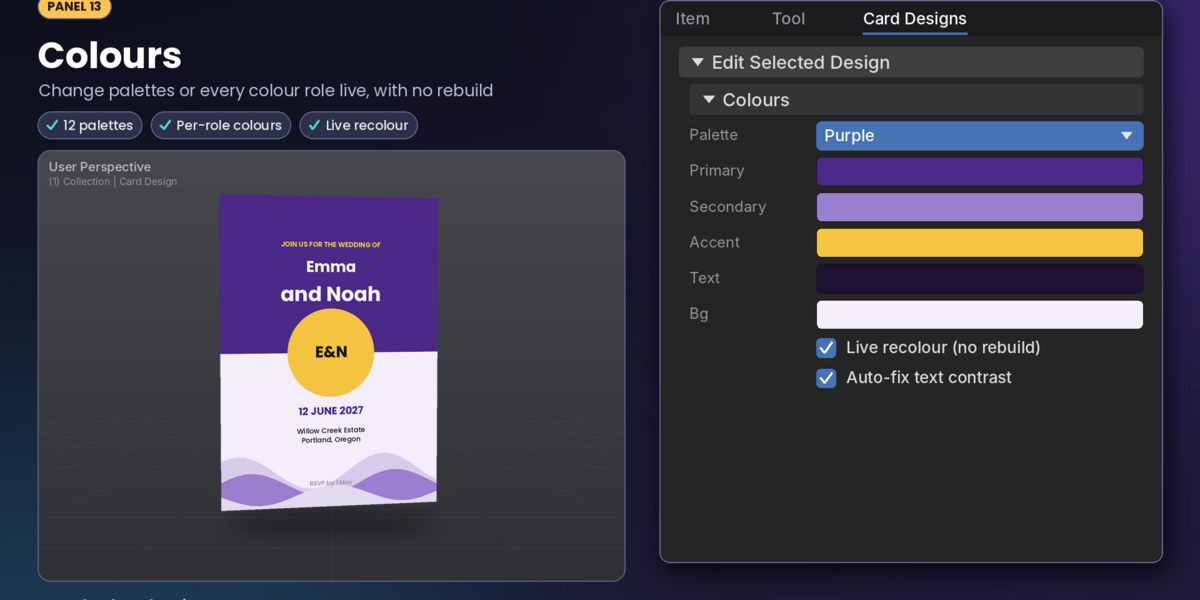
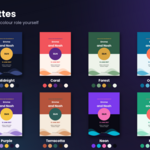
Give every design a unique appearance with six styles per design and 12 predefined color palettes.
Color Palette System
Choose from 12 coordinated palettes or customize individual color roles manually.
Available color controls include:
Primary Color
Secondary Color
Accent Color
Text Color
Background Color
Live Recoloring
Change colors instantly without rebuilding the 3D mesh.
The add-on also automatically adjusts text color roles when a palette combination could make text difficult to read.
This makes it easy to experiment with different branding styles, color combinations, and presentation themes.
Animation System
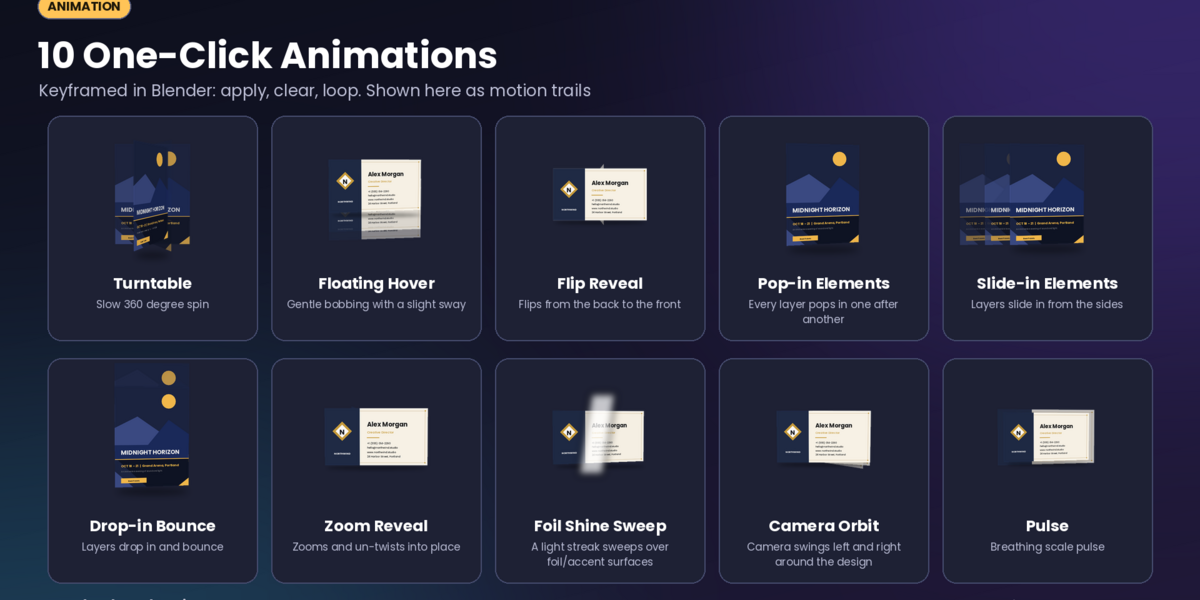
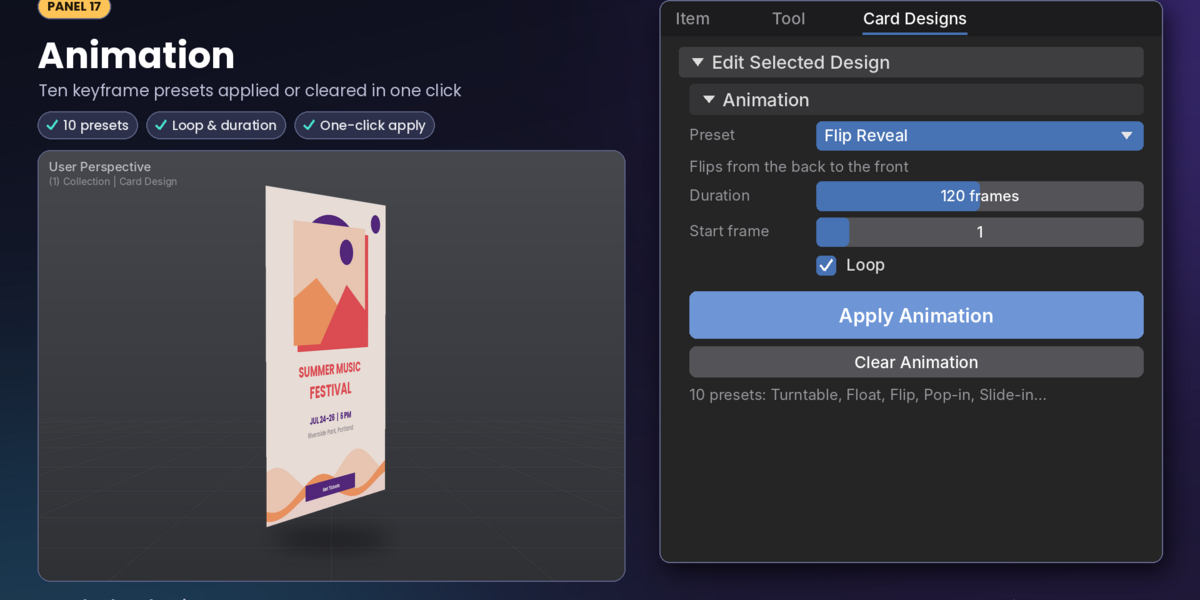
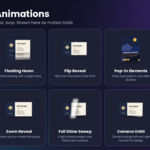
Bring your graphic and product presentations to life with 10 built-in animation presets.
-
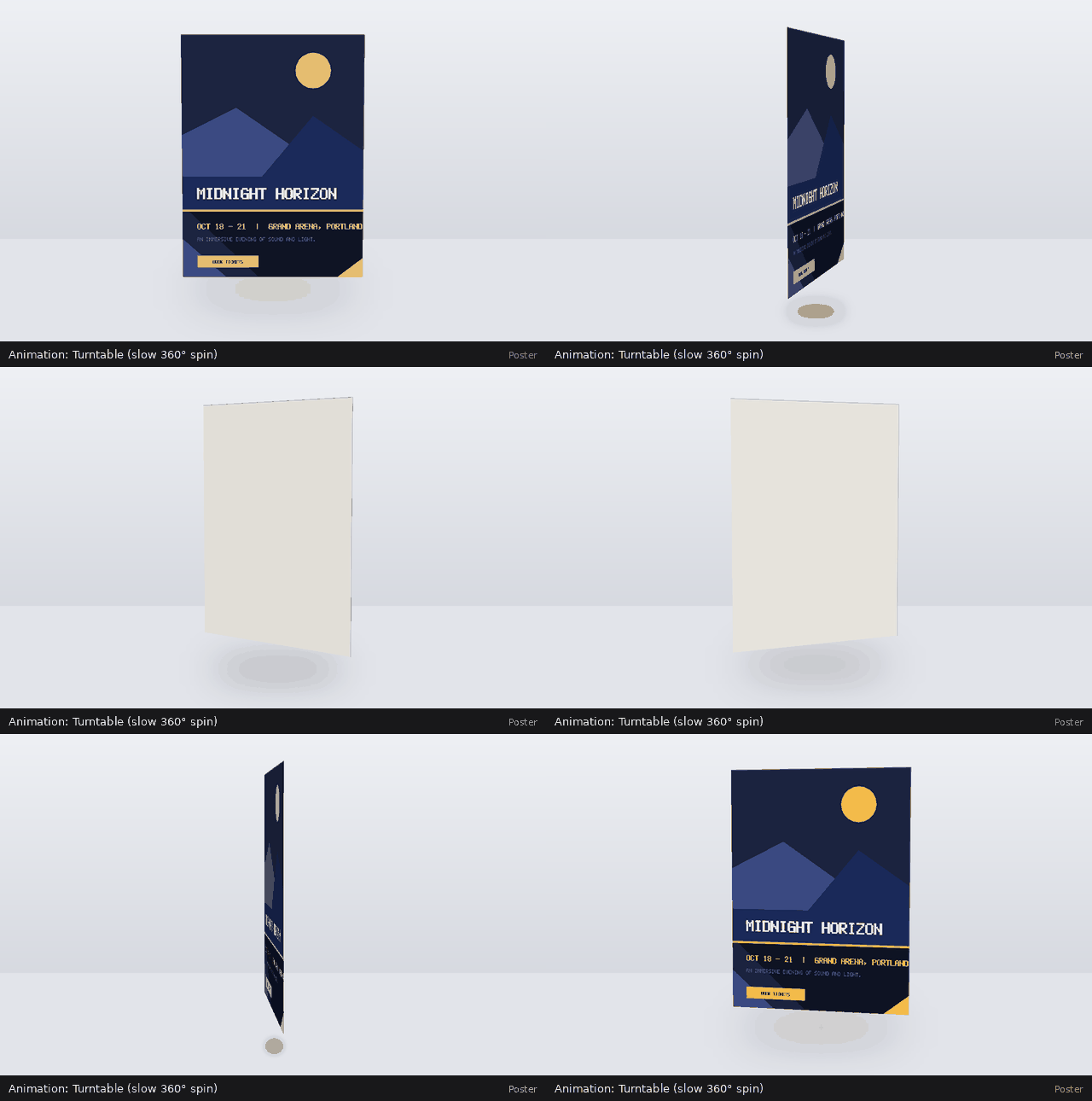
Turntable: Rotate the design for a complete product presentation.
-
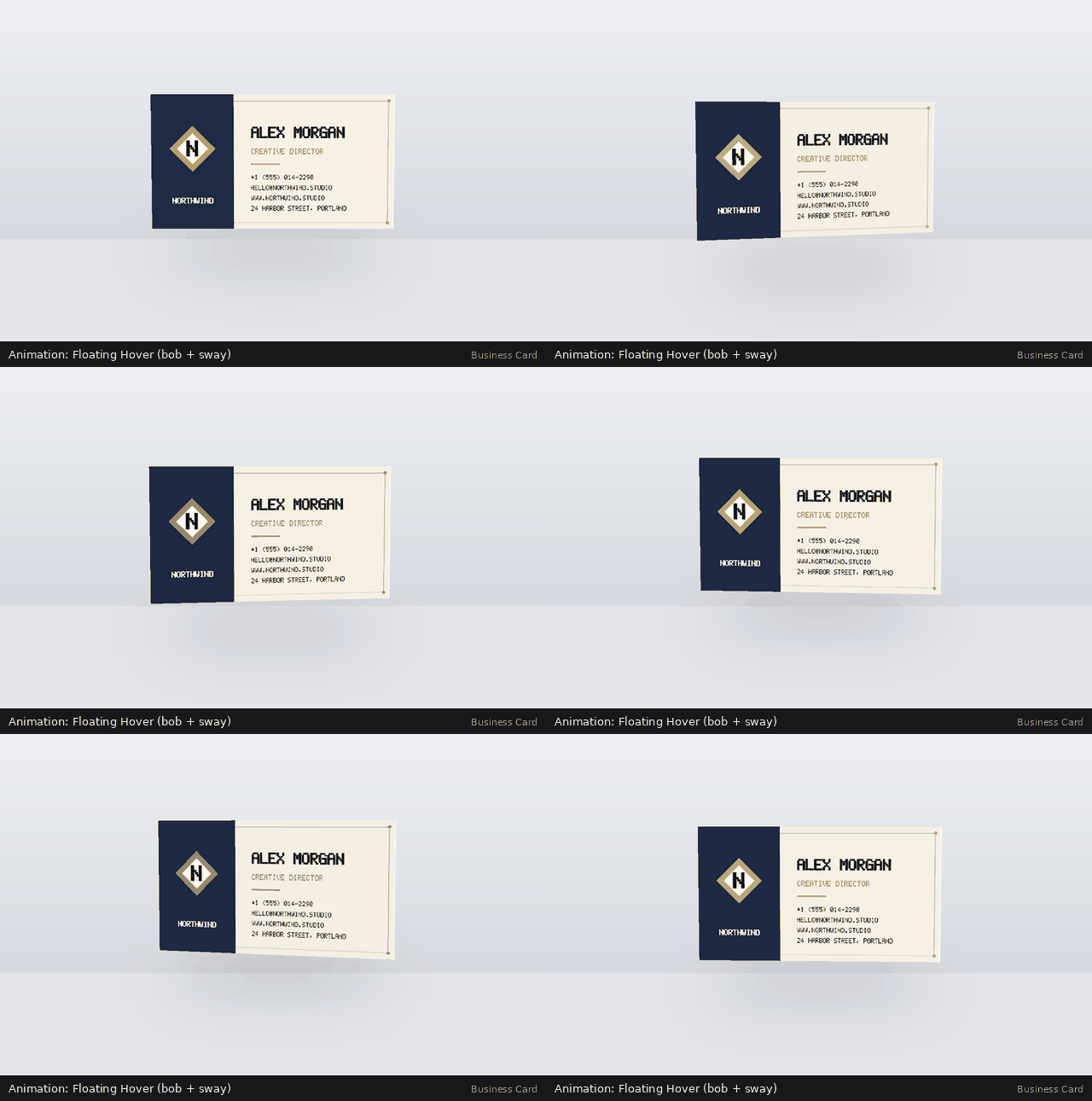
Floating Hover: Create a smooth floating motion.
-
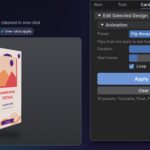
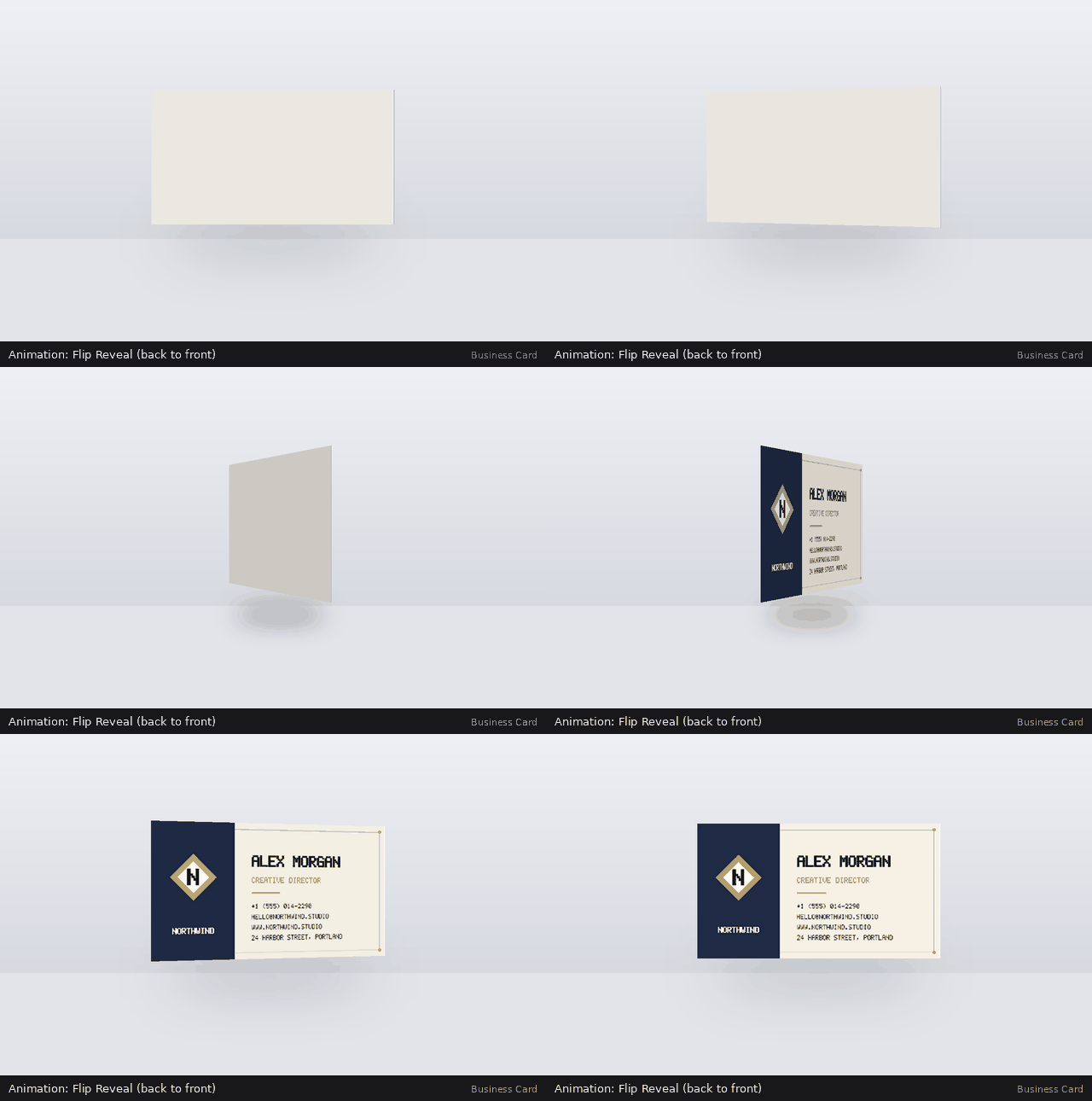
Flip Reveal: Reveal the design with a flipping animation.
-
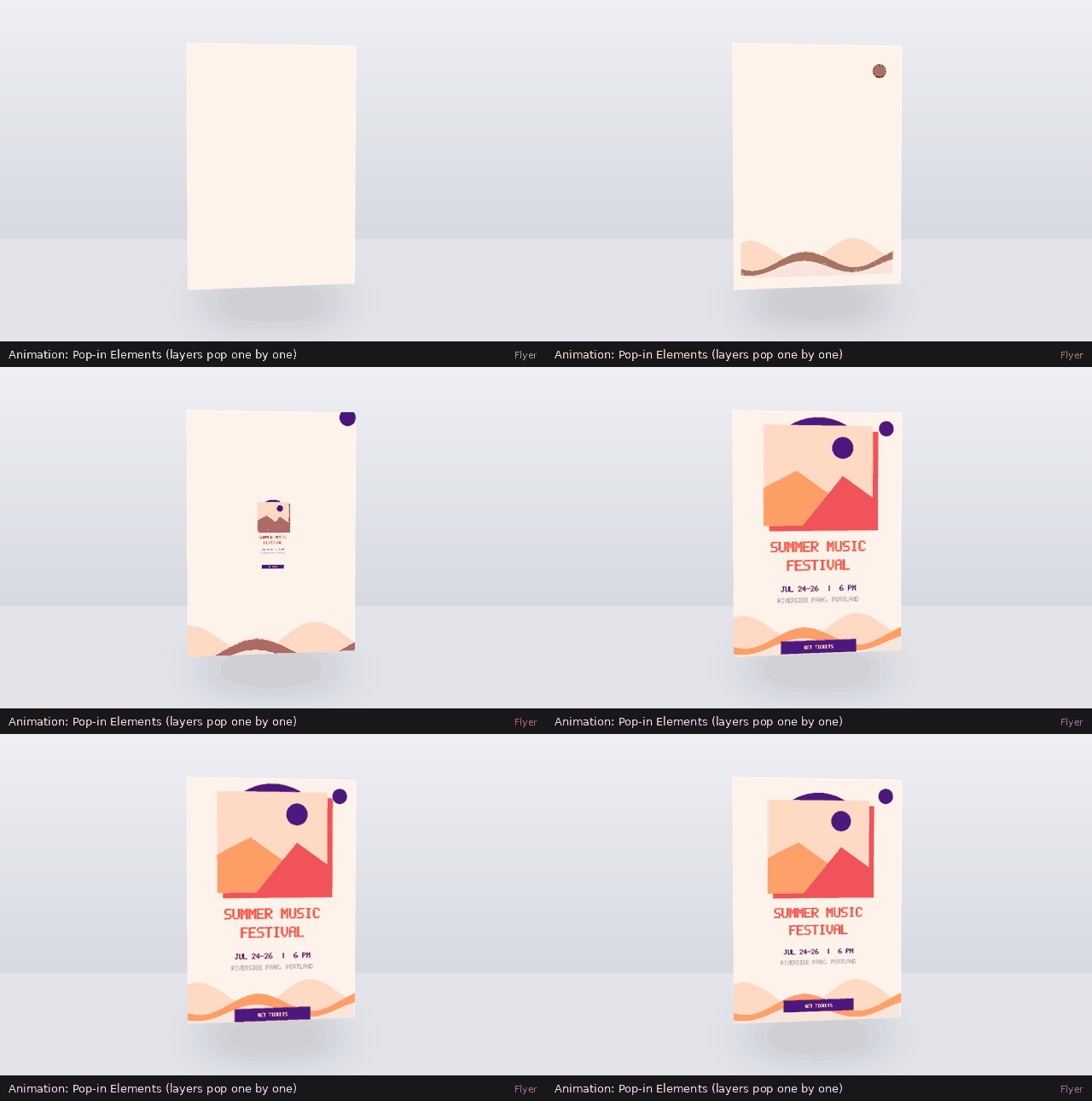
Pop-in: Animate the design into the scene with a pop effect.
-
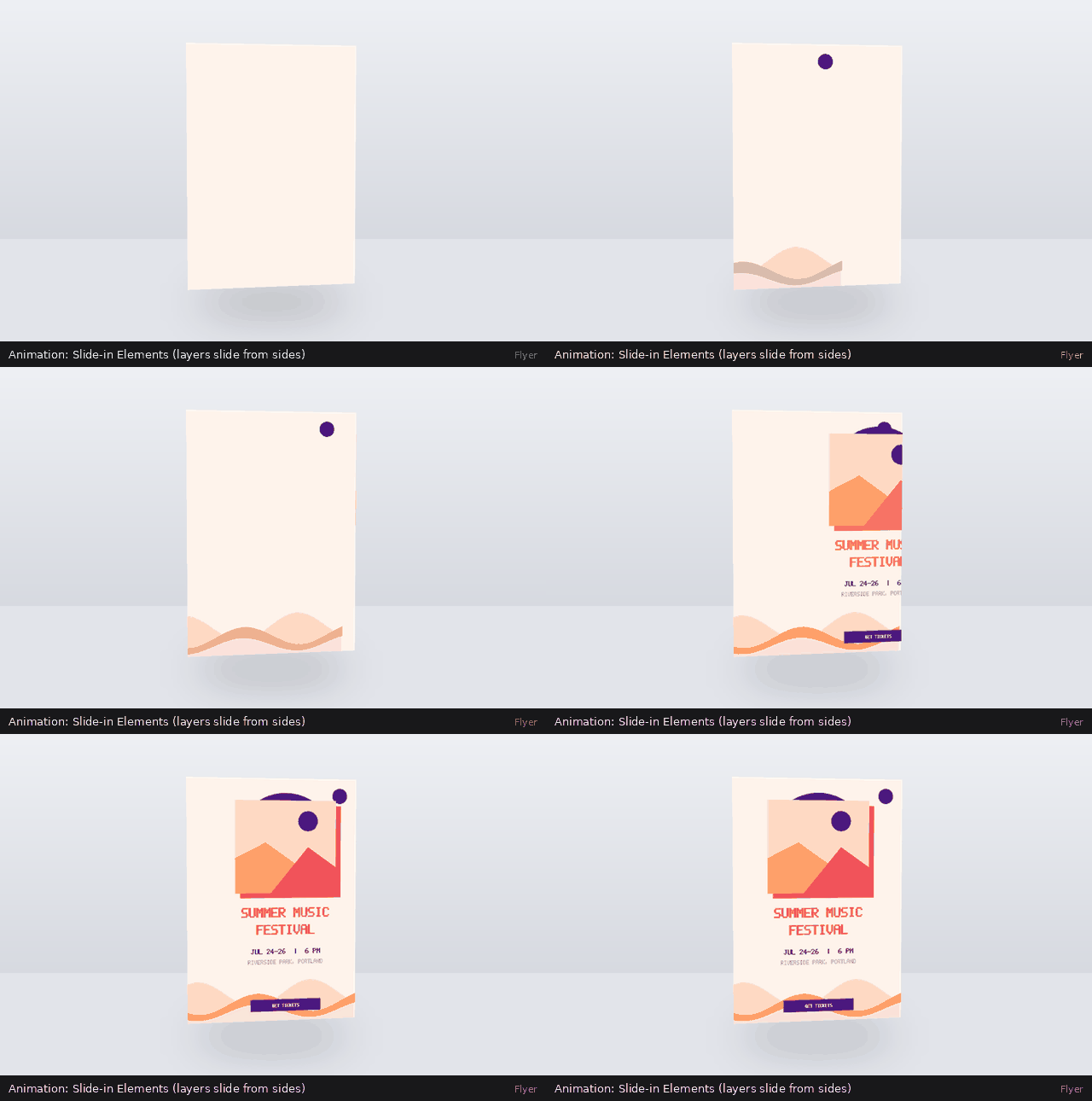
Slide-in: Introduce the design with a sliding motion.
-
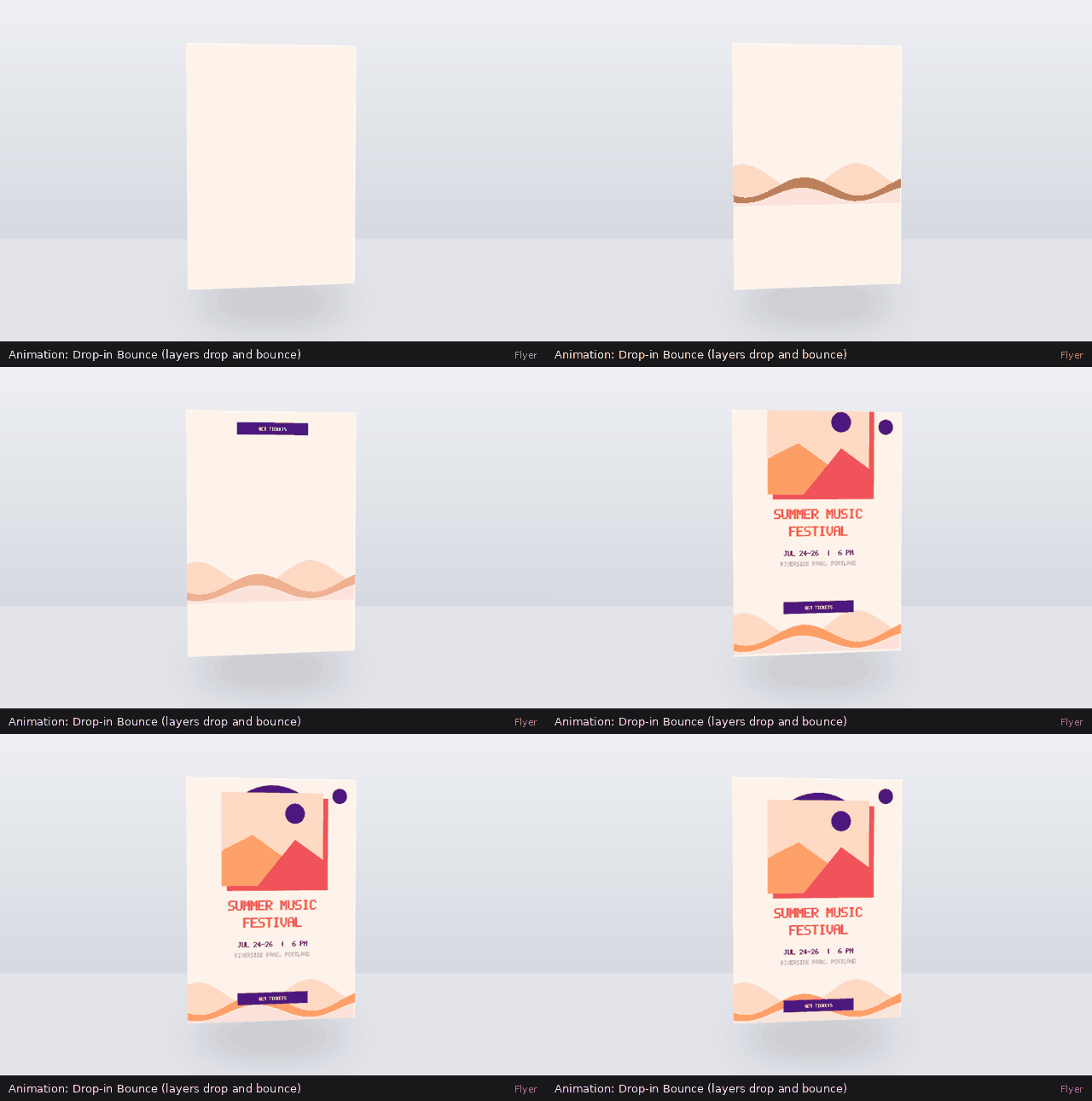
Drop-in Bounce: Drop the design into position with a bounce effect.
-
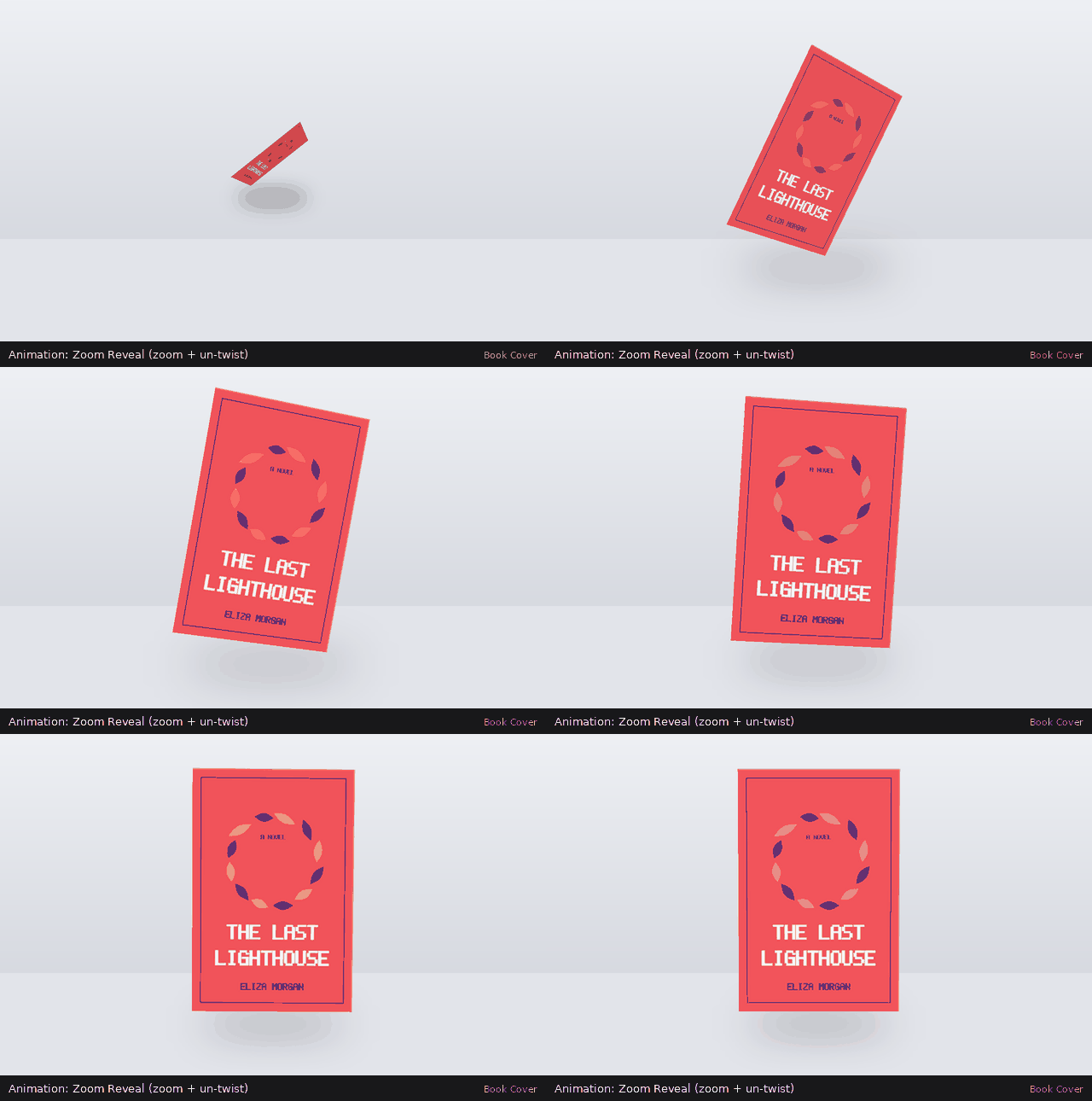
Zoom Reveal: Reveal the design using a zoom animation.
-
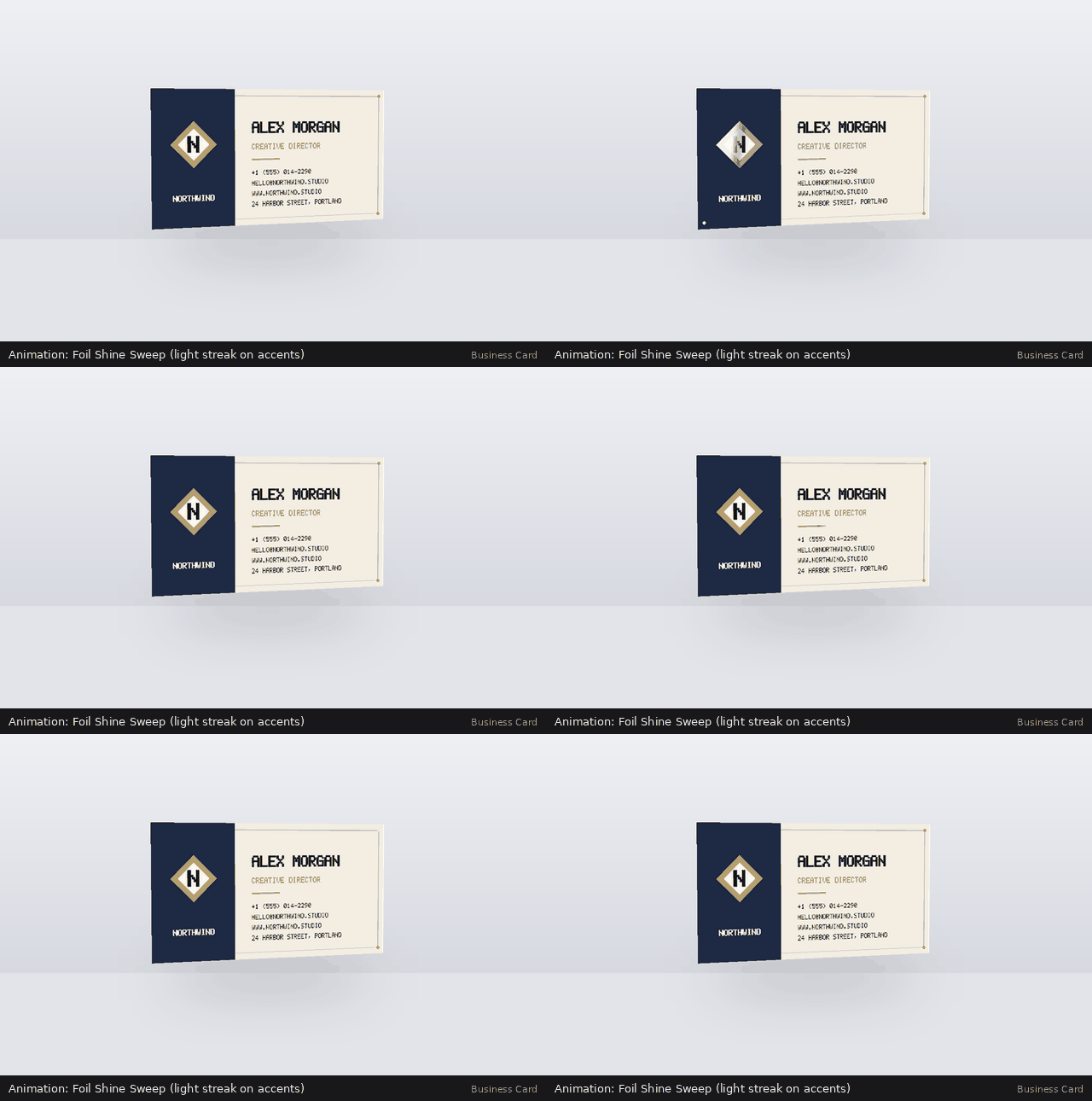
Foil Shine Sweep: Animate a shine effect across foil and metallic materials.
-
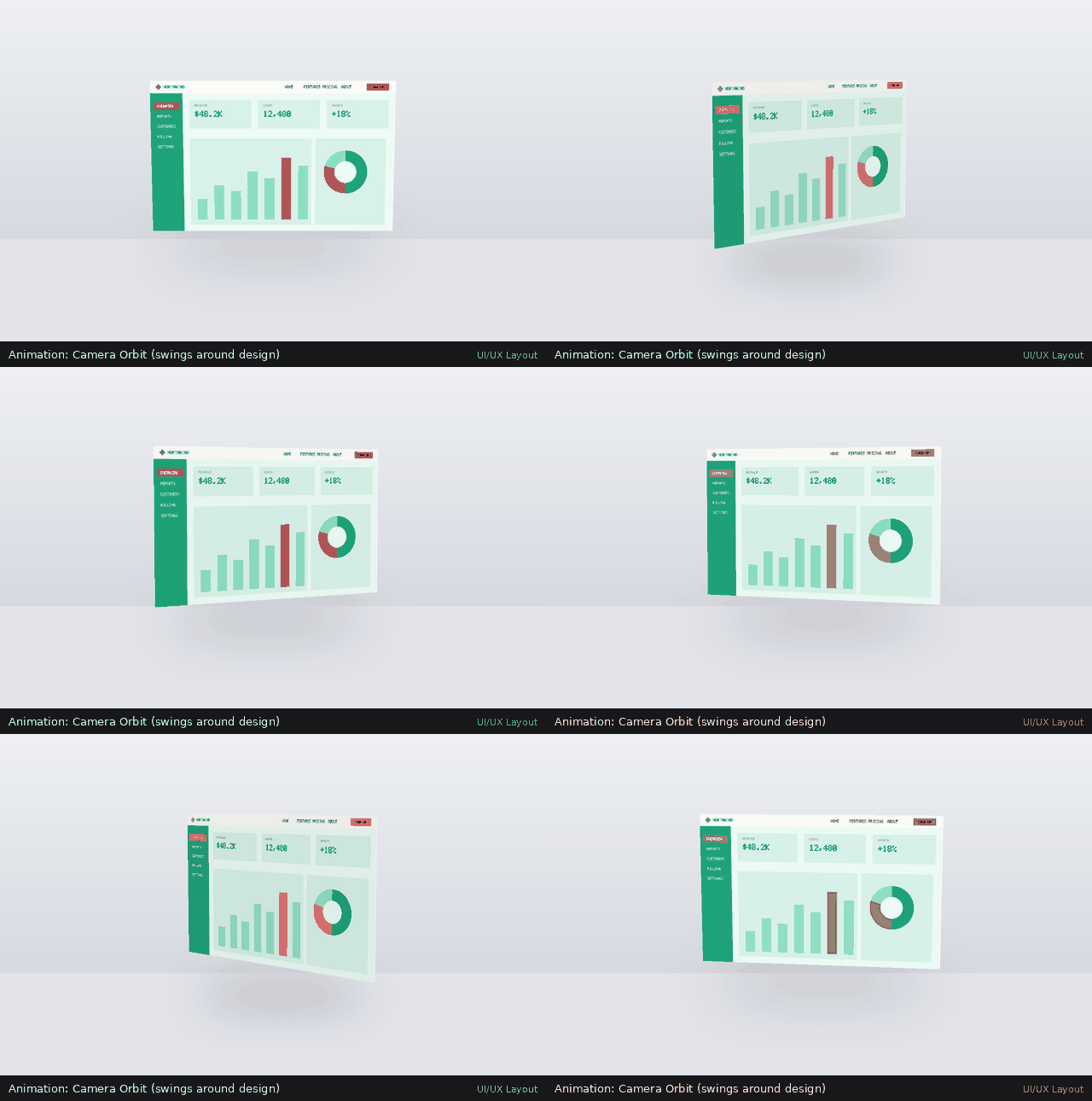
Camera Orbit: Move the camera around the design.
-
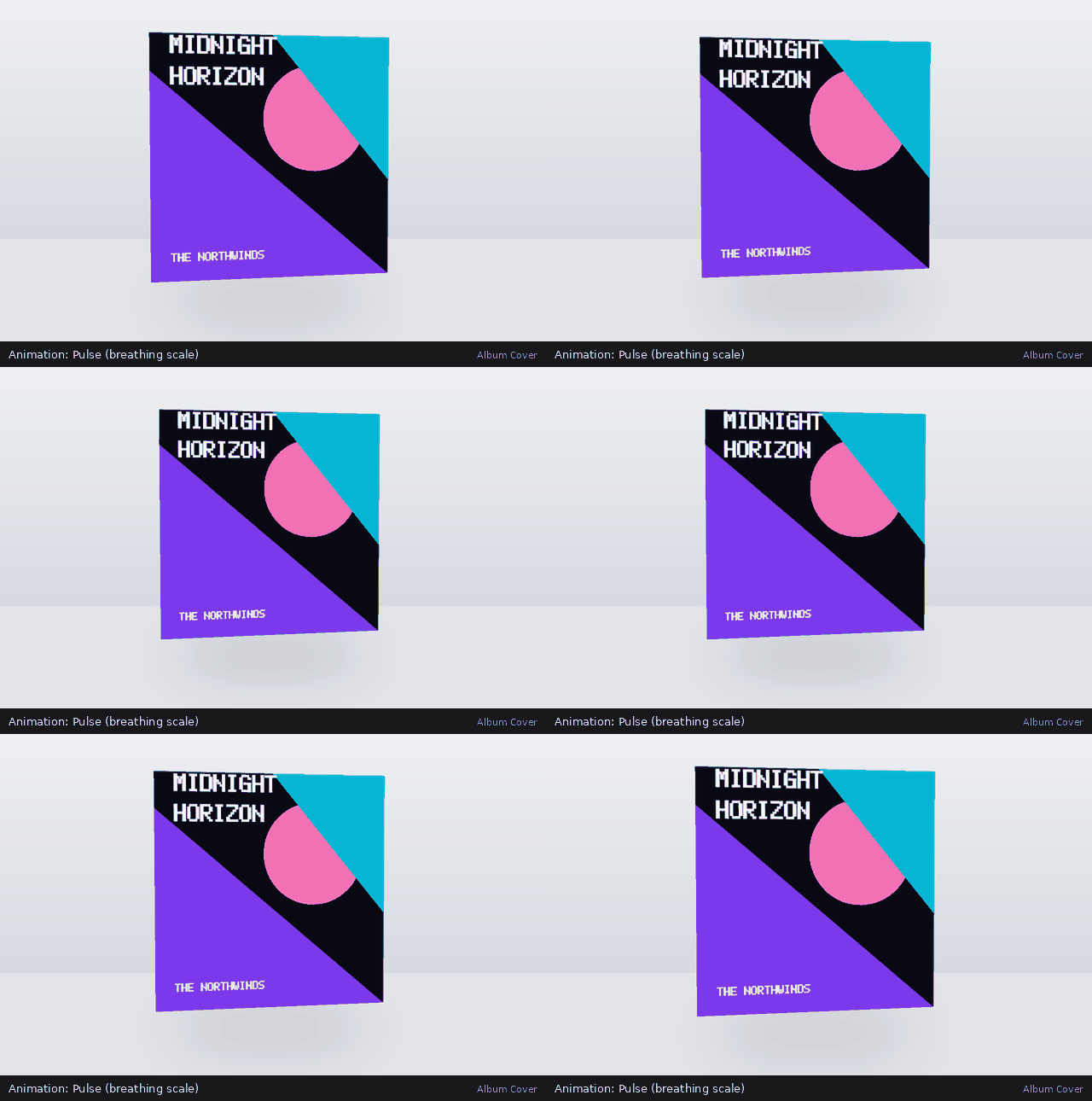
Pulse: Create a pulsing animation effect.
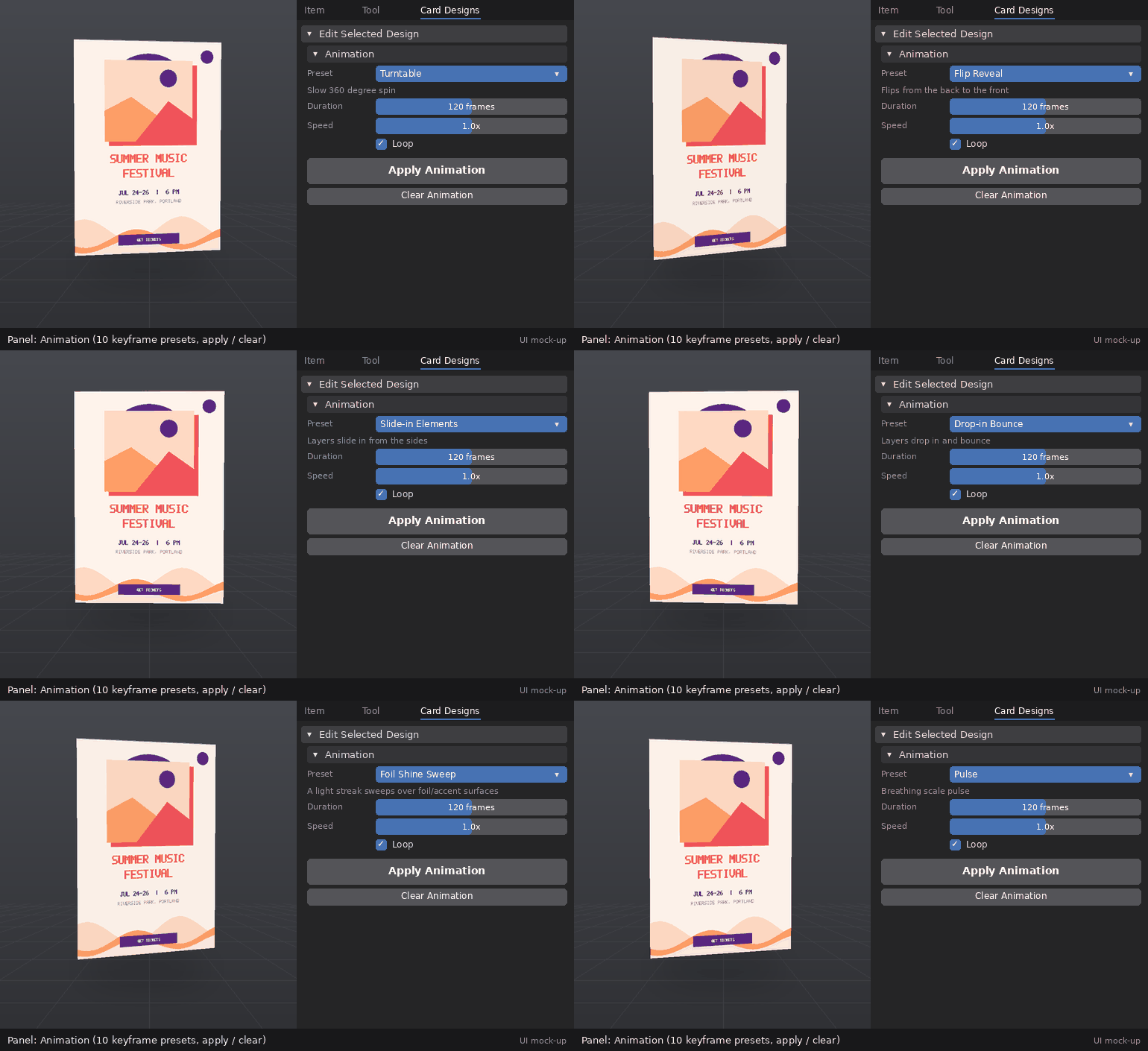
Apply any animation with a single click or clear the existing animation to start again.
Press Space in the viewport to play your animation and render the scene using Blender's regular rendering tools.
One-Click Studio Setup
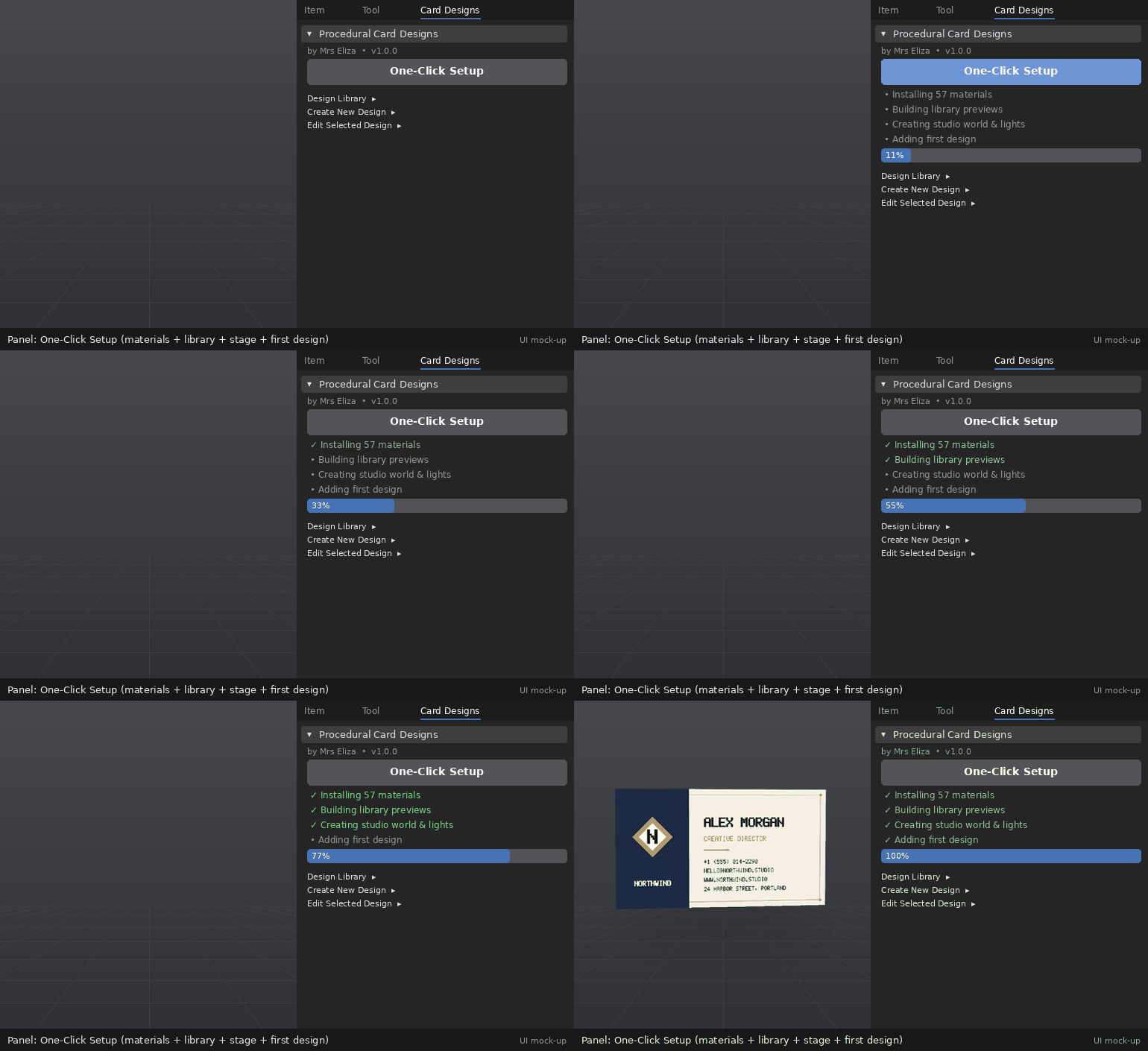
Prepare your design workspace and presentation environment with a single click.
The One-Click Setup feature automatically:
Installs all 57 procedural materials.
Builds the design library previews.
Creates the studio presentation stage.
Adds the first design to your scene.
Once the setup is complete, you can start creating designs without manually preparing materials or the presentation environment.
Studio, Camera & Lighting Controls
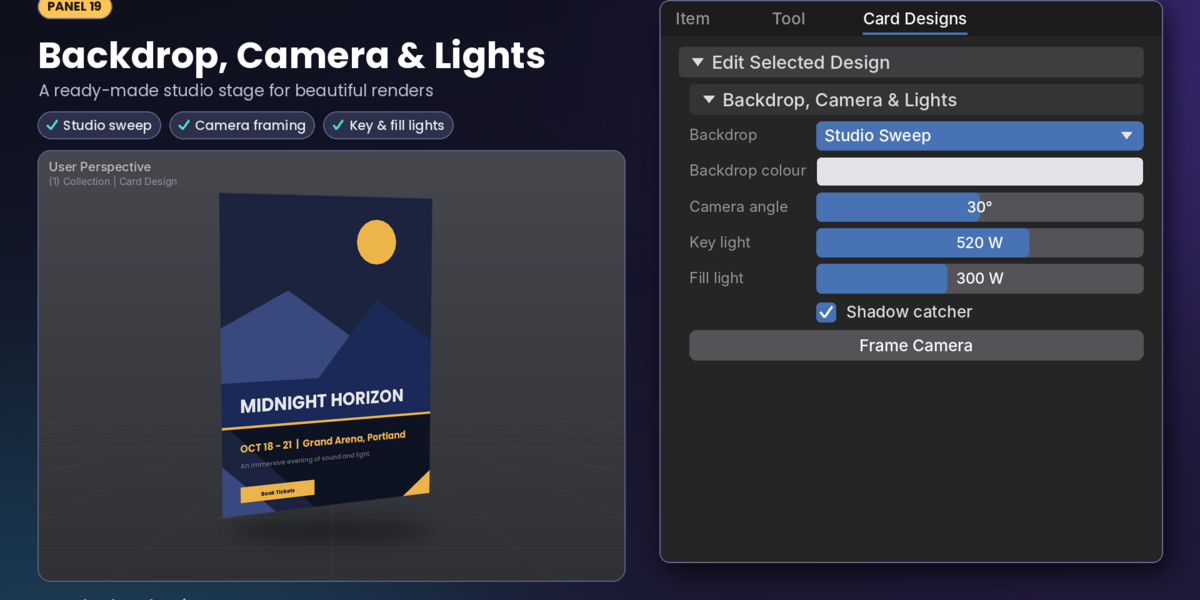
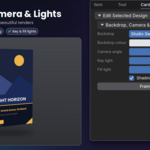
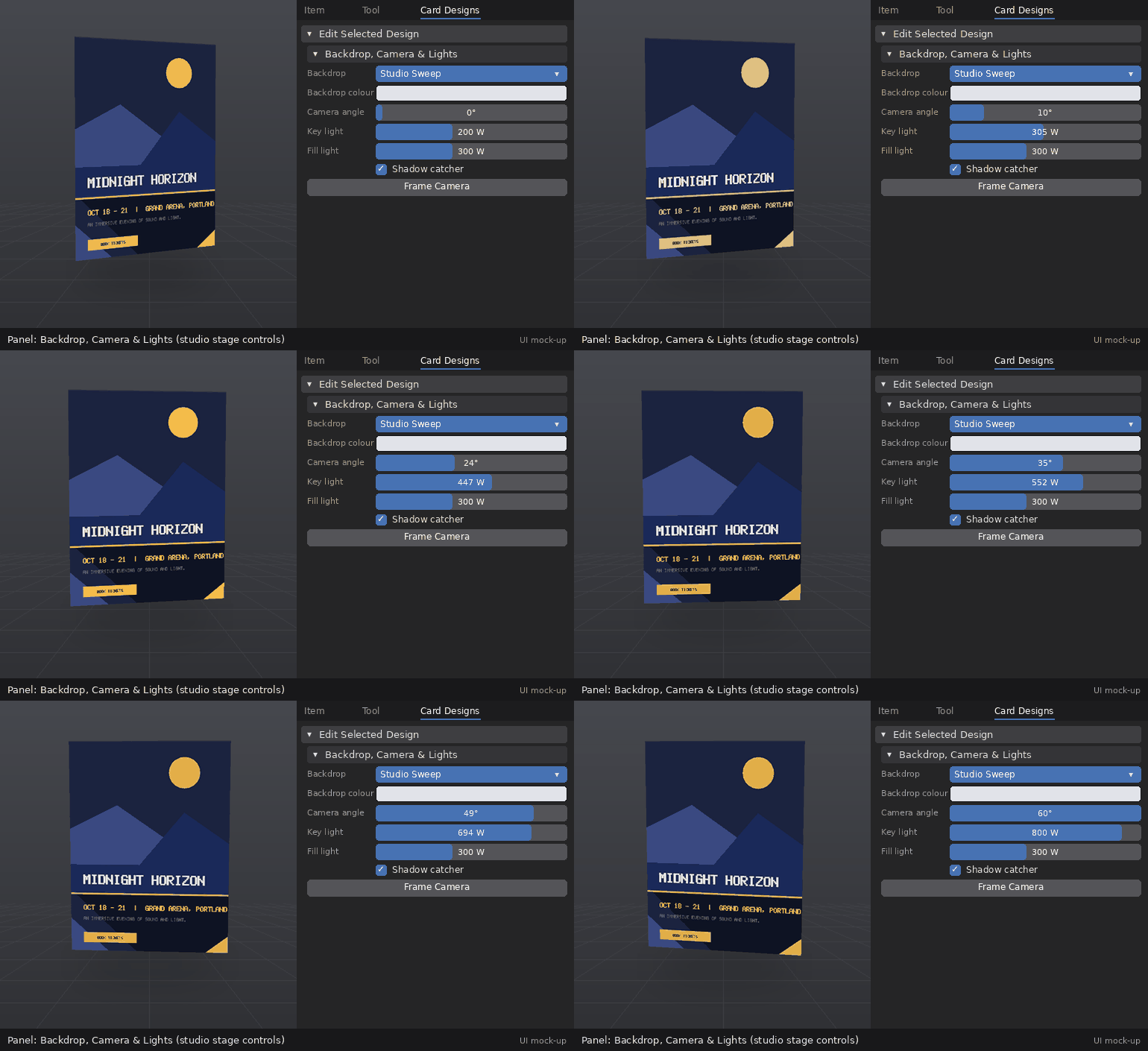
Prepare professional presentation scenes with dedicated backdrop, camera, and lighting controls.
Backdrop: Customize the studio background to complement your design.
Camera: Adjust camera framing and positioning for different presentation angles.
Lighting: Control key and fill lights to improve the appearance of materials and 3D models.
Create attractive product mockups, branding presentations, promotional graphics, and professional design renders directly inside Blender.
Add-on Panels & Tools
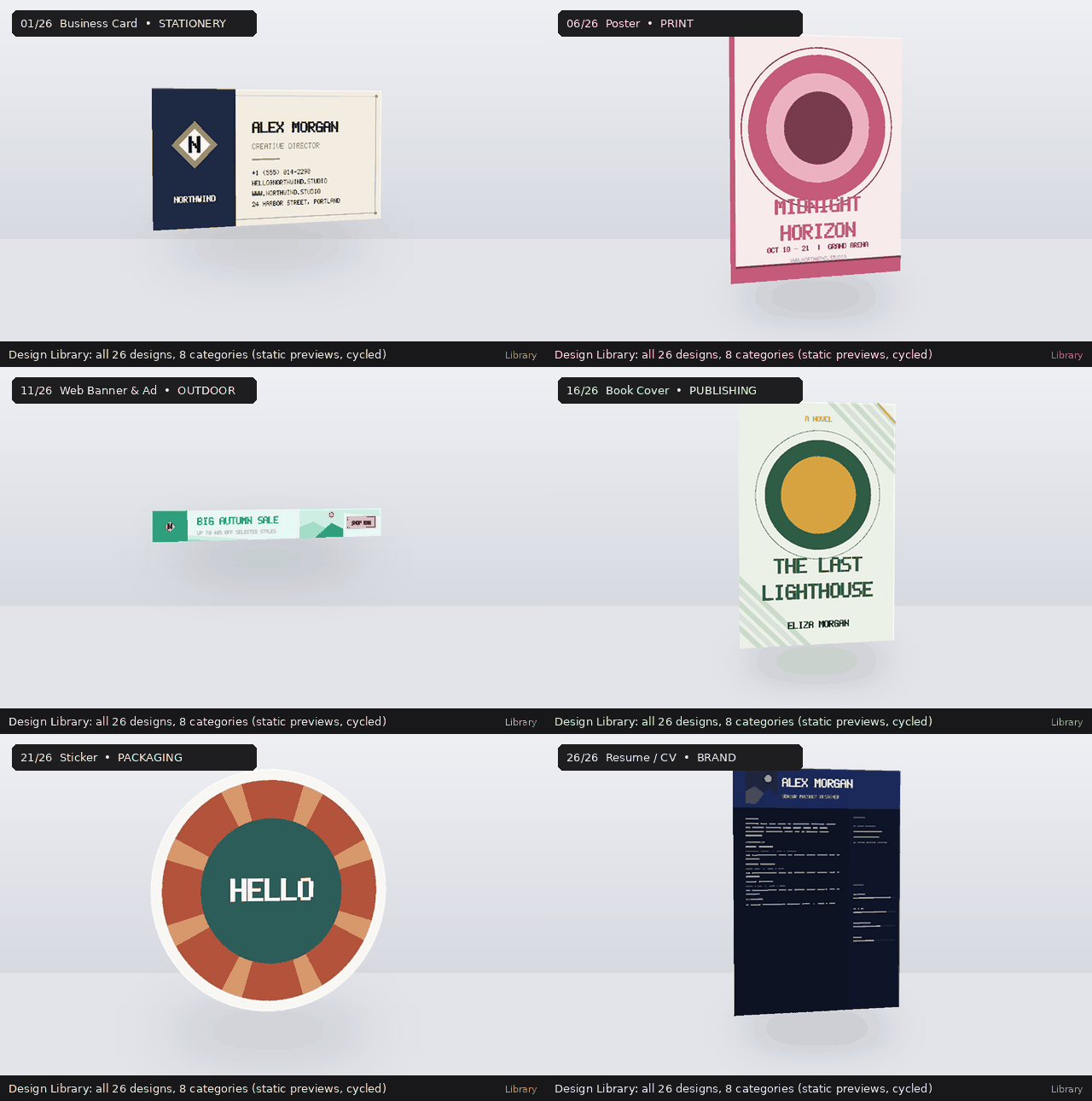
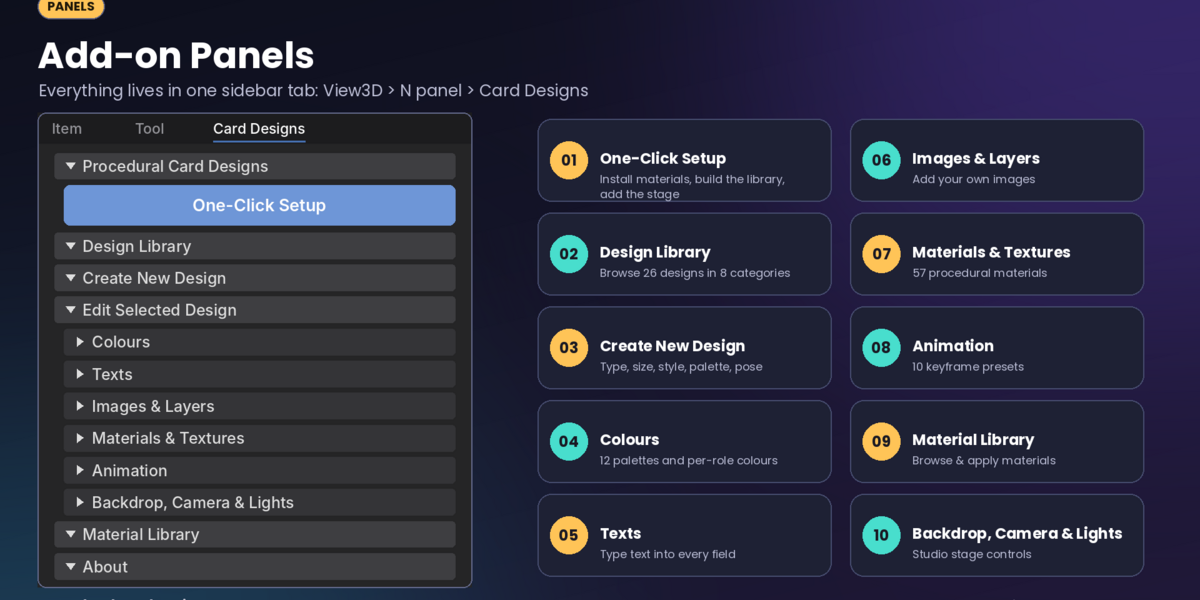
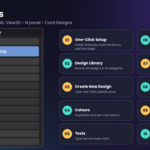
All features are organized inside the Card Designs tab in the 3D Viewport sidebar.
One-Click Setup: Install materials, build the design library, prepare the studio stage, and create the first design.
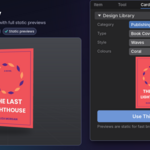
Design Library: Browse design categories and types using static previews and choose a template.
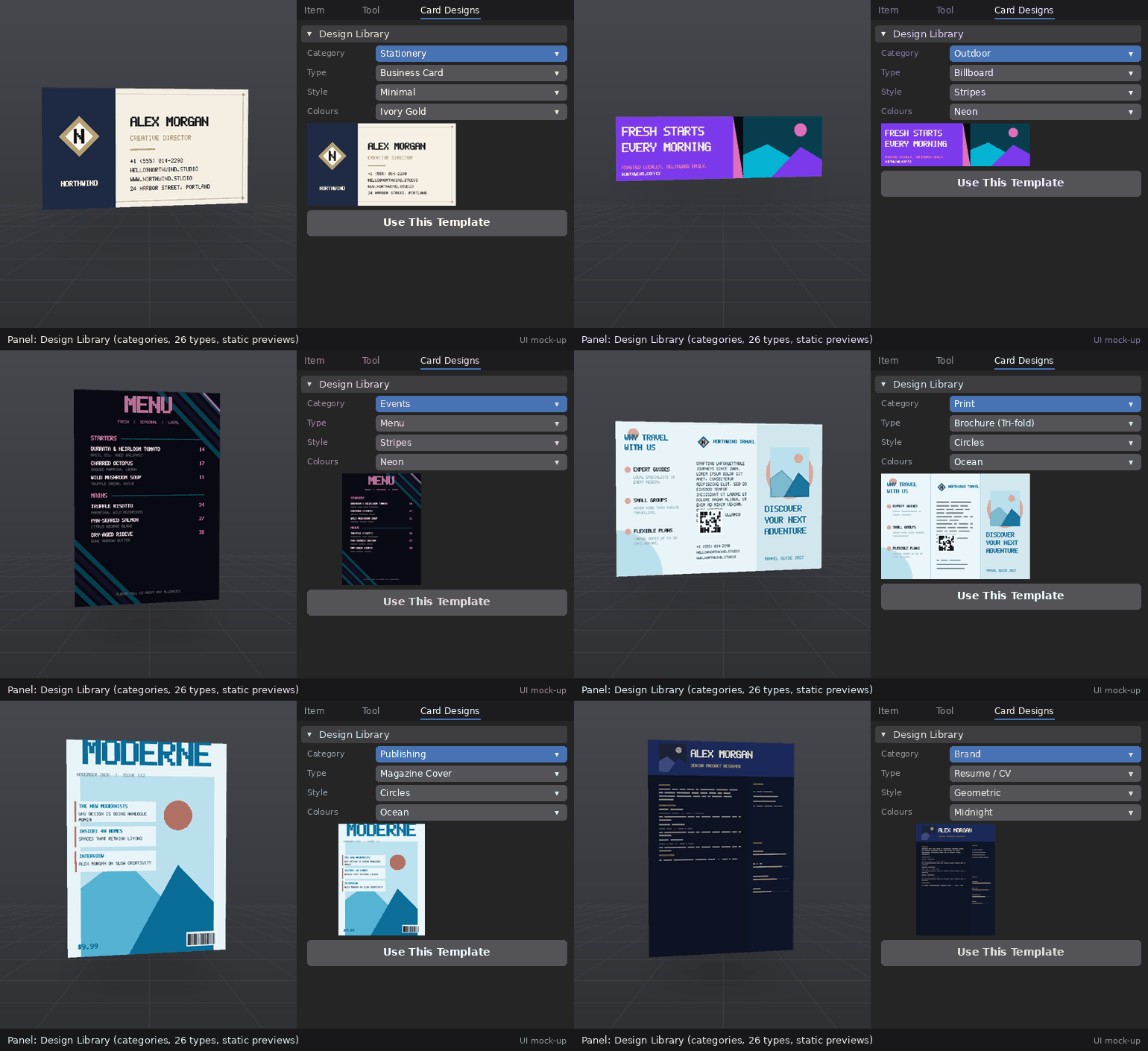
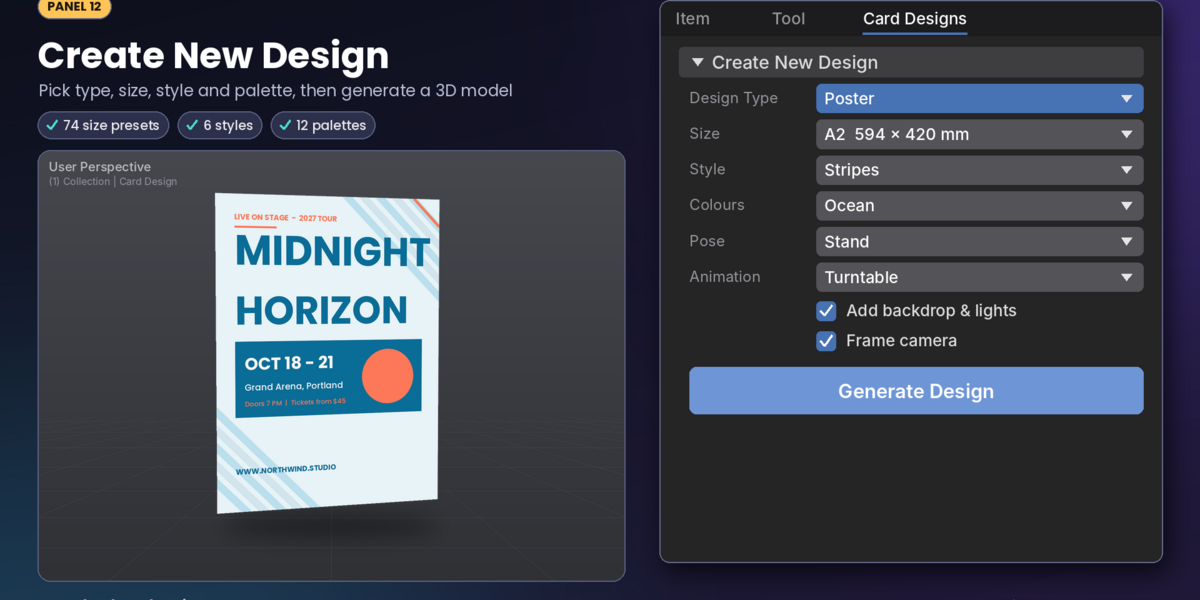
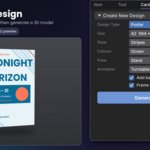
Create New Design: Select a design type, size, style, color palette, pose, and animation before generating.
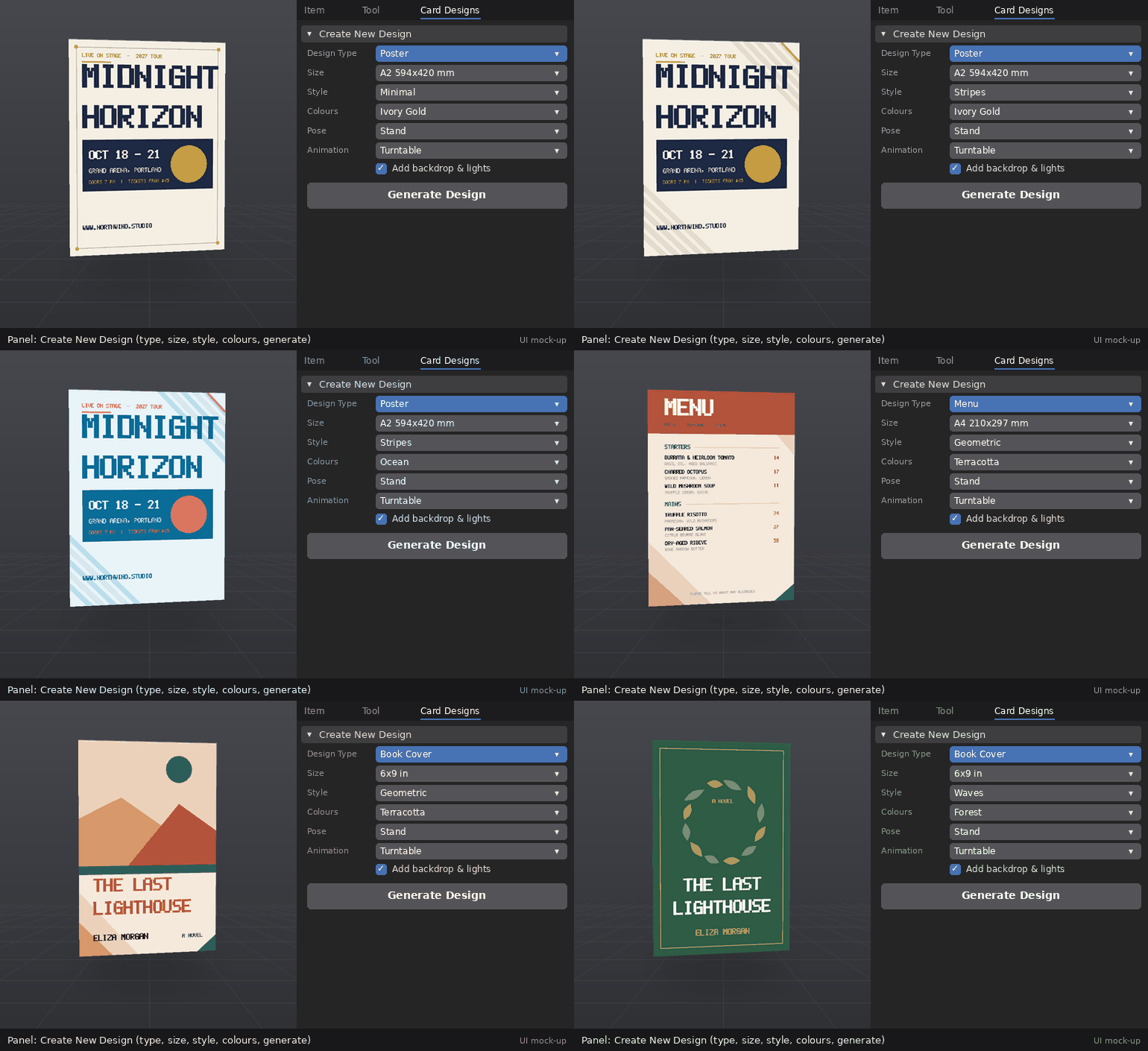
Colours: Apply predefined palettes or customize individual color roles with live recoloring.
Texts: Edit existing text and create additional text blocks.
Images & Layers: Import your own images and add additional graphic layers.
Materials & Textures: Browse and apply the 57 procedural materials and customize roughness, metallic, bump, and tint.
Animation: Choose from 10 animation presets and apply or clear animations.
Material Library: Browse materials by category and apply them to selected designs.
Backdrop, Camera & Lights: Customize the studio backdrop, camera framing, and key and fill lighting.
Requirements
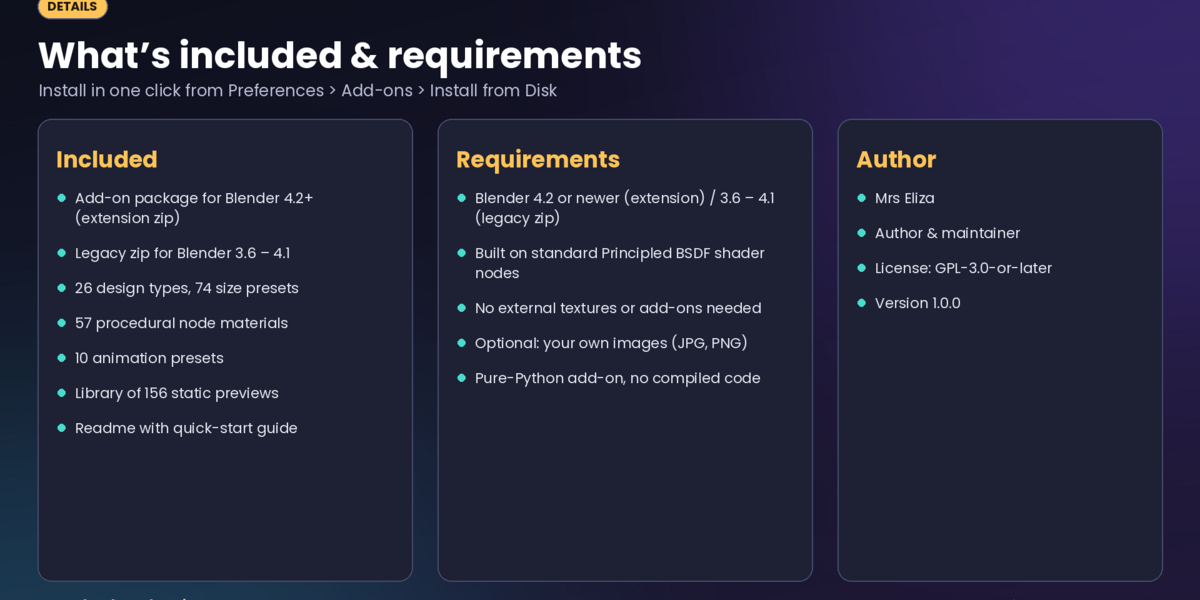
Blender 3.6 or newer.
Blender 3.6–4.1 requires the legacy ZIP package.
Blender 4.2 and newer requires the extension ZIP package.
No additional add-ons required.
No external textures required.
Optional JPG and PNG images for custom graphics and logos.
Installation
The package includes two ZIP files. Choose the correct package for your Blender version.
For Blender 4.2 and Newer
Download the extension ZIP file.
Open Blender and navigate to Edit > Preferences > Get Extensions.
Click the dropdown arrow at the top right.
Select Install from Disk.
Choose the extension ZIP file and confirm.
Enable Procedural Card Designs Generator.
For Blender 3.6 to 4.1
Download the legacy ZIP file.
Open Blender and navigate to Edit > Preferences > Add-ons.
Click Install.
Select the legacy ZIP file.
Enable Procedural Card Designs Generator.
Accessing the Add-on
Open the 3D Viewport, press N, and select the Card Designs tab.
Frequently Asked Questions (FAQ)
Q: Which Blender versions are supported?
The add-on supports Blender 3.6 and newer. Use the legacy package for Blender 3.6–4.1 and the extension package for Blender 4.2 and newer.
Q: How many design types are included?
There are 26 design types organized into 8 categories, covering stationery, print, outdoor advertising, digital graphics, publishing, packaging, events, and branding.
Q: Can I create my own business cards and posters?
Yes. Select the required design type from the Design Library or Create New Design panel, choose a size, style, and palette, and generate your design.
Q: Can I customize the text?
Yes. Open Texts under Edit Selected Design and replace the available text fields with your own content. You can also add extra text blocks.
Q: Can I use my own logos and photographs?
Yes. The Images & Layers panel supports JPG and PNG files. You can assign images to available slots and add extra image layers.
Q: Can I change the colors of a design?
Yes. Choose from 12 color palettes or customize the primary, secondary, accent, text, and background colors individually.
Q: Do color changes require rebuilding the design?
No. Color changes are applied live without rebuilding the mesh.
Q: How many procedural materials are included?
The add-on includes 57 procedural materials across 7 categories: Paper, Board, Foil & Metal, Fabric, Leather & Plastic, Natural, and Special.
Q: Can I use my own materials?
Yes. You can assign materials to your designs and accent elements and adjust available material properties such as roughness, metallic, bump, and tint.
Q: Can I create repeating text or graphic patterns?
The documentation describes additional image layers and text blocks, but does not specify a dedicated repeat-pattern system.
Q: How can I create animations?
Open the Animation panel, choose one of the 10 animation presets, and apply it to your selected design.
Q: Can I animate metallic foil materials?
Yes. Foil and metal materials include a shine effect that can be animated using the Foil Shine Sweep preset.
Q: How do I create a studio presentation?
Click One-Click Setup. It installs the materials, builds library previews, prepares the studio stage, and adds the first design.
Q: Why are the design library previews missing?
Open the Design Library panel and click Build Library. The previews are cached in Blender's user configuration folder.
Q: Why are my text or color changes not appearing?
Make sure the correct design is selected and wait briefly for the automatic rebuild to complete.
Q: Why is my custom image not showing?
Check that the image file path is correct and that the file uses JPG or PNG format.
Q: Which render engine should I use?
EEVEE is recommended for faster viewport work. Switch to Cycles for final-quality renders.
Q: Can I change the camera and lighting?
Yes. Use Backdrop, Camera & Lights to customize the studio backdrop, camera framing, and key and fill lighting.
Q: What units are used for design sizes?
The add-on uses millimetres for design dimensions. Large designs such as billboards may require a wider camera clipping range.
Version & Credits
Add-on Name: Procedural Card Designs Generator
Version: 1.0.0
Author & Maintainer: Mrs Eliza
License: GPL-3.0-or-later
Requirements: Blender 3.6+
For technical support, include your Blender version and a short description of the issue. Screenshots are helpful when reporting problems.