 NORELL
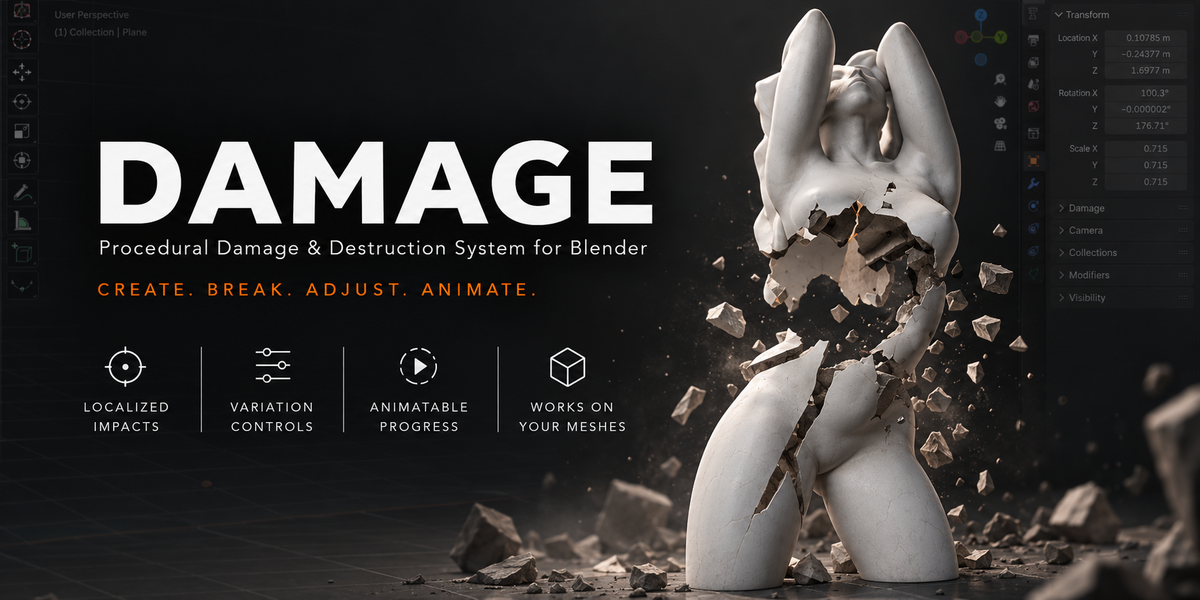
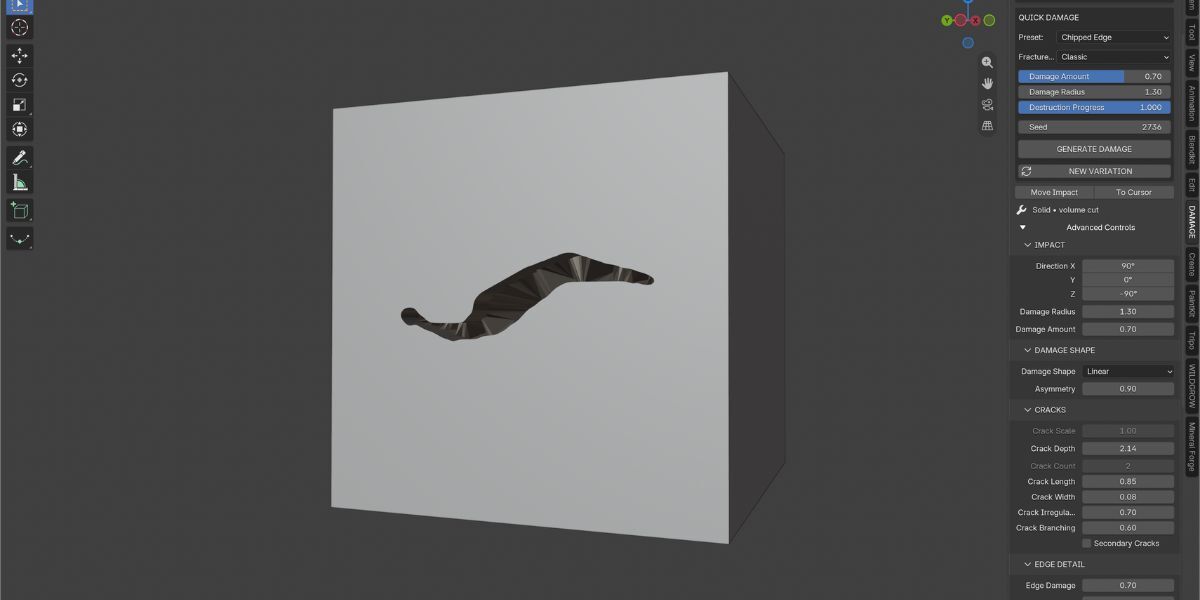
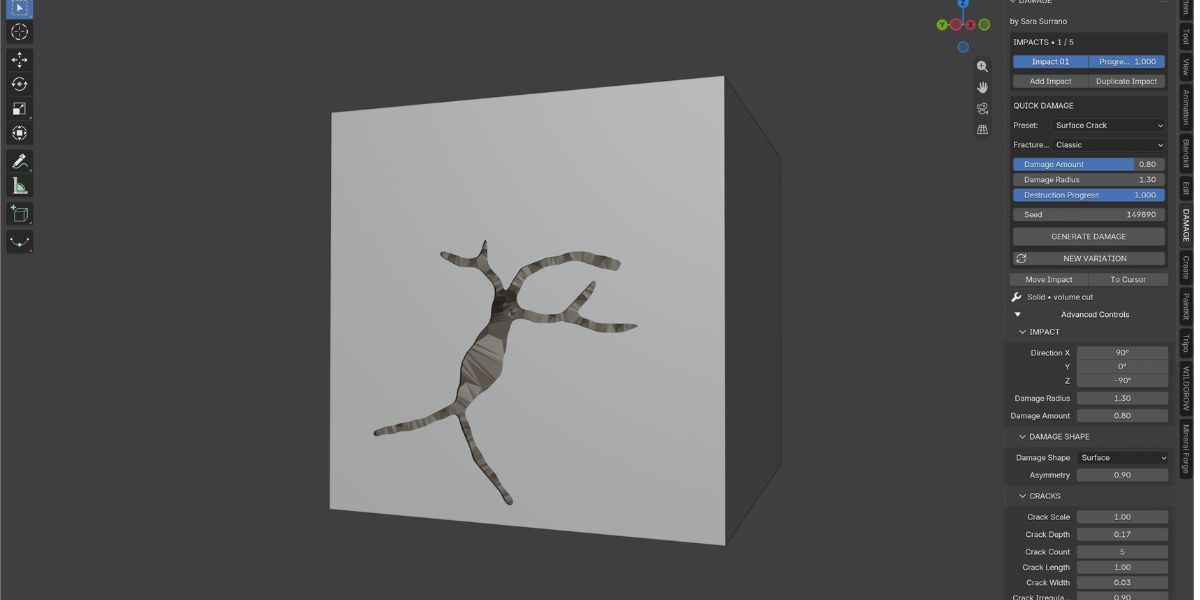
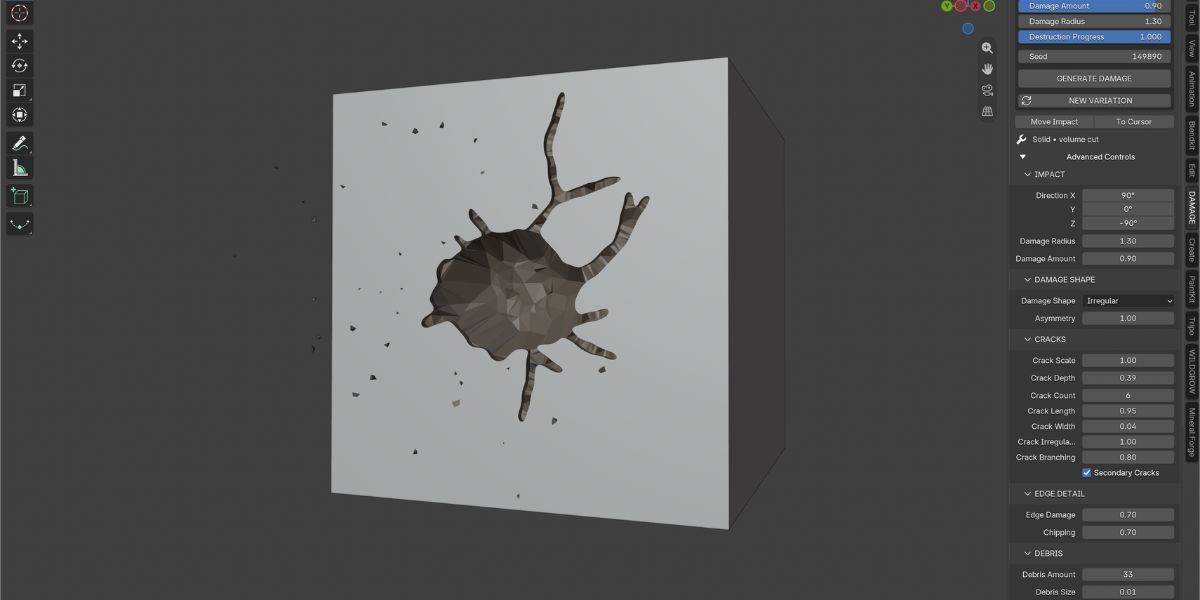
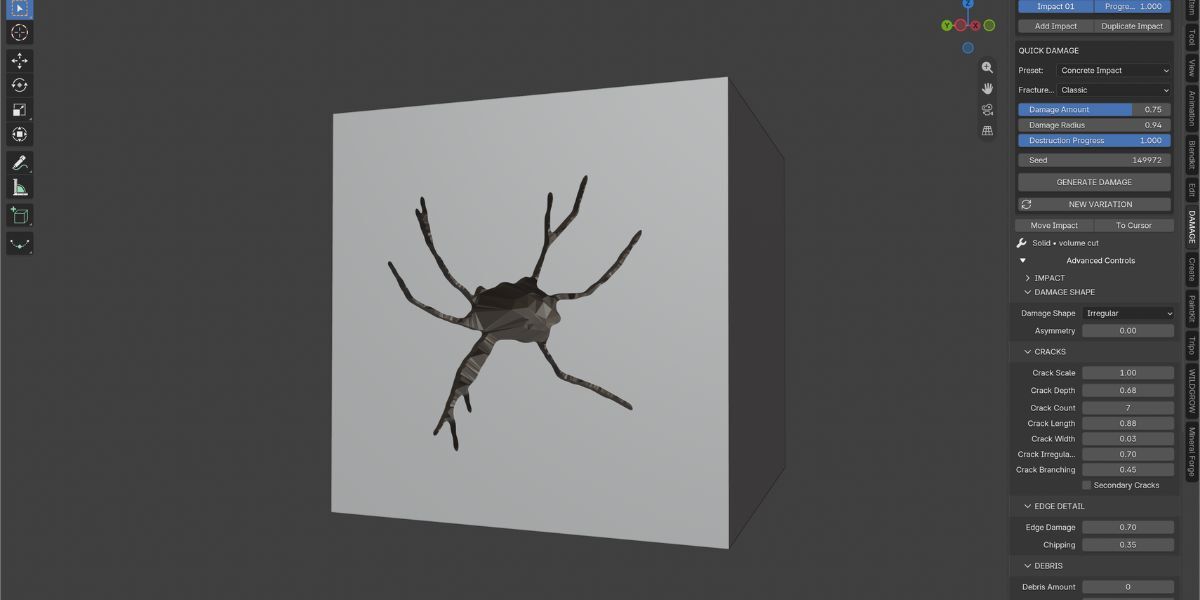
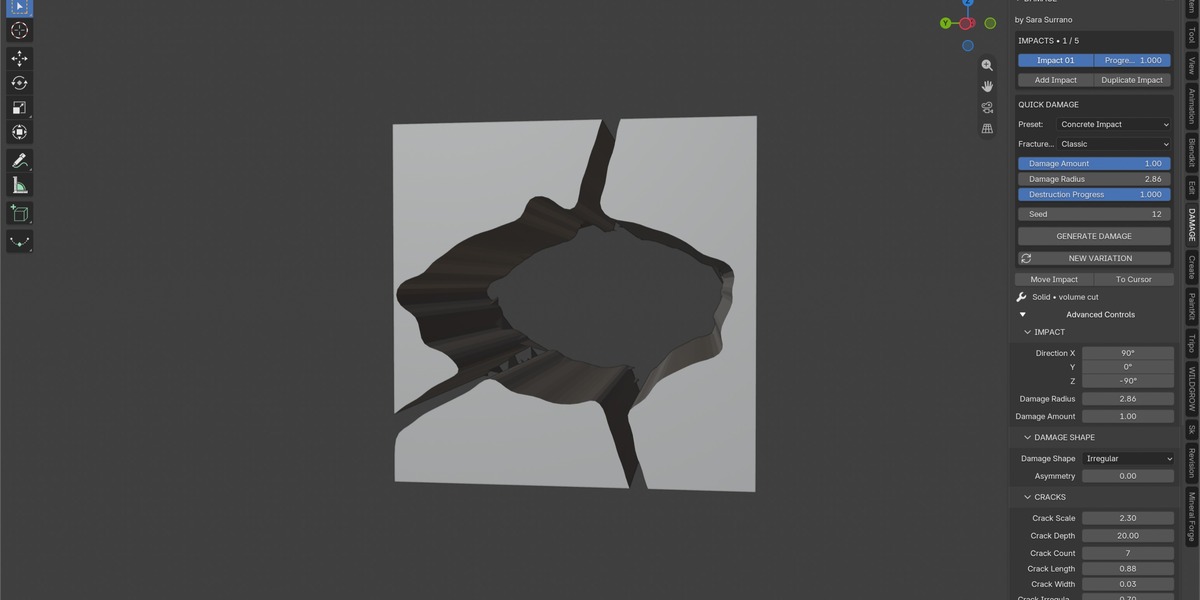
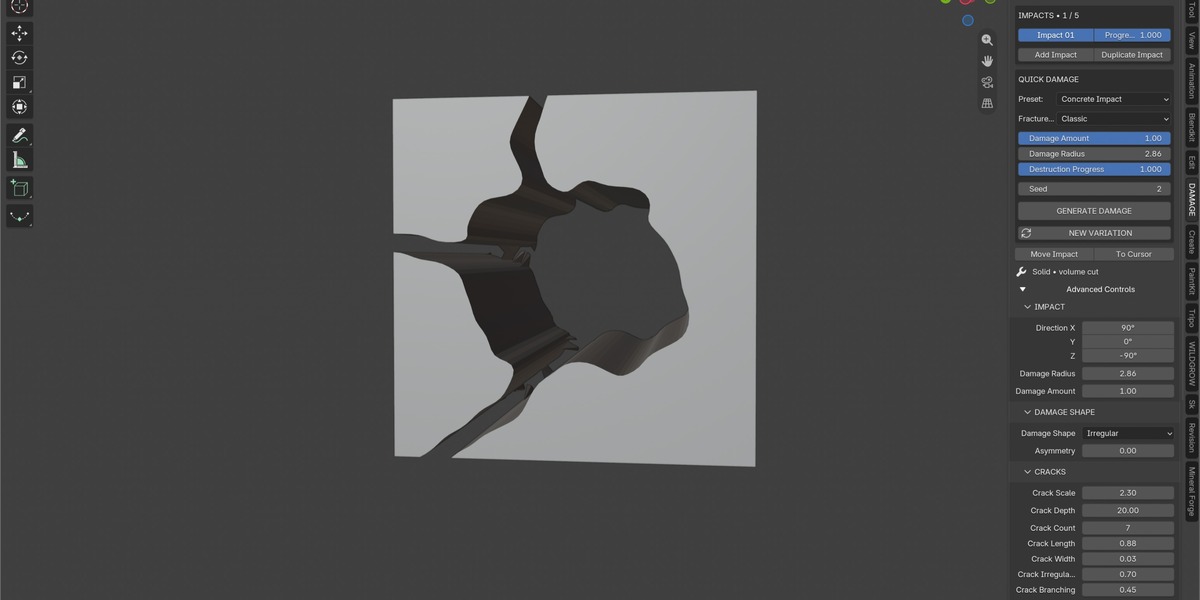
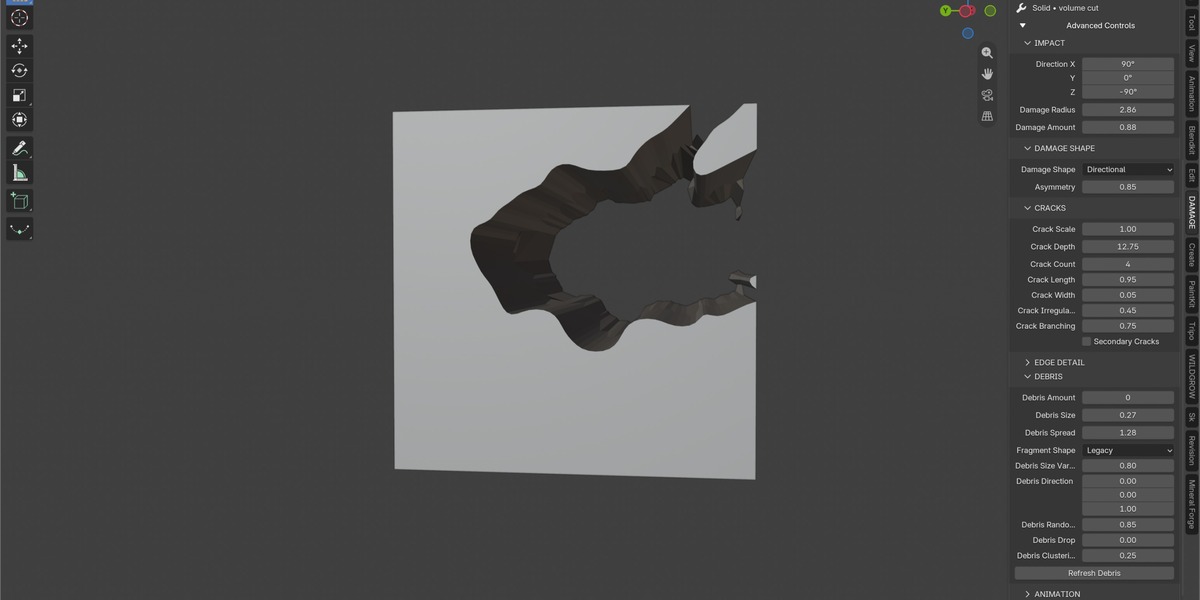
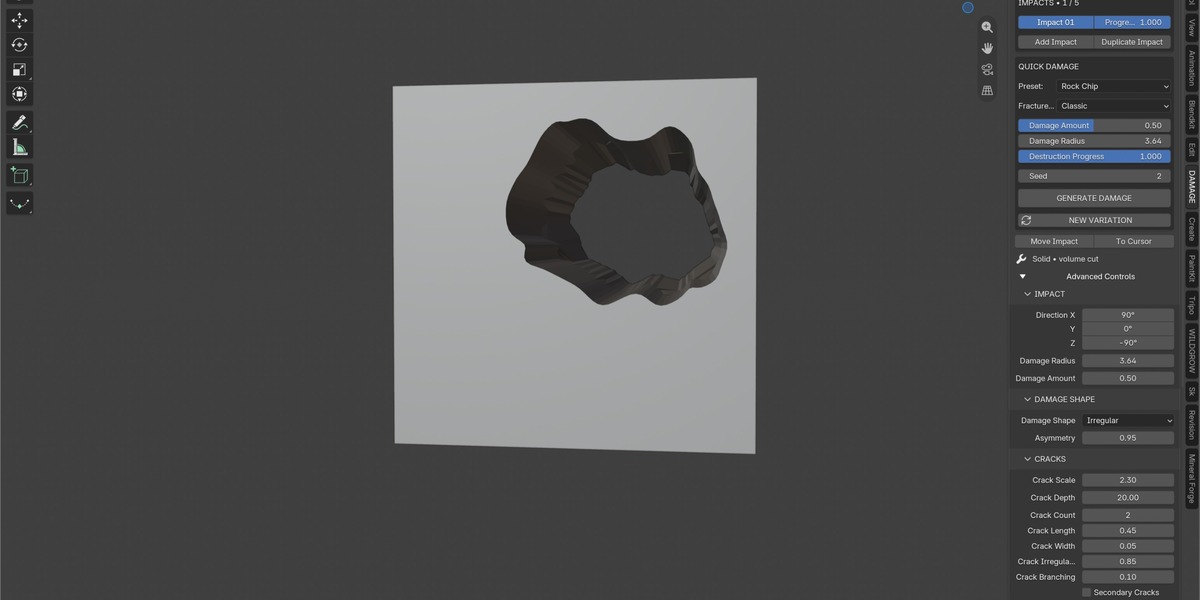

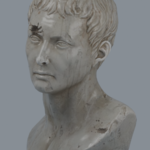
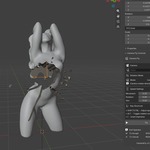
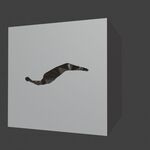
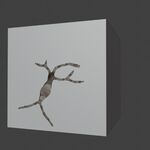
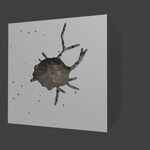
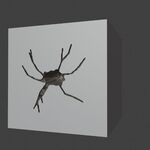
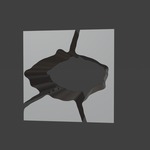
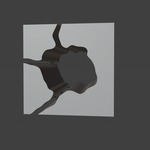
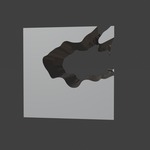
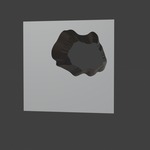
DAMAGE v1.4.1 — BY NORELL
INSTALLATION
In Blender, open Edit → Preferences → Get Extensions.
Open the menu and choose Install from Disk.
Select DAMAGE_v1.4.1.zip without extracting it.
Enable DAMAGE if Blender does not enable it automatically.
Restart Blender after updating an existing installation.
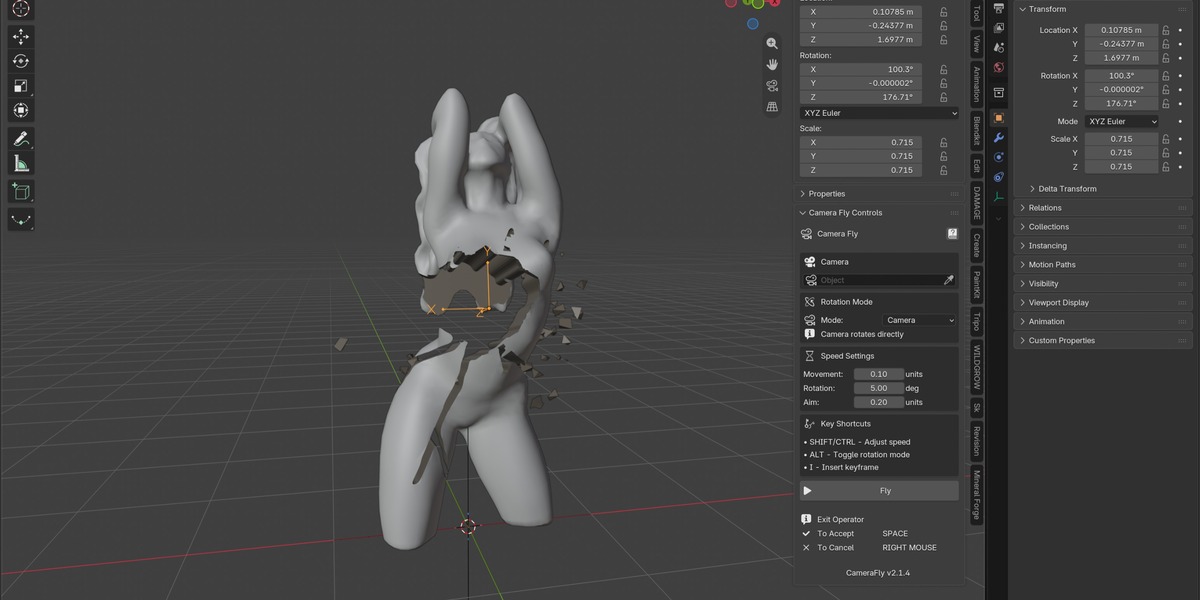
In the 3D Viewport, press N and open the DAMAGE tab.
This release updates the existing DAMAGE extension. If you have a separate legacy installation of DAMAGE, disable it to avoid running duplicate installations.
CREATE YOUR FIRST IMPACT
Select the mesh you want to damage. For imported assets, select the actual mesh rather than its parent Empty.
Choose a preset and click Generate Damage.
DAMAGE automatically places the impact on the object’s upper exterior surface, using world +Z as the upward direction, and aligns the controller to the surface normal.
Adjust Damage Radius and Damage Amount.
To reposition the impact, use Move Impact to select its controller. Move it with G and rotate it with R.
Use New Variation to explore another seeded pattern.
If the center of the object contains an opening, DAMAGE searches for another valid upper surface.
Changing Damage Radius preserves the current seed and controller placement, so you can adjust the size without generating a different pattern or resetting a manually positioned impact.
Automatic surface alignment happens when an impact is created. When moving the controller to another face, adjust its position and rotation manually. Its local +Z axis should point outwards from the surface.
PRESETS AND CONTROLS
DAMAGE includes 12 editable starting presets:
Concrete Impact
Concrete Heavy
Stone Fracture
Rock Chip
Metal Breach
Bullet Impact
Blast Damage
Radial Crack
Deep Crater
Surface Crack
Irregular Impact
Chipped Edge
Use Damage Radius to control the affected area and Damage Amount to adjust intensity.
Open Advanced Controls to refine cracks, debris and surface quality.
Crack Depth sets the requested maximum depth. Actual depth is limited by the impact radius and detected local wall thickness.
Surface Quality controls local sampling. Use Fine for narrow fissures and close-up work.
Surface Reach controls the region around the controller plane. It scales proportionally when you change the radius.
Presets are starting points. The final appearance depends on your model, surface curvature, scale and settings.
LOCAL SURFACE PROTECTION
New impacts use local surface carving on suitable open and closed meshes.
DAMAGE checks the frontmost surface and probes local wall thickness to help prevent nearby or opposite walls from being affected unintentionally. Carving follows the local surface normal, with softened transitions towards the edge of the impact.
On thin or hollow models, damage is deliberately shallower to help preserve the wall.
For strongly curved surfaces, keep the impact region focused and position the controller close to the intended surface.
MULTIPLE INDEPENDENT IMPACTS
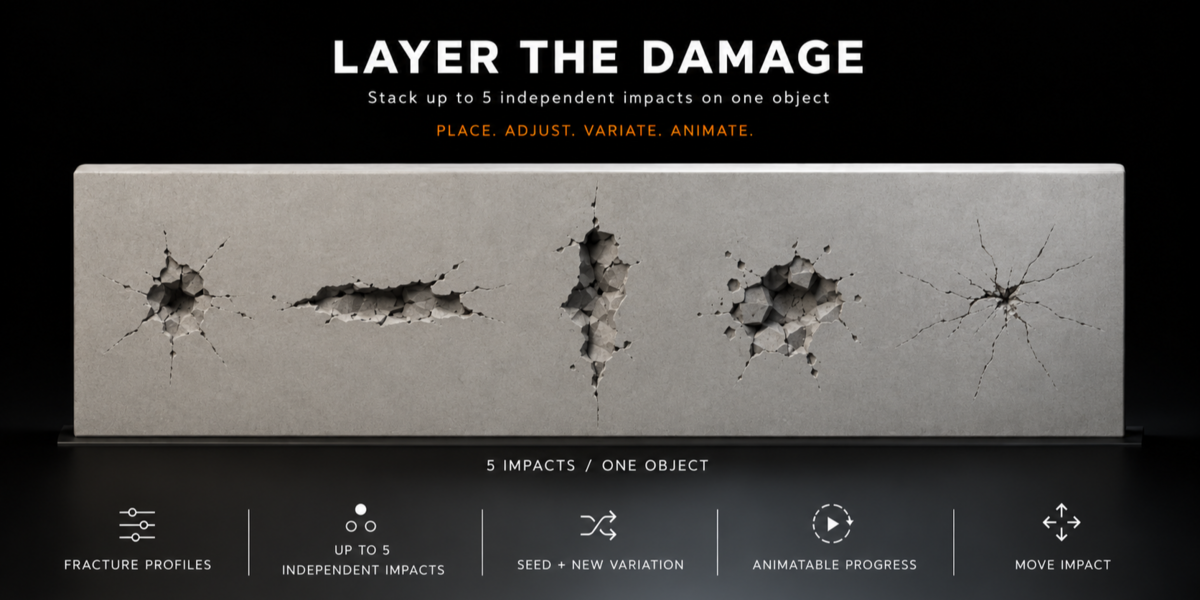
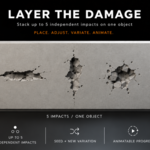
Create up to five independent impacts on one object.
Use Add Impact to create another impact. Each new impact starts on the upper surface. Use Move Impact, followed by G and R, to place it where needed.
Each impact can have its own:
Controller position and orientation
Settings
Seed
Destruction Progress
You can remove a selected impact while keeping the others.
Duplicate Impact copies the selected impact’s placement, settings and current Progress value. Move the duplicated controller to separate the effects. Animation keyframes are not copied.
Overlapping impacts build sequentially, so their order can affect the result and performance.
ANIMATE DESTRUCTION PROGRESS
Each impact has its own Destruction Progress control.
Set Progress = 0 and insert a keyframe.
Move to a later frame.
Set Progress = 1 and insert another keyframe.
Use intermediate values to reveal damage gradually. Animate impacts separately to stage destruction over time, or animate them together.
RESTORE THE ORIGINAL
Setting every impact’s Progress to 0 returns the original evaluated appearance.
Use Remove All Damage to remove the DAMAGE system and restore the source setup.
To preserve this reversible workflow, leave DAMAGE modifiers unapplied and manage impacts through the addon.
UPDATING EXISTING SCENES
Existing impact setups are retained when you open a scene.
Editing an older Surface Safe impact upgrades that impact’s carving setup while preserving its controller, modifier position and Progress animation. Its appearance may change because the updated processing protects thin walls and nearby surfaces.
Older Solid impacts retain their existing processing. To adopt the protected workflow on a single impact, use One-click Surface Safe in Advanced Controls. Follow the guidance shown in the interface for multi-impact setups.
Keep a backup of important scenes before updating their impact setups.
WORKING WITH IMPORTED AND DENSE MESHES
Start with a small impact region and increase the radius gradually.
For narrow cracks, try Surface Quality: Fine. If the interface reports that the local detail budget has been reached, reduce the radius or quality.
Performance depends on:
Mesh density
Impact size
Surface quality
Number and overlap of impacts
DAMAGE preserves the source mesh while its modifiers remain unapplied. Generated topology is intended for visual damage and may require additional cleanup for export, fabrication or other topology-sensitive workflows.
SAVE AND REOPEN
Save your scene normally as a Blender .blend file.
Keep DAMAGE installed and enabled when reopening it to continue editing the setup.
REQUIREMENTS AND COMPATIBILITY
Compatible with Blender 4.2 LTS – 5.2.x
SUPPORTED OPERATING SYSTEMS:
Windows
macOS
Linux
DAMAGE v1.4.1 is packaged as a Blender Extension Add-on and works offline using Blender’s bundled libraries.
IMPORTANT NOTES
DAMAGE is an art-directed procedural damage tool, not a physics-based collapse simulator.
Debris is decorative geometry and does not simulate collisions or floor settling.
Very narrow fissures and coarse input geometry may require higher surface quality.
Radius changes can adjust local tessellation while preserving the seed and controller placement.
Large or overlapping impacts can increase processing time and memory use.
Surface protection does not guarantee correct results on intersecting, coincident, incorrectly oriented or otherwise malformed geometry.
Local refinement does not guarantee watertight, uniformly retopologized or 3D-print-ready output.
If no surface can be reached from above, rotate the object to expose a suitable surface before generating damage.
On Blender 4.2, Surface Safe uses evaluated normals instead of the newer explicit custom-normal preservation path. Shading on meshes with custom normals may differ from newer Blender versions.
INCLUDED FILES
The download contains:
DAMAGE v1.4.1 Blender Extension Add-on
Installation and workflow documentation
Release changelog
Required license information
DAMAGE — by NORELL
Have questions about this product?
Login to message
| Blender Extension Compatible | Yes |
| Published | about 2 months ago |
| Blender Version | 4.2 - 5.2 |
| Extension Type | Add-on |
| Render Engine Used | Cycles, Eevee |
| License | GPL |
Discover more products like this
procedural damage animation Damage VFX debris impact destruction fracture cracks geometry nodes modeling procedural