 Mrs Eliza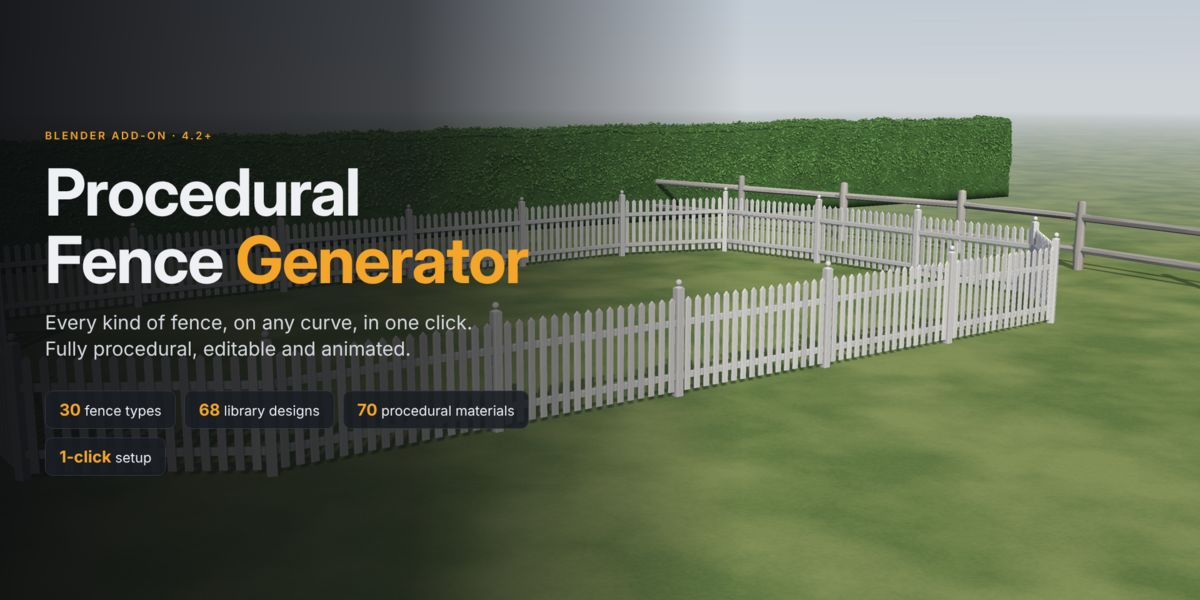

Overview
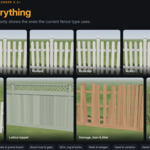
Procedural Fence Generator builds complete, realistic fences along any curve in Blender, in one click. It covers 30 fence types, ships with a library of 68 ready-made designs, and stays fully editable: change the curve or any setting and the fence rebuilds instantly.
Everything is procedural, so there are no heavy model files to manage. Each fence is a normal mesh object you can render, light and export like any other.
Key features:
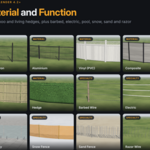
- 30 fence types across three families: Style & Design, Material & Construction, and Specialty & Function
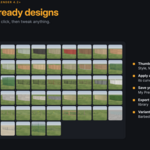
- 68 library designs with thumbnails, plus your own saved presets
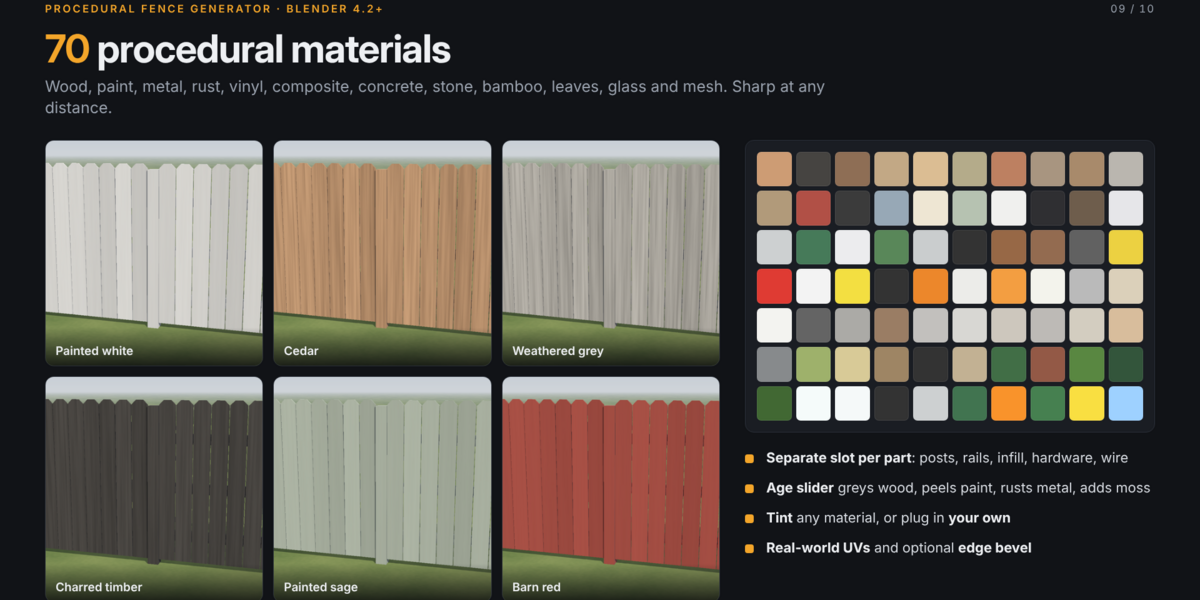
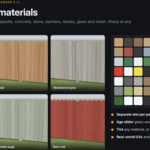
- 70 procedural materials with per-fence weathering and tint
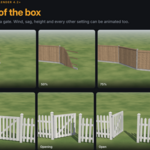
- Gates on every type, single or double, with an adjustable opening angle
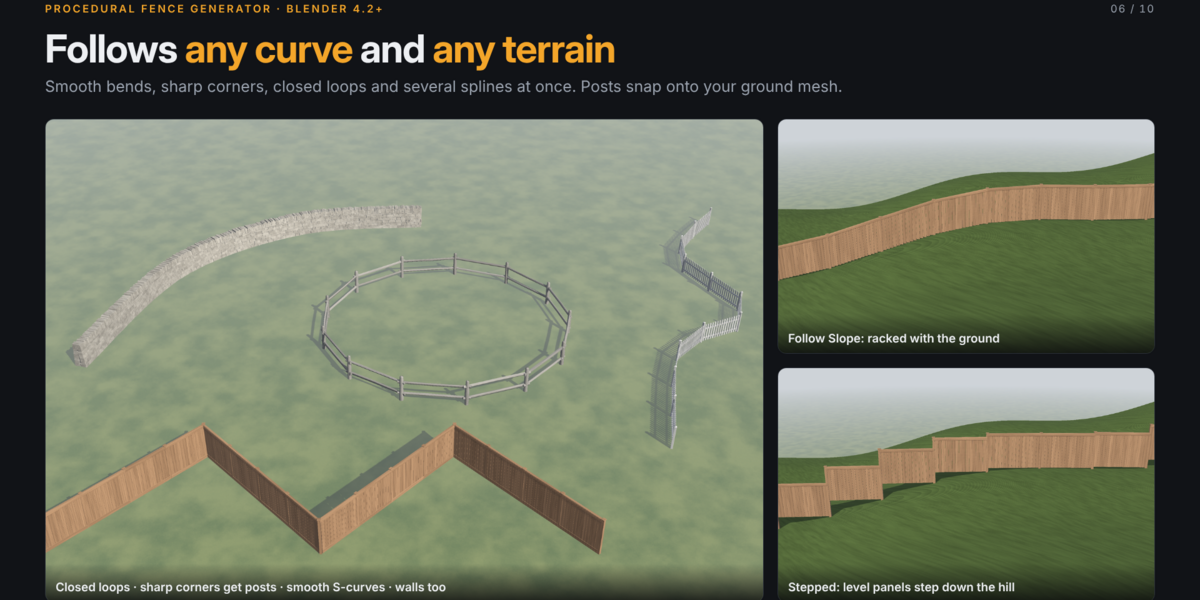
- Terrain conforming, with fences that follow the slope or step down it
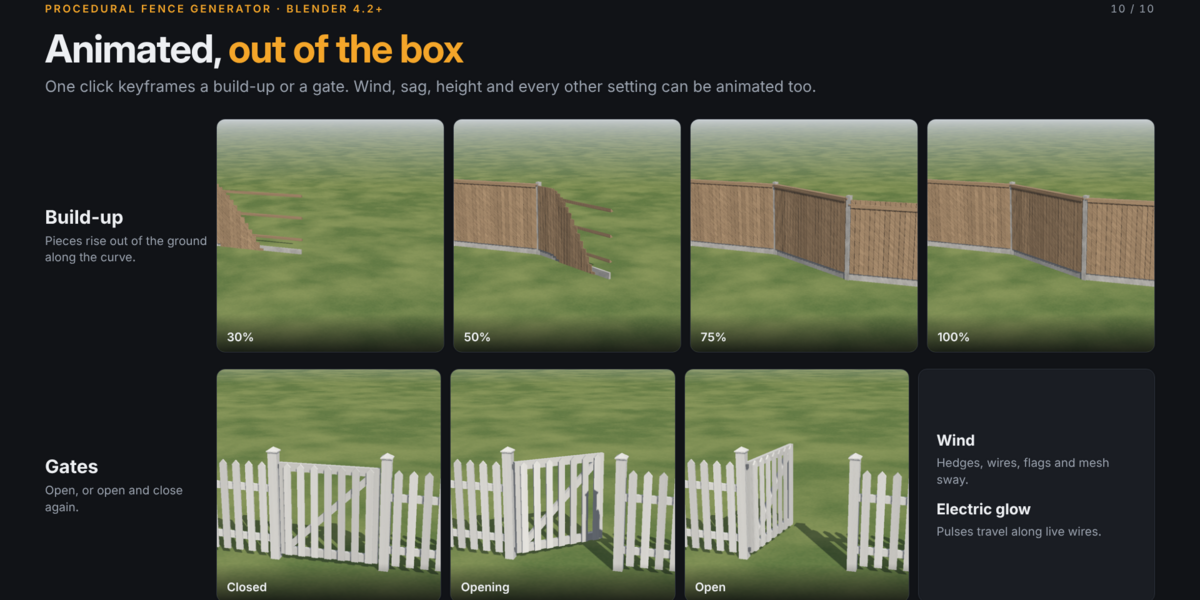
- Built-in animation: build-up, opening gates, wind sway and glowing electric wire
- Live updates while you edit the curve
Requirements and installation
The add-on needs Blender 4.2 or newer and works on Windows, macOS and Linux. It installs from a single zip file, procedural_fence_v1.0.0.zip. Do not unzip it.
- Open Blender and go to Edit > Preferences > Get Extensions.
- Click the drop-down arrow in the top-right corner and choose Install from Disk.
- Select the zip file and confirm. The add-on is enabled automatically.
- In the 3D Viewport, press N to open the sidebar and click the Fence tab.
To update, install the new zip the same way; it replaces the old version. Your saved presets are kept, because they are stored outside the add-on folder.
Quick start
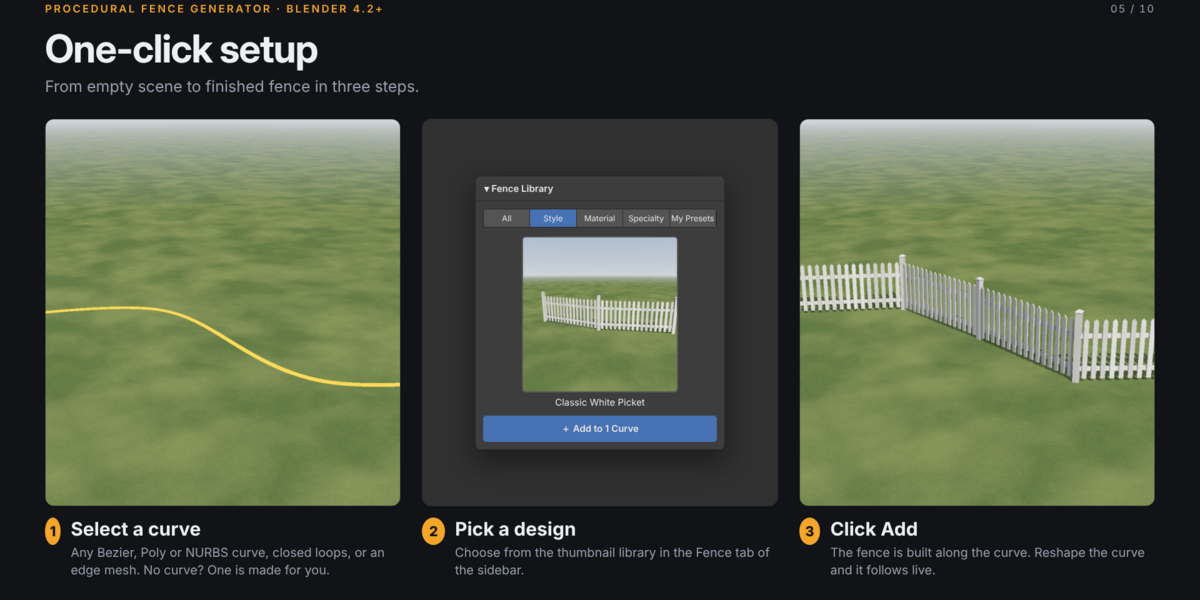
Your first fence takes three steps.
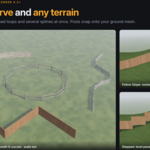
- Select a curve. Any Bezier, Poly or NURBS curve works, including closed loops and curves with several splines. A mesh made only of edges also works. If nothing is selected, the add-on creates a new curve for you.
- Pick a design. In the Fence Library panel, choose a category, then click the large thumbnail to browse designs.
- Click Add. The button reads Add to Curve, or Add Fence + New Curve when nothing is selected.
The fence appears along the curve and is selected. To reshape it, click Edit Curve in Fence Settings; this enters Edit Mode on the curve, and the fence follows every change live.
You can also add a fence from the Add menu (Shift+A) > Procedural Fence. To fence several paths at once, select several curves before clicking Add; each gets its own fence.
Interface tour
All controls live in the Fence tab of the 3D Viewport sidebar (N). The panels appear in this order:
- Fence Library: category filter, design thumbnail, and the Add and Apply buttons. Always visible.
- Fence Settings: fence type, variant buttons, source curve, ground object and status line. Visible when a fence is selected.
- Settings sub-panels: Layout, Posts, Rails & Caps, Infill & Tops, Wire & Mesh, Wall / Hedge, Gate, and Variation & Damage. They are collapsible.
- Materials: one material per fence part, plus age, tint and bevel.
- Animation: build-up, gate and wind controls.
- Tools & Presets: rebuild, copy settings, reset, convert, save presets and export assets.
The settings panels only show options the current fence type uses. A hedge, for example, shows leaf density but hides board width. Setting names also adapt: on Bamboo, Board Width reads Cane Diameter.
The status line under Fence Settings shows the face count after each rebuild. If something goes wrong, it shows the error instead.
The 30 fence types
Choose the type in Fence Settings > Fence Type. Most types also have two or three construction variants, shown as buttons under the type. Changing type loads that type's default dimensions and materials. Your gate, animation, seed and detail settings are kept.
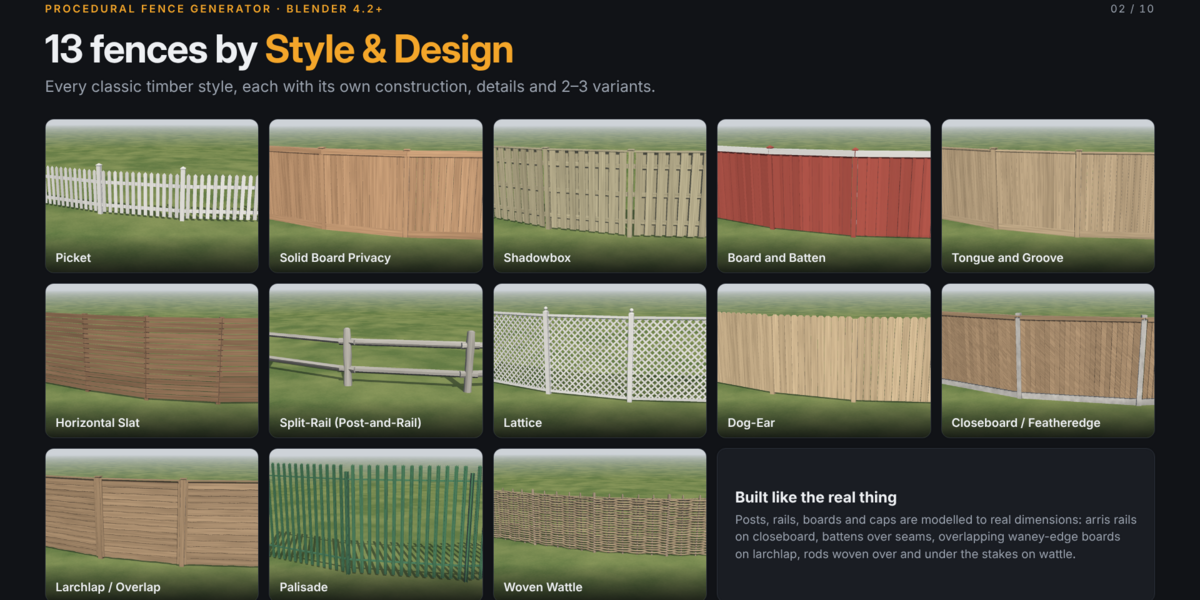
Style & Design
- Picket: spaced pickets on rails. Variants: Front Pickets, Picket Both Sides.
- Solid Board Privacy: tight vertical boards with an optional top cap, gravel board and lattice topper.
- Shadowbox: boards alternating on both sides of the rails, private from both sides.
- Board and Batten: wide boards with narrow battens covering the seams.
- Tongue and Groove: interlocking boards in a frame. Variants: Vertical, Horizontal.
- Horizontal Slat: modern slats. Variants: Face Mounted, Inset, Louvred.
- Split-Rail (Post-and-Rail): Variants: Split Log, Post & Rail (Sawn), Round Pole.
- Lattice: framed lattice panels. Variants: Diagonal, Square Grid, Privacy + Lattice Top.
- Dog-Ear: boards with clipped corners. Variants: Solid, Good Neighbour, Scalloped.
- Closeboard / Featheredge: overlapping featheredge boards on triangular arris rails. Variants: Concrete Posts, Timber Posts.
- Larchlap / Overlap: framed panels of overlapping boards. Variants: Waney Edge, Straight Edge.
- Palisade: Variants: Steel W-Pale (security), Timber Stakes.
- Woven Wattle: hazel or willow rods woven over and under upright stakes.
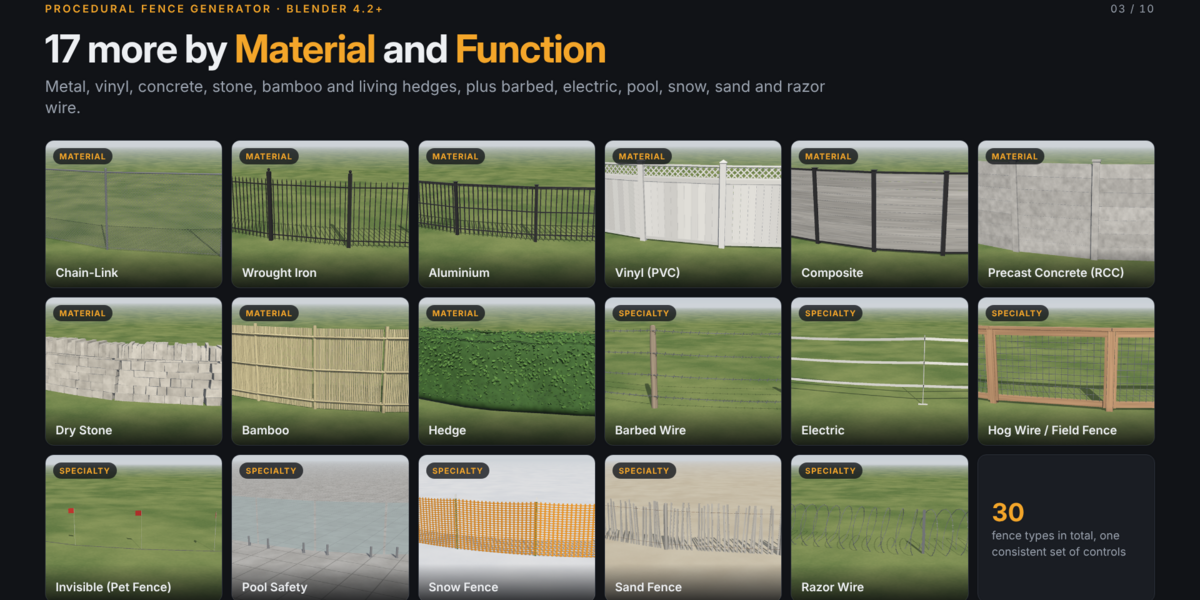
Material & Construction
- Chain-Link: diamond mesh on tube posts. Variants: Standard, Barbed Arms, Windscreen.
- Wrought Iron: forged bars with finials. Variants: Spear Top, Staggered, Ornate Rings.
- Aluminium: powder-coated bars. Variants: Flat Top, Pressed Spear, Horizontal Blade.
- Vinyl (PVC): Variants: Privacy, Picket, Ranch Rail.
- Composite: boards slotted into aluminium posts. Variants: Horizontal, Vertical, Slatted.
- Precast Concrete (RCC): slotted posts with slab panels. Variants: Slab Panels, Rock-Face Panels, Post & Rail.
- Dry Stone: hand-stacked stones with a tapered profile and vertical coping stones.
- Bamboo: Variants: Close Canes, Yotsume-gaki (Japanese open lattice tied with rope), Roll Screen.
- Hedge: living hedge with leaves. Variants: Clipped Box, Tall Conifer, Informal Cloud.
Specialty & Function
- Barbed Wire: twisted, barbed strands. Variants: Timber Posts, Steel T-Posts, With Wooden Stays.
- Electric: Variants: Step-in Posts + Tape, Timber + Insulators (with energizer box), Fibreglass + Polywire.
- Hog Wire / Field Fence: Variants: Modern Framed (welded grid in a timber frame), Farm Field Fence (graduated grid).
- Invisible (Pet Fence): training flags, a boundary line and a transmitter box. Variants: White, Red or Yellow Flags.
- Pool Safety: Variants: Frameless Glass on spigots, Semi-Frameless, Tubular Aluminium.
- Snow Fence: Variants: Plastic Mesh, Slat & Wire.
- Sand Fence: weathered, half-buried dune slats. Variants: Slat & Wire, Dense Dune Slats.
- Razor Wire: concertina coils with blades. Variants: Ground Concertina, Security Topping, Triple Concertina.
Library and presets
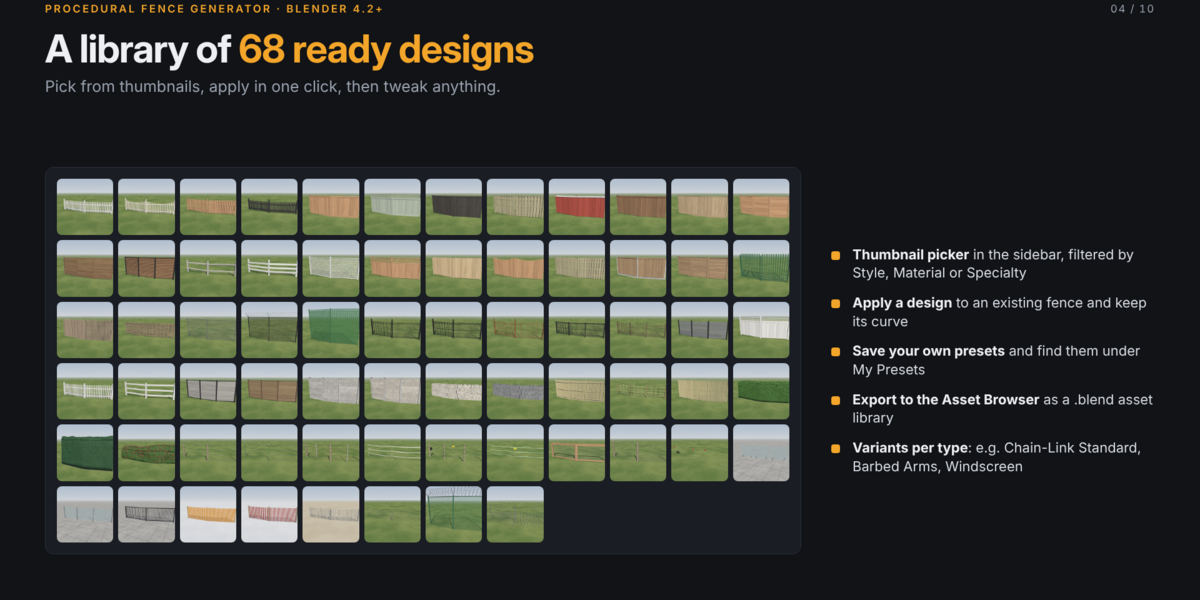
The library holds 68 built-in designs, each a finished combination of type, variant, dimensions and materials. Examples include Classic White Picket, Charred Shou Sugi Ban Privacy, British Closeboard, Victorian Wrought Iron, Tennis Court Windscreen and Frameless Glass Pool Fence.
Browsing. Use the category buttons (All, Style, Material, Specialty, My Presets) to filter, then click the thumbnail to open the picker. The design's name shows under the thumbnail.
Applying to an existing fence. Select a fence, pick a design, and click Apply Design to Selected Fence. The fence keeps its curve but takes all the design's settings and materials.
Saving your own presets. Set up a fence the way you like. Open Tools & Presets, type a name under Save as Preset, and click the check mark. The preset appears under My Presets, with the thumbnail of its fence type. It stores every setting, material choice, age, tint and bevel. To delete one, select it under My Presets and click Delete Preset. Saved presets are available in every Blender file.
Settings reference
All distances are in real-world units and follow your scene's unit settings.
Layout
- Height: height of the infill above the ground.
- Post Spacing: maximum distance between posts. Spans are spread evenly so none is longer than this.
- Corner Angle: any bend sharper than this angle gets its own post, so corners stay crisp.
- Slope: Follow Slope or Stepped (see Terrain and slopes).
- Ground Gap: clearance between the infill and the ground.
- Side Offset: shifts the whole fence sideways from the curve.
- Variant: the construction variant of the current type.
- Detail: Low, Medium or High. Controls round-part smoothness, leaf counts and wire twists.
Posts
Turn posts on or off, and set their size, shape (square or round), extra height above the infill and burial depth. Cap options are None, Flat, Pyramid, Ball, Spear and Acorn. End, corner and gate posts are automatically made slightly heavier on some types, such as chain-link.
Rails & Caps
Set the number of rails, their height and depth. Optional extras are a Top Cap Rail along the top and a Gravel Board along the bottom.
Infill & Tops
- Board Width, Gap and Thickness control boards, pickets, bars, slats or canes, depending on the type. A gap of zero makes a solid face.
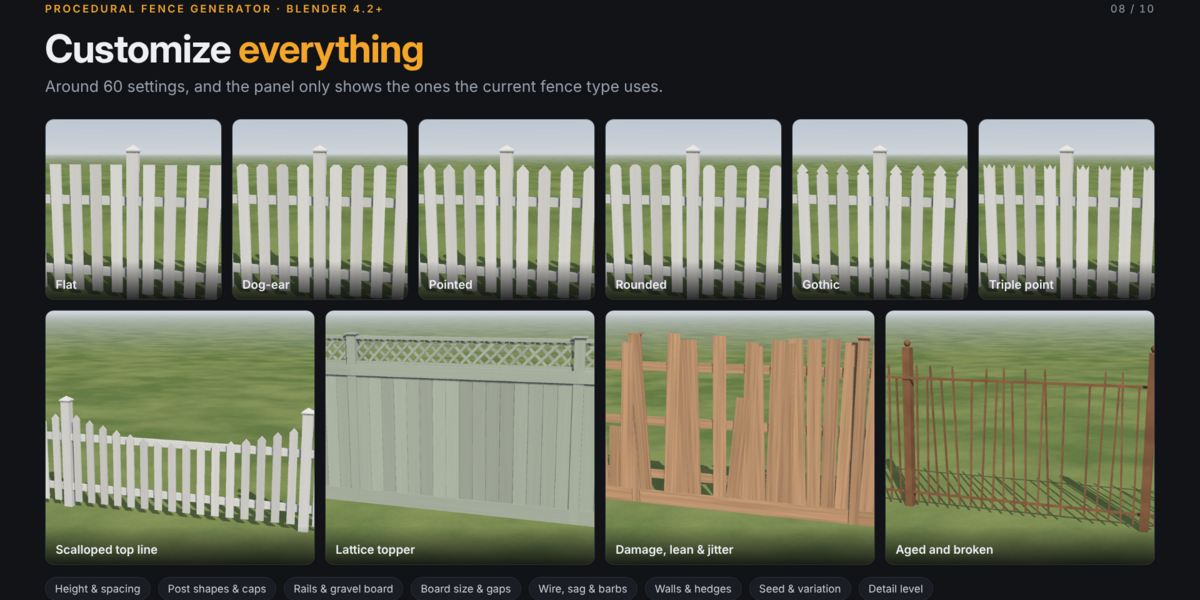
- Top Style: Flat, Dog-Ear, Pointed, Rounded, Gothic or Triple Point. On iron and aluminium this sets the finial.
- Top Line: Straight, Concave (scalloped dip between posts) or Convex (arch), with an adjustable depth.
- Lattice Topper: a framed lattice band on top of privacy and vinyl fences.
- Ornaments: decorative rings on wrought iron, warning signs on electric fences, the boundary line on invisible fences.
Wire & Mesh
Set the number of strands, wire radius, sag between posts and barb spacing. For mesh fences, Mesh Size sets the cell size. Real Mesh Geometry models chain-link wires as geometry instead of a texture, which looks better up close but is much heavier. Razor wire adds Coil Radius and Coil Pitch.
Wall / Hedge
For dry stone: wall thickness, batter (how much the wall tapers toward the top), stone size, roughness and coping. For hedges: width, top taper, lumpiness, leaf density and leaf size.
Variation & Damage
Seed picks a different random arrangement; the Randomize button sets a new one. Height Jitter and Tilt Jitter make boards uneven. Post Lean tilts posts randomly. Damage removes and breaks pieces for abandoned or storm-hit fences.
Gates
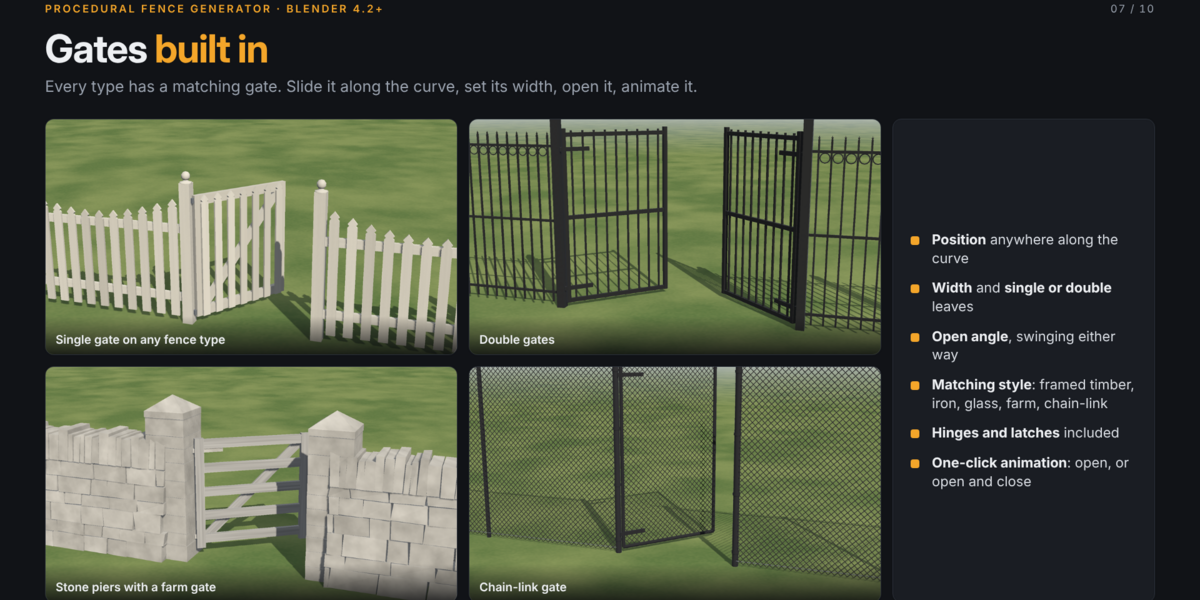
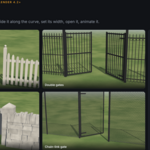
Every fence type has a gate that matches its style. Turn it on in the Gate panel with the Gate checkbox.
- Position slides the gate along the curve, from 0 (start) to 1 (end).
- Width sets the opening. Posts are placed on both sides automatically.
- Double Gate splits the opening into two leaves that open from the middle.
- Open Angle swings the gate. Positive and negative values open it in opposite directions.
Gate styles follow the fence. Timber fences get a framed gate with a diagonal brace, filled with the fence's own boards. Iron, aluminium and pool fences get a metal frame with bars. Glass pool fences get a glass leaf. Chain-link gets a tube frame with mesh. Dry stone walls and hedges get stone piers or timber posts with a timber farm gate. Electric fences get a gate handle with a tape or wire across the opening. All leaves include hinge and latch hardware.
The gate is placed on the first spline of the curve. On a closed loop, Position is measured from the loop's first point.
Terrain and slopes
Without a ground object, the fence follows the curve's own height, so you can shape a slope just by moving curve points up or down.
To place a fence on a terrain mesh, set Ground in Fence Settings to that mesh and keep Conform to Ground on. Posts, wall stones and hedge bases then snap onto the surface below the curve. Ground Offset raises or lowers the fence slightly if it sinks into the ground or floats. The fence updates when you sculpt or edit the terrain.
On slopes, choose how the panels behave with Layout > Slope:
- Follow Slope (racked): rails and boards tilt with the ground, so the bottom edge stays parallel to it. Best for gentle slopes and rustic fences.
- Stepped: each panel stays level and steps down the hill at every post, leaving small triangular gaps underneath. Common for privacy, vinyl and metal panels on steep ground.
Shorter post spacing gives smaller steps and closer contact with uneven terrain.
Materials and weathering
The add-on includes 70 procedural materials. Because they are generated by shader nodes rather than image files, they stay sharp at any distance and add almost nothing to file size. They work in both Cycles and EEVEE.
The materials come in these families: natural and stained woods, painted finishes, galvanized and coated metals, rust, vinyl and plastics, composite, concrete, natural stones, bamboo, rope, leaves and hedge foliage, glass, chain-link and plastic mesh, and a glowing electric wire.
One slot per part. The Materials panel lists each part of the current fence, such as Posts, Rails, Boards and Hardware, with its own material. Pick any material for any part, for example white-painted posts with natural cedar boards.
Age / Weathering. This slider ages the fence from new (0) to old (1). Wood turns grey and dirty near the ground, paint peels, metal rusts, stone gathers moss and leaves turn brown. It is set per fence, so two fences can share a material but show different ages.
Tint. Choose a colour and raise Tint Amount to recolour any material without editing it.
Custom materials. The sphere button next to each slot lets you use your own material instead, such as an image-based PBR wood. UVs are in real-world metres (1 UV unit = 1 m), and wood grain runs along the length of each board. Each piece also carries a random value in the fence_rand attribute, which you can read with an Attribute node to vary colour per board.
Bevel Edges. Adds a non-destructive Bevel modifier for softer, more realistic edges. It is on by default for solid timber, vinyl, metal-panel and concrete fences, and off for wire, mesh, hedge and stone types, where it adds cost without visible benefit.
Animation
The Animation panel sets up common animations with one click. First set Start and End frames at the top of the panel; the buttons place their keyframes between them.
- Animate Build-Up makes the fence grow along its curve, with each post, board and stone rising out of the ground. Build Ramp sets how long the rising section is: short for a crisp front, long for a gentle wave.
- Animate Gate opens the gate to the Open To angle. Open & Close opens it halfway through the range, holds briefly, then closes it again. If the gate is off, it is turned on for you.
- Toggle Wind makes hedges, wires, flags, chain-link, windscreens and snow-fence mesh sway. Adjust Wind strength, Wind Speed and Wind Direction. Rigid types like timber boards do not sway.
- The Electric Glow material sends pulses of light along live wires. It is driven by the frame number, so it needs no keyframes.
Any setting with a keyframe dot can also be animated by hand, for example Height, Sag or Open Angle. Clear Fence Animation removes all fence keyframes and returns the fence to its finished state.
Animated and windy fences rebuild on every frame while Update on Frame Change is on. Before rendering an animation, turn on Render > Lock Interface. The animation buttons do this automatically. It keeps renders stable while the fence rebuilds.
Tools
The Tools & Presets panel holds the utilities you need less often.
- Live Update turns automatic rebuilding on or off for the selected fence. Turn it off while editing very long or heavy fences, then click Rebuild when you are done.
- Rebuild All Fences refreshes every fence in the scene, which is useful after opening an older file.
- Copy to Selected copies every setting and material from the active fence to the other selected fences. Each keeps its own curve.
- Reset to Type Defaults restores the current type's default dimensions and materials.
- Convert to Static Mesh turns the fence into a plain mesh that no longer follows its curve. Use it before sculpting, hand-editing or exporting to a game engine. Only Undo reverses it.
- Export to Asset Browser writes all 68 designs into one .blend file in a folder you choose, and optionally registers that folder as an asset library named Procedural Fences. You can then drag fences from Blender's Asset Browser. Exported assets are static meshes; to make one live again, select it and pick a curve in Fence Settings.
Moving a fence. A fence always sits on its curve. To move, rotate or scale a fence, transform the curve, not the fence object.
Performance, troubleshooting and FAQ
Performance tips
- Use Detail: Low for distant fences and large scenes. It cuts round sides, leaf counts and wire twists.
- Hedges, woven wattle, razor wire, bamboo and barbed wire are the heaviest types. Raise post spacing or lower leaf density on long runs.
- Keep Real Mesh Geometry off for chain-link unless the camera is very close; the texture version is far lighter.
- Turn off Live Update while making many changes to a long fence, then rebuild once.
- For finished background fences, use Convert to Static Mesh.