Procedural Ice Pro: One Click Frost, Icicles and Freeze Animation
 Salman Animator
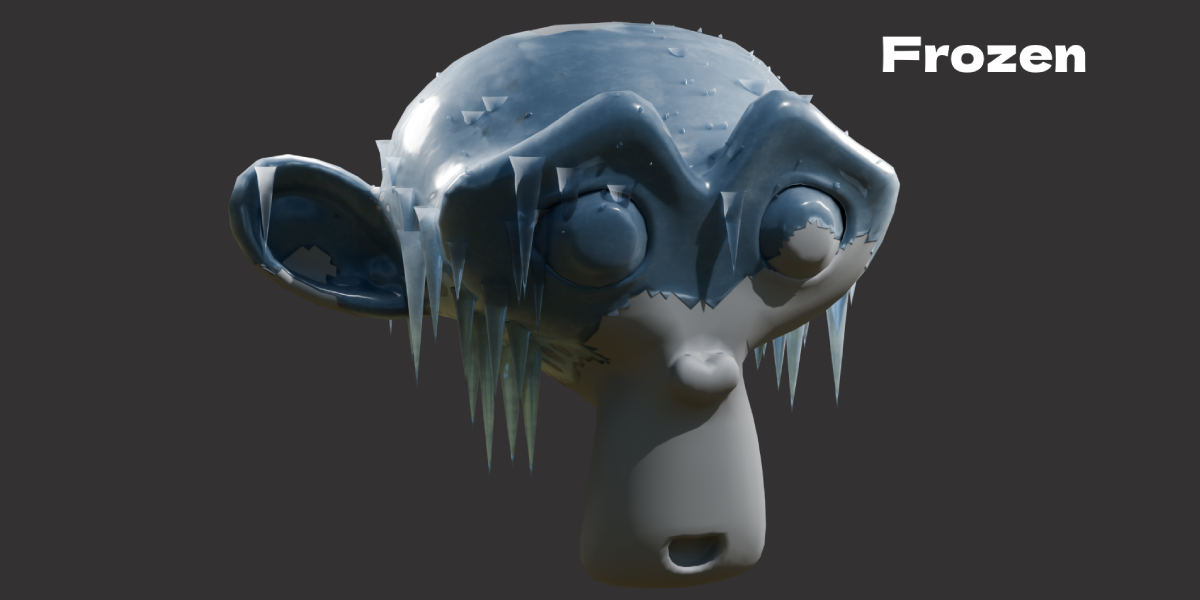
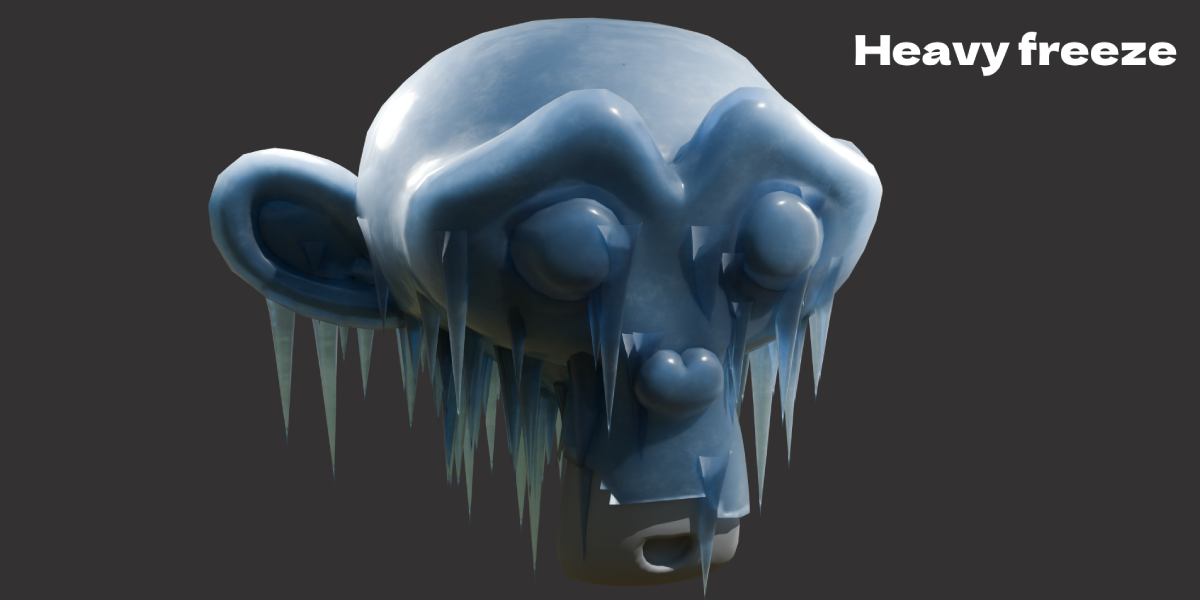
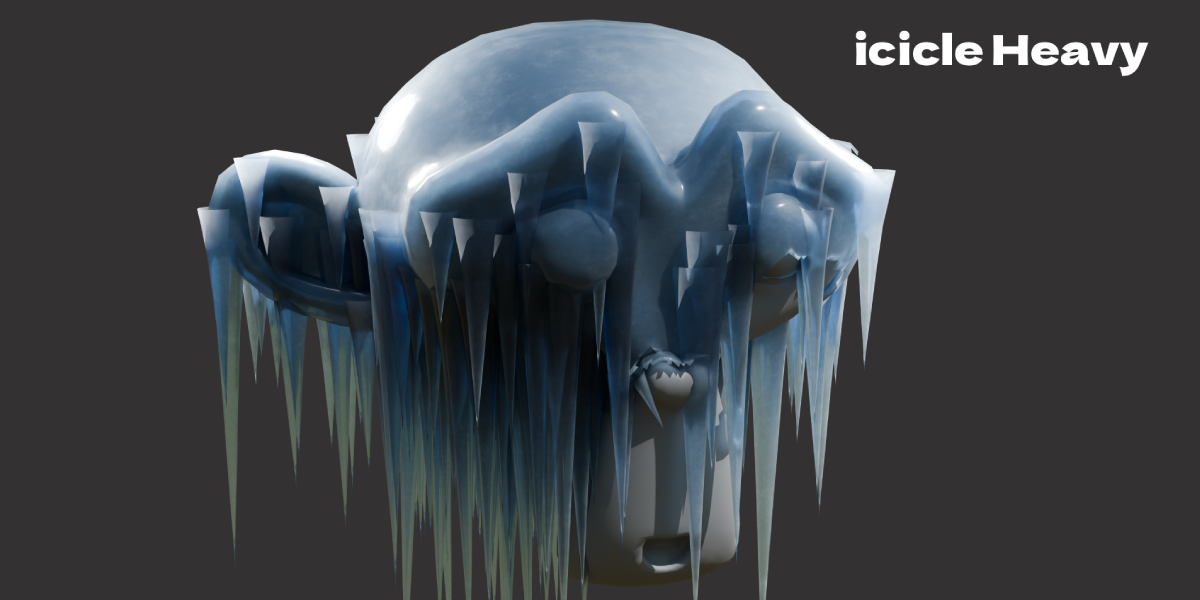
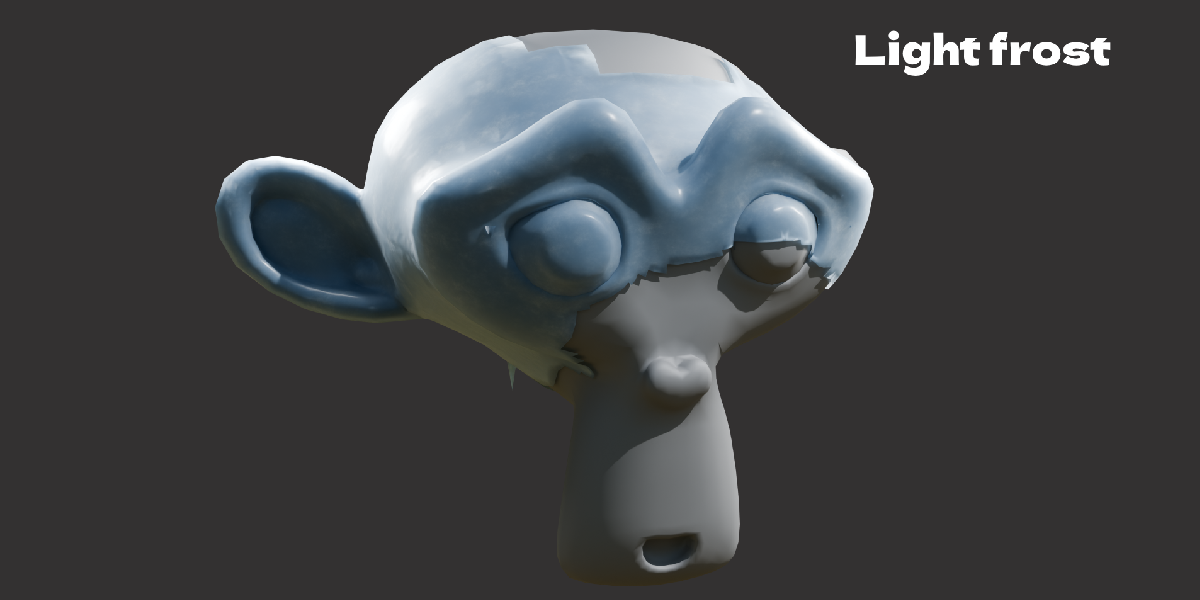
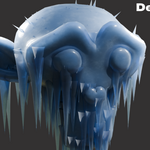
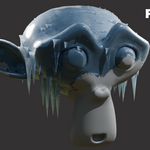
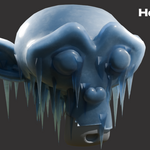
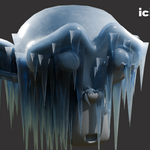
Requirements
Blender 4.2.0 or newer. Cycles or Eevee. A mesh object with applied or live modifiers.
Install
- Keep the ZIP as it is. Do not unzip it.
- Open Edit > Preferences > Add-ons.
- Click the arrow at the top right and choose Install from Disk (Install on older layouts).
- Pick Procedural-Ice-Pro-1.9.0-SalmanAnimator.zip and enable Procedural Ice Pro.
- In the 3D Viewport press N and open the Ice Pro tab.
If you replace an older version, disable it first and restart Blender.
First use
- Select a mesh and click USE SELECTED.
- In Create, choose a Preset and an Effect (Frozen Ice, Snow or Wet Ice).
- Click FREEZE OBJECT. Use FREEZE SELECTED to freeze several meshes at once.
- Switch to Material Preview or Rendered view to judge the ice.
Panels and settings
- Target: the mesh to freeze. USE SELECTED picks the active object.
- Create: Preset, Effect type, FREEZE OBJECT and FREEZE SELECTED.
- Freeze Settings: Freeze Amount (overall strength), Ice Coverage (where ice can exist), Ice Density (how continuous thick ice is), Ice Thickness (real depth), Frost Amount, Clear Ice Amount, Ice Roughness. CREATE CONTROLLER adds a Freeze Controller Empty.
- Ice Buildup: Ice Buildup Amount, Buildup Thickness, Buildup Scale, Breakup, Smoothness.
- Icicles / Spikes: Spike Density, Spike Radius, Icicle Length, Scale Min, Scale Max, quality.
- Material: Ice Tint, Clear Ice Amount, Blue Depth, Wetness, Clear Ice Roughness, Frost Roughness, Transmission.
- Ice Particles: amount and size of small attached crystal chunks.
- Advanced: Surface Offset, Shell Wall Thickness, Buildup Roughness, custom Ice Material, spike length and random per axis, Attachment Safety Offset, particle and shard settings, Direction / Controller (assign your own Empty, Controller Radius, Falloff, Influence).
- Tools: REMOVE ICE, REFRESH, COPY SETTINGS, PASTE SETTINGS.
- Freeze Animation: Start Frame, Duration, Direction, ANIMATE FREEZE.
- CLEAR ALL ICE EFFECTS removes every effect made by the addon.
Presets
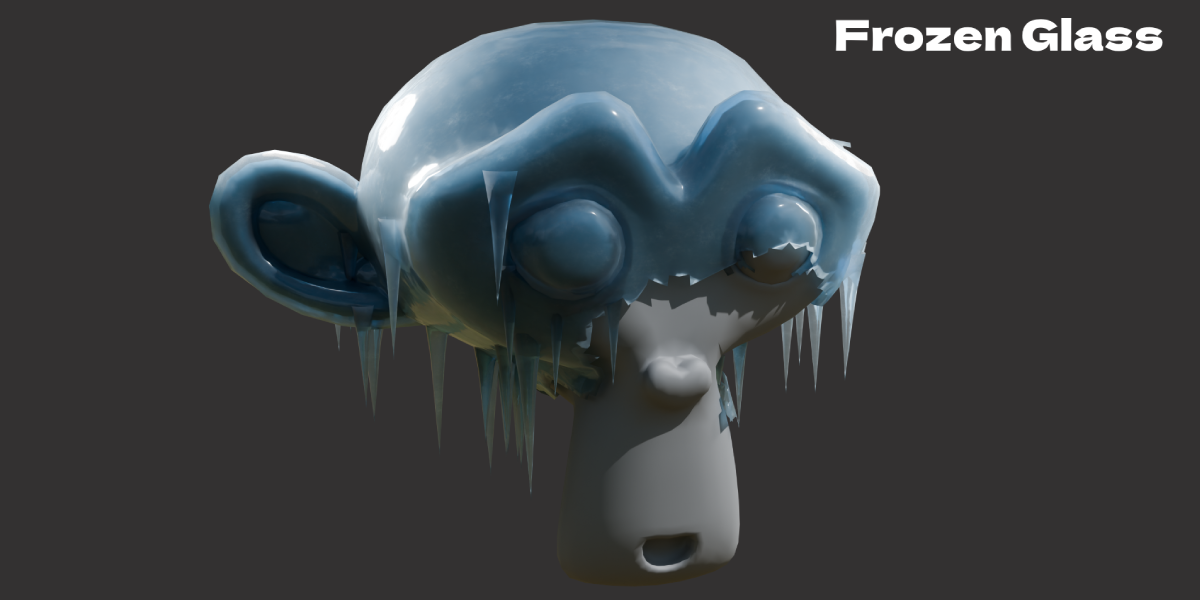
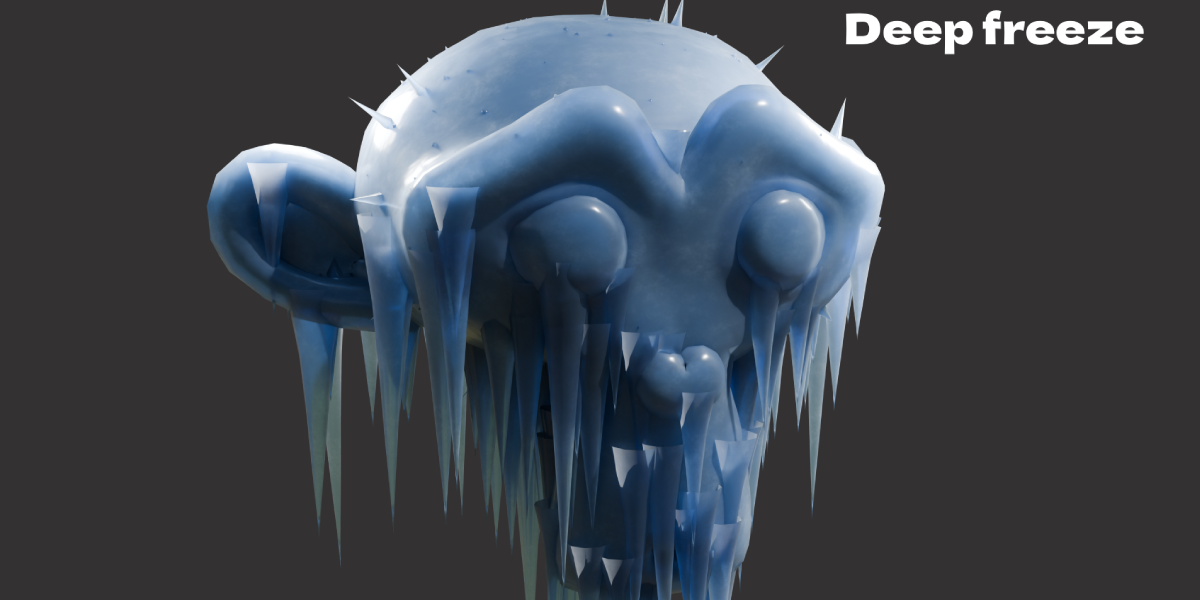
Light Frost, Frozen, Heavy Freeze, Deep Freeze, Icicle Heavy, Frozen Glass. Presets only change settings, so you can tweak any value afterwards.
Freeze Controller
Click CREATE CONTROLLER, then move it with G or scale it with S. Controller Radius and Falloff shape the edge. Influence 1 limits ice to the controller area. Keyframe the Empty to animate the frozen region. CLEAR disconnects it.
Limits
This is procedural surface ice, not a fluid or snowfall simulation. Snow checks exposure against the same mesh only, not other objects above it. Very thick ice on tight concave areas can intersect itself. Transmission looks depend on your lighting and render settings.
Performance tips
- Start with a preset, then raise quality only for final renders.
- Lower Spike Density and particle amount while you block out the scene.
- Use FREEZE SELECTED for many objects instead of freezing one by one.
Troubleshooting
- The ice looks white or flat in the viewport: switch to Material Preview or Rendered view. Solid view does not show transmission.
- The mesh looks inflated: lower Ice Thickness and Buildup Thickness, or pick Light Frost. Coverage controls the area, thickness controls depth.
- Icicles are floating or clipping: raise Attachment Safety Offset slightly or use REFRESH after changing the mesh.
- Ice does not follow my rig: freeze the character in rest pose. If a part cannot bind with Surface Deform, it falls back to parenting.
- The addon panel is missing: press N in the 3D Viewport and open the Ice Pro tab. Make sure the addon is enabled.
- Old version still running: disable the old version, restart Blender, then install the new ZIP.
Have questions about this product?
Login to message
| Blender Extension Compatible | Yes |
| Published | about 4 hours ago |
| Blender Version | 4.2 - 5.2 |
| Extension Type | Add-on |
| License | GPL |

Discover more products like this
freeze frozen winter animation VFX procedural icicles ice ice material geometry nodes snow frost