Procedural Openings V 1.4.1 - Doors - Windows - Vents
 proceduralX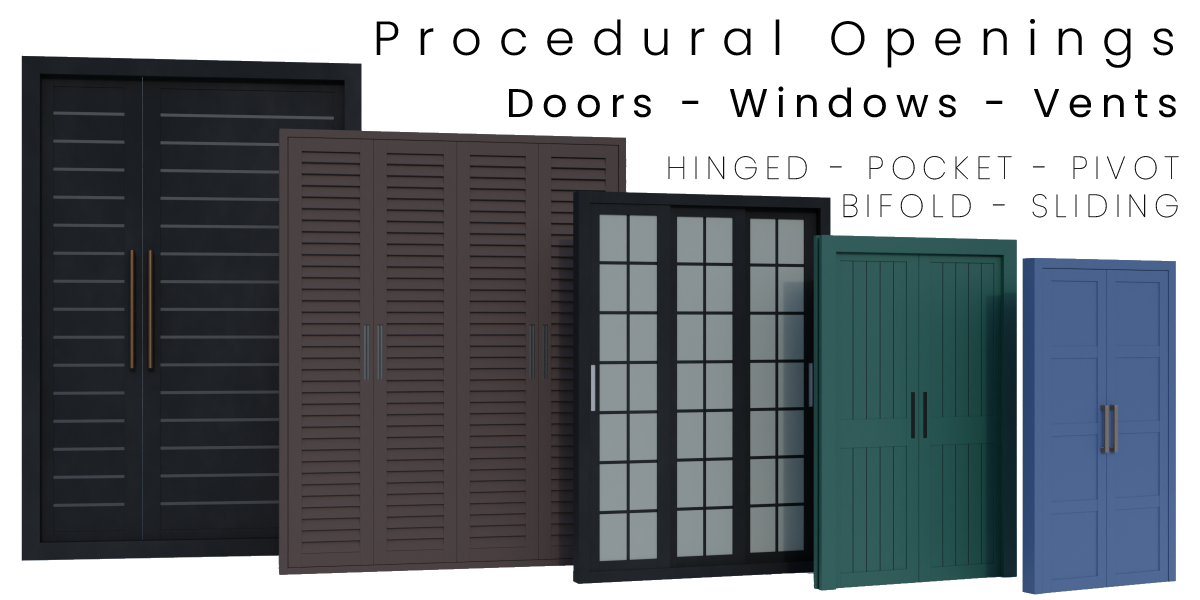
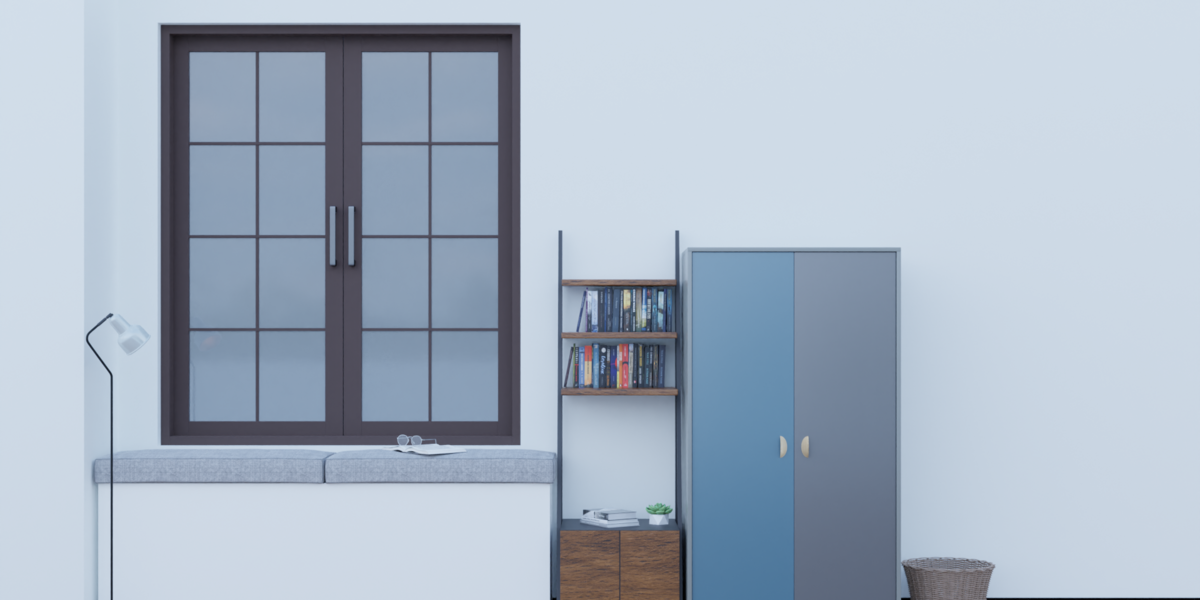
Procedural Openings Generator — Full Settings Documentation
Version 1.4.1 · ProceduralX
Minimum Blender: 5.2 · Tested on: Blender 5.2.0 LTS
═══════════════════════════════════════════════════════
HOW TO READ THIS DOCUMENT
═══════════════════════════════════════════════════════
Every setting is listed in the order it appears in the panel. Each one has:
• A short line telling you what it does.
• A longer paragraph explaining when to use it and what to expect.
Settings that only appear under certain conditions are marked "Shown when:".
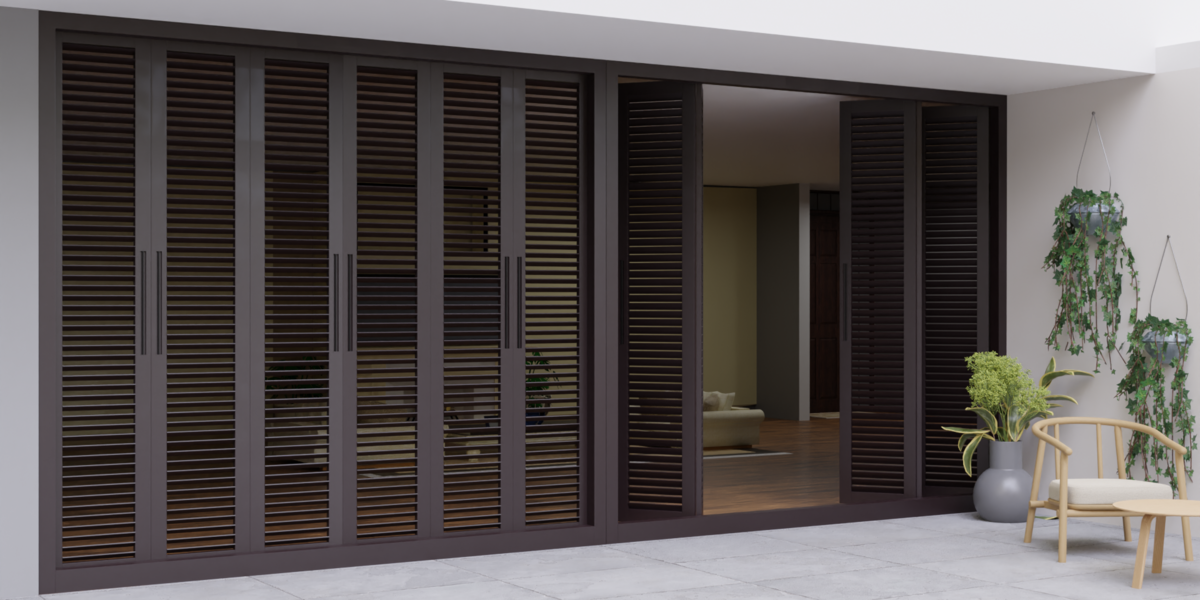
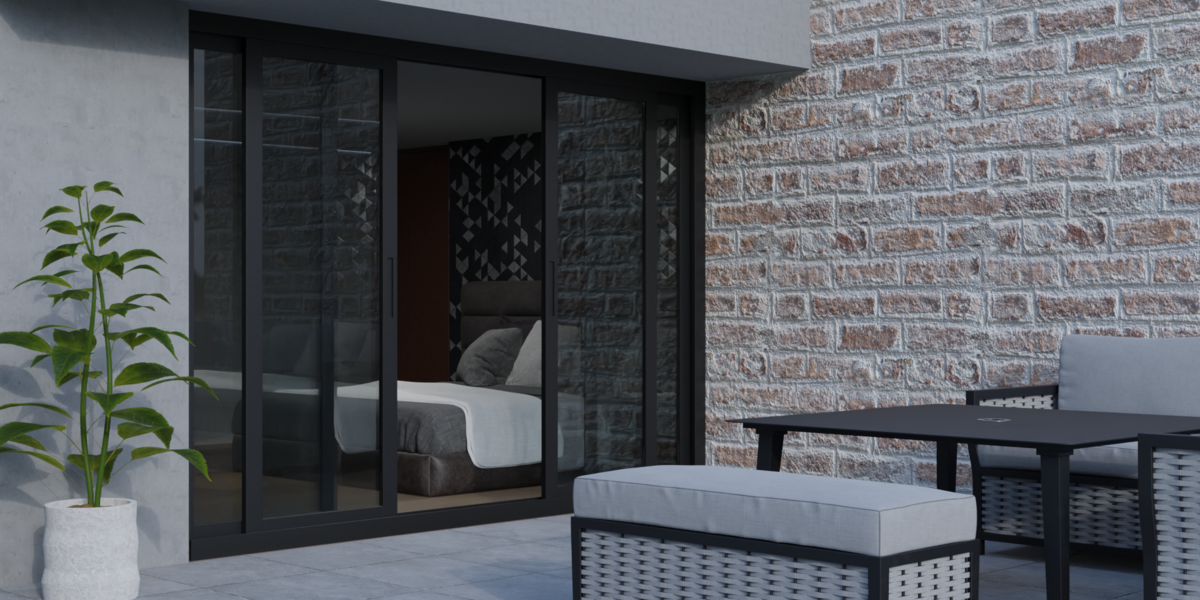
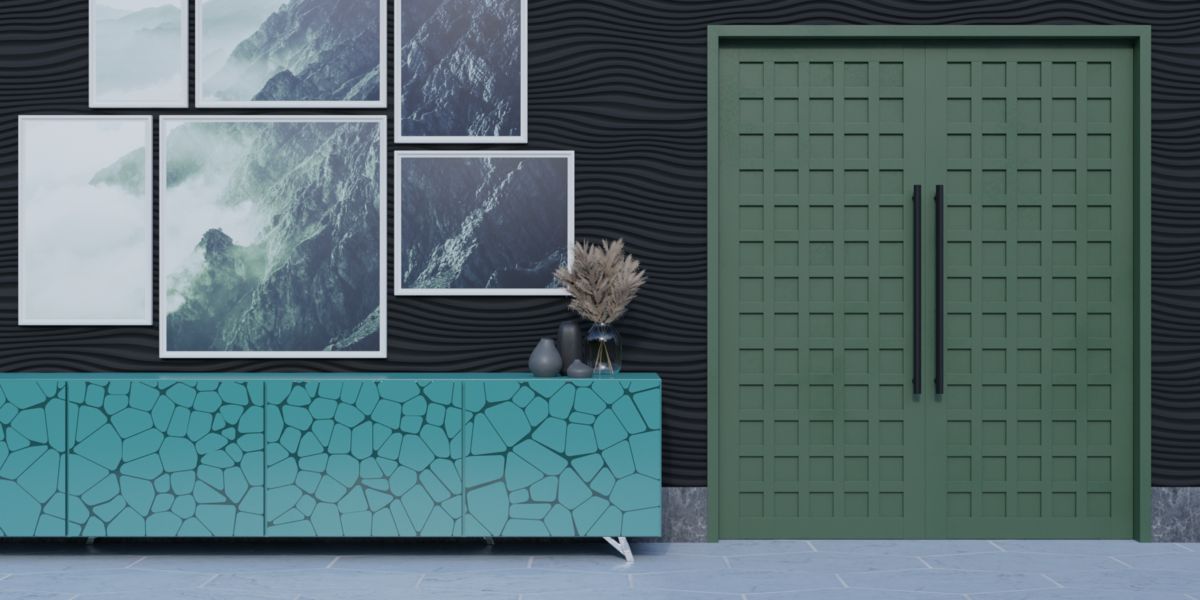
If you cannot find a setting in your panel, check that line first — the panel
hides controls that do not apply to your current configuration, so you only
ever see the options that actually affect your opening.
TOOLTIPS
Every setting also has a built-in tooltip. Hover over any field in the panel and
Blender shows a one-line summary of what it does. The tooltips say the same thing
as the short lines in this document, so you can usually work without opening the
manual at all. Use this document when you want the longer explanation.
═══════════════════════════════════════════════════════
CONTENTS
═══════════════════════════════════════════════════════
1. What this add-on does
2. Requirements
3. Installation
4. First use — Append NodeTree
5. Creating an opening
6. Unit Preference
7. Presets
8. Opening Type
9. Adjust Geometry
10. Custom Frame & Arched Openings
11. Stile Options (Fixed Shutters)
12. Shutter Controls
13. Shutter Panel Style
14. Shutter Opening Controls
15. Cross Rails
16. Mullions
17. Lockset
18. Handles
19. Hinges
20. Bevel & Subdivision
21. Materials
22. Baking
23. Create Boolean
24. Apply & Make Real
25. Settings only on the modifier
26. Performance tips
27. Tips and troubleshooting
28. Frequently asked questions
29. What's new in 1.4.1
30. Support
═══════════════════════════════════════════════════════
1. WHAT THIS ADD-ON DOES
═══════════════════════════════════════════════════════
Procedural Openings Generator builds doors, windows, vents, sidelights and
transoms inside Blender using Geometry Nodes.
Everything is parametric. You set width, height, frame sizes, shutter style,
hardware and materials with sliders and dropdowns, and the geometry rebuilds
instantly. You never edit vertices by hand. When the design is finished, one
button turns it into a normal mesh and cuts the hole into your wall for you.
═══════════════════════════════════════════════════════
2. REQUIREMENTS
═══════════════════════════════════════════════════════
• Blender 5.2 or later.
• No extra Python packages.
• No special GPU requirements.
Note on older Blender versions: Blender 5.0 changed how add-ons talk to
Geometry Nodes modifiers, and this version of the add-on uses the new method.
If you are still on Blender 4.x, keep using version 1.3.x of the add-on.
═══════════════════════════════════════════════════════
3. INSTALLATION
═══════════════════════════════════════════════════════
Method A — Drag and drop (easiest)
1. Download the zip. Do not unzip it.
2. Open Blender.
3. Drag the zip onto the Blender window.
4. Confirm the prompt.
Method B — Install from Disk
1. Download the zip. Do not unzip it.
2. Edit > Preferences > Add-ons.
3. Click the arrow at the top right, then Install from Disk.
4. Pick the zip, then tick the checkbox to enable it.
After installing, hover the mouse over the 3D viewport and press N to open the
sidebar. You will see a tab called Pro_Openings.
═══════════════════════════════════════════════════════
4. FIRST USE — APPEND NODETREE
═══════════════════════════════════════════════════════
APPEND NODETREE
Loads the node group, materials and textures into the current Blender file.
The first time you use the add-on in any file, the panel shows a single button
called Append NodeTree. Click it once. This copies the Geometry Nodes setup, the
nine bundled materials and all textures into your file, and re-points every
texture at the add-on's own folder so nothing shows up pink or missing. The
panel then switches to the full editor. You only do this once per Blender file —
when you reopen a saved file, everything is already there and the add-on picks
it up automatically.
═══════════════════════════════════════════════════════
5. CREATING AN OPENING
═══════════════════════════════════════════════════════
CREATE A NEW OPENING
Adds a new parametric opening object to the scene.
Click this and a new object called Openings_A appears in a collection named
Pro_Openings, already carrying the Geometry Nodes modifier and the default
materials. Select it and the full settings panel appears underneath. You can
create as many openings as you like; they are named Openings_A, Openings_B and
so on, continuing to Openings_AA and beyond, so there is no limit. Each opening
is completely independent — changing one never affects another.
The panel only shows the full settings when the selected object is an opening
(its name starts with "Openings") and still has its Geometry Nodes modifier.
═══════════════════════════════════════════════════════
6. UNIT PREFERENCE
═══════════════════════════════════════════════════════
UNIT PREFERENCE
Chooses whether you type sizes in feet, inches or meters.
Pick the unit you think in. This changes what the number fields mean — set it to
Feet and a width of 5 means five feet. The actual model is always built at real
world scale, so an opening is physically the same size whichever unit you pick.
Changing this does not convert your existing numbers on its own; press the
button below it to do that.
RESET ALL VALUES (the button directly under Unit Preference)
Rescales every size in the opening to match the unit you just chose.
After switching units, click this. It converts all current sizes, all default
values and all the minimum and maximum slider limits into the new unit, so a
5 foot wide opening becomes 60 when you switch to inches, and 1.524 when you
switch to meters. The opening does not change shape or size — only the numbers
you see. Skip this step and your sliders will still be limited to the old unit's
ranges, which makes them feel stuck.
Note: there is a second button near the bottom of the panel with a very similar
name. That one resets frame and hardware sizes back to factory defaults. This
one is only about unit conversion.
═══════════════════════════════════════════════════════
7. PRESETS
═══════════════════════════════════════════════════════
CATEGORY
Filters the thumbnail gallery to one family of presets.
Choose between Doors, Windows, Vents, Sidelights, Transoms and Custom. Custom is
where anything you save yourself appears. Switching category changes which
thumbnails are available below.
PRESET GALLERY (the thumbnail grid)
Picks which preset you are about to apply.
Click a thumbnail to select it. Nothing happens to your opening yet — this only
marks your choice. The add-on ships with silhouette images for the eleven
factory presets. If you would rather see real renders, save your own 128x128 PNG
into the thumbnails folder inside the add-on directory, named after the preset
key (for example door_0.png). Your own images are never overwritten.
APPLY PRESET
Applies the selected preset to the active opening.
This sets dimensions, shutter style, frame type, panel style and materials all at
once, then triggers a bake. Anything you had customised is overwritten, so apply
your preset first and fine tune afterwards. Preset sizes are stored in feet and
converted automatically, so they come out correct whichever unit you are working
in.
+ (SAVE PRESET)
Saves your current opening as a reusable named preset.
Design the opening exactly how you want it, click the plus button, type a name
and confirm. The preset appears immediately under the Custom category. It stores
every shutter, frame and panel setting, all dimensions (converted to feet so they
survive unit changes) and all material assignments by name. Presets live in a
file called presets.json inside the add-on folder, so they survive restarts. Two
presets saved with the same name overwrite each other.
TRASH (DELETE PRESET)
Deletes the selected custom preset.
Only active when a custom preset is selected — the eleven factory presets cannot
be deleted. You will be asked to confirm.
═══════════════════════════════════════════════════════
8. OPENING TYPE
═══════════════════════════════════════════════════════
OPENING TYPE
Decides whether the opening has moving shutters or is fixed shut.
Openable Shutters gives you a door or window that opens, with all the shutter,
handle, lockset and hinge options that go with it. Fixed Shutters gives you a
sealed panel with no moving parts and no hardware — the right choice for vents,
sidelights, transoms and fixed glazing. Switching to Fixed Shutters hides all
the opening and hardware sections, because none of them apply.
═══════════════════════════════════════════════════════
9. ADJUST GEOMETRY
═══════════════════════════════════════════════════════
OPENING WIDTH
The total width of the hole in the wall.
Measured across the outside of the frame, so this is the size of the gap the
opening needs in your wall, not the width of the glass or the door leaf. The
boolean cutter is built from this number, so it is the value that decides how big
a hole gets cut.
OPENING HEIGHT
The total height of the hole in the wall.
Measured from the bottom of the frame to the top, again on the outside. For an
arched opening this is the height of the rectangular part only — the arch is
added on top, so the real overall height is this plus the arch height.
OPENING FRAME DEPTH
How deep the frame is, front to back through the wall.
Set this to roughly your wall thickness so the frame reads correctly from both
sides. It does not need to match exactly; a slightly shallower frame looks normal
and a much deeper one will poke out of the wall.
OPENING FRAME HEIGHT
How wide the frame border looks when seen face on.
Despite the name this is the visible thickness of the frame timber or section —
the band you see around the edge of the opening. Larger numbers give a chunky,
traditional frame; smaller numbers give a slim modern one. It eats into the clear
opening, so a thick frame leaves less room for the shutter and glass.
SHUTTER FRAME HEIGHT
How wide the border around each shutter looks.
Shown when: Framed Shutters is switched on.
This is the same idea as Opening Frame Height, but for the moving shutter rather
than the fixed surround — the stiles and rails around each panel. Increase it for
a heavy joinery look, decrease it for more glass and less frame.
THRESHOLD
Adds or removes a sill or threshold strip along the bottom.
Turn this on for a door that needs a threshold plate, or a window that needs a
sill. Turn it off for openings that meet the floor directly or where you are
modelling the sill yourself as part of the wall.
THRESHOLD HEIGHT
How tall the threshold strip is.
Shown when: Threshold is switched on.
Small values give a flat weather bar you would step over without noticing.
Larger values give a raised sill or a step. Appears next to the Threshold
checkbox so you can see both together.
CUSTOM FRAME & ARCHED OPENING
Unlocks custom profile shapes and arched tops.
Leave this off for standard rectangular openings with the built-in frame
sections — that covers most work and is the fastest to evaluate. Turn it on when
you need an arch, or when you want to drive the frame shape from your own curve
objects. Switching it on reveals the whole section described next, and hides the
cross rail and mullion sections, because those only apply to the standard frame.
Two things share this one checkbox: custom frame profiles and arched tops. You do
not have to use both. Turn it on and leave Arch Height at 0 if you only want a
custom profile with a flat top.
It also changes how Create Boolean builds the wall cutter. With this off, the
cutter is a plain scaled box. With it on, the cutter is built by Geometry Nodes so
it can follow an arch — that happens whenever the checkbox is ticked, whether or
not you actually have an arch. Both produce a correct hole.
═══════════════════════════════════════════════════════
10. CUSTOM FRAME & ARCHED OPENINGS
═══════════════════════════════════════════════════════
Shown when: Custom Frame & Arched Opening is switched on.
FRAME TYPE
Chooses between your own profile curves and one of eight ready made ones.
Set it to Custom Profile to pick your own curve objects in the three fields
below. Or choose one of Preset A to Preset H to use a profile that ships with the
add-on. The preset names tell you which shutter opening style they were designed
for — for example Preset E is built for Pocket openings and Preset G for Sliding.
Match them up or the frame and shutter sections will not meet cleanly.
FRAME PROFILE
The curve object used as the cross-section of the outer frame.
Shown when: Frame Type is Custom Profile.
Point this at any curve in your scene and the frame is swept along the opening
using that shape. This is how you match a real world extrusion or a moulding
profile exactly. Nine ready made profile curves are included in the bundled
.blend file if you want a starting point to modify.
New openings arrive with this and the two fields below already filled in with the
bundled default profiles, so Custom Profile works straight away. If you clear a
profile field the corresponding part is simply not built — an empty Frame Profile
gives an opening with no frame around it.
SHUTTER PROFILE
The curve object used as the cross-section of the shutter stiles and rails.
Shown when: Frame Type is Custom Profile.
Same idea as Frame Profile, but for the moving shutter instead of the fixed
surround. Usually you want a profile that visually relates to the frame profile
so the two read as one system.
GLAZING OPTION
Sets how many panes of glass sit in each opening.
Single Glazing gives one pane. Double and Triple add extra panes with air gaps
between them, which is what you want for realistic modern joinery and for close
up renders where you can see the edge of the glass. More panes means more
geometry, so use Single when the opening is far from camera.
GLASS SEAL PROFILE
The curve object used as the cross-section of the glazing bead.
Shown when: Frame Type is Custom Profile.
This is the small strip that holds the glass into the shutter. Leave it empty if
you do not want a visible bead, or point it at a curve to get a precise
manufactured look.
ARCH HEIGHT
How far the arched top rises above the rectangular part.
Shown when: Shutter Opening Style is Hinged, Pocket or Pivot.
Set it to 0 for a flat topped opening. Increase it and the top curves upward,
adding to the total height. Set it to half the opening width for a true
semi-circular arch. The boolean cutter follows the arch shape, so the hole cut in
your wall matches.
Only hinged, pocket and pivot shutters can be arched. Bifold and sliding shutters
are always flat topped, which is why this control disappears when you pick them.
If you set an arch, then switch to bifold or sliding, the value is remembered but
ignored — both the opening and its wall cutter stay square. Switch back to hinged,
pocket or pivot and your arch returns.
ARCH RESOLUTION
How many segments the arch curve is divided into.
Shown when: Shutter Opening Style is Hinged, Pocket or Pivot.
Low values give a faceted arch, which can be exactly what you want for a
low-poly or game asset. Higher values give a smooth curve at the cost of more
geometry. Raise it until the arch looks smooth at your camera distance and then
stop.
BIFOLD SHUTTER WIDTH OFFSET
Nudges bifold panel widths to compensate for your custom profile.
Shown when: Shutter Opening Style is Bifold and Frame Type is Custom Profile.
Custom profiles are rarely symmetrical, which can leave bifold panels looking
slightly unequal where they meet. This shifts the split to correct that. Adjust
it a little at a time while looking at the closed shutters.
═══════════════════════════════════════════════════════
11. STILE OPTIONS (FIXED SHUTTERS)
═══════════════════════════════════════════════════════
Shown when: Opening Type is Fixed Shutters.
LEFT STILE OPTION
Adds or removes the vertical frame member on the left of the fixed panel.
Turn it off when the fixed panel butts against a wall, a door frame or another
opening, so you do not get two frame members sitting side by side. Turn it on
when the edge is exposed and needs finishing.
RIGHT STILE OPTION
Adds or removes the vertical frame member on the right of the fixed panel.
Works exactly like Left Stile Option, for the other side. Turning both off is
useful for a panel that sits between two other openings, such as the middle light
of a run of fixed glazing.
FRAMED SHUTTERS / SOLID SHUTTERS
Switches between a panel with a frame around it and one solid slab.
Framed gives you stiles and rails around the panel, like traditional joinery, and
unlocks the panel style options. Solid gives a single flat slab with no
surrounding frame — right for flush modern doors and for simple vent panels.
SHUTTER PANEL MATERIAL (in this section)
Chooses the material used on the solid slab.
Shown when: Framed Shutters is switched off.
Careful, this label is used twice in the panel for two different things. Here, in
the Fixed Shutters section, it is a material slot and you pick an actual material
from your file. Further down, in the panel style section, a control with the same
label chooses between glass and a solid panel instead.
═══════════════════════════════════════════════════════
12. SHUTTER CONTROLS
═══════════════════════════════════════════════════════
Shown when: Opening Type is Openable Shutters.
SHUTTER OPENING STYLE
Decides how the shutter moves when it opens.
Hinged Opening swings on hinges like a normal door. Pocket Opening slides
sideways into the wall. Pivot Opening rotates about a vertical axis somewhere
inside its own width. Bifold Opening folds up like a concertina. Sliding Opening
runs along a track in front of the frame. This is the most important choice in
the whole panel — it changes which other settings appear and which hardware is
offered, because a sliding door has no hinges and a bifold has no lockset.
PIVOT DISTANCE
How far in from the edge the pivot axis sits.
Shown when: Shutter Opening Style is Pivot Opening.
At zero the shutter turns on its edge, which looks like a hinge. Move it inward
and you get the centre-pivot look used in tall pivot doors and warehouse windows.
Halfway gives a shutter that swings symmetrically on its centre line.
NO OF PANELS
How many leaves the shutter is divided into.
Shown when: Shutter Opening Style is Bifold Opening or Sliding Opening.
Accepts 2 to 6. For bifold, panels fold against each other in pairs, so even
numbers usually look more natural. For sliding, each panel gets its own track
position and they stack up as the opening percentage increases. More panels means
noticeably more geometry, so keep the count as low as the design allows.
FRAMED SHUTTERS / SOLID SHUTTERS
Switches between framed shutters and solid slabs.
Same control as described in section 11, repeated here so it is reachable for
openable shutters too. Framed unlocks the panel style, cross rail and mullion
sections; Solid hides them and gives you a flush slab.
SHUTTER TYPE
Sets how many shutters fill the opening and whether they are equal.
Shown when: Shutter Opening Style is not Bifold or Sliding.
Single Shutter is one leaf covering the full width — the normal choice for a
door. Double Shutters splits the opening into two equal leaves meeting in the
middle, for French doors and casement windows. Uneven Shutters also gives two
leaves but lets you control the split, for the common arrangement of one wide
everyday leaf plus a narrow one that is normally bolted shut.
UNEVEN SHUTTER WIDTH
Sets where the split falls between the two unequal leaves.
Shown when: Shutter Type is Uneven Shutters and Custom Frame is switched on.
Raise it to make the first leaf wider and the second narrower. Use it to model a
door pair where one leaf is the everyday entrance and the other only opens for
furniture.
═══════════════════════════════════════════════════════
13. SHUTTER PANEL STYLE
═══════════════════════════════════════════════════════
Shown when: Framed Shutters is on and Custom Frame is off.
SHUTTER PANEL STYLE
Chooses what fills the area inside the shutter frame.
Solid Panels fills it with a flat panel or glass. Louvers fills it with angled
horizontal slats, for shutters and vents. Dowels fills it with vertical round
bars, for screens, gates and ventilation panels. Each choice reveals its own
settings below. Choosing Dowels also hides the cross rail and mullion sections,
since bars and dividers do not combine.
LOUVER ANGLE
How steeply the slats are tilted.
Shown when: Shutter Panel Style is Louvers.
Zero gives flat horizontal slats you can see straight through. Increasing the
angle tips them, which closes the view and reads as a shutter that is shut. This
is a good value to animate if you want louvres that open and close.
LOUVER HEIGHT
How tall each individual slat is.
Shown when: Shutter Panel Style is Louvers.
Smaller values give many thin slats, which looks like a fine plantation shutter
and costs more geometry. Larger values give fewer, chunkier slats. The add-on
fits a whole number of slats into the available height, so the count changes as
you drag this.
REALIZE LOUVER INSTANCES
Converts the repeated slats from copies into real geometry.
Shown when: Shutter Panel Style is Louvers.
Leave this off while you design — instances are much lighter and the viewport
stays fast. Turn it on when you need the slats to be genuine separate geometry,
which matters if you are exporting to another program, applying booleans, or
using modifiers that cannot see instances. Turning it on will slow the viewport,
so switch it back off if you keep designing.
DOWEL SIZE
How thick each round bar is.
Shown when: Shutter Panel Style is Dowels.
Small values give thin rods like a security screen. Larger values give heavy
bars like a gate. This is the bar diameter, so it also affects how much you can
see between the bars.
NO OF DOWELS
How many bars are spaced across the panel.
Shown when: Shutter Panel Style is Dowels.
The bars are spread evenly across the available width, so increasing the count
packs them closer together rather than making the panel wider. Combine with
Dowel Size to control how open or closed the screen looks.
REALIZE DOWEL INSTANCES
Converts the repeated bars from copies into real geometry.
Shown when: Shutter Panel Style is Dowels.
Exactly the same trade-off as Realize Louver Instances — leave it off for a fast
viewport, turn it on when you need real geometry for export or booleans.
SHUTTER PANEL MATERIAL (in this section)
Chooses whether the panel area is glass or a solid panel.
This is a dropdown with two choices, Glass and Solid Panel, not a material slot.
Pick Glass for windows and glazed doors, Solid Panel for flush and panelled
doors. To choose which actual material is used, see the Materials section. Note
this label is also used in the Fixed Shutters section for a real material slot.
═══════════════════════════════════════════════════════
14. SHUTTER OPENING CONTROLS
═══════════════════════════════════════════════════════
Shown when: Opening Type is Openable Shutters.
SWITCH SHUTTER OPENING SIDE
Flips which side the shutter is hinged or slides from.
Shown when: the current shutter arrangement has a meaningful handed side.
Use it when a door opens the wrong way for your plan — it mirrors the hinge side,
the handle and the lockset together, so you do not have to move each one. For
sliding and bifold arrangements it swaps the direction the panels travel.
SHUTTER MAX OPENING ANGLE
The angle the shutter reaches when fully open.
Shown when: Shutter Opening Style is not Bifold Opening.
This is the limit, in degrees, that 100 percent open corresponds to. Ninety
degrees is a normal door standing square to the wall. Reduce it to model a door
restricted by a wall or a stop, or raise it past ninety for a door that folds
back flat against the wall.
SHUTTER OPENING PERCENT
How far open the shutter currently is, from 0 to 100.
Zero is fully closed, 100 is open to the maximum angle you set above. This is the
value to animate for an opening door or window — insert keyframes on it directly
and it keeps working even after you bake the shutters, so you can animate heavy
openings without the viewport slowing down.
SHUTTER OPENING SYMMETRY
Makes the folding panels open evenly on both sides.
Shown when: Shutter Opening Style is Bifold Opening with more than two panels.
Off, the panels fold up from one end. On, they fold in from both ends toward the
middle, which is the usual arrangement for wide bifold door sets across a
opening.
USE BAKED SHUTTERS
Uses previously baked shutter geometry instead of rebuilding it live.
Turn this on after baking to get the speed benefit. Turn it off to go back to
live evaluation when you want to change something the bake has frozen. If you
turn it on without having baked anything, the shutters will disappear — bake
first, then enable it. See the Baking section for the full workflow.
═══════════════════════════════════════════════════════
15. CROSS RAILS
═══════════════════════════════════════════════════════
Shown when: Framed Shutters is on, Custom Frame is off, and Shutter Panel Style
is not Dowels.
Cross rails are the horizontal bars that divide a shutter into rows, like the
glazing bars of a traditional window.
NO OF CROSS RAILS
How many horizontal dividers to add.
Set it to 0 for no dividers, giving one clear pane. One gives a single bar
splitting the shutter into two rows. Higher numbers give classic multi-pane
windows. All the settings below only appear once this is above zero.
CROSS RAIL DEPTH
How far the rails stick out front to back.
Shallow rails read as slim modern glazing bars. Deeper rails read as chunky
traditional joinery and cast more shadow.
CROSS RAIL HEIGHT
How thick each rail looks seen face on.
This is the visible width of the bar. Thin values give a delicate divided light;
thicker values start to look like a solid rail dividing two separate panels.
CROSS RAIL SPACING TYPE
Switches between evenly spread rails and manually positioned ones.
Shown when: No of Cross Rails is not 1.
Off spreads the rails evenly across the height, which is what you usually want.
On lets you drive the position yourself so you can model an off-centre
arrangement, such as a wide bottom panel with narrow lights above.
CROSS RAIL POSITION
Sets how high the single rail sits.
Shown when: No of Cross Rails is 1 and Shutter Panel Style is not Louvers.
Only relevant with exactly one rail. Move it up or down to place the divide —
low for a cottage window with a small bottom pane, high for a door with a large
lower panel and a small vision light on top.
REALIZE CROSS RAIL INSTANCES
Converts the repeated rails from copies into real geometry.
Same trade-off as the other realize toggles — off keeps the viewport fast, on
gives real geometry needed for export and booleans.
═══════════════════════════════════════════════════════
16. MULLIONS
═══════════════════════════════════════════════════════
Shown when: Framed Shutters is on, Custom Frame is off, and Shutter Panel Style
is not Dowels.
Mullions are the vertical version of cross rails — upright bars dividing the
shutter into columns. Combine them with cross rails to get a grid of panes.
NO OF MULLIONS
How many vertical dividers to add.
Zero gives no vertical division. One splits the shutter into two columns. Use
this together with No of Cross Rails to build any grid — two of each gives a
nine-pane window.
MULLION DEPTH
How far the mullions stick out front to back.
Usually you want this to match Cross Rail Depth so the grid looks like one
consistent set of glazing bars.
MULLION WIDTH
How thick each mullion looks seen face on.
The vertical equivalent of Cross Rail Height. Matching the two gives an even
grid; deliberately differing them gives the heavier-verticals look found in some
period windows.
MULLION SPACING TYPE
Switches between evenly spread mullions and manually positioned ones.
Shown when: No of Mullions is not 1.
Off spreads them evenly across the width. On hands the position to you, for
asymmetric arrangements such as a wide main pane beside a narrow side light.
MULLION POSITION
Sets how far across the single mullion sits.
Shown when: No of Mullions is 1.
Only relevant with exactly one mullion. Slide it left or right to place the
vertical divide off centre.
REALIZE MULLION INSTANCES
Converts the repeated mullions from copies into real geometry.
Same trade-off as the other realize toggles.
═══════════════════════════════════════════════════════
17. LOCKSET
═══════════════════════════════════════════════════════
Shown when: Opening Type is Openable Shutters and Shutter Opening Style is
Hinged or Pivot. The section header changes name depending on which hardware
applies to your current style.
LOCKSET - YES / NO
Adds or removes the lock plate and handle assembly.
Turn it on for an entrance door that needs a visible lock. Turn it off for
internal doors, windows and anywhere you are modelling the hardware separately.
All the settings below only appear when this is on.
USE BAKED LOCKSET
Uses previously baked lockset geometry instead of rebuilding it live.
Same idea as Use Baked Shutters, for the lockset only. Bake first, then enable.
LOCKSET TYPE
Chooses between the two lockset designs.
Option A is the fuller assembly with a base plate, a lever and a keyhole, and
exposes the most settings. Option B is a simpler variant with fewer parts. Switch
between them and see which suits the door — the settings list changes to match,
because Option B has no separate base height.
LOCKSET BASE WIDTH / RADIUS
How wide the back plate is.
On the rectangular design this is the plate width; on the rounded one it acts as
a radius. Larger values give a substantial commercial looking plate.
LOCKSET BASE DEPTH
How far the back plate stands off the door face.
Small values sit almost flush with the door. Larger values give a chunkier
surface-mounted look.
LOCKSET BASE HEIGHT
How tall the back plate is.
Shown when: Lockset Type is Option A.
Together with Base Width this sets the overall proportion of the plate. Tall
narrow plates read as European style; short wide ones read differently.
LOCKSET HANDLE WIDTH
How long the lever is.
This is how far the handle reaches out from the plate. Longer levers are easier
to read at a distance and are typical of modern commercial hardware.
LOCKSET HANDLE DEPTH
How thick the lever is front to back.
Thin values give a delicate lever, thicker values a solid chunky one.
LOCKSET HANDLE HEIGHT
How tall the lever section is.
Shown when: Lockset Type is Option A.
Controls the lever's profile in the vertical direction, letting you go from a
flat blade to a squarer bar.
LOCKSET MIDDLE DEPTH
How far the neck stands off between plate and lever.
This is the short stem connecting the lever to the plate. Increase it to move the
lever further from the door face, which is how you get clearance on a thick door.
KEYHOLE SIZE
How large the keyhole opening is.
Set it small for a subtle cylinder and larger for an obvious traditional
keyhole. Set it to its minimum if you want the plate to look blank.
LOCKSET HANDLE MAX ANGLE
The angle the lever reaches when fully turned.
The limit that a full rotation corresponds to, in degrees, in the same way that
Shutter Max Opening Angle works for the shutter itself.
LOCKSET HANDLE ROTATION
How far the lever is currently turned.
Animate this together with Shutter Opening Percent to make the handle press down
just before the door starts to swing.
LOCKSET POS X
Moves the lockset across the width of the shutter.
Shown when: Framed Shutters is switched off.
Only offered on solid shutters, where there is no frame to align to. Use it to
set how far in from the edge the lock sits.
LOCKSET POS Z
Moves the lockset up or down the shutter.
This is the handle height above the floor, which is worth getting right because
it is one of the things that makes a door read as the correct scale. Around one
metre is typical for a door.
═══════════════════════════════════════════════════════
18. HANDLES
═══════════════════════════════════════════════════════
Shown when: Opening Type is Openable Shutters.
HANDLE - YES / NO
Adds or removes the pull handle.
Independent of the lockset, so you can have a handle with no lock, a lock with no
handle, or both. Turn it off if you are modelling your own hardware.
USE BAKED HANDLES
Uses previously baked handle geometry instead of rebuilding it live.
Bake first, then enable. Handle position stays adjustable even after baking.
HANDLE TYPE
Chooses between the three handle designs.
Shown when: Shutter Opening Style is Hinged, Pocket or Pivot.
Option A, B and C are three different shapes — try each and pick the one that
suits the door. Sliding and bifold shutters use their own appropriate handle, so
this control is hidden for them.
HANDLE SIDE
Chooses which faces of the shutter get a handle.
Inside puts one on the inner face only, Outside on the outer face only, and Both
Sides on both. Use Both Sides for a door people pass through from either
direction; use a single side for a cupboard or a window that is only reached from
one side. Fewer handles means less geometry.
HANDLE DEPTH
How far the handle stands out from the shutter face.
This is the grip clearance. Larger values give a handle you could obviously get a
hand behind; smaller values give a flush modern pull.
HANDLE WIDTH / RADIUS
How thick the handle bar is.
On round handles this acts as the radius, giving you anything from a slim rod to
a fat tubular grip.
HANDLE HEIGHT
How long the handle is along the shutter.
Short values give a knob or small lever, long values give a full height ladder
pull of the kind used on shopfronts and entrance doors.
HANDLE POS X
Moves the handle across the width of the shutter.
Shown when: Framed Shutters is off, or Custom Frame is on with a custom profile.
Use it to set how far in from the leading edge the handle sits. On framed
shutters the handle is aligned to the frame automatically, which is why this only
appears in the cases where there is nothing to align to.
INSIDE HANDLE OFFSET
Shifts only the inner handle sideways.
Shown when: Custom Frame is on and Frame Type is Custom Profile.
Custom profiles are often different on the inside and outside faces, which can
leave the two handles looking misaligned. This corrects the inner one without
moving the outer one.
HANDLE POS Z
Moves the handle up or down the shutter.
The handle height above the floor. Keep it consistent with Lockset Pos Z so the
two pieces of hardware line up.
ROTATE HANDLE
Turns the handle ninety degrees.
Switches between a horizontal and a vertical handle. Vertical suits long pull
handles on entrance doors; horizontal suits levers and window fittings.
═══════════════════════════════════════════════════════
19. HINGES
═══════════════════════════════════════════════════════
Shown when: Shutter Opening Style is Hinged Opening or Bifold Opening.
USE BAKED HINGES
Uses previously baked hinge geometry instead of rebuilding it live.
Bake first, then enable. Hinge count stays adjustable after baking.
NO OF HINGES
How many hinges are spaced down the shutter edge.
They are spread evenly down the height. Two is normal for a light internal door,
three for a heavier external one, and more for tall or heavy leaves. On bifold
shutters hinges are also placed between the folding panels.
HINGE RADIUS
How thick the hinge barrel is.
The barrel is the cylindrical knuckle the door pivots on. Small values give a
discreet fitting; larger values give a visible heavy duty hinge.
HINGE HEIGHT
How tall each hinge is.
Taller hinges read as heavier hardware. Keep it in proportion to the shutter
frame width or the hinge will look bolted on.
═══════════════════════════════════════════════════════
20. BEVEL & SUBDIVISION
═══════════════════════════════════════════════════════
BEVEL
Rounds off the sharp edges of the frame and shutters.
Real joinery is never perfectly sharp, and a small bevel catches light along the
edges, which makes close up renders look far more believable. Turn it off for
low-poly and game assets where you cannot spare the geometry.
BEVEL SUBDIVISION
How many segments the rounded edge is divided into.
Zero gives a single flat chamfer, which is cheap and often enough. Higher values
give a genuinely round edge for close up work. Every increase multiplies the
geometry across the whole opening, so raise it only as far as the camera needs.
OVERALL SUBDIVISION
Smooths the entire opening by subdividing all of it.
Shown when: Bevel Subdivision is 0 or less.
This is the blunt instrument version of smoothing — it subdivides everything
rather than just the edges. Useful for organic or heavily curved custom profiles.
It gets expensive quickly, so prefer Bevel Subdivision when you only need
crisp edges.
═══════════════════════════════════════════════════════
21. MATERIALS
═══════════════════════════════════════════════════════
Each slot has a search field with a dropdown, so you can assign any material in
your file, not just the bundled ones. Nine materials are loaded when you first
click Append NodeTree: Aluminium, Blue, Glass, Grey, Metal, Wood_01, Wood_02,
Wood_Painted_01 and Wood_Painted_02, all with 4K textures.
OPENING FRAME MATERIAL
The material on the fixed frame around the opening.
This is the surround built into the wall. A common setup is a painted or timber
frame here with a different finish on the moving shutter.
SHUTTER FRAME MATERIAL
The material on the moving shutter and its frame.
Covers the stiles, rails and solid panels of the shutter. Set it to the same
material as the opening frame for a uniform look, or something different to make
the door read as a separate element.
GLASS MATERIAL
The material on the glazing.
Applies to every pane, including the extra panes added by double and triple
glazing. The bundled Glass material is already set up to be transparent and
refractive.
HANDLE MATERIAL
The material on the handles.
Usually a metal. Keeping handles, lockset and hinges on the same material makes
the hardware look like a matching set.
LOCKSET MATERIAL
The material on the lock plate and lever.
Assign the same metal as the handles unless you deliberately want contrasting
ironmongery.
HINGE MATERIAL
The material on the hinges.
Hinges are often barely visible, so this is a good candidate for the same metal
as the rest of the hardware rather than something unique.
═══════════════════════════════════════════════════════
22. BAKING
═══════════════════════════════════════════════════════
Geometry Nodes rebuilds the whole opening every time anything changes. On a
complex opening — many panels, glazing, hardware, bevels — that can make the
viewport sluggish. Baking freezes the heavy parts so Blender can reuse them
instead of recalculating.
BAKE SHUTTERS
Marks the shutter geometry to be included in the next bake.
The shutters are usually the heaviest part, so this is the one that buys you the
most speed. Tick it before clicking Bake Selected.
BAKE HANDLES
Marks the handle geometry to be included in the next bake.
Worth baking when you have handles on both sides of several panels, since the
count multiplies quickly.
BAKE LOCKSET
Marks the lockset geometry to be included in the next bake.
The lockset is detailed but there is only one of it, so this saves less than the
others. Still useful on a finished door.
BAKE HINGES
Marks the hinge geometry to be included in the next bake.
Most useful when you have raised the hinge count or are working with bifold
shutters, where hinges appear between every panel.
BAKE SELECTED
Calculates and stores the geometry for everything you ticked.
Click this after ticking the boxes above. Blender processes the opening and
caches the result, which can take a moment the first time. Once it finishes,
switch on the matching Use Baked options so the cached version is actually used.
Some things stay adjustable even on baked geometry — shutter opening percentage,
handle and lockset positions, and hinge count — so you can still animate a door
after baking it.
TRASH (DELETE BAKE)
Throws away the stored geometry.
Do this when you have changed something the bake has frozen, such as the frame
size or the panel style, and the opening no longer matches what you see. Delete
the bake, make your changes, then bake again.
═══════════════════════════════════════════════════════
23. CREATE BOOLEAN
═══════════════════════════════════════════════════════
CREATE BOOLEAN
Builds a solid cutter object shaped like the hole this opening needs.
Click this and an object named to match your opening — Openings_Boolean_A for
Openings_A — is created, parented to the opening and hidden from the viewport and
render. Because it is parented, moving the opening moves the cutter with it. You
can add a Boolean modifier to your wall pointing at this object to preview the cut
without committing, or let Apply & Make Real do it for you. Running Create Boolean
again replaces the existing cutter, which is what you want after resizing the
opening.
The cutter is built one of two ways, depending on the Custom Frame & Arched
Opening checkbox rather than on whether you actually have an arch:
• Checkbox off — a plain box, scaled to the opening.
• Checkbox on — built by Geometry Nodes so it can follow an arched top.
With Arch Height at 0 this still gives a square hole.
Both cut a correct hole. The cutter is hidden, and hidden objects are skipped by
Blender's viewport evaluation, so if you unhide it to inspect it you may see a
placeholder cube for a moment until the viewport refreshes. The cut itself is
always correct — Blender evaluates the cutter properly for the Boolean modifier
whether it is hidden or not.
═══════════════════════════════════════════════════════
24. APPLY & MAKE REAL
═══════════════════════════════════════════════════════
WALL FOR BOOLEAN
Picks the wall mesh that should have the hole cut into it.
Use the dropdown to choose your wall object. Leave it empty if you only want to
convert the opening to a mesh without touching any wall.
APPLY & MAKE REAL
Converts the opening into a normal mesh and cuts the wall in one step.
This finishes the job. It realises any instances, applies the Geometry Nodes
modifier so the opening becomes ordinary editable geometry, and then — if you
picked a wall — briefly unhides the cutter, adds a Boolean Difference modifier to
the wall, applies it, and hides the cutter again. The result is clean geometry
ready for export to a game engine or another application.
Two things to know before you click it. First, the opening stops being
parametric: you can no longer change its width or style, because the sliders are
gone along with the modifier. Second, applying a boolean to the wall permanently
changes the wall mesh. Save your file first, or work on a duplicate, so you can
go back if you need to. If the opening shares its mesh data with another object,
the add-on separates it automatically before applying.
RESET ALL VALUE (the button above Create Boolean)
Puts frame, panel and hardware sizes back to their factory defaults.
Use this when you have adjusted a lot of numbers and want a clean starting point
without deleting the opening and starting again. It resets sizes such as frame
depth and height, threshold, louvers, dowels, cross rails, mullions and handle
dimensions, scaled to whichever unit you are working in. It does not change your
shutter style, opening type or materials.
═══════════════════════════════════════════════════════
25. SETTINGS ONLY ON THE MODIFIER
═══════════════════════════════════════════════════════
A few inputs exist in the node group but are not shown in the sidebar panel. To
reach them, select the opening, open the Properties editor, go to the wrench
(Modifier) tab and scroll through the GeometryNodes modifier.
ARCH TYPE
Chooses between three different arch shapes.
Type A, B and C give three different curve profiles for an arched top — for
example a shallower or more pointed arch. This is not in the sidebar panel, so
set it on the modifier if the default arch shape is not the one you want.
PRESET OPENING / PRESET DOOR / PRESET WINDOW / PRESET VENTS SIDELIGHT TRANSOM
The older dropdown based preset picker.
These four menus were how presets were chosen before version 1.4.0 introduced the
thumbnail gallery. They still work from the modifier, but the gallery in the
sidebar is easier and is the recommended way to apply presets.
═══════════════════════════════════════════════════════
26. PERFORMANCE TIPS
═══════════════════════════════════════════════════════
BAKE EARLY, BAKE OFTEN
Baking turns the Geometry Nodes evaluation into a static cache, after which the
component costs almost nothing to display. Bake the shutters first — they are the
heaviest part of most configurations.
WORK AT LOW SUBDIVISION
Keep Bevel Subdivision and Overall Subdivision at 0 while designing and raise them
only for final renders or export. Subdivision multiplies geometry very quickly.
HIDE OPENINGS YOU ARE NOT EDITING
Every opening carries its own Geometry Nodes modifier. In a scene with many of
them, hide the ones you are not working on (H to hide, Alt+H to show all) —
hidden objects are not evaluated.
DO NOT STACK EXTRA BOOLEANS ON THE OPENING
Create Boolean makes a separate cutter object for the wall. Adding your own
Boolean modifiers to the opening object itself stacks them on top of the whole
Geometry Nodes evaluation and gets slow fast.
LEAVE THE REALIZE TOGGLES OFF WHILE YOU DESIGN
The Realize toggles on louvers, dowels, cross rails and mullions turn instances
into real geometry. Instances are much cheaper. Only realize when you need to
export, bake or boolean those parts.
KEEP THE PANEL COUNT DOWN
Bifold and sliding openings build every leaf. Six panels is roughly three times
the geometry of two. Triple glazing and high louver counts are also expensive.
═══════════════════════════════════════════════════════
27. TIPS AND TROUBLESHOOTING
═══════════════════════════════════════════════════════
THE PANEL ONLY SHOWS "APPEND NODETREE"
The node group is not in this file yet. Click the button once.
THE FULL SETTINGS DO NOT APPEAR
Select an opening object. The panel needs the active object to be named
Openings_something and to still have its Geometry Nodes modifier. After Apply &
Make Real the modifier is gone, so the settings will not come back.
THE SHUTTERS HAVE DISAPPEARED
A Use Baked option is switched on but nothing has been baked, or the bake was
deleted. Either bake, or switch the Use Baked option off.
THE OPENING HAS NO FRAME — JUST A FLOATING PANE OF GLASS
Frame Type is set to Custom Profile and the Frame Profile field is empty. New
openings come with the bundled profiles filled in, but an older opening, or one
where the field was cleared, needs a curve picked in Frame Profile, Shutter
Profile and Glass Seal Profile. The bundled ones are named
Frame_Profile_Custom_Profile, Shutter_Frame_Profile and Glass Seal_Double.
The add-on now warns you about this. If Custom Frame is on and one of the three
profile fields is empty, a message appears on the Geometry Nodes modifier in the
Properties editor telling you which profile is missing and what the bundled one
is called. See "Warnings on the modifier" below.
WARNINGS ON THE MODIFIER
Some mistakes are easy to make and hard to spot, so the opening reports them
itself. Select the opening, open the Properties editor and look at the Geometry
Nodes modifier — any warnings appear there.
At the moment there are three, one for each custom profile slot. They appear when
Custom Frame is switched on and that profile field is empty.
Note: the warning appears whenever Custom Frame is on, even if Frame Type is
set to one of the Preset A to H profiles, where the profile fields are not
actually used. In that case you can ignore it — the wording says "If Frame Type
is Custom Profile" for exactly this reason. Filling the field in, or switching
Custom Frame off, clears the message either way.
MY ARCH DISAPPEARED WHEN I CHANGED THE SHUTTER STYLE
Bifold and sliding shutters cannot be arched. Your arch value is remembered —
switch back to hinged, pocket or pivot and it returns.
THE FRAME LOOKS WRONG AFTER PICKING A FRAME PRESET
Each Frame Type preset is designed for particular shutter styles, and the menu
entry says which — for example Preset E is for Pocket and Preset G for Sliding.
Pairing a preset with a style it was not built for produces an odd looking frame.
Match them up, or use Custom Profile.
THE VIEWPORT IS SLOW
Turn off the Realize toggles while designing, keep Bevel Subdivision low, reduce
the panel count, and bake the shutters once the design settles. Glazing set to
Triple and high louver counts are also expensive.
SLIDERS FEEL STUCK AT THE WRONG RANGE
You changed the unit without clicking the Reset All Values button under Unit
Preference. Click it and the ranges rescale.
THE HOLE IN THE WALL IS THE WRONG SIZE
Run Create Boolean again. The cutter is built from the opening size at the moment
you create it, so it needs regenerating after you resize the opening.
MATERIALS LOOK PINK OR MISSING
Click Append NodeTree once in this file. It relinks all textures to the add-on
folder.
═══════════════════════════════════════════════════════
28. FREQUENTLY ASKED QUESTIONS
═══════════════════════════════════════════════════════
Can I use this with Blender 4.x?
No. This version requires Blender 5.2 or later, because Blender 5.0 changed the
way add-ons read and write Geometry Nodes modifier settings. Use version 1.3.x
for Blender 4.x.
How many openings can I have in one file?
As many as you want. Naming continues past Z automatically.
Can I animate a door opening?
Yes. Keyframe Shutter Opening Percent. It keeps working after baking, so you can
animate heavy openings without slowing the viewport.
Can I use my own frame profiles?
Yes. Turn on Custom Frame & Arched Opening, set Frame Type to Custom Profile and
pick your own curve objects for the frame, shutter and glass seal.
Do I have to use the bundled materials?
No. Every material slot accepts any material in your file.
Are my custom presets safe when I update the add-on?
They live in presets.json inside the add-on folder. Copy that file somewhere safe
before reinstalling, then put it back afterwards.
Can I export to a game engine?
Yes. Turn on the Realize toggles for anything instanced, then use Apply & Make
Real to get ordinary mesh geometry, and export as normal.
═══════════════════════════════════════════════════════
29. WHAT'S NEW IN 1.4.1
═══════════════════════════════════════════════════════
BLENDER 5.2
This release is built for Blender 5.2. Blender 5.0 changed the way add-ons read
and write Geometry Nodes modifier settings, and 1.4.1 uses the new method. If you
are still on Blender 4.x, stay on version 1.3.x.
NEW
• Tooltips on every setting — hover any field in the panel for a one-line
summary of what it does.
• Warnings on the modifier — the opening tells you when a custom profile slot
is empty, instead of silently building no frame.
FIXED
• Custom Profile produced an opening with no frame at all — just a floating
pane of glass. The bundled profiles are now filled in automatically on new
openings.
• Dowel Size, No of Dowels and Realize Dowel Instances never appeared when
Shutter Panel Style was set to Dowels.
• Create Boolean built an arched wall cutter for bifold and sliding shutters,
which cannot be arched, so the hole was arched above a square door.
• Create Boolean failed on custom frame and arched openings, because the
boolean node group was never loaded.
• All six material slots were left empty when creating an opening.
• Operator buttons appeared to do nothing until the viewport was nudged.
• Enabling or disabling this add-on alongside Procedural Windows Generator
raised an error, as both registered the same scene properties.
• Node links that Blender had to repair on every file open are now stored
correctly, so the warnings on load are gone.
═══════════════════════════════════════════════════════
30. SUPPORT
═══════════════════════════════════════════════════════
For questions, bug reports and feature requests:
When reporting a bug, please include:
• Your Blender version
• What you did and what happened
• Any error text from Blender's System Console
(Window → Toggle System Console)
Thanks and enjoy.
Stay creative and have fun!
ProceduralX
Discover more products like this
aluminium doors doors transom window ventilators door generator ventilator generator window-generator fixed-window Balcony doors windows vents