 Mrs Eliza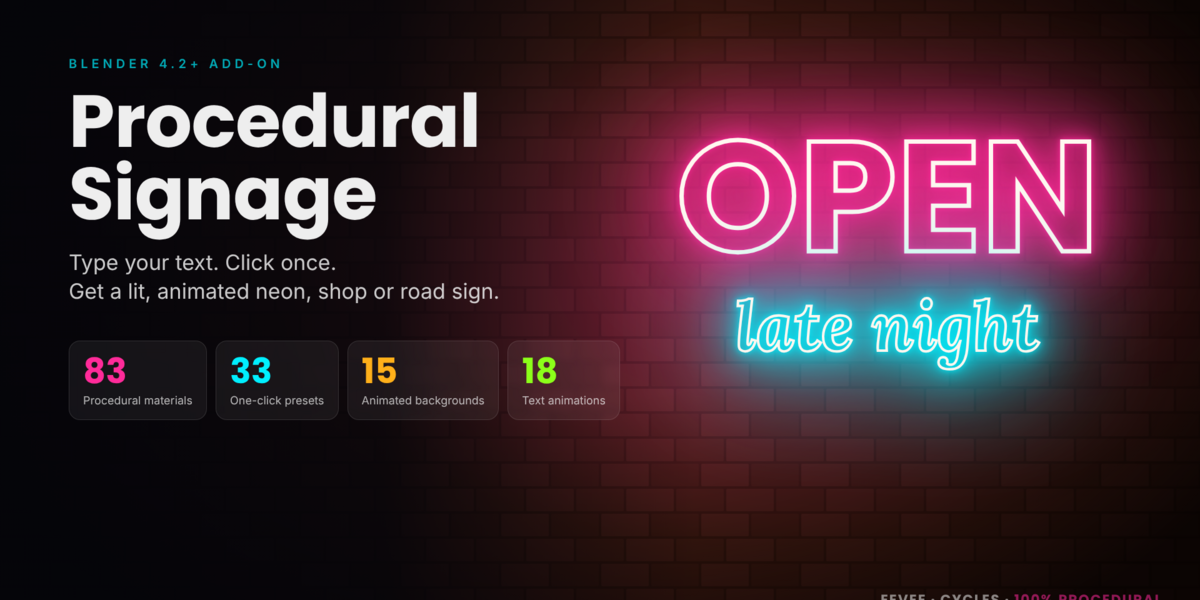
Overview
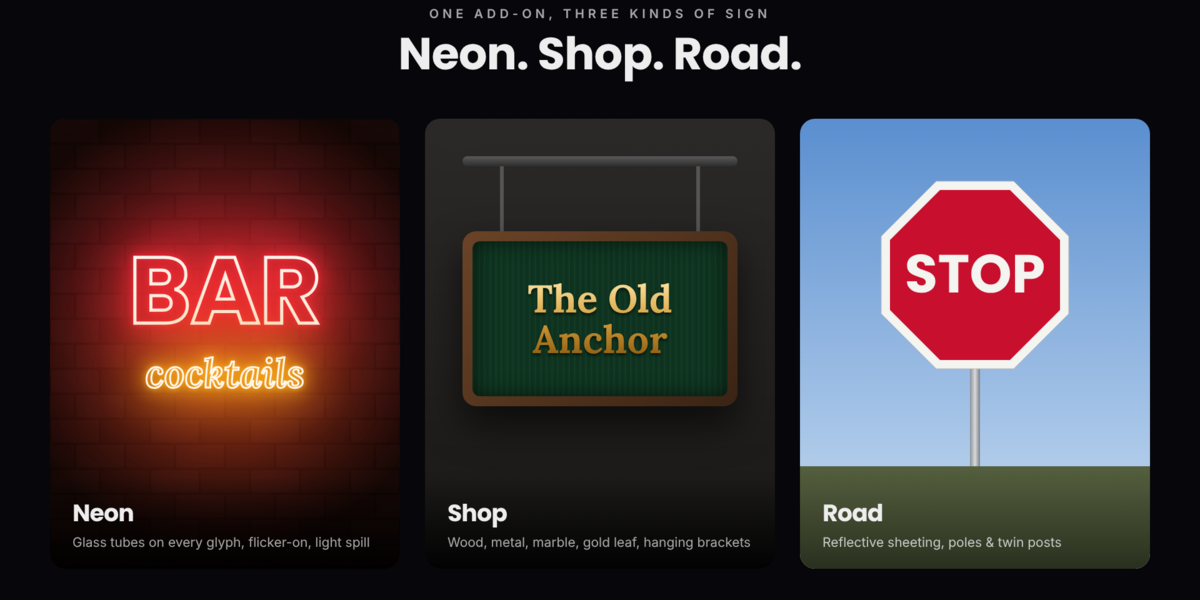
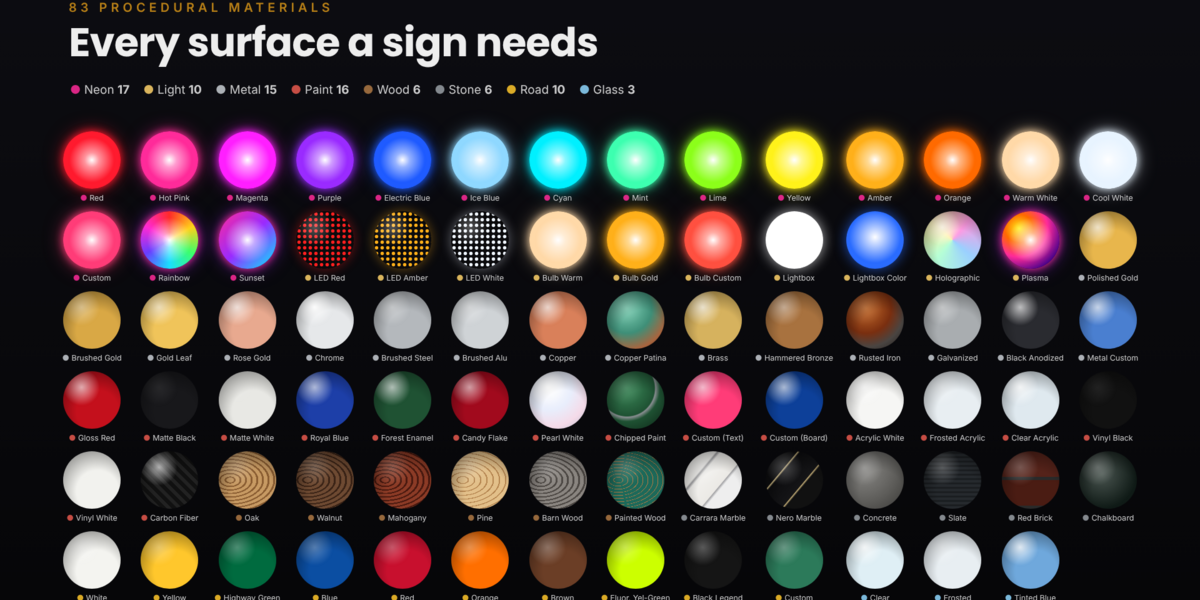
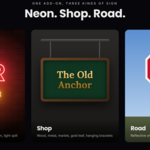
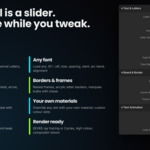
Procedural Signage turns typed text into a finished, animated sign in Blender: neon, shop or road. One click builds the sign, an animated backdrop, camera, lights and render settings.
Everything is generated from shader nodes and geometry code, with no image textures. Signs stay sharp at any resolution and stay editable after you create them.
| What you get | Count |
|
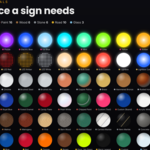
| Procedural materials | 83 | |
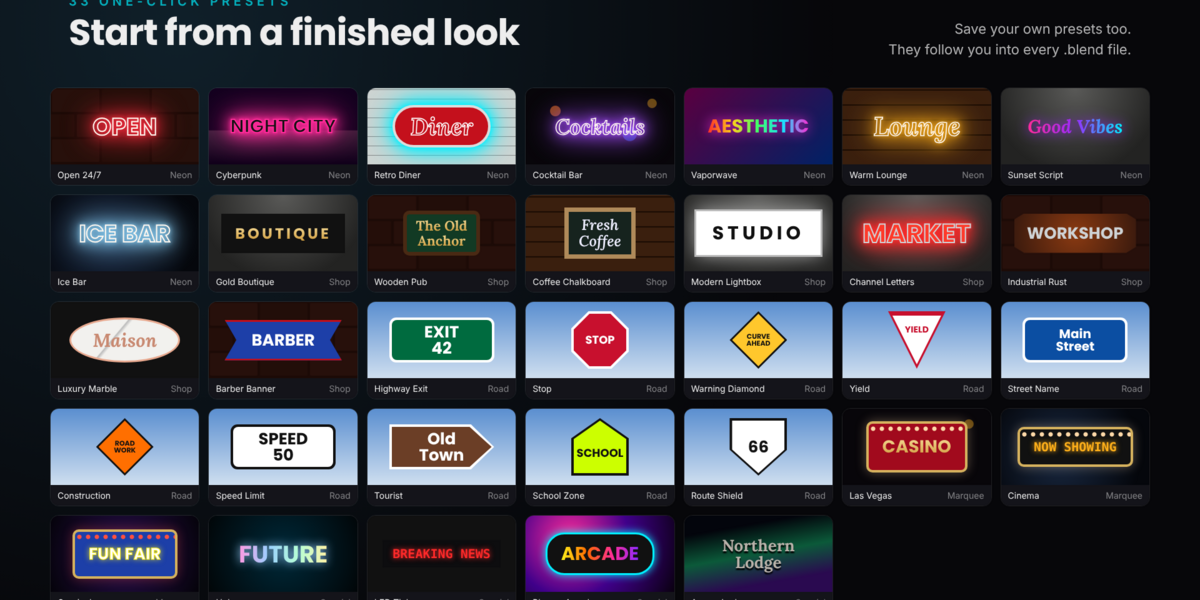
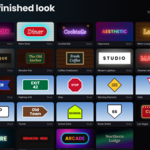
| Style presets | 33 | |
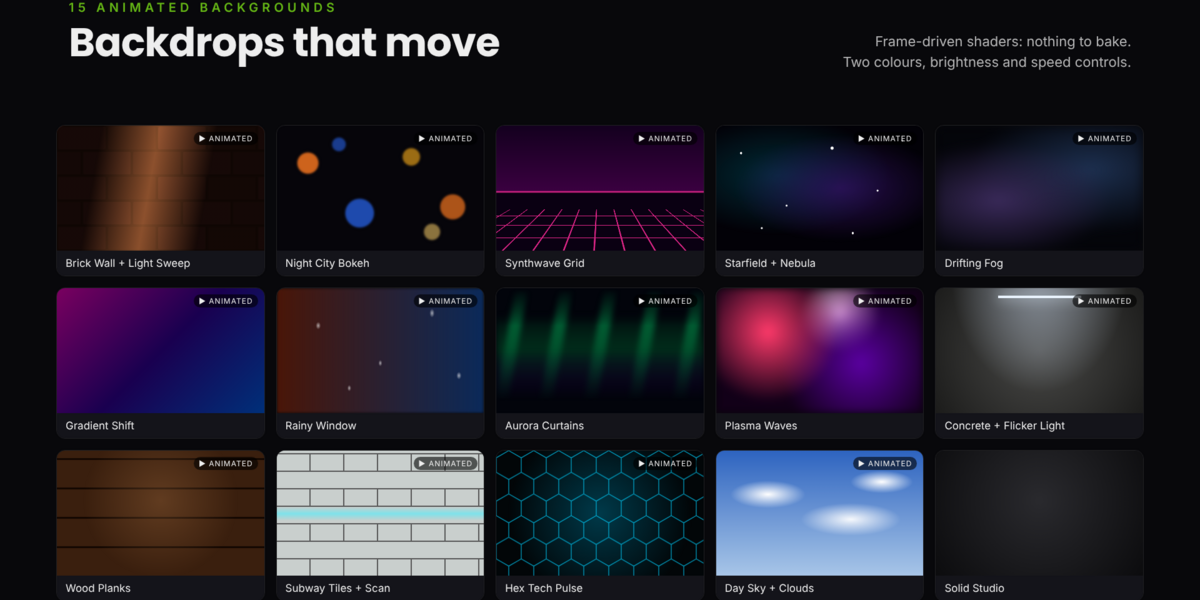
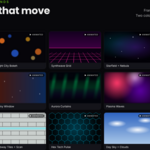
| Animated backgrounds | 15 | |
| Intro animations | 10 | |
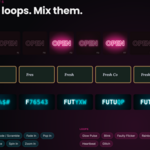
| Loop animations | 8 | |
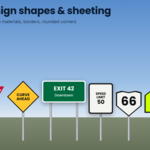
| Board shapes | 15 | |
| Letter styles | 5 | |
|
5 |
Requirements: Blender 4.2 or newer. Works with EEVEE and Cycles.
Installation
- Open Edit › Preferences › Get Extensions.
- Click the ⌄ menu at the top right and choose Install from Disk…
- Select
procedural_signage_v1.0.1.zip. Do not unzip it. - Restart Blender.
- In the 3D Viewport, press N and open the Signage tab.
To update, install the new zip the same way; it replaces the old version. The add-on is also available from Add › Procedural Sign (One-Click).
Quick start
Your first sign takes under a minute.
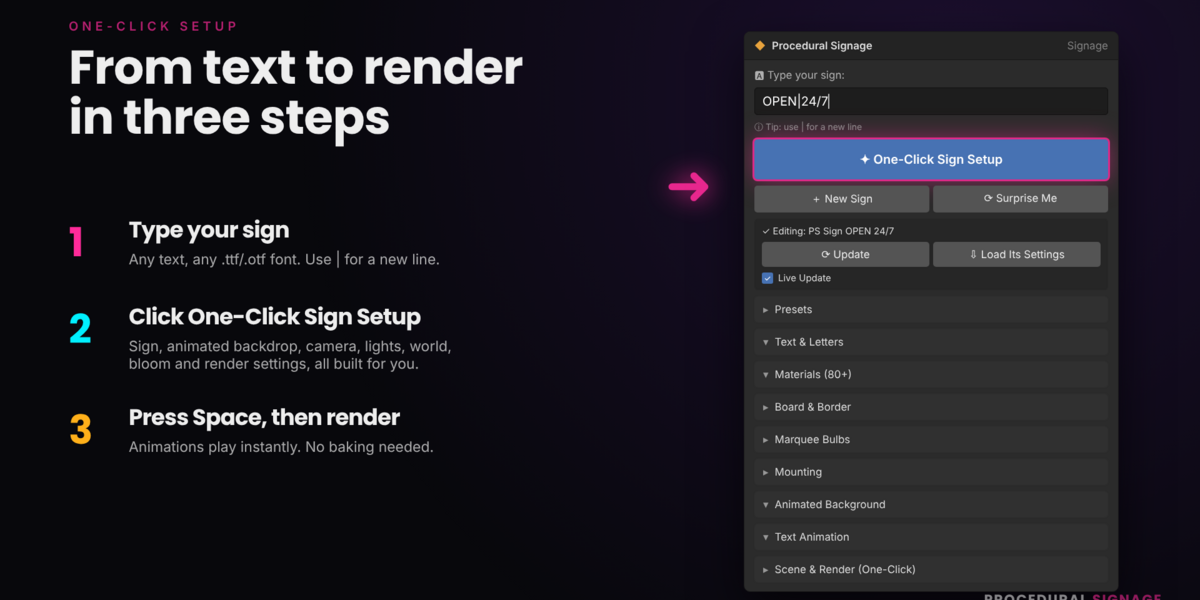
- In the Signage tab, type your text in the box at the top. Use
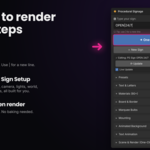
|for a new line, for exampleOPEN|24/7. - Click One-Click Sign Setup. The add-on builds the sign, backdrop, camera, lights, world, bloom glow and render settings, then switches the viewport to the rendered camera view.
- Press Space to play the animation.
- Press F12 to render a still, or Ctrl+F12 for the animation.
Want a different look? Open Presets and click one, or click Surprise Me for a random style. With Live Update on, any change in the panel rebuilds the selected sign instantly.
Panel reference
Each section of the Signage tab controls one part of the sign.
| Section | What it controls | Key options |
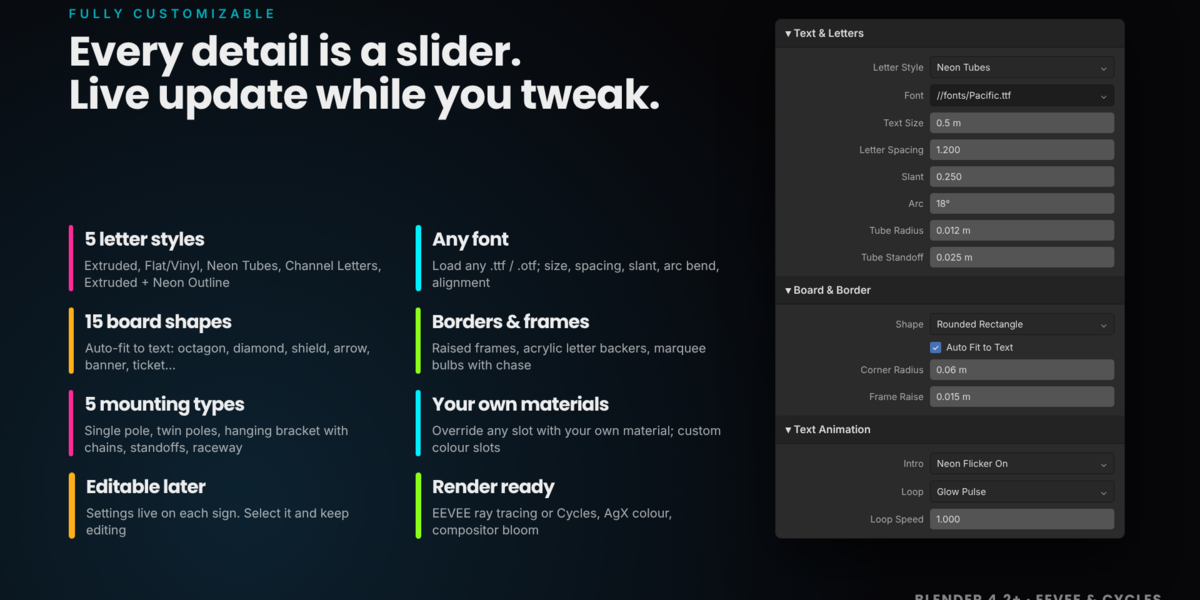
| Text & Letters | The lettering | Letter style, font file, size, letter/word/line spacing, slant, arc bend, depth, bevel, tube radius, acrylic backer |
| Materials | Surfaces of every part | Letters, rim/outline, board and border materials; custom text, board and accent colours; glow strength; texture scale; light spill |
| Board & Border | The plate behind the text | 15 shapes, auto-fit to text or fixed size, padding, corner radius, thickness, edge bevel, border width, raised frame |
| Marquee Bulbs | Light bulbs around the board | Bulb material, spacing, radius, inset, sockets, chase animation speed and pattern |
| Mounting | Hardware | None, single pole, twin poles, hanging bracket with chains, wall standoffs, raceway box; height, radius, material |
| Animated Background | The wall or sky behind the sign | 15 styles, two colours, brightness, speed, distance, size, curved floor |
| Text Animation | How the text moves | Intro, start frame, length; loop, speed, intensityEEVEE or Cycles, camera, studio lights, world colour, bloom strength and threshold, end frame |
| Scene & Render | What One-Click sets up | EEVEE or Cycles, camera, studio lights, world colour, bloom strength and threshold, end frame |
Letter styles
- Extruded: solid 3D letters with a bevel.
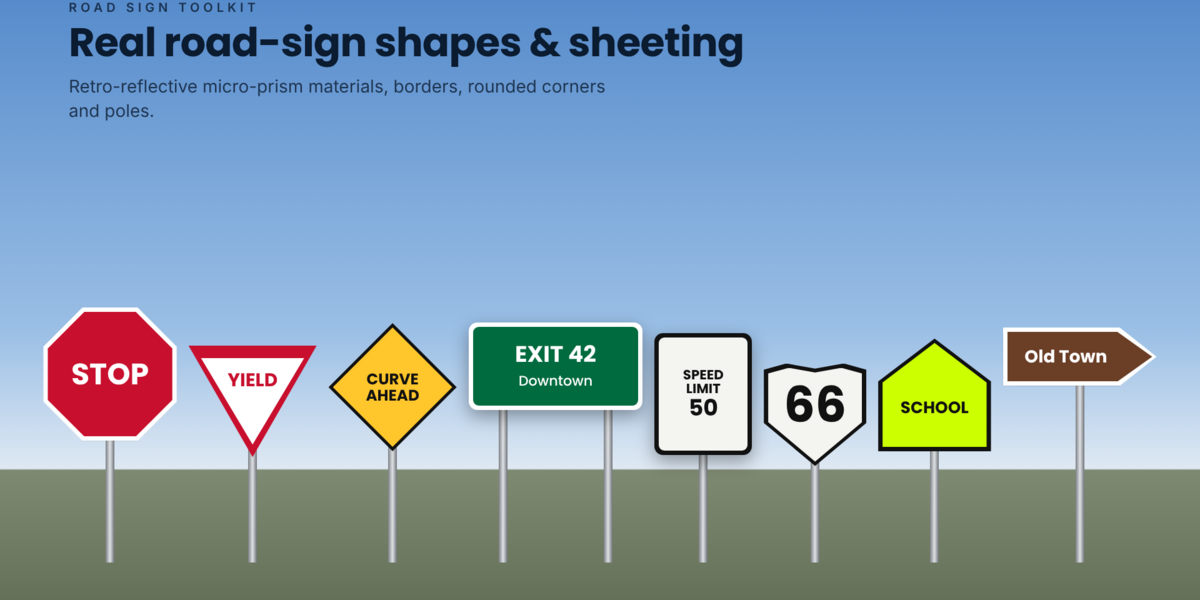
- Flat / Vinyl: thin printed lettering for road signs and lightboxes.
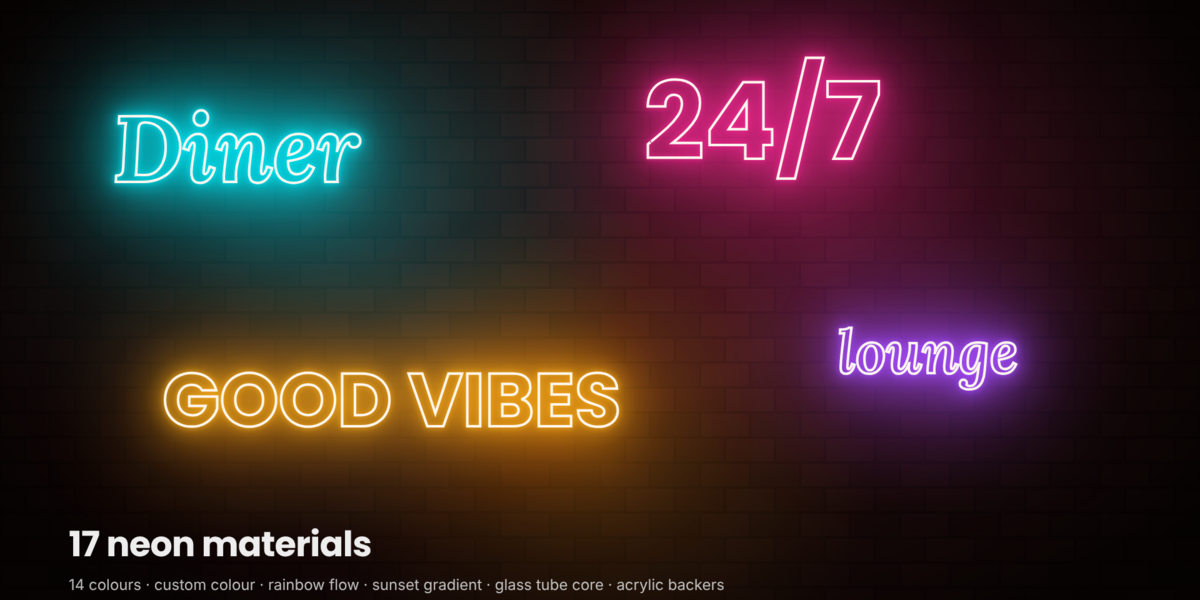
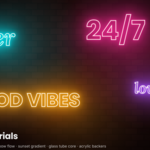
- Neon Tubes: glass tubes that follow each letter's outline.
- Channel Letters: a metal rim with a separate glowing face.
- Extruded + Neon Outline: solid letters wrapped in a neon tube.
Animations
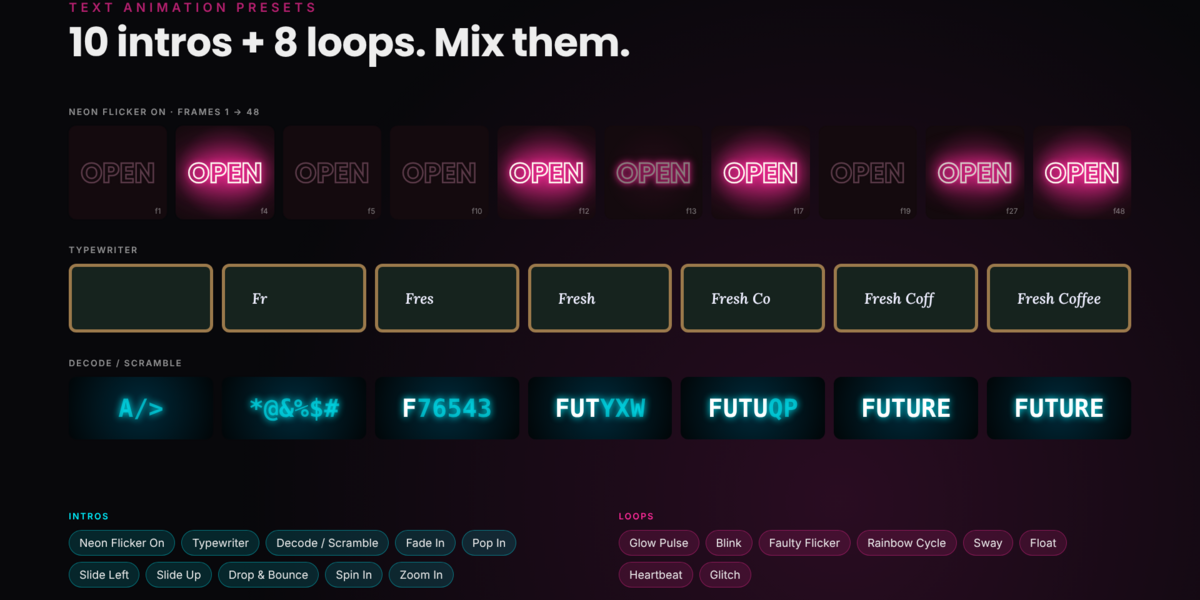
Intros play once: Neon Flicker On, Typewriter, Decode / Scramble, Fade In, Pop In, Slide In from Left, Slide Up, Drop & Bounce, Spin In, Zoom In.
Loops repeat after the intro ends: Glow Pulse, Blink, Faulty Flicker, Rainbow Cycle, Sway, Float, Heartbeat, Glitch. Glow-based loops affect only glowing materials such as neon and LED.
Using your own materials
Each material slot has an Override field. Pick any material in your file and it replaces the built-in one for that part. Materials whose names end in "Custom" use the custom colours in the Materials section.
Presets
A preset sets every option at once. Click one in the Presets section: it rebuilds the selected sign, or creates a new one if nothing is selected. With Keep My Text on (the default), your typed text stays.
| Category | Presets |
| Neon (8) | Open 24/7, Cyberpunk, Retro Diner, Cocktail Bar, Vaporwave, Warm Lounge, Sunset Script, Ice Bar |
| Shop (8) | Gold Boutique, Wooden Pub, Coffee Chalkboard, Modern Lightbox, Channel Letters, Industrial Rust, Luxury Marble, Barber Pole Banner |
| Road (10) | Highway Exit, Stop, Warning Diamond, Yield, Street Name, Construction, Speed Limit, Tourist Attraction, School Zone, Route Shield |
| Marquee (3) | Las Vegas, Cinema, Carnival |
| Special (4) | Hologram, LED Ticker, Plasma Arcade, Aurora Lodge |
Your own presets: type a name under Save current look and click +. Saved presets appear under the My Presets category in every Blender file. Click × next to one to delete it. Reset Settings returns every option to its default but keeps your text.
Editing signs and tips
Every sign stores its own settings, so you can return to it later.
- Edit an existing sign: select any part of it and click Load Its Settings. The panel fills with that sign's options; change anything and it rebuilds.
- Several signs in one scene: click New Sign for each. They are independent and each gets its own collection.
- Delete a sign: select it and click the bin icon. This also removes its generated materials.
-
Fine-tune animation: intro keyframes live on the PS TextRig object and on the material values named
PS_PowerandPS_Alpha; adjust them in the Graph Editor. Loops are drivers and need no baking. - Large scenes: turn Live Update off while making many changes, then click Update.