 Mrs Eliza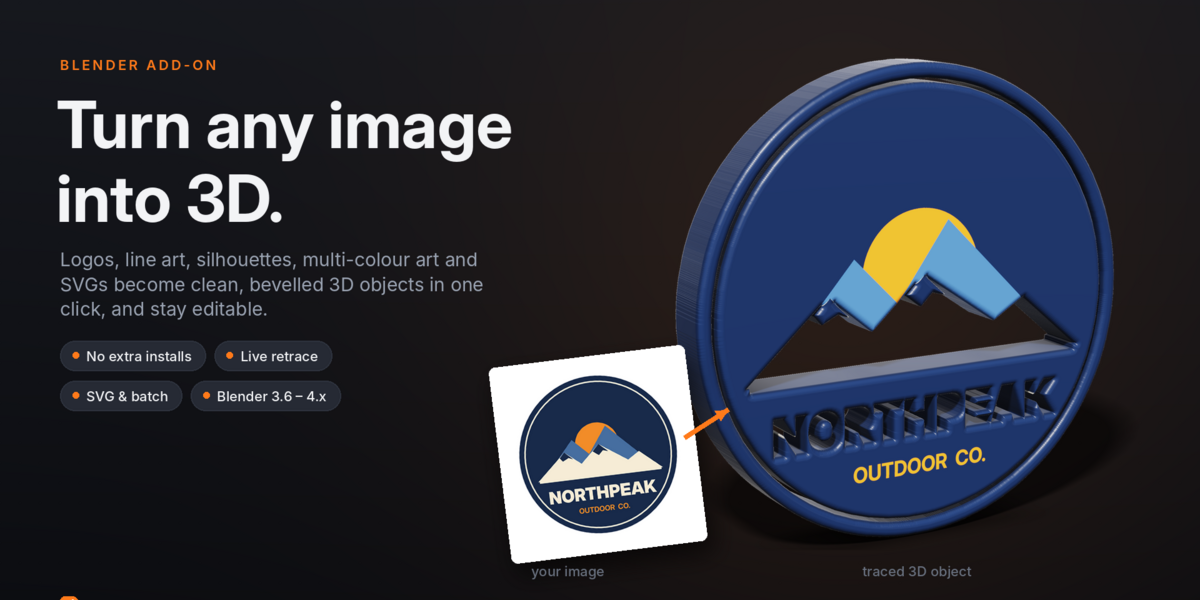
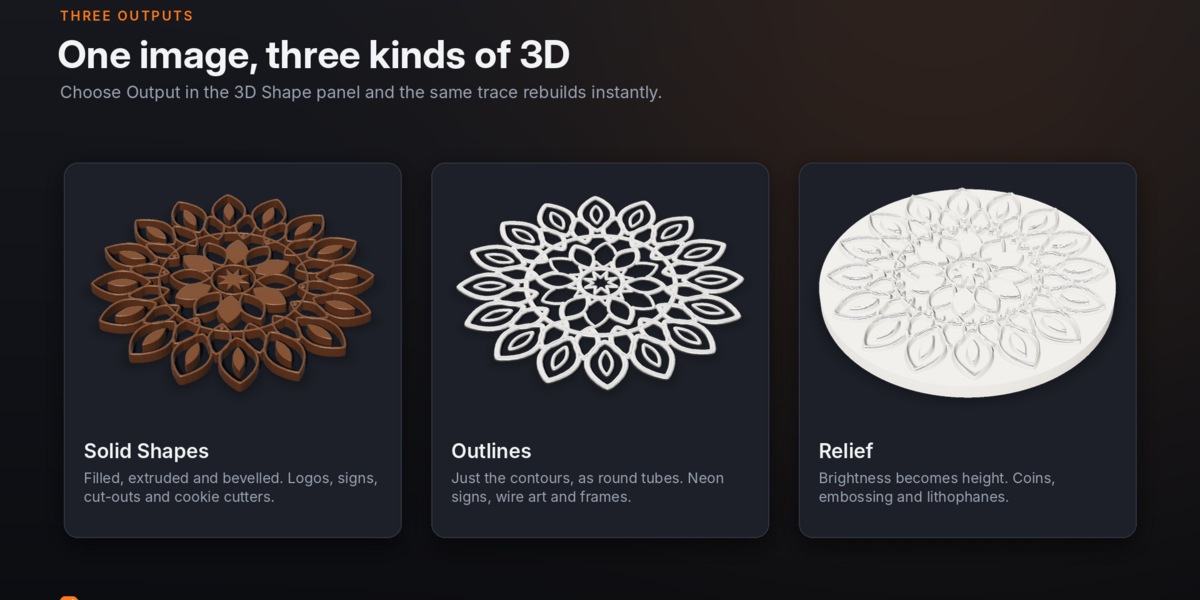
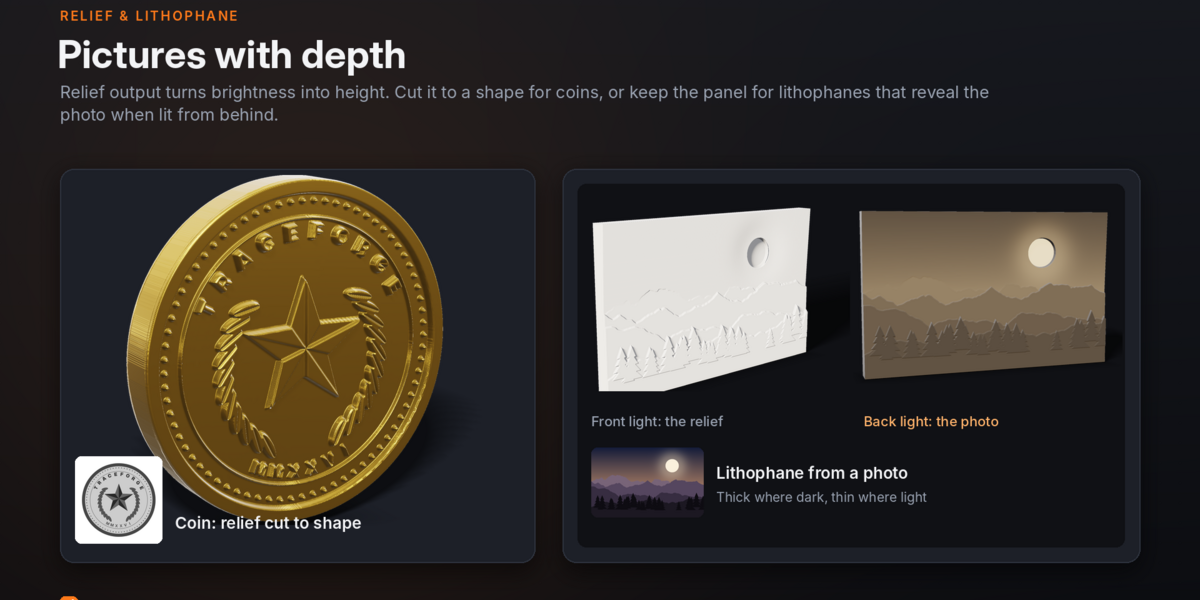
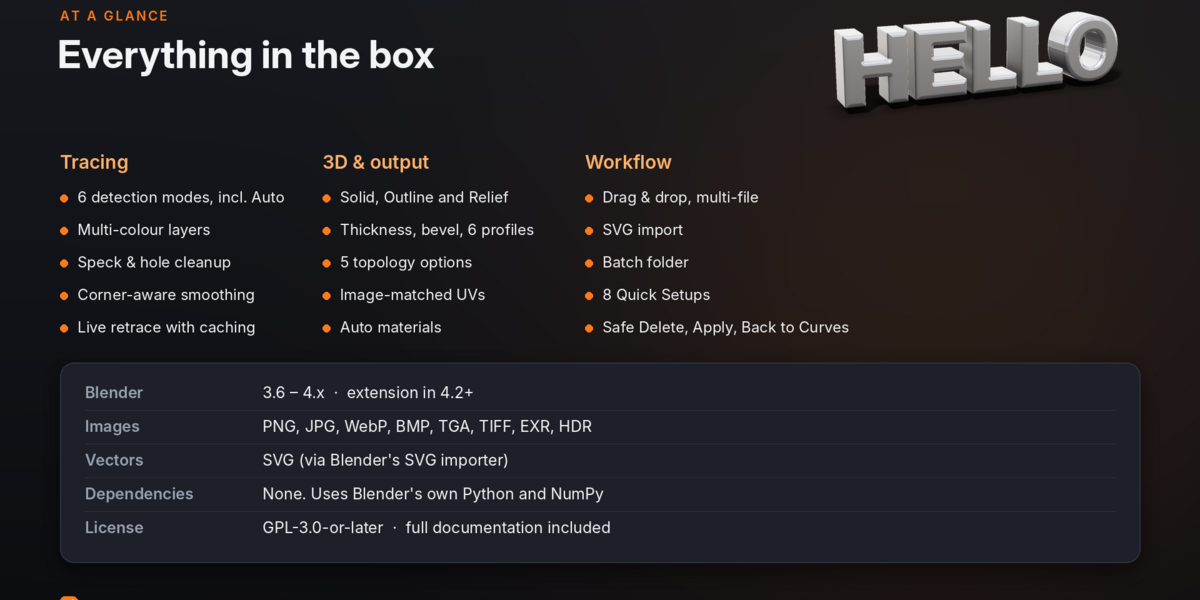
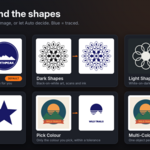
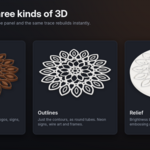
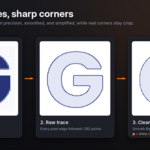
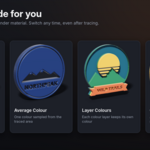
TraceForge converts images and SVG artwork into editable 3D objects inside Blender. Create solid logos, outline-based designs, or height-based reliefs for badges, signs, coins, embossing, lithophanes, and more.
The tracing engine uses NumPy included with Blender, so no extra Python packages or first-run downloads are required.
1. Features and compatibility
Three output types
Output |
What it creates |
Common uses |
Solid Shapes |
Filled shapes with thickness and optional bevels |
Logos, icons, lettering, signs, cookie cutters |
Outlines |
Contour lines formed as tubes or ribbons |
Neon-style signs, wire art, bendable lines |
Relief |
A surface where image brightness controls height |
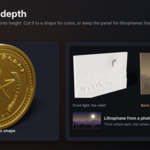
Coins, medals, embossing, lithophanes |
Supported files
Images: PNG, JPG/JPEG, WebP, BMP, TGA, TIFF, EXR and HDR. SVG files are handled by Blender’s built-in SVG importer. Transparent PNGs, line art, multi-colour artwork and photos are supported.
Blender versions
Blender |
Installation type |
Notes |
4.2 and newer |
Extension |
Drag-and-drop supported |
4.1 |
Legacy add-on |
Drag-and-drop supported |
3.6–4.0 |
Legacy add-on |
Use the menus; drag-and-drop is unavailable |
2. Installation
Install the supplied traceforge.zip file as downloaded. Do not unzip it.
Blender 4.2 and newer
Open Edit → Preferences.
Select Get Extensions.
Open the top-right drop-down and choose Install from Disk….
Select traceforge.zip and install it.
Blender 3.6–4.1
Open Edit → Preferences → Add-ons.
Click Install… and select traceforge.zip.
Click Install Add-on, search for “TraceForge”, then enable Import-Export: TraceForge - Image to 3D.
For SVG support in Blender 3.6–4.1, enable Import-Export: Scalable Vector Graphics (SVG). In Blender 4.2+, the importer is built in.
Where to find it
3D Viewport → press N → TraceForge tab: settings and controls.
Shift+A → Image / SVG to 3D (TraceForge), or File → Import → Image / SVG to 3D (TraceForge).
In Blender 4.1+, drag image or SVG files from your file manager into the 3D Viewport.
To update, remove or uninstall the existing version, restart Blender, then install the new ZIP. Existing traced objects retain their saved settings. Removing the add-on does not remove objects already in your project.
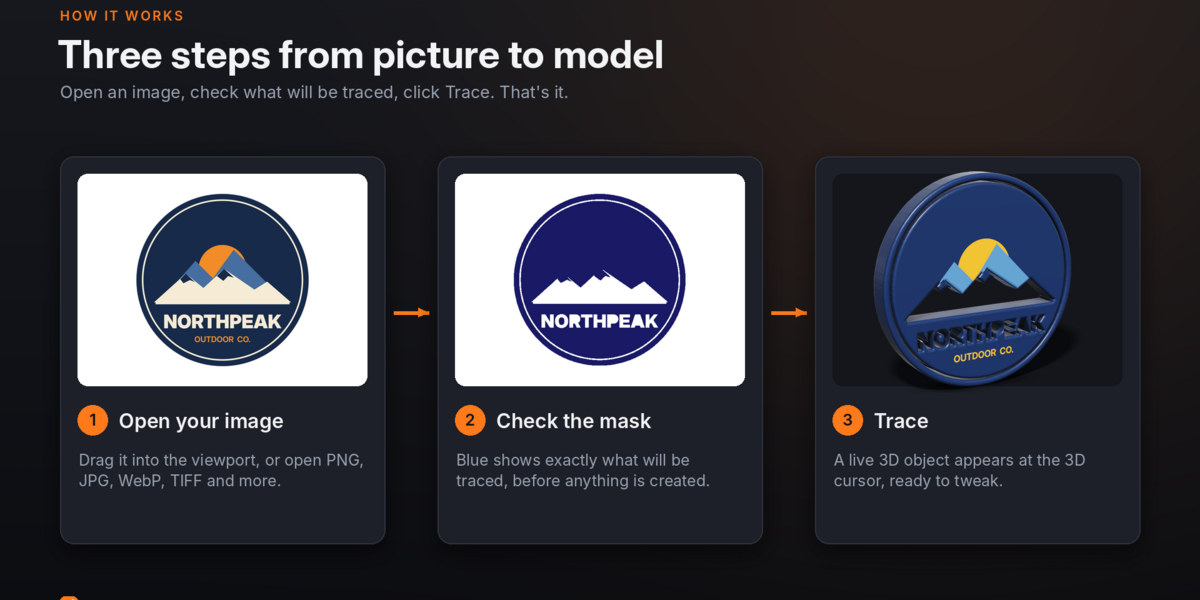
3. Quick start: create a 3D logo
Place the 3D cursor where the object should appear. The world origin is fine.
In the 3D Viewport, press N and open the TraceForge tab.
Choose Logo / Icon under Quick Setup and click Apply.
Use the image field’s folder icon to select your image.
Check the mask thumbnail. Blue areas indicate what will be traced. If the mask is wrong, adjust Detection settings and click Preview Mask.
Click Trace Image. The object appears at the 3D cursor, upright and facing the front view.
Adjust Size, Thickness, Bevel and other settings. With Live Retrace enabled, changes update shortly after you stop adjusting them.
When ready, choose Finalize to Mesh for clean mesh geometry and UVs. Click Apply only when you no longer need TraceForge’s live controls.
You can leave an object live and editable; finalizing and applying are optional until your workflow requires a regular mesh.
4. Working with images and SVGs
Ways to start a trace
Open an image in the main panel, check its mask, then click Trace Image.
Use Trace Files / SVG to select one or more files.
Use Batch Folder to trace all supported images and SVGs in a folder.
Choose an image already loaded in Blender from the image field.
Drag and drop files into the 3D Viewport in Blender 4.1+.
When several files are traced together, objects are arranged in a row along X, starting at the 3D cursor. A file that fails is skipped with a warning; the remaining files can still be processed.
SVG notes
SVGs use Blender’s vector importer rather than pixel tracing, so their paths remain exact. Size, Thickness, Bevel, Outline Line Width, Orientation, Curve Resolution, applicable Layer Step, Custom material, Finalize, Apply and Safe Delete are available. Image detection, contour controls, relief output, Separate Parts and image-based materials do not apply. SVG colours are retained unless you choose a Custom material. Finalized SVG objects cannot return to curves.
Choose a good source image
Use a high-resolution image; around 1000–2000 pixels on the longest side is a useful target for logos.
Prefer a clean, even background and crop away borders, shadows and frames.
Transparent PNGs usually provide clean edges.
For noisy or compressed JPGs, increase Remove Specks or Soften if unwanted dots appear.
5. Main controls and settings
TraceForge’s settings are grouped into collapsible panels. The header indicates whether you are setting up the next trace or editing the selected traced object. Each traced object stores its own settings.
Panel |
Purpose |
Detection |
Chooses which pixels form the shape: Auto, Dark Shapes, Light Shapes, Transparency, Pick Colour or Multi-Colour. |
Contours |
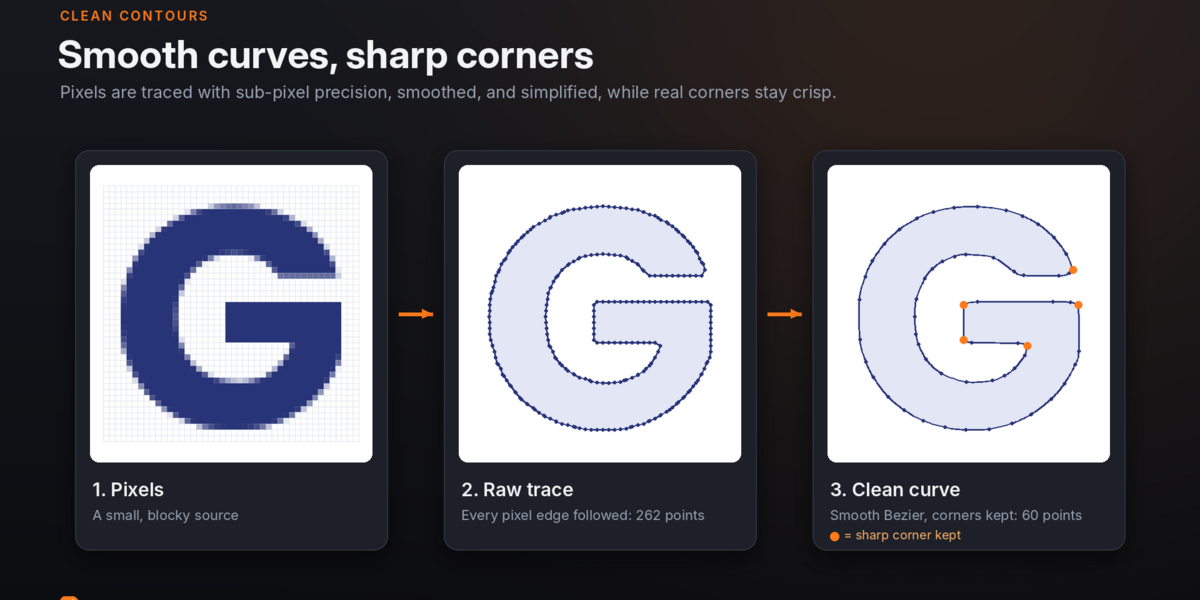
Controls smoothing, corner preservation, point simplification and precise or smooth curves. |
3D Shape |
Sets output type, size, thickness, bevel, outline width, colour-layer spacing, orientation, origin and relief properties. |
Material |
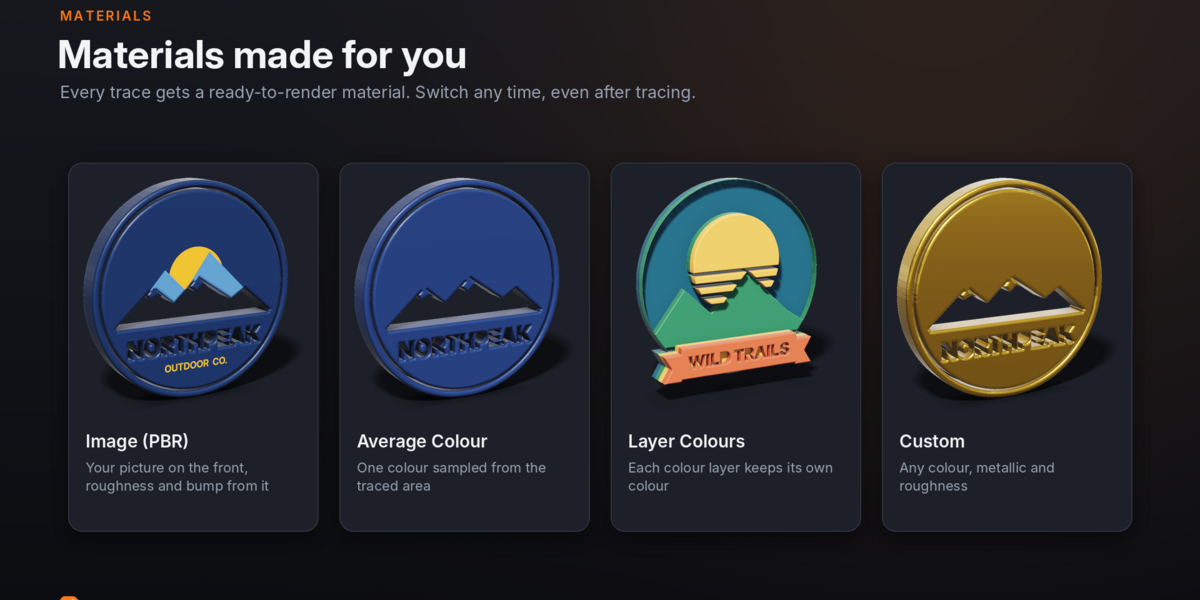
Chooses image-based, average-colour, layer-colour, custom or no material. |
Finalize & Topology |
Chooses the mesh layout, vertex merge distance and whether parts join on Apply. |
Parts |
Shows individual generated parts and their viewport/render visibility. |
Tools |
Resets settings, clears cached data and displays the mask in the Image Editor. |
Settings worth knowing
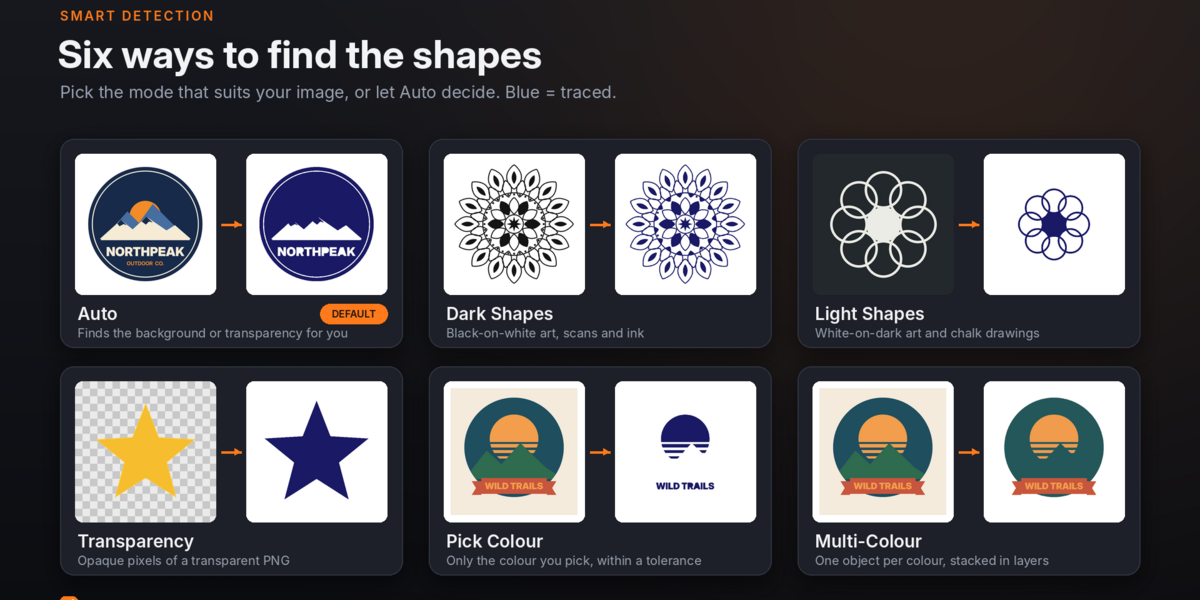
Detect: Auto is a good starting point. Use Dark Shapes for dark artwork on a light background, Light Shapes for light artwork on dark, Transparency for alpha-based images, Pick Colour for one selected colour, and Multi-Colour for flat-colour artwork.
Threshold controls the brightness or transparency cut-off for applicable detection modes. Preview the mask before tracing.
Accuracy controls working resolution. Higher values preserve finer details but take longer.
Soften smooths noisy or jagged edges before tracing. Remove Specks ignores tiny regions; Fill Small Holes and Fill All Holes close gaps in shapes.
Smoothing and Corner Angle help balance smooth edges with crisp corners. Simplify reduces contour points; too much can remove fine detail.
Size scales the longest side of the image. Thickness adds depth to Solid Shapes and Outlines. Bevel rounds or shapes solid edges.
For Relief, Relief Detail controls grid density, Relief Height controls height variation, and Base Thickness adds a backing plate. Light Is High reverses which brightness values rise.
Pack Image stores the source image inside the .blend file to help prevent missing-texture issues.
6. Live editing, finalizing and applying
A traced object moves through three states: Live, Finalized and Applied.
State |
What it means |
Live |
Curve-based parts; settings remain editable and Live Retrace can rebuild the result automatically. |
Finalized |
Clean mesh parts with UVs. You can still change settings and retrace; TraceForge finalizes the rebuilt result again. |
Applied |
Ordinary Blender mesh object(s) with no TraceForge controller. TraceForge settings are no longer available. |
Finalize to Mesh
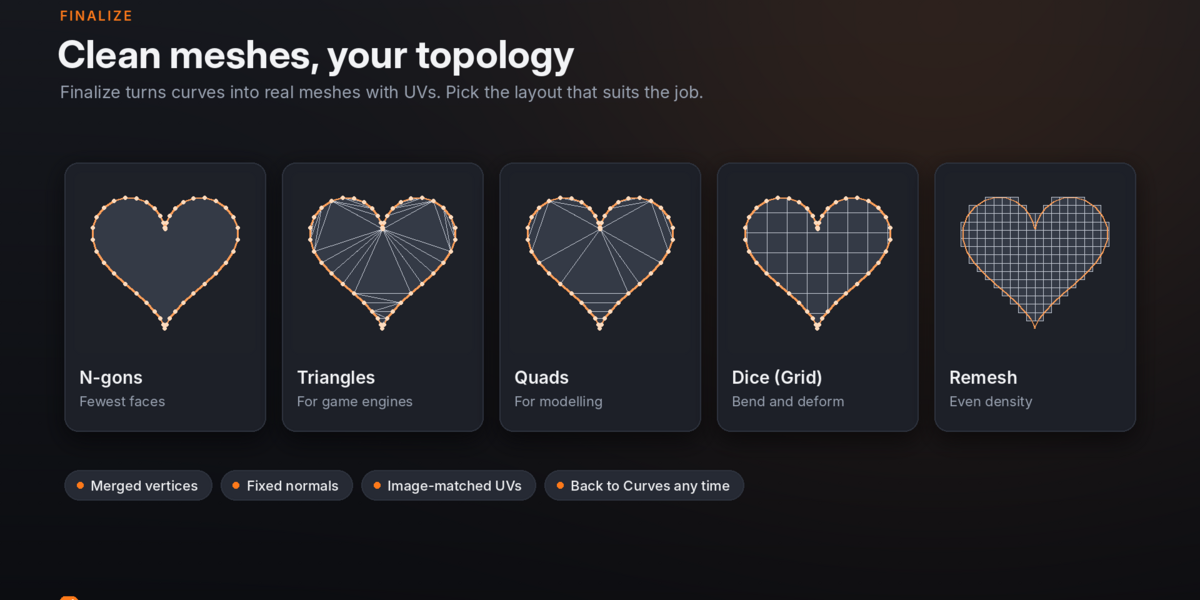
Finalizing merges vertices within the chosen distance, removes zero-size faces, builds the selected topology, recalculates normals and creates a UV map aligned with the source image.
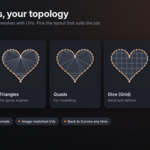
N-gons: large flat faces and fewer polygons; useful for rendering and many 3D-printing workflows.
Triangles: suitable for game engines and exporters that require triangles.
Quads: useful for further modelling or subdivision where quad conversion works.
Dice (Grid): cuts the shape into a regular grid for bending and deformation.
Remesh: creates evenly distributed voxel-based geometry for sculpting.
Back to Curves, Apply and Safe Delete
Back to Curves restores a finalized object’s saved live settings; it is not available for finalized SVG imports. Apply must be used in Object Mode. It finalizes if needed, applies remaining modifiers, removes the TraceForge controller and can join parts into one object. The result can be sculpted or exported like any normal mesh.
Use Safe Delete to remove the controller, generated parts, curves, meshes and TraceForge-created materials together. You can optionally remove the source image if it is unused. Deleting a part manually may leave the controller behind.
Live Retrace
Live Retrace is enabled by default and updates the selected object shortly after a setting changes. Image pixels and recent traces are cached for speed. If editing feels slow, lower Accuracy or Relief Detail while working, or disable Live Retrace and press Retrace when ready.
7. Useful workflows
Glossy product logo
Start with Logo / Icon and trace the image.
Choose Custom material and set the brand colour. For plastic, try Metallic 0 and Roughness 0.2; for metal, try Metallic 1 and Roughness 0.25.
Try a Bevel of 0.03 with 4 Bevel Segments to catch highlights.
Clean line-art cut-out
Start with Line Art / Drawing.
If thin lines disappear, raise Accuracy (for example, to 4096) and slightly lower Threshold.
If paper texture creates dots, increase Remove Specks and Soften.
Layered multi-colour badge
Start with Multi-Colour Badge and set Colours to the number of artwork colours plus the background.
Enable Stacked Layers to avoid gaps under upper colours, then set Layer Step to the desired height between layers.
If unwanted thin colour bands appear, reduce Colours or increase Soften.
Coin or medal relief
Start with Coin / Medal and use a centred, closely cropped image.
Adjust Relief Height for raised detail and Base Thickness for the body.
Enable Light Is High if the design appears sunken instead of raised.
Lithophane
Start with Relief / Lithophane and use a well-lit photo with Upright orientation.
Keep Light Is High off so darker regions become thicker and block more light.
A starting point for many printers is 2–3 mm Relief Height and 0.6–0.8 mm Base Thickness. Set Relief Detail to 512–1024, then Apply and export STL.
3D printing a logo or sign
Set Size to the intended dimensions, choose Flat orientation and enable Sit on Ground. Finalize with N-gons and a suitable Merge Distance, then Apply with Join Parts enabled. Export as STL or 3MF.
Text or a banner that bends
Finalize using Dice (Grid), choosing a Dice Size around one-tenth of the object’s width as a starting point. Add a Simple Deform (Bend) or Curve modifier to the finalized parts, or apply first and deform the joined mesh.