 CGjazziQ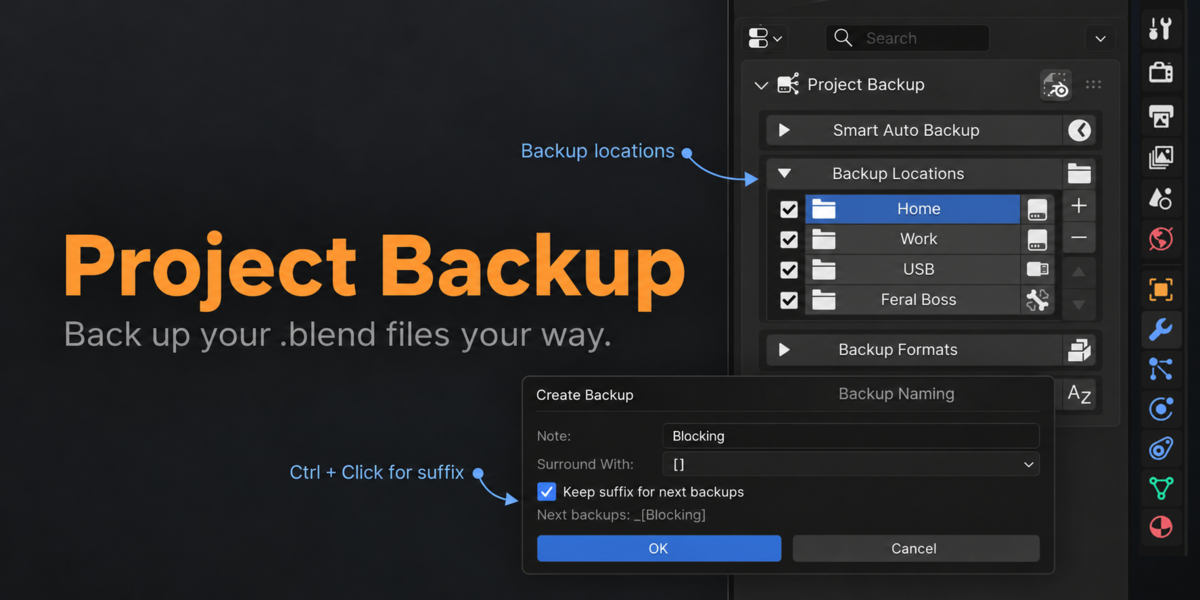
MAIN FEATURES
No complicated version manager. No database. Just reliable backups where you want them.
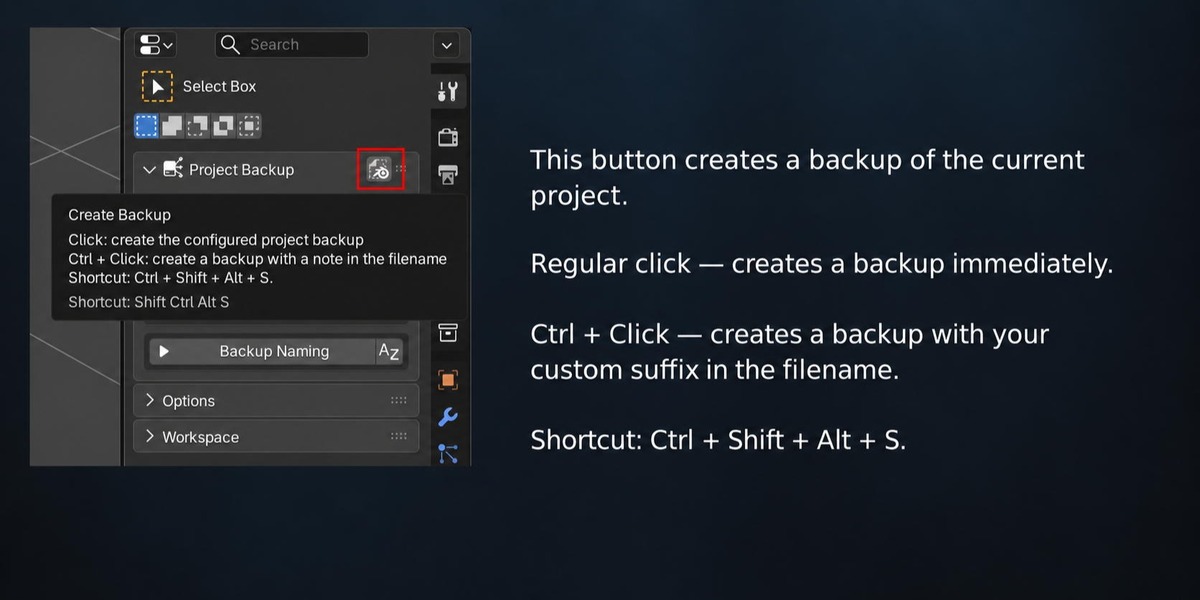
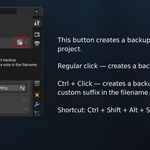
Create Backup
A regular click on the Backup icon creates a backup copy of the current Blender project using the selected location, format, and naming settings.
Ctrl + Click — Backup with Suffix
Hold "Ctrl" and click the Backup icon to add a custom suffix to the backup name, for example:
FINAL
FIXED
UV_DONE
CLIENT_VERSION
You can also choose how the suffix is formatted, such as:
[FINAL]
(FINAL)
{FINAL}
!FINAL!
and other variations.
Keep suffix for next backups
Keeps the entered suffix for subsequent manual backups. This option is enabled by default.
Backup Shortcut
"Ctrl + Shift + Alt + S" creates a backup immediately without opening an additional dialog. The shortcut can be changed in the add-on settings.
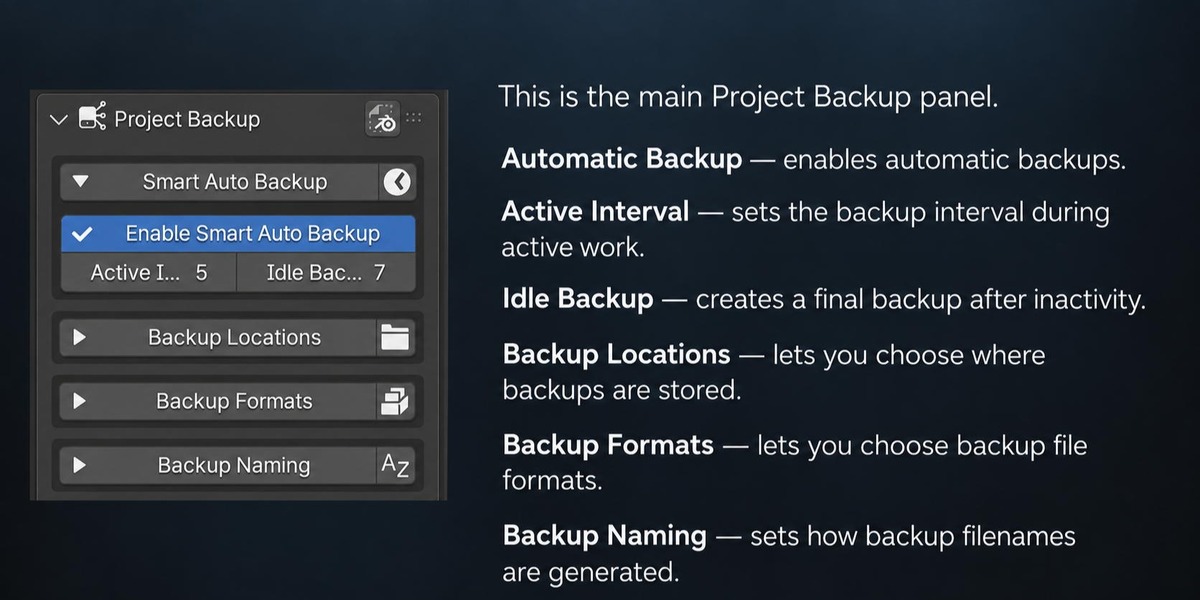
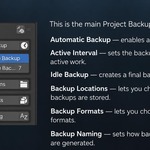
Automatic Backup
Automatically creates backup copies while you are working on the project.
Active Interval — controls how often automatic backups are created during active work.
Idle Backup — creates an additional backup after active work has stopped.
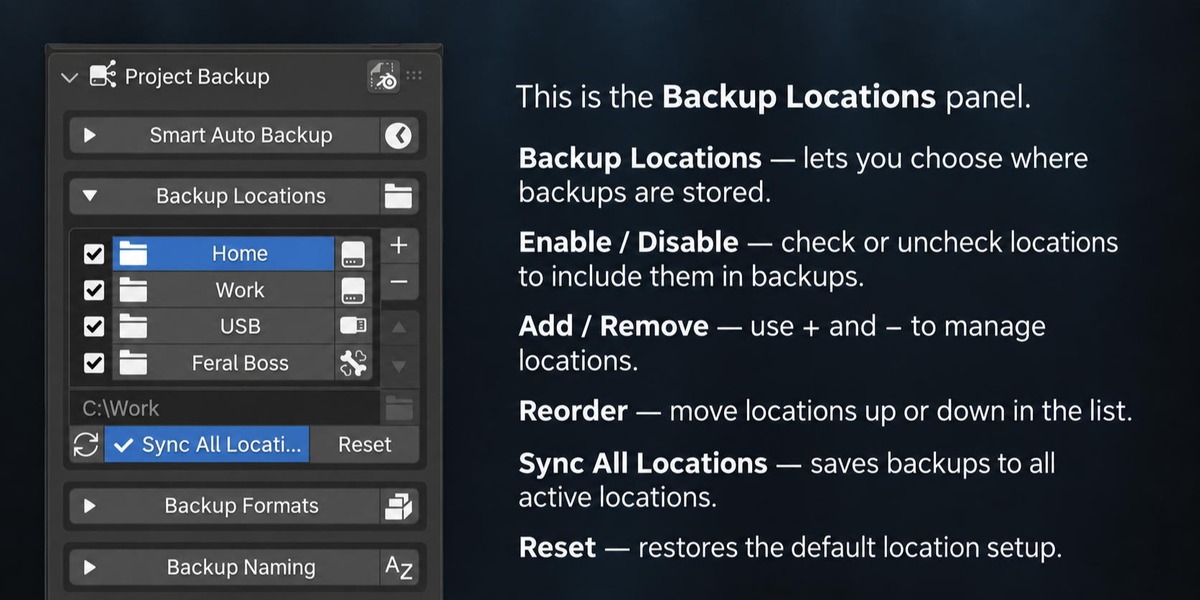
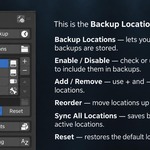
Backup Locations
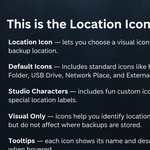
Allows you to use multiple backup destinations, such as the project folder, another drive, an external drive, a network folder, or any other location.
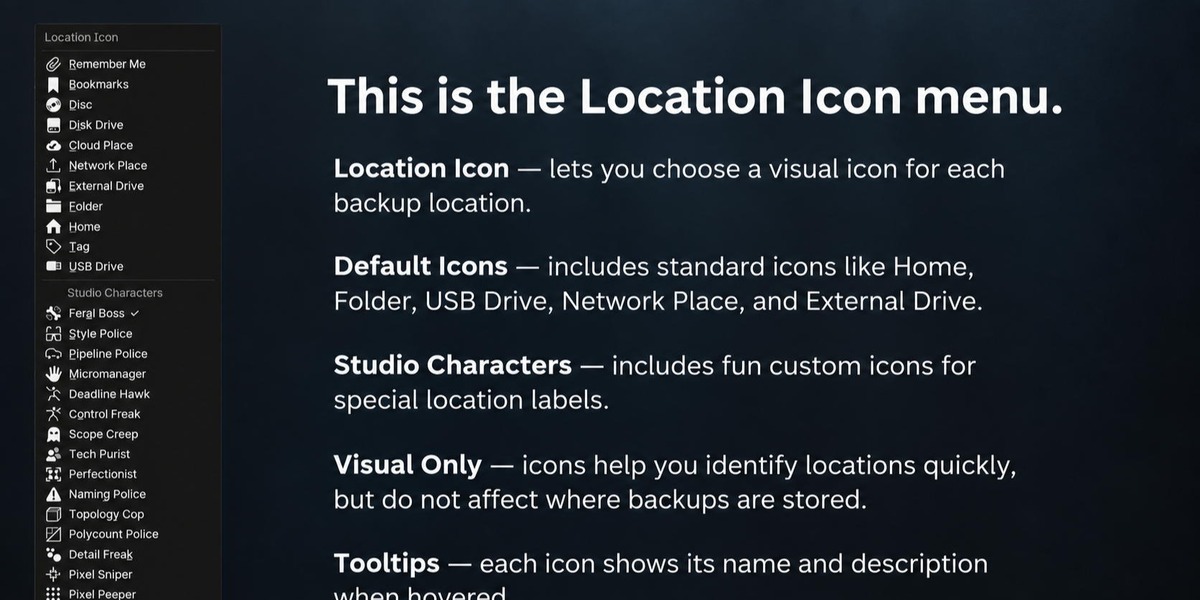
Each location can be enabled or disabled, renamed, and assigned its own icon.
Location Icons
Icons make it easier to visually distinguish between backup locations. They do not affect how files are saved.
Sync All Locations
Saves new backups to all active backup locations and helps keep the backup history consistent across the selected folders.
Refresh Locations
Checks the availability of all configured backup locations again. Useful after connecting an external drive or network storage.
Reset Locations
Restores the backup location list to its default settings. Existing backup files on disk are not deleted.
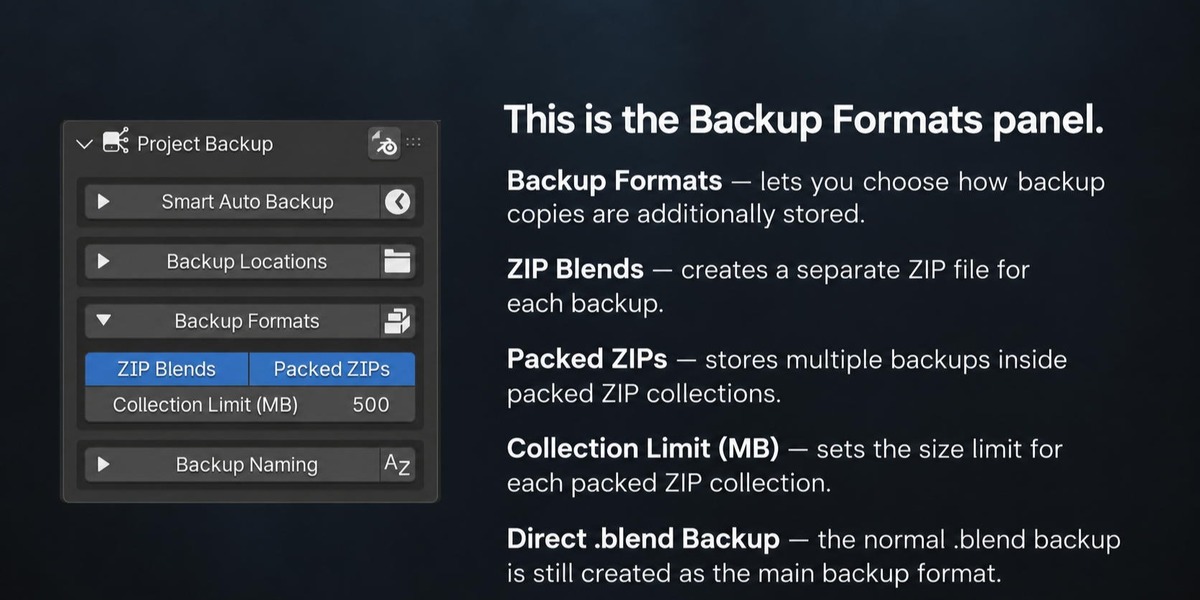
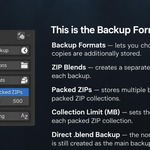
Backup Formats
The standard `.blend` file is always saved as the primary backup format.
Additional options are available:
ZIP Blends — creates a separate ZIP archive for each backup.
Packed ZIPs — groups multiple backups into ZIP archives.
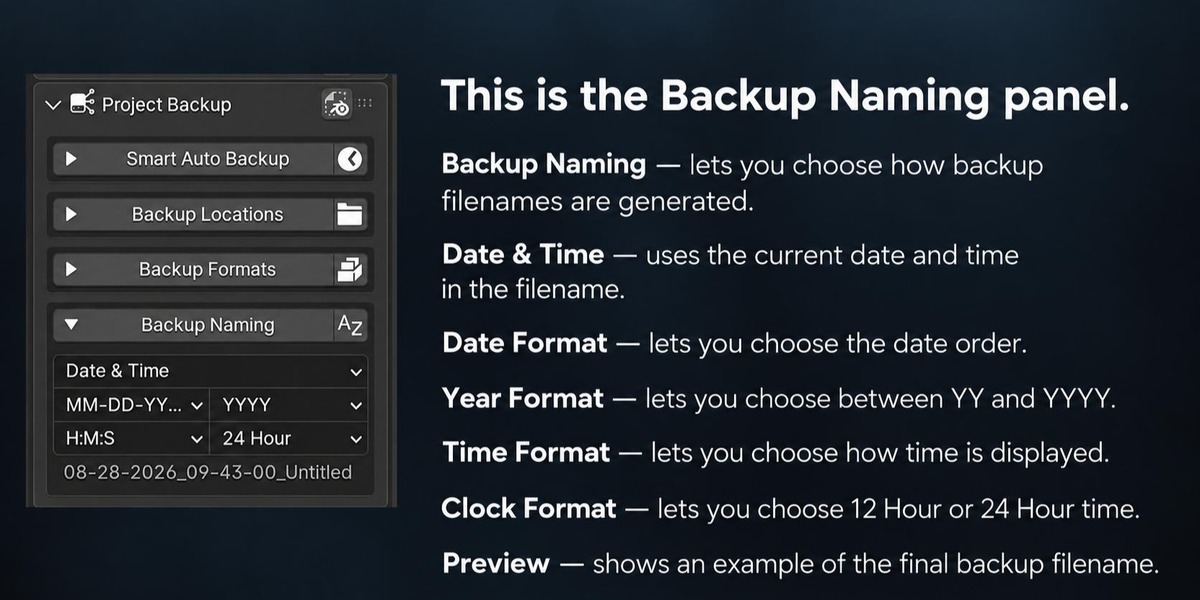
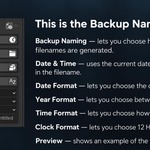
Backup Naming
Lets you choose how backup files are named:
Date & Time — uses the current date and time.
Numbers — uses sequential numbering: `001, 002, 003...`
Letters — uses alphabetical labels: `A, B, C...`
The date and time format can also be customized. A preview of the resulting backup filename is shown directly in the interface.