Project Backup
 CGjazziQ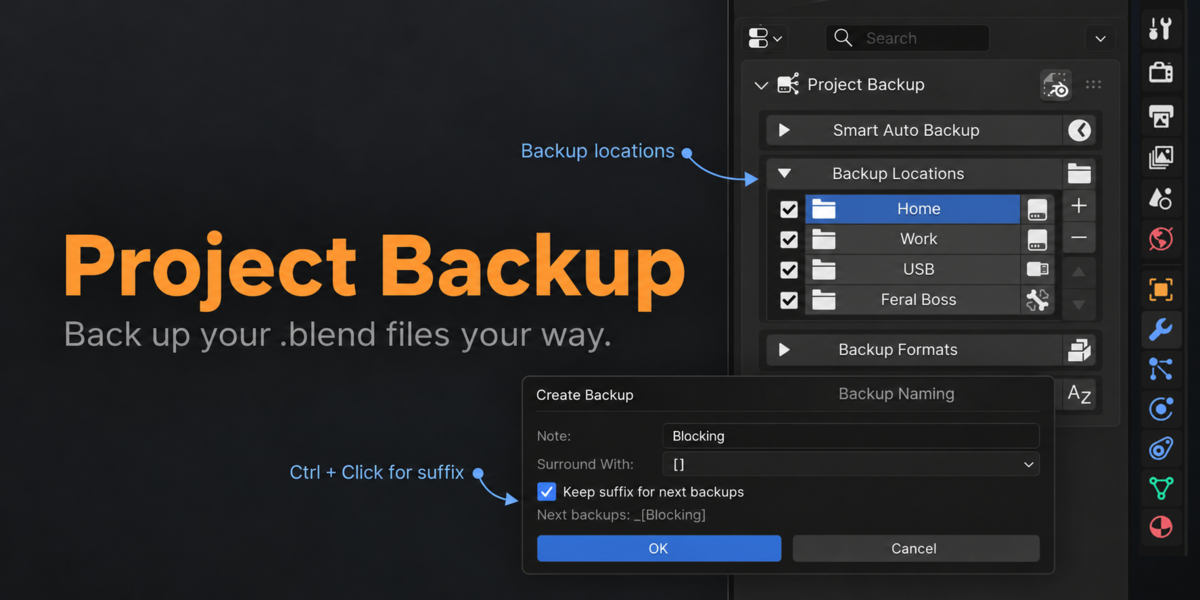
PROJECT BACKUP
Extended Documentation
Version: 1.0.1
============================================================
1. OVERVIEW
============================================================
Project Backup is a focused backup utility for Blender.
Its purpose is simple: create reliable copies of your current .blend project, keep them organized, and optionally store the same backup in several locations.
Project Backup does not try to replace Blender with a complicated version manager. It does not require a restore database or a separate project browser. Backups remain normal files that you can see, copy, archive, and open directly in Blender.
The add-on provides:
Manual backups
Automatic backups based on real project changes
Multiple backup locations
Optional synchronization between backup locations
Direct .blend backups
Individual ZIP backups
Packed ZIP collections
Flexible backup naming
Custom suffixes with Ctrl + Click
A configurable keyboard shortcut
Per-project backup location settings
No complicated version manager. No database. Just reliable backups where you want them.
============================================================
2. INSTALLATION
============================================================
1. Open Blender.
2. Open:
Edit > Preferences > Extensions
3. Use Install from Disk and select the Project Backup ZIP file.
4. Enable the add-on if Blender does not enable it automatically.
5. Open the Properties editor.
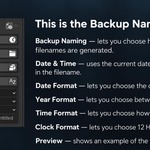
6. Open the Tool / Active Tool area and find the Project Backup panel.
Important:
The Blender project must be saved at least once before Project Backup can create backups. An unsaved Blender session does not yet have a project folder or a stable project identity.
============================================================
3. QUICK START
============================================================
For the simplest workflow:
1. Save your Blender project normally.
2. Open Project Backup.
3. Leave the default Project Folder location enabled.
4. Click the Backup icon in the Project Backup header.
5. A new .blend backup is created inside the backup structure for the current project.
That is enough to start using the add-on.
For a more protected setup:
1. Add one or more additional backup locations.
2. Enable Sync All Locations if you want new backups written to every active location.
3. Keep Automatic Backup enabled.
4. Choose the naming style you prefer.
5. Optionally enable ZIP Blends or Packed ZIPs.
============================================================
4. CREATE BACKUP
============================================================
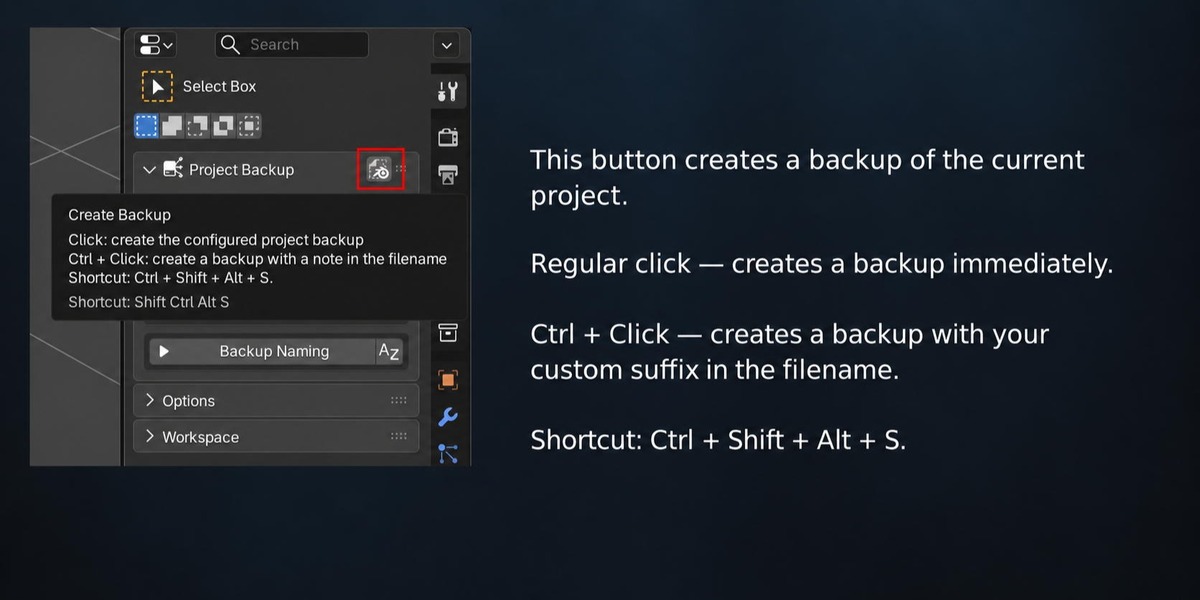
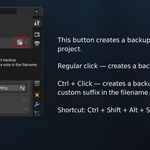
The Backup icon in the Project Backup header is the main manual backup control.
Normal click:
Creates a backup immediately using the current Backup Locations, Backup Formats, and Backup Naming settings.
Default shortcut:
Ctrl + Shift + Alt + S
The keyboard shortcut creates the backup immediately without opening the suffix dialog.
The shortcut can be changed from the add-on preferences using Blender's normal keymap interface.
============================================================
5. CTRL + CLICK — BACKUP WITH A CUSTOM SUFFIX
============================================================
Ctrl + Click on the Backup icon opens the Create Backup dialog.
This is useful when a particular backup represents an important stage of the project.
Examples:
Blocking
Final
UV_DONE
Client_Approved
Before_Retopology
Added_Decals
The entered note is added to the backup filename.
Spaces and unsafe filename characters are cleaned automatically so the suffix remains suitable for a file name.
============================================================
6. SURROUND WITH
============================================================
The Create Backup dialog can surround the custom suffix with additional characters.
Available styles include:
None
[ ]
( )
{ }
! !
# #
$ $
% %
& &
+ +
= =
@ @
^ ^
~ ~
Example:
Note:
Blocking
With square brackets:
_[Blocking]
Without surrounding characters:
_Blocking
============================================================
7. KEEP SUFFIX FOR NEXT BACKUPS
============================================================
Keep suffix for next backups is enabled by default.
When enabled, the suffix entered through Ctrl + Click is remembered and reused by later ordinary manual backups.
Example:
You create a Ctrl + Click backup with:
Blocking
and leave Keep suffix for next backups enabled.
The following normal manual backups continue using the Blocking suffix until you change or clear it.
If you disable Keep suffix for next backups in the Ctrl + Click dialog, the persistent suffix is cleared after the current backup.
The checkbox controls future manual backups. The note entered in the current Ctrl + Click dialog is still used for the backup being created.
============================================================
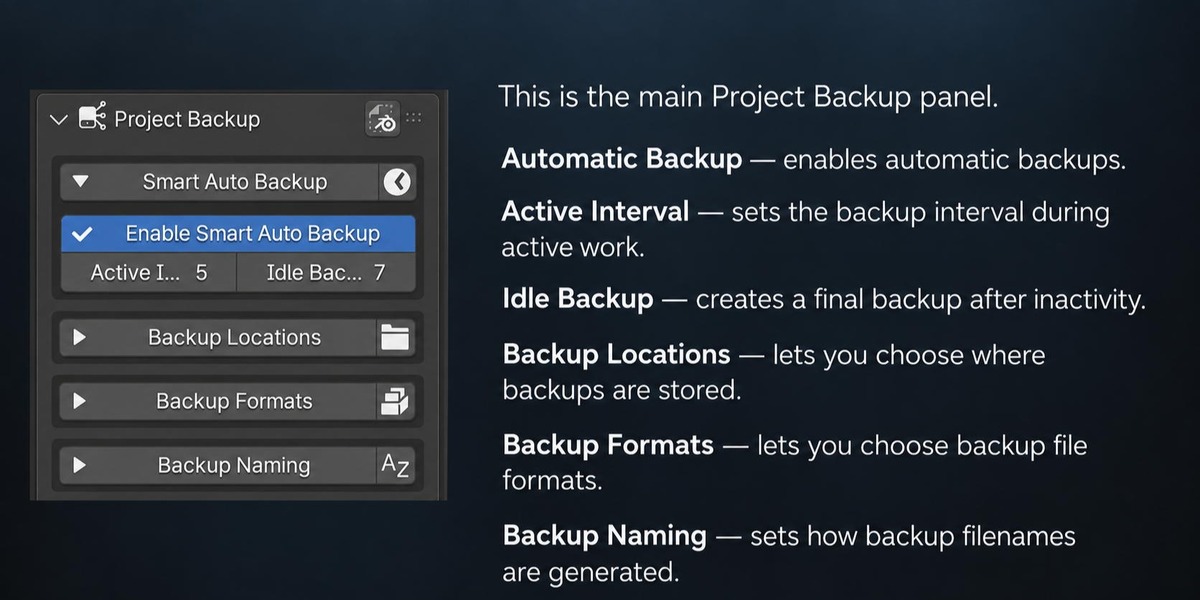
8. AUTOMATIC BACKUP
============================================================
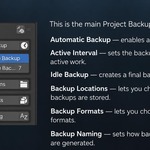
Automatic Backup is enabled by default.
It is designed to react to real project changes instead of simply creating files because time has passed.
The system uses two timers:
Active Interval
Idle Backup
Default values:
Active Interval: 5 minutes
Idle Backup: 7 minutes
============================================================
9. ACTIVE INTERVAL
============================================================
Active Interval controls periodic backups while real work continues.
If the project continues changing, Project Backup can create a backup after the configured Active Interval.
The add-on looks for actual Blender project changes.
Mouse movement, viewport navigation, and ordinary UI interaction are not treated as project changes.
This helps prevent unnecessary backups while you are only looking around the scene.
============================================================
10. IDLE BACKUP
============================================================
Idle Backup creates one final backup after project changes stop.
The timer is measured from the last actual project change.
Example:
Active Interval: 5 minutes
Idle Backup: 7 minutes
If you make a change and then stop working before the active backup becomes due, the add-on waits until the project has remained unchanged for the Idle Backup period and then creates one final backup.
After that backup is complete, no more automatic copies are created until the project changes again.
This keeps automatic backups useful without endlessly producing identical files.
============================================================
11. WHEN AUTOMATIC BACKUP WAITS
============================================================
Automatic Backup may temporarily wait instead of forcing a save at an unsafe or inconvenient moment.
It can wait when:
Another backup is already running
Background backup processing is still busy
A render is running
Animation playback is active
Backup modules are not ready
No valid backup location is available
The project has not yet been saved
If an automatic backup fails, the add-on schedules a retry after approximately one minute.
Automatic backup status is shown in the Project Backup interface.
============================================================
12. BACKUP LOCATIONS
============================================================
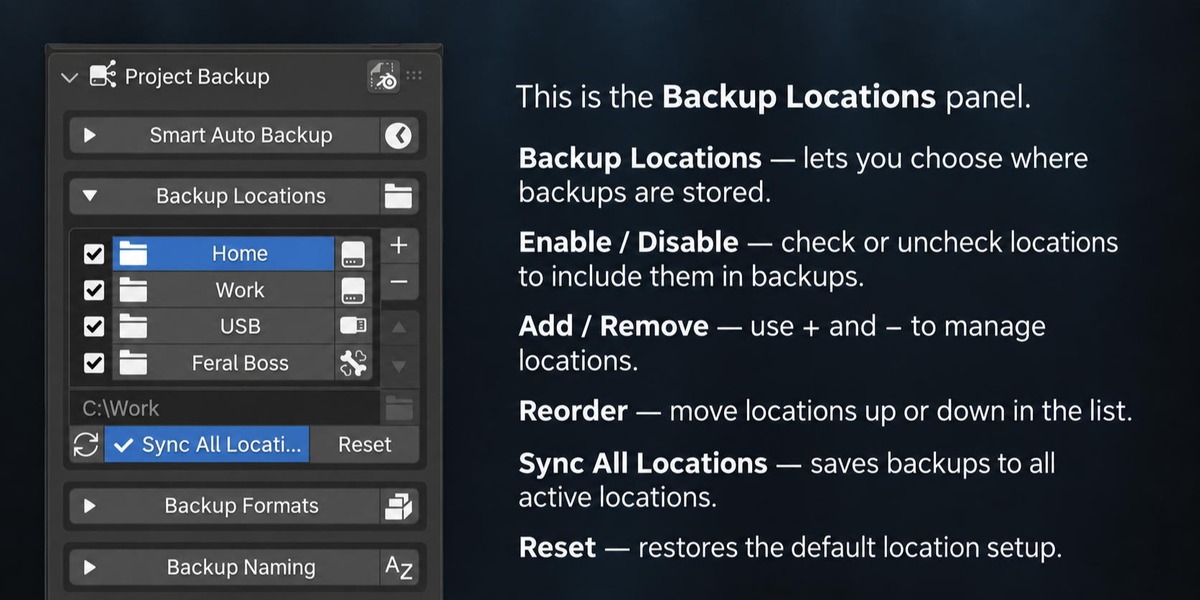
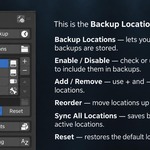
Backup Locations is one of the main features of Project Backup.
Instead of being limited to one backup folder, the project can use multiple destinations.
Examples:
The project folder
A second internal drive
An external SSD
A USB drive
A network share
Another work folder
Each location has:
A display name
A folder path
An enable / disable checkbox
A visual location icon
Backup locations are stored per Blender project rather than as one global list for every file.
============================================================
13. PROJECT FOLDER
============================================================
For a saved project, Project Backup automatically provides a Project Folder location.
This location points to the folder that contains the current .blend file.
Inside that root, Project Backup creates a dedicated project backup container:
- Backup
Example:
MyCharacter.blend
may use:
MyCharacter - Backup
The default Project Folder entry is kept at the top of the location list.
It can be removed from the add-on if desired. Removing it does not delete any backup files already stored on disk.
============================================================
14. ADDING ANOTHER BACKUP LOCATION
============================================================
Use the + button in Backup Locations.
Choose a root folder.
Project Backup adds it to the current project's list.
The actual backup data for the project is placed inside:
/ - Backup/
If the same path is already in the list, the add-on selects the existing location instead of creating a duplicate entry.
============================================================
15. ENABLING AND DISABLING LOCATIONS
============================================================
Each backup location has a checkbox.
Enabled:
The location may participate in backup creation and synchronization.
Disabled:
The location stays configured but is temporarily skipped.
This is useful when a drive or network location should remain in the project configuration but should not be used for the current session.
============================================================
16. MISSING OR DISCONNECTED LOCATIONS
============================================================
Project Backup checks whether configured backup paths are actually available.
If a removable drive, network share, or folder is missing:
The location remains in the configuration
Its checkbox is disabled automatically
The missing path is skipped
Other available locations can continue working
The add-on does not silently recreate a missing external path somewhere else.
When the device or path becomes available again, use Refresh Locations.
The checkbox becomes available again, and you can explicitly re-enable that location.
============================================================
17. REFRESH LOCATIONS
============================================================
The refresh button checks all configured backup paths again.
Use it after:
Connecting an external drive
Mounting a network location
Restoring a missing folder
Changing storage availability
Refresh does not create backups. It only refreshes location availability.
============================================================
18. RENAMING LOCATIONS
============================================================
Click a location name to select it.
Double-click the location name to rename its interface label.
Renaming changes only the label shown in Project Backup.
It does not rename the actual folder on disk.
============================================================
19. LOCATION ICONS
============================================================
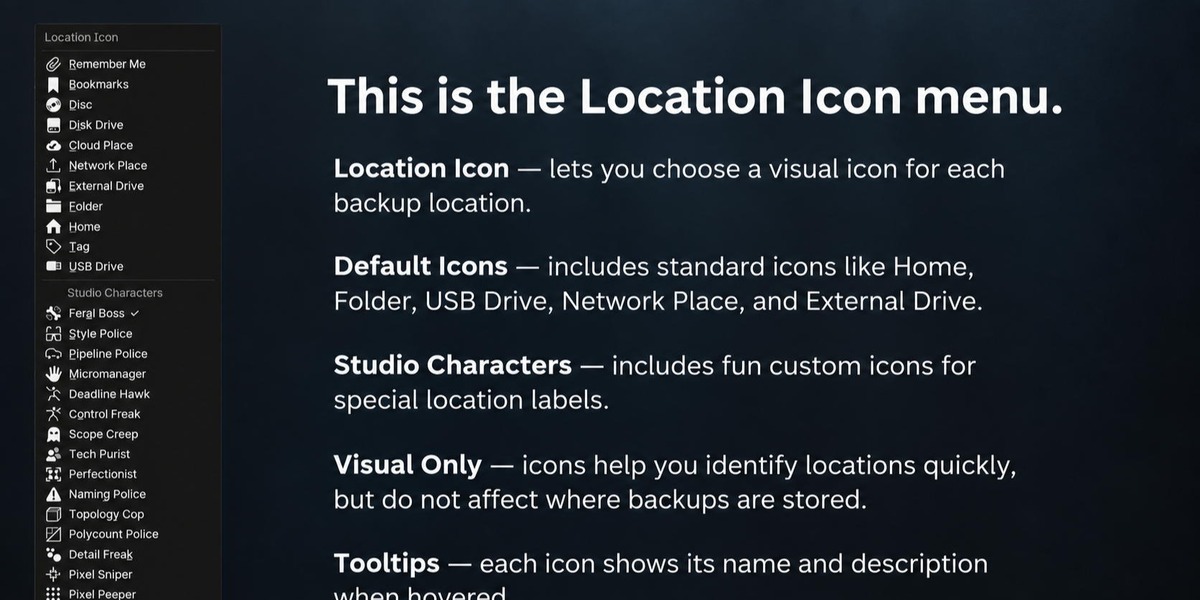
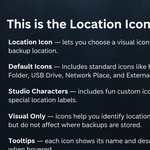
Each location can have its own visual icon.
The icon is only a visual marker. It does not change how or where the backup is stored.
Standard location icons include:
Remember Me
Bookmarks
Disc
Disk Drive
Cloud Place
Network Place
External Drive
Folder
Home
Tag
USB Drive
There is also a separate Studio Characters group with optional humorous icons such as:
Feral Boss
Style Police
Pipeline Police
Micromanager
Deadline Hawk
Control Freak
Scope Creep
Tech Purist
Perfectionist
Naming Police
Topology Cop
Polycount Police
Detail Freak
Pixel Sniper
Pixel Peeper
Nitpicker
Eagle Eye
Hovering an icon displays its name and description.
============================================================
20. REORDERING LOCATIONS
============================================================
Additional backup locations can be moved up or down using the arrow buttons.
The default Project Folder remains fixed at the beginning of the list while it is enabled.
============================================================
21. REMOVING A LOCATION
============================================================
Select a location and use the remove button.
This removes the path from Project Backup.
Important:
Removing a location from the add-on does not delete backup files from the disk.
If the default Project Folder is removed, Sync All Locations is also turned off because the project folder is the synchronization source.
============================================================
22. RESET LOCATIONS
============================================================
Reset restores Backup Locations to the default configuration.
The default Project Folder is restored.
Additional configured locations are removed from the add-on list.
Sync All Locations is turned off.
Important:
Reset does not delete backup files from disk.
============================================================
23. SYNC ALL LOCATIONS
============================================================
Sync All Locations changes how multiple locations work.
When Sync All Locations is OFF:
New backups are normally written to the Project Folder only.
Additional locations can remain configured without receiving every new backup.
When Sync All Locations is ON:
New backups are written to all enabled and available locations.
Existing backup history from the Project Folder is also synchronized to the other active locations.
============================================================
24. HOW HISTORY SYNCHRONIZATION WORKS
============================================================
Synchronization is intentionally one-way:
Project Folder -> Other Backup Locations
The Project Folder is treated as the authoritative source.
Only missing files are copied.
Existing files in destination locations are not overwritten.
This makes synchronization conservative and reduces the risk of replacing a backup that already exists on another drive.
Synchronization runs in the background.
The interface can show synchronization progress, transferred data, and the currently processed file.
============================================================
25. ADDING A LOCATION WHILE SYNC IS ENABLED
============================================================
If Sync All Locations is already enabled and you add another backup location, Project Backup can automatically queue synchronization of the existing Project Folder backup history to the new location.
Only files missing from the new location are copied.
============================================================
26. BACKUP FOLDER STRUCTURE
============================================================
For each backup root, Project Backup uses a dedicated project container.
Typical structure:
- Backup/
Blend Files/
ZIP Blends/
Packed ZIPs/
Blend Files is the primary backup folder.
ZIP Blends appears when individual ZIP backups are enabled.
Packed ZIPs appears when packed archive collections are enabled.
Folders are created only when required.
============================================================
27. DIRECT .BLEND BACKUPS
============================================================
A normal .blend backup is the primary backup format.
Project Backup always creates a direct .blend backup.
ZIP options are additional formats, not replacements for the main .blend copy.
The direct backup is written first.
When multiple locations are active, Project Backup creates one verified primary .blend backup and copies it to the other successful locations.
The add-on verifies the Blender file signature during backup creation and uses temporary files with atomic replacement where possible to reduce the chance of leaving a partial final file.
============================================================
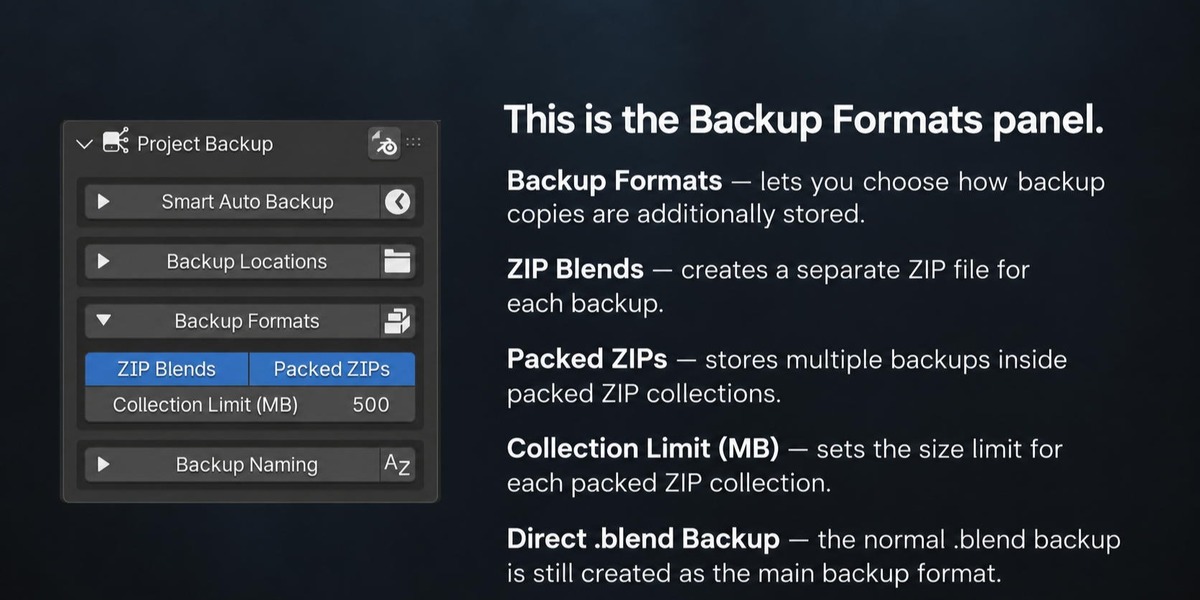
28. BACKUP FORMATS
============================================================
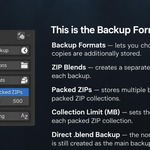
The Backup Formats section contains two optional archive modes:
ZIP Blends
Packed ZIPs
Both can be enabled independently.
The normal .blend backup is still created even when ZIP options are enabled.
============================================================
29. ZIP BLENDS
============================================================
ZIP Blends creates one ZIP archive for each backup.
Each ZIP contains the corresponding .blend backup.
Example:
08-28-2026_09-43-00_MyProject.blend
may also produce:
08-28-2026_09-43-00_MyProject.zip
Individual ZIP files are stored in:
- Backup/ZIP Blends/
ZIP files are verified after creation.
============================================================
30. PACKED ZIPS
============================================================
Packed ZIPs collects multiple .blend backups inside larger ZIP archives.
Instead of creating only one ZIP per backup, multiple backups can be stored together in numbered collections.
Example:
MyProject_Collection_001.zip
MyProject_Collection_002.zip
MyProject_Collection_003.zip
The archives are stored in:
- Backup/Packed ZIPs/
============================================================
31. COLLECTION LIMIT
============================================================
When Packed ZIPs is enabled, Collection Limit (MB) controls the approximate maximum size of each packed archive.
Default:
500 MB
Before adding another .blend file, Project Backup checks whether the current collection would grow beyond the configured limit.
If necessary, it starts a new numbered collection.
The limit is approximate because compression changes the final ZIP size.
============================================================
32. BACKGROUND ARCHIVE PROCESSING
============================================================
Direct .blend backups are created first.
ZIP creation, Packed ZIP processing, and history synchronization can continue in a background storage worker.
This keeps the main backup operation responsive while the additional archive work is completed.
Project Backup reports background completion or errors in the interface.
============================================================
33. BACKUP NAMING
============================================================
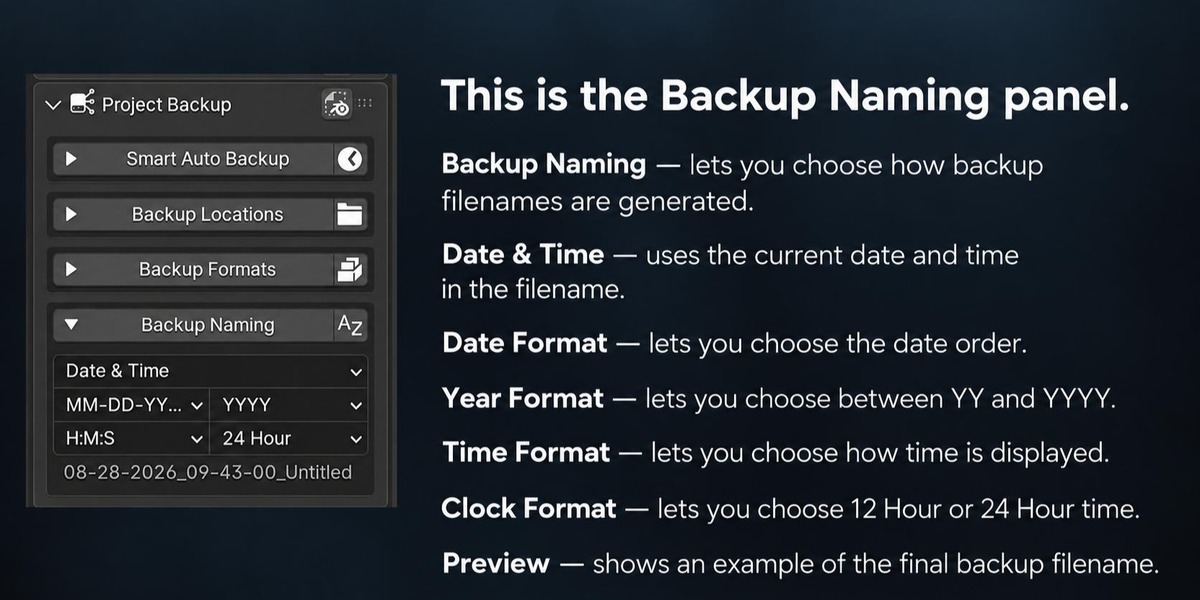
The Backup Naming section controls the base filename of new backups.
Three naming modes are available:
Date & Time
Numbers
Letters
A preview at the bottom of the section shows the current naming result.
============================================================
34. DATE & TIME NAMING
============================================================
Date & Time can be customized with:
Date order
Year length
Time detail
Clock format
Available date orders:
MM-DD-YYYY
YYYY-MM-DD
DD-MM-YYYY
Available year formats:
YYYY
YY
Available time detail:
Hours, Minutes, Seconds
Hours and Minutes
Date Only
Available clock modes:
24 Hour
12 Hour
Examples:
08-28-2026_09-43-00_MyProject
2026-08-28_21-43-00_MyProject
28-08-26_09-43_PM_MyProject
============================================================
35. AUTOMATIC COUNTERS WITH DATE NAMING
============================================================
If full hours, minutes, and seconds are used, the timestamp is normally enough to create a unique name.
If a timestamp is already occupied, Project Backup adds a counter.
When Hours and Minutes is used, an automatic two-digit counter is added as needed.
When Date Only is used, an automatic three-digit counter is used.
The add-on never intentionally overwrites an existing backup filename.
============================================================
36. NUMBER NAMING
============================================================
Number mode creates sequential names.
Example:
MyProject_001
MyProject_002
MyProject_003
The add-on searches for the next available number.
============================================================
37. LETTER NAMING
============================================================
Letter mode starts with simple letters.
Example:
MyProject_A
MyProject_B
MyProject_C
After the single-letter range is exhausted, the naming system continues with wider letter-and-number combinations rather than stopping.
============================================================
38. CUSTOM SUFFIXES AND NUMBERING
============================================================
A manually annotated backup still occupies its normal sequence position.
This prevents a suffix from accidentally causing the same base sequence number to be reused later.
Example:
MyProject_005_[Blocking]
is treated as occupying the MyProject_005 slot.
============================================================
39. AUTOMATIC BACKUP FILENAMES
============================================================
Automatic backups are marked in their filename so they can be distinguished from ordinary manual backups.
The marker is inserted into the normal naming scheme rather than replacing your selected naming mode.
Manual custom suffixes are intended for manual backups and are not used as a replacement for the automatic-backup marker.
============================================================
40. PER-PROJECT LOCATION SETTINGS
============================================================
Backup Locations are associated with the exact saved .blend project.
Opening another Blender file does not intentionally reuse the previous project's location list.
A Save As to another path is treated as a new project identity.
This prevents backup destinations from one project from silently leaking into another unrelated project.
============================================================
41. BACKUP LOCATION DISCOVERY
============================================================
When opening a project, Project Backup can recognize existing Project Backup folders located beside the project within a limited nearby folder search.
Discovery is intentionally conservative.
A folder is restored as a backup location only when it clearly contains the expected Project Backup structure for the current project.
This avoids turning unrelated folders into backup destinations.
============================================================
42. FREE SPACE AND FILE SAFETY
============================================================
Before writing backups, Project Backup checks available storage space.
A safety reserve is kept so the add-on does not intentionally fill the storage device completely.
Existing final backup files are not silently overwritten.
Temporary files are used during important write operations.
Direct .blend copies are validated.
ZIP files are tested after creation.
If one configured destination fails, Project Backup can still complete the backup using other valid destinations and report the failed location separately.
============================================================
43. OPENING OLD BACKUPS
============================================================
Project Backup deliberately keeps recovery simple.
There is no separate restore database or complicated version browser.
Backups are ordinary .blend files.
To restore or inspect an older backup:
1. Open the backup folder.
2. Choose the required .blend file.
3. Open it in Blender normally.
This keeps backup files independent from the add-on itself.
============================================================
44. WHAT PROJECT BACKUP DOES NOT DELETE
============================================================
Removing a backup location does not delete its files.
Resetting Backup Locations does not delete backup files.
Disabling a location does not delete backup files.
The add-on is designed to avoid treating interface configuration changes as permission to erase backup history.
============================================================
45. RECOMMENDED WORKFLOW
============================================================
A practical setup is:
Project Folder:
Enabled
Second location:
External SSD, second disk, NAS, or another backup folder
Sync All Locations:
Enabled
Automatic Backup:
Enabled
Active Interval:
5 minutes
Idle Backup:
7 minutes
Naming:
Date & Time
ZIP Blends:
Optional
Packed ZIPs:
Optional
For important milestones:
Ctrl + Click the Backup icon and add a short suffix such as:
Blocking
Approved
Before_Render
Final_Model
UV_DONE
============================================================
46. TROUBLESHOOTING
============================================================
Problem:
Backup cannot be created.
Check:
Has the main Blender project been saved?
Is at least one backup location enabled?
Is the location currently available?
Is there enough free disk space?
Is a previous background backup still processing?
Problem:
An external drive location is disabled.
Cause:
The configured path is currently unavailable.
Solution:
Reconnect or mount the drive, click Refresh Locations, then enable the location again.
Problem:
Additional locations are configured but new backups only appear in the Project Folder.
Check:
Sync All Locations may be turned off.
When Sync All Locations is off, the Project Folder remains the normal destination.
Problem:
Existing backup history is not copied to another location.
Check:
Sync All Locations must be enabled.
Project Folder must be available.
The destination must be available.
Background synchronization may still be running.
Synchronization copies only missing files and does not overwrite files already present at the destination.
Problem:
Automatic Backup does not run immediately.
This may be normal.
Automatic Backup waits for the configured Active Interval or Idle Backup condition and may also wait while rendering, animation playback, another backup, or background storage is active.
Problem:
Ctrl + Shift + Alt + S does not behave like Ctrl + Click.
This is intentional.
The keyboard shortcut creates an immediate backup.
Only an actual Ctrl + mouse click on the Backup icon opens the suffix dialog.
============================================================
47. DEFAULT SETTINGS
============================================================
Automatic Backup:
Enabled
Active Interval:
5 minutes
Idle Backup:
7 minutes
Keep suffix for next backups:
Enabled when the Ctrl + Click dialog opens
ZIP Blends:
Disabled
Packed ZIPs:
Disabled
Packed ZIP Collection Limit:
500 MB
Backup Naming:
Date & Time
Date Order:
MM-DD-YYYY
Year:
Four digits
Time:
Hours, Minutes, Seconds
Clock:
24 Hour
Default Shortcut:
Ctrl + Shift + Alt + S
Sync All Locations:
Disabled
============================================================
48. DESIGN MANIFEST
============================================================
Project Backup is intentionally designed around a small number of clear actions:
Save normal Blender backup files.
Keep them organized.
Put them where you want them.
Duplicate them to additional storage when needed.
Mark important backups with meaningful suffixes.
Automate the repetitive part without turning backup management into another project.
The goal is reliability without unnecessary complexity.
============================================================
49. PRODUCT SUMMARY
============================================================
Project Backup gives Blender users a straightforward way to protect ongoing work with manual and automatic backups, multiple storage destinations, optional synchronization, flexible naming, and ZIP archiving.
Its strongest workflow features are:
Multiple backup locations
One-way missing-files-only history synchronization
Automatic backups based on real project changes
Ctrl + Click custom suffixes
Direct .blend backups
Optional ZIP and Packed ZIP archives
Flexible naming
Simple file-based recovery
No complicated version manager. No database. Just reliable backups where you want them.
Have questions about this product?
Login to message
| Blender Extension Compatible | Yes |
| Published | 7 days ago |
| Blender Version | 5.0 - 5.2 |
| Extension Type | Add-on |
| License | GPL |
Discover more products like this
automatic backup backup locations data protection backup backup naming file management blender backup project backup