Project Bridge - Seamless Multi-Project Workflow for Blender
 baolongshen



Introduction
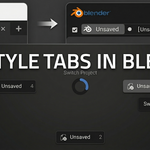
Project Bridge is a productivity tool designed for 3D artists who work with multiple Blender files simultaneously. It creates a seamless link between all your open Blender instances, allowing you to switch projects instantly via the Top Bar or a Pie Menu.
Supported OS: Windows 10 / 11 Only (Due to Win32 API usage).
Installation
Download the .zip file from your order.
Open Blender.
Go to Edit > Preferences > Add-ons.
Click Install... and select the downloaded zip file.
Search for "Project Bridge" and check the box to enable it.
Download the .zip file from your order.
Open Blender.
Go to Edit > Preferences > Add-ons.
Click Install... and select the downloaded zip file.
Search for "Project Bridge" and check the box to enable it.
Key Features
1. 🖥️ Top Bar Project Tabs
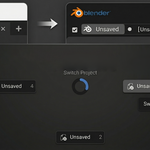
Once enabled, Project Bridge adds a project management area to the center of your Top Bar.
Status Indicator: Shows if the bridge is active.
Project Tabs: Every other open Blender instance appears as a button. Click a button to instantly bring that window to the front.
New Instance: Click the + icon to launch a fresh Blender window instantly.
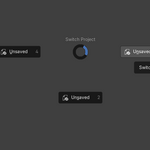
2. 🥧 Smart Pie Menu (Shortcut)
Switch projects without moving your mouse to the top bar.
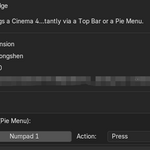
Default Shortcut: Numpad 1
Auto-Connect: Pressing the shortcut automatically connects the current window to the bridge network.
Visual List: Displays a list of other open projects.
3. 💾 Safety First: Auto-Save on Switch
Never lose progress when switching contexts.
When using the Pie Menu to switch projects, Project Bridge automatically triggers a Save command for the current file before switching focus.
Note: This only applies to files that have been saved at least once. "Untitled" files will not be auto-saved to avoid popups.
How to Use
Open two or more Blender projects.
Click "Enable Project Bridge" on the Top Bar (or press Numpad 1).
You will see the other projects appear in the Top Bar.
Click the project name to switch focus instantly.
Open two or more Blender projects.
Click "Enable Project Bridge" on the Top Bar (or press Numpad 1).
You will see the other projects appear in the Top Bar.
Click the project name to switch focus instantly.
Preferences
You can change the default Pie Menu shortcut in the Addon Preferences:
Go to Edit > Preferences > Add-ons.
Expand Project Bridge.
Under Keymap, change Numpad 1 to your preferred key.
Have questions about this product?
Login to message
| Blender Extension Compatible | Yes |
| Published | 9 months ago |
| Blender Version | 4.2 - 5.0 |
| Extension Type | Add-on |
| Render Engine Used | Cycles, Eevee |
| License | GPL |
