 bigizom




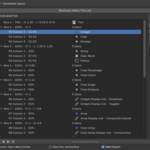
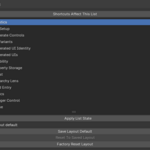
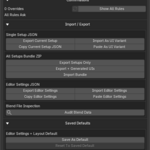
izom PropUI Suite
izom PropUI is a set of Blender tools for building clean custom-property control panels without hand-writing Blender UI code. The suite has three editions:
izom PropUI: the full standalone Blender extension. Use this when you need the complete visual editor, advanced entry types, generated UI management, import/export, variants, custom branding, many storage targets, and flexible panel locations.
izom PropUI Rigify: a Rigify feature set. Use this when you want PropUI-style controls authored on a Rigify metarig and generated into Rigify's native rig UI.
izom PropUI Free: a smaller standalone extension. Use this for a basic Object-based 3D View sidebar panel with the core entry and layout workflow.
Website: https://propui.bigizom.com/
• • •
Requirements And Package Info
| Edition | Package type | ID / package name | Version | Blender | License |
|---|---|---|---|---|---|
| izom PropUI | Blender extension / add-on | izom_propui |
1.0.0 |
5.0.0 or newer |
GPL-3.0-or-later |
| izom PropUI Rigify | Rigify external feature set | izom_propui_rigify |
1.0.0 |
5.0.0 or newer |
GPL-3.0-or-later |
| izom PropUI Free | Blender extension / add-on | izom_propui_free |
1.0.0 |
5.0.0 or newer |
GPL-3.0-or-later |
The full extension may request file access for setup import/export, generated Python export, and bundle ZIP export. It may also request clipboard access for copying and pasting setup JSON, editor settings JSON, and entry presets.
• • •
Terminology
A custom property is user-defined data stored on Blender data, such as an Object, Bone, Material, Scene, or other data-block. An IDProperty is Blender's internal custom-property storage type. A data-block is a named Blender data owner, such as an Object, Mesh, Material, Action, Image, or Text. An RNA path is Blender's data path syntax for referring to a property inside Blender data, such as bpy.data.objects["Cube"].location. A Rigify metarig is the editable template rig used by Rigify before generating the final animation rig.
• • •
Which Edition To Use
Use izom PropUI when you are making general Blender UI panels, tool panels, rig controls, material controls, modifier controls, or reusable generated .py UI scripts. It is the complete version.
Use izom PropUI Rigify when your controls belong to a Rigify rig and should be authored on the metarig, generated through Rigify, and shown in Rigify's native Rig Main Properties panel.
Use izom PropUI Free when you only need the basic workflow: build supported entries, arrange a simple layout, store generated properties on one Object, and generate one 3D View sidebar panel.
• • •
Installation
izom PropUI / izom PropUI Free
Install the built extension ZIP through Blender's extension/add-on installer, then enable the add-on.
After enabling:
Full: open the 3D Viewport sidebar with
Nand look for the PropUI tab.Free: open the 3D Viewport sidebar with
Nand look for the PropUI Free tab.
The full extension can move its editor to supported sidebars, supported Properties tabs, or both through its add-on preferences. Free is fixed to the 3D View sidebar.
izom PropUI Rigify
Enable Blender's built-in Rigify add-on.
Open Rigify preferences.
Install the
izom_propui_rigifyfeature set ZIP.Enable izom PropUI Rigify in the external feature set list.
To update Rigify feature-set installs, remove the old izom_propui_rigify feature set from Rigify preferences before installing the new ZIP. Rigify does not overwrite an installed feature-set folder.
izom PropUI Rigify can be enabled in the same Blender profile as the full izom PropUI add-on. They use separate operators, shortcuts, settings, and generated helpers.
• • •
Shared Core Workflow
The full and Rigify editions share the same main authoring idea, and Free keeps a reduced version of it.
Add controls in the Entry List.
Edit the selected entry's label, value, display style, conditions, storage, and tools.
Place entries into Generated Layout.
Arrange rows, shared rows, and supported layout containers.
Generate the final UI.
The Entry List is the authored source list. It stores entries, settings, hierarchy, conditions, storage settings, dynamic labels, presets, and display behavior.
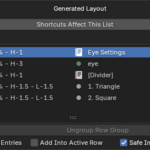
Generated Layout decides what appears in the generated panel and where it appears. Removing an item from Generated Layout does not delete the original Entry List entry.
• • •
Edition Comparison
| Feature | Full | Rigify | Free |
|---|---|---|---|
| Standalone Blender extension | Yes | No | Yes |
| Rigify feature set | No | Yes | No |
| Visual Entry List editor | Yes | Yes | Limited |
| Generated Layout editor | Yes | Yes | Limited |
| Generated sidebars | Yes | Through Rigify UI only | 3D View sidebar only |
| Generated Properties tabs | Yes | Through Rigify UI only | No |
| UI Variants | Yes | No | No |
| Generated UI manager | Yes | No | No |
| Custom generated branding | Yes | No | No |
Generated .py ZIP export |
Yes | No | No |
| Setup JSON import/export | Yes | Yes | No |
| Editor settings JSON import/export | Yes | Yes | No |
| Entry presets | Yes | Yes | No |
| Saved defaults | Yes | Yes | No |
| Shortcuts | Yes | Yes, scoped to Rigify parameters | No |
| Editor section layout customization | Yes | Yes | No |
| Dynamic Labels | Full feature set | Full feature set | Same-entry only |
| Child Visibility | Yes | Yes | Yes |
| Child Availability | Yes | Yes | No |
| Row Boxes | Yes | Yes | No |
| Sub-panels | Yes | Yes | No |
| Shared rows | Yes | Yes | Yes, up to 3 items |
| Object storage | Yes | Not the main workflow | Yes, only storage type |
| Broad Blender data-block storage | Yes | No | No |
| Rigify generated prop bones | No | Yes | No |
| Per-entry storage override | Yes | Per-entry Prop Bone Override | No |
| Free-form Custom RNA paths | Yes | Yes | No |
| Operator buttons | Yes | Yes | No |
• • •
Full Edition: izom PropUI
izom PropUI is the complete standalone add-on. It turns a visual editor setup into generated Blender UI code. Generated panels can be saved inside the .blend as Text datablocks, run without the editor being open, and be exported as portable .py scripts.
Full Basic Workflow
Choose a default Property Storage target in Output Setup.
Add entries in the Entry List.
Configure the active entry in Selected Entry.
Import or add entries into Generated Layout.
Arrange rows, shared rows, row boxes, and sub-panels.
Set the generated panel title, tab, location, and visibility.
Press Generate UI.
Use the generated panel like any other Blender panel.
Use Apply Properties when you only want to create or update managed custom properties without generating a panel.
Full Editor Location
By default, the editor appears in the 3D Viewport sidebar. Add-on preferences can move or duplicate the editor into supported sidebars and supported Properties tabs.
Supported sidebar areas include the 3D Viewport, Graph Editor/Drivers, Dope Sheet, NLA, Image/UV Editor, Node Editor, Sequencer, Movie Clip, Text Editor, File Browser, and Spreadsheet.
Supported Properties tabs include common Blender tabs such as Object, Modifiers, Material, Scene, World, Render, Output, Bone, Constraints, Physics, and related data tabs.
The editor can also be hidden while transforming or while animation playback is running.
Full Output Setup
Output Setup controls generation, saved setups, generated UI identity, generated UI management, visibility, and property storage.
Generate UI creates or updates managed custom properties, writes the generated Python UI script, registers the panel classes, and shows the generated UI.
Generation options include:
Replace Storage on Generate: clears custom properties from the default storage target before rebuilding managed properties.
Clean Old Targets on Generate: removes matching managed properties from old targets after entries move to another target.
Empty generated-layout confirmation behavior.
UI Variants
UI Variants are saved PropUI setups stored in the current .blend. They are useful when one file needs several generated panel designs.
Variants store generated-output setup, Entry List, Generated Layout, row boxes, sub-panels, storage, and generated panel settings. They do not store Editor Settings, Editor Layout, shortcut target state, or editor section collapsed/open defaults.
Variant tools support add, duplicate, remove, reorder, save, load, and clear. Setup JSON import creates a UI Variant first; it does not immediately overwrite the current editor until that variant is loaded.
Generated UI Identity And Branding
Generated UI Identity controls the visible and cosmetic identity of generated panels:
Sidebar Tab
Panel Title
Use Custom Branding
Text Name
Namespace Prefix
Panel Class Prefix
Text Datablock Prefix
Show Credit Comment
Credit Comment
Branding changes are cosmetic for generated output. PropUI still keeps stable internal IDs, unique hashes, and saved generated UI records so old generated panels can be stopped, removed, detected, or regenerated.
Generated UIs Manager
Generated UIs are managed generated outputs. The Generated UIs section can:
Run an existing generated script.
Stop a running generated panel for the current Blender session.
Remove one generated UI or clear all generated UI records.
Import generated scripts from Text datablocks.
Export generated
.pyfiles as a ZIP.Remove stale running panels whose generated Text datablock is gone.
Unregister all running generated panels while keeping saved records.
Removal modes include:
Remove From Editor Only: removes the row from PropUI management, but keeps the panel running and keeps the generated Text datablock.
Stop UI, Keep Script: removes the management row, unregisters the live panel for the session, and keeps the generated Text datablock.
Remove Everything: removes the management row, unregisters the live panel, and deletes the generated Text datablock.
Stopping a generated UI is session-scoped. If its generated Text datablock and saved slot remain, it can return when the .blend is reopened or when it is run again.
Only run imported generated UI scripts you trust.
Full Visibility
Full generated panels can appear in supported sidebars and supported Properties tabs. Sidebars can be targeted broadly or individually. Graph Editor/Drivers, Image/UV Editor, and Node Editor have subtype filters.
Supported sidebar targets include 3D Viewport, Graph Editor/Drivers, Dope Sheet, NLA Editor, Image/UV Editor, Node Editor, Video Sequencer, Movie Clip Editor, Text Editor, File Browser, and Spreadsheet.
Supported Properties tabs include Tool, Render, Output, View Layer, Scene, World, Collection, Object, Constraints, Modifiers, Object Data, Bone, Bone Constraints, Material, Texture, Particle, and Physics.
Generated panels can also be visible only when selected objects or bones match a configured list. Child generated sub-panels inherit the same visibility rules as their parent panel.
Full Property Storage
Property Storage is the default owner for managed custom properties. Supported storage categories include:
Object
Object Data
Bone
Scene
Collection
Material
World
Action
Armature Data
Blender data-block owners such as Camera, Mesh, Curve, Light, Image, Text, Texture, Node Tree, Movie Clip, Sound, Speaker, Volume, Brush, Palette, Paint Curve, Particle Settings, Point Cloud, Cache File, Screen, Workspace, and Window Manager
Storage pickers adapt to the selected owner type. Object-like targets show object pickers, bone targets show armature and bone fields, scene targets show scene pickers, and data-block targets use Blender data-block search fields where available.
Selected entries can use Target Override to store their managed custom property on a different owner than the default Property Storage target.
Apply behavior includes:
Apply All Managed: creates or updates every managed non-text entry on its resolved target.
Apply Selected: creates or updates only the active Entry List entry.
Clean Property Storage: removes custom properties from the current Property Storage target without changing the editor setup.
Replace Storage on Apply: clears the default storage target before rebuilding all managed properties.
Clean Old Targets on Apply: removes matching managed properties from old targets.
Clean Property Storage modes:
Managed Only: removes properties managed by the current Entry List.
Unmanaged Only: removes properties not managed by the current Entry List.
Selected Entry: removes only the active managed entry property.
All Custom Properties: removes every custom property from storage except Blender/PropUI internal data.
When a native custom property already exists, PropUI can overwrite the conflict or skip it depending on confirmation/default behavior.
• • •
Rigify Edition: izom PropUI Rigify
izom PropUI Rigify is a Rigify feature set for authoring generated rig controls directly from a Rigify metarig. You author controls on a metarig bone, generate the rig normally with Rigify, and the finished controls appear on the generated rig.
To see generated controls, select the relevant generated rig bone, open the Item tab, and use Rigify's native Rig Main Properties panel.
Rigify Quick Start
Add or select a bone on your metarig.
Set the bone's Rigify Type to
izom.PropUI.Use the izom PropUI Rigify editor shown in the bone's Rigify parameters.
Add entries to the Entry List and configure labels, values, display style, conditions, and storage.
Arrange the generated UI in the Generated Layout section.
Generate the rig with Rigify.
The editor is part of the Rigify metarig parameter UI for the izom.PropUI rig type. Select the metarig bone that owns the component to edit its setup. Authored data is stored on the metarig through Rigify parameters.
Rigify Output Setup
Rigify Output Setup controls where generated custom properties are stored and how native metarig custom properties are handled.
Use One Prop Bone stores all managed generated properties on one chosen generated bone.
One Prop Bone chooses the bone used by that workflow.
Per-entry Prop Bone Override can send a specific entry to a different generated bone.
Sync to Metarig imports or refreshes supported custom properties from the metarig into the Entry List.
Move Matching moves matching metarig properties into managed PropUI entries during sync.
Clean Metarig Props removes custom properties from metarig storage bones without changing the editor setup.
Native Passthrough preserves unmanaged native custom properties and draws them above or below the managed PropUI controls.
Built-in
basic.raw_copybehavior exposes relinking constraints, parent bone selection, and widget options.
Clean Metarig Props can target the Host Bone, Prop Bones, or Host + Prop Bones. Cleaning modes include Managed Only, Unmanaged Only, Selected Entry, and All Custom Properties.
Rigify Generated Layout
Rigify Generated Layout controls the UI shape that appears on the generated rig. It supports rows, shared rows, sub-panels, text rows, Display Links, operator buttons, internal controls, property entries, Row Boxes, and Safe Import.
Sub-panels can start open or collapsed. If Generated Layout is empty, the feature set can still generate a basic layout from the Entry List.
Rigify Internal Controls
Rigify can place these optional controls into the generated UI:
Generated UI Enabled: lets the rig user turn the authored PropUI section on or off.
Disable While Transforming: hides the generated UI during active transform operations.
Disable While Playback: hides the generated UI during animation playback.
These controls are authored on the metarig and generated into the Rigify UI.
Rigify Editor Settings, Shortcuts, And Defaults
Rigify Editor Settings include display precision, shortcut enable/disable behavior, Entry List display, Generated Layout display, default add type, confirmations, import/export, saved defaults, and reset tools.
Rigify shortcuts act on the selected shortcut target. Targets include Entry List, Generated Layout, Row Boxes, Dynamic Labels, Display Link component subsets, and Editor Layout. Shortcuts are scoped to the Rigify parameter editor in Blender's Properties editor, so they can be used alongside standalone izom PropUI shortcuts in the same Blender profile.
Import/export tools include full setup JSON, selected entry type presets, and editor settings JSON. Clipboard copy/paste is available for the same JSON data. Saved defaults can auto-apply a preferred blank setup or editor layout to new sessions.
Rigify Diagnostics And Notes
Diagnostics appears when the feature set has warnings. Audit Blend Data reports how many izom PropUI Rigify components, authored entries, and generated Rigify UI text blocks are present in the current file.
Important Rigify notes:
Rigify owns the generated UI, so generation always goes through Rigify's normal rig generation flow.
Rigify owns the generated Python UI text name,
rig_ui.py.Regenerate the Rigify rig after changing metarig PropUI settings.
UI Variants, custom generated branding, custom UI text names, and generated UI manager workflows are not part of the Rigify feature set.
• • •
Free Edition: izom PropUI Free
izom PropUI Free is a limited standalone extension for one direct workflow:
Build a small Entry List from supported custom-property entries.
Put those entries into a simple Generated Layout.
Generate one 3D View sidebar panel.
Store generated custom properties on one Object.
Free includes:
3D View sidebar editor.
3D View sidebar generated panel.
Object-only Property Storage.
Generate UI.
Sidebar Tab and Panel Title fields.
Entry List add, remove, duplicate, move, and basic parent/child hierarchy.
Generated Layout rows and shared row groups.
Safe Import when importing Entry List items into Generated Layout.
Child Visibility conditions.
Direct value-driven Dynamic Labels for supported property entries.
Full Factory Reset.
A link to the full add-on.
Free Workflow
Open the 3D View sidebar and find PropUI Free.
Choose an Object in Property Storage.
Add entries in the Entry List.
Configure the active entry.
Add entries into Generated Layout.
Arrange simple rows or shared row groups.
Set Sidebar Tab and Panel Title.
Press Generate UI.
Generate applies the managed custom properties to the chosen Object and registers the generated 3D View sidebar panel.
Free Limits
Free is intentionally gutted compared with the full add-on.
Free does not include:
Editor location preferences.
Generated panel locations outside the 3D View sidebar.
Visibility target settings.
Selected-object or selected-bone visibility filters.
UI Variants.
Generated UIs management list.
Generated script run/stop/remove tools.
Generated script import.
Generated
.pyZIP export.Custom branding.
Apply Properties / Apply Selected.
Alternate storage owner types.
Per-entry Target Override.
Import/export, bundle ZIP tools, editor settings JSON, setup JSON, entry presets, type defaults, or saved defaults.
Keyboard shortcuts.
Editor Layout customization.
Free storage is Object-only. It cannot use Object Data, Bone, Scene, Collection, Material, World, Action, Armature Data, Window Manager, Workspace, or other Blender data-block storage targets.
Free Generated Layout supports simple rows, shared row groups up to 3 items, row height from 1 to 2, Safe Import, reordering, and a fixed left-indent toggle. It does not include sub-panels, Row Boxes, Auto Sync New Entries, Add Into Active Row, generated-to-entry selection, move-to-container controls, custom column weights, single-row alignment, right inset, adjustable inset sliders, row height above 2, or shared row groups above 3 items.
Free Conditions only include Child Visibility. It does not include Child Availability or disabled-but-visible child behavior.
Free Dynamic Labels are direct and same-entry value-driven. It does not include Dynamic Labels by Other Entry, Boolean Dynamic Labels by Other Entry, Text Dynamic Labels, Dynamic Text rules, or nested/cross-entry dynamic label sources.
• • •
Entry Types
The full and Rigify editions support the complete entry type set. Free supports only Float, Integer, Boolean, Array, and Text.
| Entry type | Full | Rigify | Free | Purpose |
|---|---|---|---|---|
| Float | Yes | Yes | Yes | Floating-point custom property. |
| Integer | Yes | Yes | Yes | Integer custom property. |
| Boolean | Yes | Yes | Yes | True/false custom property. |
| Array | Yes | Yes | Yes | Float, integer, or boolean array. |
| Text | Yes | Yes | Yes | Text-only rows such as headings, labels, dividers, and spacers. |
| String | Yes | Yes | No | Managed text custom property. |
| Data-Block | Yes | Yes | No | Property pointing at Blender data such as Object, Material, Image, Action, etc. |
| Python | Yes | Yes | No | Literal IDProperty values such as dictionaries, lists, numbers, strings, booleans, or None. |
| Custom | Yes | Yes | No | Draws an existing Blender RNA/custom-property path or supported internal generated UI control. |
| Display Link | Yes | Yes | No | Draws another managed or custom entry again without duplicating storage. |
| Operator Button | Yes | Yes | No | Runs a Blender operator or, in Rigify, a feature-set operator. |
Complete Entry Type Notes
Float entries support default value, min/max, soft limits, step, precision, Blender float subtype, slider display, label layout, dynamic labels, and storage targeting where supported.
Integer entries support default value, min/max, soft limits, step, label layout, dynamic labels, and storage targeting where supported. Full and Rigify support richer display behavior; Free uses plain numeric fields and does not include integer slider-style display.
Boolean entries create true/false properties. They can draw as checkbox-style controls and support per-state labeling behavior where available. Free supports checkbox-style generated controls and simple true/false labels.
Array entries create typed float, integer, or boolean arrays. Arrays support fixed sizes up to 32, component count, subtype, defaults, numeric limits, vector/color style display, component-field drawing, and component-based dynamic labels/conditions where available. Free supports the main multi-component layouts but not component label customization or advanced component-label display tools.
Text entries add non-property generated UI content: headings, labels, dividers, spacers, alignment, alert styling, and optional before/after icons. Centered text can use Icon Hug Text controls; left and right aligned text keep icons attached to the text.
String entries create managed string custom properties. They support scalar label layout, exact-match dynamic labels, and child visibility checks.
Data-Block entries create managed data-block custom property slots. The ID Type controls what kind of Blender data the generated property accepts, such as Object, Material, Mesh, Image, Text, Action, Collection, Node Tree, World, and other supported ID types.
Python entries create or edit literal IDProperty values Blender's normal custom-property UI cannot fully describe, such as dictionary-like IDProperty groups. Only enter Python literal values you trust and understand.
Custom entries draw existing Blender RNA or custom-property paths instead of creating managed properties. Custom paths are Blender data paths, not arbitrary Python expressions. They must start with bpy. and use attribute access plus literal ['name'] or [index] lookups. Do not use method calls, operators, math, conditionals, or arbitrary Python in Custom paths.
Examples:
bpy.data.objects["Cube"].parentbpy.data.objects["Cube"].modifiersbpy.data.objects["Cube"]["custom_vector"][2]Custom can sense and draw booleans, integers, floats, strings, enums, data-block pointers, non-ID pointers, collections, vectors, colors, integer arrays, boolean arrays, and Python/IDProperty data. Multi-component values can use component indexing.
Operator Button entries create generated buttons that run Blender operators by operator id. They can pass operator properties as JSON and use execute, invoke, or popup-style behavior depending on run mode. Buttons depend on Blender operator polling; if Blender says the operator cannot run in the current context, the button may cancel or fail.
Display Link entries draw another managed or Custom entry again. They do not create a new custom property and do not copy the linked entry's stored value. They are useful when the same control should appear in more than one layout location, or when a repeated control needs its own label, tooltip, label layout, dynamic labels, conditions, or component subset.
• • •
Labels, Conditions, And Generated Layout
Scalar Label Layout
Float, Integer, Boolean, String, Data-Block, Python, and compatible Custom scalar values can choose how labels are drawn:
One Row: label and value in the normal Blender row.
One Row, Split Label: label in the left label area and value in the right value area.
Label Above: label above the value field.
Label Above can use PropUI text styling for role, alignment, icons, and alert styling where supported.
Dynamic Labels
Dynamic Labels change an entry label based on values. Rows act as a priority list: the first matching row wins. Overlapping values are allowed, so a specific rule can be placed above a broader rule.
Full and Rigify Dynamic Labels can be driven by:
The entry's own value.
Another supported entry.
A whole vector/array value for exact matches.
A single vector/array component.
Common rule styles include boolean state labels, exact value labels, numeric thresholds, ranges, and Dynamic Text rows.
Free only supports direct Dynamic Labels based on the same supported entry's value.
Conditions
Conditions control whether child entries appear or remain editable based on another entry's value.
Full and Rigify support:
Child Visibility: child appears or hides.
Child Availability: child stays visible but disabled.
Boolean, numeric, exact-match, range, and component checks.
Inherited hierarchy behavior where configured.
Shared-row behavior that can repack hidden children or keep an empty slot.
Free supports Child Visibility only.
Entry hierarchy depth is capped at 12.
Generated Layout Tools
Full and Rigify Generated Layout can:
Import Entry List entries into the generated layout.
Reorder generated rows.
Group entries into shared rows.
Create generated sub-panels.
Move rows between the main panel body and sub-panels.
Add spacing rows.
Use row height, row alignment, column weight, and row inset controls.
Wrap contiguous rows in Row Boxes.
Shared rows let multiple entries draw on one generated row. Row Boxes draw rows inside Blender layout.box() containers. Row Boxes are scoped to one container and can nest only as fully contained ranges; partial overlaps are rejected.
Free keeps a simpler Generated Layout with basic rows, shared row groups up to 3 items, row height 1 to 2, Safe Import, and fixed left indent.
• • •
Editor Settings, Layout, Shortcuts, And Defaults
Full and Rigify include editor behavior settings, confirmation defaults, import/export tools, saved defaults, reset tools, and editor layout customization.
Editor Layout lets you reorder and hide editor sections and subsections without deleting setup data. Changes are staged in a list and applied with Apply List State. Editor Layout defaults can save section order, visibility, and open/collapsed defaults for future sessions.
Editor Settings can include display precision, tree hints, Entry List display, Generated Layout display, default add type, confirmation rules, import/export, saved defaults, and reset behavior.
Saved defaults can cover:
Editor Settings and Editor Layout defaults.
Full setup defaults for new blank setups.
Entry type defaults.
Full shortcuts can target Entry List, Generated Layout, UI Variants, Generated UIs, Row Boxes, Visible When items, Dynamic Labels, Display Link component subsets, and Editor Layout.
Rigify shortcuts can target Entry List, Generated Layout, Row Boxes, Dynamic Labels, Display Link component subsets, and Editor Layout, scoped to the Rigify parameter editor.
Free has no PropUI keyboard shortcuts and only includes Full Factory Reset in Editor Settings.
• • •
Import, Export, And Portability
Full supports:
Current setup JSON.
Setup bundles with optional generated UI scripts.
Editor Settings JSON.
Entry preset JSON.
Clipboard copy/paste for setup JSON, editor settings JSON, and entry presets.
Generated
.pyZIP export.Generated script import from Text datablocks.
Rigify supports:
Full setup JSON for the current metarig component setup.
Entry type presets.
Editor settings JSON.
Clipboard copy/paste for the same JSON data.
Saved defaults for preferred blank setups and editor layouts.
Free does not include setup portability tools, presets, type defaults, saved editor defaults, generated .py export, bundle import/export, or JSON import/export.
• • •
Cleanup Tools
Full cleanup tools can remove custom properties from the current Property Storage target or entry-specific Target Override owners. Cleaning modes include managed, unmanaged, selected-entry, and all custom properties depending on the target.
Rigify cleanup tools can remove metarig custom properties from the Host Bone, Prop Bones, or Host + Prop Bones, using managed, unmanaged, selected-entry, or all custom property modes.
Cleanup tools affect Blender custom properties on storage owners. They do not delete Entry List entries, Generated Layout rows, variants, generated scripts, or authored Rigify component setup data.
• • •
Important Notes
Property IDs must be unique per target. PropUI auto-suffixes duplicates where needed.
If Property Storage, Target Override, or a Rigify Prop Bone target cannot resolve, apply/generate actions report an error.
Array size is capped at 32.
Generated Layout sub-panels draw as Blender child panels where supported.
Row Boxes cannot span multiple containers.
Hidden-in-editor entries are hidden only in the editor; generated output is controlled by Generated Layout and conditions.
Full generated panels are saved in the
.blendas generated Text datablocks and slot data.Export generated
.pyfiles if you need standalone scripts outside the.blend.Imported generated UI scripts become managed Generated UI rows in the full add-on.
Setup JSON import in the full add-on creates a UI Variant first; loading that variant applies the imported setup.
Rigify changes require regenerating the Rigify rig.
Python literal values and generated/imported scripts should only be used when trusted.
• • •
Troubleshooting
No generated panel appears
Full / Free:
Check that the generated UI was created and registered.
Check the generated sidebar or Properties location.
In Full, check Generated UIs, Visibility settings, selected object/bone filters, and Diagnostics.
In Free, check the 3D View sidebar and the configured tab/panel title.
Rigify:
Regenerate the rig after changing metarig PropUI settings.
Select the generated rig bone that owns the controls.
Open the Item tab and check Rigify's Rig Main Properties panel.
Check feature-set diagnostics if warnings appear.
Generate reports missing storage
Full: set Output Setup > Property Storage and confirm the resolved owner is valid.
Full: check any per-entry Target Override targets.
Free: choose a valid Object in Property Storage.
Rigify: check One Prop Bone and per-entry Prop Bone Override settings.
An entry does not appear in generated output
Make sure the entry is in Generated Layout.
Check parent/child conditions.
Check whether a Display Link target still exists.
Check whether a sub-panel is empty and skipped.
In Free, confirm the entry type or feature is supported by the Free edition.
A Custom path shows errors
Use a valid Blender RNA or custom-property path.
Start full paths with
bpy..Use attribute access and literal
['name']/[index]lookups.Do not use method calls, operators, math, conditionals, or arbitrary Python expressions.
Check for renamed or deleted data-blocks.
An Operator Button fails
Verify the operator id.
Try Interactive or Popup mode for operators that require invoke behavior.
Check operator JSON.
Confirm the operator can run in the generated panel's current context.
A generated UI script is missing in the full add-on
Use Generated UIs status to identify missing Text scripts.
Regenerate the UI, import an existing generated script, or remove the stale row if it is no longer wanted.
• • •
Links
Documentation: https://propui.bigizom.com/
License: GPL-3.0-or-later
-
$19.99
Complete version with all entry types, flexible panel placement, advanced visibility, sub-panels, UI variants, shortcuts, branding, presets, saved defaults, 38 storage targets, etc.
-
$14.99
A Rigify feature set for authoring custom pose-bone control UIs on your metarig that generate straight into the rig's own panel.
-
$30
Includes the full izom PropUI add-on plus the Rigify-focused version. Build clean custom Blender control panels, then use the Rigify edition to generate controls directly into Rigify’s Rig Main Properties panel.
-
$1
I can’t list PropUI for free on Superhive right now, so you can grab it free on Gumroad or buy it here for $1 to support the project. Core workflow with basic entry types, one 3D Viewport sidebar panel, shared/simple rows, visibility conditions, and dynamic labels.
Have questions about this product?
Login to message
| Blender Extension Compatible | Yes |
| Dev Fund Contributor | |
| Published | 3 months ago |
| Blender Version | 5.0 - 5.1 |
| Extension Type | Add-on |
| Render Engine Used | Cycles, Eevee |
| License | GPL |

Discover more products like this
workflow tool interface driver controls custom properties control panel property panel python panel rigify rigging custom ui rig-controls animation