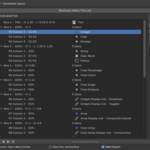
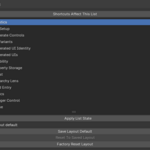
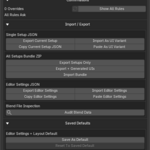
What are Custom paths?
Custom paths let Full and Rigify draw existing Blender data instead of creating a new managed property.
A Custom entry uses a Blender RNA or custom-property path. A full path must start with bpy. and use normal attribute access plus literal name or index lookups.

Examples
bpy.data.objects["Cube"].parent
bpy.data.objects["Cube"].modifiers
bpy.data.objects["Cube"]["custom_vector"][2]
Custom paths are not arbitrary Python expressions. Do not use method calls, operators, math, conditionals, or arbitrary Python code inside a Custom path.
A Custom entry can draw many value types, including booleans, integers, floats, strings, enums, data-block pointers, collections, vectors, colors, arrays, and compatible IDProperty data.
Why does an Operator Button fail?
Operator Buttons still depend on Blender’s operator rules and current context.
An Operator Button runs a Blender operator by operator id. If Blender says the operator cannot run in the current context, the button may cancel or fail.
- Verify that the operator id is correct.
- Check the operator JSON if you are passing operator properties.
- Try Interactive or Popup mode for operators that require invoke behavior.
- Confirm the operator can run from the generated panel’s current context.
Operator Buttons are available in Full and Rigify. Free does not include Operator Button entries.
Why does my generated panel not appear?
Most missing panels come from generation, visibility, storage, or location settings.
Full / Free: first check that the UI was generated and registered. Then check the sidebar tab or Properties location where the panel was created.
Full: also check Generated UIs, Visibility settings, selected object or selected bone filters, and Diagnostics. If a generated Text datablock is missing, regenerate the UI, import an existing script, or remove the stale generated UI row.
Free: check the 3D View sidebar and confirm the configured tab and panel title.
Rigify: regenerate the rig after changing metarig PropUI settings. Then select the generated rig bone that owns the controls, open the Item tab, and check Rigify’s Rig Main Properties panel.
What is Display Link?
Display Link shows another entry again without creating a second property.
A Display Link is useful when the same value should appear in more than one location in the generated UI. It draws a linked managed or Custom entry again, but it does not copy the stored value and does not create duplicate storage.
The repeated control can still have its own label, tooltip, label layout, dynamic labels, conditions, and component subset where supported.
Free does not include Display Link. It is part of the Full and Rigify feature set.
Where are custom properties stored?
PropUI stores or draws Blender properties on the data owner chosen by the edition and setup.
Full supports many storage targets, including Object, Object Data, Bone, Scene, Collection, Material, World, Action, Armature Data, and many other Blender data-block owners. Individual entries can also use Target Override to store a property somewhere other than the default target.
Rigify is built around Rigify prop bones. It can store all managed generated properties on one chosen generated bone, or send specific entries to another generated bone using Per-entry Prop Bone Override.
Free is Object-only. It cannot store managed properties on bones, materials, scenes, collections, actions, armature data, workspace data, or other Blender data-block targets.
If storage cannot resolve during apply or generation, PropUI reports an error instead of silently placing the property somewhere else.
Where does the generated UI appear?
The generated UI location depends on the edition.
Full can generate panels in supported sidebars and supported Properties tabs. It can target broad locations or specific editor areas, and it can also use selection-based visibility rules.
Rigify shows generated controls through Rigify. After generating the rig, select the relevant generated rig bone, open the Item tab, and use Rigify’s native Rig Main Properties panel.
Free only generates one 3D View sidebar panel. It uses the configured Sidebar Tab and Panel Title, but it does not support other editor locations.
- Full: flexible sidebar and Properties tab output.
- Rigify: Rigify Rig Main Properties output.
- Free: 3D View sidebar output only.
Can I use Full and Rigify together?
Yes. The full add-on and the Rigify feature set can be enabled in the same Blender profile.
They use separate operators, shortcuts, settings, and generated helpers. This means you can use the full standalone PropUI editor for general panels and use izom PropUI Rigify for Rigify metarig components in the same Blender setup.
The main thing to remember is that they generate output differently. The full add-on manages its own generated panels and Text datablocks. The Rigify edition generates through Rigify and writes into Rigify’s rig UI flow.
How do I install the Full or Free add-on?
Install the ZIP through Blender’s extension/add-on installer, then enable the add-on.
After enabling the full version, open the 3D Viewport sidebar with N and look for the PropUI tab. After enabling the Free version, open the 3D Viewport sidebar with N and look for the PropUI Free tab.
- Full: the editor can be moved or duplicated to supported sidebars and Properties tabs through add-on preferences.
- Free: the editor is fixed to the 3D View sidebar.
If you are updating an existing install, restart Blender if the old UI or old registered panel classes appear to stay active.
How do I install the Rigify version?
Install izom PropUI Rigify as a Rigify external feature set.
- Enable Blender’s built-in Rigify add-on.
- Open Rigify preferences.
- Install the izom_propui_rigify feature set ZIP.
- Enable izom PropUI Rigify in the external feature set list.
To update the Rigify version, remove the old izom_propui_rigify feature set from Rigify preferences before installing the new ZIP. Rigify does not overwrite an installed feature-set folder.
After installation, use the Rigify Type izom.PropUI on a metarig bone to access the PropUI Rigify editor in that bone’s Rigify parameters.
What is the difference between Full, Rigify, and Free?
All editions use the same core idea, but they are built for different levels and workflows.
Full is the complete standalone version. It can generate panels in supported sidebars and Properties tabs, manage generated UI scripts, use many storage targets, export generated Python, use UI variants, use custom branding, and import/export setup data.
Rigify uses much of the same authoring logic, but it lives inside Rigify as an external feature set. It is not a general standalone panel manager. Rigify owns the final generated UI, so changes are applied by regenerating the Rigify rig.
Free is intentionally limited. It keeps the basic add-entry, arrange-layout, generate-panel workflow, but only supports a reduced feature set.
- Full: complete standalone editor and generated UI manager.
- Rigify: metarig-authored controls generated into Rigify’s own rig UI.
- Free: basic 3D View sidebar panel with Object-only storage.
 bigizom