 Merdan


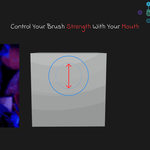
Psychic Sculptor is a high-performance facial motion capture tool designed specifically for Blender Sculpt Mode. It allows artists to maintain their "flow state" by mapping facial gestures to essential brush settings, removing the need to manually adjust sliders during a stroke.
1. Quick Start Guide
Installation
Download: You will receive a file named
Psychic_Sculptor.zip. Do not unzip this file.Install: In Blender, go to
Edit > Preferences > Add-ons.Enable: Click
Install..., select the zip file, and check the box next toGeneric: Psychic Sculptor.Restart: We recommend restarting Blender after the first installation to ensure the bundled libraries initialize correctly.
First Run
Open the 3D Viewport and go to Sculpting tab.
Press
Nto open the Sidebar and locate the Psychic tab.Position your webcam so your face is well-lit and centered.
-
Click Establish Connection.
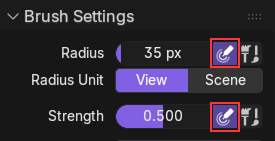
(Make sure your Strength and Radius settings are checked on only Pressure mode)
2. Core Controls
The addon tracks your facial features to drive the active brush in real-time.
| Facial Gesture | Brush Parameter | Action |
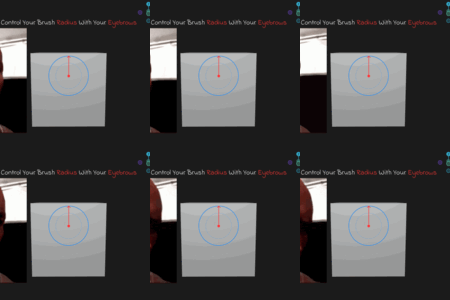
| Eyebrows Up | Radius (Size) | Raising your brows increases the brush diameter. |
| Jaw Open | Strength | Opening your mouth increases the pressure/strength. |
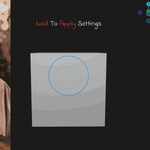
| Head Nod | Toggle Lock | A quick downward nod "freezes" the current values. |
3. The "Nod-to-Lock" System
This is the core workflow feature of Psychic Sculptor. It allows you to "set and forget" your brush settings.
To Lock: While tracking is active, perform a quick downward nod. The status bar at the bottom of the screen will change to
Psychic: LOCKED. Your brush size and strength will stay frozen at their current values, allowing you to relax your face while you sculpt.To Unlock: Perform the same downward nod gesture. The status text will return to
Psychic: ACTIVE, and the brush will resume following your facial movements.
4. Settings & Calibration
Found in the N panel:
Size Sensitivity: Adjusts how much your eyebrow movement affects the brush radius.
Strength Sensitivity: Adjusts how wide you need to open your mouth to reach 100% brush strength.
5. Requirements & Compatibility
Hardware: Any standard USB or integrated Webcam (720p+ recommended).
Operating System: Windows.
Blender Versions: Verified on 4.2, 4.5, and 5.0.
Privacy: No data is sent to the internet. All AI processing (MediaPipe) happens locally on your machine.
6. Troubleshooting
Addon won't enable: Ensure you have no other OpenCV or MediaPipe versions installed in your Blender
site-packagesthat might conflict with the bundled versions.Values are "Jumping": Ensure your face is well-lit. Shadows under the eyebrows or chin can confuse the AI landmarker.
-
Camera doesn't start: Close other apps using the camera (Discord, Zoom, or OBS) before clicking "Establish Connection" in Blender.
Generative AI Disclosure
Note on Content: Parts of this product description and documentation were drafted with the assistance of Generative AI to ensure clarity and professional formatting. All technical instructions and feature descriptions have been verified by the creator for accuracy.
Have questions about this product?
Login to message
| Dev Fund Contributor | |
| Published | 8 months ago |
| Blender Version | 4.0 - 5.0 |
| Extension Type | N/A |
| Render Engine Used | Blender-Game-Engine, Cycles, Eevee |
| License | GPL |
