Pythian Dragon Advanced Rigging Pack
 Jana-Marleen Nolte


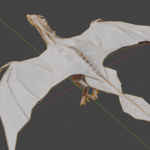
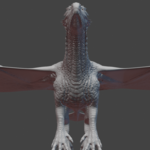
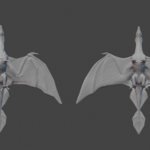
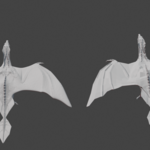
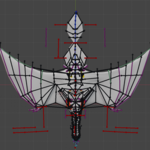
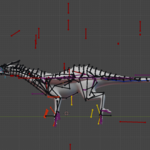
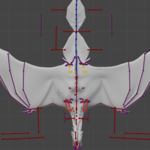
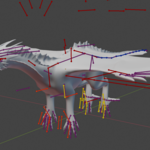
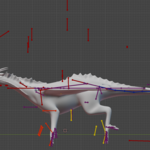
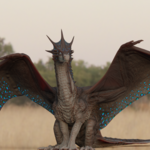
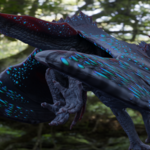
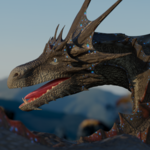
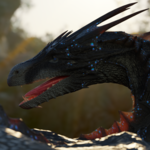
Explanation of the Armature
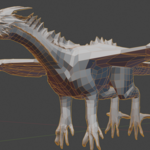
Red, Orange, Yellow: These bones are the main controls of the armature. For creating a pose, they are the ones to use. The orange bones are only for the front legs, while the yellow ones are for the hind legs. These are the only bones, that have English names. The others are primarily in German.
Violet: These bones are controlled by the red, orange and yellow bones, but can be also controlled by the user. That can be used to arrange details in a pose.
Light grey: These bones roughly control the face of the dragon, but there are no specialised Shape Keys connected to these bones.
Black: These bones are fully controlled by the red, orange and yellow ones. The black bones are used for: Ik, Spline IK, Muscles, Wiggle-Effects etc.
Blue: These bones are in use, when the Ragdoll-Animation is active.
Main bones without the wings
1) Origin: This Bone moves the entire armature.
2) Skin opening: This Bones control the opening and closing of the skin at the back and at the head of the dragon. You can use different bones to move just single parts of the skin or everything at once.
3) Main body: This bone moves the body of the dragon while the feet and head stay unmoved.
4) Spine: The left bone controls the position of the breast, while the right one controls the hip. The middle bone defines the curvature of the spine.
5) Tail: This bone drives the movement of the tail. A natural swing of the tail is achieved by damped track constraints. The tail collides with the floor (bone 16).
6) Neck: The left bone controls the position and rotation of the head, while the other two bones follow this movement. To achieve the expected curvature of the neck, you need to use the middle bone.
7) Eye: This bone controls the direction of view.
8) Mouth: This bone opens and closes the mouth.
9) Breathing: This bone drives deformations in the ribcage, the stomach and the shoulders to let the dragon breath.
10) Upper leg-Pole Bones: These bones are used to define the exact Position of knee, elbow and shoulder. They are mostly defined by the movement of the IK-Bone of each leg.
11) Hand and Foot Pivot: These bones can rotate the wrist and the ankle without a change in the position and rotation of the fingers or toes.
12) Grip/Spread: These bones drive the rotation of the fingers/toes to let the dragon grip things/spread its fingers.
13) Finger and Toe: These small Bones rotate the fingers/ toes without moving the entire foot/ hand.
14) Hand IK and Foot IK: These Bones control the position and rotation of the entire foot or hand.
15) Ragdoll drivers: This bone does not move anything itself, but in the bone properties you find the switches to control, which areas work as ragdolls and which doesn’t (Base armature to animate Ragdoll) or the switches to control, how much the dragon gets moved by the Ragdoll (Dragon controlling Armature Animated by Ragdoll). The switches are in the custom properties panel.
16) Floor: This bone works as collider for the tail movement.
Wings
1) Wing-Pole: This Bone controls the orientation of the elbow of the wing.
2) Wing Skin: This Bone helps to define the position of the skin at the wings arms.
3) Wing Pivot: This Bone rotates the hand around the knuckles instead of the wrist. This allows to use the wing as another foot, because you can rotate the hand when its touching the ground without moving the area of contact between the hand and the ground.
4) Wing IK: This bone defines the position and rotation of the wing. The fingers of the wing will react with some wiggle, when the wing-IK gets moved.
5) Wing opening: This bone drives the opening and closing of the fingers of the wing around the x-axis. The inner bone works better, if the hole wing is put to the dragon’s body. The outer bone works better, if the wing is spread open.
6) Wing for walking: This bone closes the wing in a way, that makes it usable to walk like a wyvern.
7) Wing curvature: this bone rotates the bones of the fingers around the x-axis to curve the wing skin and to allow the wing to catch the wing.
Fake-Wind for the fins along the neck and the spine
In the collection “Fake wind drivers” you will find six cubes, which rotate back and forth, when you play the animation. If you make them all visible and select them, you can change the amount of rotation within the graph editor. There you need t press “a” to select everything, then go to the F-curve-modifiers, press and hold alt and change the amplitude.
Have questions about this product?
Login to message
| Dev Fund Contributor | |
| Published | 7 months ago |
| Blender Version | 3.6 - 4.5 |
| Render Engine Used | Cycles, Eevee |
| Misc Data | Uvs-Unwrapped, Manifold-Mesh, Rigged, Animated, Low-High-Resolution, Normal-Mapped, Textured |
| License | Royalty Free |
