Quadify Bridge — AI Mesh Pipeline for Blender
 Anvil Interactive Solutions



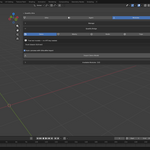
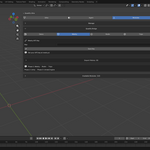
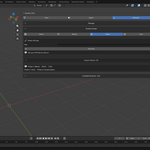
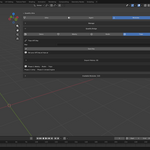
Quadify Bridge — Documentation
Version 1.0.0 · Requires Quadify Ultra 1.3.0+
Overview
Quadify Bridge is an expansion module for Quadify Ultra that connects your AI mesh generation tools directly to Blender. Import your latest generation from Meshy, Rodin, or Tripo with a single click. Bridge automatically runs Quadify Ultra's Smart Convert and Quality Pass on every import so your mesh arrives with clean quad topology and no manual cleanup required.
Requirements
- Blender 5.0 or later
- Quadify Ultra 1.3.0 or later (must be installed first)
- A free or paid account with Meshy, Rodin, or Tripo (optional — Demo mode works without any account)
Installation
- Install and enable Quadify Ultra in Blender if you have not already done so
- In Blender open the N-panel (press N in the viewport) and click the Quadify Ultra tab
- Click the Modules button in the top row
- Click Install Module (.zip) and select the bridge.zip file you downloaded
- Bridge will appear immediately in the Modules tab — no restart required
- Click Bridge in the accordion list to open the Bridge UI
Setting Up Your API Key
Bridge needs an API key for each provider you want to use. Demo mode requires no key.
- Open the Bridge UI (Modules → Bridge)
- Click the provider button at the top — Meshy, Rodin, or Tripo
- Paste your API key into the Key field
- Click Save Key
- Your key is stored locally in your Blender user directory and never sent anywhere except the provider's own API
Where to get your API key
- Meshy — meshy.ai → Account → API Keys
- Rodin — hyperhuman.deemos.com → Settings → API
- Tripo — tripo3d.ai → Account → API Key
Importing a Mesh
Import Latest (recommended) Click the Import Latest button to fetch your most recently completed generation from the active provider. Bridge downloads the mesh, imports it into Blender, and runs the Ultra pipeline automatically.
Import a Specific Generation
- Click Refresh to load your generation list
- Select the generation you want from the dropdown
- Click Import Selected
Demo Mode Select Demo from the provider row. No API key is needed. Choose from 6 free sample models and click Import Demo Model to test the full pipeline without any external account.
Auto-Process with Ultra
The Auto-process with Ultra toggle is enabled by default. When active, every import automatically runs:
- Smart Convert — converts the mesh to clean quad topology using Quadify Ultra's ML-routing pipeline
- Quality Pass — validates topology, checks for errors, and reports quad coverage
Disable this toggle if you want to import the raw mesh without any processing.
Import History
Bridge logs every import in a collapsible History panel at the bottom of the UI. Each entry shows the provider, mesh name, number of objects imported, and whether Ultra processing was applied. Click Clear History to reset the log.
Agent Integration
If you use Quadify Ultra's Agent Mode, Bridge registers the following command:
- bridge_import — imports a mesh from the specified provider
Example: "Import my latest Meshy generation and clean it"
Parameters:
-
provider— meshy, rodin, or tripo -
task_id— optional, omit to use the latest generation -
run_ultra— true or false, defaults to true
Troubleshooting
Module UI not available Reinstall Bridge via the Install Module button and restart Blender.
Module installed but load failed Restart Blender. This can occur on the first install in a session and resolves on restart.
Error: API key not saved Your key was not saved before importing. Enter your key in the Key field and click Save Key before attempting an import.
Import failed: No mesh objects in downloaded file The generation may still be processing on the provider's side. Wait for it to complete (check your provider's dashboard) then try again.
Fetching latest returns no results. Ensure you have at least one completed generation on the selected provider. In-progress or failed generations are skipped — only succeeded generations are fetched.
Timeout on large models Very large meshes (over 100MB) may timeout on slow connections. Try Import Selected on a smaller generation, or retry — the download will restart cleanly.
Uninstalling Bridge
- Go to Modules → Manage
- Click the trash icon next to Quadify Bridge
- Confirm the removal
- Bridge is uninstalled immediately without requiring a restart
Your API keys and import history stored in the Blender user directory are not deleted automatically. To remove them, delete the bridge_keys.json and bridge_history.json files from your Blender user preferences folder.
Roadmap
- Phase 1 (current) — Meshy, Rodin, Tripo import
- Phase 2 — Direct Unity project connection
- Phase 3 — Direct Unreal Engine 5 connection
Support
For support, bug reports, or feature requests, contact Anvil Interactive Solutions at [email protected] or visit quadify3d.com.
 Included
Includes 12 months of
- Support from Anvil Interactive Solutions
- Product updates
Extend this product’s Support Period +12 months: 50% of product price
Have questions before purchasing?
Login to message
| Sales | 10 |
| Published | 5 months ago |
| Blender Version | 5.0 - 5.1 |
| Extension Type | N/A |
| Render Engine Used | Blender-Internal, Cycles, Eevee |
| License | Mit |
Discover more products like this
quadify retopo module blender rodin meshy AI mesh from image automatic retopology 3d-asset-generation