 KushiroCG


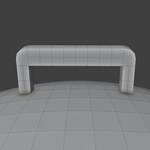
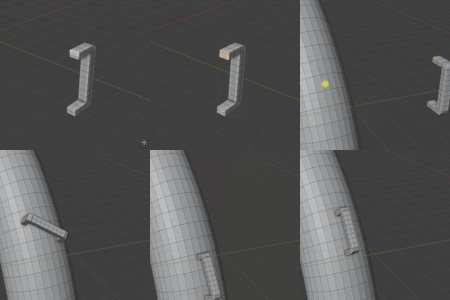
Usage
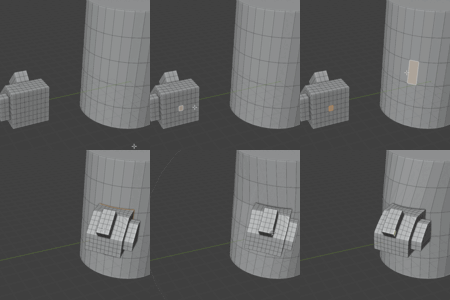
Go to Blender Edit mode, switch to Face mode.
Select the source faces (it can be 1 or multiple faces).
Then, hold the Shift key and select the destination face (1 face) on the target mesh. This is important because it will set the last face as Active Face (white edges in blender viewport). The tool will attach your source mesh to the Active Face.
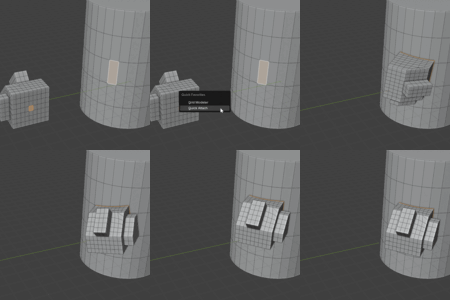
After running the tool, you can change the setting at the Left-Bottom of the screen :
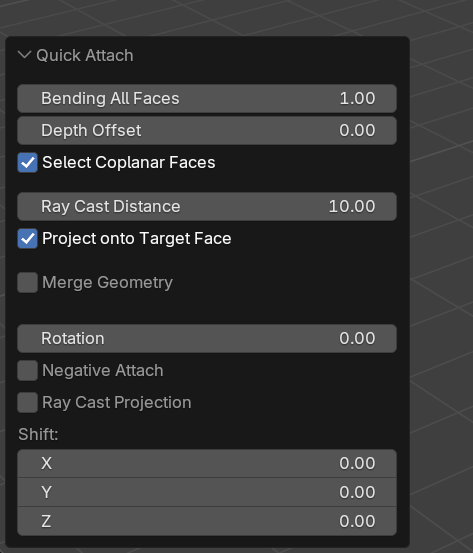
Bending All Faces : It is the amount of bending (except the attach faces). Zero means that keep all the faces unchange, 1.0 means that it bend with the curvature of the target surface.
Depth Offset : It is the vertical offset on the target surface. If it is negative, it will not touch the target face.
Select Coplanar Faces : When this is checked, it will use the "all" coplanar faces of your selected source faces as the source.
Ray Cast Distance : This is the setting to control "where to start the projection". It is the distance between the target face and the moved source mesh (moved to the position above the target face, along the face normal).
Project onto Target Face : This is an option for debug. If it is unchecked, then the tool will not do projection. It will just move the source mesh above the target face (along the face normal), then finish. You can turn off this option to see that what is going on, why the projection failed.
Merge Geometry : It will merge the source mesh with the target geometry.
Rotation : It rotate the attached mesh by the target normal.
Negative Attach : It will attach at the back of the surface.
Ray Cast Projection : It will use the normals of the source selected faces, then Ray Cast to any mesh. Then it attach the source mesh to the hit surface.
Shift : It will shift the attachment along the target surface.
How the tool works
There are two stages in the process
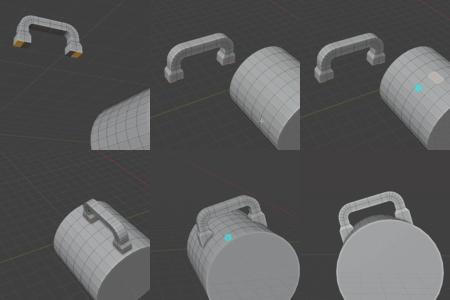
The tool moves your source mesh (the connected geometry part, based on your face selection) to your target face (the last selected active face, usually highlighted in white edges in 3D viewport). The source mesh will be placed just "above" the target face, offset by the target face normal.
The distance between the moved mesh and the target face is controlled by the setting "Ray Cast Distance".If the option "Project onto Target Face" is checked, then the tool will project the source mesh onto the curved target surface. The selected faces in source mesh will become curved and closely attached on the target surface. The other part of the source mesh will be also projected to the target surface, but keeping the height offset (original thickness). If the setting "Bending All Faces" is 1.0, then it is all bended by the target surface curvature. If it is 0.0, then it will not be bended and it will keep the original shape.
Troubleshooting
If it has problem, please check the followings
- This tool work for "one blender object". It attach two separated meshes inside one single object. However, it doesn't work for 2 different Blender Objects.
- Select the source face (1 face or many faces) on your source mesh. Do not select all faces of it. Only select the face that will be used to attach. The whole mesh will be moved automatically.
- Hold the shift key and select the "Target face" on the destination. Make sure that the target face is the "last selected face" (a.k.a. Active Face, highlighted in white color in Blender 3D viewport).
- Also make sure that the "Normals" of the source and target faces are correct and pointing outside.