Quick Landscape
 Anindya Jana


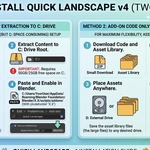
Installation Guide
This video is based on version 4.0
This video is based on version v3.0(old)
Product Documentation (based on v4.0)
Did you know that you can hover on almost any blender sliders, toggles, or drop down items to read their description? We pack a lot of information in our properties description. Taking time to hover in order to gather information is always a good reflex. If you feel that some items need more or better descriptions, contact us or join our Discord Server.
The Documentation is arranged panel wise for better and quick understanding.
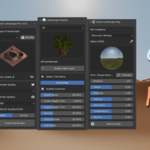
1. Quick Landscape Main Panel

1. Type of Landscape
All 200+ landscapes are categorized into the following types: All, Mountain, Hills, Desert, Plains, Plateau, Canyon, Cliff, Island, Crater, Others.
Selecting "All" shows every landscape in the library at once.
2. Shuffle Button
Click the Shuffle button to randomly pick a landscape from the current category — great for quick exploration.
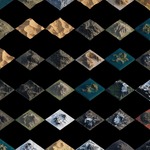
3. Landscape Preview Grid
Browse and select from visual thumbnails of all available landscapes. Landscapes marked with 8K have ultra high-resolution textures (8192x8192).
4. Mesh Preview Quality
The quality of the landscape in the viewport depends upon the number of vertices.
- Very Low - Approx vertices: 4K
- Low - Approx vertices: 16K
- Medium - Approx vertices: 64K
- High - Approx vertices: 256K
- Very High - Approx vertices: 1024K
The quality cannot be changed after creating the landscape, but you can adjust it by modifying the subdivision level in the modifiers panel.
5. Mesh Render Quality
Same quality tiers as preview, but applied only at render time. You can set a higher render quality without impacting viewport performance.
- Very Low - Approx vertices: 4K
- Low - Approx vertices: 16K
- Medium - Approx vertices: 64K
- High - Approx vertices: 256K
- Very High - Approx vertices: 1024K
- Max - Approx vertices: 4096K
6. Real World Scale (x2000)
If enabled, scales the landscape 2000 times, so the final dimension becomes 2000x2000 m2. If disabled, the landscape remains at 1x1 m.
7. World Origin
Sets the landscape spawn point - either at the World Origin (Center) or at the 3D Cursor location.
8. Create / Delete Landscape
Click "Create Landscape" to generate the selected landscape. If a landscape is already selected, the button changes to "Delete Landscape" which removes the landscape and any associated water/river objects.
2. Landscape Scatter Panel

1. Tree Category
Select the vegetation category to browse from: All, Broadleaf, Bush, Conifers, Desert, Grass, Tropical.
Selecting "All" shows every available vegetation at once.
2. Vegetation Preview Grid
Browse and select from visual thumbnails of all available billboard vegetation. The selected tree name is displayed below the grid.
3. Scatter Vegetation / Scatter New Layer
Click "Scatter Vegetation" to scatter the selected tree on the landscape. After scattering, the button changes to "Scatter New Layer" - this lets you add up to 5 different tree types on the same landscape, each as an independent layer.
Note: You must have a landscape selected to scatter vegetation on it.

4. Tree Slots (Multi-Tree Scatter)
After scattering, a row of Tree Slot tabs appears. Each slot represents a different tree type on the landscape. Click a tab to switch to that tree's controls. You can have up to 5 slots.

5. Scatter Controls (Per-Tree)
Each tree slot has its own independent controls:
-
Slope Factor - Adjusts tree distribution based on surface slope angle. Higher values place more trees on steeper slopes.
-
Lower Height Trim - Trims/removes trees from the lower elevation of the landscape.
-
Upper Height Trim - Trims/removes trees from the upper elevation of the landscape.
-
Density - Controls how many trees are scattered. Higher values = more trees.
-
Texture Scale - Trees are scattered based on a hybrid noise texture. This adjusts the scale of that noise pattern.
-
Tree Scale - Adjusts the physical size of the scattered trees.

6. Tree Material Controls
When a tree slot is selected, its material controls appear below:
-
Saturation - Adjusts the color saturation of the scattered trees.
-
Brightness - Adjusts the brightness of the scattered trees.
-
Translucency - Controls light passing through the tree leaves. Higher values create a warm backlit effect.
-
Deciduous - Controls the percentage of trees that appear leafless (deciduous).
-
Snow Coverage - Adds snow coverage to the trees. Higher values = more snow.
7. Remove Buttons
-
Remove This Tree - Removes only the currently selected tree slot and its scattered instances.
-
Remove All - Removes all tree slots and all scattered vegetation from the landscape.
When removing, the tree objects are also cleaned up from the scene automatically.
3. Landscape Material Panel

This panel appears only when a landscape object is selected. It shows the material name and texture resolution (4K or 8K).
Color Tint
-
Tint - Pick a color to tint the entire landscape surface.
-
Tint Factor - Controls the intensity of the tint color applied.
-
Saturation - Increases or decreases the color saturation of the landscape texture.
Color Contrast
-
Color Brightness - Makes the landscape colors lighter or darker.
-
Color Contrast - Increases or decreases contrast between light and dark areas.
-
Color Fade - Fades the overall color intensity of the landscape.
Reflection
-
Specular - Controls the amount of shiny highlights on the landscape surface.
-
Wetness - Simulates a wet/rainy surface appearance. Higher values = wetter look.
-
Metallic - Adds a metallic reflection to the landscape surface.
Height
-
Normal Strength - Enhances fine surface details and micro-bumps. Higher values = more detail.
-
Texture Displacement - Creates coarse surface displacement using a bump node. Higher values = more pronounced surface texture.

4. Landscape Tools Panel

This panel appears only when a landscape object is selected. It contains various tools for enhancing your scene.
1. Exponential Surface Fog
Creates a volumetric height-based fog system that sits on the landscape surface. Great for adding atmosphere and depth.
-
Fog Density - Controls how thick the fog is.
-
Fog Height - Controls the vertical extent of the fog.
-
Fog Texture - Adjusts the noise texture that shapes the fog.
Note: The fog modifier is automatically placed above scatter modifiers to avoid processing tree geometry.

2. World Fog
Adds a global atmospheric fog to the entire world/scene - independent of any specific landscape.
-
Fog Density - Controls overall world fog thickness.
-
Fog Glow - Adds a glow/bloom effect to the fog.
-
Fog Texture - Adjusts the noise pattern of the world fog.
-
Fog Scale - Controls the scale of the fog noise texture.
-
Fog Distortion - Adds distortion to the fog noise pattern.

3. Landscape Tiling
Creates a seamless, expandable tiled landscape using mirror arrays. Perfect for creating large terrains.
-
Array X - Number of tiles in the X direction.
-
Array Y - Number of tiles in the Y direction.

4. Landscape Cutoff
Adds a horizontal cutting plane that slices the landscape at a specified height. Useful for creating flat areas or plateaus.
-
Show Cutoff Plane - Toggle visibility of the cutting plane in the viewport.
-
Cutoff Height - Adjusts the vertical position of the cut.

5. Quick Landscape Sky Panel

Browse and apply HDRIs to your scene's world environment. Works independently - no landscape selection required.
1. Sky Category
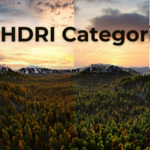
16 HDRIs are organized into 4 categories:
-
Pure Sky - Clean sky without mountain horizon.
-
Mountain Midday - Clear midday sky with mountain horizon.
-
Mountain Dawn/Dusk - Sunrise and sunset sky with mountain horizon.
-
Mountain Cloudy - Overcast and foggy sky with mountain horizon.
2. HDRI Preview Grid
Browse and select from visual thumbnails. Click "Apply Sky" to set the HDRI as your world environment, or "Change" to swap to a different one.

3. Sky Tweaking Controls
After applying a sky, the following controls appear:
-
Rotation - Rotates the HDRI around the Z axis.
-
Height - Moves the HDRI up or down.
-
Strength - Controls the overall brightness/intensity of the HDRI lighting.
-
Gamma - Adjusts the gamma curve of the HDRI.
-
Saturation - Controls the color saturation of the sky.
-
Temperature - Shifts the sky color towards warm (yellow) or cool (blue) tones.
-
Sky Tint - Applies a tint correction to the sky color.

6. Addon Preferences
Go to Edit > Preferences > Add-ons > Quick Landscape Pro to configure:
-
Asset Directory - Set a custom path to the Quick Landscape Pro asset folder. Leave empty to use the default addon installation directory. Useful if you want to store assets on a different drive.

Discover more products like this
3d asset library ocean #desert trees-library Quick Landscape landscape library GEO-SCATTER mountain terrain cliff island