Quick QC: Intelligent Asset Validation & Hybrid Repair Engine
 gemaxstudio



Quick QC Product Documentation (v1.0.0)
Industrial-grade 3D Asset QC & Repair Engine Presented by Gemaxstudio
1. Product Introduction
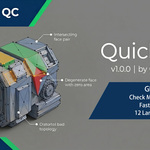
Quick QC is a high-end asset compliance validation plugin designed for professional 3D artists and studios. It serves as an essential bridge between creation and final export (game engines or rendering pipelines). Using automated scanning technology, it instantly identifies technical errors across models, materials, UVs, and transform data, providing a dual-mode solution: "One-click Auto-Fix" and "Precise Locate & Manual Repair".
Core Highlights:
12-Language Support: Fully localized for global teams.
Smart Typography Engine: Features "Kinsoku Shori" (line-breaking rules) for a superior visual reading experience.
Ghost Data Lock Purge: Automatically rebuilds underlying data during scans to ensure 100% result accuracy.
Rescue Engine: A powerful tool to recover corrupted
.blendfiles that crash upon opening.
2. Installation & Setup
2.1 Hardware/Software Requirements
Blender Version: 3.6.0 or higher.
Operating System: Windows / macOS / Linux.
2.2 Installation Steps
Open Blender and go to
Edit -> Preferences.Select the
Add-onstab and click the gear icon to chooseInstall.Select the
quick_qc.zipfile and confirm.Check the box to enable the plugin.
3. Interface Overview
The plugin is located in the N-Panel (Quick QC) tab on the right side of the 3D Viewport. We utilize a native multi-panel architecture to maintain a clean and professional interface.
3.1 Main Operations
Start Global QC Scan: One-click to initiate a full-spectrum validation of the scene.
Asset Density Heatmap: Visualize polygon distribution through colors (Blue to Red).
3.2 Threshold Settings (Pipeline Threshold Settings)
Customize the strictness of validations based on your project requirements:
High Poly Limit: Models exceeding this count are flagged as high-poly.
Triangle Ratio Limit: Controls the allowed percentage of triangles (Default: 15%).
Non-Planar Angle: Sensitivity for detecting distorted faces.
Max Texture Size: Prevents oversized textures from slowing down the engine.
4. Validation Categories & Rule Descriptions
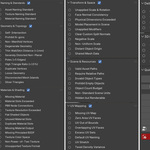
Quick QC categorizes rules into six industrial standards, with Red Warning Indicators appearing next to any category containing errors.
4.1 Naming & Standards
Asset Naming: Detects the required
SM_prefix; prohibits non-English characters, spaces, or dots.Material/Texture Naming: Checks for default Blender names like
Material.001.
4.2 Geometry & Topology
N-gons: Automatically finds N-sided faces and provides one-click triangulation.
Self-Intersection: Highlights areas where the mesh geometry overlaps itself.
-
Non-Manifold Vertices: Detects edges that cause UV or subdivision issues.
Note: Our optimized algorithm allows standard single-sided plane boundaries.
Degenerate Geometry: Clears zero-area faces or zero-length edges.
4.3 Materials & Shading
Missing Material: Flags "naked meshes" without assigned materials.
PBR Node Connections: Ensures essential nodes (BaseColor, Normal, etc.) are connected correctly for export.
4.4 Transform & Space
Unapplied Scale/Rotation: Prevents physics collision failures after export.
Placement Check: Ensures the bottom of the model is snapped to the Z=0 floor.
4.5 Scene, Resources & UV
Light/Camera Check: Prompts removal of non-mesh objects to keep the scene clean.
Relative Paths: Ensures all external textures use relative file paths.
UV Out of Bounds/Zero Area: Detects if UVs are outside the 0-1 quadrant or have collapsed.
5. Core Repair Workflow
Quick QC is built not just to find problems, but to solve them with precision.
5.1 Precise Positioning (Focus & Locate)
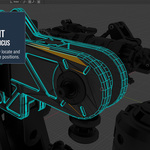
Every detected error features a "Focus" button. Clicking it automatically switches Blender to Edit Mode and zooms the viewport directly onto the problematic geometry.
5.2 Hybrid Fix Engine
One-click Auto-Fix: Best for naming standards, clearing degenerate points, and applying transforms.
Guided Manual Repair: For complex issues like self-intersection or topology distortion, the plugin maintains the highlight to guide your manual artistic corrections.
6. Professional Toolbox
6.1 Quick Process Toolbox
Includes the most frequently used shortcuts in daily production:
Sync Object Name to Material: Keeps your asset library organized.
Snap to Floor & Zero Coords: Instantly corrects model placement.
Purge Missing Textures: Forcefully removes invalid file paths.
6.2 The Savior: Rescue Broken Blend Files
Your ultimate safety net when a Blender file refuses to open or crashes immediately due to UI or cache corruption.
Operation Flow:
Launch a completely new, empty Blender scene.
Click the red "Rescue Broken Blend File" button at the bottom of the Toolbox.
Select the corrupted file in the dialog box.
The plugin bypasses the UI rendering layer and forcefully extracts all Objects and Collections from the underlying database into your safe scene.
Have questions about this product?
Login to message
| Blender Extension Compatible | Yes |
| Dev Fund Contributor | |
| Published | 5 months ago |
| Blender Version | 3.6 - 5.1 |
| Extension Type | Add-on |
| Render Engine Used | Cycles, Eevee |
| License | GPL |
Discover more products like this
rescue blend mesh check blender addon Quality Control uv check topology fix mesh qc naming standard ngon pipeline asset validation