Quick Tab | Fast-Track To Any Tab. The Smarter Way To Use Blender.
 Hugu's Works



Quick TAB - Documentation
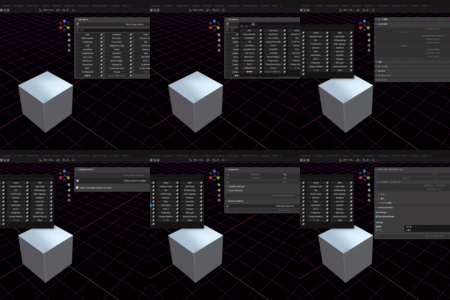
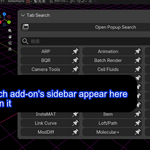
Quick TAB is a powerful workflow utility for Blender designed to eliminate the frustration of hunting through a cluttered Sidebar (N-Panel). It provides an instantaneous search and pinning system to keep your essential tools just a keystroke away.
1. Overview
As you install more add-ons, the Blender Sidebar becomes overcrowded and difficult to navigate. Quick TAB solves this by providing a searchable popup and a dedicated organization panel.
2. Key Features
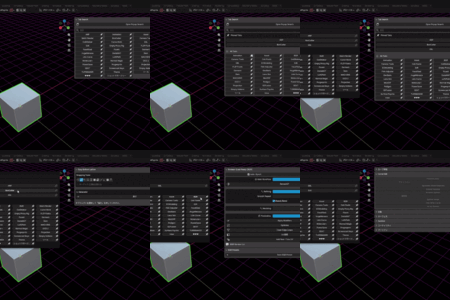
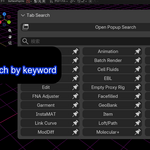
Instant Tab Search: Type the name of any tab to filter and switch to it immediately.
Pinning System: Favorite your most-used tabs to keep them at the top of the list for one-click access.
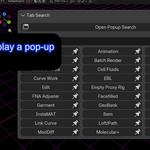
Clean Popup UI: A dedicated popup interface that allows you to switch tabs without moving your mouse to the edge of the screen.
Intelligent Filtering: Searches both the tab category name and internal panel labels to help you find exactly what you need.
3. Usage
Default Shortcut: Press
Ctrl + Shift + Tin the 3D Viewport to summon the search popup.Sidebar Access: Find the "Search" category in your N-Panel to use the search features directly from the sidebar.
Pinning: Click the Pin icon next to a tab name to add it to your "Pinned Tabs" section. Click the Unpin icon to remove it.
Switching: Simply click a tab name in the list or press Enter after searching to jump to that tab.
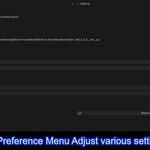
4. Customization (Add-on Preferences)
You can fine-tune the experience in Edit > Preferences > Add-ons > Quick TAB:
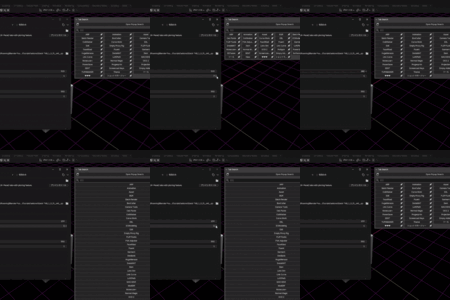
Grid Columns: Change the number of columns in the grid layout (1 to 10).
Max Results: Limit the number of search results displayed to keep the UI clean.
Popup Width & Padding: Adjust the physical size and spacing of the popup window to suit your monitor resolution.
Shortcut Toggle: Enable or disable the
Ctrl + Shift + Tshortcut as needed.
5. Troubleshooting: Keyboard Shortcut
If the Ctrl + Shift + T shortcut stops working or conflicts with another add-on:
Go to the Quick TAB Preferences.
Locate the "Keyboard Shortcut" section.
-
Click the "Restore Keymap" button.
This will scan for any user-overrides and re-register the correct operator ID (
quicktab.popup) to ensure functionality is restored.
Have questions about this product?
Login to message
| Sales | 20+ |
| Published | 8 months ago |
| Blender Version | 3.0 - 5.0 |
| Extension Type | N/A |
| License | GPL |
Discover more products like this
UI UX interface search productivity n-panel Addon Management pinning Sidebar popup quick access organization