Quick Tool Assistant
 Ahui Studio


Quick Tool Assistant Documentation
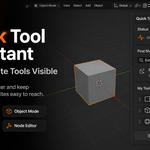
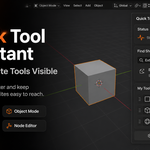
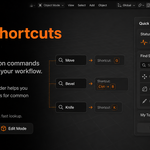
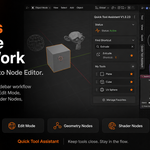
Quick Tool Assistant helps you keep your favorite Blender tools visible and easier to access while working.
It focuses on two workflow improvements:
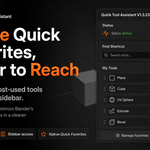
Keeping Blender's native Quick Favorites visible in the sidebar.
Helping you quickly look up shortcuts for common Blender commands.
The add-on is designed to stay close to Blender's native workflow. It does not replace Blender's own tools or create a separate favorite-tool system. Your favorite tools are still managed through Blender's native Quick Favorites.
Installation
Download the add-on ZIP file.
Open Blender.
Go to
Edit > Preferences > Add-ons.Click
Install.Select the downloaded ZIP file.
Enable
Quick Tool Assistant.Open the sidebar with the
Nkey.Find the
Quick Tool Assistantpanel.
After enabling the add-on, you should see:
StatusFind ShortcutMy Tools
Main Features
1. My Tools
My Tools displays Blender's native Quick Favorites directly in the sidebar.
This lets you keep your most-used tools close to your workspace instead of opening menus repeatedly.
You can use it to create your own quick-access tool area based on the tools you actually use.
Examples:
Object Mode tools
Edit Mode tools
Mesh editing tools
Node tools
Shader tools
Geometry Nodes tools
Your favorite tools can be added or removed at any time through Blender's own Quick Favorites system.
2. Context-Aware Favorites
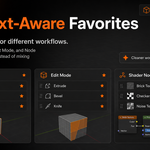
Quick Tool Assistant shows native Quick Favorites based on the current Blender context.
This helps keep different workflows cleaner and better organized.
For example:
Object Mode can show object-related favorite tools.
Edit Mode can show mesh editing favorite tools.
Shader Nodes can show shader-related favorite nodes.
Geometry Nodes can show geometry node tools.
Compositor can show compositor-related tools.
This helps avoid mixing unrelated tools together.
Your favorite modeling tools do not need to clutter your node workflow, and your node tools do not need to clutter your object workflow.
3. Add Favorite Tools
Quick Tool Assistant uses Blender's native Quick Favorites system.
To add a tool:
Find a Blender command, menu item, or tool you use often.
Right-click it.
Choose
Add to Quick Favorites.Open the Quick Tool Assistant sidebar.
The tool will appear in
My Toolswhen Blender's current context supports it.
Because this uses Blender's own Quick Favorites system, the behavior stays familiar and native.
4. Remove Favorite Tools
To remove a favorite tool, use Blender's normal Quick Favorites behavior.
In supported areas, you can remove items from Quick Favorites through Blender's native right-click menu.
Quick Tool Assistant does not create a separate favorite list and does not overwrite your Blender preferences.
5. Find Shortcut
Find Shortcut helps you quickly look up shortcuts for common Blender commands.
When you forget a shortcut, type the command name into the search field and click Find Shortcut.
Examples:
MoveRotateScaleExtrudeBevelKnifeLoop Cut and Slide
The add-on will show the related shortcut when it is available.
This is useful when following tutorials, learning Blender, or working quickly without stopping to search through menus or videos.
Recommended Workflow
A simple workflow is:
Add your most-used Blender tools to Quick Favorites.
Keep the Quick Tool Assistant sidebar open.
Use
My Toolsto access your favorite tools quickly.Use
Find Shortcutwhen you forget a common shortcut.Switch between Object Mode, Edit Mode, and Node Editor as needed.
This gives you a cleaner quick-access area while staying inside Blender's native workflow.
Supported Areas
Quick Tool Assistant is designed for common Blender workflows, including:
3D View
Object Mode
Edit Mode
Geometry Nodes
Shader Nodes
Compositor
Node Editor workflows
The visible favorite tools may change depending on the current Blender area and mode.
This is expected behavior and helps keep tools organized by context.
Important Notes
Quick Tool Assistant does not replace Blender's native Quick Favorites.
It mirrors Blender's built-in Quick Favorites into a more convenient sidebar workflow.
The add-on does not:
Change Blender's shortcut settings
Create a separate favorite-tool database
Replace Blender's native Quick Favorites menu
Require an account
Require a server connection
Require additional setup after installation
Shortcut lookup and favorite tools are separate features.
Searching for a shortcut does not automatically add that command to My Tools. To add a tool to My Tools, add it through Blender's native Quick Favorites system.
Troubleshooting
The My Tools section is empty
This usually means you have not added tools to Blender's Quick Favorites yet.
To fix this:
Right-click a Blender command or tool.
Choose
Add to Quick Favorites.Return to the Quick Tool Assistant panel.
Check
My Toolsagain.
Some tools only appear in certain modes or editors.
A favorite tool appears in one mode but not another
This is normal.
Blender's tools and Quick Favorites are context-dependent. A tool that belongs to Edit Mode may not appear in Object Mode, and a node-related favorite may only appear in a node editor.
A shortcut is not found
Some Blender commands may not have a simple default shortcut, or the shortcut may depend on your Blender keymap settings.
Try searching for the official Blender command name, such as:
ExtrudeBevelMoveRotateScaleKnife
Best Use Cases
Quick Tool Assistant is especially useful for:
Blender beginners
Tutorial learners
Users who often forget shortcuts
Artists who want favorite tools visible
Node users who want quicker access to common node tools
Anyone who wants a cleaner sidebar workflow
Keep your most-used tools close. Find shortcuts faster. Stay in the flow.
Have questions about this product?
Login to message
| Dev Fund Contributor | |
| Published | 3 months ago |
| Blender Version | 3.6 - 5.0 |
| Extension Type | N/A |
| Render Engine Used | Blender-Internal |
| License | GPL |

Discover more products like this
Sidebar productivity shader nodes modeling blender quick-favorites Shortcut Node Editor geometry nodes Workflow tools Add-on