Quick Tool Assistant
 Ahui Studio


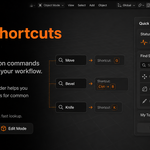
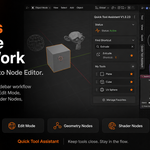
Does this add-on require an account, server, or online activation?
No.
Quick Tool Assistant does not require an account, server connection, or online activation inside Blender. After installation, you can use it directly in Blender.
Does Quick Tool Assistant replace Blender's Quick Favorites?
No.
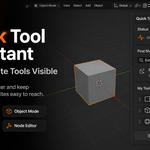
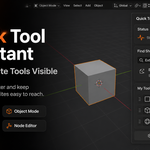
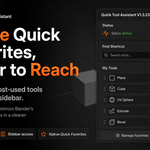
Quick Tool Assistant does not replace Blender's native Quick Favorites system. It mirrors Blender's built-in Quick Favorites into a more convenient sidebar workflow.
Your favorite tools are still managed by Blender. The add-on simply makes them easier to see and access while you work.
What shortcuts can I search for?
You can search for common Blender command names such as Move, Rotate, Scale, Extrude, Bevel, Knife, Loop Cut and Slide, Save, and Render Image.
For best results, use the official English Blender tool or command name.
Some Blender commands may not have a simple default shortcut, or the shortcut may depend on your Blender keymap settings.
Does the shortcut finder add commands to My Tools?
No.
Find Shortcut and My Tools are separate features.
Find Shortcut helps you quickly look up shortcuts for common Blender commands. My Tools displays tools that you added through Blender's native Quick Favorites system.
Searching for a shortcut does not automatically add that command to My Tools.
Why do My Tools change between Object Mode, Edit Mode, and Node Editor?
This is expected behavior.
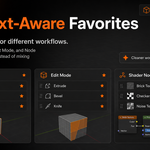
Blender tools are context-dependent, and Quick Tool Assistant follows that native behavior. Object Mode, Edit Mode, Geometry Nodes, Shader Nodes, and Compositor may show different favorite tools depending on where you are working.
This helps keep different workflows cleaner and prevents unrelated tools from being mixed together.
Can I remove tools from My Tools?
Yes. Favorite tools are managed through Blender's native Quick Favorites system.
You can remove items using Blender's normal Quick Favorites behavior. Quick Tool Assistant does not overwrite or replace your Blender preferences.
How do I add tools to My Tools?
Quick Tool Assistant uses Blender's native Quick Favorites system.
To add a tool, right-click a Blender command, menu item, or tool, then choose Add to Quick Favorites. After that, the tool will appear in the My Tools section when the current Blender context supports it.
The add-on does not create a separate favorite list. It makes Blender's own Quick Favorites easier to access from the sidebar.
$4.99
Have questions about this product?
Login to message
| Dev Fund Contributor | |
| Published | 3 months ago |
| Blender Version | 3.6 - 5.0 |
| Extension Type | N/A |
| Render Engine Used | Blender-Internal |
| License | GPL |

Discover more products like this
Shortcut productivity tools geometry nodes Workflow Add-on quick-favorites modeling shader nodes Node Editor blender Sidebar